
Searching for tips on the best YouTube to MP3 converter for Mac? If you’re juggling a mix of voice memos, lectures, and long mixes you want in your music apps without the video. I’m on macOS Tahoe, and I’ve tested the usual suspects. Below is what actually worked for me, with the pros, the caveats, and a plain-English setup guide.
I can’t write this kind of article without a little legal disclaimer. So queue the boring stuff: It might sound obvious, but you must make sure you only download content that you own, have rights to, or that states it’s clearly offered for free reuse. This guide is about tools and techniques, not bypassing licenses.
With so many tools out there, I’ve put this article together to spare you the trial-and-error and give you a clear picture of what to expect in 2026. So let’s get started.
What are YouTube to MP3 converters for Mac?
They’re utilities that fetch a video’s audio stream and save it as a standalone file, usually MP3 or M4A. In really simple terms, good ones do four things well:
- Grab clean audio at the highest available bitrate.
- Write basic metadata (title, artist, artwork)
- Handle batches without failing halfway.
- Keep up with changes in platforms' delivery formats.
Like most things, there’s more than one type of converter; here’s a closer look:
- Dedicated Mac apps with a drag-and-drop window.
- Command-line tools that are free, fast, and extremely reliable once set up.
- Web converters in a browser tab. I avoid these. Too many ads, too many clones. If you must, sandbox them in a temporary profile.
Before we head into the actual tools, let’s cover a couple of the basics.
MP3 vs M4A for YouTube audio on a Mac
When a tool converts a YouTube link, it usually grabs the site’s audio track, which is already compressed. On most videos, that track is AAC. That is why many Mac apps offer M4A by default. M4A is just AAC in a friendly wrapper.
So which should you pick?
- Pick M4A if you listen on a Mac, iPhone, iPad, or any modern player. You keep the YouTube AAC track as-is, so there is no extra quality loss. Files are smaller for the same sound.
- Pick MP3 if you plan to use an old car stereo, a very old TV, or random hardware that might not understand M4A. MP3 is the “works everywhere” format, with a tiny quality tradeoff because it re-encodes.
- Podcasts, lectures, interviews: 96 to 128 kbps is plenty.
- Most music: 192 kbps is the sweet spot.
- Pickier ears or live sets: 256 kbps if the source sounds good.
- Going above 256: usually wasted space for YouTube audio. It will not add detail that is not there.
Three myths to ignore
- Exporting at 320 kbps makes it sound better. From all my research, it does not. YouTube’s track is already compressed. Bigger numbers will not restore detail.
- M4A is Apple-only: Most modern apps and players read M4A just fine. It is broadly compatible.
- Re-converting fixes a bad file: Converting again only adds more loss. If it sounds rough on YouTube, it will sound rough in your download.
Ok, so we’ve covered all the need-to-know info on the YouTube to MP3 converter Mac.
The best YouTube to MP3 converters for Mac (2026)
Tool | Price model | Audio formats | Playlists | Tagging / Artwork | Speed on Apple silicon | Standout notes | Best for |
4K YouTube to MP3 | Freemium (limits in free tier) | MP3, M4A, OGG | Good (caps on free) | Basic tags, cover | Fast | “Paste link” simplicity, frequent updates | One-click, repeat jobs |
MediaHuman YouTube to MP3 | Free / optional license | MP3, M4A | Good | Auto tags, artwork | Fast | Clean batching, sensible defaults | Set-and-forget GUI |
ClipGrab | Free | MP3, OGG, more | Basic | Minimal | Medium | Tiny, very simple | Occasional use |
VLC | Free | MP3, OGG, FLAC | Manual | None/minimal | Medium | Great as a converter for local files | Last-resort converter |
1. 4K YouTube to MP3
Well-known, it’s a clean Mac app, fast, updated often, and it handles playlists well. Good balance of simplicity and control.
First conversion
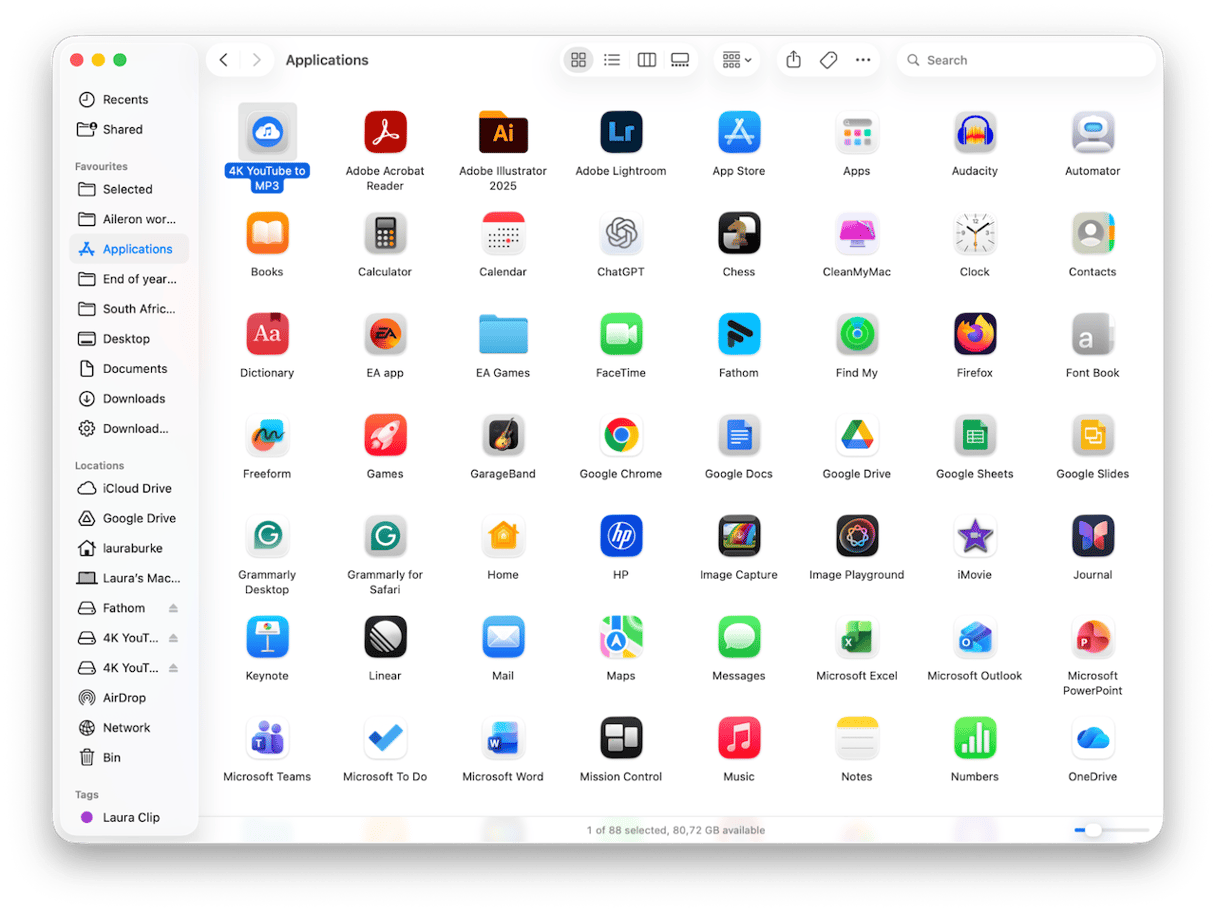
- Once you’ve installed the app, copy a YouTube link.
- Click Paste Link in the app. It will fetch and convert automatically.
- For playlists, paste the playlist URL. Confirm the count and start.
Important to know
- The free tier may cap playlist size or speed.
- If downloads crawl, pause, then resume, or try again later.
- Metadata is pretty basic, and artwork is only added when available.
2. MediaHuman YouTube to MP3
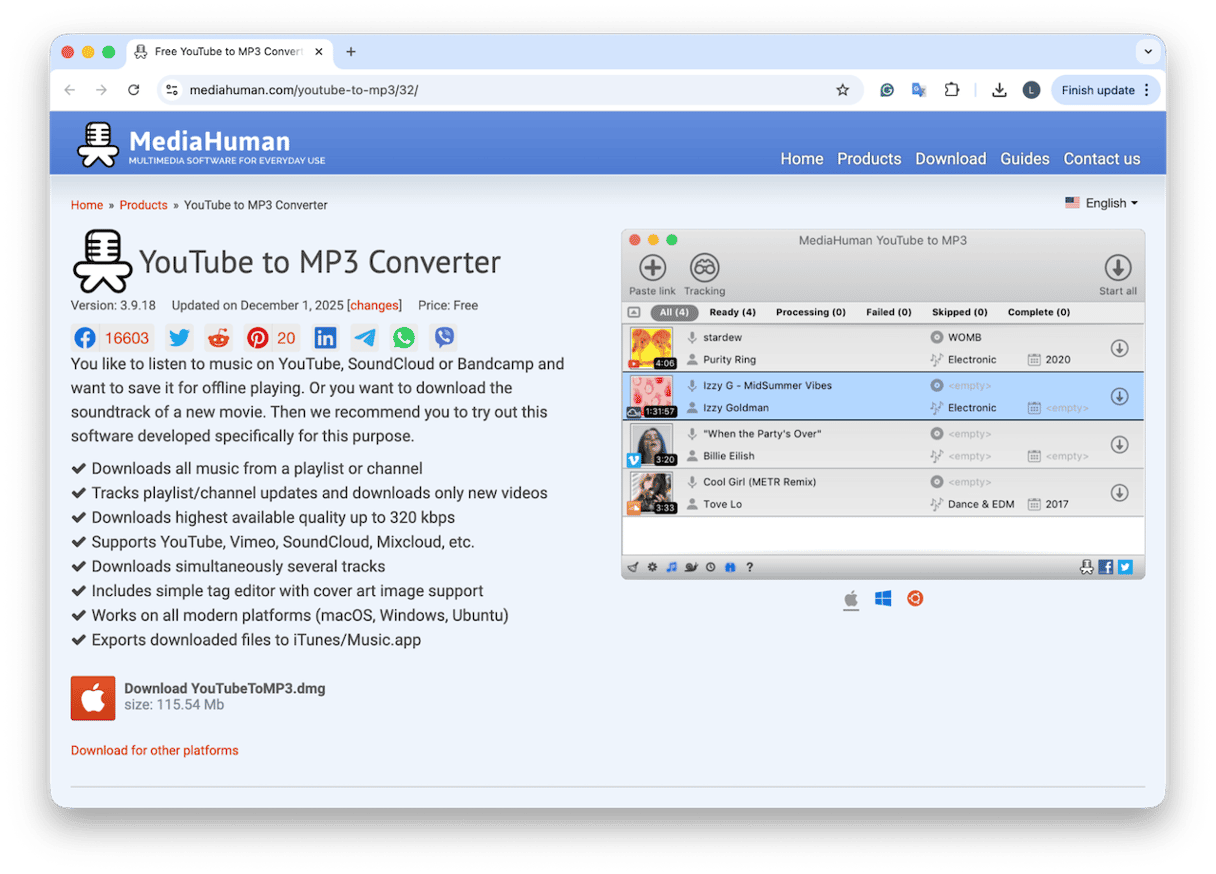
This tool has a really simple interface, but stronger tagging and artwork embedding than many GUI tools, and it comes with a pretty solid batch behavior.
First conversion
- Once you’ve installed it, paste one or more links into the main window.
- Click Start. Watch progress and tags populate.
- Use the Search cover if the artwork is missing.
Good to know
- I found it to be reliable with long interviews and lectures.
- If a link fails, remove it, repaste, and start again.
3. ClipGrab (Ultra-simple GUI for occasional use)
It’s simple, and that’s what I like about it. Literally, paste the link, pick MP3, done. Great for a once-in-a-while conversion.
First conversion
- Download the free installer and paste your link into ClipGrab.
- Click, grab this clip.

Good to know
- It is not as resilient to frequent site changes. If a link fails, try again later or switch tools.
- Metadata support is minimal; tag afterward in Music if you are picky.
4. VLC (best as a converter, not a fetcher)
Ok, this one is a little unorthodox, as it’s not considered a pure YouTube to MP3 converter for Mac, but since so many people already have VLC installed on their Macs, and it’s free and so well-used, it seems like it belongs in this guide.
The direct YouTube links in VLC are hit-or-miss (I wouldn’t waste time trying them). I treat it purely as a converter after download, not an MP3 YouTube downloader itself. VLC can literally convert anything; here’s how:
- Open VLC > File > Convert/Stream.
- Drag your video file into the window.
- Pick Audio – MP3 profile.
- Then, press Save As File, choose a destination, and Save.

Extra bonus tips
Create a YouTube Audio folder and set it as the default output in whichever converter tool you choose from this list. I personally opt for M4A for AAC sources and MP3 for older players. For long playlists, prevent sleep on your Mac so conversions finish and tags save correctly.
YouTube to MP3 converter Mac: Keep your MacBook in top shape
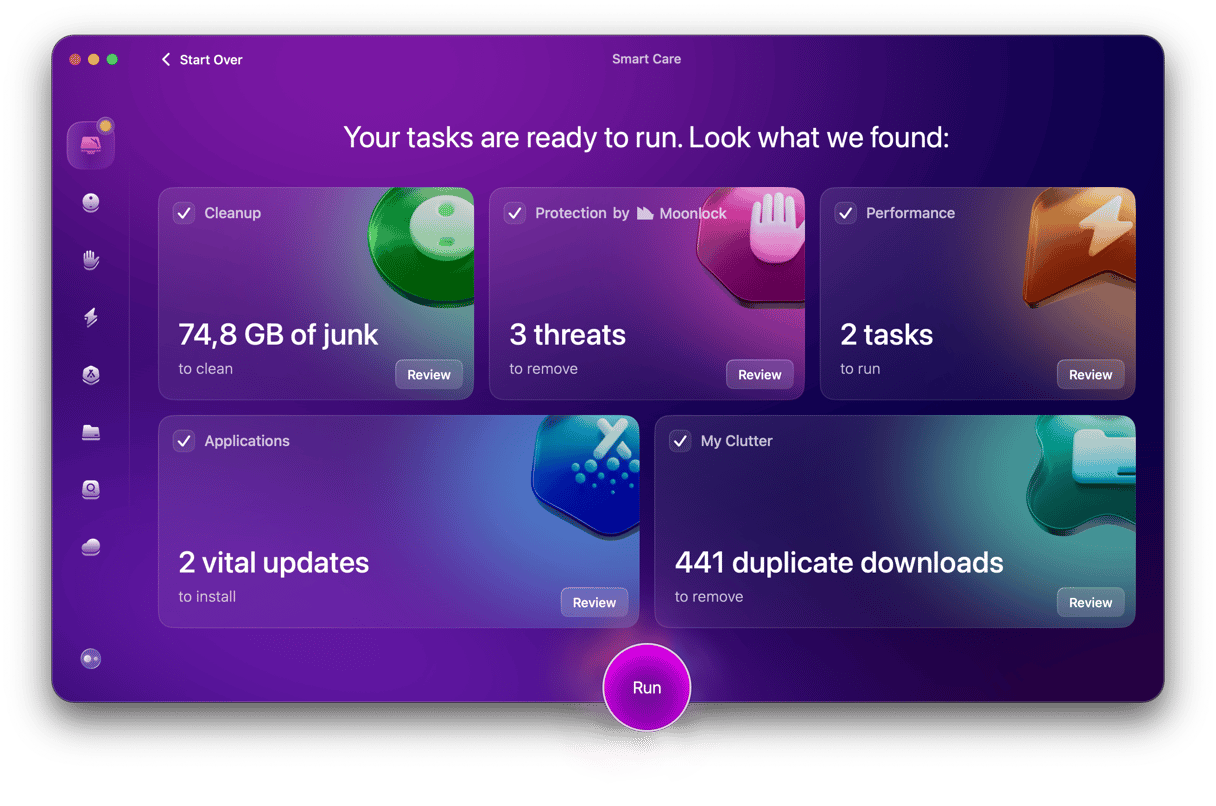
Big audio batches and downloads will stress your Mac's storage and caches. After a long session of grabbing lecture audio, I always run the Smart Care feature from CleanMyMac to sweep system junk, check for threats with Moonlock Engine, and tidy performance tasks.
Important to mention that it doesn’t boost audio quality or change your downloads. It ‘s really about keeping your storage and system stable while you're downloading and converting. Here’s how to use it:
- Open CleanMyMac — get your free trial here (free for 7 days).
- Click Smart Care > Scan.
- Run tasks to free up space and keep your Mac optimized.
When it comes to selecting the right YouTube to MP3 on Mac, it is less about clever tricks and more about picking a workflow that doesn’t work against you. I hope this article has helped you make the right choice. And remember, make sure you have permission to download before you hit the download button.
Frequently asked questions
What bitrate should I pick?
This is actually a really good question, and I always match the source. 192 or 256 kbps is a safe default. Choosing 320 kbps does not improve a 160 kbps source; it only makes a larger file.
Can I run MP3 converters on an older Intel Mac?
Yes, but there’s going to be a few caveats to that. You’ll need to check compatibility, and you might expect conversions to take a bit longer. One way you can help is to make sure you limit concurrent jobs and make sure you’re connected to a stable Wi-Fi connection.
Will my Mac going to sleep interrupt long playlist conversions?
Yes. When the Mac sleeps or the display sleeps with aggressive energy settings, network activity and background conversions can pause or fail. If you’re processing a very long queue, keep the Mac awake until the queue finishes so every file completes cleanly.
Can these tools add tracks straight into the Music app library?
Most apps save finished files to a folder you choose. So you’ll likely need to tweak the setup and settings if you want them saved somewhere specifically.
What's the best, free or paid tools?
This is one of those questions that is going to change per user; it all depends on what you’re after. You absolutely don’t need to pay for a YouTube MP3 converter tool, although you can if you want; the free ones recommended in this article do the job just as well.