If you spend much of your working life coding and use a laptop to do it, you’ll know that choosing a new MacBook isn’t as easy as it used to be. A few years ago, Apple’s MacBook Air lineup was underpowered and lacking in features, such as a retina display, that programmers and coders needed in a professional machine. Now, however, the difference between the top-end of the MacBook Air range and the entry point to its MacBook Pros is much closer, and so the difference is less obvious. There’s a lot to consider. So, in this article, we’ll show you which is the best MacBook for coding and tell you everything you need to know before you buy.
How to choose the best MacBook for coding: Display
Apple’s MacBook range has screen sizes spanning 13in to 16in. The good news is that they all, including the brand new MacBook Neo, have liquid retina displays, so text is pin sharp on all of them. them. If you use a laptop mostly with its own screen, rather than plugging it into an external monitor, the 13in 2408x1506 pixel display on the Neo may be a little small. The Neo is also limited to the sRGB color gamut, while the MacBook Airs can display more colors more accurately, thanks to their Wide Color (P3) profile and True Tone technology. In terms of screen size and color accuracy, the 15in MacBook Air is a great choice. It has a larger screen area than the 14in MacBook Pro, albeit with fewer pixels thanks to the 14in Pro’s higher pixel density. Nevertheless, given the price difference between the Air and Pro, it’s a great choice (something we will say more than once about the 15in Air in this feature).
If you spend most of your time sitting at a desk and use your MacBook in clamshell mode, then screen size is less of an issue. But the ability to support multiple displays might be. That eliminates the MacBook Neo, which only has USB-C ports and can only connect to a single display. The 13in MacBook Air, by comparison, can connect to two 4K displays at 144Hz or two 6K displays at 60Hz from one of its two Thunderbolt ports and still allows you to use its own display. If you want to use more than two displays or two displays at higher resolutions or refresh rates, you’ll need a MacBook Pro.
How to choose the best MacBook for programming
Battery life
If you do much of your coding away from your desk, battery life is an important consideration. The last thing you want is to be deep into an hours-long coding session and have to go hunting for a charger or power outlet. Happily, even the Neo is good for up to 11 hours of wireless web use or 16 hours of video streaming. And the Air and Pro models improve on that. So, whichever MacBook you choose, you can be sure that with a full charge, it will last the day. One thing to bear in mind if you’re thinking about the Neo and decide to charge it while you’re away from home or your office is that it uses its USB-C port to charge. That obviously leaves one fewer USB-C port for other things, but it’s also less safe than the MagSafe connector, which falls out if someone snags or trips over the cable while it’s plugged in.
Expansion
Expansion isn’t as big a consideration for coders as it is for, say, photographers. But it’s still good to know that you can back up to an external SSD or USB stick if you need to. The good news here is that every MacBook has at least two USB-C slots, with the Airs having two Thunderbolt slots instead, and the Pros having three Thunderbolt connectors. The Pros also have an SDXC card slot if you need it, and an HDMI port.
Keyboard and trackpad
The keyboard and trackpad are very important for all Mac users, but given the amount of time coders spend tapping on the keys, they are even more important here. Every MacBook has Apple’s Magic Keyboard and all but the 256GB Neo have a TouchID sensor. The Airs and Pros have an ambient light sensor and Force Touch trackpad. The Neo has a Multi-Touch trackpad. In reality, most people won’t notice a difference between the Multi-touch trackpad and the Force Touch trackpad. The latter uses haptic feedback to simulate clicking and allow deeper presses. Those deeper presses are used for shortcuts in some applications. Unless you’re wedded to those deep-press shortcuts, however, the Multi-touch version is just fine.
You can, of course, use any USB or Bluetooth keyboard or mouse with any MacBook, and if you are using your MacBook in an office or at home with a larger display, this is what you likely do.
Performance
There are very few areas of coding that demand the kind of performance offered by Apple’s top-end MacBook Pros – at the time of writing, the M5 Max and M5 Pro. And for most programmers, these machines are overkill. It would make more sense to go for a less expensive machine, either an Air or Pro, and use some of the difference in price to add more RAM or extra storage. Perhaps one exception is if you plan to run an AI large language model (LLM) locally, rather than logging into an online account and running it on a remote server. LLMs are optimized for discrete GPUs such as those made by Nvidia and AMD and struggle with Apple’s integrated system. So, to run an LLM locally on a Mac, and especially with an eye to future releases of these models, you should choose the most powerful Mac that fits your budget.
How to choose the best MacBook for programming: The options
MacBook Neo
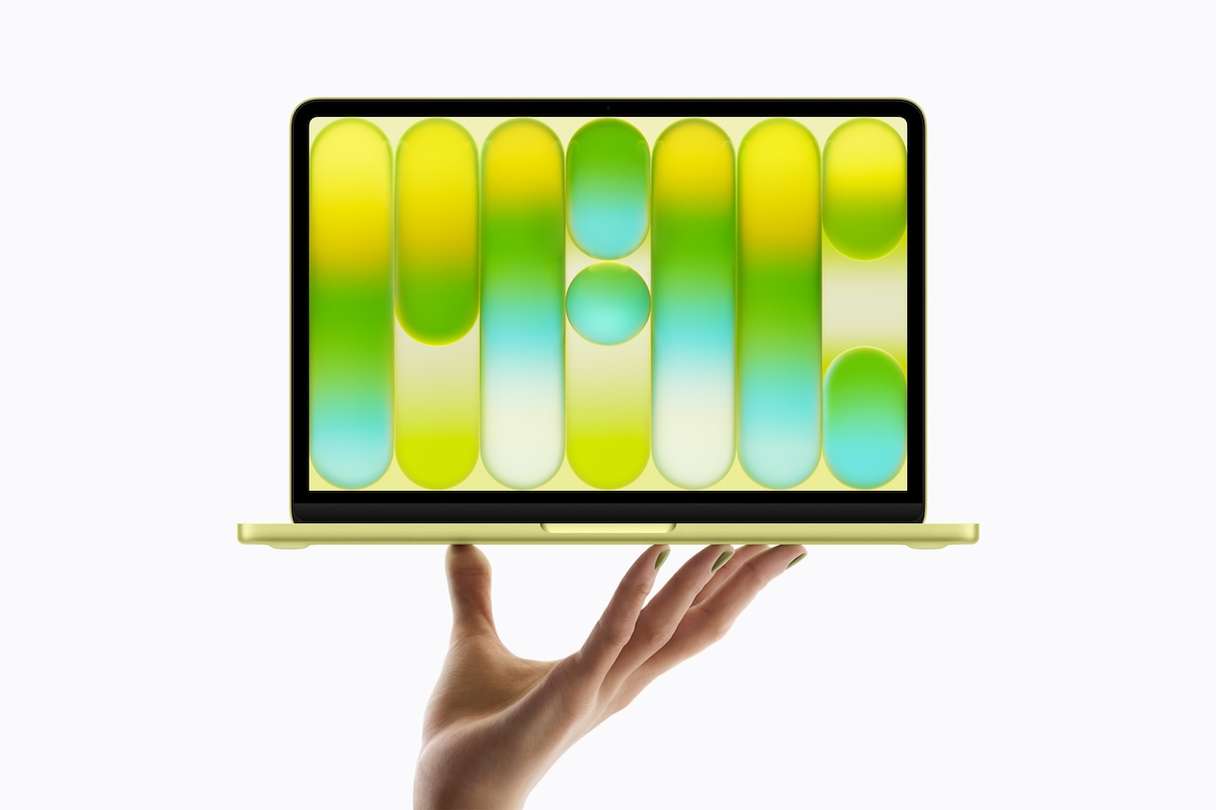
The Neo is the newest entrant to Apple’s MacBook range. Based on an A18 Pro system-on-a-chip, it features the same chip as the iPhone 16. It also has two USB-C (one USB 2 and one USB 3.1) ports, 8GB RAM, and a 13in screen. Storage in the basic model is 256GB, and there’s also a 512GB option. Despite being significantly less powerful than even the 13in MacBook Air, the Neo is a very capable MacBook. And if you don’t mind the small screen and lack of connectivity options, it’s a great budget MacBook that will handle basic coding and scripting tasks without a problem.
Plus: Great price + can handle basic coding and scripting
Minus: Small screen + limited connectivity options
MacBook Air M5 13in
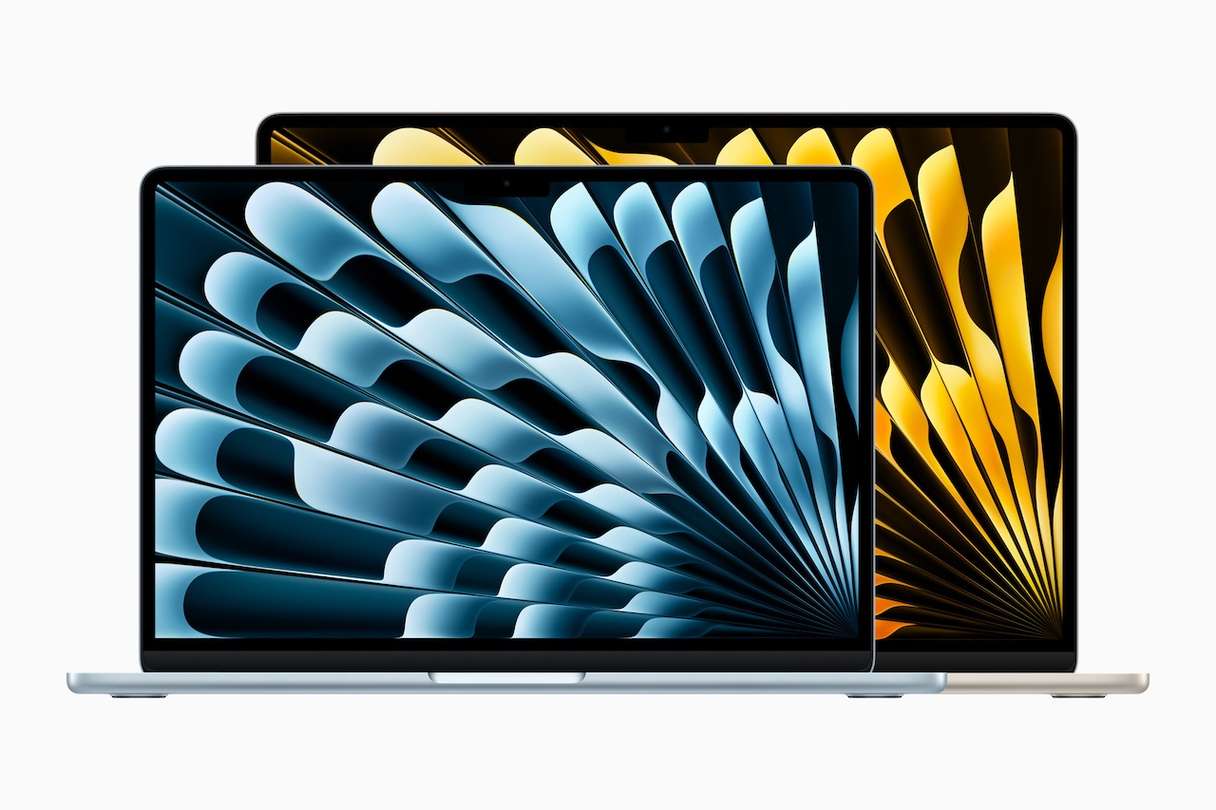
Compared with the Neo, the MacBook Air has the latest generation of Apple silicon, the M5. It also has 16GB RAM, a couple of Thunderbolt ports, and a MagSafe connector. The screen is both larger (at 13.6in) and better than that in the Neo. Storage starts at 512GB and can be configured up to 4TB. There are three ‘off-the-shelf’ options for the 13in Air, one with 16 GB RAM and an 8-core GPU, one with 16GB RAM and a 10-core GPU and one with 24GB RAM and a 10-core GPU. From a programmer’s point of view, there’s not a great deal of benefit in the additional $500 cost of the 13in Air. The screen is only a little better, and the additional power, while welcome, may not make much difference for most tasks – anyone who needs real computing power should be looking at a Pro.
Plus: Slightly bigger screen than Neo + 16GB RAM + MagSafe connector
Minus: Screen is still quite small
MacBook Air M5 15in
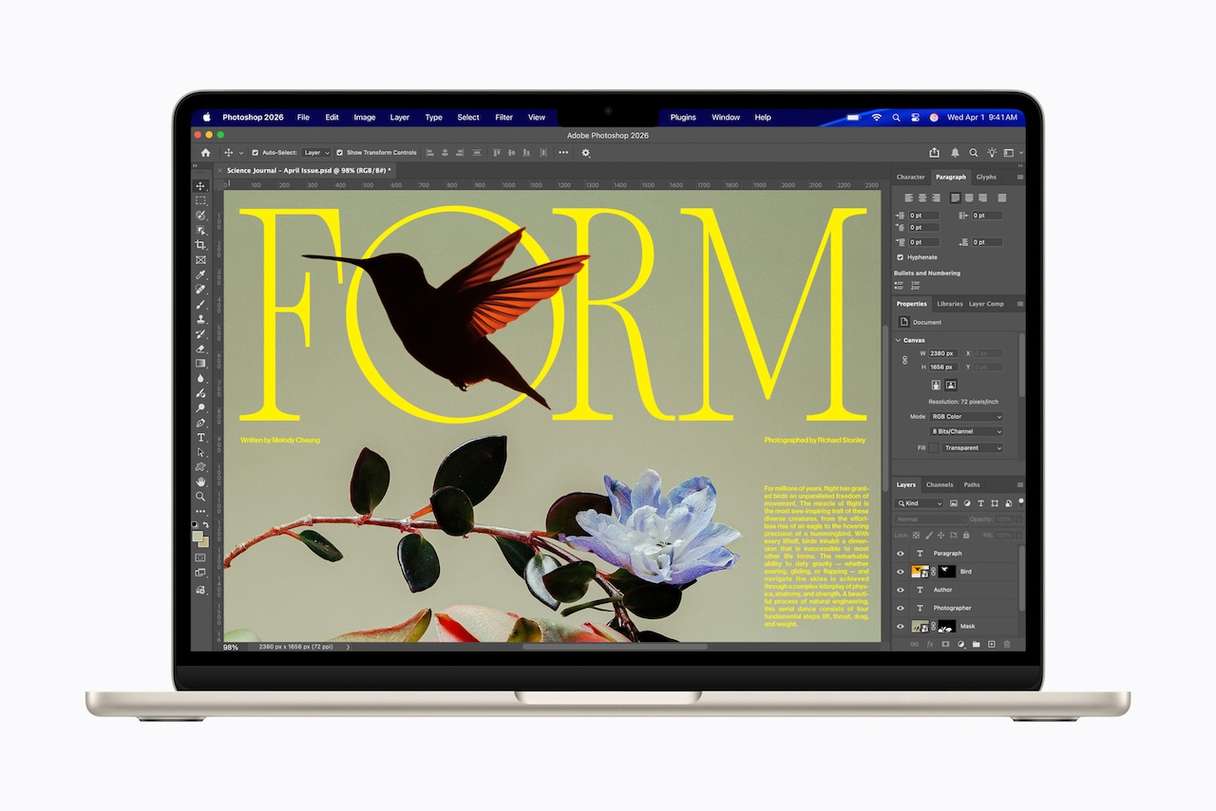
The primary difference between the 13in and 15in MacBook Airs is, of course, screen size. That extra couple of inches of screen real estate translates to 320 more pixels horizontally and a couple of hundred more vertically. That’s a noticeable difference when you’re working with multiple windows on screen. The knock-on effect of that larger screen is that the MacBook Air 15in is bigger and heavier than the 13in model. However, it’s still light and thin by the standards of most laptops and is easy to carry around. In terms of power, the 15in model uses the same 10-core CPU and 10-core GPU as the top two 13 in models. This time, models are differentiated by RAM and storage space:
- One with 16GB RAM and 512GB SSD
- The second with 16GB RAM and 1TB SSD
- The top model in the range with 24GB RAM and 1TB SSD
Plus: Bigger screen than Neo or 13in MacBook Air + Powerful enough for most programming tasks
Minus: Slightly heavier than 13in MacBook Air
MacBook Pro M5 14in
If you need even more power than the MacBook Air 15in can offer, you’ll need a MacBook Pro range. That range starts with the 14in M5 model. It has a smaller physical screen than the 15in Air but more pixels, thanks to a higher pixel density. The screen is also twice as bright as the Air, something you might appreciate during long coding sessions. The Pro has the same 16GB RAM as the Air, but the base model has twice as much storage, 1TB. Crucially, it also has a bigger battery, one that Apple claims will last for up to 24 hours between charges. More realistically, it will run for 16-18 hours for light coding work, and 10-12 hours for more intensive work. The M5 chip in the base model is exactly the same as that in the M5 Air – 10 CPU and 10 GPU cores with 16-core neural engine and 153GB/sec memory bandwidth. However, it’s only $400 more than the Air, half of which is accounted for by the additional storage space. And the Pro has an additional Thunderbolt 4 port, HDMI interface, and SDXC card slot. Compared with the other MacBook Pros in Apple’s lineup, it’s something of a bargain.
Plus: Bright, high pixel density screen + long battery life + 1TB storage
Minus: Only Thunderbolt 4
MacBook Pro M5 Pro 14in
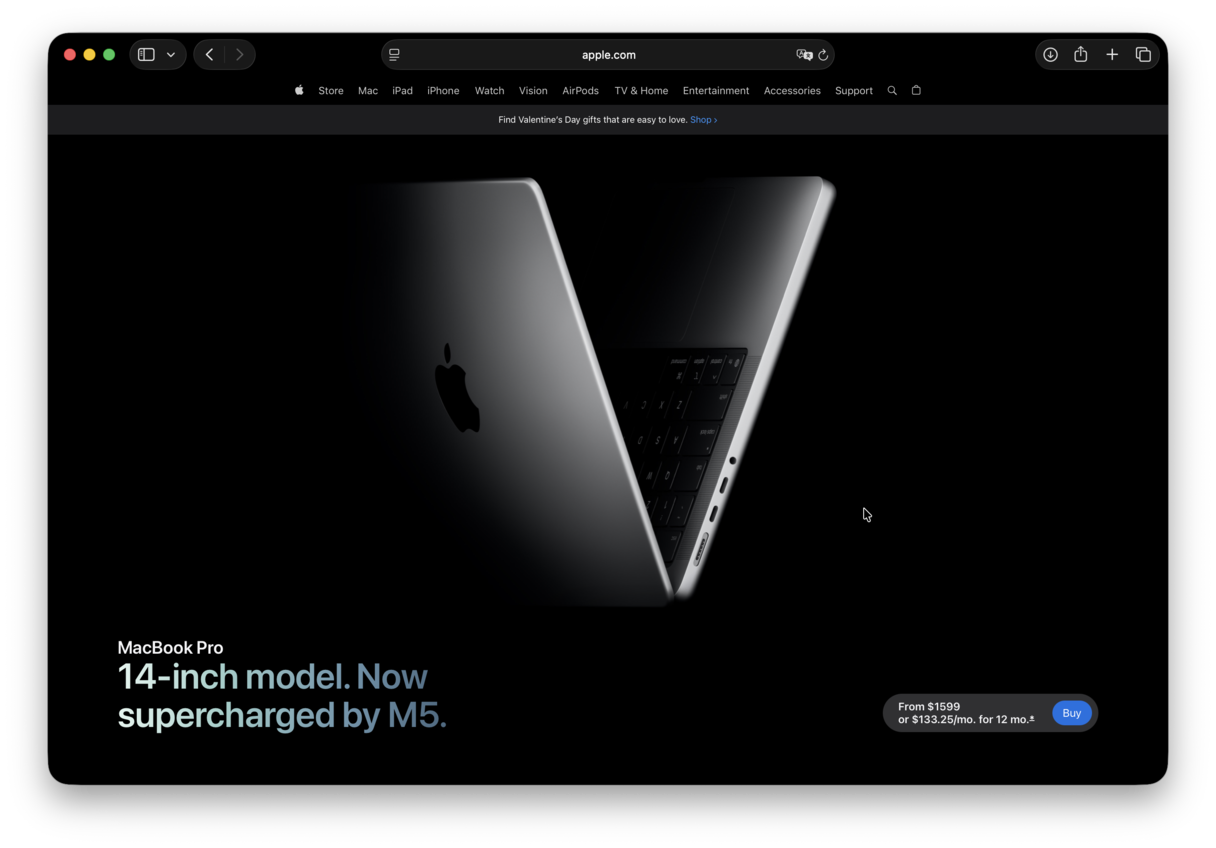
The next step up in the MacBook Pro range is the 14in M5 Pro. It’s $500 more than the 14in M5, and for that, you get 15 CPU cores and 16GPU cores. You also get 24GB of RAM instead of 16GB. Memory bandwidth on the M5 Pro system on a chip (SoC) is also significantly improved, at 307GB/sec. All the extra power comes at a price, though, and not the one on the tag. Battery life on the 14in Pro M5 Pro is slightly reduced compared to the M5 model. Apple claims 22 hours instead of 24. On the plus side, it has Thunderbolt 5 ports instead of the Thunderbolt 4 connectors on the M5 14in model.
Plus: Wider memory bandwidth + More CPU and GPU cores + Thunderbolt 5
Minus: Shorter battery life than 14in M5
MacBook Pro M5 Max 14in
The M5 Max is the fastest chip Apple offers in a MacBook and will remain so until its M6 variant is released. It has 18 CPU cores and a whopping 32 GPU cores. Base memory is 36GB and storage starts at 2TB. Pretty much everything else is the same as the M5 Pro version of the 14in MacBook Pro, except for battery life, which is slightly reduced again – Apple claims 20 hours on this model. The other downside is the price. You’ll need to find an additional $1500 for this model. That means that for all but the most intensive programming tasks, such as those involving large language models, the M5 Max is not the ideal choice.
Plus: Hugely powerful + Lots of RAM and acres of storage space
Minus: Eye-wateringly expensive
MacBook Pro M5 Pro 16in
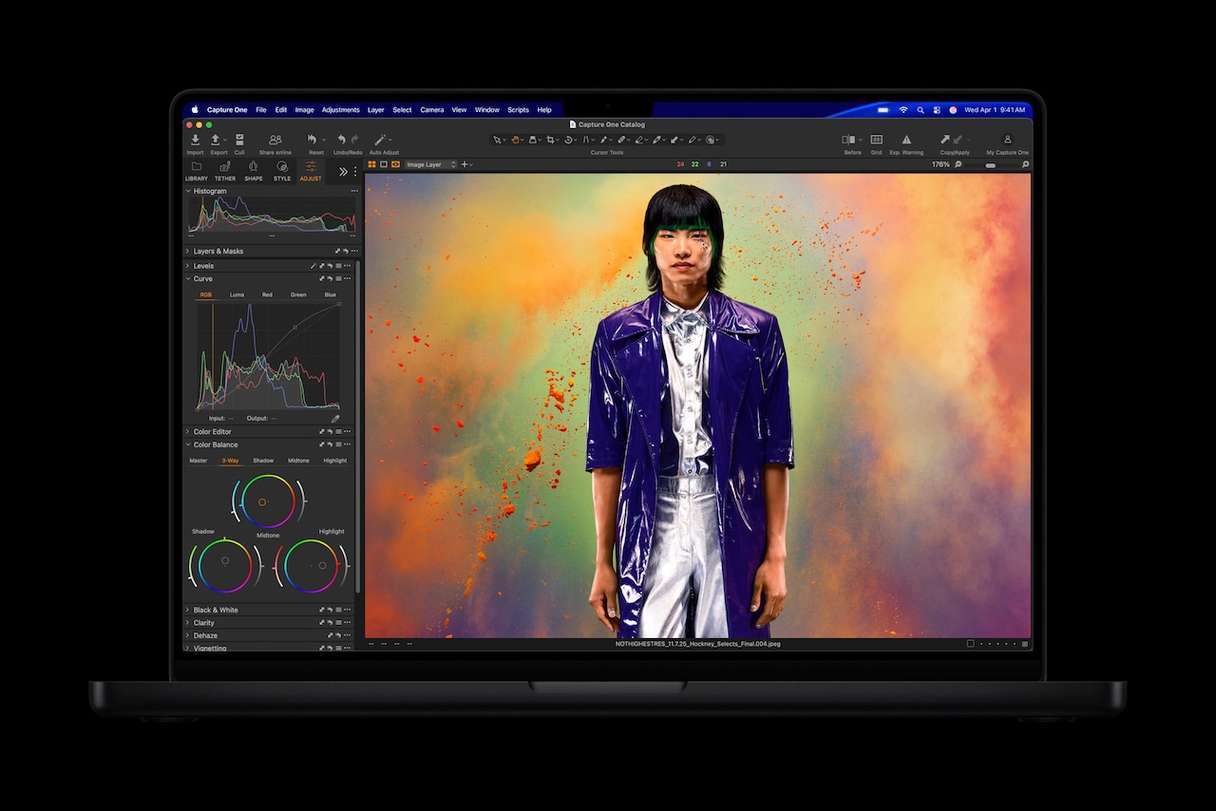
If you have a little more money to spend than the price tag on the 14in M5 Pro, the 16in may be a good option. That additional screen space accommodates an extra 430 pixels horizontally and 270 vertically. In addition to the larger screen, the M5 Pro 16in model’s SoC features three more CPU cores and four more GPU cores than the 14in model. It also has slightly better battery life – Apple claims 24 hours. Everything else is the same as the 14in M5 Pro model other than the weight. Both 16in models are around 1.1 pounds (0.5kg) heavier than their 14in counterparts.
Plus: Large screen + good battery life
Minus: Heavy compared with the 14in model
MacBook Pro M5 Max 16in
The most powerful MacBook in Apple’s current lineup is the 16in M5 Max. However, all that power comes with a seriously hefty price tag. The M5 Max 16in is $1200 more expensive than the 16in M5 Pro and $300 more than the M5 Max 14in. The difference between the M5 Pro 16in and M5 Max 16in is more or less the same as that between the M5 Pro 14in and M5 Max 14in – 18 CPU cores and 32 GPU cores, except that it matches the 16in M5 Pro’s 18 CPU cores rather than adding three cores as the 14in Max does compared with the Pro. The 16in Max has 32 GPU cores, the same as the 14in Max. It also has the same 2TB storage as the 14in Max. Battery life in the 16in versions is a little better than the 14in model – Apple claims 22 hours.
Plus: Fastest MacBook Apple makes + large screen
Minus: Very expensive + heavier than 14in version
The best MacBook for programming
Among all those options, there’s a sweet spot. A point at which raw power, portability, screen space, and price converge and make one MacBook a better choice than the others. And that machine is the MacBook Pro 14in. It’s significantly less expensive than the 14in Pro and Max versions and the 16in models, yet it offers more than enough power for most programming needs. It’s also not that much more expensive than the 15in MacBook Air when you take into account the additional storage, screen real estate, battery life, and the third Thunderbolt 4 port, as well as the HDMI connector and SDXC slot. If you have money left in the budget, you can add more RAM or storage, or choose a nano-texture display, which will reduce glare and reflections in bright lighting conditions such as an office or coffee shop.
If your budget won’t quite stretch to a 14in Pro, then the 15in Air is also an excellent choice.
How to keep your Mac running smoothly
Whichever MacBook you choose, one thing is guaranteed: when you first use it, it will seem lightning fast. Applications will open quickly, compiling code will be buttery smooth, and moving from one app to another will be seamless.
However, as you use your MacBook, it will gradually slow down and run less smoothly. There are several reasons for that: the junk files and clutter that accumulate can conflict with other files and cause your Mac to slow down, as can the background tasks and login items that are added over time. Then, there’s the possibility of downloading malware and the need to update applications regularly.
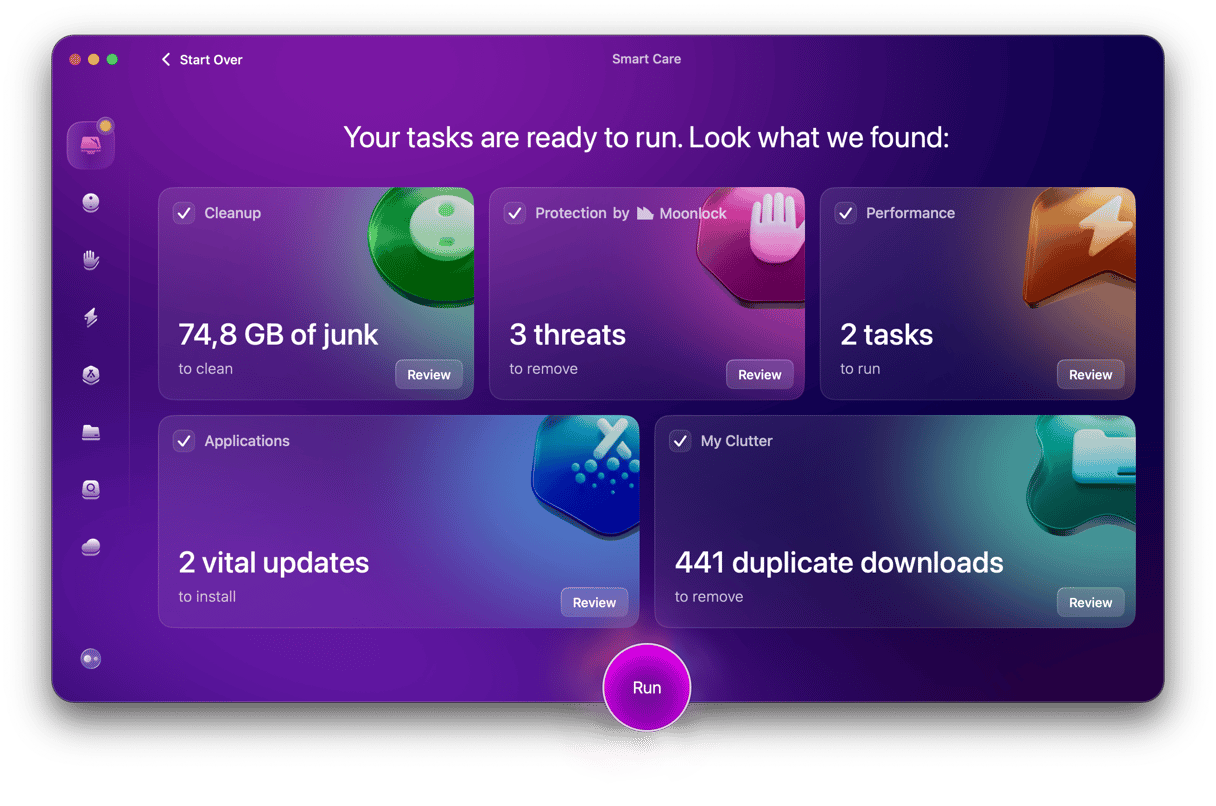
Keeping on top of that can be time-consuming and difficult. And that’s where CleanMyMac comes in. CleanMyMac’s Smart Care feature scans your Mac looking for junk files and clutter, checking for maintenance tasks that need to be run, working out which applications have updates available, and most importantly of all, scanning for malware.
Best of all, it only takes a click from you to start the process, and once it’s finished, you can implement all of its recommendations, including running maintenance tasks and removing malware, with one click. Or you can choose to review what it has found and decide for yourself what to do next.
- Get your free CleanMyMac trial — check out how it works for 7 days for free.
- Launch CleanMyMac and choose Smart Care in the sidebar.
- Click Scan.
- When it’s finished, choose Run to implement everything it recommends, or Review to see what it has found.
Choosing the best MacBook for programming isn’t easy because there are so many great options to choose from. The best one for you will depend on where you usually work, what kind of programming you do, and how much you plan to spend. That said, as we explained above, there is one Mac that edges it, thanks to a combination of performance, display quality, and price. The 14in MacBook Pro is the model that ticks all those boxes. And unless you need a very high-performance laptop, it will do the job admirably. Either side of the 14in MacBook Pro, in terms of price and performance, are the MacBook Air M5 15in and the MacBook Pro M5 Pro 14in. The former is lighter, less expensive, and has a larger (though lower resolution) screen, while the latter offers a performance boost, more memory, and Thunderbolt 5 ports instead of Thunderbolt 4. One thing is for sure: whichever MacBook you choose for programming, it will serve you well for many years to come.
Frequently asked questions
What about older models?
There’s one more thing to consider when choosing a MacBook for programming: refurbished models. Apple has its own refurb store on its website, and Amazon also sells older, refurbished Macs. Depending on where you live, there may be other reputable sellers of refurbished MacBooks. One worth considering is the MacBook Pro M4 14in. It has an M4 SoC rather than the M5 in the newer model and 512GB base storage instead of 1TB, but in most other respects it’s the same as the M5 14in MacBook Pro. That means you get the same bright, high-resolution display, long battery life, and expansion ports as the M5 model. And, while the price will be dependent on where you buy it, it’s likely to cost roughly the same as a new 15in MacBook Air M5. That means that the choice will come down to the extra power and better screen on the M4 14in MacBook Pro and the ease of portability of the M5 Air.
If you do decide to buy a refurbished or used older model, it’s important to think about where you buy it from. Does the seller offer a warranty? Are they trustworthy? What condition is the MacBook in? One of the most important aspects is the health of the battery. It degrades as a Mac is used and the more the MacBook is charged, the more it will degrade and the shorter its life will be. Ask the seller what kind of use the MacBook has had and, if possible, ask for a screenshot of the battery health screen in System Settings.
What accessories do I need?
If you plan to use your new MacBook mostly at home or in an office, you should definitely think about an external display, keyboard and mouse or trackpad. Using a MacBook, either with its own screen open and visible as a second display or in clamshell mode, is much more comfortable than sitting hunched over the MacBook itself. If you choose a MacBook Air, you can hook it up to a single display, while a MacBook Pro can connect to multiple displays.
You might also want to think about a hub or dock. Ideally, this would be a Thunderbolt hub with an Ethernet port so you can connect to your broadband router and not have to rely on wifi. It should also have enough connections for peripherals, such as external storage and be able to charge your MacBook. If your budget won’t stretch to a Thunderbolt dock, a decent USB-C hub will do the job.
If you travel a lot, a good protective case is essential. It should have enough room for your MacBook’s charger and accessories, such as a mouse or trackpad.
Should I buy a MacBook now or wait for the next model?
This is a perennial question. There always seems to be a new MacBook Air or MacBook Pro just around the corner. The truth is that whenever you buy a new Mac, sooner or later it will be superseded by a newer, faster, and more attractive model. The warm glow that comes from owning the latest model is brief. The best advice is if there is a MacBook that does what you need it to do available now at a price you’re happy with, buy it. If you wait for the next one in the hope that you’ll get a better Mac for the same price, you’ll never take the plunge.
Is there anything else I need to consider?
If you are replacing an Intel MacBook with a newer Apple Silicon model, check that the IDE or other tools you use run on Apple Silicon. Most will have updated long ago and have Apple Silicon-native versions. However, some applications and tools never made the transition and so either won’t run on a new MacBook or recent version of macOS, and some will only run on a Rosetta emulation layer, which may impact performance. If there are tools that you use that fall into that category, you should be able to replace them with other applications and tools. But it’s a good idea to check and plan for that before you buy.