

If you’ve been looking at options for cleaning up your email, you’ll know there are quite a few options. These fall into two categories. On the one hand, there are tools like Clean Email and Mailstrom that work on a web page and clean out your email inbox. On the other hand, CleanMyMac is a native Mac app that works on Mail and Gmail and, as well as cleaning up your inbox, removes attachments and frees up storage on Google Drive and iCloud. Which email cleaner app is best for you? We’ll answer that question in this article.
What is CleanMyMac’s Email Cleanup tool?
The Email Cleanup tool in CleanMyMac sits within CleanMyMac’s suite of cleaning tools for your Mac. It clears out your email inbox, just like the other apps here. But it also removes attachments — like PDFs, images, text files, spreadsheets, and archives. You can remove them all with a click, or you can choose to review what it has found and decide on a case-by-case basis what to remove and what to keep. Here’s how to use it:
- Start your free CleanMyMac trial — you can test it for 7 days.
- Open it and go to My Tools > Email Cleanup.
- Connect your email account and follow the instructions to allow CleanMyMac to access it.
- Click Scan and then Review Now to review results as it continues scanning in the background.
- Browse the results.
- Choose senders or individual emails to remove, archive, or unsubscribe — confirm every action.
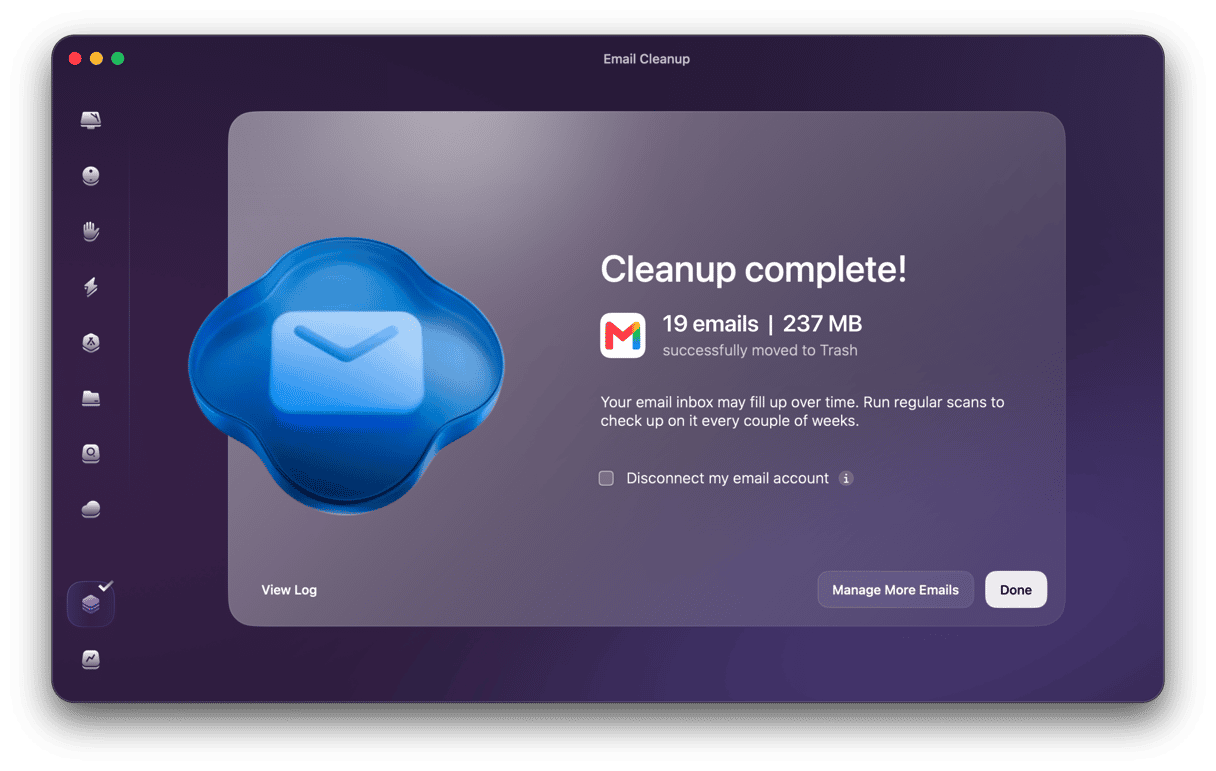
Now, let’s take a closer look at Email Cleanup and its alternatives.
Alternatives to CleanMyMac
When considering which email cleaner to use, there are a number of things to take into account.
- Does it allow you to unsubscribe from email newsletters and promotional messages en masse, as well as clear out your inbox?
- How user-friendly is its interface? The best tools combine the ability to sort your emails in a number of different ways with a clean interface that makes it easy to find what you need and take the action you want.
- How secure is it? All the tools mentioned in this article connect to your webmail provider securely and put you in control of what access they have. But that’s not necessarily always the case for other tools. In addition, some tools, like Unroll.Me are able to provide a service for free because they access and share your data. That’s usually done anonymously and doesn’t involve sharing sensitive information, but you should be aware of it before deciding which tool to use.
- Does it clear attachments and free up storage space? If your goal is to free up space in Google Drive or iCloud, you will need to clear out attachments, because they take up the most space.
Tool | What it cleans | Best for | Mac-native | Privacy | Price |
CleanMyMac (Email Cleanup) | Attachment cache on Mac disk, bulk delete, unsubscribe | Removing attachments, running locally | Yes ✓ | On-device, no cloud access | From $3.33/mo |
Clean Email | Inbox: bulk delete, unsubscribe, auto rules | Anyone who wants automated inbox management in Gmail, Outlook, and other popular webmail platforms. | No (web/app) | Cloud-based (email headers) | From ~$9.99/mo |
Mailstrom | Inbox: grouped bulk delete by sender/size/age | Power users who have very large inboxes and want to group emails by sender, size, and age. | No (web) | Cloud-based | $59.99/yr |
Unroll.Me | Inbox: subscriptions, rollup digests | Fast unsubscribing | No (web) | Sells anonymized data | Free |
Cleanfox | Inbox: unsubscribe, delete newsletters | Eco-conscious users | No (web/app) | Cloud-based | Free (freemium) |
1. Clean Email
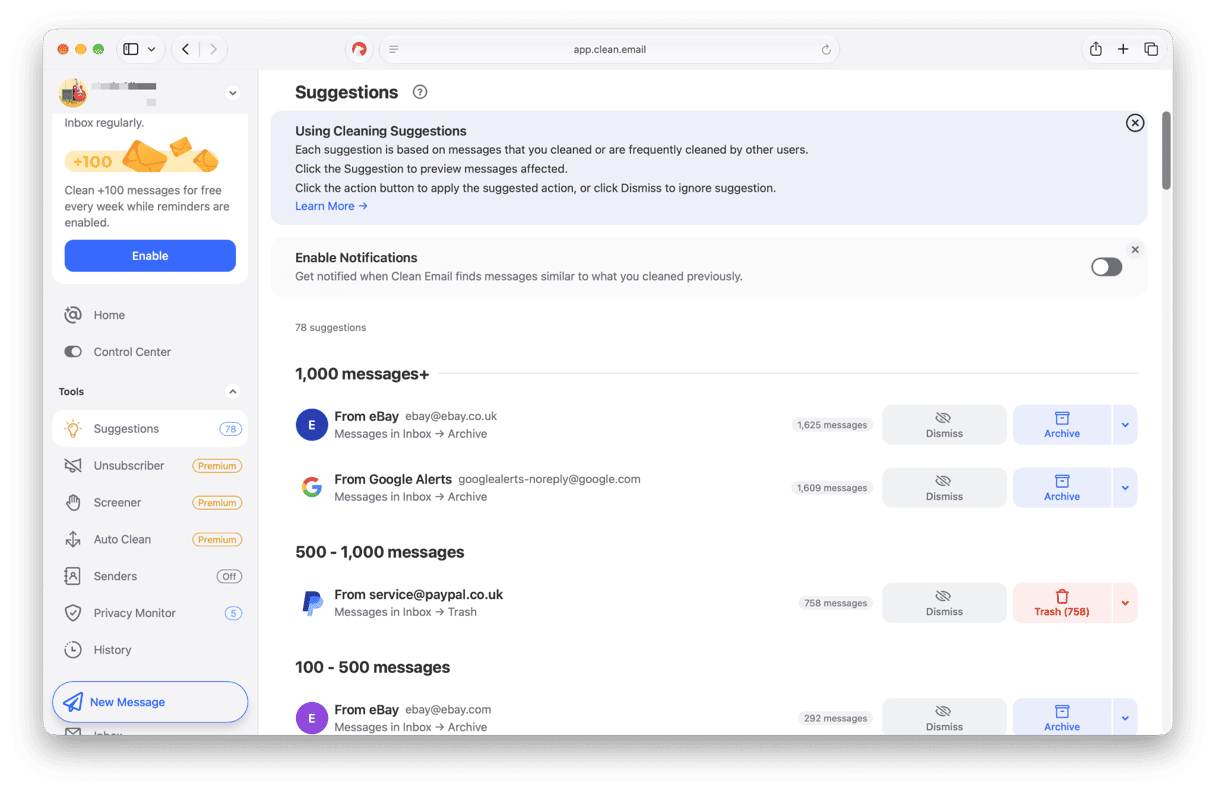
Best for: Anyone who wants automated inbox management in Gmail, Outlook, and other popular webmail platforms.
Clean Email screens your email as it arrives and allows you to decide whether you want it in your inbox. It also allows you to mass unsubscribe from newsletters and promotional emails. Like the other alternatives, it doesn’t touch your Mac or free up its storage.
2. Mailstrom
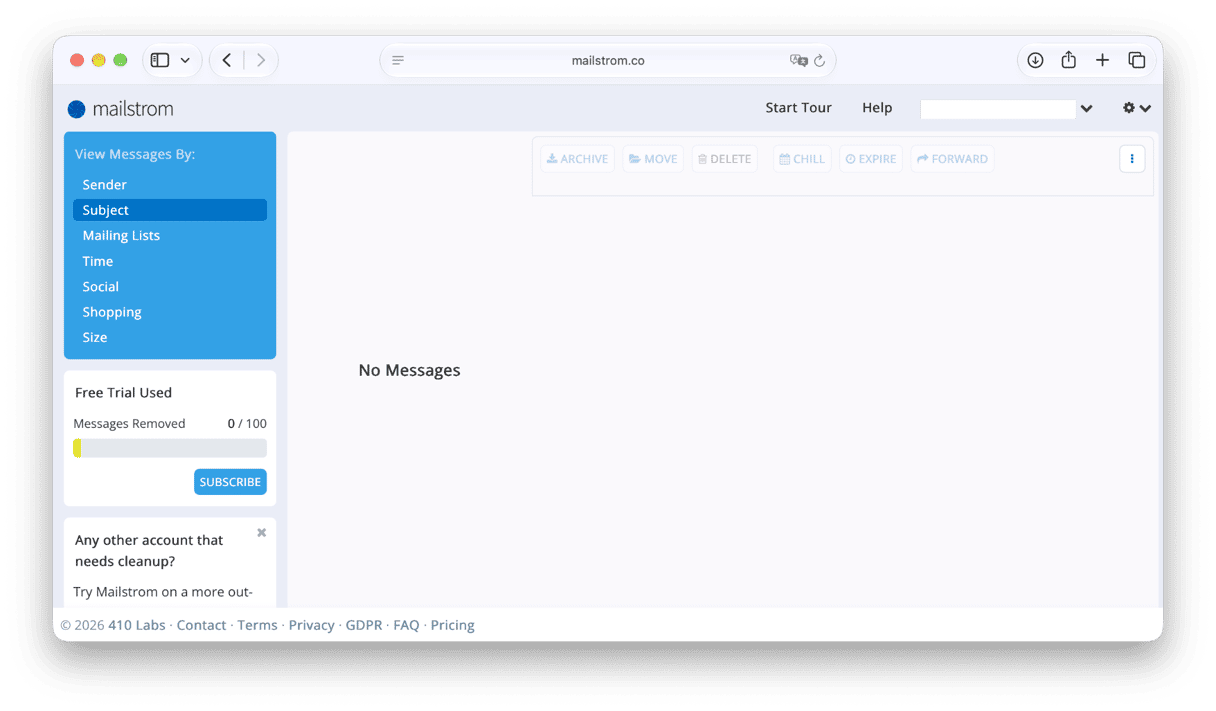
Best for: power users who have very large inboxes and want to group emails by sender, size, and age.
Mailstrom analyzes metadata in email headers to allow it to group your emails into categories, allowing you to view and delete messages by category. It also allows you to unsubscribe from newsletters and promotional emails, and to create rules to label messages and perform an action you specify.
3. Unroll.Me
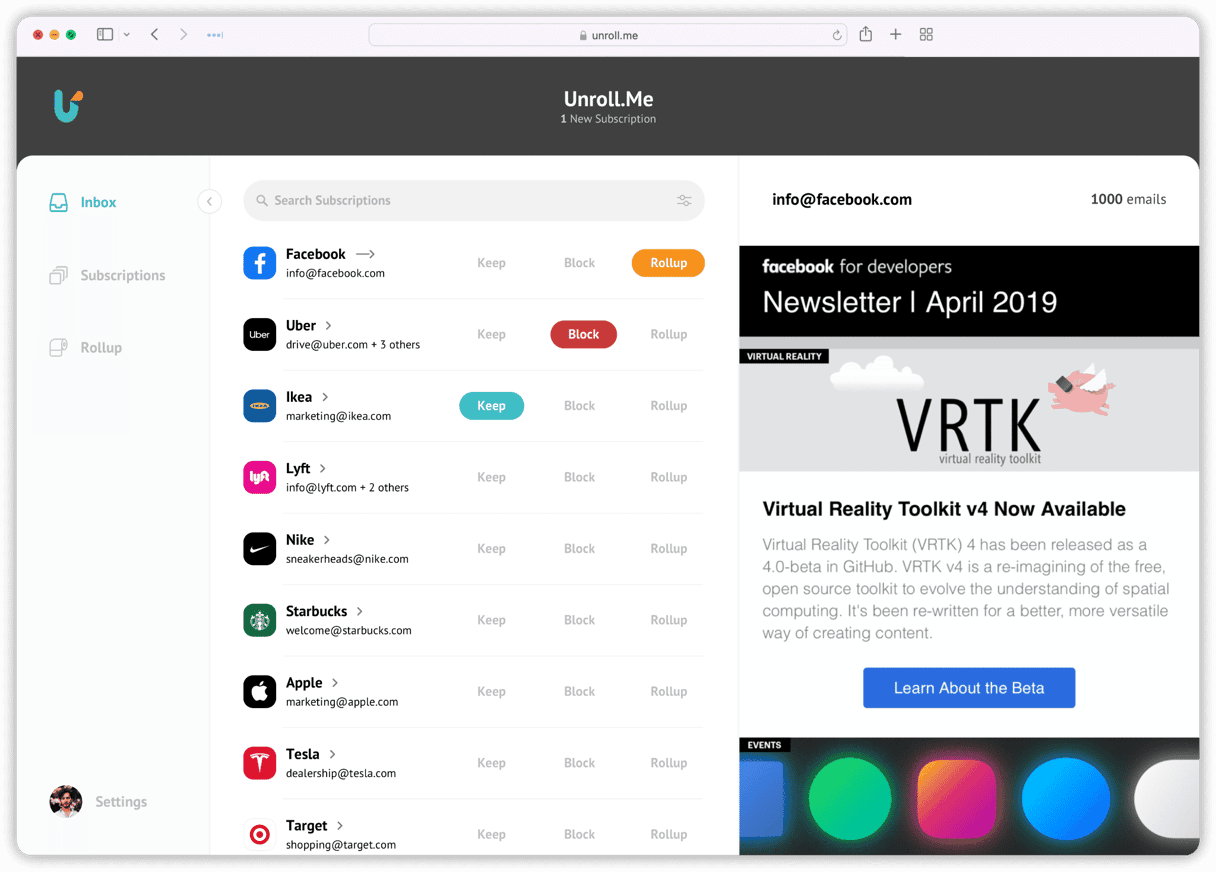
Best for: Fast unsubscribing
Unroll.Me is one of two free options on this list and is fast for unsubscribing, while also doing a good job of cleaning up your webmail inbox. However, if you decide to try it out, you should check how it shares your data and what data it shares, to make sure you are comfortable with that.
4. Cleanfox
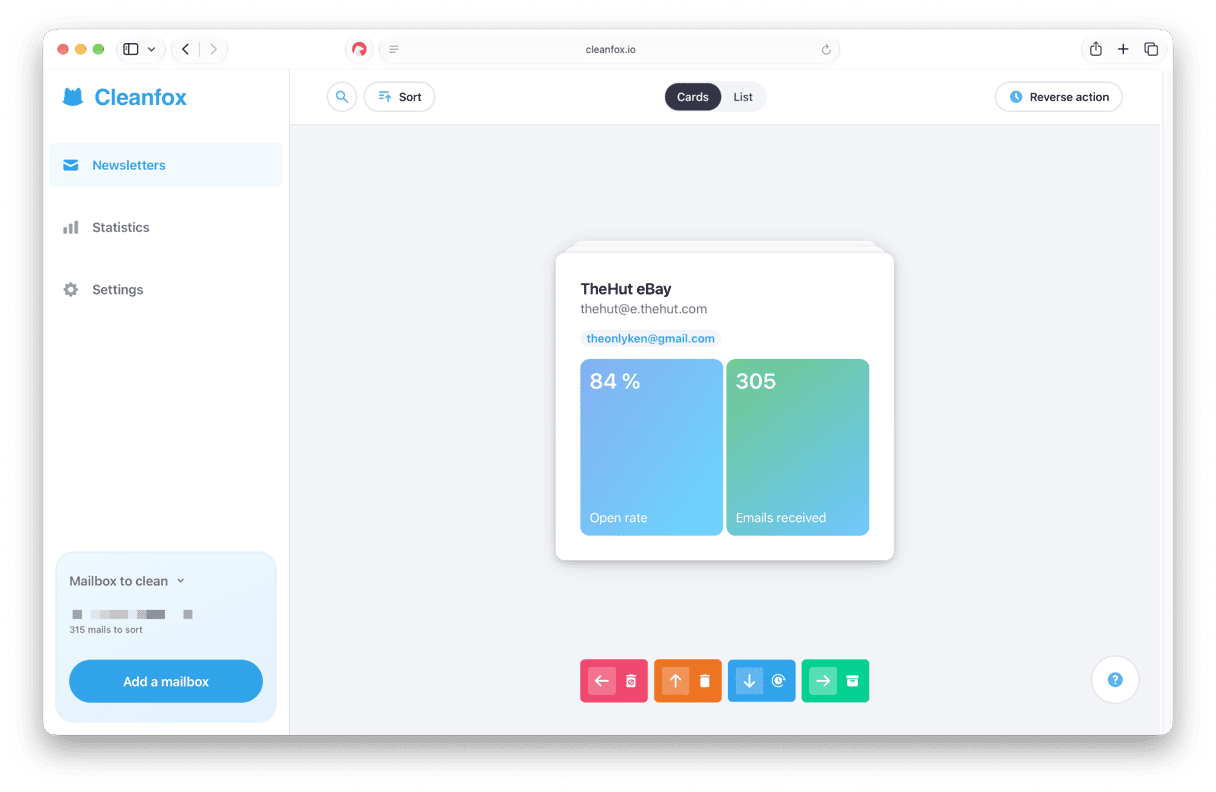
Best for: Eco-conscious users
Cleanfox is the other free option on this list. It’s also the only option that displays the CO2 emissions you have saved by cleaning up your inbox and unsubscribing from mass emails. It’s up to you whether you think that’s worthwhile or a gimmick. It does have a very user-friendly dashboard that makes it easy to see all the emails you’re subscribed to, make it easy to delete them en masse, as well as unsubscribe.
When to use CleanMyMac alongside a web-based email cleaner
If you’ve tried out one or more of the alternatives above and like it, you can use it alongside CleanMyMac. To do that, use, say, Clean Email to clean up, for example, your Gmail inbox in a web browser. Then, use CleanMyMac on your Mac to get rid of the gigabytes of attachments taking up space in your Google Drive account.
If you’re looking for a solution to an email box that’s stuffed full of messages and attachments, there are several options. You can do some cleanup manually by mass unsubscribing from emails and deleting all promotions. Or you can use one of the email cleaners described in this article. However, only one email cleaner app runs on your Mac — as opposed to a web browser — and only one clears out attachments and frees up space. That’s CleanMyMac. The others all have useful features, though, such as the ability to mass unsubscribe from newsletters or create rules to deal with emails as they come in. So, the smart play is to combine one of those with CleanMyMac and have the best of all worlds.
Frequently asked questions
Does CleanMyMac’s Email Cleanup work with Gmail, Outlook, or only Apple Mail?
CleanMyMac’s Email Cleanup currently works with Gmail, but iCloud Mail is coming soon.
Can I use CleanMyMac and Clean Email at the same time?
Yes. You can use Clean Email to clear out emails in your inbox and to unsubscribe from future emails. Then, you can use CleanMyMac to get rid of attachments, promotions, spam, and other clutter.
How much space can CleanMyMac’s Email Cleanup recover?
That depends on how many attachments you have received. Attachments can be PDFs and images, including those embedded in messages, archives, or any other file that can be sent with an email. If you haven’t cleaned out your inbox for a few years, they can take up several gigabytes of space.
Is it safe to delete email attachments with CleanMyMac?
Yes. It’s completely safe. CleanMyMac puts you in control of what is deleted and what is retained. You can review everything it finds and choose what to delete and what to keep.