If you spend a large part of your life editing photos or creating digital images, the chances are you do it in Photoshop. After all, it's been the leading photo editing tool on the Mac for decades. But, at $22.99/month for the standalone app (or $34.49/month with no annual commitment), it's also expensive. So, we tested 8 Photoshop alternatives, and the good news is that at least two will genuinely replace Photoshop for most workflows, at a fraction of the price.
The apps we tested
App | Price | Skill level | Mac-native? | Best for |
Pixelmator Pro | ~$50 one-time | Beginner–inter. | Yes (App Store) | Photoshop switchers; polished Mac-native workflow |
Affinity | Free | Inter.–pro | Yes | Full Photoshop replacement; PSD support; no subscription |
Photopea | Free (browser) | Intermediate | No (web) | Quick PSD edits anywhere, no install required |
GIMP | Free | Advanced | No (ported) | Power users comfortable with a steeper learning curve |
Acorn | $29.99 | Intermediate | Yes | Social graphics, name badges, drag-and-drop design, Shortcuts support |
Luminar Neo | $119 one-time | Beginner–inter. | Yes | AI-assisted edits; smart retouching with minimal effort |
Photoshop Elements | ~$99.99 for 3-year license | Beginner–inter. | Yes | Guided editing, print projects, family photography |
Darkroom | Free trial then $39.99/year or $99.99 one-time payment | Intermediate | Yes (App Store) | RAW editing, batch processing, iPhone–Mac workflow |
Pixelmator Pro
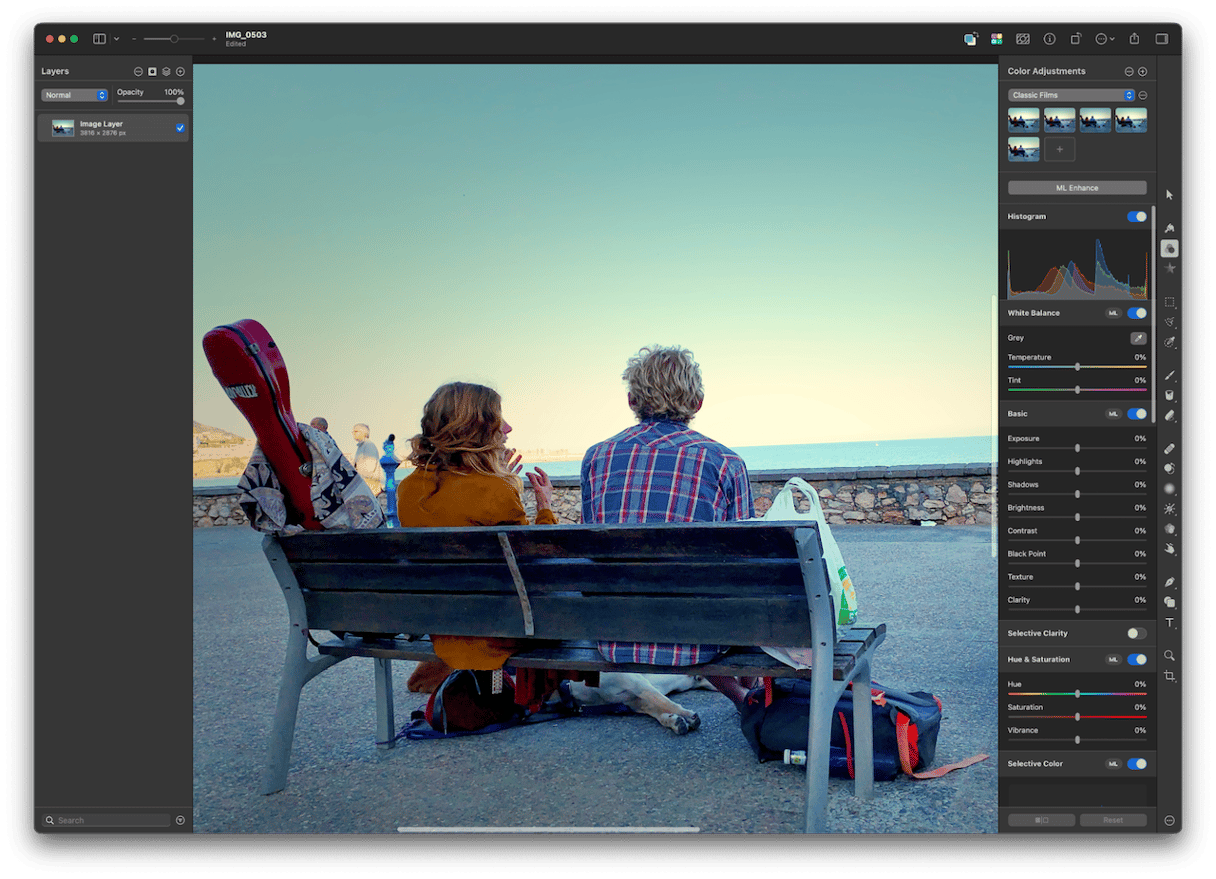
Price: $49.99 one-time payment
Now owned by Apple, Pixelmator Pro is Mac-only, so its interface is as Mac-like as they come, unlike Photoshop, which has to cater for Mac and Windows users. It includes several AI tools for selecting parts of images and for resizing photos. And, it has pretty much every photo editing and adjustment tool you could need. On the downside, it lacks Photoshop’s 3D image editing features.
With useful AI features and a very Mac-like interface, Pixelmator Pro will be of particular interest to Apple Creator Studio subscribers.
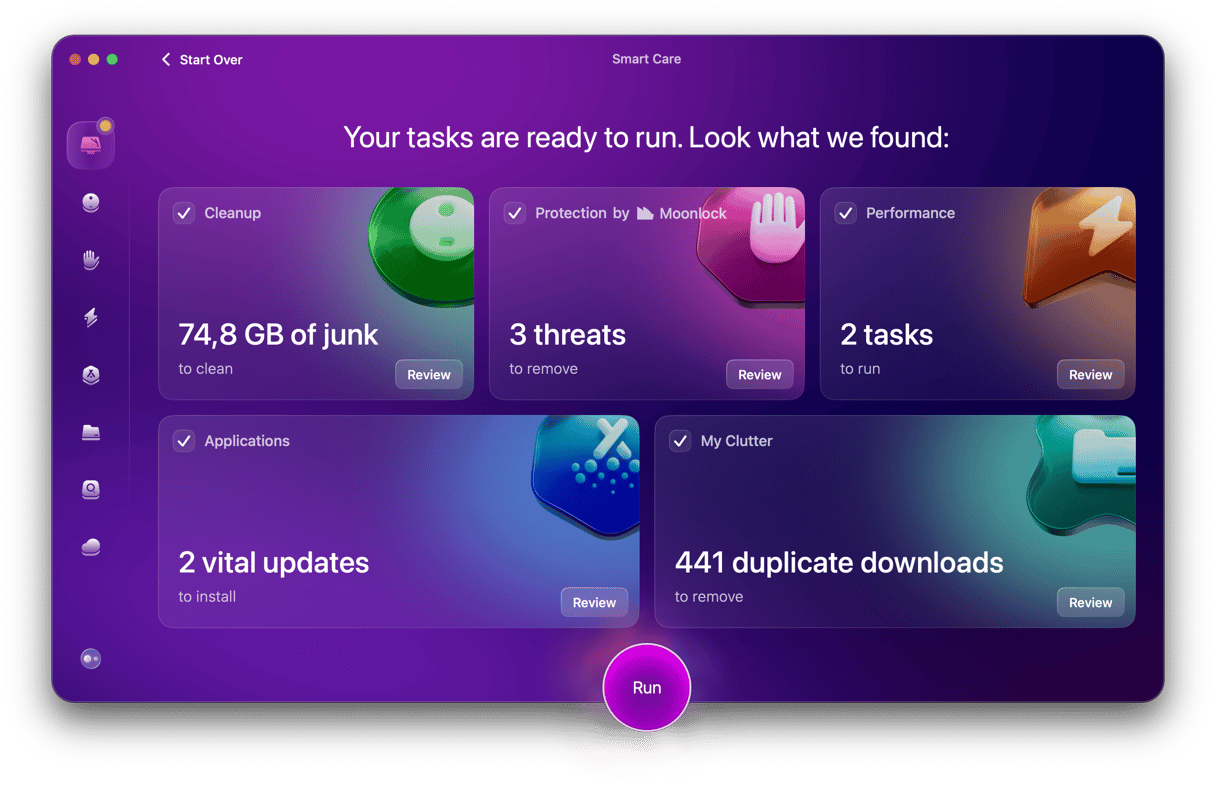
Installing photo editing apps to try them out is going to take up a lot of disk space. So, it’s a good idea to free up space before you start. We recommend running CleanMyMac’s Smart Care to clear junk and free up storage. Photo editors run noticeably faster on a clean Mac. Try CleanMyMac for free.
Affinity
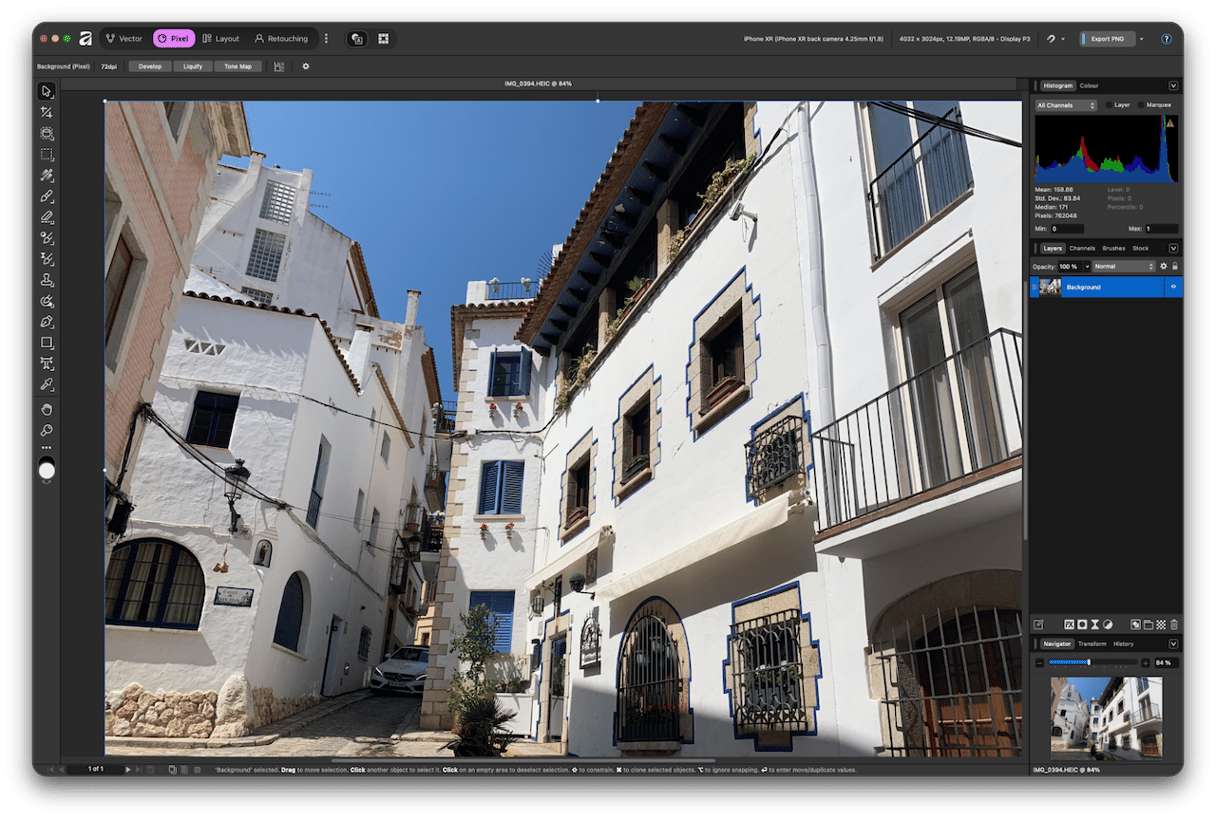
Price: Free
Affinity Photo was one of the best photo-editing tools on the Mac when it was sold as a standalone app. Now that it’s owned by Canva and free to download and use, there’s no reason not to give it a try. Its non-destructive editing workflow allows you to save undo history, so you can return to any edit at any time. Affinity supports batch editing and even allows you to import Photoshop-native PSD files and work with them. On the other hand, while it does have a RAW photo editor, it’s not as accomplished as Adobe Camera Raw.
A hugely accomplished photo editor at a price that can’t be beaten.
Acorn 8
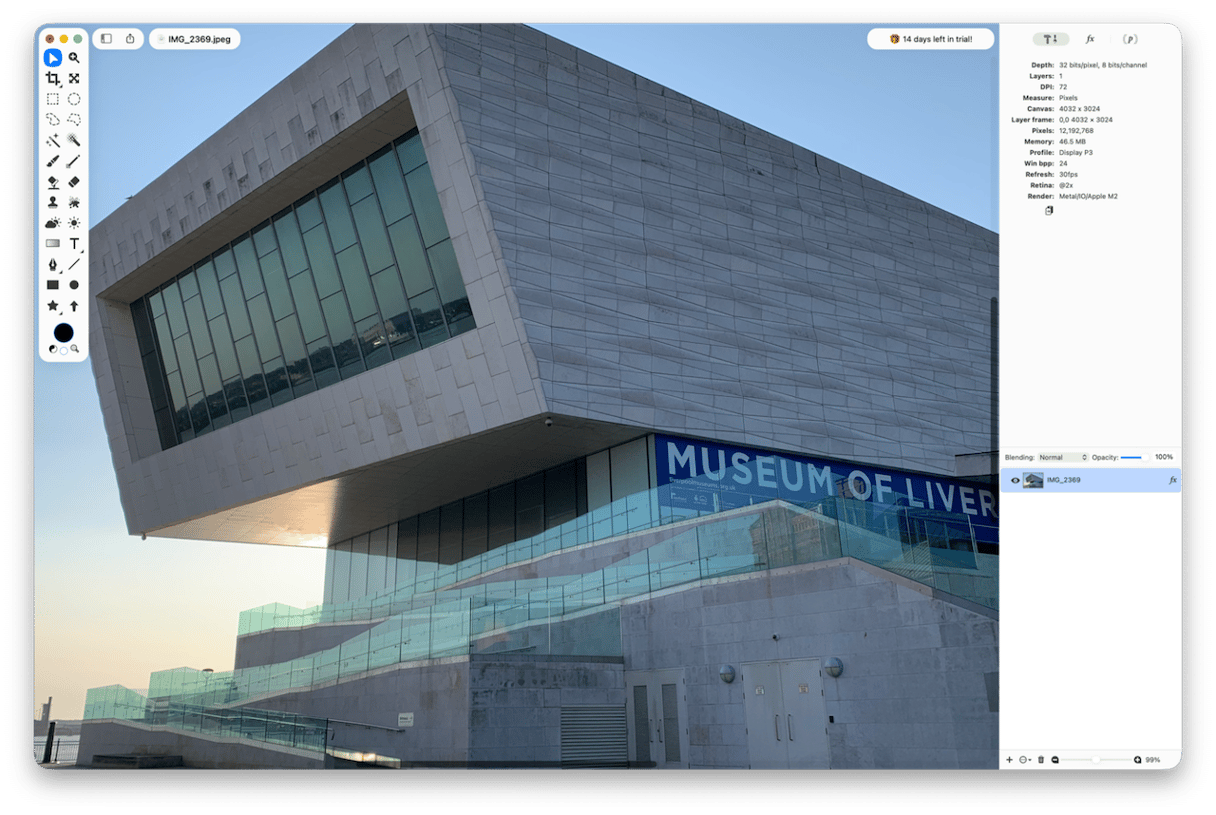
Price: $29.99 one-time payment
Acorn has long been a favorite tool for image editors who don’t need the full Photoshop experience. It’s a native Mac app and Mac-only, and it shows. That latest version features AI-powered subject selection, a live text tool, and the ability to import a CSV file and incorporate the data in it into your images – perfect for making lots of name badges. It also has a super-resolution feature similar to the one in Pixelmator Pro, and support for Apple Shortcuts. It lacks some Photoshop features like editing 3D images, but it’s also much cheaper.
A Mac-only photo editor that covers all the bases and much more besides.
GIMP
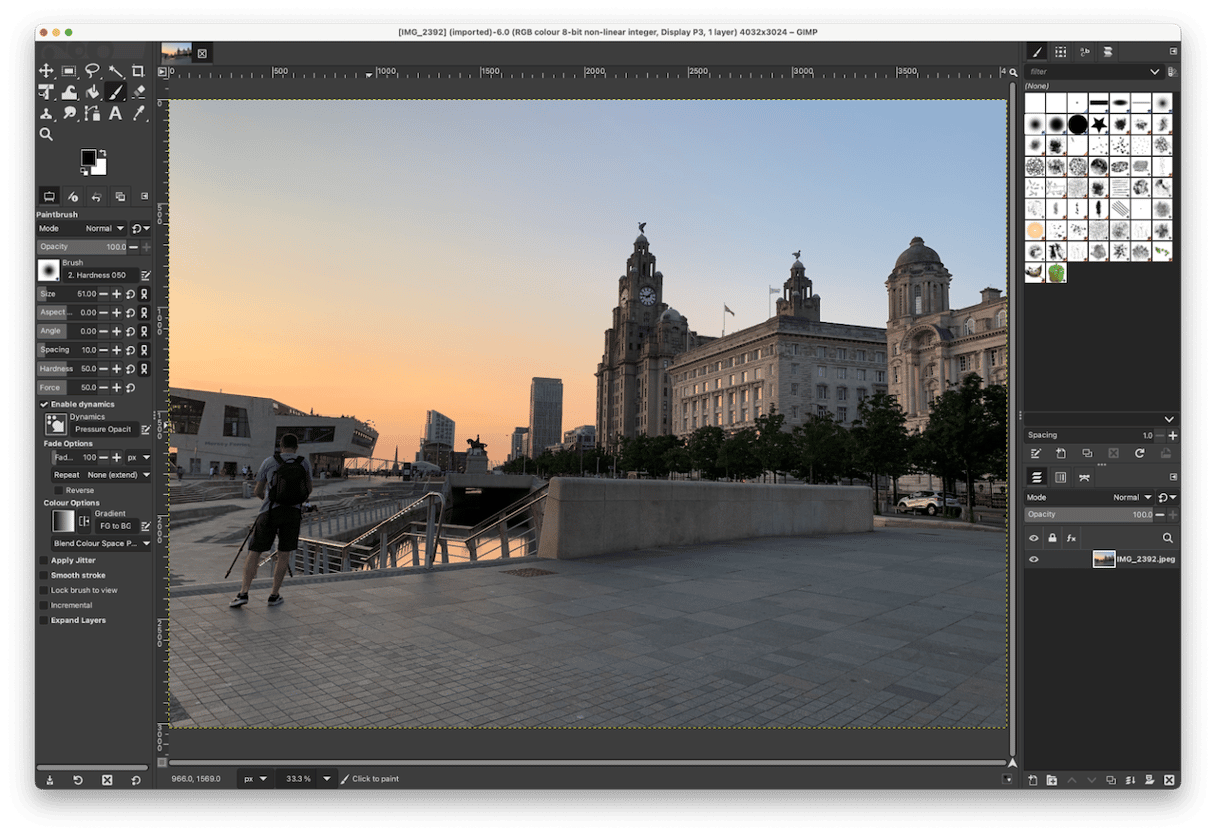
Price: Free
Like Affinity, GIMP is free to download and use. Unlike Affinity, it’s not a native Mac application. While its interface has been updated over the years, it still feels clunky and is nowhere near as slick as the likes of Pixelmator and Affinity. Nevertheless, GIMP has pretty much all of the features you could want in an image editor, including support for layers, non-destructive editing, and text editing. On the negative side, it needs a third-party tool to open RAW files, is a little slow and the interface is cluttered.
GIMP is a good free Photoshop alternative, but its interface may be off-putting, especially as it’s not the only free option here.
Darkroom
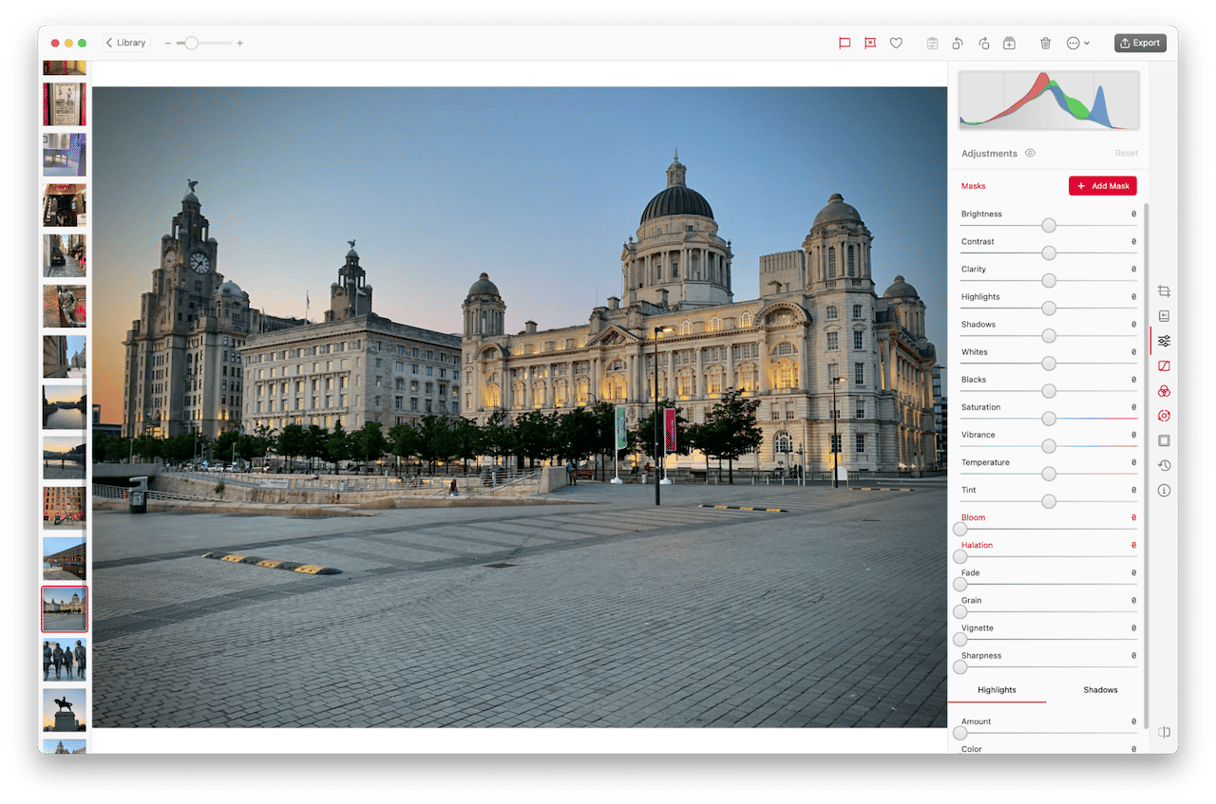
Price: Free to download; $39.99/year or $99.99 one-time
Darkroom is an Apple-only tool for processing photos and video, available on macOS, iOS and iPad OS. It’s more of a replacement for Lightroom than Photoshop. But if you’re canceling your Creative Cloud subscription and need a tool to process or batch edit RAW images, it could be the one for you. It syncs with your iPhone and iPad using iCloud, so there is no local folder storage, which might not appeal to some users. On the other hand, it’s easy to use and has a ton of adjustments and editing tools, and there are also custom presets and presets created by users.
Darkroom is a great option if you need to process lots of RAW images.
Photopea
Price: Free
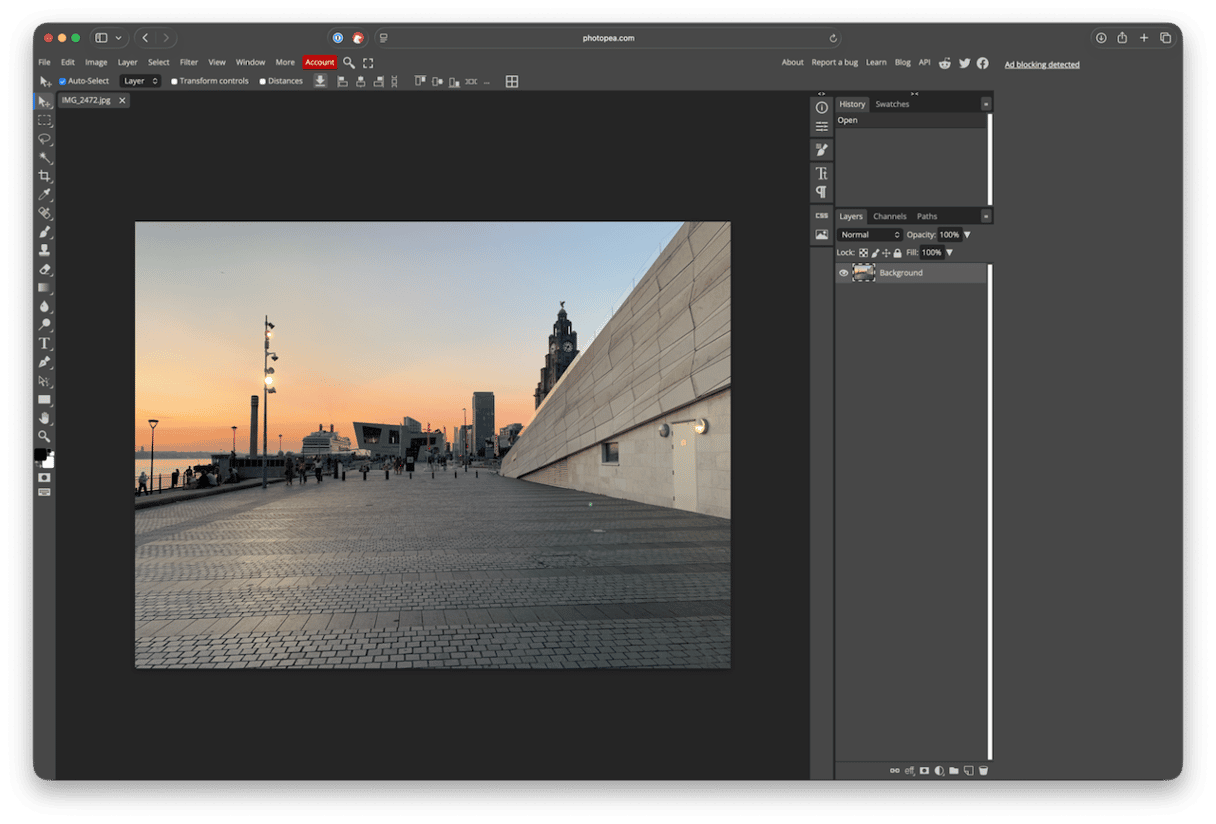
Photopea is a web-based image editor that allows you to make adjustments to photos stored on your Mac or in cloud storage, without ever uploading them to Photopea’s servers. It supports every image format you’re likely to need, including RAW files, PSDs, and PDFs. It has support for layers, smart objects, and blending modes. But it doesn’t have the same variety of brushes as Photoshop, its RAW file support isn’t as comprehensive as Adobe’s tools, and its interface isn’t very Mac-like.
Photopea is an excellent option if you want a free Photoshop alternative for occasional use.
Luminar Neo
Price: $119 one-time payment
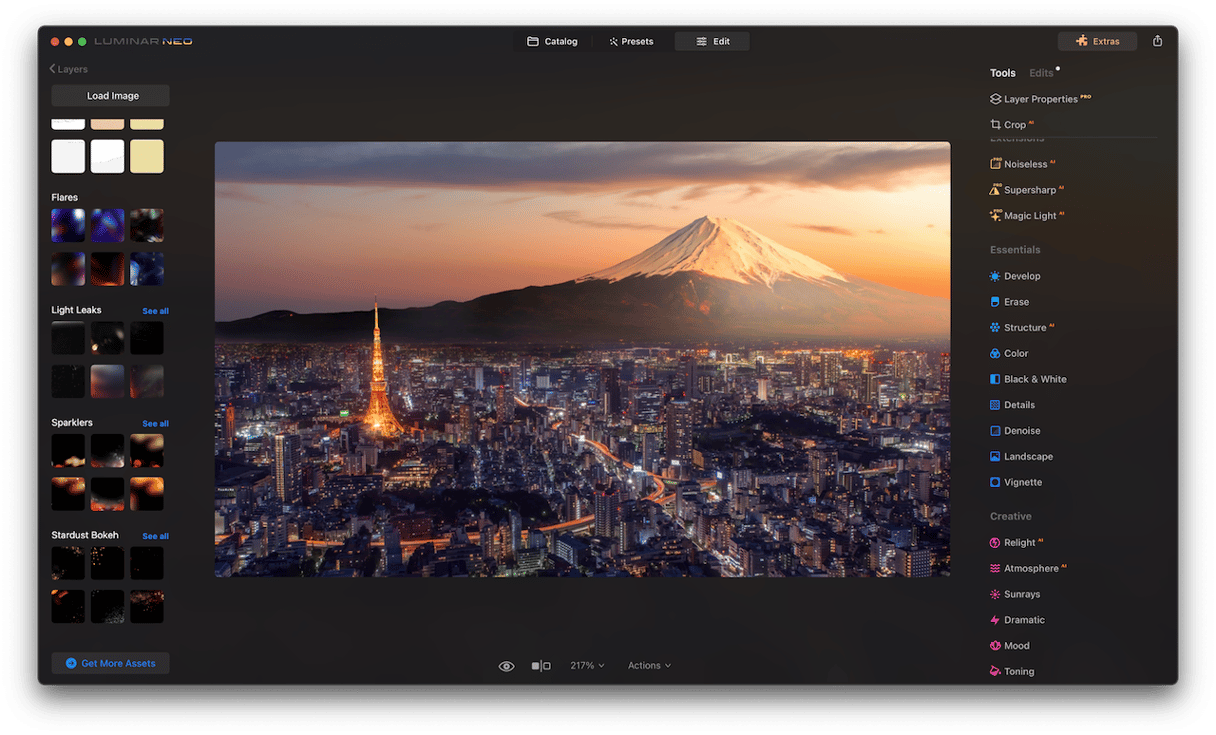
Luminar Neo built its reputation on its range of AI-powered features. It’s built around workflows like touching up portraits and enhancing landscapes. And there’s support for RAW files, layers, and all the adjustments and effects you’d expect. But its RAW support is far behind Photoshop’s, and its interface doesn’t feel very Mac-like.
If you want a one-click photo restorer powered by AI, Luminar Neo is worth checking out.
Photoshop Elements
Price: $99.99 for a three-year license
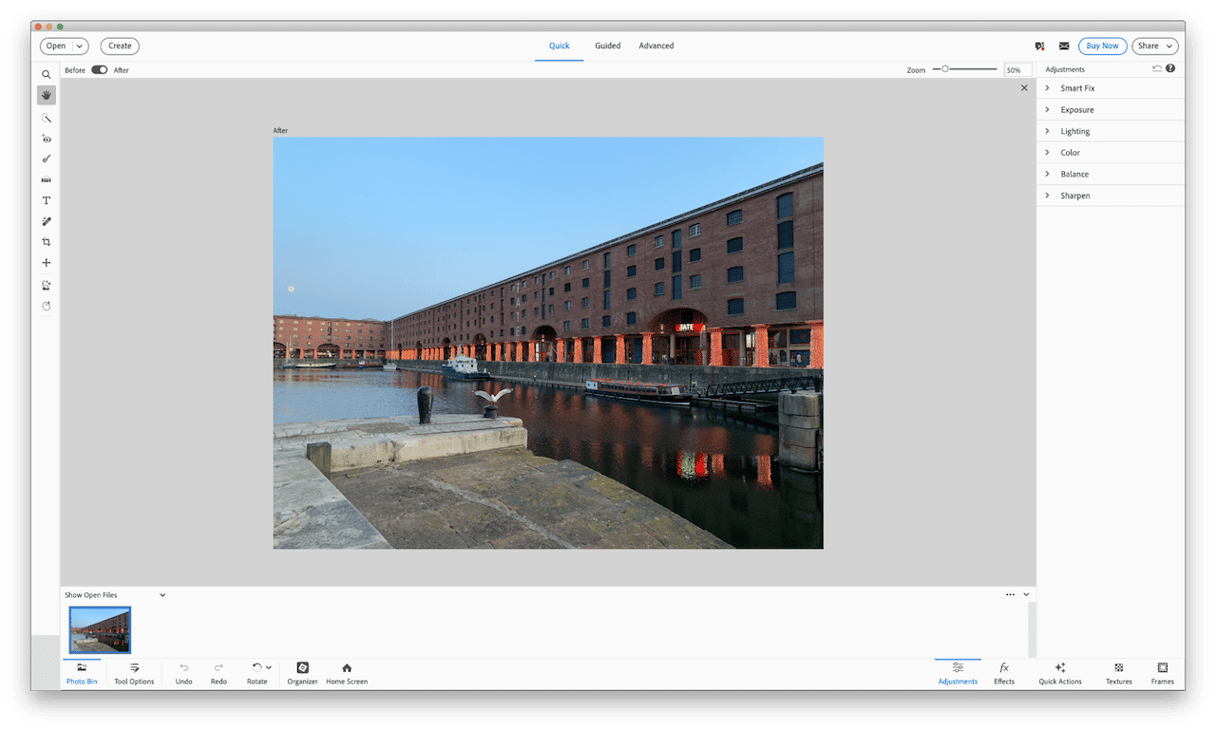
Photoshop Elements is very much aimed at those who want to have fun with their photos. There are a bunch of AI features to remove items from images, restore old photos, and more. And the app is designed to walk you through the process of editing your images. Don’t expect high-end features like 3D support or the comprehensive RAW editing features from Lightroom or Photoshop, but there’s plenty here for most users.
More expensive than the competition, Elements is also a very capable photo editor.
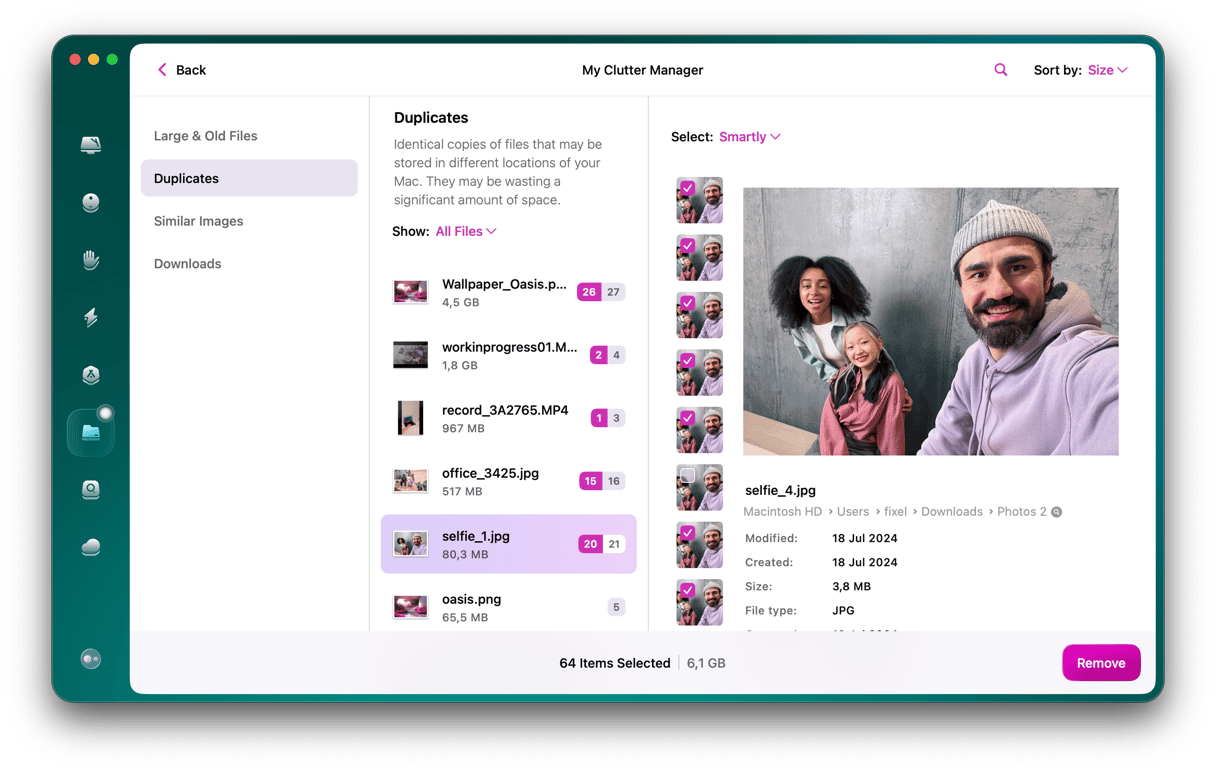
Once you’ve thoroughly tested a few apps and started using the one you like best, you will have accumulated lots of near-identical images. CleanMyMac’s My Clutter spots duplicate and similar photos and removes them with a few clicks.
The best Photoshop alternative for each user
- Ex-Adobe Pro — Affinity
Affinity's non-destructive workflow is perfect for testing edits and adjustments at a price that can’t be beaten.
- Hobby Photographer — Pixelmator Pro
Apple’s Pixelmator Pro is a hugely capable image editor with good RAW support and a native Mac interface.
- Social media design work — Acorn
Acorn’s ability to import CSV files and use the data in them is perfect for creating name badges and customized graphics.
Frequently asked questions
Is there a free version of Photoshop for Mac?
No — Photoshop offers a 7-day trial only, then requires a paid subscription.
What is the closest free Photoshop alternative for Mac?
Photopea is the most feature-compatible; GIMP is the most capable downloadable free option.
Is Affinity better than Photoshop for Mac users?
For most workflows, yes — it covers ~95% of Photoshop’s capabilities, and it’s free.