One of the many ways that Safari has improved is that you can now personalize the start page. That includes choosing your own background. And the good news is that it’s very easy to do. In this guide, we’ll show you how to change the Safari background and other ways to customize Safari on your Mac.
How to change Safari background on Mac
Safari allows changing background on start page since Safari 14 that came with macOS Big Sur. Here’s how to do it:
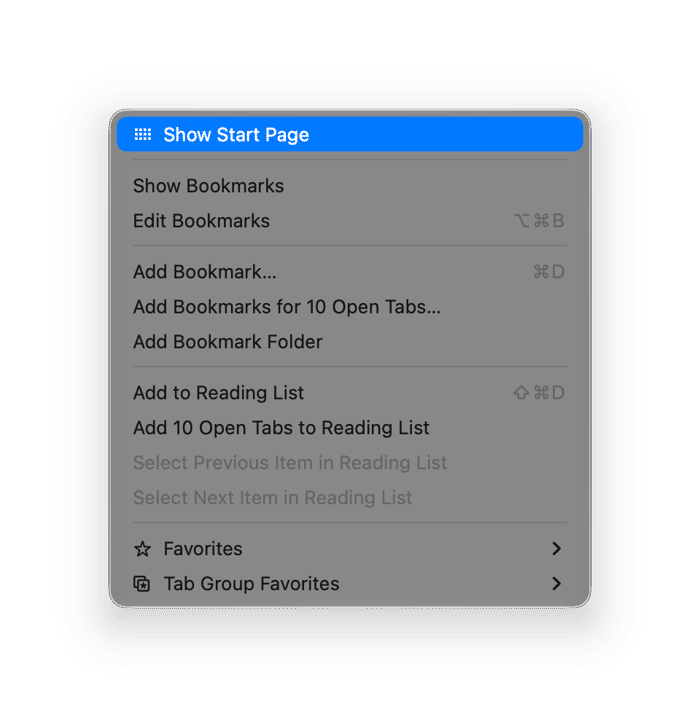
- Open Safari and click the Bookmarks menu.
- Choose Show Start Page.
- Click Edit in the bottom right corner of the page (on macOS Sonoma and earlier, the button is an Options icon that looks like three sliders)
- Make sure Background Image is selected and choose from one of the options at the bottom.
- If you want to choose your own picture, click the ‘+’ at the left of the background images and navigate to the picture you want to use then select it. If the photo you want to use is in your Photos library, you will have to export it first. You can also drag a photo from the Finder onto the start page to add it.
If the background doesn’t show or won’t sync
If you don’t see the background picture you chose when you open a new tab or window, make sure you have Safari set up to show your start page when you open a new tab or window. Click the Safari menu, choose Settings > General, and select Start Page from the New windows open with and New tabs open with menus.
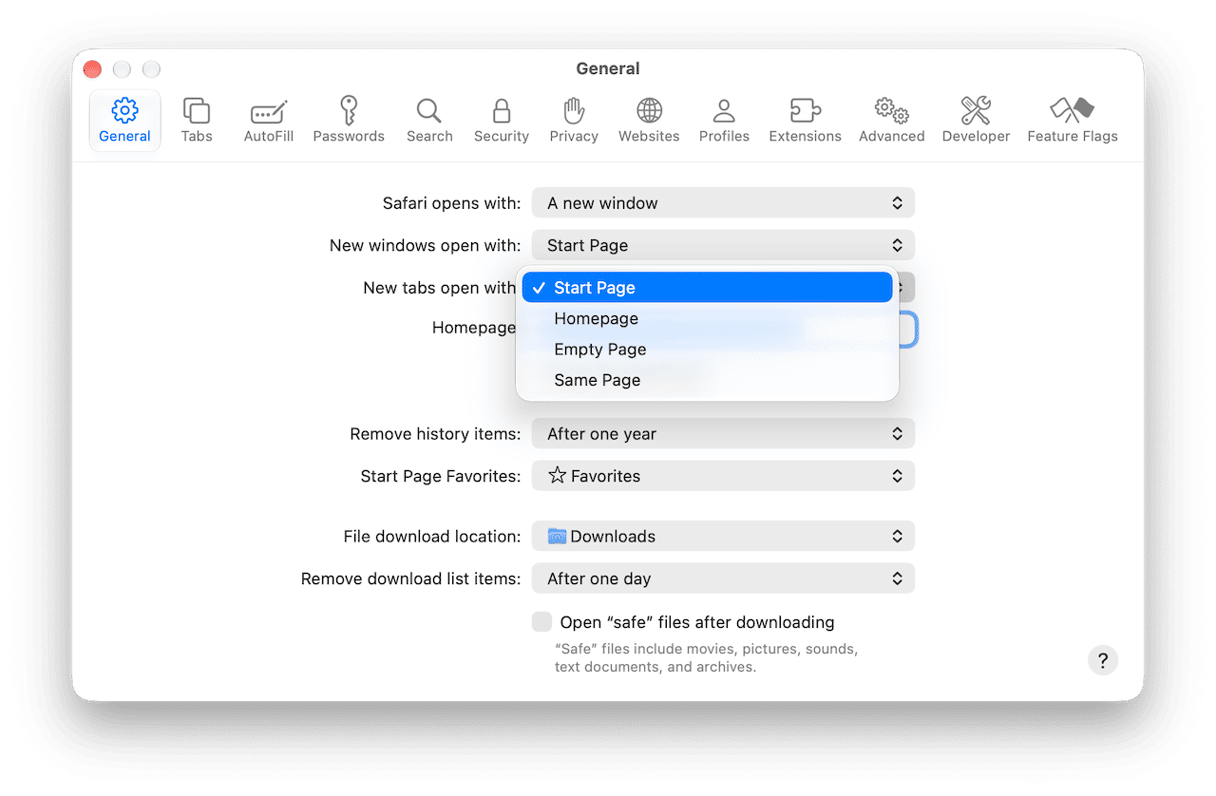
If the background doesn’t sync with your iPhone or iPad, make sure Use Start Page on All Devices is checked in the start page Edit menu. You will also need to be signed into the same Apple account on all devices, have iCloud set up for Safari (go to Settings on your iPhone or iPad, tap your name, then iCloud > See All and enable Safari), and check and use two-factor authentication with your Apple account.
How to customize the Safari start page
The background isn’t the only element of the Safari start page you can customize. You have lots of control over what appears there and how it appears.
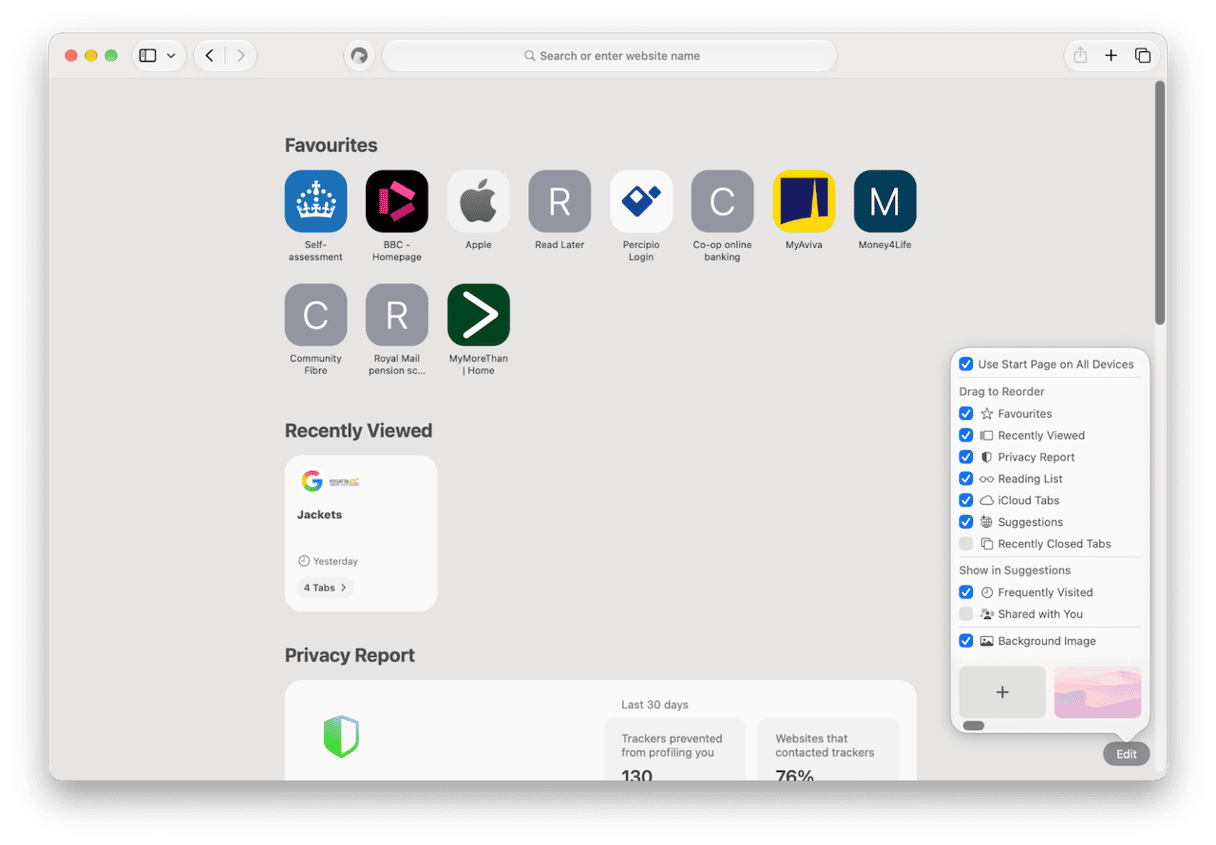
- Go to the Bookmarks menu and choose Show Start Page.
- At the bottom right, choose Edit (or the Options icon if you’re running macOS Sonoma or earlier).
- Check the items you want to appear on the Start Page.
- If you checked Suggestions, make sure to also check the items you want to appear in Suggestions.
- To change the order of where something appears on the Start Page, drag it up or down on the list.
- Click on the Start Page to close the menu.
Other ways to customize Safari on Mac
You can customize much more than just the start page in Safari.
Change your homepage
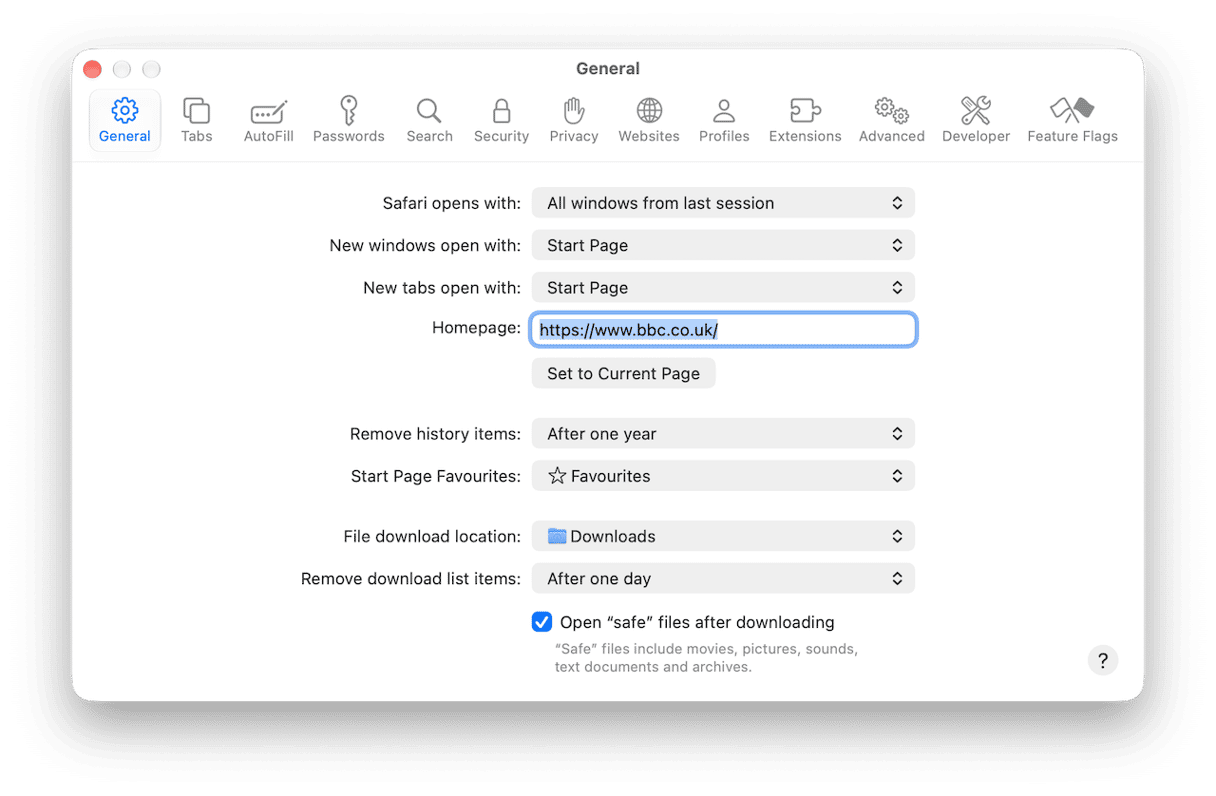
Although the Start Page is the default for opening new tabs and windows, you can change it to anything you want.
- Click the Safari menu and choose Settings > General.
- In ‘New windows open with’ and ‘New tabs open with’, choose Homepage.
- In the text field, type or paste the address of the page you want to use as your homepage, or click Set to Current Page.
Customize the toolbar
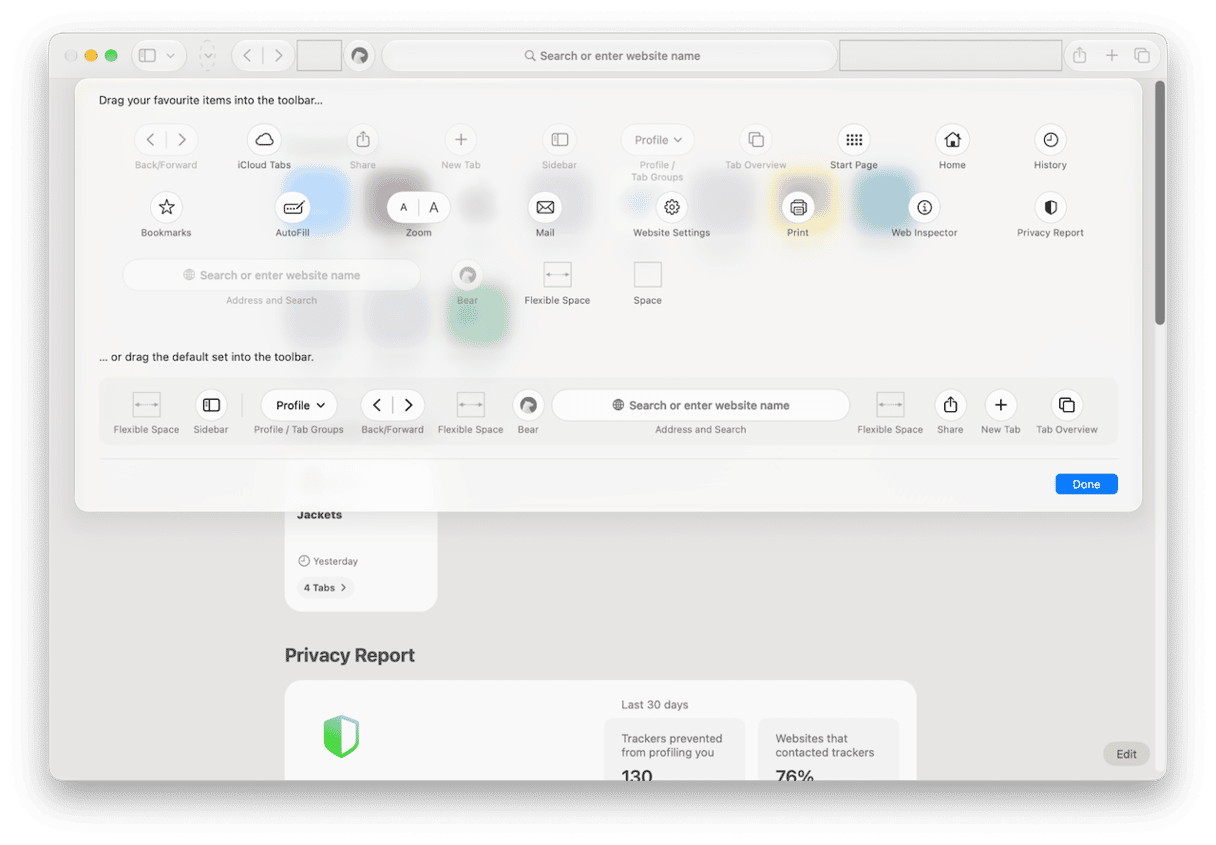
- Right-click or Control-click on the toolbar.
- Choose Customize toolbar.
- From the window that opens, click and hold on an item you want to add to the toolbar and drag it to a slot on the right or left of the address bar.
- When you see the green circle with a ‘+’ in it, release the mouse or trackpad button.
- Repeat for other items you want to add and click Done when you’re finished.
Change the tab layout order
To change the order of open tabs, click and hold on one and then drag it to where you want to position it, then let go.
Create a profile
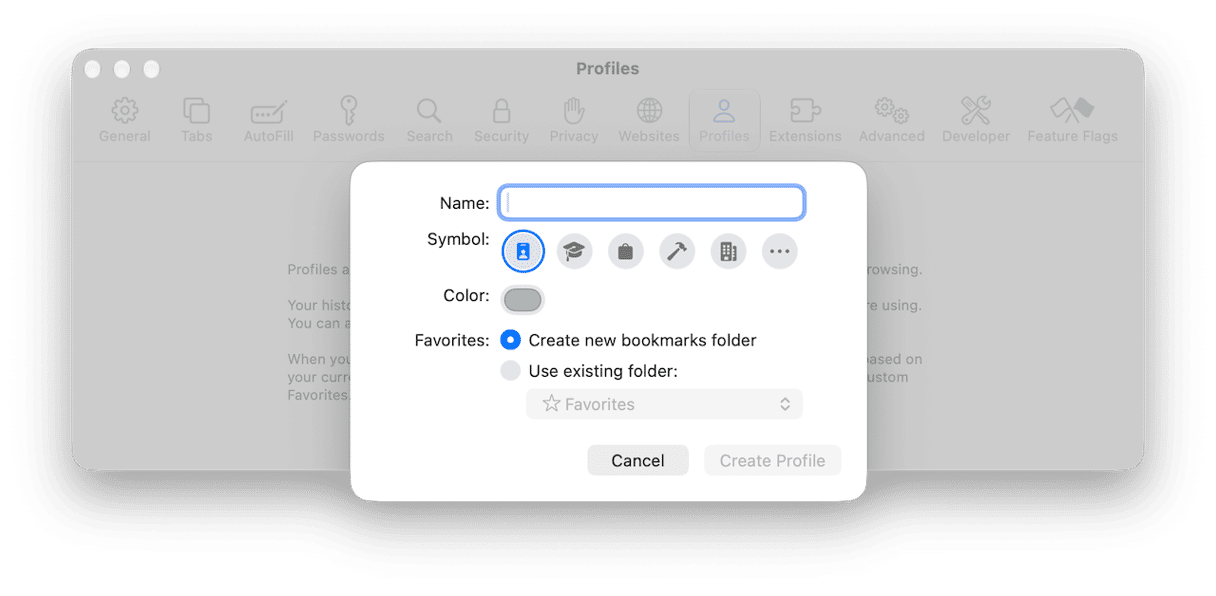
Profiles in Safari arrived with macOS Sonoma and allow you to create, for example, a set-up for work and one for personal use. Profiles include bookmarks, history, cookies, tab groups, start page settings, and active extensions. When you create a profile, a menu appears in the toolbar allowing you to switch between profiles.
- Click the Safari menu and choose Create Profile.
- Choose Start Using Profiles to confirm.
- Give the profile a name and choose a symbol and color. Then select options from the menus.
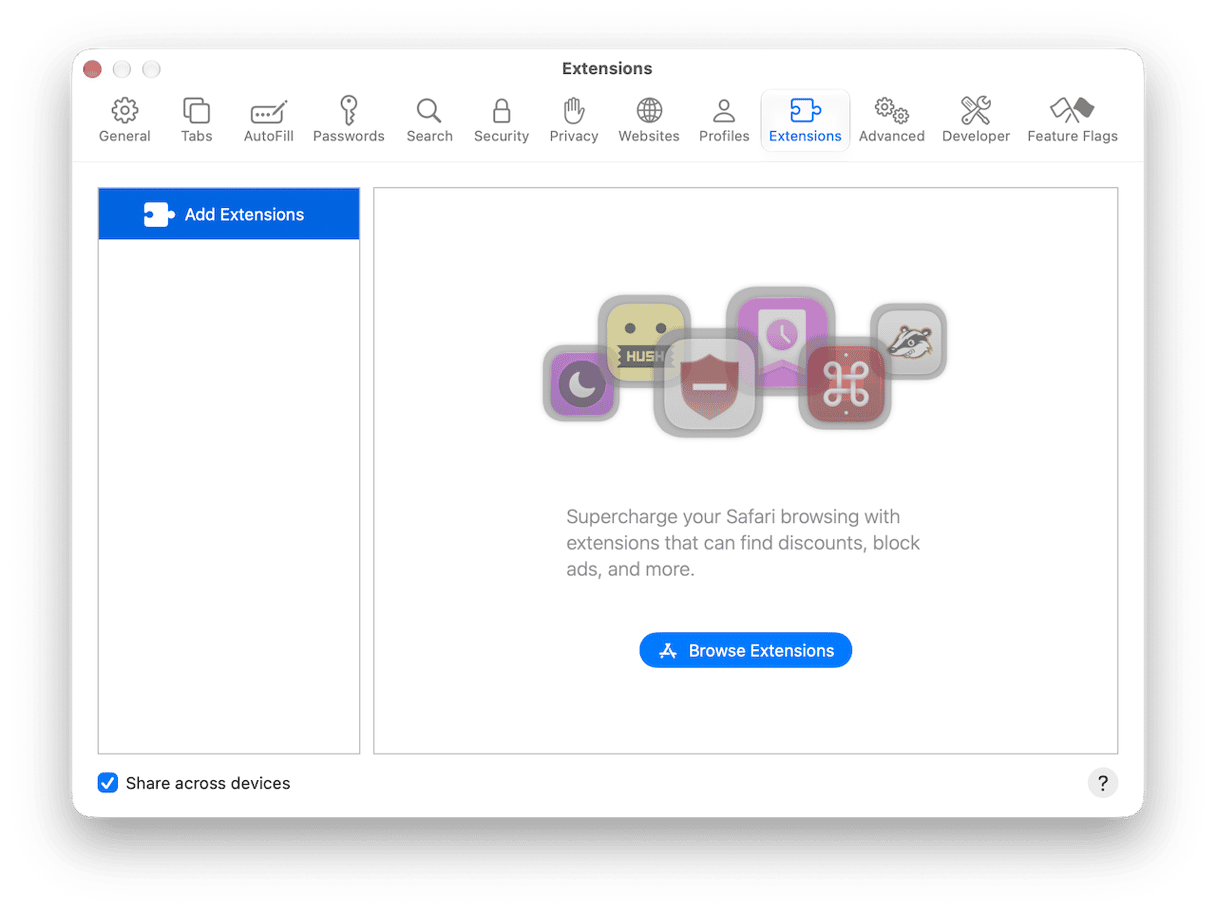
- To specify which extensions should be enabled in the profile, click the Extensions tab and check the box next to the extension you want to enable.
- Close the window when you’re done.
What to do if Safari changes by itself
If changes you make to Safari don’t stick or it changes by itself, the first thing to do is check your extensions (Safari menu > Settings > Extensions) and remove any you don’t recognize. Learn more in our guide on how to uninstall Safari extensions on Mac.
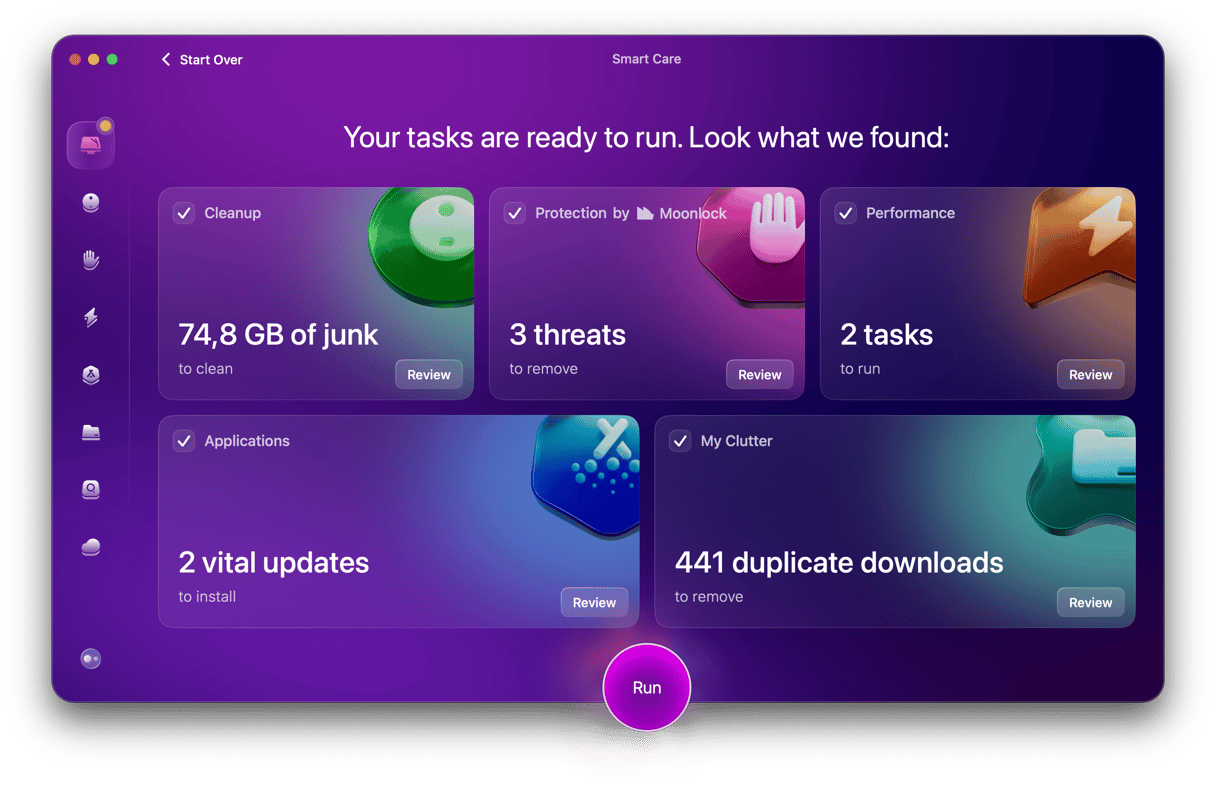
If that doesn’t work, or you’re not using third-party extensions, you can use CleanMyMac’s Smart Care feature to check for malware.
- Open CleanMyMac — get your free trial here.
- Click Scan on the welcome screen.
- Smart Care runs a quick malware scan, looks for system junk like caches and logs, and suggests updates for your apps in one pass. Review the results.
- Click Run.
Tip: If you also work in Google Chrome with a lot of tabs open, try Browser Care in CleanMyMac. It shows your open tabs in one searchable list, sweeps duplicates, and pauses heavy tabs to free up Mac memory while keeping your place and logins. It works with Google Chrome only and is included in your CleanMyMac subscription at no extra cost.
Frequently asked questions
How do I get my Safari screen back to normal?
Depending on what you want to change, go to the View menu and select an option. It lets you adjust all kinds of settings: from sidebar to tab overview. If you want a more radical way, you can remove all Safari-related data and start afresh. Learn more in our guide on how to reset Safari on Mac.
How do I remove the background?
You can do it directly from the start page. Either click + to open a new tab or go to the Bookmarks menu > Show Start Page > Edit and click the ‘x’ in the corner of the background image you want to remove.
Can I use my own photo?
Yes, you can choose any photo you want. By default, it lets you select from the folder with desktop images, but you can go to any other folder and choose any image.
Will it show on my iPhone?
Yes, if you choose Use Start Page on all Devices. But both iPhone and Mac should be logged into the same Apple Account and set up iCloud syncing as described in the article.