If you’ve just switched to Mac from Windows, you’re probably still finding your way around and working out how to do all the things you can do in Windows. One of those is creating a TXT file. After all, on Windows, all you have to do is right-click on the Desktop and choose New > Text Document. But there’s no equivalent in macOS. So, in this article, we’ll show you all the ways to make a TXT file on your Mac using Terminal and other built-in tools.
How to make a TXT file on Mac
1. Text Edit
Text Edit is the Mac’s built-in text editor, so it’s the natural place to start.
- Go to your Applications folder and launch Text Edit (you can also use Spotlight as a launcher by pressing Cmd-Space-1 or clicking Launchpad in the Dock).
- Click on the File menu and click New.
- Text Edit will open a rich text file (RTF) by default, which is not what we want. So, go to the Format menu and choose Make Plain Text or press Command-Shift-T.
- When you’ve typed or pasted in your text, click the File menu and choose Save (Command-S), then choose where to save it and give it a name. Make sure the name has the file extension .txt.
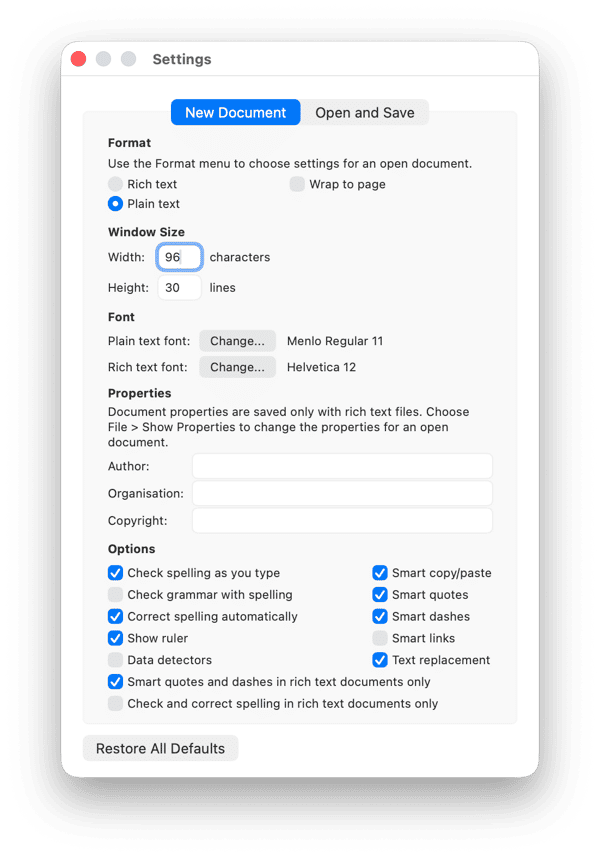
- To make Text Edit create a text file, rather than an RTF by default, click on its name in the menu bar and choose Settings, then, under New Document, set Format to Plain Text.
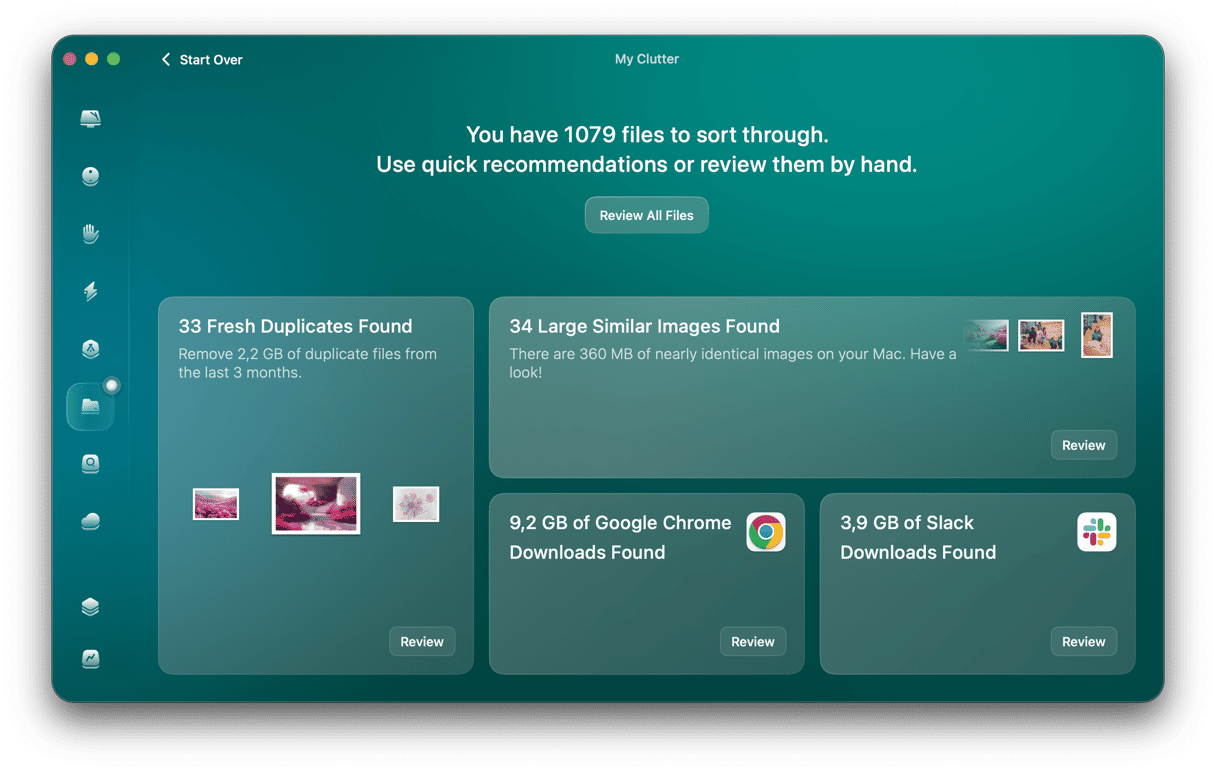
If you create lots of text files on your Mac, over time, they will accumulate, and you’ll end up with hundreds of them. CleanMyMac’s My Clutter feature helps you keep them in check by finding duplicate and similar files that are scattered across your Mac — including old .txt files you forgot about — and removes them in one scan. Try CleanMyMac for free — test this and other tools for 7 days.
2. Terminal
Method 1
Making a text file in Terminal is surprisingly easy, even if you’ve never used Terminal before.
- Go to Applications > Utilities and launch Terminal.
- Type or paste this command and press Return:
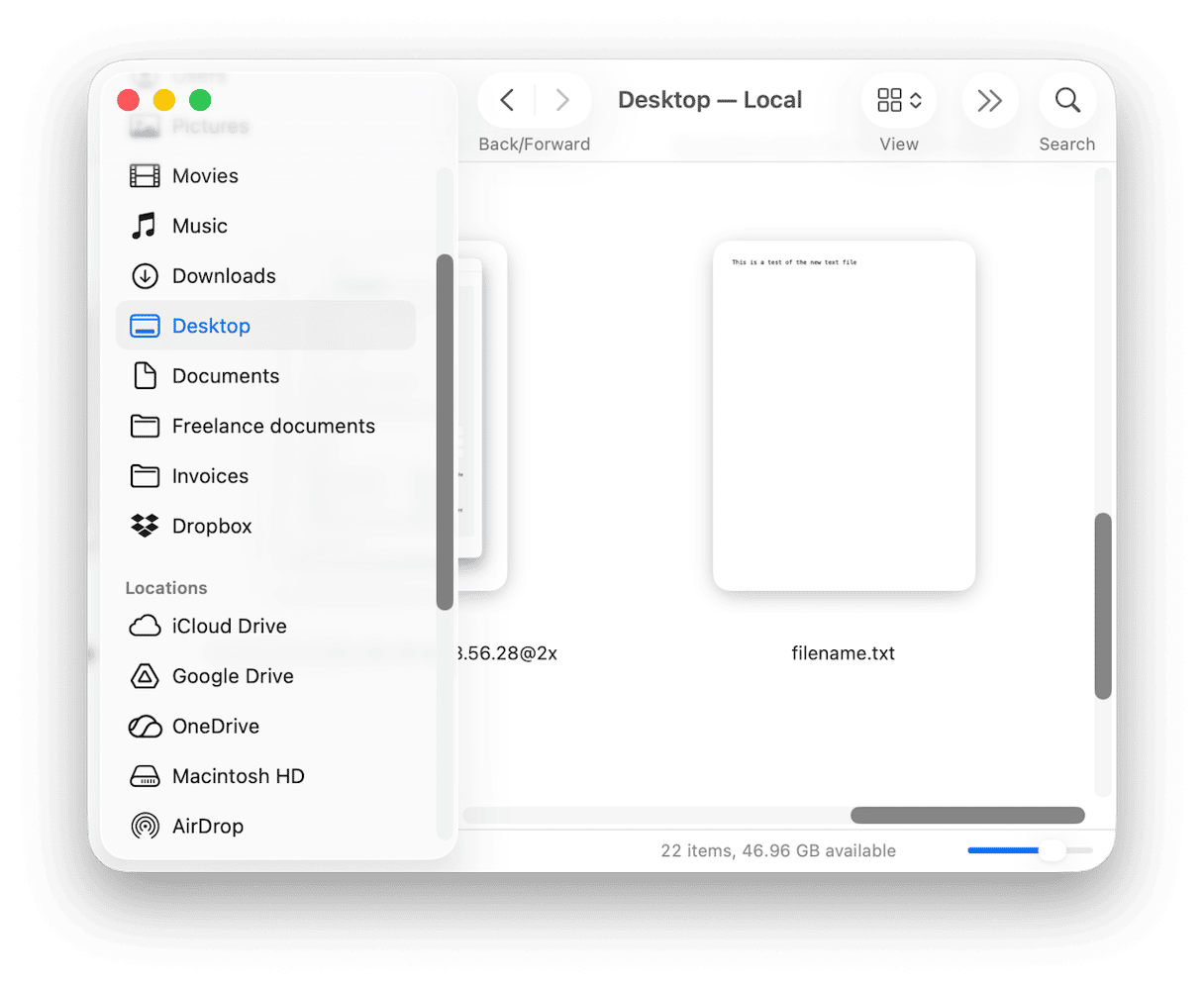
touch ~/Desktop/filename.txt - To add text to the file, type this and press Return:
cat > ~/Desktop/filename.txt - Type the text you want to add, then press Control-D to save the file.
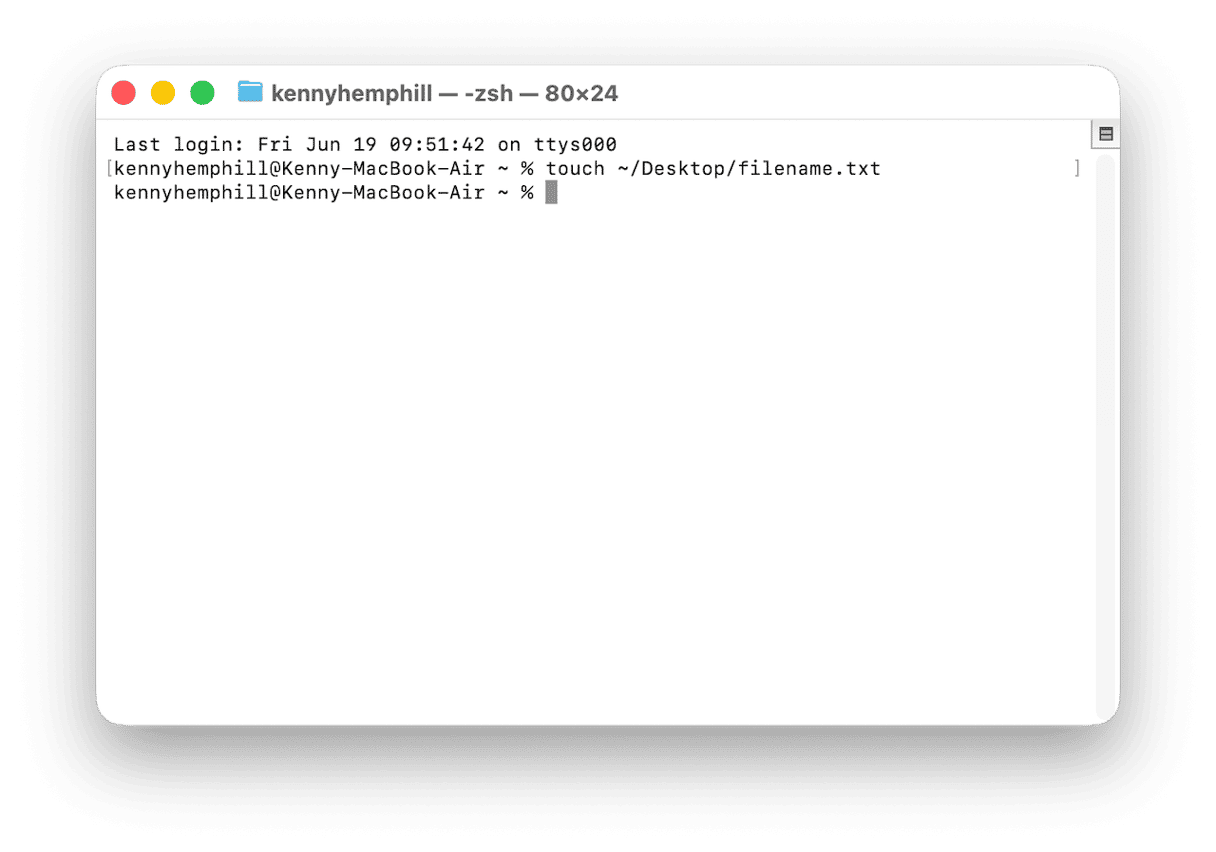
Tip: If you want to put the file in a different folder, replace ‘Desktop’ in the first command with the path to the folder you want to save it to.
Method 2
Terminal has its own built-in text editor — nano (sometimes accessible as pico on older systems). You can use that to create a text file. The instructions below are for pico; to do the same in nano, type nano instead pico in the command.
- In Terminal, type:
pico ~/Desktop/myFile.txt - Press Return.
- Type the text you want to add to the file.
- Press Ctrl-o followed by Return.
- To exit pico, press Ctrl-x
3. Notes
This isn’t a method we’d recommend because Notes isn’t a text editor and is much more comfortable working with PDFs. But we’ve included it here for completeness.
- Launch Notes and type the text you want to include in the text file.
- Click on the File menu and choose Export as > Markdown and save the file to your Desktop.
- You’ll see a folder created on the Desktop with a Markdown file inside it. Click and hold on the file name until it’s selected, and then change .md to .txt.
- Double-click the file to open it in Text Edit and then save it.
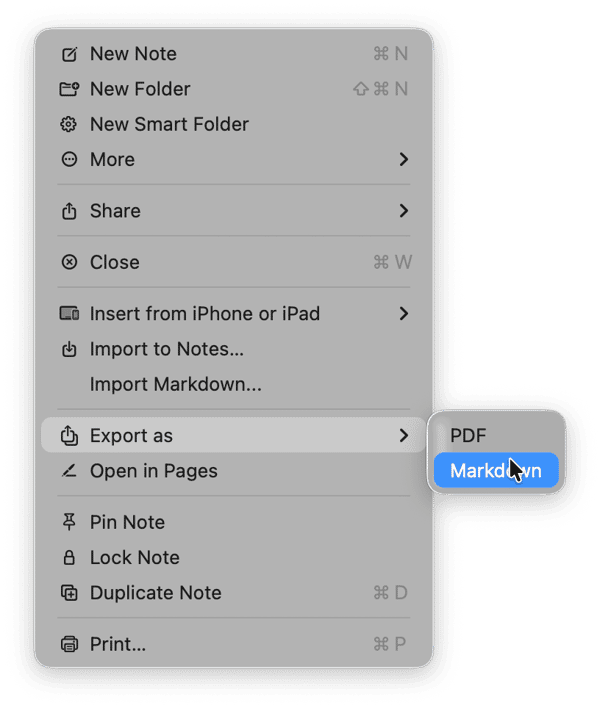
You can also copy and paste the text from Notes into a new Text Edit Document, created after you set the default Text Edit format to text.
Frequently asked questions
Why does Mac save my text file as .rtf instead of .txt?
TextEdit defaults to rich text format. Switch to plain text via Format → Make Plain Text before saving.
Can I create a .txt file directly from Finder?
Not natively. Use Terminal or TextEdit. A Finder right-click shortcut can be added via Automator, but that’s outside the scope of this article.