If you use your MacBook Pro or Air at a desk most of the time and keep it plugged in, either to its own charger or to a dock or hub that charges it, you might have seen the message ‘Charging on hold rarely used on battery’. And if you have seen it, you've probably been as confused as most people by it. What does it mean? Is there a problem? Should I do something about it? None of that is clear from what could be quite an alarming message. Well, the good news is that there is nothing to worry about. Your Mac is doing exactly what it should be doing when your Mac is connected to power most of the time, thanks to Apple’s Optimized Battery Charging feature.
What does "Charging on Hold – Rarely Used on Battery" actually mean?
To explain what the message means, we’ll break it down. ‘Charging on hold’ just means that macOS has paused charging the battery. It does this when Optimized Battery Charging is enabled, and your Mac’s battery has reached 80% charge, in some situations.
The second part, ‘rarely used on battery’ just means that macOS has detected that you spend most of the time you use your Mac with it connected to power, and so you don’t often run the battery down.
What’s actually happening here is that macOS has been monitoring how you use your Mac and when it’s connected to power. If it detects a pattern and notices that you don’t use the battery at certain times of day, for example, it will pause charging at 80%. If it expects you to unplug any time soon, it will resume charging until the battery reaches 100%. Keeping the charge at less than 100% and minimizing charging cycles preserves the life of the battery. The message will appear on any MacBook with Apple silicon or the T2 security chip, running macOS Big Sur or later, when Optimized Battery Charging is enabled.
Quick fix — charge to 100% right now
If macOS has got it wrong and you know you will need your Mac’s battery to be charged at 100% soon, you can override Optimized Battery Charging (learn more about it here). This will cancel optimization for the current charging cycle, but keep Optimized Battery Charging turned on so that it continues to work next time you plug your Mac in. It’s the best option for most people most of the time.
- Click the battery icon in the menu bar.
- Select Charge to Full Now.
You should use this option if you’re about to go into a long meeting, are going to be traveling, or are just heading to the coffee shop to do some work there.
Turn off Optimized Battery Charging (permanently or temporarily)
If you want to disable Optimized Battery Charging longer term, then there are two options. You can turn it off permanently or turn it off until tomorrow. We’ll show you how to do both.
If your Mac is running macOS Big Sur or Monterey, follow the steps below.
- Click on the Apple menu and go to System Preferences, then choose Battery.
- Select Battery in the sidebar.
- Uncheck Optimized Battery Charging.
- Choose either Turn Off to turn it off permanently, or Turn Off Until Tomorrow.
If your Mac is running macOS Ventura or later, follow these steps.
- Click on the Apple menu, choose System Settings, then Battery.
- Click the ‘i’ next to Battery Health.
- Turn off Optimized Battery Charging.
- Choose either Turn Off to turn it off permanently, or Turn Off Until Tomorrow.
- Click Done.
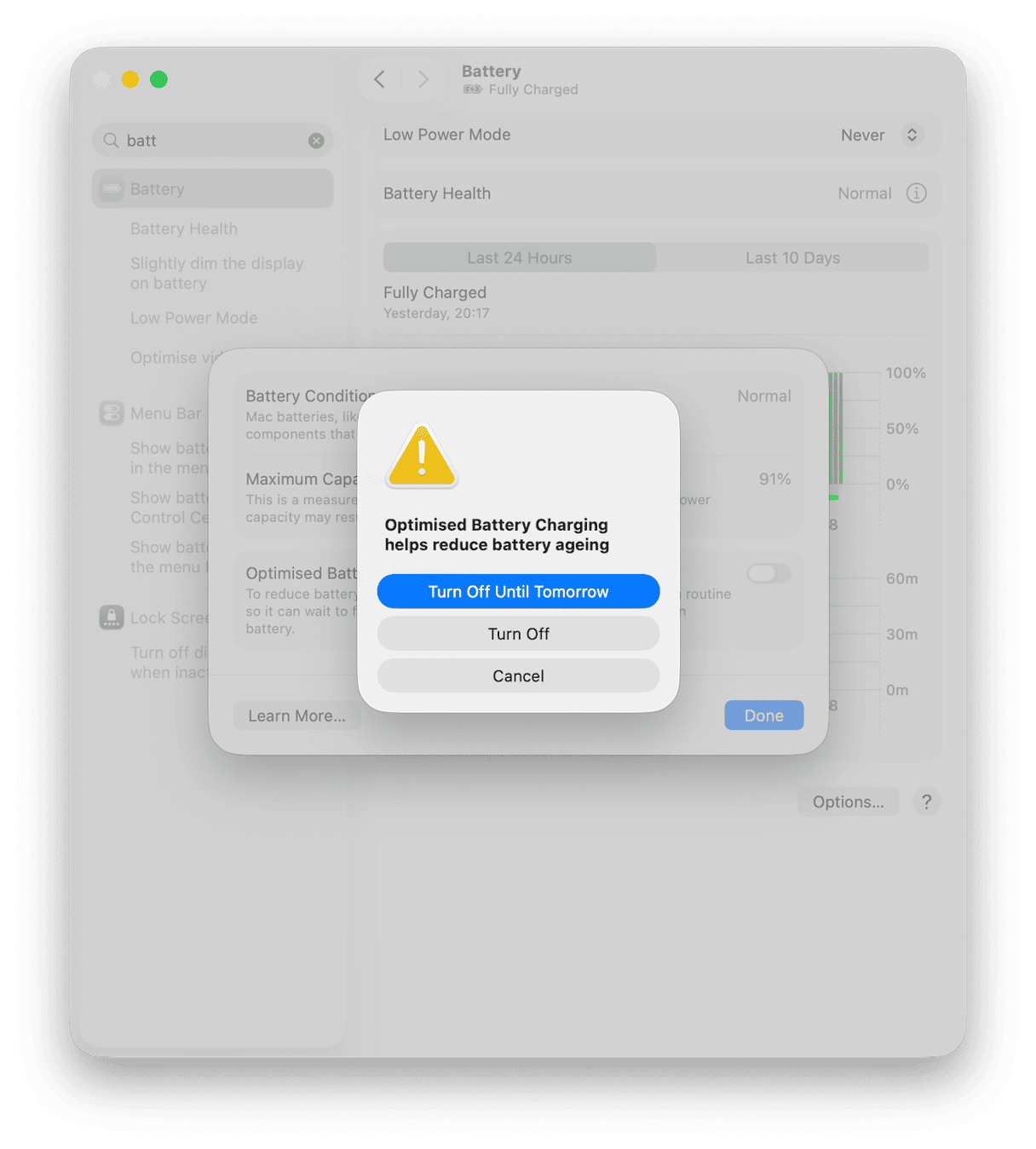
Wondering whether to turn it off permanently or only until tomorrow? Here’s a guide:
Tomorrow
If you normally use your Mac at your desk but are going to be traveling or away from your home or office for the day, choose this option.
Permanently
If you travel regularly, have a varying schedule, or prefer to be in complete control of how your Mac works, choose this option. Remember, though, that turning off optimization permanently may degrade the battery and shorten its life.
It’s also worth bearing in mind that if your usage patterns change, perhaps because you travel more, that Optimized Battery Charging will take a few days to register the change and adapt to your new schedule. So, don’t worry if charging still goes on hold automatically at a time when it shouldn’t. Give it some time to adapt before you turn it off.
What to do when turning it off doesn’t work – reset the SMC
If turning off Optimized Battery Charging by following the steps above doesn’t work and you still see the message that charging is on hold, you can try resetting the system management controller (SMC). The SMC manages the way your Mac distributes power, including for charging the battery.
To reset the SMC on a Mac with Apple silicon, all you have to do is make sure your MacBook is plugged into a power source, shut it down, wait 30 seconds, and then press the power button to start it up again. The SMC resets every time you boot your Mac.
For Intel-based Macs, the steps to reset the SMC depend on whether you have a Mac with a T2 security chip or not. If your MacBook was released in 2018 or later, it will have the T2. If it was released earlier than that, it won’t.
Reset the SMC on an Intel Mac with the T2 security chip
- Shut down your Mac.
- Press and hold Ctrl + Option + Shift for 7 seconds (on the left side of the built-in keyboard).
- While you’re holding those keys, press and hold the power button for another 7 seconds.
- Release all the keys, wait 5 seconds, and then press the power button to start up.
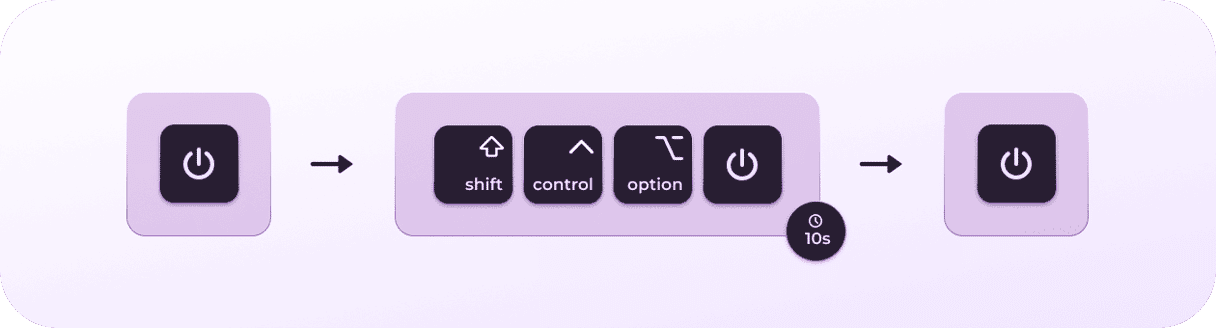
Reset the SMC on an Intel Mac without the T2 security chip
- Shut down your Mac.
- Press and hold Ctrl + Option + Shift.
- Press and hold the power button.
- Hold all four keys down for 10 seconds.
- Release all the keys, then press the power button to boot your Mac.
Once you’ve reset the SMC, plug in your MacBook’s charger and monitor its charging behavior.
Other reasons charging may be on hold
Optimized Battery charging isn’t the only reason your Mac may put charging on hold, even though your MacBook is plugged into the mains. Here are a few others.
- Ambient temperature too high. Your Mac is designed to work at specific temperatures. If the temperature gets too high, it could damage your Mac. So, macOS has features that prevent that from happening. One of those stops the battery charging, because as the battery charges, it gives off heat. The solution is to move to a cooler environment, put your Mac on a flat surface and keep it out of direct sunlight if possible.
- Low power charger. If you’re not using the charger that came with your Mac, it’s possible that the one you are using isn’t delivering enough power to charge the battery. Your Mac may still be able to run from mains power, but the battery won’t charge. Switch to your MacBook’s original charger or another charger that delivers enough power.
- Background process drawing excessive power. Sometimes processes that run in the background draw too much power. You can use Activity Monitor and its Energy tab to check. You can also use CleanMyMac’s Performance feature to manage background processes and disable those you don’t need. CleanMyMac’s Menu App also has a Battery tool that will show you which processes are consuming the most energy.
- macOS software bug. Though rare, macOS updates sometimes introduce bugs that cause issues with power management. These are usually fixed quickly, so if your Mac isn’t set to update automatically, check System Settings > General > Software Update to see if an update is available.
How to keep your MacBook battery healthy long-term
1. Let Optimized Battery Charging do its job
Optimized Battery Charging works. It reduces the number of charge cycles of your Mac’s battery and maximizes its lifespan. So keep it turned on unless you have a good reason to turn it off.
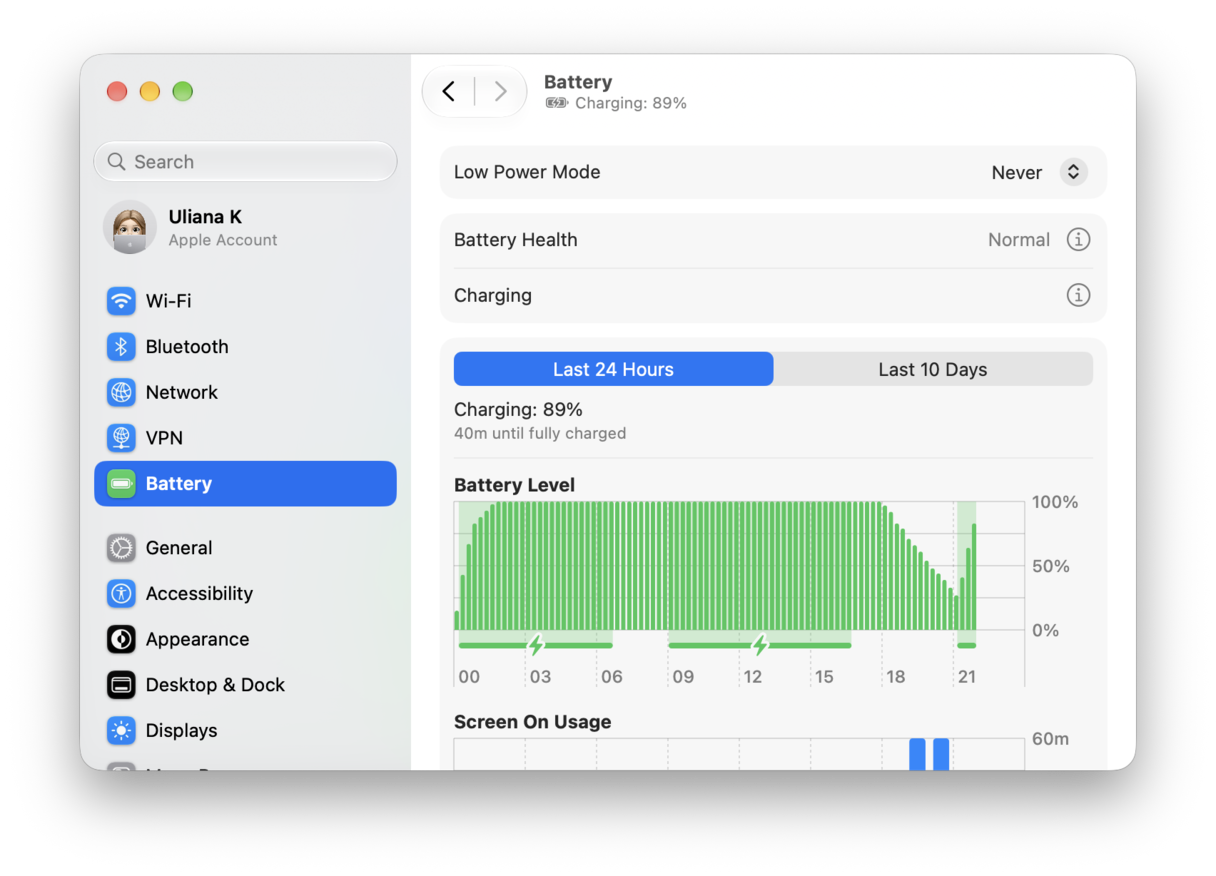
2. Check the health of your Mac’s battery periodically
Go to System Settings > Battery > Battery Health and look at the reading there. If it says ‘Normal,’ great. If it says ‘Service Recommended,’ that’s a sign the battery has degraded, and if you plan to keep your MacBook for a while yet, you might want to think about taking it to an authorized service center to have the battery serviced.
3. Reduce background CPU strain using CleanMyMac
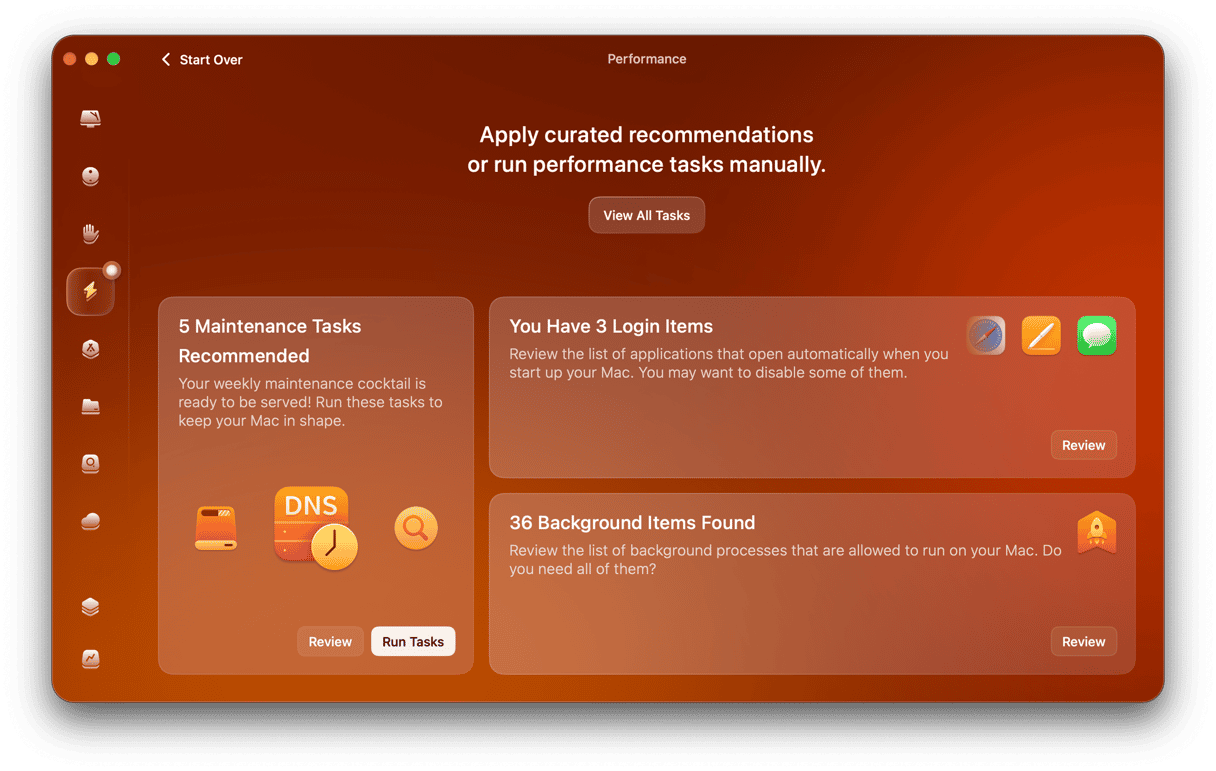
CleanMyMac’s Performance feature makes it easy to see what background items are running on your Mac. If you see any that are owned by applications you no longer use, you can disable them.
- Open CleanMyMac and choose Performance in the sidebar.
- Click Scan.
- Choose Review in the Background Items pane.
- Select the background items you don’t want and click Remove.
Start your free CleanMyMac trial — keep your MacBook running efficiently with a few clicks.
4. Keep your Mac clean and cool
Large amounts of system junk, like cache files, can contribute to additional pressure on your Mac’s CPU, which, in turn, can increase heat generation. Use CleanMyMac’s Cleanup feature to get rid of junk files with a click and keep your Mac leaner and cooler over time.
Conclusion
'Charging on hold – rarely used on battery' is not a bug or a warning, or even a sign that your Mac is overheating. It’s macOS doing its job and optimizing battery charging to keep the charge at 80% until you need to unplug and use the battery to power your Mac. In that way, it preserves the life of the battery. For most users, the correct response is to ignore the message and carry on using your Mac normally. If you know you’re about to unplug and need 100% battery, you can override it using ‘Charge to full now.’ If you want more control over battery health or your Mac’s performance, CleanMyMac is the tool that will keep everything running efficiently between charges — get your free trial here.