

Disk Utility is one of the most useful applications on your Mac. Tucked away in the Utilities folder inside Applications, it’s one of those apps that you barely think about until you need it. And when you do need it, you’re very glad it’s there. Disk Utility is mostly used either for fixing problems with disks or for erasing and reformatting them. Before it can do anything with a disk, though, it has to unmount it. And that’s where problems can occur. In this article, we’ll explain what error code -69888 is and how you can fix Disk Utility failures.
What is error code -69888?
Error code -69888 usually occurs when Disk Utility is trying to unmount a disk in Finder so that it can, for example, erase and reformat it. If there’s a problem and Disk Utility can’t unmount the disk, you may see an error message with the code -69888 or see the error code in Console if you examine log files. Error code -69888 is a failure to unmount a disk.
Why does error occur?
If Disk Utility can’t unmount a disk, it could be that the disk is in use. For example, you can’t unmount your startup disk. If you need to do that, you would have to reboot in recovery mode and then try. It could also be the case that a background process is running and is using the disk you’re trying to fix or erase. It could also be that the disk has a fault and is failing.
How to fix error code -69888 and other problems with Disk Utility
1. Check if Spotlight is indexing the disk
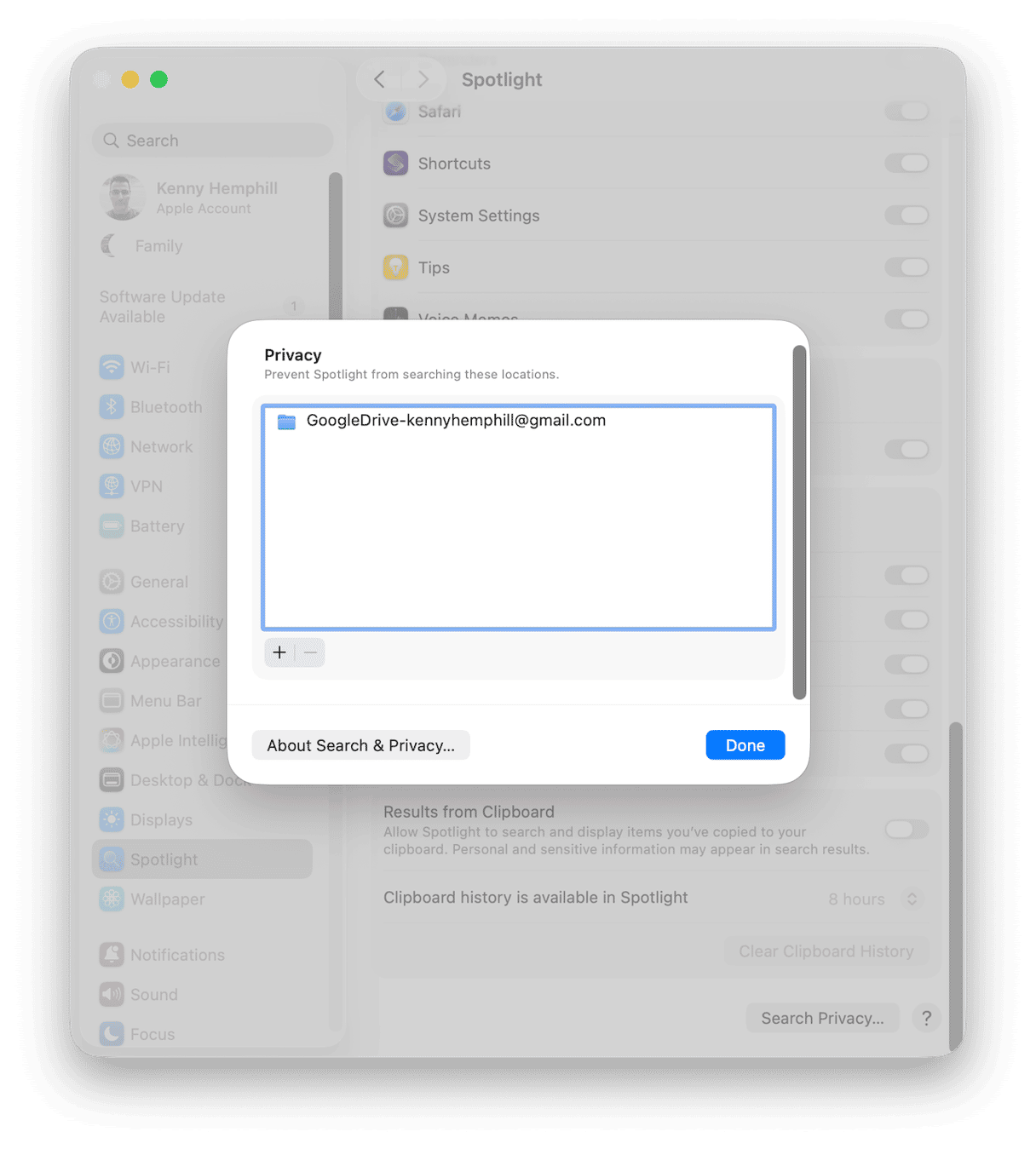
If Spotlight is in the process of indexing the disk, macOS may see the disk as being in use and return an error when you try to erase it. You can check whether Spotlight is indexing by looking at its icon in the menu bar. If there is a dot next to it, it’s indexing. One solution is to wait until it’s finished. But if you can’t wait, you can try excluding the disk from Spotlight indexing.
- Click the Apple menu and choose System Settings.
- Select Spotlight,
- Scroll to the bottom of the window and click Search Privacy.
- Either drag the disk from your Desktop onto the window or click ‘+’ and select it.
2. Restart your Mac
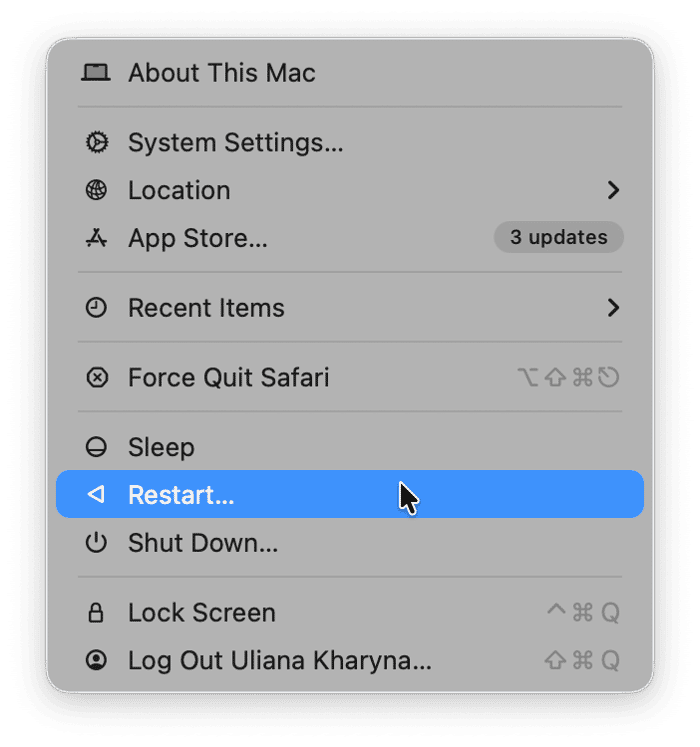
Restarting your Mac runs checks on your startup disk and fixes any problems it finds. It also clears out temporary files and cache. In many cases, it’s all you need to do to fix problems. Once your Mac has restarted, try Disk Utility again.
3. Update macOS
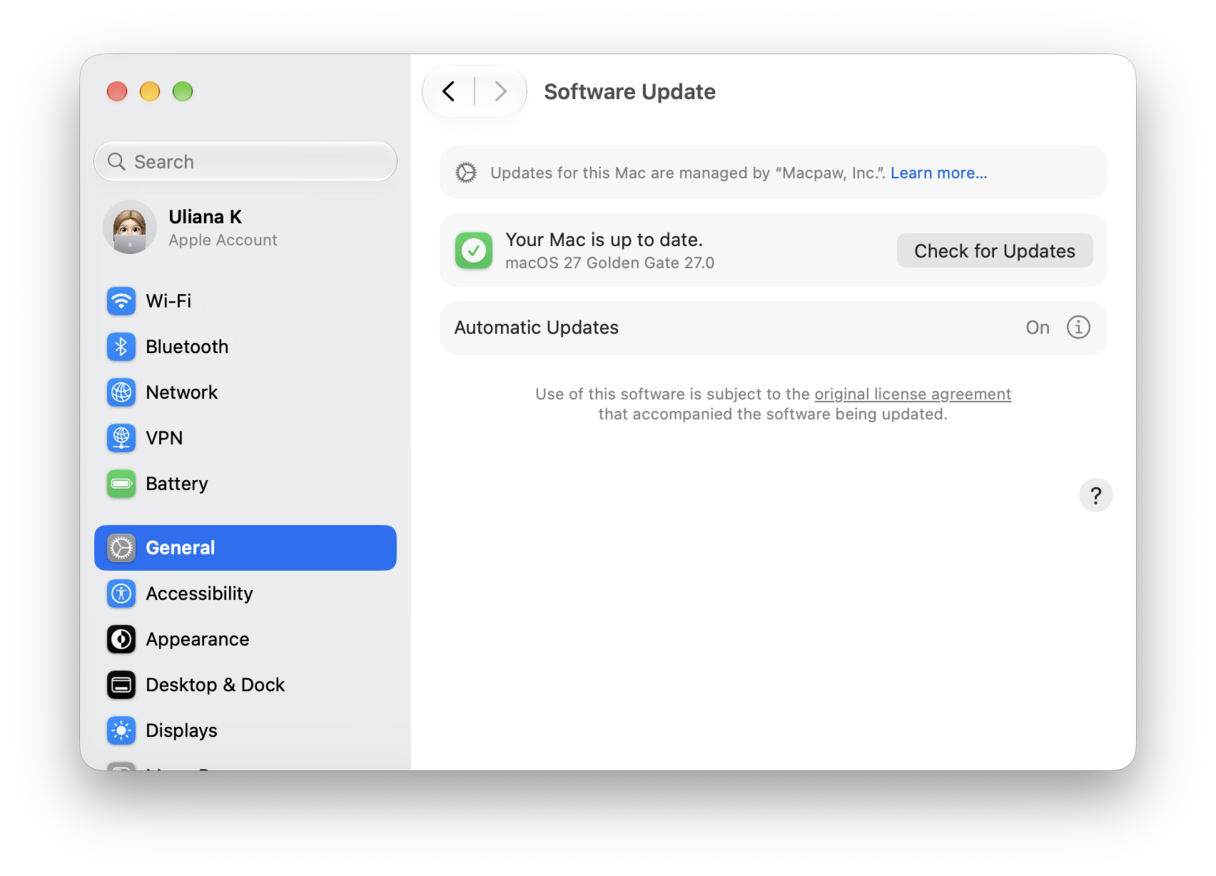
If you get the error even after restarting, the next step is to update macOS. The problem could be related to a bug in macOS that had been fixed in a recent update.
- Click on the Apple menu and choose System Settings.
- Choose General > Software Update.
- Wait for it to check for an update, and if there is one available, follow the instructions on screen to install it.
4. Check Activity Monitor
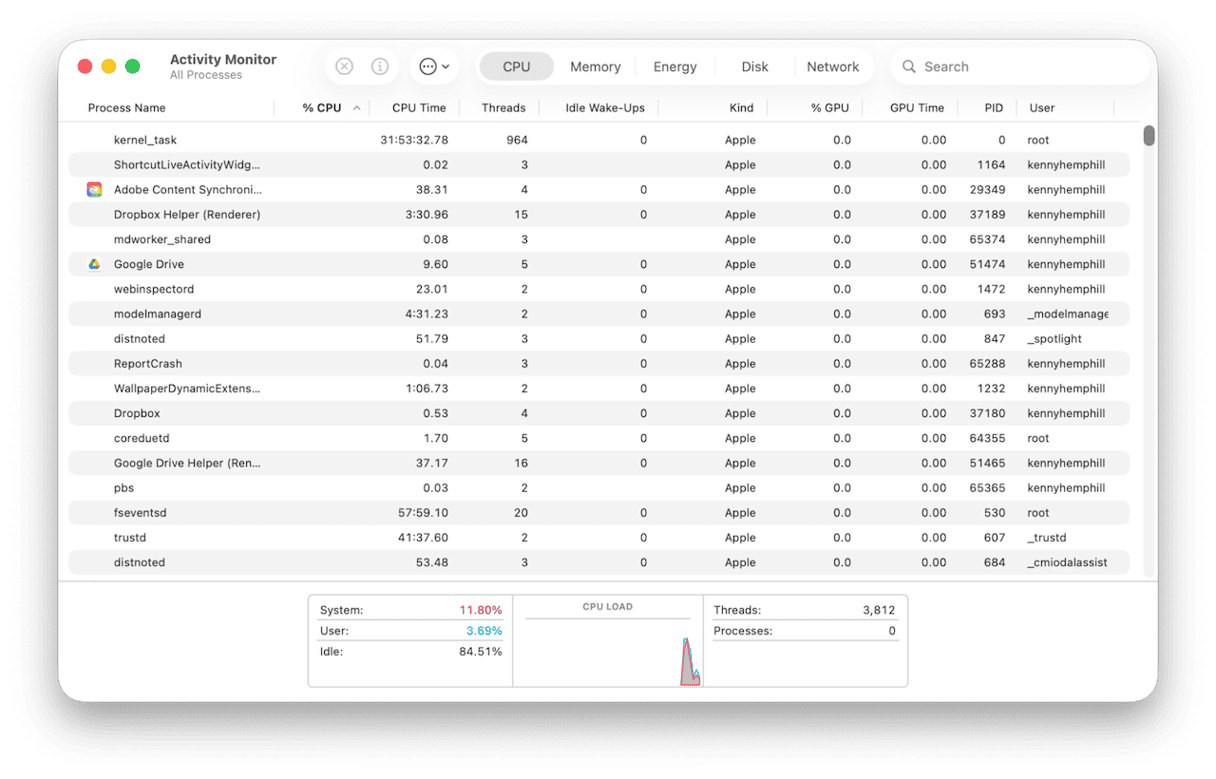
One of the reasons for the error -69888 is that there is a background process running, mining that is using the disk you’re trying to work on in Disk Utility. To check, use Activity Monitor.
- Go to Applications > Utilities
- Open Activity Monitor
- Look for any running processes that are reading from or writing to the disk you are trying to access in Disk Utility.
- If you see one and it appears to be running normally, for example, that it’s not using a huge percentage of CPU cycles or RAM, wait until it’s finished and try Disk Utility again.
- If it looks like it has hung, use the ‘x’ in the toolbar to quit it and quit Activity Monitor, then try Disk Utility again.
5. Disconnect the disk
If the disk is an external disk, the next step is to eject the disk in Finder and disconnect it. Then reconnect it, wait for it to mount, and try again.
6. Boot into recovery mode
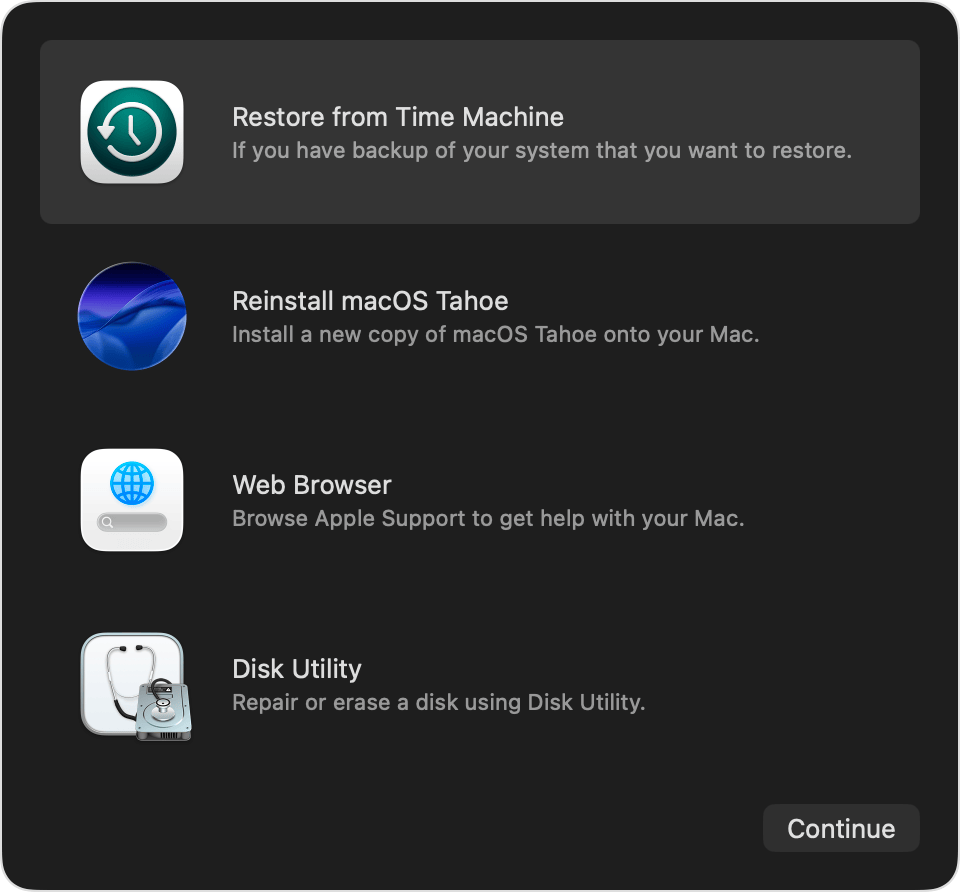
If the disk is your startup disk, you should reboot into recovery mode, open Disk Utility in macOS Utilities, and then use that to repair the disk. The process for rebooting into recovery mode is different depending on whether you have an Intel-based or Apple silicon Mac.
- If you have an Intel-based Mac, shut it down, then press and hold Command-R and press the power button. Release the keys when you see the Apple logo or a spinning globe. When prompted, choose your Wi-Fi network, startup disk, and type in your password.
- If you have a Mac with Apple silicon, shut it down, then press and hold the power button. Release the power button when you see ‘loading startup options’ or the Options icon. Click Options > Continue. Choose your startup disk, if prompted, then Next. If asked, type in your password.
- Once you see macOS Utilities on screen, choose Disk Utility.
- Select your startup disk and then click First Aid. Confirm you want to run first aid on the disk.
7. Check if your Mac has a Fusion drive
Fusion drives were an option offered on some desktop Macs, like iMacs, as Apple transitioned from hard disks to SSD. They consist of an SSD and a hard disk, ‘fused’ together into one volume. The idea was that the OS would be hosted on the SSD to allow for faster booting, while data was housed on the hard disk. If macOS no longer recognizes the Fusion drive as one disk and mounts to volumes, that may return an error when you try to work with one of the volumes in Disk Utility. To check whether this is the case, follow the steps below.
- Disconnect any external disks and open System Settings > General > Storage.
- If you see a drive named Fusion drive, macOS recognizes it.
- If you see two drives, one labeled Flash Storage and the other with a capacity of at least 1TB, your Mac no longer recognizes the Fusion Drive, and this may be the cause of the error.
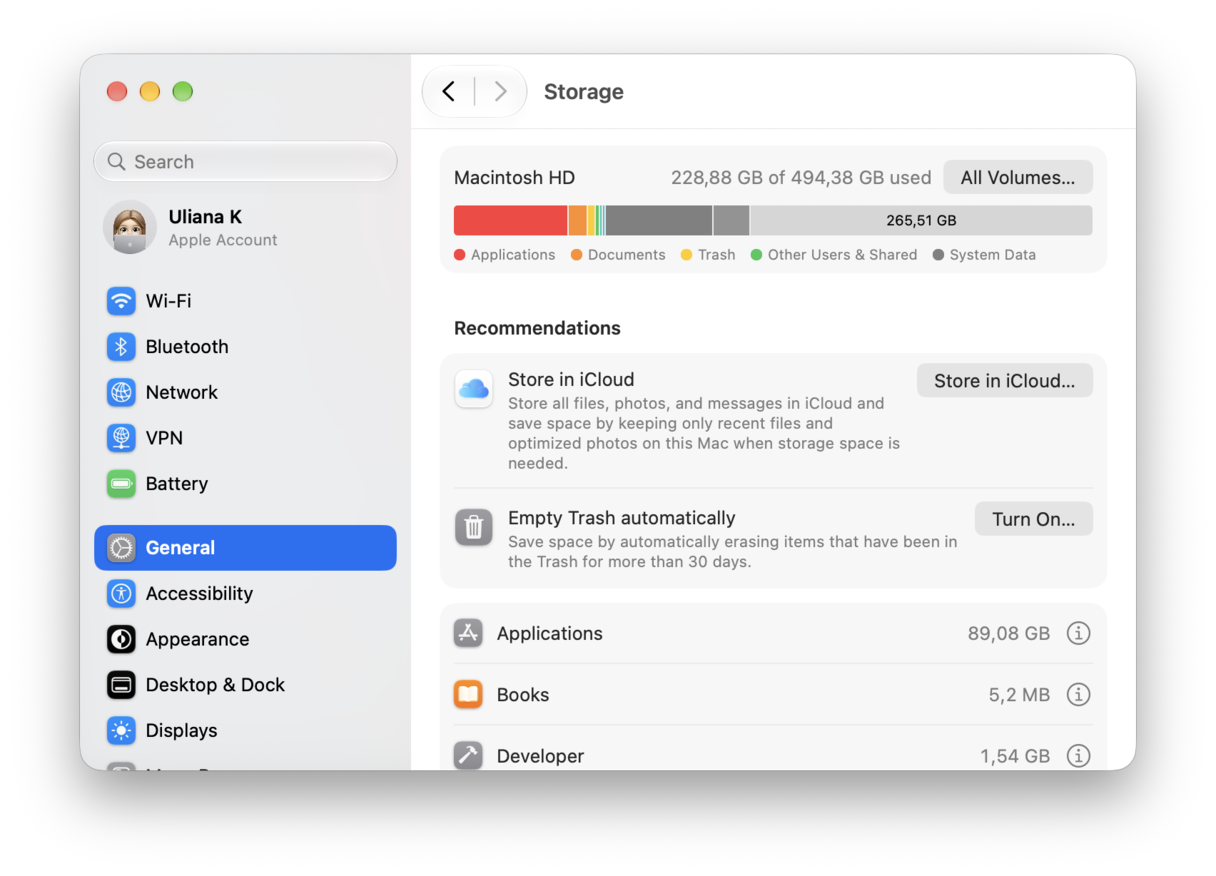
If you have confirmed that your Mac doesn’t recognize the Fusion drive, follow the steps below to reset it.
- Back up all the data on both drives – it will be deleted when you reset the Fusion drive.
- Shut down your Mac and restart in recovery mode, following the process in Step 6 for your Mac.
- When it has booted, click the Utilities menu in the menu bar and choose Terminal.
- Type the following command and press Return: diskutil resetFusion
- Type Yes when prompted (make sure to use a capital ‘Y’) and press Return.
- When you see a message saying the reset has been successful, quit Terminal.
- Choose Reinstall macOS from the macOS Utilities menu.
- Follow the instructions on screen to complete the reinstall.
- Your Mac will reboot from the Fusion drive.
How to prevent errors on your Mac
Error code -69888 is just one of many different errors that can occur when you're using your Mac. There are many others with lots of different causes. It may seem like there’s not a lot you can do to prevent them, but that’s not true. There is. You can run regular maintenance tasks on your Mac, just as you would with a house or car.
In this case, that means reindexing Spotlight, thinning out Time Machine snapshots, flushing DNS cache, and repairing disk permissions, among other things. Doing that yourself is time-consuming and difficult. You’d need to know the correct commands in Terminal, for example.
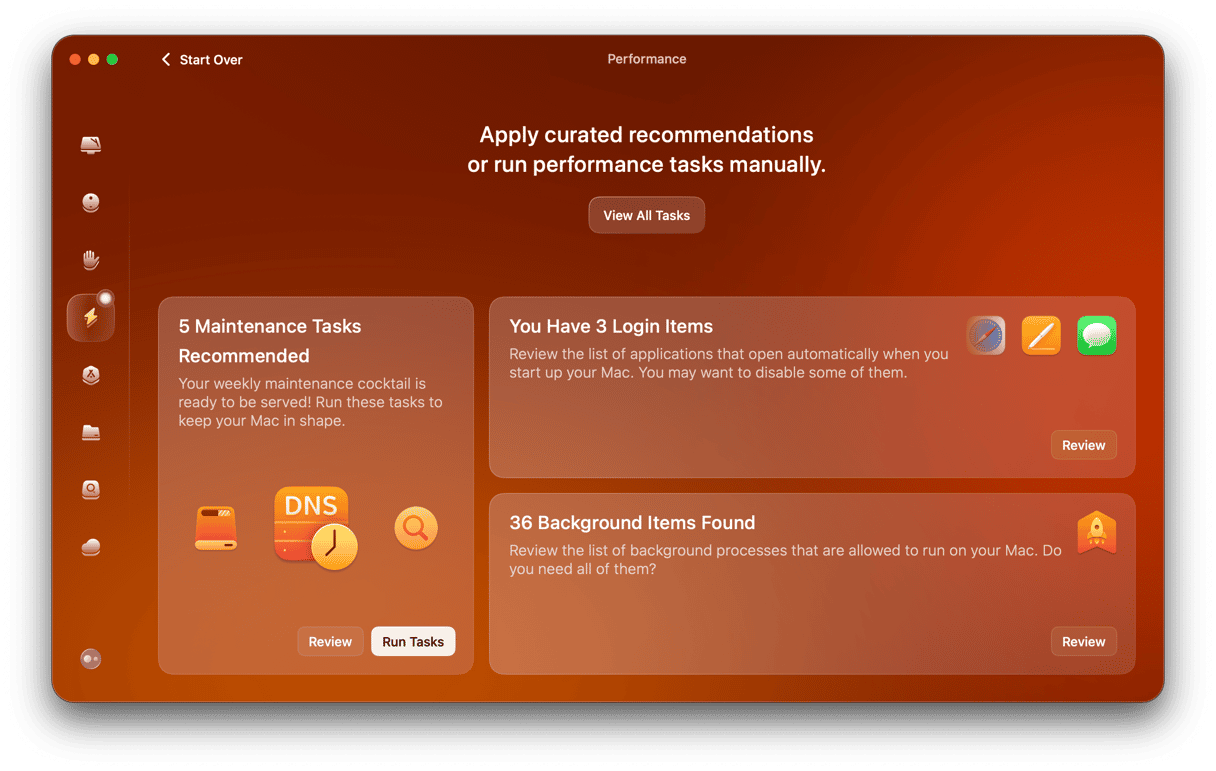
Thankfully, you don’t need to do it yourself. CleanMyMac can do it for you. It scans your Mac, looking for tasks that need to be run and makes recommendations. You can either follow those recommendations with one click or decide for yourself what to do.
- Get your free CleanMyMac trial — you can test it for 7 days for free.
- Choose Performance in the sidebar.
- Click Scan.
- When it’s finished, click Run in the Tasks pane or View All Tasks to choose which ones to run for yourself.
Error code -69888 is just one of several errors that can occur when you are working on a disk in Disk Utility. In this case, it means that a volume Disk Utility is trying to access can’t be unmounted. There are a number of possible reasons that could happen. Follow the steps above to fix that and other problems in Disk Utility.




%20%201200x670_1721220066.png)
