Most of us have encountered warnings about websites when we visit, often telling us that a site is not secure. One of the most common errors is ‘not secure’. In this article, we’ll explain what that error message means and how to fix it if you get ‘not secure’ in Chrome or any other web browser.
What does ‘not secure’ in Chrome mean?
HTTPS is the secure version of the HTTP protocol and is now used by nearly every website and expected by every modern web browser. When you see ‘not secure’ in Chrome — or any other web browser — it means some of the following:
- The web page is not using HTTPS.
- Some of the content is not using HTTPS.
- The site is using outdated security protocols.
- Its SSL certificate is invalid or expired.
- The website is using a self-signed SSL certificate.
Whatever the reason, the browser you are using can’t trust that the site is secure and so displays the warning. If you are visiting the website, there is nothing you can do to fix it except alert the site owner. If you’re not absolutely certain that the site is safe, you should choose the ‘Back to safety’ option in the error dialog to navigate away from the site. If you choose to remain on the site (click the Advanced options in the dialog and choose one), you certainly shouldn’t supply personal data like a password or financial details while you’re on the site.
Why does Chrome display ‘HTTPS not secure’?
Chrome, and most other web browsers, assume that every web page now uses the HTTPS protocol, which secures data transmitted between your Mac and the web page, rather than HTTP. If it detects that data isn’t encrypted when it is transmitted from your Mac to a web page, it will flag it as not secure.
That’s because failure to encrypt data in transmission can make it vulnerable to so-called ‘man in the middle’ attacks, where sensitive data is intercepted between your Mac and the website.
Even if the website itself is legitimate, the lack of encryption presents a risk to your data.
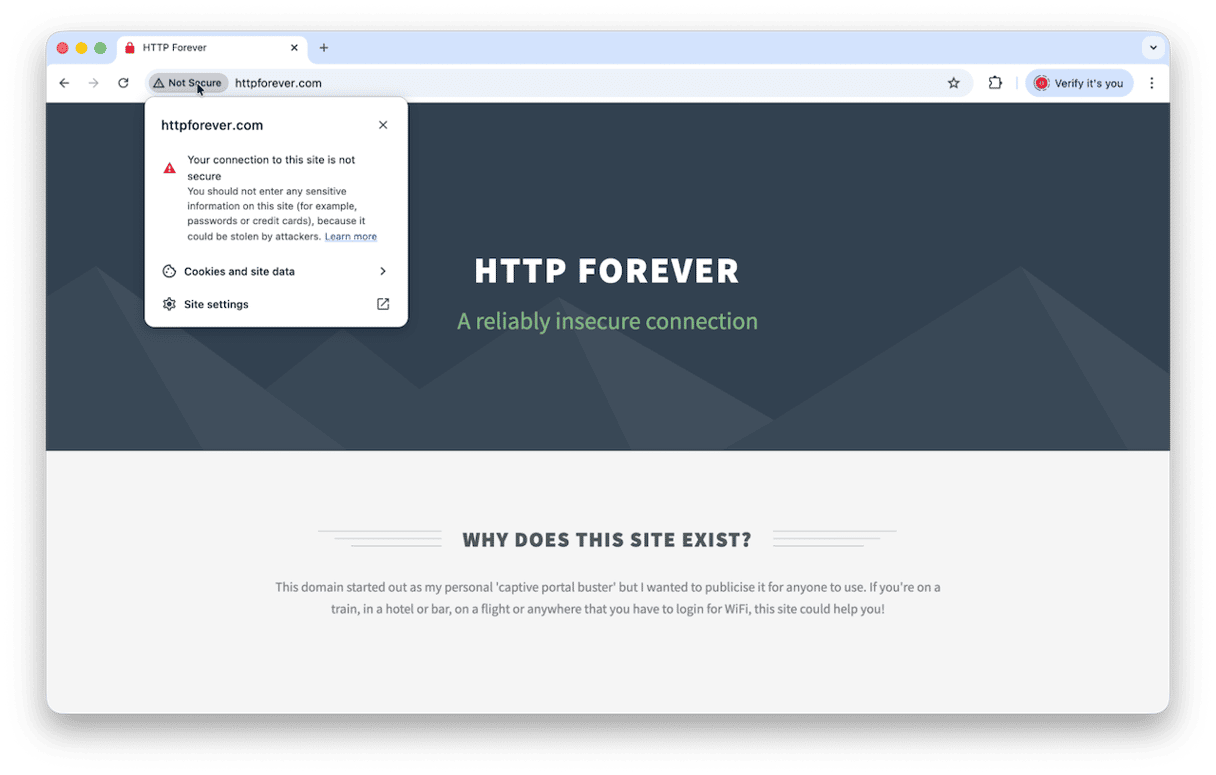
Why do I need to fix it on my website?
If users see warnings that your website is not secure, they are unlikely to come back. And if Google sees your site as not secure because it has an invalid SSL certificate or HTTP links, it will push it down its rankings because it doesn’t want to direct users to unsecure sites.
How to fix a not secure website in Chrome on your Mac
For users who want to access the website returning the error
Important: It is not recommended to visit such websites because they may spread malware, but if you still need to access one, do it at your own risk.
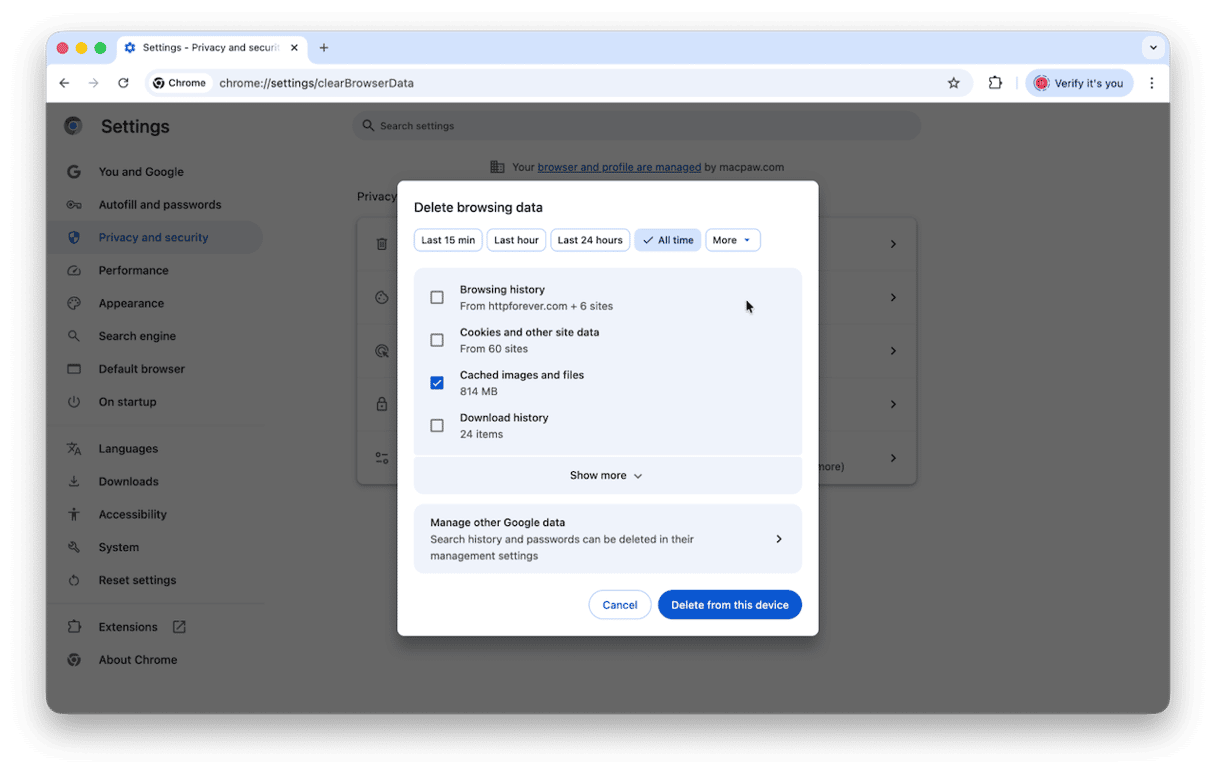
1. Clear Chrome cache
It is unlikely, but sometimes, the error may pop up because of corrupted browser data. Here’s how to clear it:
- Go to Chrome Settings > Privacy & Security > Delete browsing data.
- Choose All time (you’ll need to click a down arrow next to More).
- Select Cached images and files.
- Click Delete data.
2. Check Mac’s date and time settings
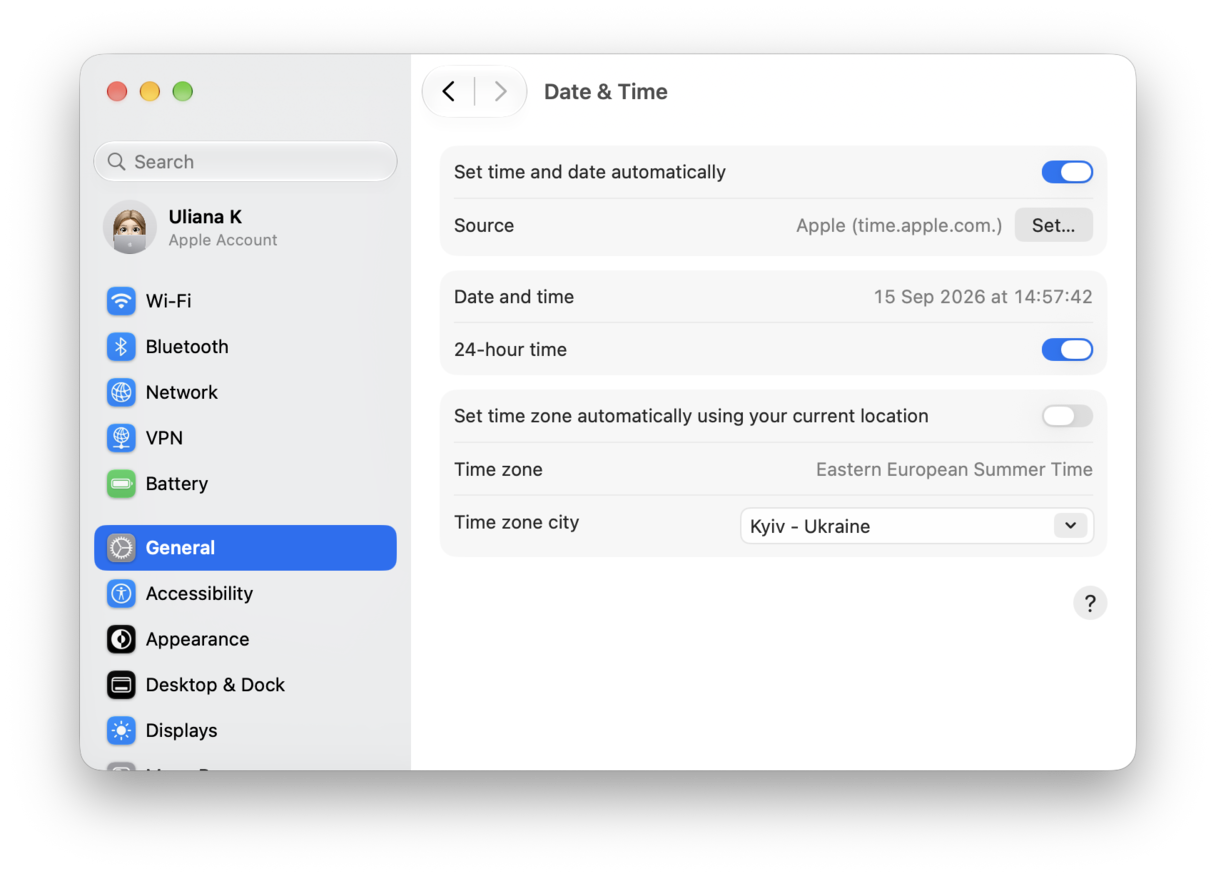
Incorrect date and time may affect the way browsers access websites. Here’s how to check:
- Go to System Settings > General > Date & Time.
- Make sure Set time and date automatically is enabled.
3. Disable VPN
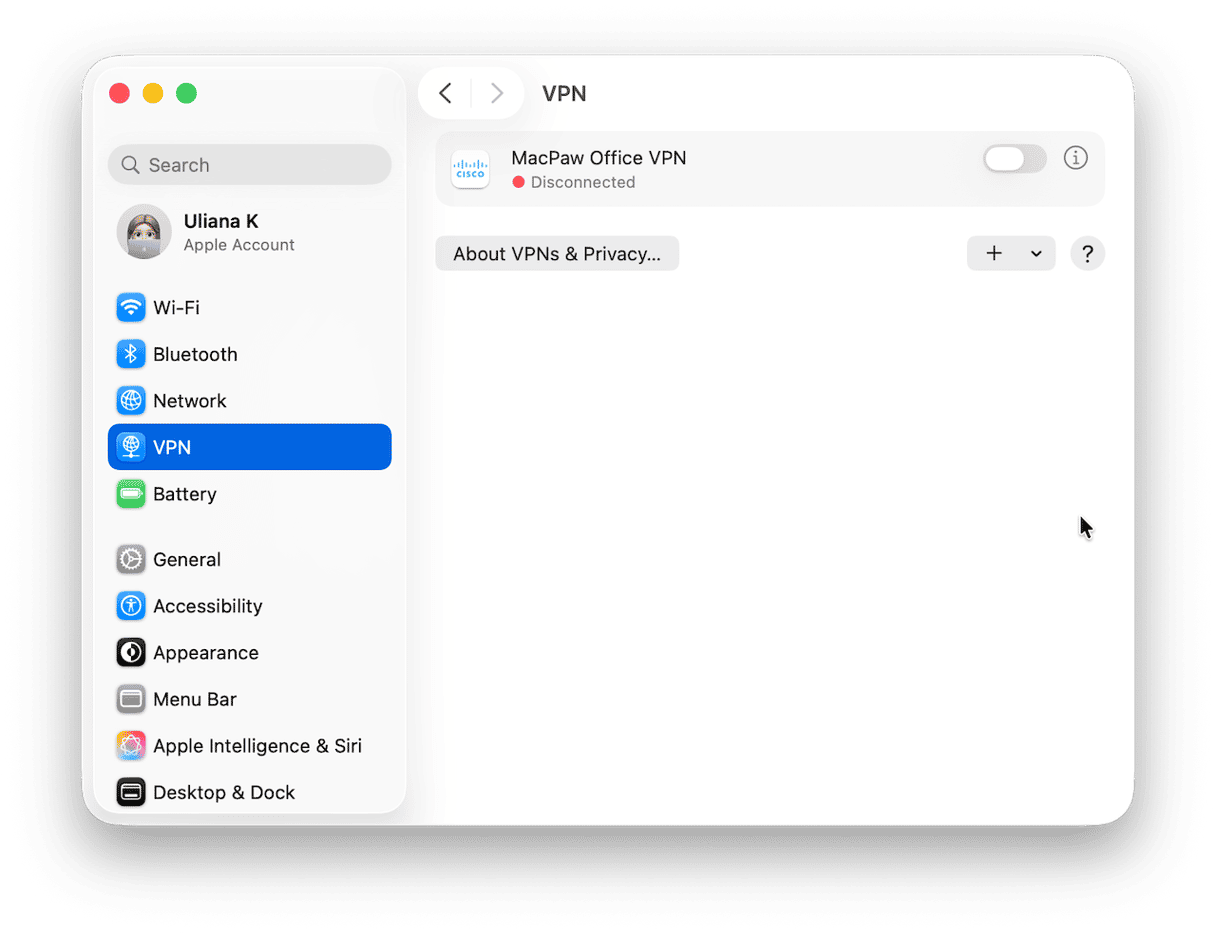
This one is worth giving a try because VPNs may interfere with you accessing the websites. So, go to System Settings > VPN and disable your VPN. Test again.
4. Update Chrome and your Mac
Our next stop is ensuring that the error is not caused by outdated software.
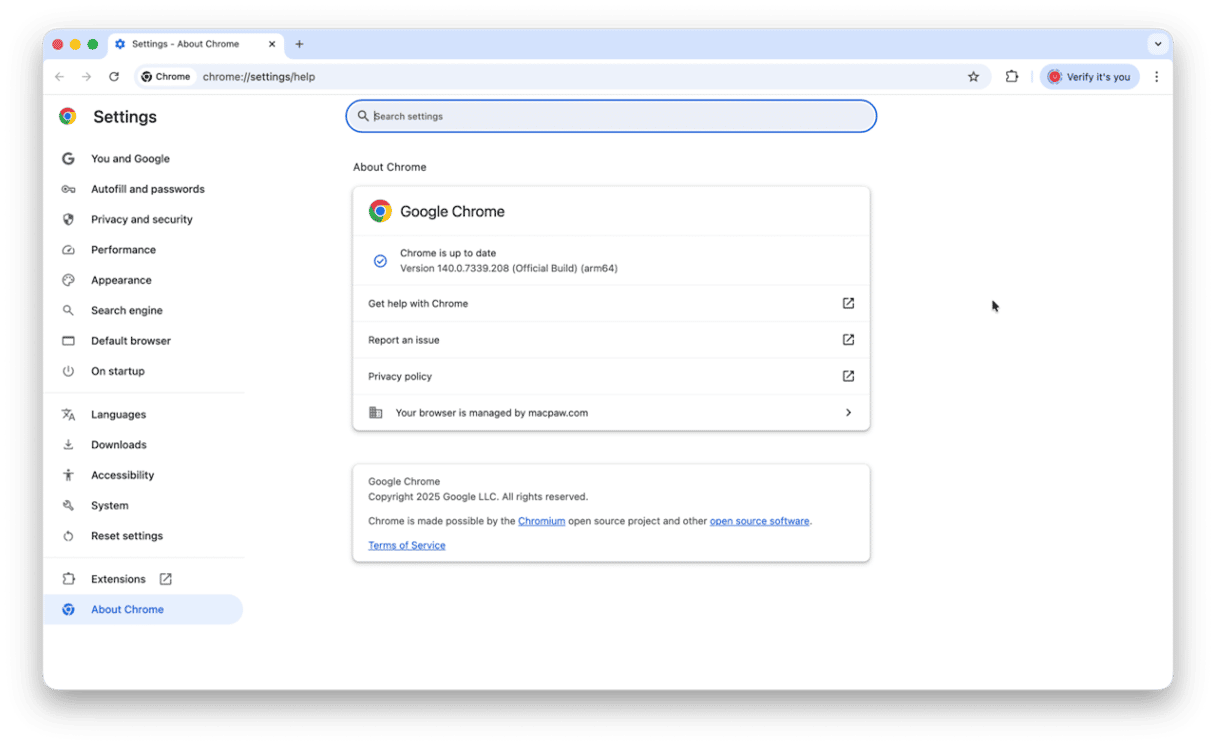
- To update Chrome, open it and click About Google Chrome from the menu bar. Click Relaunch if an update is available.
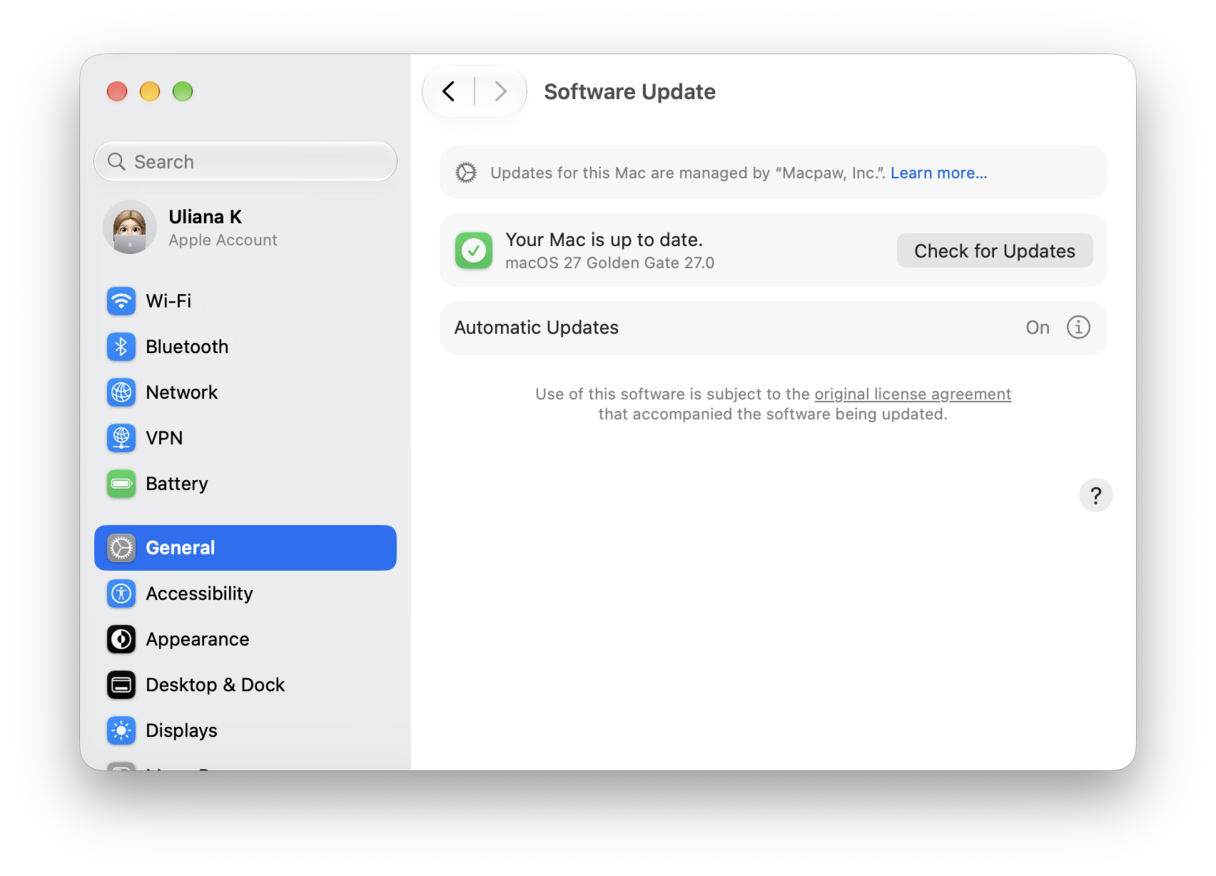
- To update macOS, go to System Settings > General > Software Update and install any updates waiting there.
How to keep your Mac and data safe
Protecting your Mac from malware and scammers is about more than just avoiding websites that Chrome warns you are not secure. There’s a long list of things you should and shouldn’t do, like:
📌 Not clicking on links in emails or instant messages
📌 Not downloading files unless you know they are safe
📌 Scanning your Mac for malware regularly so that even if you have downloaded something malicious, you will be able to get rid of it easily
To scan your Mac for malware, you need a specialist tool. We recommend CleanMyMac’s Protection feature. It scans your Mac looking for malware and if it finds anything, allows you to remove it with one click. You can configure the scan to include disk images and external USB storage and choose between a deep, quick, or balanced scan (the blend of both).
- Get your free CleanMyMac trial — you can test it for 7 days for free.
- Choose Protection in the sidebar.
- Click Scan.
- When it’s done, if it has found anything, click Remove to get rid of it.
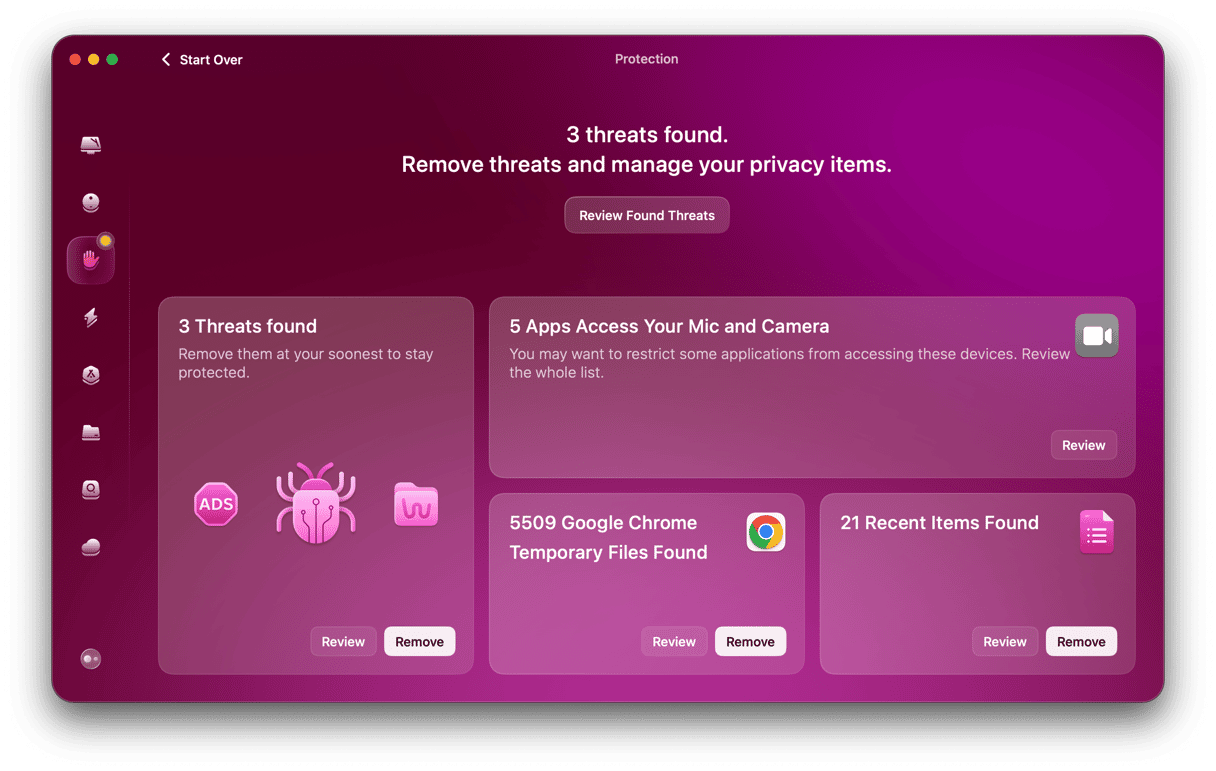
The Protection feature also helps keep your data safe by gathering information on items in your Recent Items list and allowing you to delete them, making it easy to see the permissions you’ve granted to apps to, and managing browser data like cache, cookies, history, and saved passwords, all in one place. So, after removing any malware that may have sneaked onto your Mac, check other scan results, too.
For administrators of the website returning the error in Chrome
There are a number of possible fixes for HTTPS not secure errors on a website, depending on whether the issue is caused by an expired SSL certificate, HTTP content, or something else.
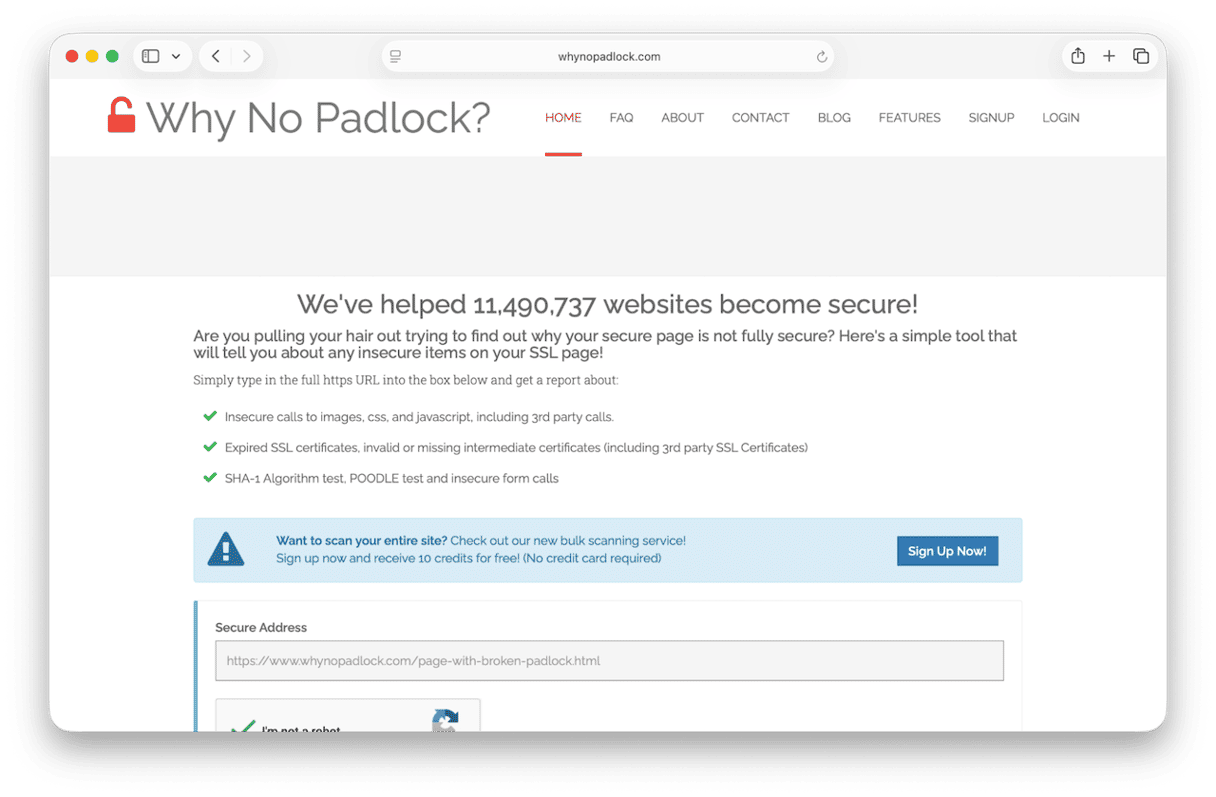
Identifying the cause of a security error can be difficult. But help is at hand. There are several services — like Why No Padlock — that will check any URL and tell you the reason that the site is not secure.
You can then choose one of the options below, depending on the reason, and fix it.
1. Check your SSL certificate
You need to do this from your web host’s control panel or dashboard. You will find it in the security settings. You should check that the certificate is valid and hasn’t expired.
If it’s showing as not valid or expired and you think it shouldn’t be, you can try reinstalling it. If you don’t have an SSL certificate, you should get one.
Many web hosts offer one for free as part of their hosting package. If that’s the case for your web host, it should have been installed and configured automatically.
If you need to purchase an SSL certificate — perhaps because you run a business or commercial website — you can usually do that from your host’s security settings. Similarly, if you’ve bought an SSL certificate elsewhere, you should be able to install it from your web host’s security settings.
2. Force users to use HTTPS when they visit your site
Many of your visitors will arrive via bookmarks or links that point to the HTTP version of your site. Even if you have an up-to-date and valid SSL certificate, this will still result in a ‘not secure’ error.
To fix that, you need to redirect HTTP requests to HTTPS. The simplest way to do that is to edit your website’s .htaccess file. However, if you’re not comfortable doing that, and your website is built using WordPress or another CMS, you can use a plug-in to do the redirect.
3. Check content links
The next step is to check the links on your website that are used to embed content. These links should all be HTTPS links and not HTTP.
4. Clear Chrome cache
Once you’ve ensured your website has a valid SSL certificate, redirected HTTP requests, and checked content links, you should clear Chrome’s cache before you visit the site to see if the ‘not secure’ error appears.
If you see a ‘website not secure’ warning in Chrome, it usually means that the site is using HTTP instead of HTTPS, perhaps because it doesn’t have an SSL certificate or because its SSL certificate is invalid. As a visitor to the site, there is no way for you to tell whether the site is safe or not, so access it at your own risk. As a website administrator, you should fix the issue as soon as possible to avoid losing lots of visitors. Follow the steps above to do that.