If you’re searching for info on why Steam keeps crashing, you’re probably watching the client bounce once in the Dock, then vanish, or a game that runs for ten seconds and drops. I’ve kept running into issues on my Mac, and I’ve worked through a short list that consistently fixes Steam. We’ll keep it practical, start with the easy wins, then move to profile resets and a clean reinstall that preserves your games.
What is Steam?
Just in case you've landed on this article by mistake, Steam is Valve’s game platform and store. On macOS, it’s a desktop app that manages your library, installs updates, verifies files, and launches games. When Steam crashes on a Mac, it is usually one of six things. Keep reading, and I’ll reveal them.
Why does Steam crash on a Mac?
Here are the common patterns I keep seeing:
- Outdated Steam client after a macOS update. New Tahoe point releases can trip older binaries until the next Steam update.
- Corrupted local data in
~/Library/Application Support/Steamor old preferences in~/Library/Preferences - Login items and background helpers that inject into networking or overlays.
- Download cache or content server issues inside Steam.
- Per–game issues: broken shaders, Rosetta needs, or a bad update that verification will repair.
- VPNs, proxies, or security tools that interrupt sign-in or downloads.
The good news is that absolutely none of these six issues point to a broken Mac. It just needs a tidy sequence.
How to fix a Steam game that keeps crashing step by step
Work down the list. Stop when Steam stays open, and your games launch.
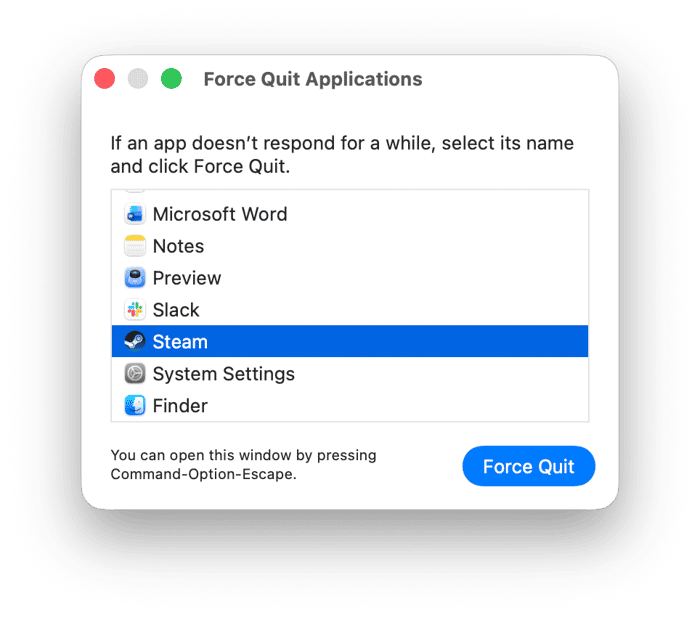
1. Force quit, restart, and open Steam from Applications
- Apple menu > Force Quit > Steam > Force Quit.
- Restart the Mac.
- Launch Steam from your Applications folder, not from a download folder.
2. Update Steam first
- If Steam opens briefly, select the main Steam menu > Check for Updates.
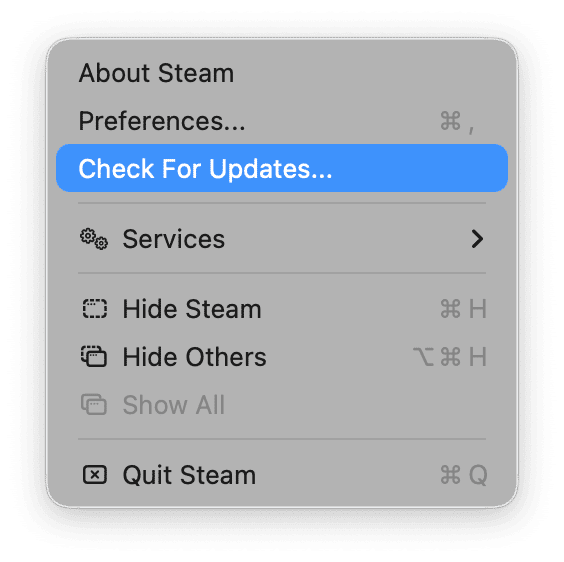
If it will not open, download the current installer from Valve and drop Steam.app into Applications, replacing the old one.
Why: After OS updates, the newest client often fixes crash loops.
3. Clear Steam’s download cache
- Open Steam and from the main Steam menu > Preferences > Downloads > Clear Download Cache > Confirm.
- Sign back in and retry.
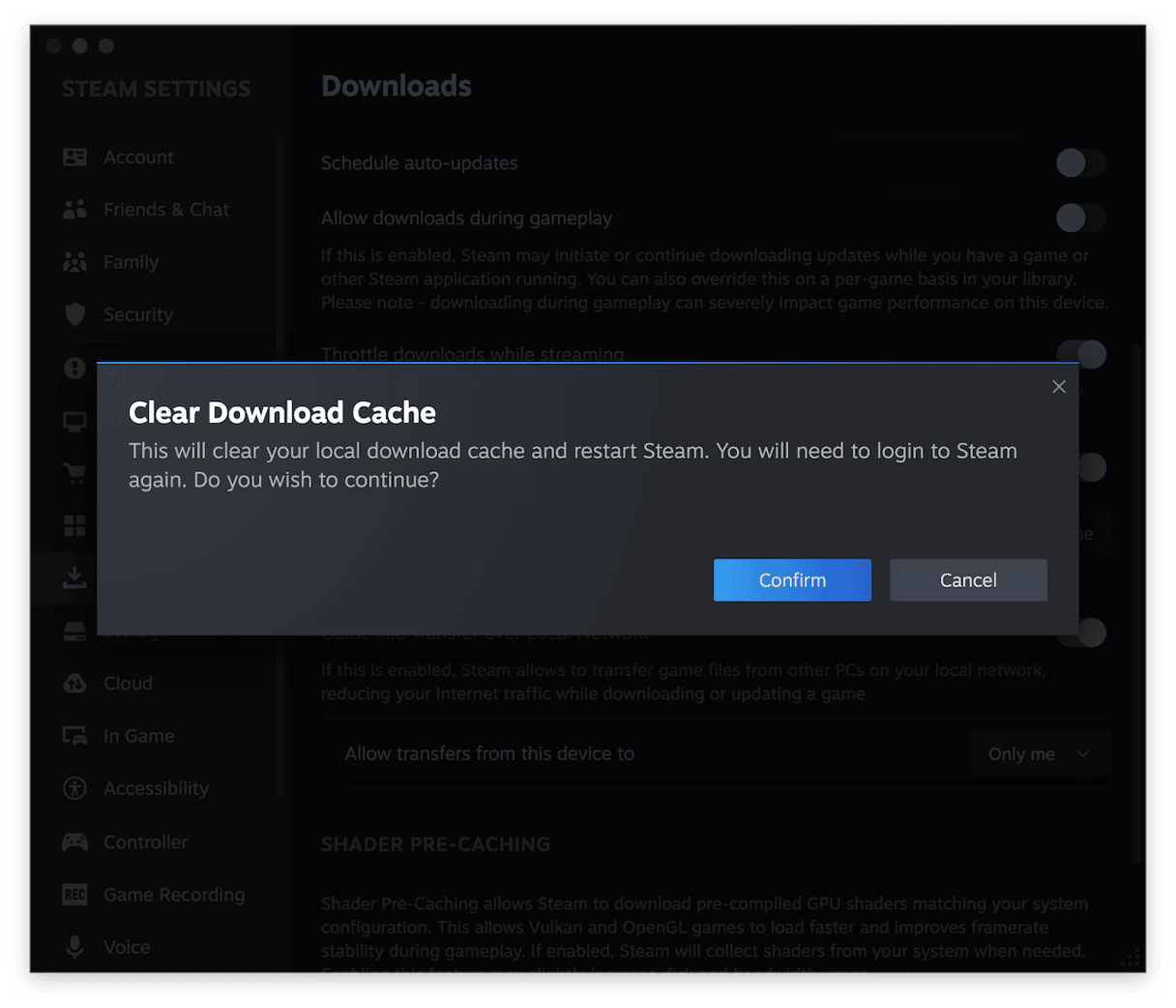
Why: A stuck cache can crash the client right after launch or when a download starts.
4. Opt out of Steam beta
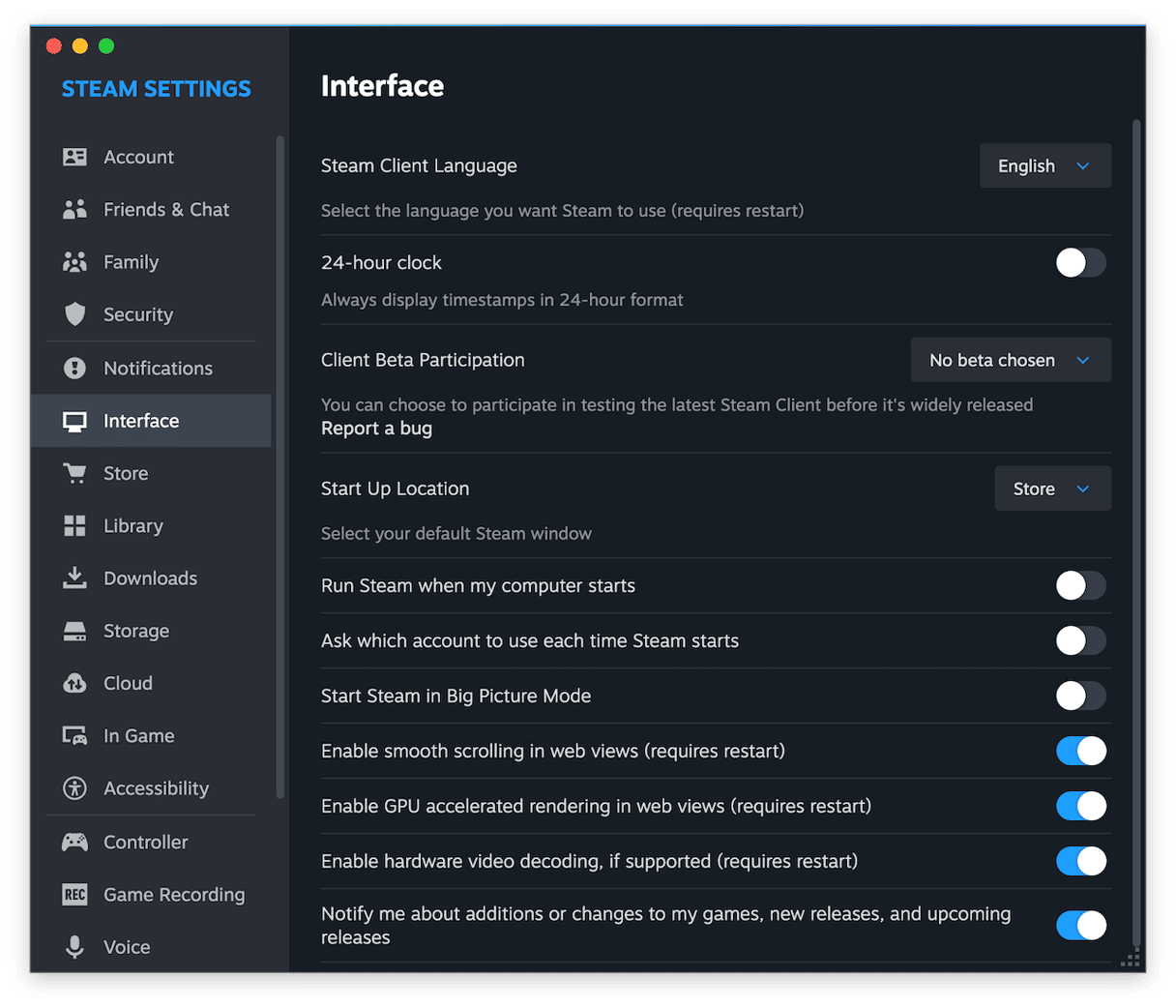
- Open Steam and from the main Steam menu > Preferences > Interface.
- Next to Client Beta Participation, select No beta chosen.
- Restart the app.
Why: Beta builds are great until they are not. A stable client reduces surprises.
5. Disable the in-game overlay temporarily
- Open Steam and from the main Steam menu > Preferences > In-Game.
- Uncheck Enable the Steam Overlay while in-game.
- Relaunch Steam and test your crashy title.
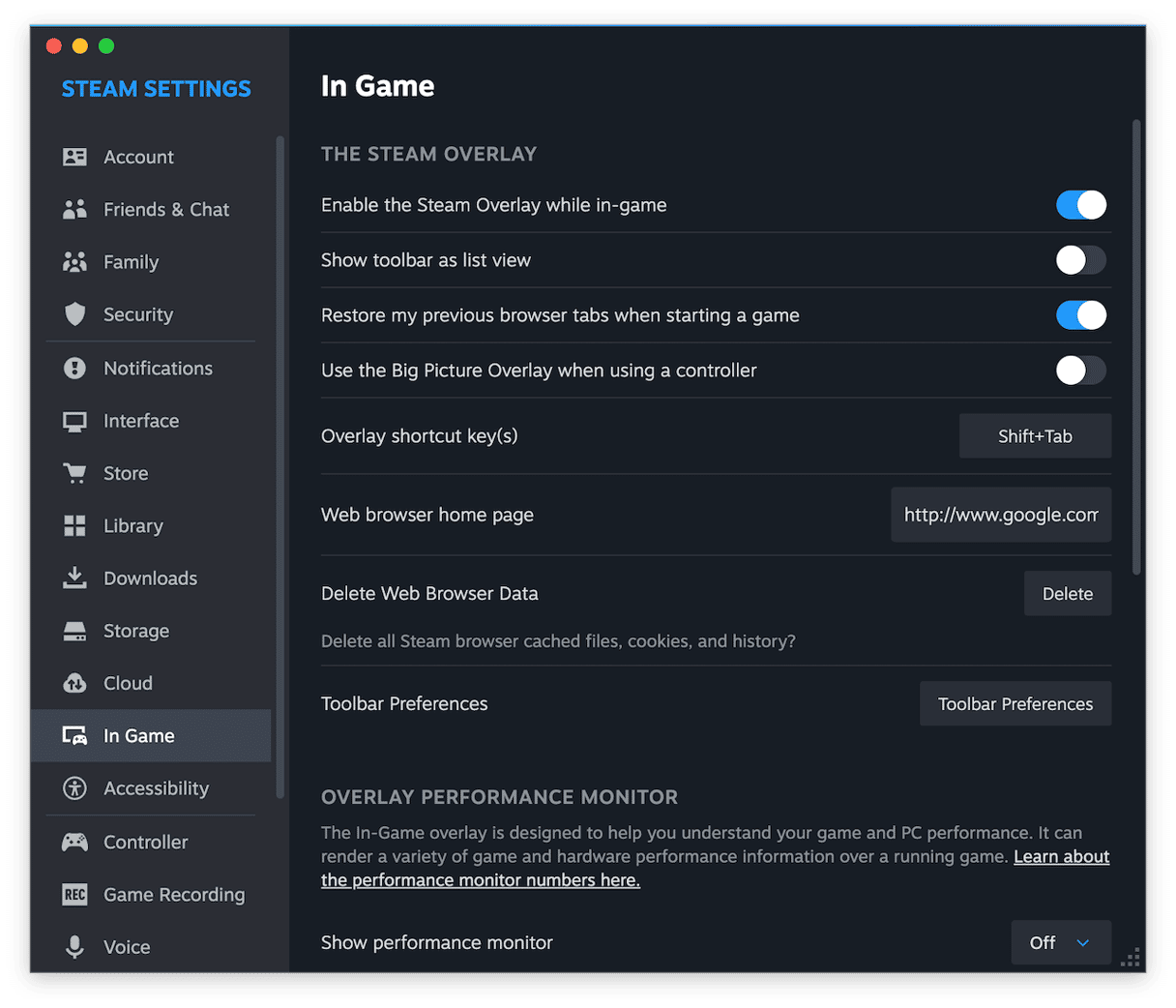
Why: On some Macs, the overlay triggers rendering or input crashes in certain games.
6. Test without VPN, proxy, or aggressive filters
- Quit Steam.
- Disable your VPN/proxy and any filtering apps.
- Reopen Steam and sign in on a clean network.
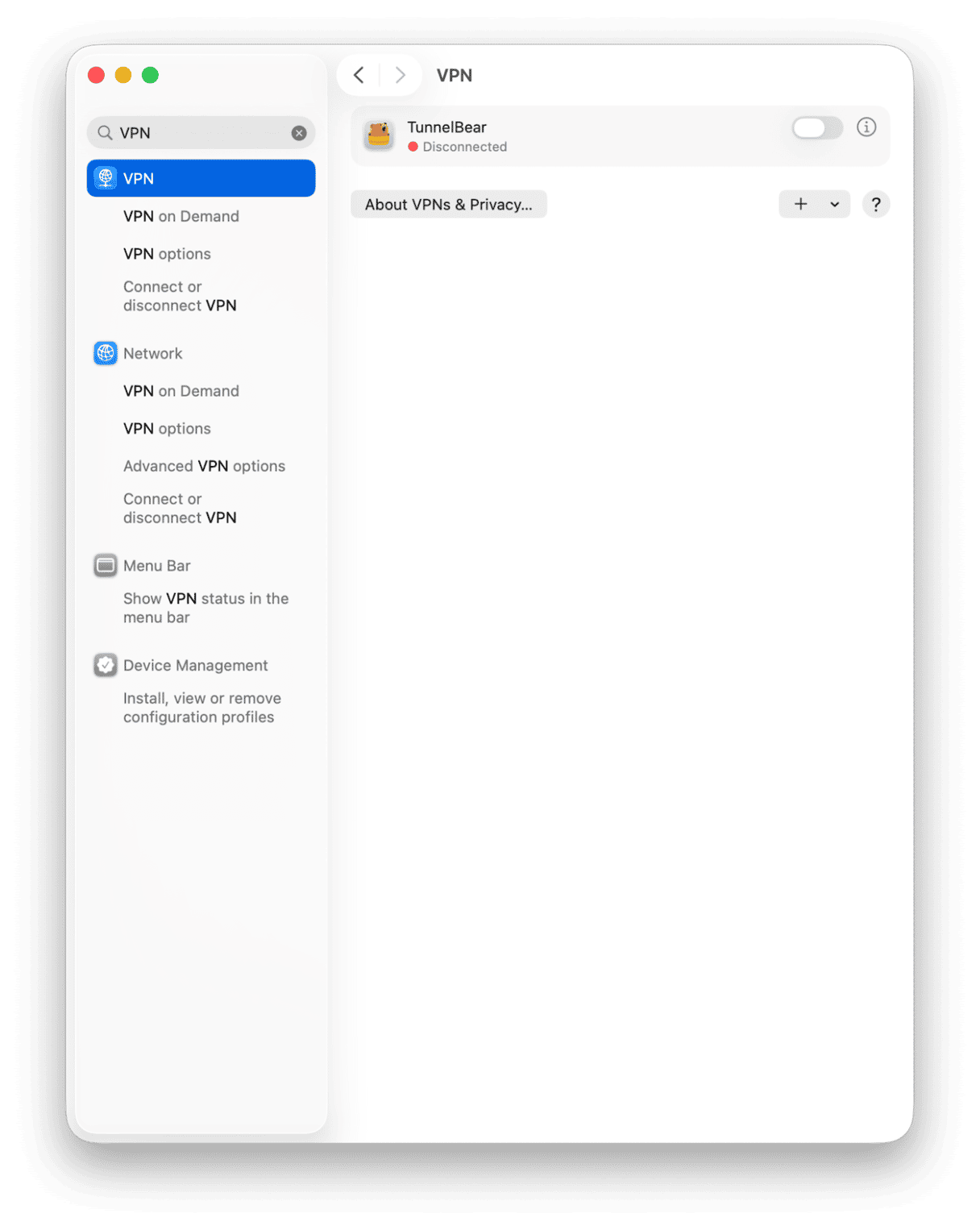
Why: Auth or CDN fetches can fail behind strict routes and look like crashes.
8. Verify the game’s files
For a specific game that drops at launch:
- Open the Steam app > Library > right-click the game > Properties.
- If the option is available, select Installed Files > Verify integrity.
- Then, let it download any missing or corrupted content, and then launch again.
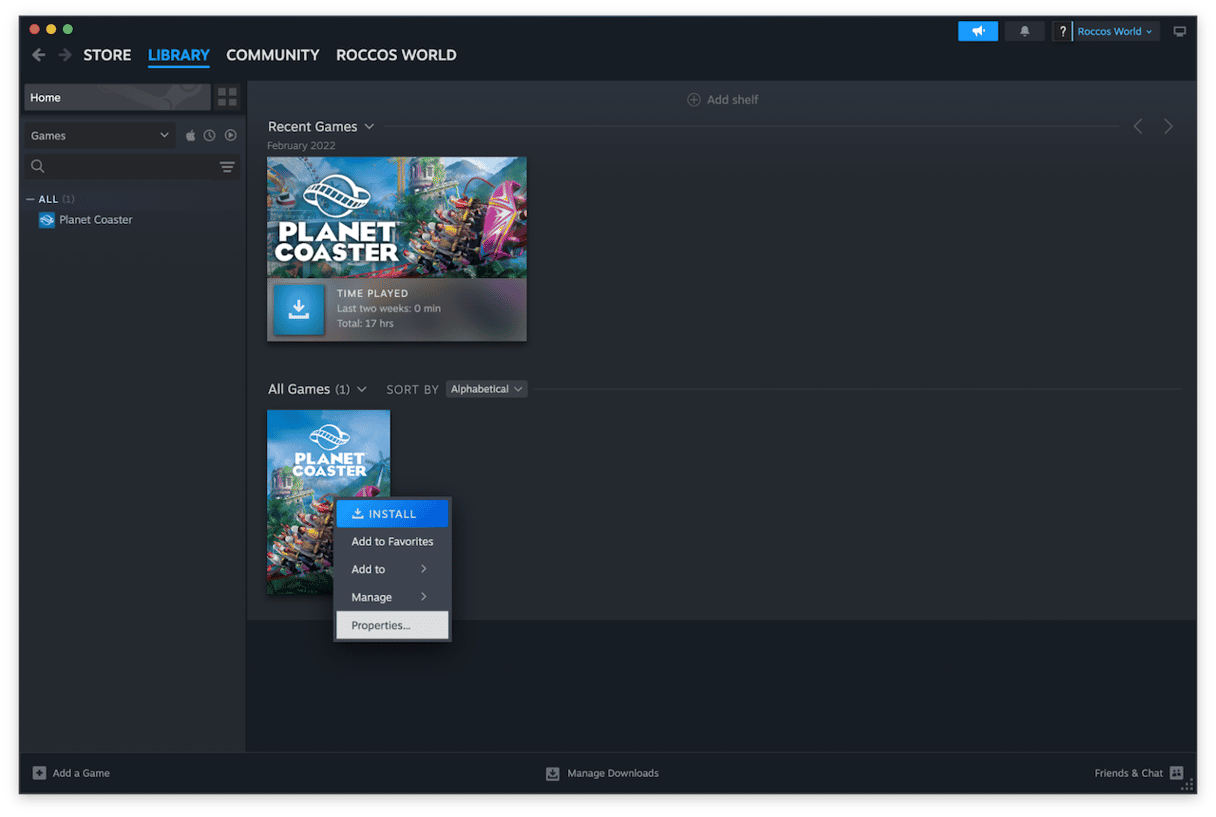
Why: Most per–game crashes come from a broken update that verification repairs.
8. Refresh Steam’s local profile without losing your games
If the client itself crashes on launch:
- Quit Steam.
- In Finder, press Shift - Command - G and go to
~/Library/Application Support/ - Rename the folder Steam to Steam_old.
- Launch Steam. Sign in. It recreates a clean configuration.
- To keep your installed games, move the Steamapps folder from Steam_old into the new Steam folder, then restart Steam.
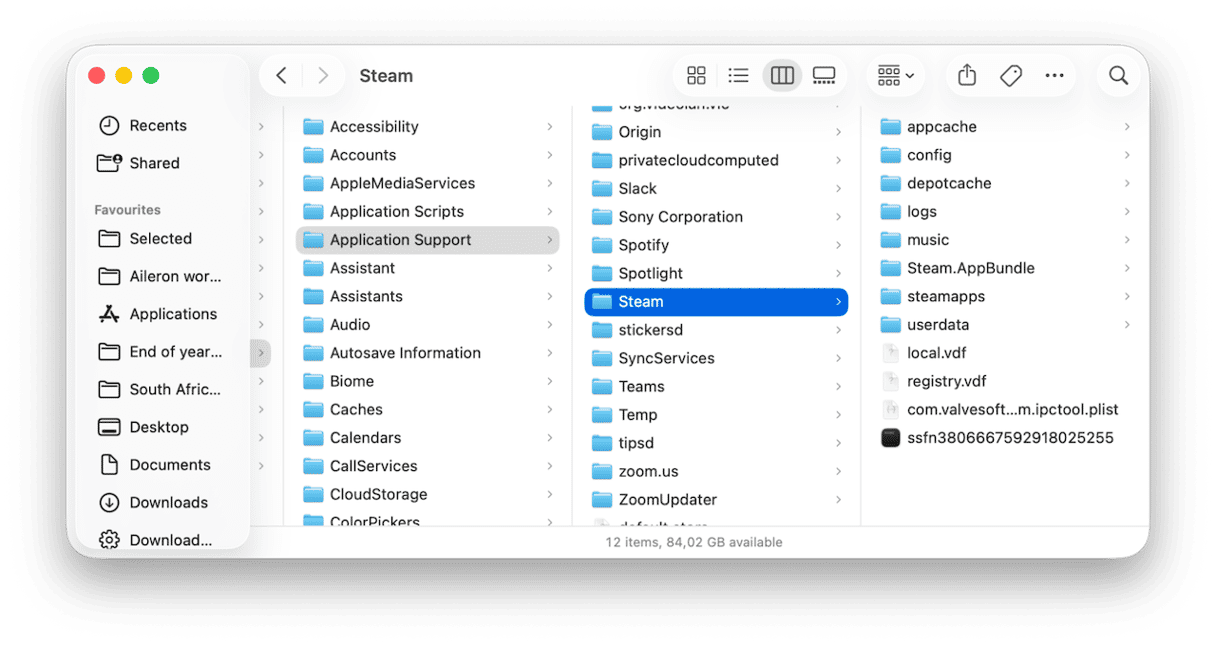
Why: You get a fresh profile while preserving the library.
9. Remove stale preference files
- Quit Steam.
- In Finder, press Shift - Command - G and go to
~/Library/Preferences/ - Find and move to Desktop: com.valvesoftware.Steam.plist and anything obvious with Steam in the name
- Relaunch Steam.
Why: Damaged prefs are a simple crash trigger and safe to rebuild.
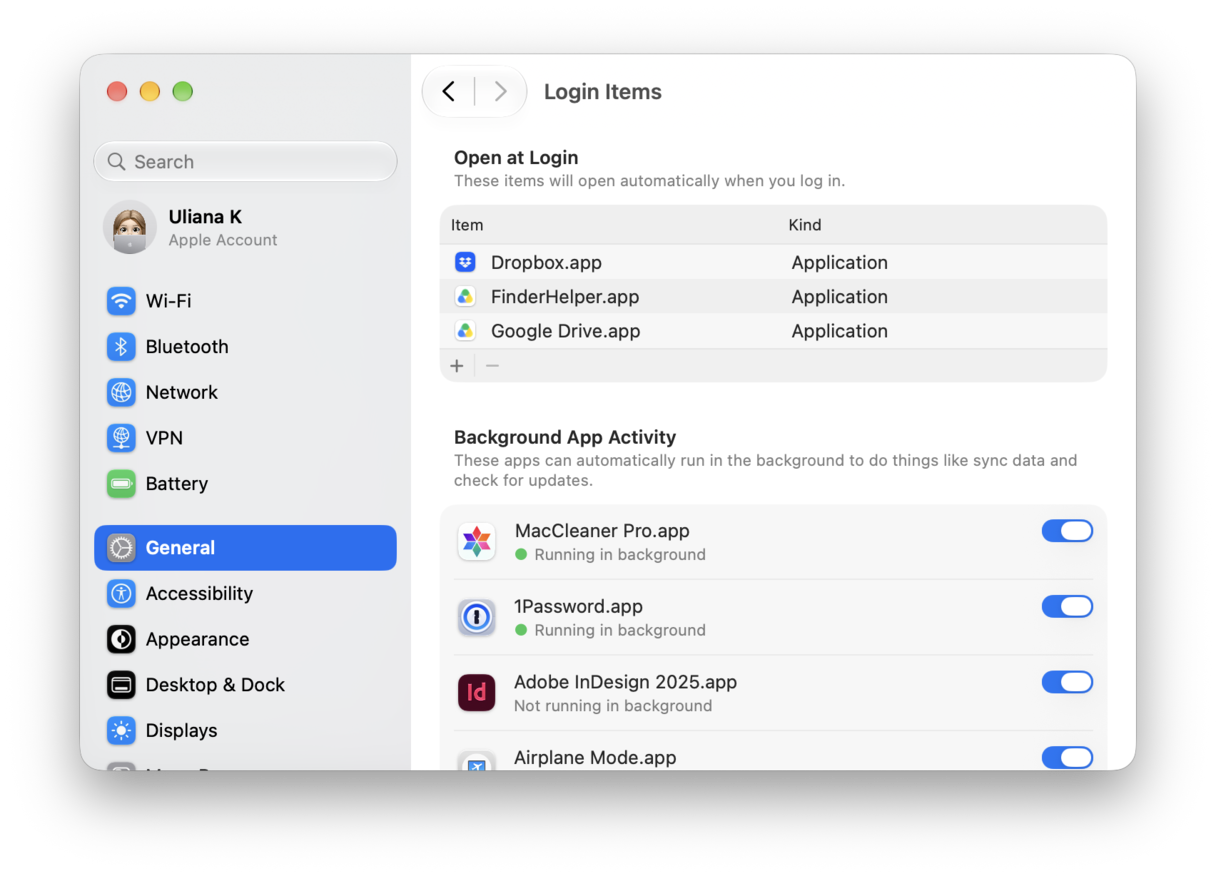
10. Tame login items and launch agents
Startup stampedes can tip Steam over right after login.
- System Settings > General > Login Items & Extensions.
- Disable helpers you don’t need at boot.
- Reboot and open Steam before anything else.
CleanMyMac’s Performance feature is useful here, no messing around in system settings, you can manage login and launch agents all in one place, here’s how:
- Open CleanMyMac — get your free trial here.
- Open > Performance > Scan.
- Click View All Tasks and first select Login Items.
- Remove what you don’t need. Then, click Background Items and remove what you don’t need.
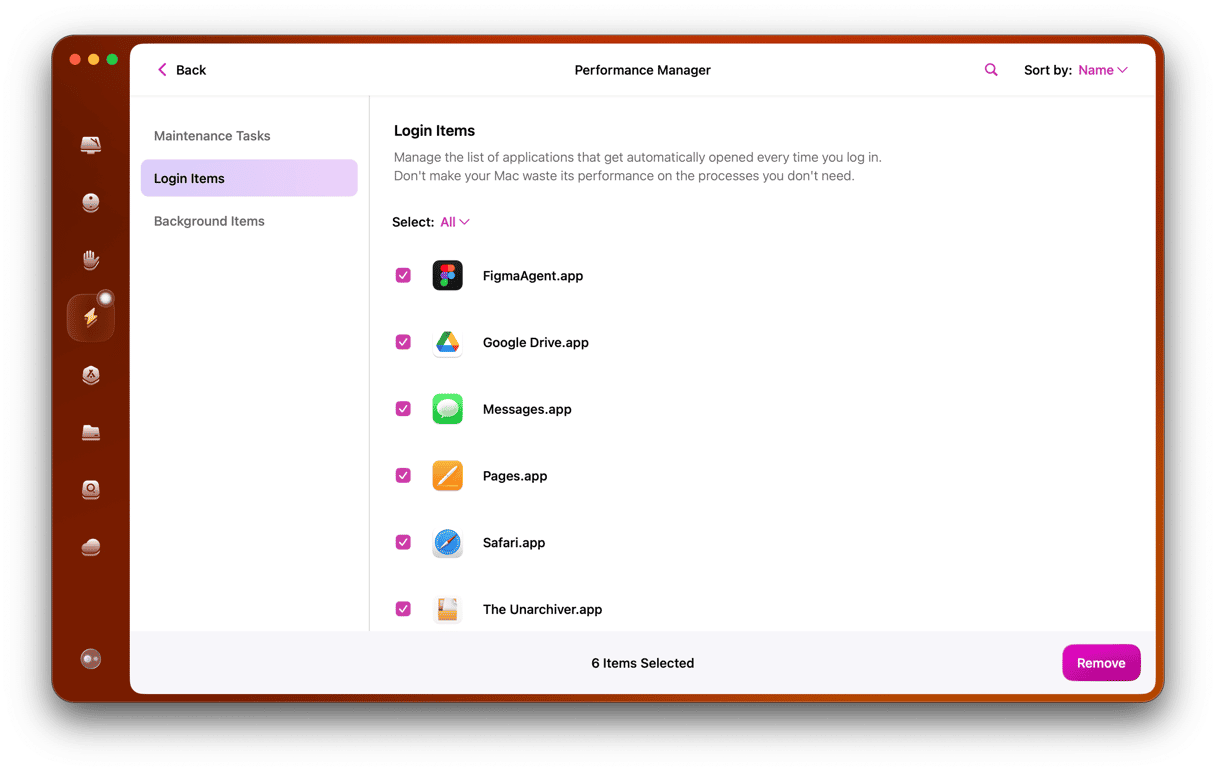
This does not touch Steam’s files. It just stops extra helpers from piling on.
11. Reinstall Steam cleanly, preserving games
If crashes persist, do a real reinstall that cleans leftovers.
- Quit Steam.
- In Applications, drag Steam.app to the Trash.
- In
~/Library/Application Support/Steam, keep the steamapps folder. - Delete everything else in
~/Library/Application Support/Steamexcept steamapps. - Optionally remove related preferences in
~/Library/Preferences/as above. - Install the newest Steam.app to Applications and launch.
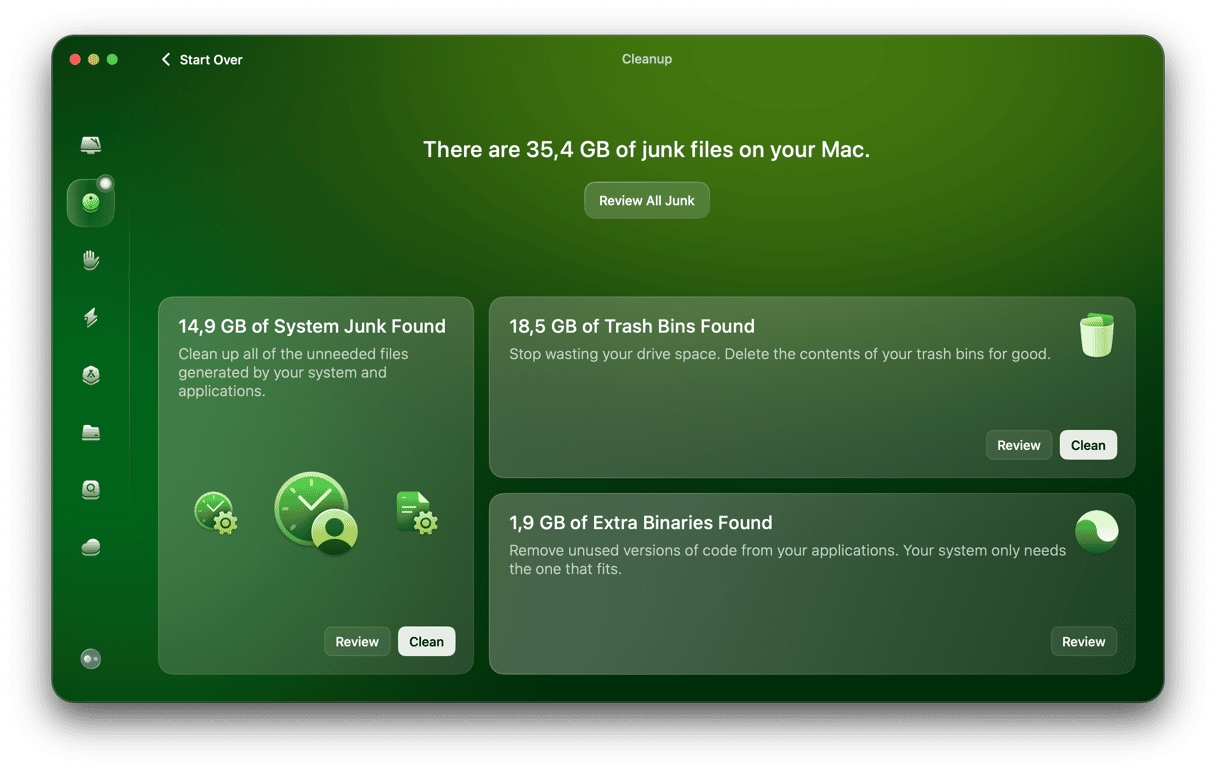
CleanMyMac’s Cleanup feature could really help here, too, before you reinstall to remove old caches and broken temporary files system-wide, so your new Steam install is not competing with leftover clutter; here’s how:
- Open the app again.
- Click Cleanup > Scan.
- Review and remove system junk.
12. Safe mode and new user test
Safe mode: Shut down. On Apple silicon, hold the power button until you see startup options, choose your disk, then hold Shift and click Continue in Safe Mode. For Intel, restart your Mac and immediately press and hold the Shift key until the login window appears. Open Steam once, then restart normally and test again.
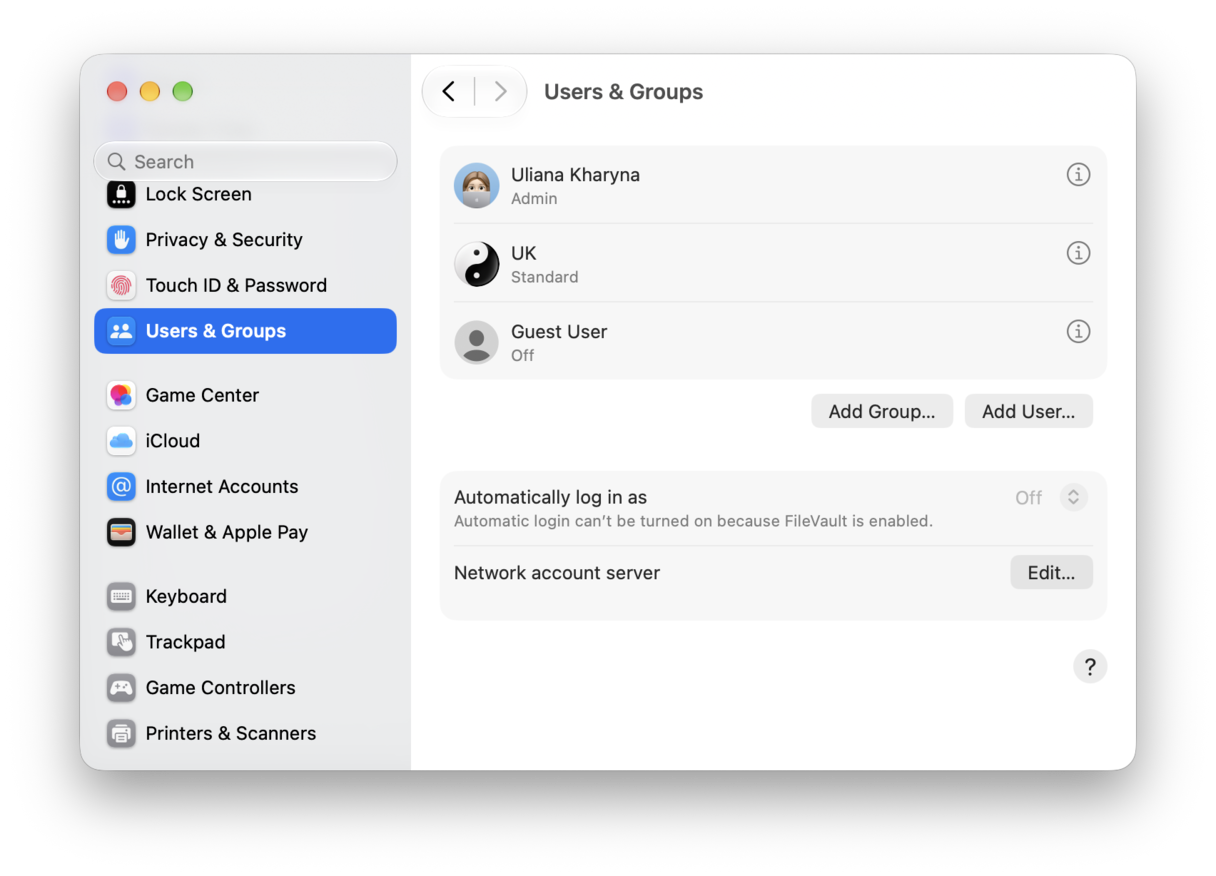
New user: System Settings > Users & Groups > Add User. Log in as the new user and launch Steam. If it works there, then it’s safe to say your original profile has the conflict; you can also keep trimming login items or cleaning preferences.
13. Game-specific notes on Apple silicon
Most current titles that support macOS are native or work through compatibility layers handled by the game. If a single older game crashes and others run, check the game’s community hub for a recent macOS note. Sometimes, a launch option or disabling Metal shader pre-caching stabilizes it. Keep that tweak scoped to the one game, not Steam globally.
Extra stability habits that help when Steam Remote Play keeps crashing
- Keep macOS and Steam up-to-date. New client releases are more stable on Apple silicon than older builds.
- Avoid installing Steam in odd locations. Applications work fine.
- Store your library on a fast APFS volume. External drives work, but flaky cables cause very weird crashes.
- When Steam misbehaves after a macOS update, verification plus a clean client reinstall has been my fastest fix.
When Steam crashes on my Mac, it's easy to jump into panic mode, but it's usually not necessary. Annoying, yes, easy to fix, it just takes a little bit of patience to find the right troubleshooting fix. One of these tips in the article above should have helped, and hopefully, by now, you’re back to your favorite game. Bookmark this article for later, in case you run into issues down the line.
Frequently asked questions
Will I lose my games if I reinstall Steam?
No, not if you keep the steamapps folder in ~/Library/Application Support/Steam. Reinstall the app, point Steam back to that folder in Settings, and it will discover the installs.
Where are Steam crash logs on a Mac?
Check:
- ~/Library/Application
- Support/Steam/logs/
- ~/Library/Logs/DiagnosticReports/
For recent entries mentioning Steam or the game name. These help you spot a failing module or extension.
Steam Remote Play keeps crashing. Anything different to try?
Open Steam > Preferences > Remote Play and toggle hardware encoding off, test, then back on. Limit bandwidth to Medium for a minute and try a wired connection to remove Wi Fi jitter from the equation.
Can I move my Steam library to an external drive?
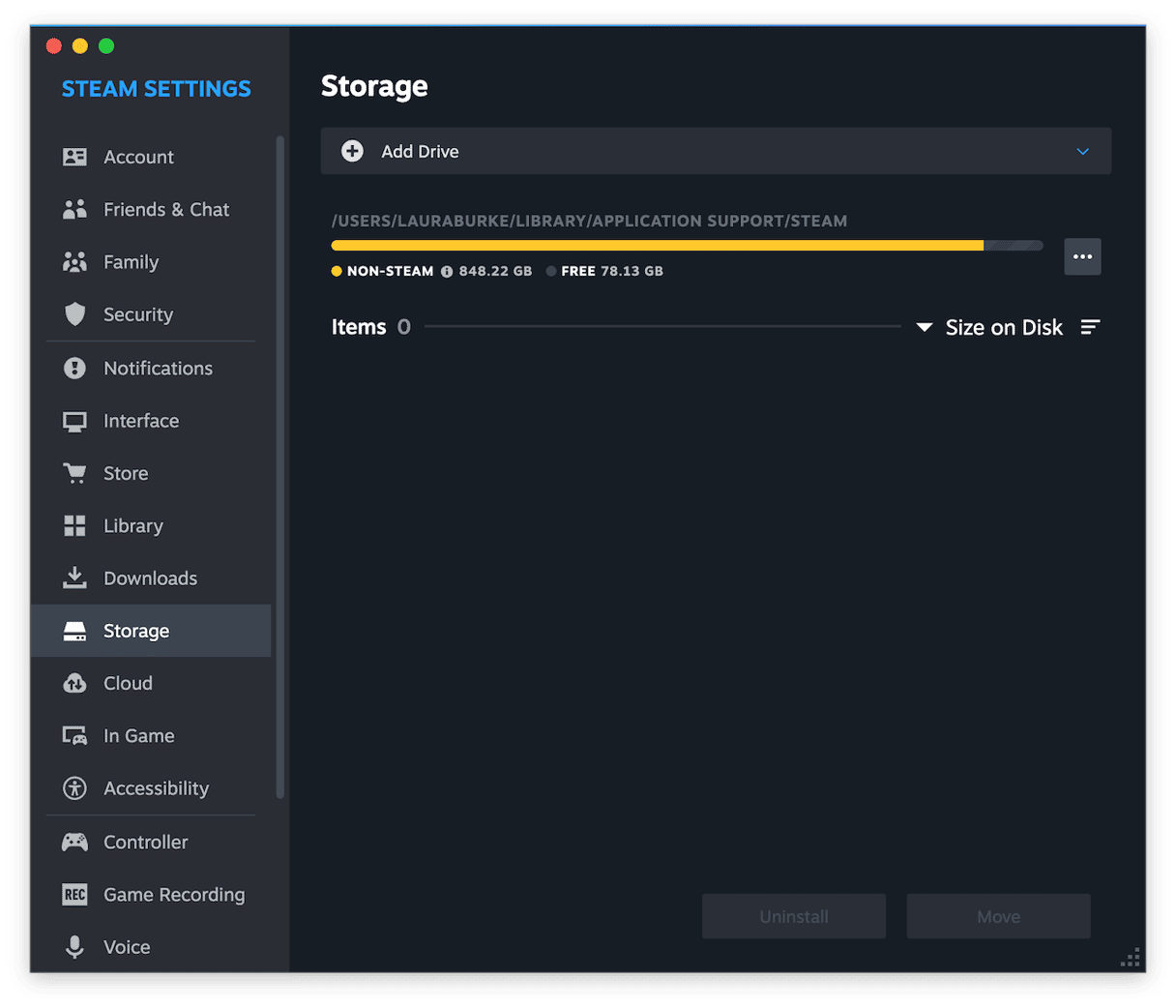
Yes, Steam > Preferences> Storage > Add Drive Folder and add your external drive. Move games from the internal to the new location using Move Install Folder inside each game’s Installed Files panel.
A game crashes at launch, but Steam itself is stable
Verify the game’s files, disable the overlay, and check the game’s launch options. Many times, the client is fine, and the title needs a small tweak or a pre-cache rebuild.