How to lock apps on a MacBook was a question I ended up researching after my Mac became the family computer. I’m running macOS Tahoe, and after hands-on testing this month, I can confirm two things: Apple still doesn’t offer a classic per-app password button, but there are a few native workarounds. It takes a little setup. Not hard. Just a few choices to make. So here’s everything I discovered.
Why lock apps on a MacBook?
Ultimately, wanting to lock specific apps on your Mac comes down to privacy and security. If you share your device, or you do a lot of screen sharing, and don’t want Slack to pop open during a meeting, App locking suddenly becomes an interesting option. But it can also help to limit annoying scrolling habits. I use it on social apps when I need to focus. A passcode prompt is enough to remind me that I should be doing something else.
Before we get into the nitty-gritty of how to lock apps on MacBook tips, here’s a quick reminder so you won’t be disappointed: you will not find a handy, simple toggle or button in system or app-level settings to lock an app; you’ll need to take a layered approach. I’ll show you how in the sections below.
Preparation: How to lock apps on a Mac
These two baseline settings turn your Mac itself into a lockable door. So while it’s not a specific app lock-based, I think these are privacy must-haves for any user.
1. Require a password on wake
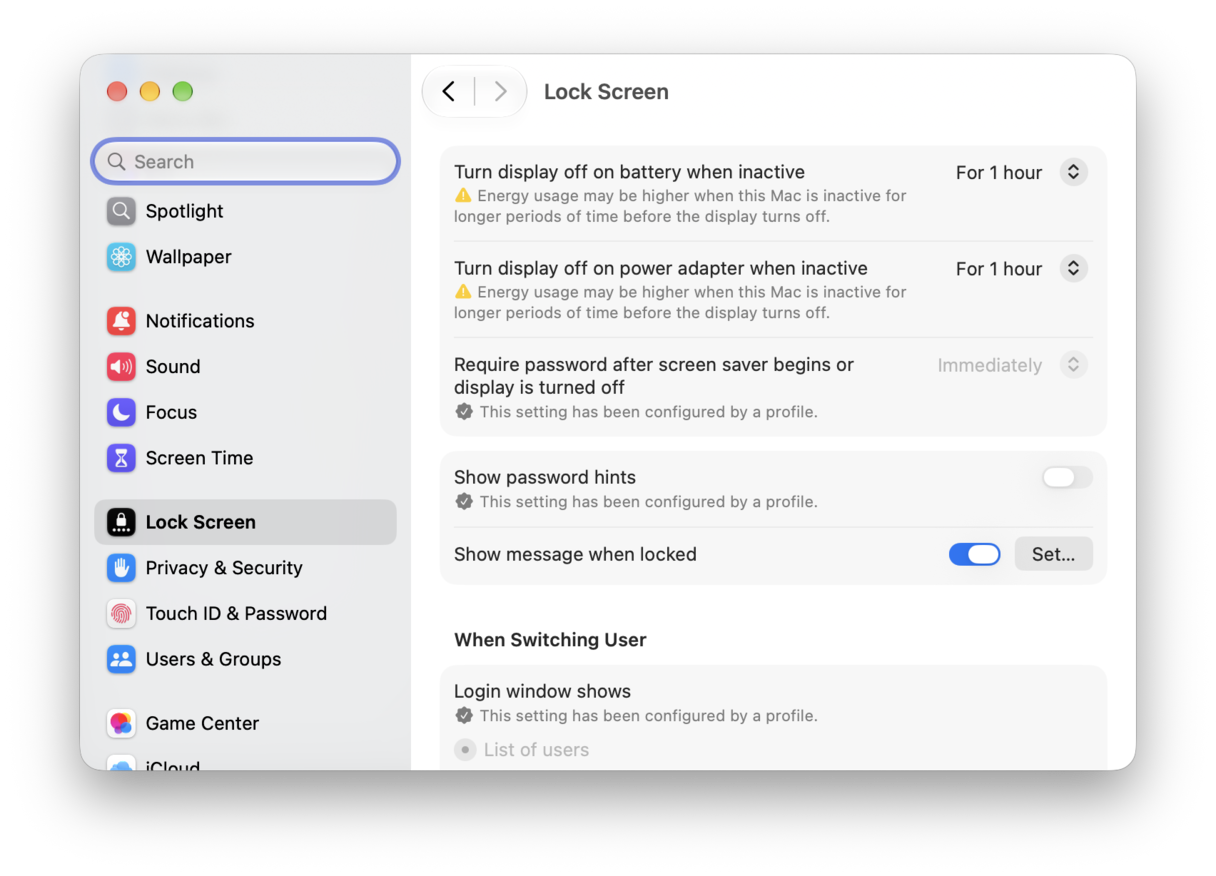
- Go to the main Apple menu > System Settings > Lock Screen.
- Next to "Require password after screen saver begins or display is turned off," set this to "Immediately" (or 5 seconds if you prefer a tiny grace period).
2. Keep your main account separate from guests
This is a no-brainer if you share your device. Create a standard user for others; here’s how:
- Navigate to System Settings > Users & Groups.
- Click Add User and give them Standard access, not Admin.
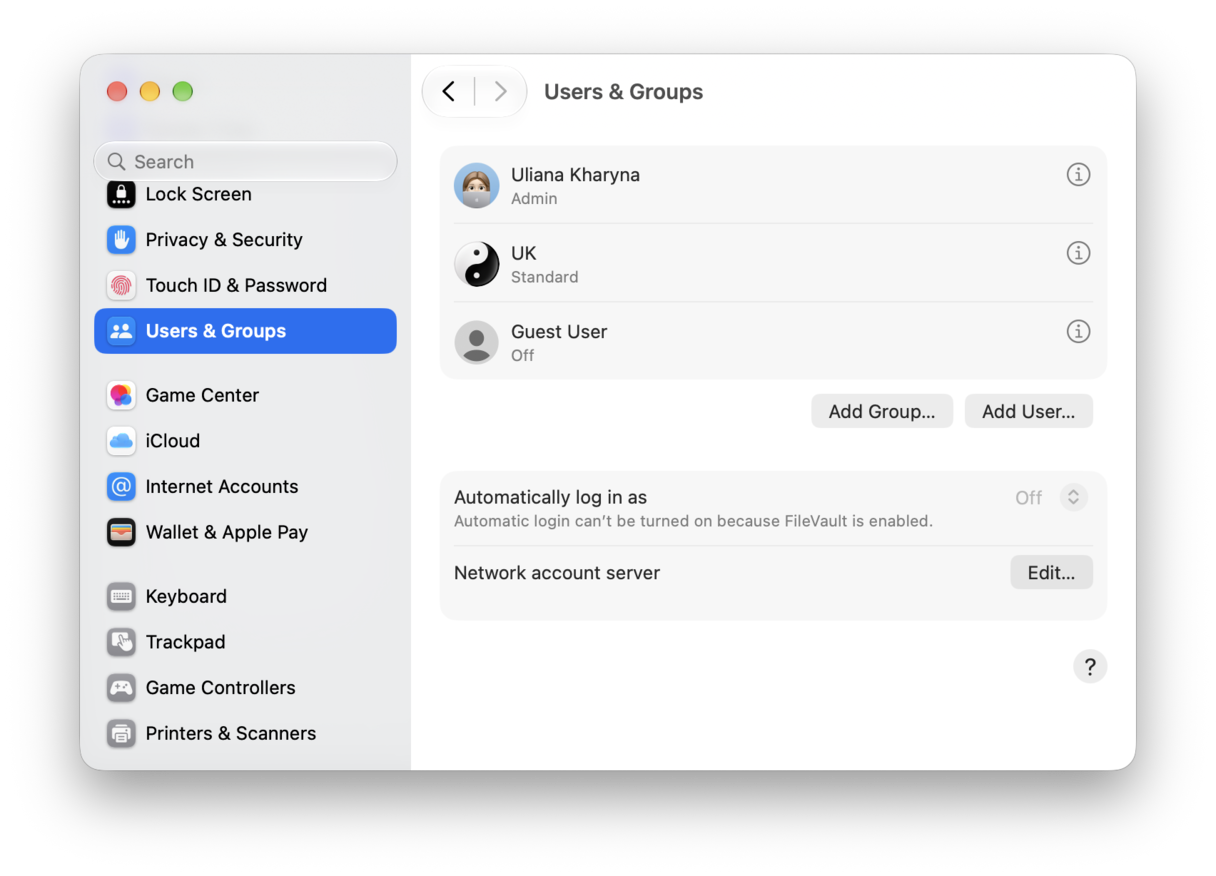
This means your data, Keychain, and app access are sandboxed by accounts. You can switch quickly when needed.
OK, once you’ve got these items set up, let’s move on to more methods on how to lock apps on MacBook Air.
All the methods: Lock apps on Mac
Method one: Use Screen Time to “passcode-gate” specific apps
This is the practical answer to can you lock apps on a MacBook. You don’t set a password on the app itself; you put the app behind a Screen Time limit that requires a passcode to extend. The effect is very similar. When time is up, the app is blocked until you enter the password you set. Yes, it might sound long-winded, but it works, and in my opinion, it’s the closest you can actually get; here’s how to set it all up.
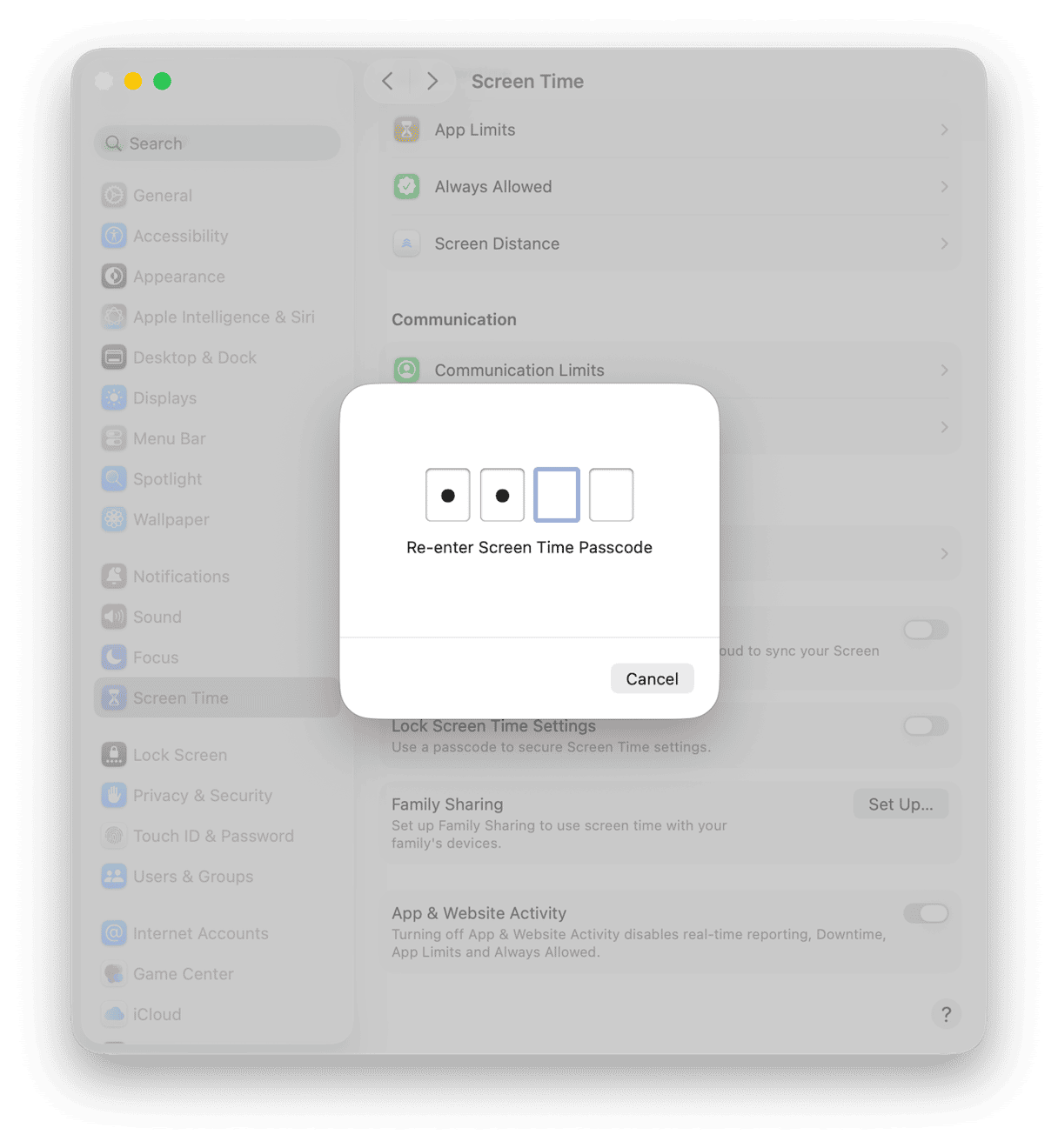
- In System Settings > Screen Time.
- Toggle on Lock Screen Time Settings. Confirm, then enter a memorable four-digit code.
- Next, go to App Limits > Add Limit and select the app you want to protect.
- Set the daily limit to 1 minute and select Block at End of Limit. (You can also customize days if your schedule changes on weekends.)
- Finally, launch the app, and use it to verify that you get the Time Limit screen notification.
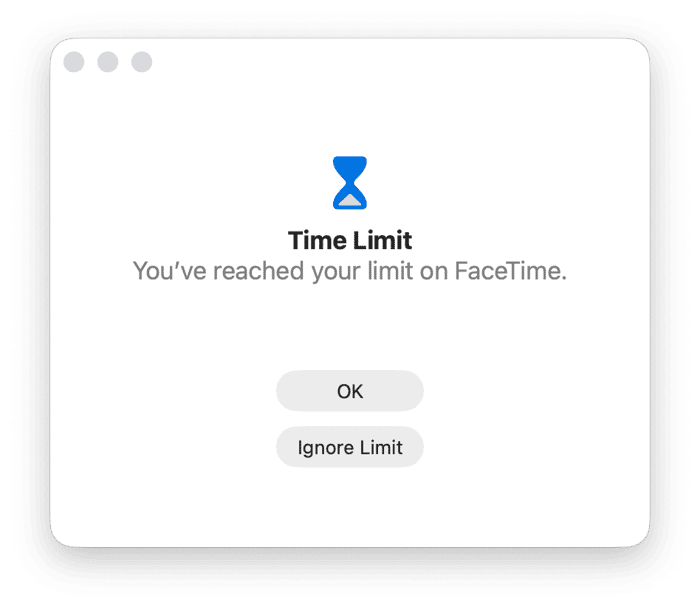
You can either choose to ignore the limitation, which will then prompt the passcode, or you can stop using the app for the day; it’s now password-protected.
Method two: Categorize your attention-stealing apps
OK, so this method actually builds on the one above. If you find certain types of apps steal your attention when you’re meant to be working or studying, then use the Screen Time categories, like Social or Entertainment, which means you lose access to all the apps that fall in those categories: here’s how:
- Back in Screen Time in system Settings, when you’re choosing the apps in App Limits, use the categories provided.
- Keep the 1-minute limit, Block at End of Limit on.
- Add exceptions for essentials you must never block during work, like Zoom or your authenticator.
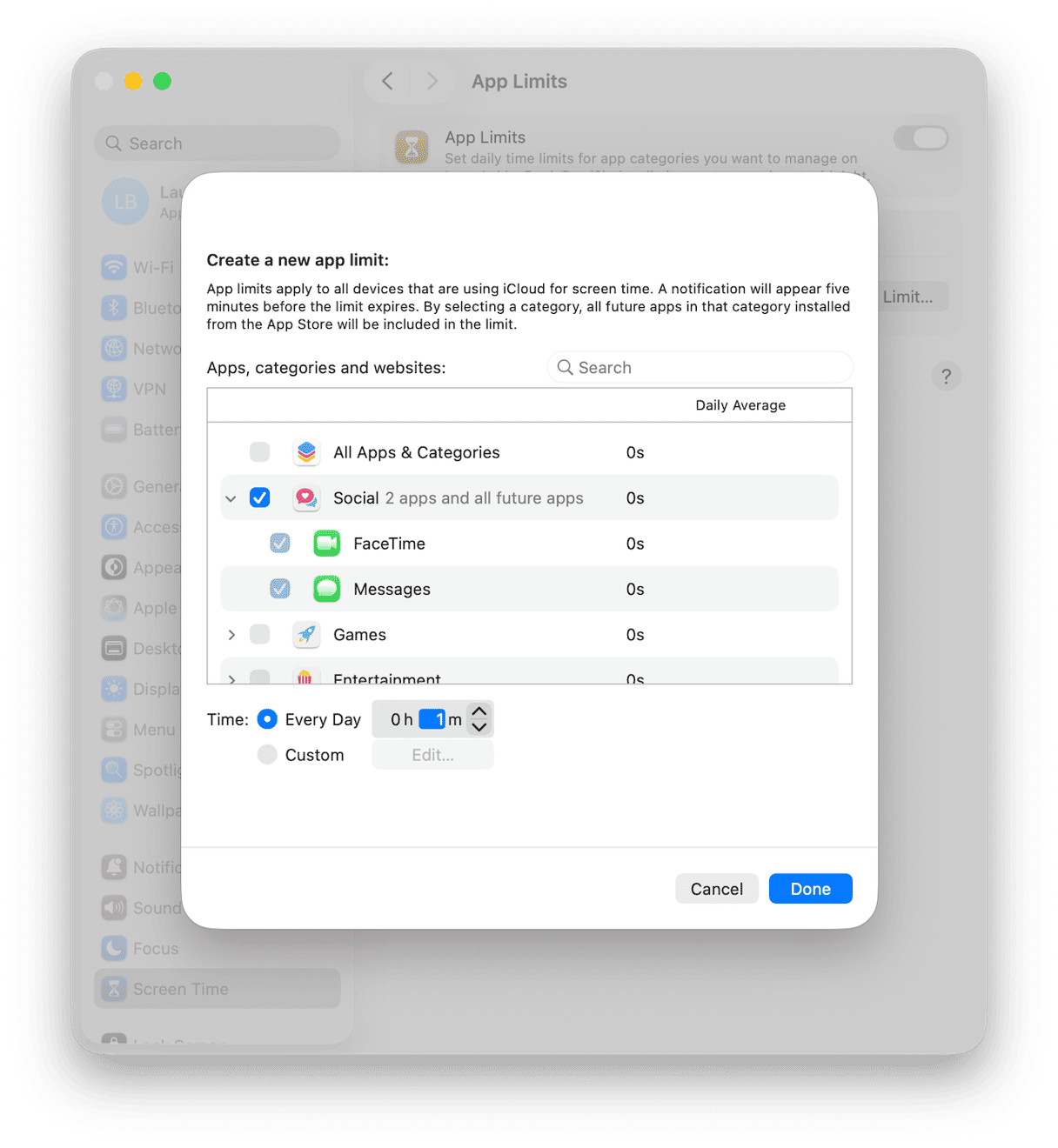
This is how I handle locking certain apps on a MacBook without curating a large list. One category, done. Need to lock a single app again later? Just add a separate specific limit for that app with its own setting.
Method three: Create a special Admin account
When the apps themselves contain confidential data (finance tools, client CRMs), I don’t rely solely on Screen Time. I create a second Admin user that I log into only for those tasks.
That new admin user then has its own Keychain, Desktop, and app settings. Switching users takes seconds; the wall between accounts is strong.
- System Settings > Users & Groups > Add User > Admin.
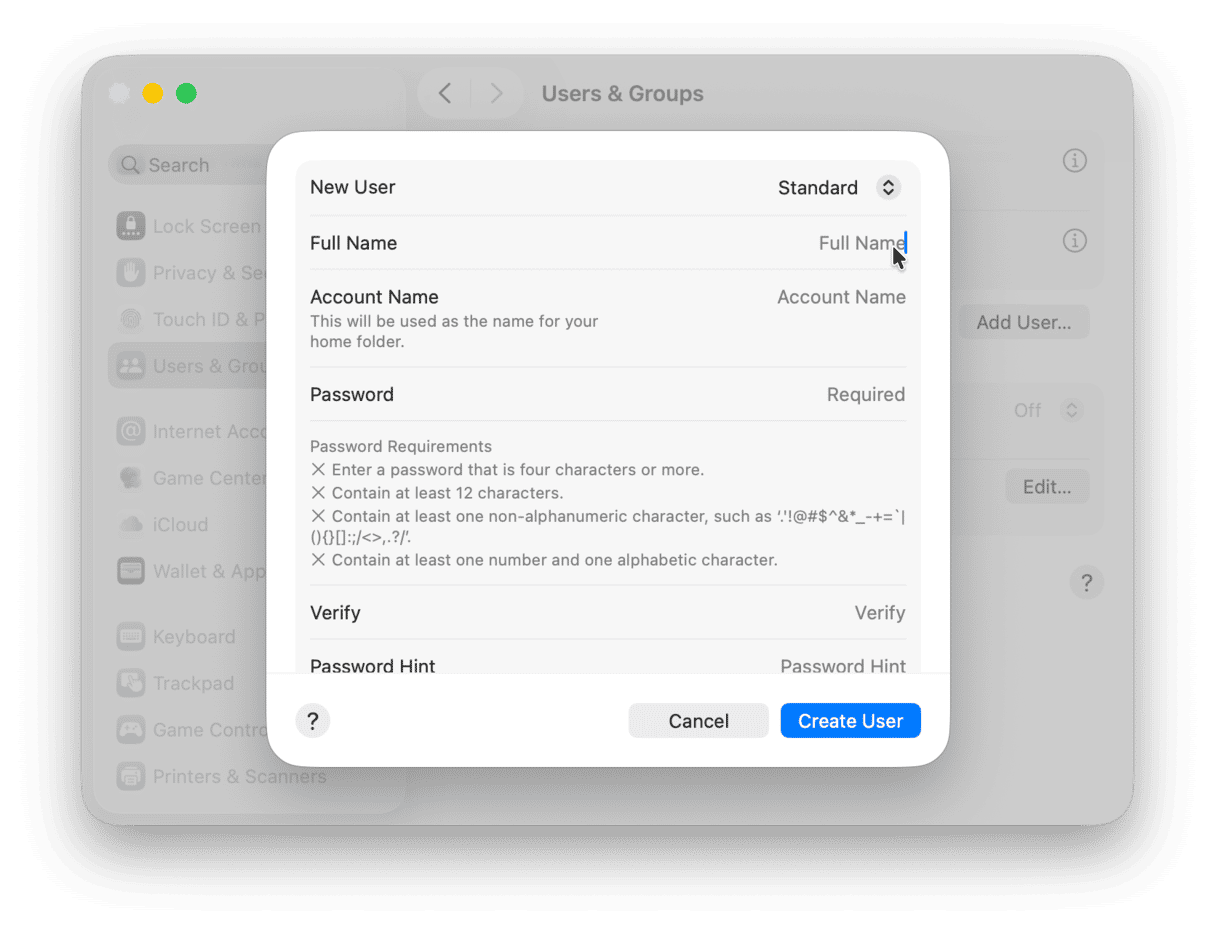
- Use a unique password and Touch ID enrollment for that profile.
- Pair with FileVault on the whole Mac for disk-level protection if you haven’t enabled it already.
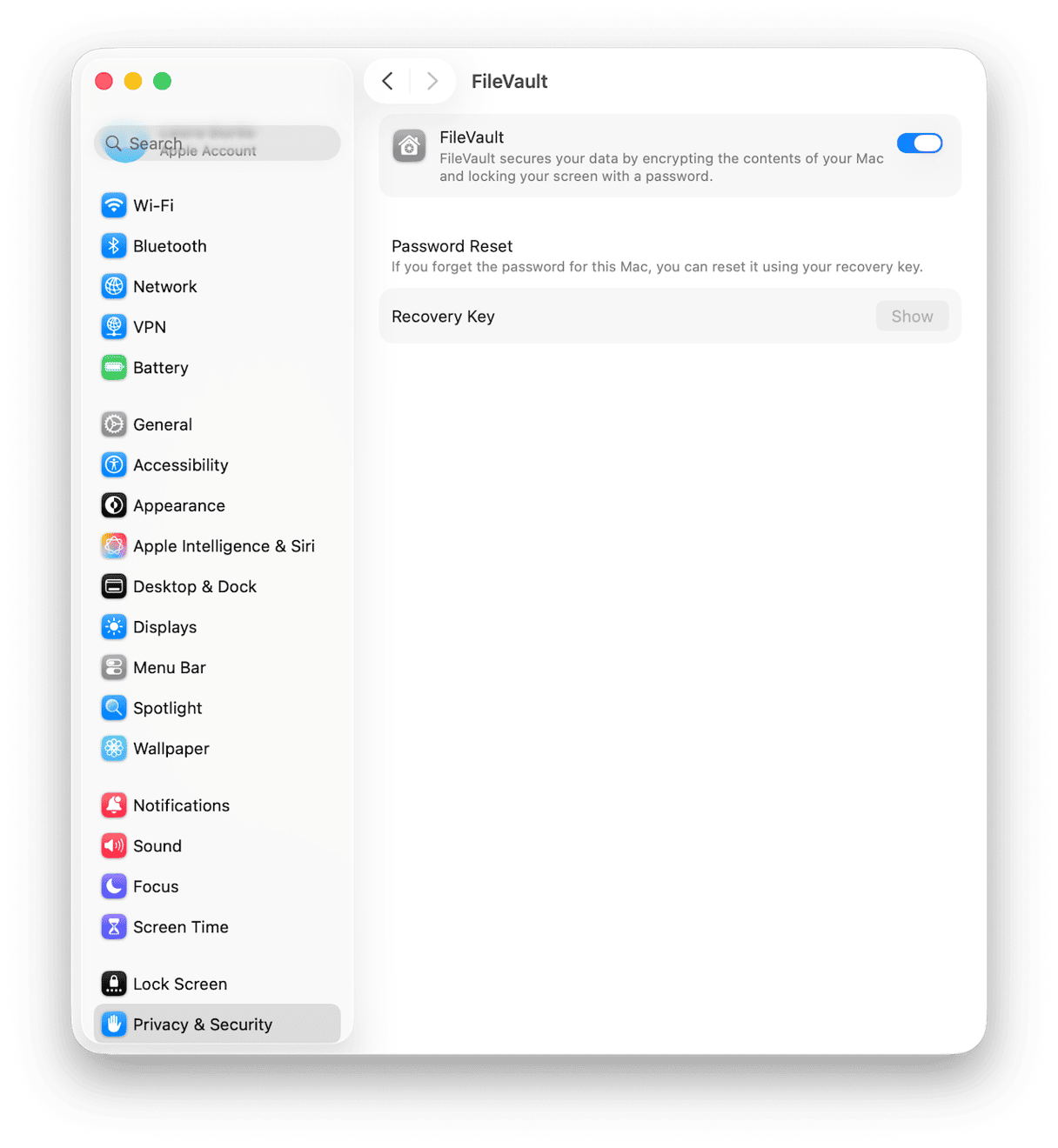
It’s the most robust answer to can I lock apps on my MacBook when the stakes are high?
One more way to tighten device privacy
Locking apps is one thing, but if you’re interested in improving your overall Mac security and data privacy, then I recommend CleanMyMac’s Protection feature. I run this regularly on my machine to audit app permissions, clear all of my online and offline traces across browsers, and monitor any real-time threats; here’s how:
- Open CleanMyMac — get your free trial here.
- Select Protection > Scan.
- Click Manage Privacy Items and review and remove items.
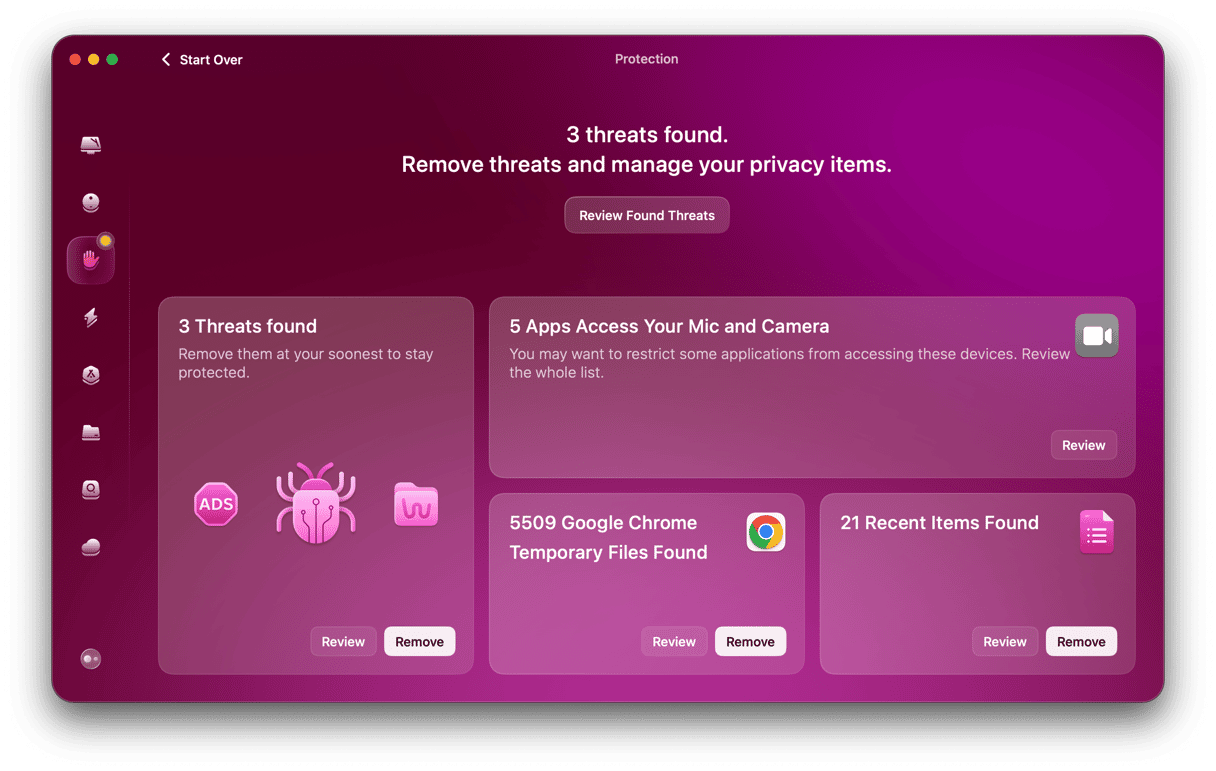
While yes, this doesn’t password-protect any apps itself, it helps to reduce what’s exposed if someone gets past the lid or Screen Time gate for a minute, plus it’s Apple-notarized and fits nicely into a monthly upkeep routine.
Well, hopefully now you’ve got all the answers to can I lock apps on a MacBook? I like simple guardrails that actually hold up on a busy day, and this setup does. Don’t forget if upping your data security and privacy is the real goal here, password-protecting apps are just scratching the surface.
FAQs: Password-protect apps on Mac
Can you use a third-party app to lock Mac apps?
There are apps that promise individual app locking, but in my research, I found them a bit unreliable and not really necessary when the native workarounds work well. If you do decide to go with a tool, be careful, make sure you check out all the reviews and app-store ratings first.
How to lock apps on a MacBook Air specifically?
Same steps as listed in the above article. System Settings > Screen Time > Set Screen Time passcode. App Limits > 1-minute limit > Block at End of Limit. Works on Air and Pro identically in macOS Tahoe.
How to lock apps on MacBook Pro for presentations?
Set limits for distracting apps, then use Focus while presenting. Close the lid between sessions, so your Mac asks for the login password immediately on wake.
Can you lock apps on a MacBook for kids?
Yes. Add the child to your Family Sharing group and apply App Limits to their profile. You control the Screen Time passcode. This is the parental-control version of the same setup.