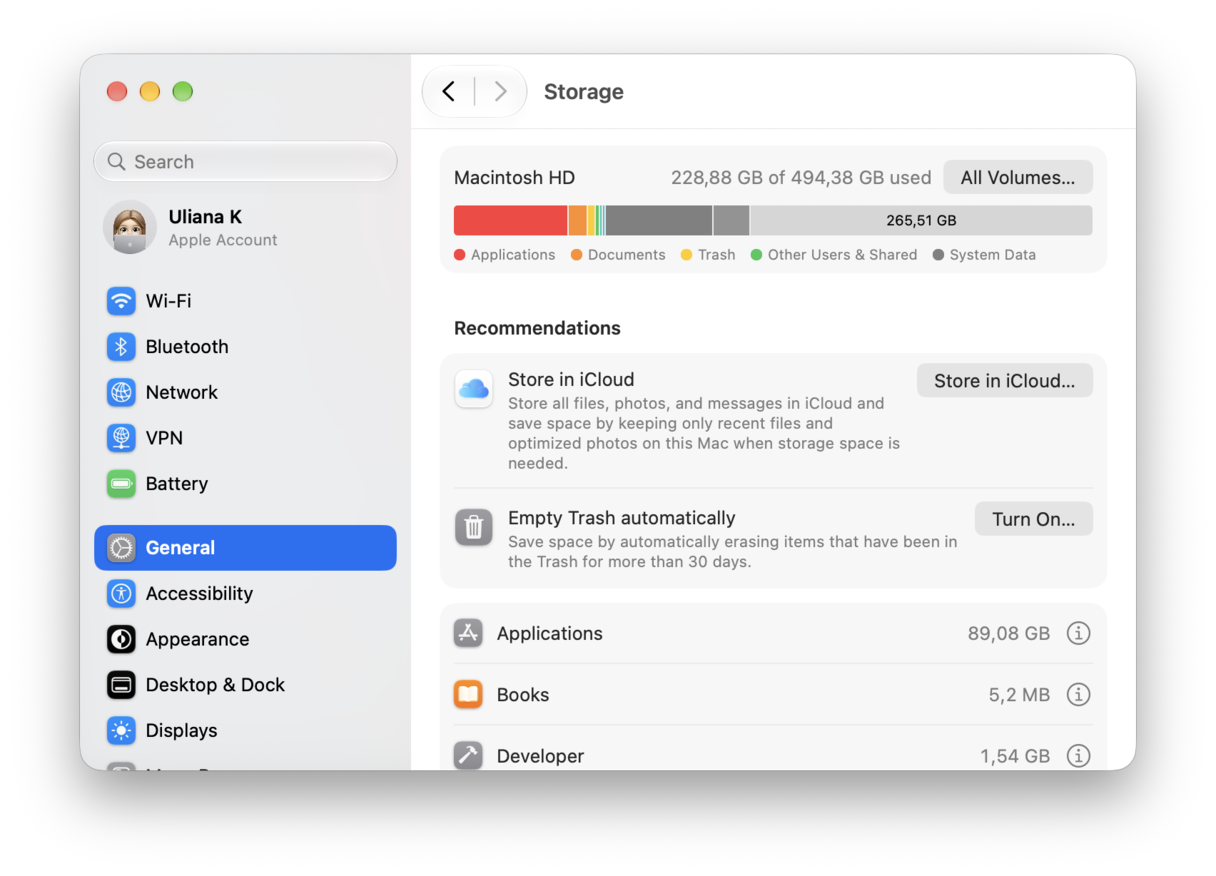
When Apple switched from hard disks in its Macs to SSDs, one of the challenges for users was adjusting to having much less available storage for music, photos, videos, and other files. Apple’s response, along with offering cloud storage in iCloud Drive, was to add a feature to System Settings that allows you to see how much storage you have used on your startup disk and where it has gone. It also provides tips on how to free up space. It’s great, except that sometimes it doesn’t work, and instead of showing you how much storage you have used, shows nothing useful. In this article, we’ll show you what to do if your Mac gets stuck calculating storage.
Why is my Mac stuck on calculating storage?
There are a few possible reasons why your Mac may seem to be stuck when trying to calculate how much storage you’ve used. Your Mac builds an index of every file stored on it using Spotlight. That index contains details of the file type and its size, and that’s how macOS is able to determine how much storage you have used and which applications and services are using the most. However, if Spotlight is in the process of indexing your startup disk when you check the Storage section in System Settings, it may not be able to show you how much storage you’ve used. Equally, if Spotlight has been unable to index your startup disk, that could cause problems for the storage display.
Other possibilities for the cause of the problem include issues with downloading Apple Intelligence models, problems with iCloud syncing, and rogue cache or log files.
How to fix it when your Mac is stuck on calculating storage
1. Restart your Mac
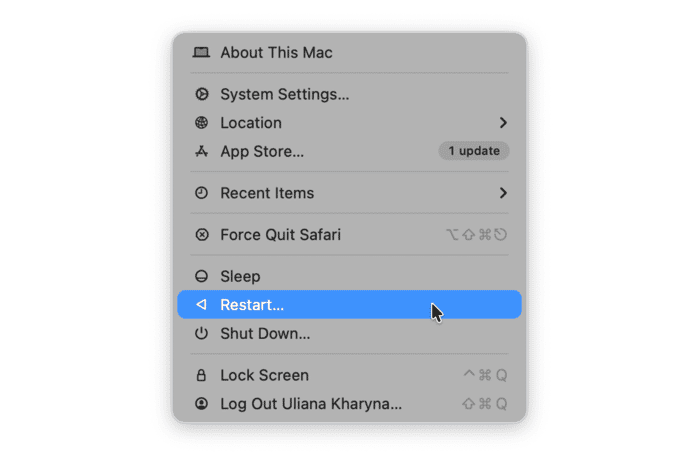
A simple restart will clear out temporary files and free up RAM, and it may be all you need to do to fix the problem. So, go to the main Apple menu and choose Restart.
2. Delete troublesome cache files and other junk
As you use your Mac, it accumulates cache and other temporary files. Many of these files are never deleted and build up over time, taking up more and more space on your startup disk. They can also become corrupted and cause problems for your Mac, like making your Mac get stuck calculating storage. And those files aren’t the only culprits; there are others, like application binaries you don’t need and language files for languages you don’t use, not to mention log files you will never open.
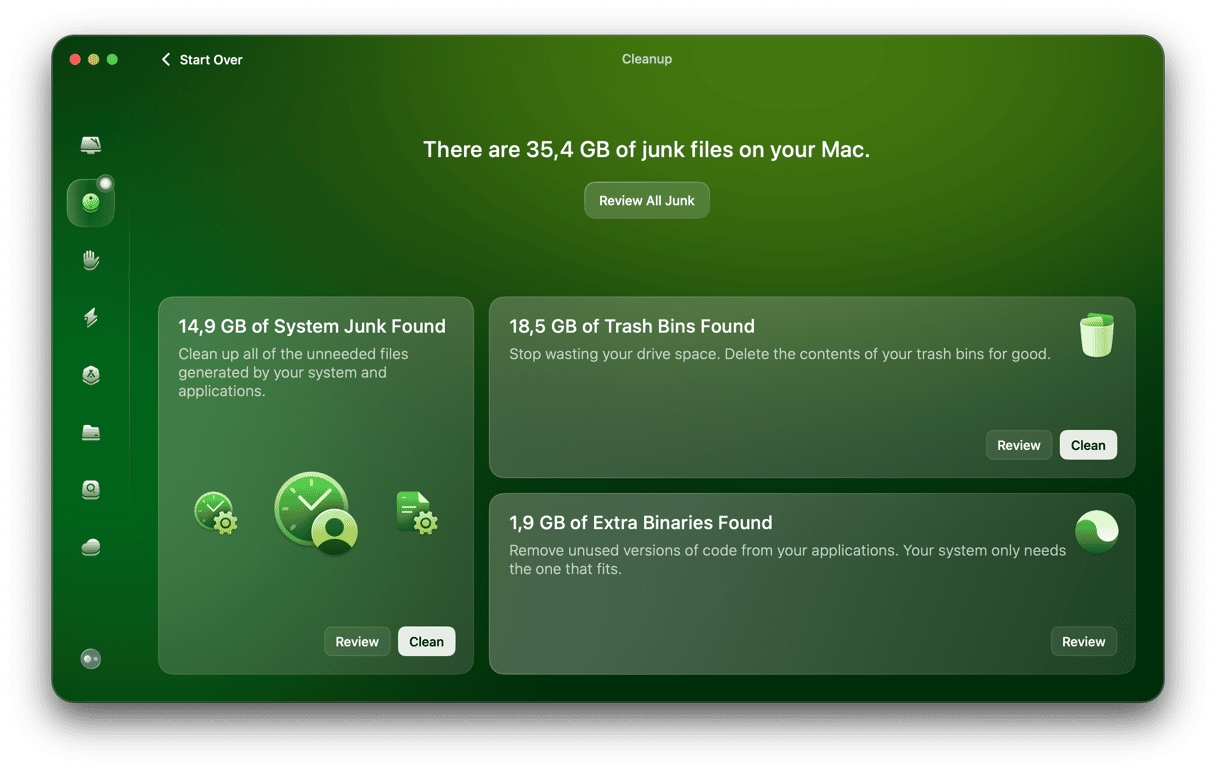
The solution is to get rid of all these files. But doing that yourself is a long, slow process. That’s where CleanMyMac’s Cleanup feature comes in. It scans your Mac, looking for junk and clutter, and then reports back to you with what it’s found. You can then choose to get rid of it all with a click, or review what it has found and decide for yourself what to delete and what to keep.
- Get your free CleanMyMac trial — you can test it for 7 days for free.
- Open the app and choose Cleanup in the sidebar.
- To get rid of all junk files, choose Clean in each pane. Or to review what it has found, click Review All Junk.
3. Reindex Spotlight
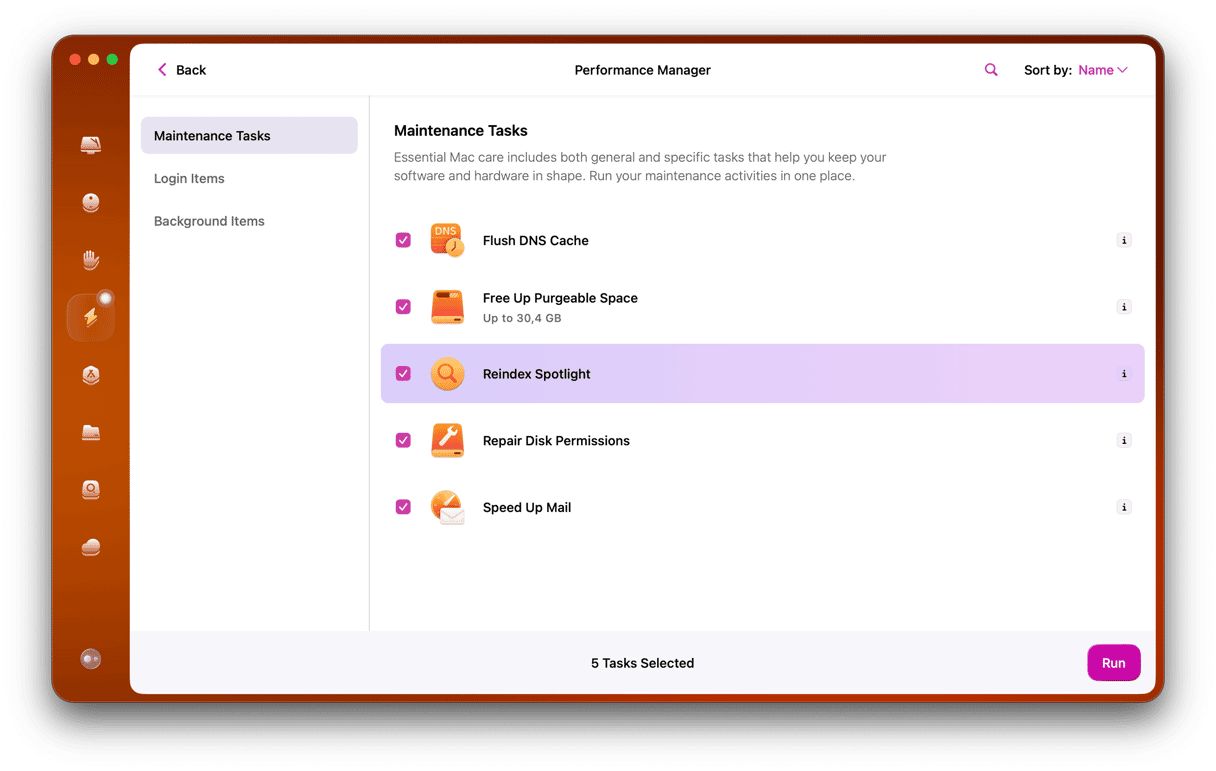
Sadly, this isn’t something you can do in macOS’ settings. You need to use a specialist app. Fortunately, CleanMyMac can do the job, as well as freeing up storage. Here’s how to use it to reindex Spotlight.
- Open CleanMyMac and choose Performance in the sidebar.
- Click Scan.
- When it’s finished, click View All Tasks.
- Select Reindex Spotlight and click Run.
- When it has finished, check the Storage section in System Settings again to see if it is still stuck.
4. Disable and re-enable Apple Intelligence
If Apple Intelligence is causing the problem, this will fix it:
- Go to System Settings and select Apple Intelligence & Siri.
- Turn Apple Intelligence off.
- Wait for a minute or so and turn it back on again.
- Wait for it to finish downloading and try the Storage section of System Settings again.

5. Turn off iCloud syncing for Desktop and Documents
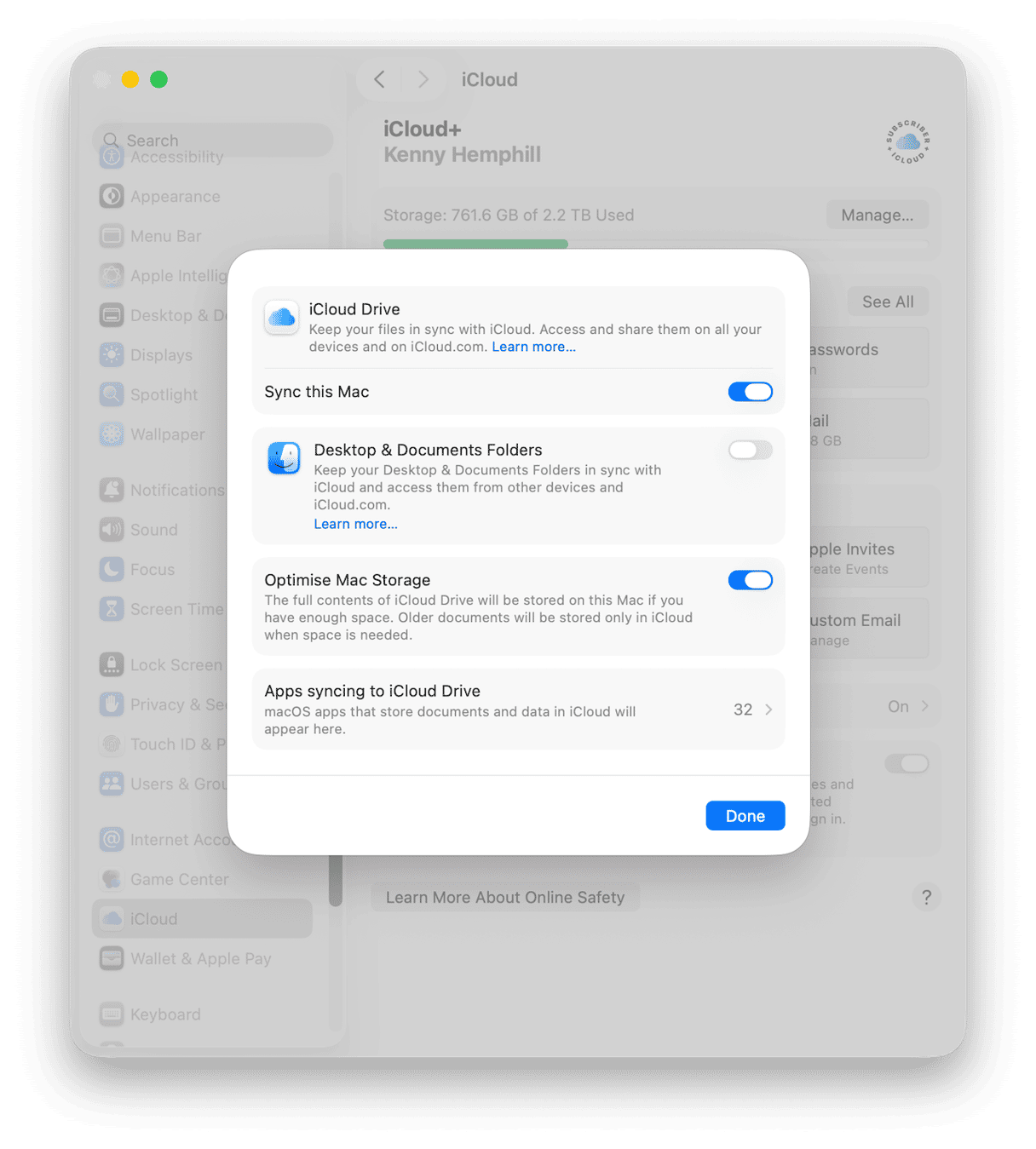
When you turn on the feature that allows you to sync your Desktop and Documents folders with iCloud, it creates cache files and metadata to keep track of what has been synced. These files are part of the System Data displayed in Storage. But sometimes, having the feature turned on can cause your Mac to get stuck calculating storage. To check, turn it off. You can then turn it back on again after you’ve established whether it was the cause of the problem.
- Go to System Settings > Apple Account > iCloud and choose Drive.
- Set Desktop & Documents to off.
- Click Turn Off to confirm.
- Wait a minute or two and then go back to the Storage section to check if it is still stuck.
6. Repair your startup disk with Disk Utility
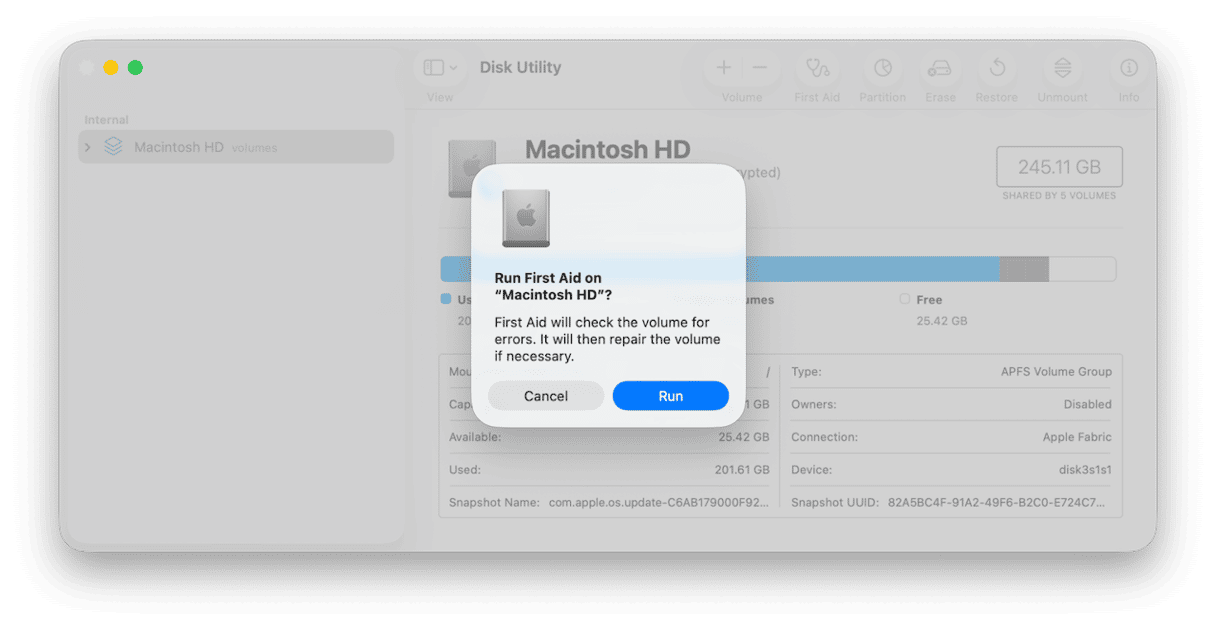
If there is a problem with your startup disk — like a corrupt file system — it may prevent it from calculating how much free storage there is. To fix it:
- Go to your Applications folder and open Disk Utility.
- Select your startup disk and choose First Aid in the toolbar.
- Click Run.
- When it has finished repairing the disk, try Storage again.
7. Update macOS
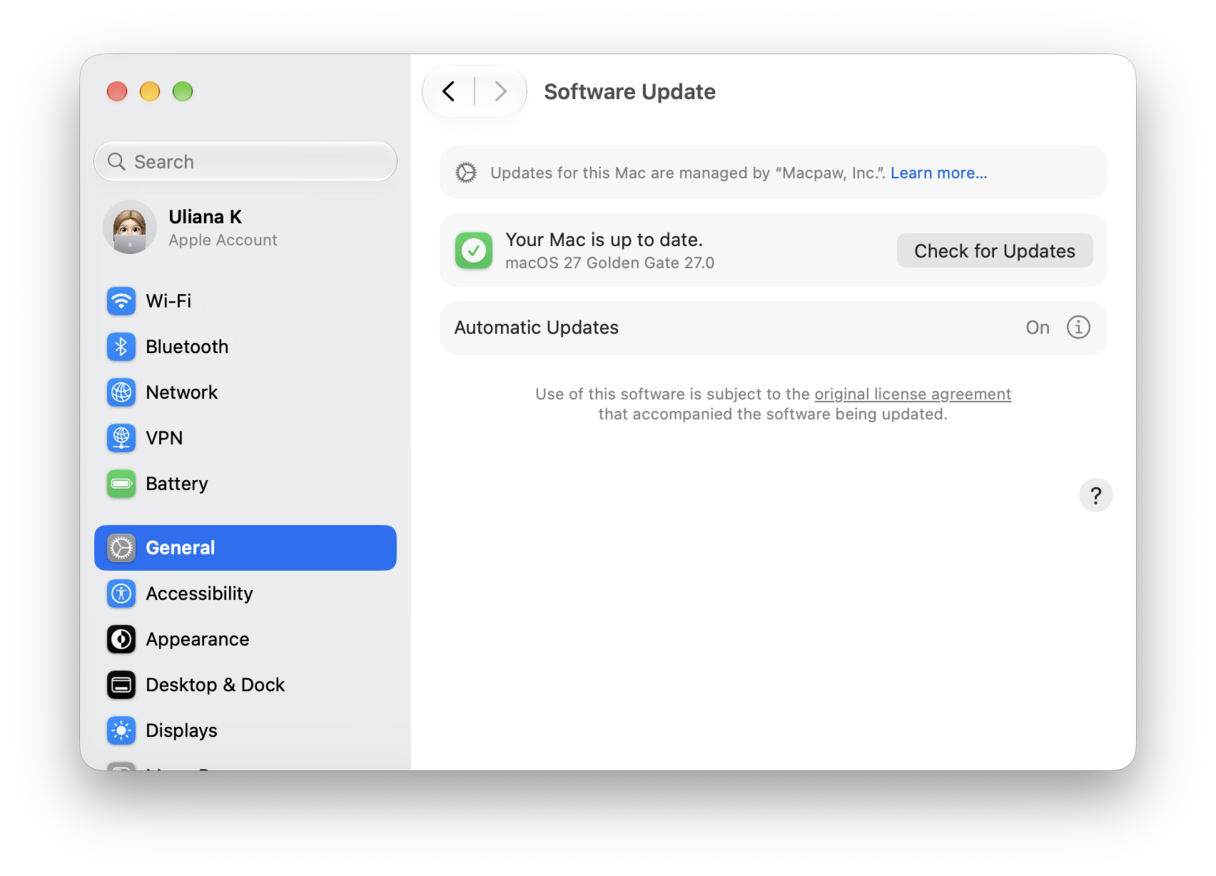
If nothing has worked so far, go to System Settings > General and choose Software Update. Wait for it to check whether there is an update available for your Mac and if there is, follow the instructions on screen to install it. When your Mac restarts and the update is installed, check Storage again.
The Storage feature in System Settings is a really useful feature that allows you to see what is using up the space on your startup disk. But sometimes, it doesn’t work as it should. Follow the steps above to fix it if your Mac gets stuck calculating storage.