
We all know the feeling of excitedly upgrading to the latest version of macOS, only to feel that excitement drain away as the realization dawns that the new OS is running very slowly on your Mac. There are a number of reasons why that happens. For starters, every new version of macOS is optimized for the latest Macs, so if yours is a little older, it may feel a little sluggish. That will be amplified if you install a new version over the previous version every year, because old settings and other system files build up and can conflict with newer files. The good news is there is a lot you can do to speed things up. So, in this article, we’ll show you how to optimize your Mac for macOS Golden Gate.
Before you do anything else: wait an hour or two. It’s possible that your Mac is sluggish immediately after installing Golden Gate because Spotlight, Photos, and Mail all carry out indexing in the background, and that can use enough CPU and GPU cycles to have a noticeable impact on performance. After that, if it’s still slow, continue with the steps below.
How to optimize macOS Golden Gate
1. Get rid of all those open browser tabs
Modern browsers encourage having lots of tabs open at once, with features like tab groups and the new Safari alerts that tell you when a tab has been updated in the background. But every open tab is a drain on your Mac’s resources, and that means that it contributes to slowing your Mac down. So, close the ones you don’t need right now. Bookmark the page if you think you might need to come back to it.
2. Quit applications you’re not using
Just as open browser tabs use CPU and GPU cycles when they update in the background, so do open applications. Windows are redrawn every time you change the view on your display, and apps update content via remote servers. So, close the ones you're not using. Most apps open so quickly that you won’t notice the difference.
3. Run maintenance tasks
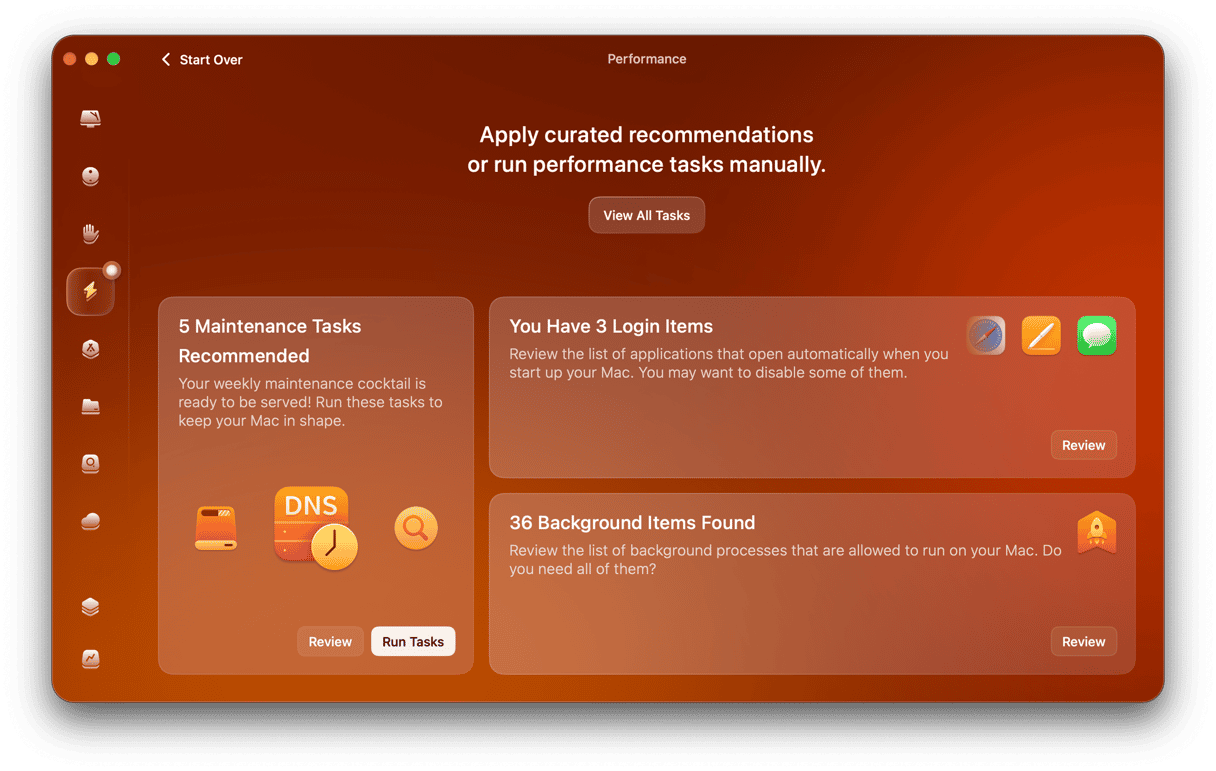
Running maintenance tasks is a great way to improve performance. And the easiest way to do it is to use the Performance feature in CleanMyMac. It scans your Mac and identifies maintenance tasks that need to be run. These include Spotlight reindexing, Time Machine snapshot thinning, DNS cache flush, and repairing disk permissions. CleanMyMac then recommends what to run, and you can choose whether to follow the recommendation.
Here’s how it works:
- Start your free CleanMyMac trial — you can test it for 7 days.
- Open CleanMyMac and choose Performance in the sidebar.
- Click Scan.
- In the Maintenance tasks section, click Run to run all tasks, or Review to choose individually.
4. Turn off visual effects
Regardless of whether you like visual effects in macOS or not, they consume resources like GPU and CPU cycles. Turning them off may help your Mac run more smoothly.
- Go to System Settings > Accessibility and choose Display > Reduce Motion.
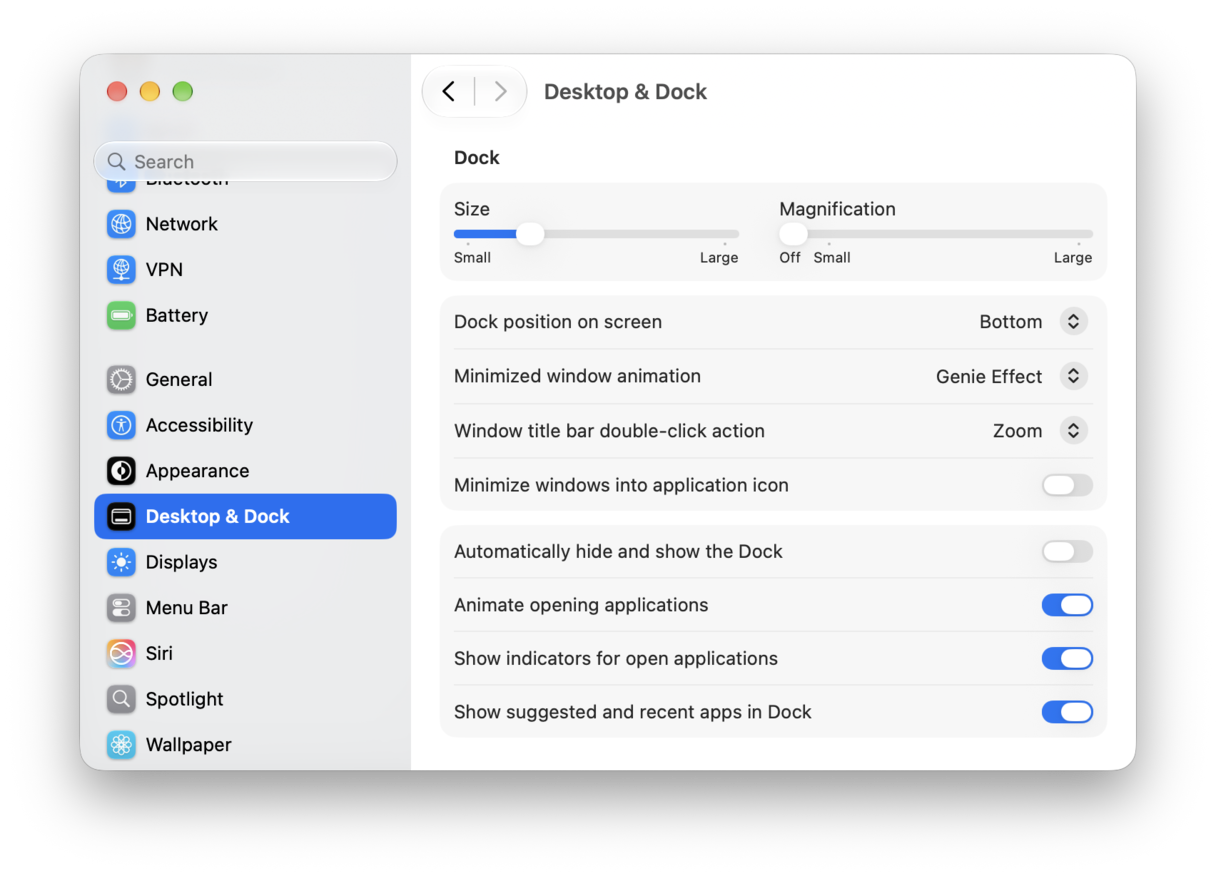
- Then, still in System Settings, go to Desktop & Dock and choose ‘Minimize windows using: Scale Effect’.
5. Update macOS and apps
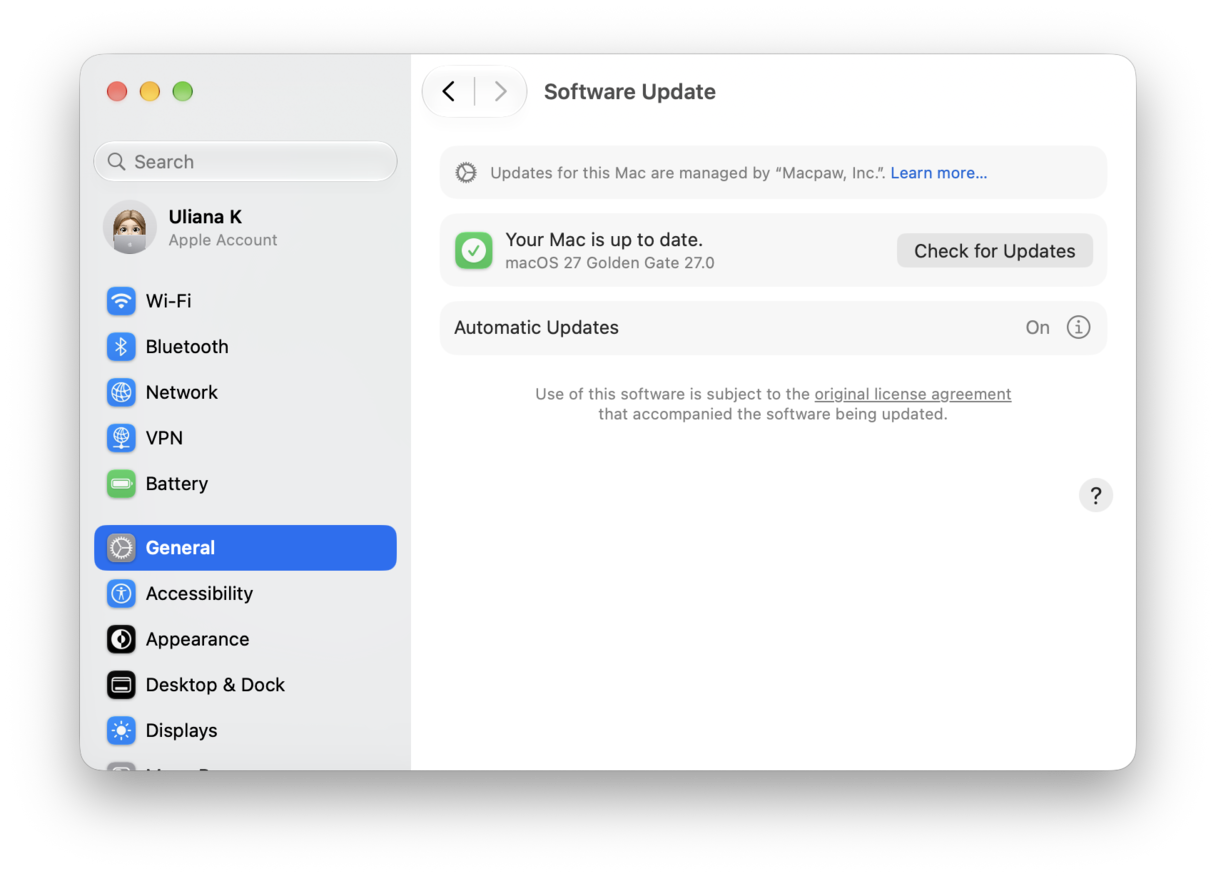
Even if you’ve just updated to Golden Gate, it’s worth checking whether there is an update available. You can do that in System Settings > General > Software Update. If there is one available, install it.
You should also update all of your apps. Many apps need to be optimized to take advantage of the improvements in Golden Gate, and updating them will install the optimized versions. For apps installed from the App Store, you’ll find the links in the Updates section on the Store.
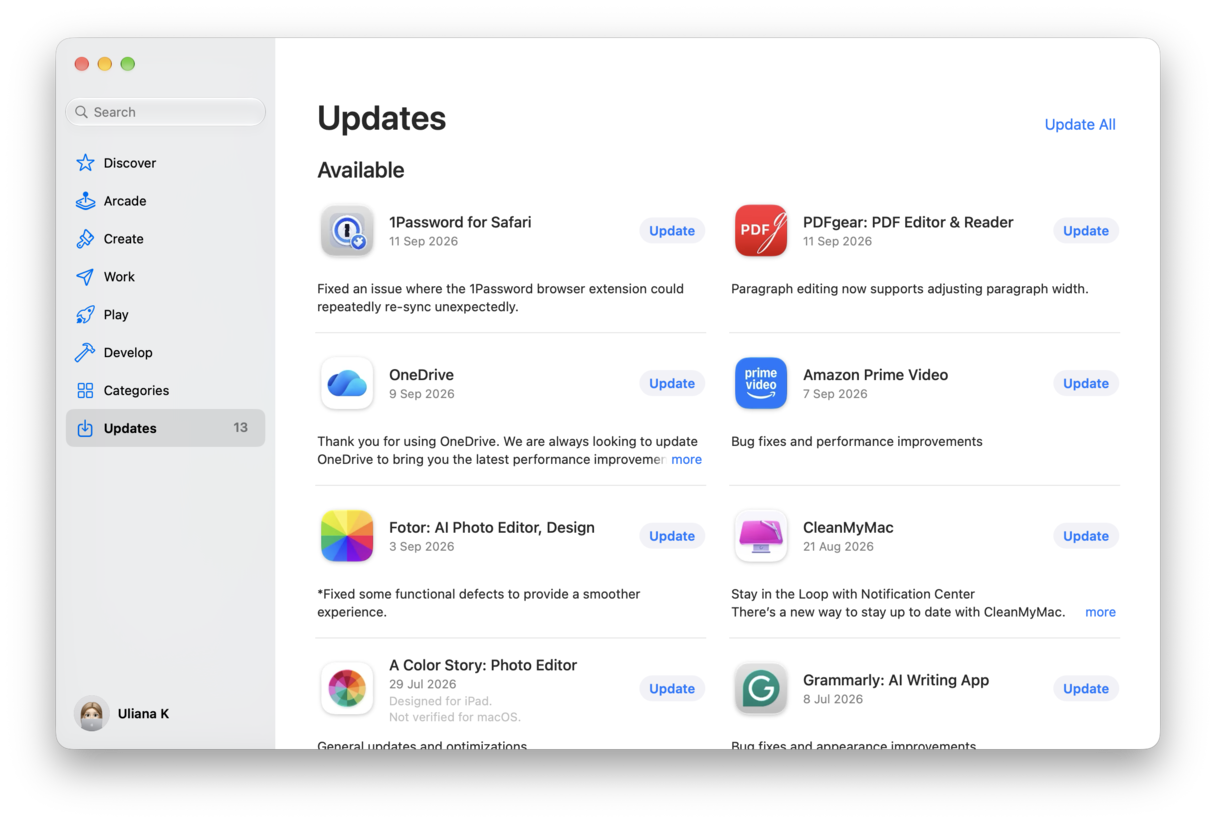
For other apps, launch the app, click on its name in the menu bar, and select Check for Updates.
6. Manage Apple Intelligence
Apple Intelligence in Golden Gate is very useful and a big step forward from Tahoe. But it also uses lots of CPU, GPU, and RAM resources. So, if you don’t use it, turning it off will allow you to reclaim some of those. In Golden Gate, there is no single off switch for Apple Intelligence. You could turn off Siri in System Settings > Siri, but you’d lose access to Siri altogether.
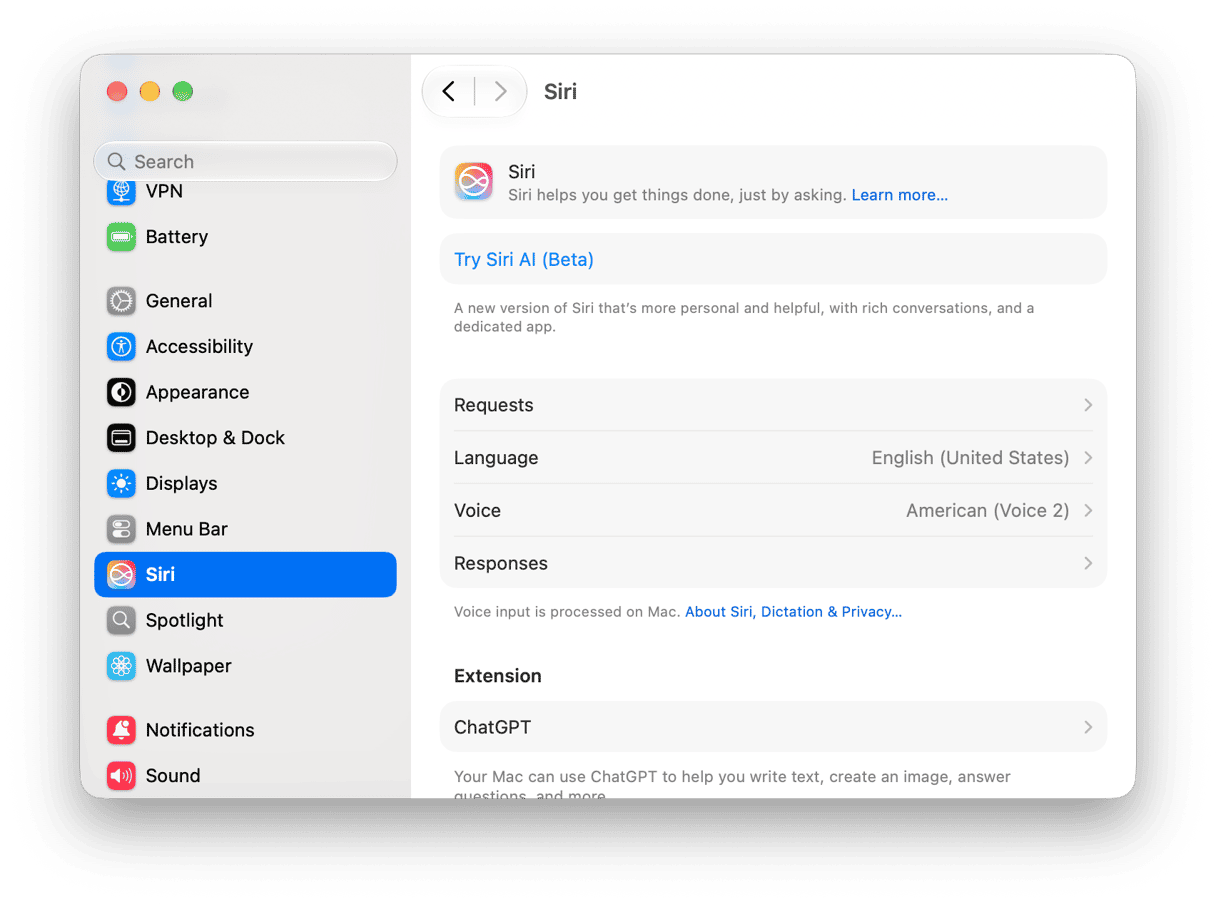
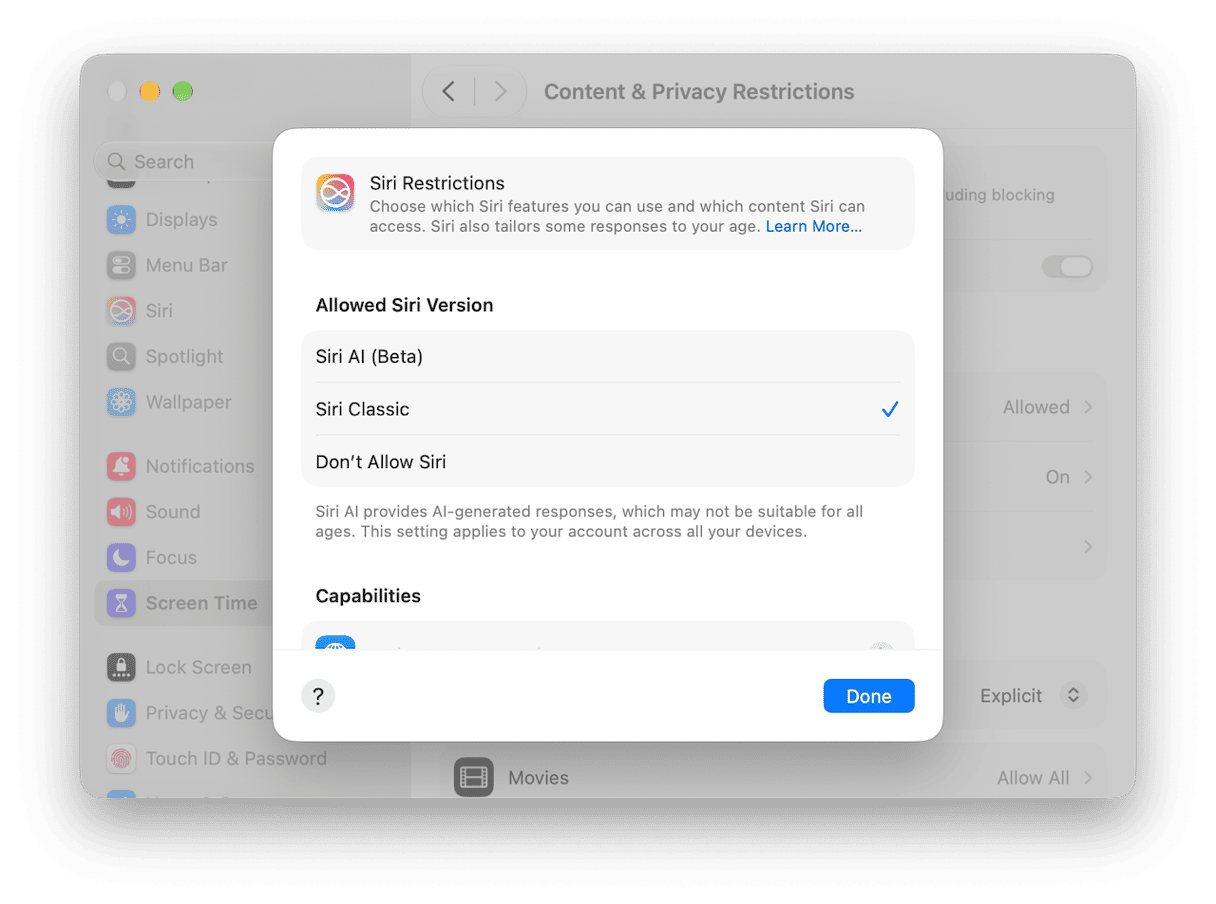
A better way is to go to System Settings > Screen Time > Content & Privacy Restrictions and choose Siri > Siri Classic. Then go through the list of Capabilities beneath and turn each one off. You can also turn off individual Apple Intelligence features in their respective sections in System Settings, such as notification summaries in Notifications and Mail smart replies in System Settings > Apps > Mail.
7. Clear out the junk
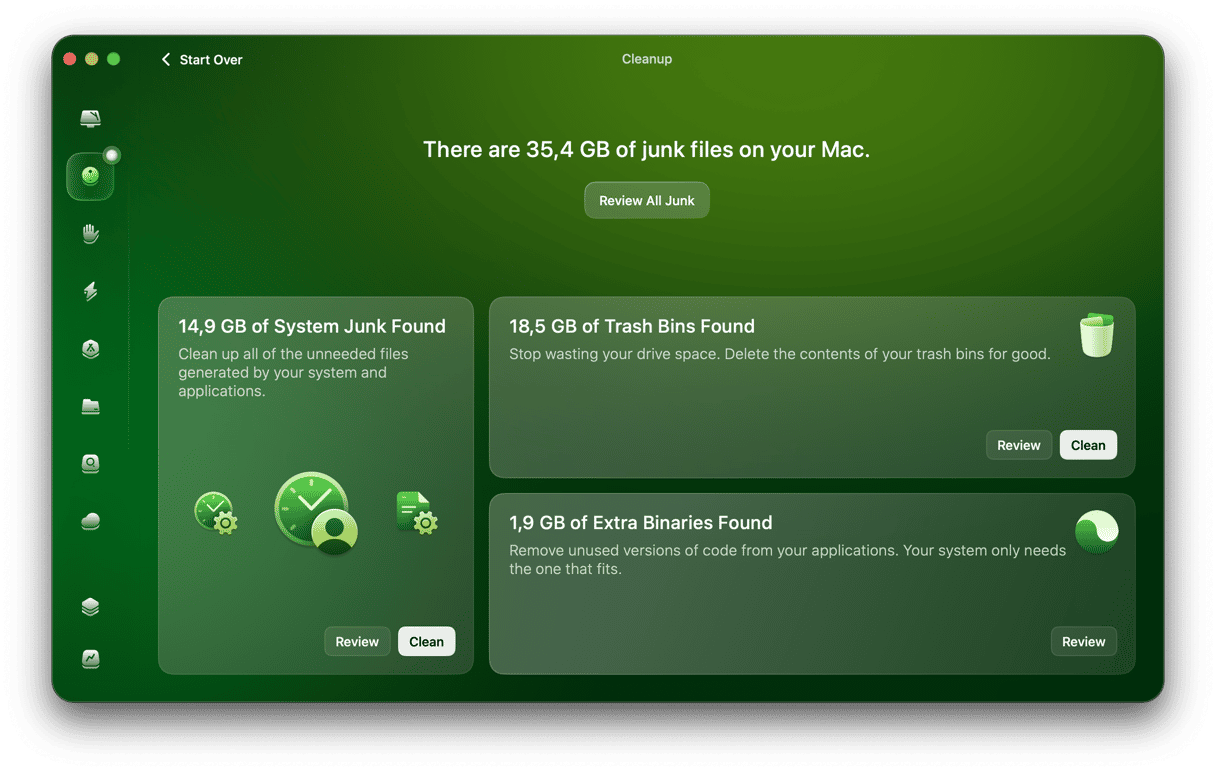
Junk files don't just take up space — they can cause conflicts that slow your Mac down. The easiest way to get rid of them is to use CleanMyMac's Cleanup feature. It finds and removes junk files in seconds.
- Open CleanMyMac.
- Navigate to Cleanup in the sidebar.
- Click Scan.
- Click Clean to remove everything found.
8. Review login items and background extensions
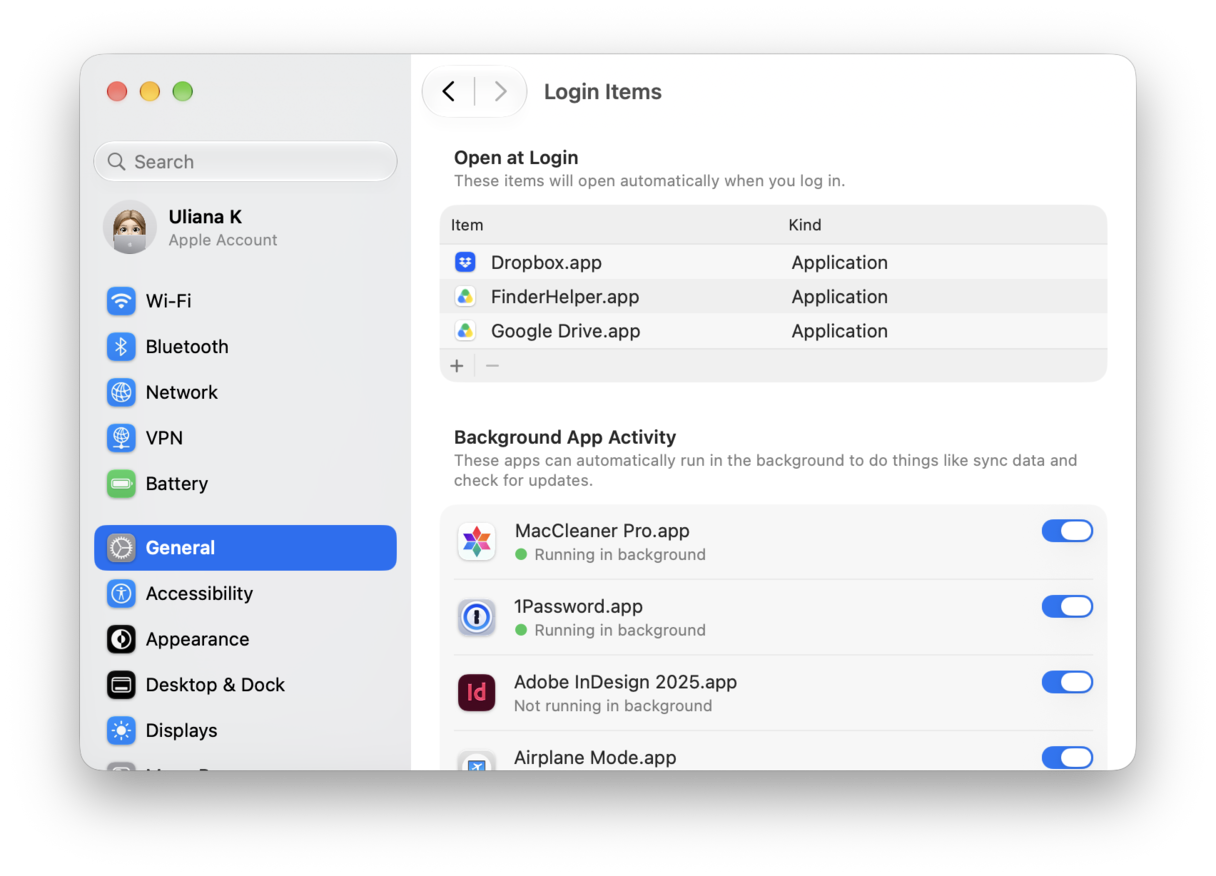
Login items and background extensions launch when you log in to your Mac and run in the background. Most are associated with apps you have installed, and some may be necessary. However, others may be related to apps you no longer use or, even if you do use the apps, not needed. Go to System Settings > General > Login Items & Extensions and click ‘-‘ in Open at Login to remove login items. Then, in Background App Activity, use the toggle switch to turn items off.
9. Check Activity Monitor
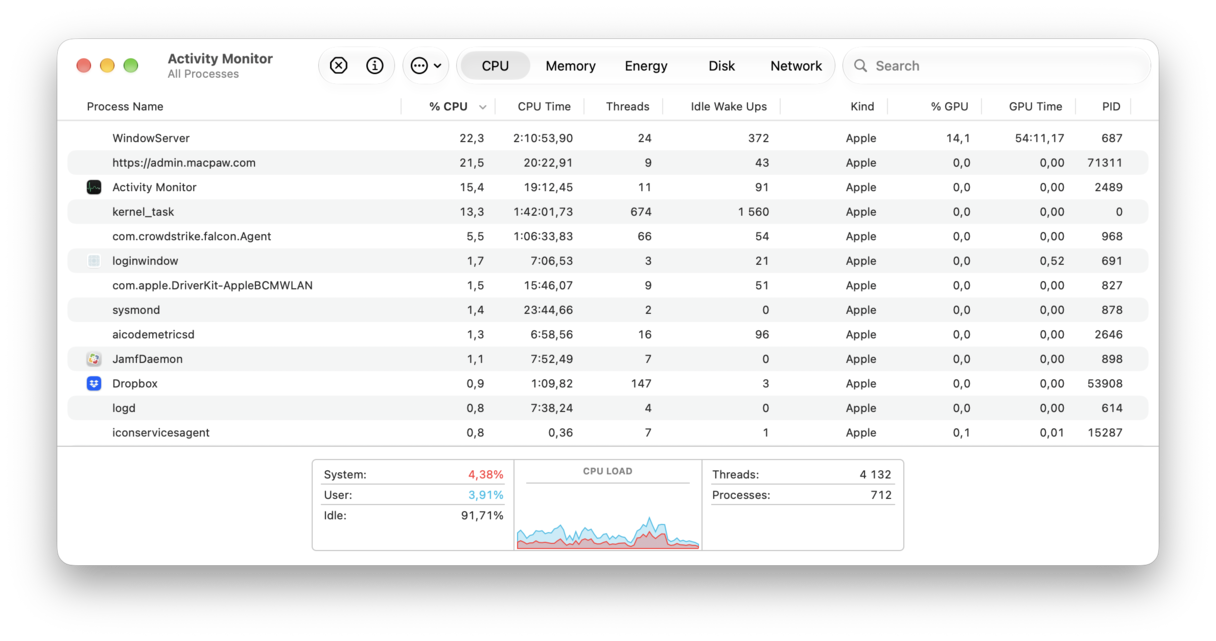
If you’ve tried all the steps above and your Mac is still running slowly after installing macOS Golden Gate, it’s time to do some investigating and find out what the cause of the problem is. The way to do that is to use Activity Monitor to find out which tasks and processes are hogging resources.
- Go to Applications > Utilities and launch Activity Monitor.
- Click on the CPU tab then at the top of the CPU column to order tasks by the CPU cycles they are consuming.
- Look at the list of processes. Is anything using way more than its fair share? Anything in the tens of percent is a suspect. If you see a process that looks like it’s running out of control, select it and click the ’x’ in the toolbar to stop it.
- If it immediately relaunches, note its name and search online for which app it belongs to. When you find out, uninstall and then reinstall the app.
There are lots of things you can do to make your Mac run a little more quickly after installing macOS Golden Gate. So, if it’s a bit sluggish immediately after the install, don’t worry. Each of the tips above will make only a small difference, but several of them together should have a noticeable effect. Updating all your apps and turning off visual effects, as well as closing browser tabs, should work particularly well. Follow the steps above to optimize macOS Golden Gate on your Mac. If you need to speed Golden Gate up, we’ve got some fixes in this guide. And for more optimization steps, jump to this article on how to speed up Mac.