
macOS Golden Gate is the most significant version of macOS since Apple first started selling Macs based on its own Silicon. Why? Because it’s the first version that is Apple silicon only. If you want to install it, you’ll need an M-series Mac. Intel-based Macs are not supported. I’ve spent a couple of weeks testing it and using it side by side with my regular work machine, which is still running Tahoe. And I can say with full confidence that if your Mac is running Tahoe, you’ll notice a big improvement with Golden Gate. Should you upgrade? Absolutely. 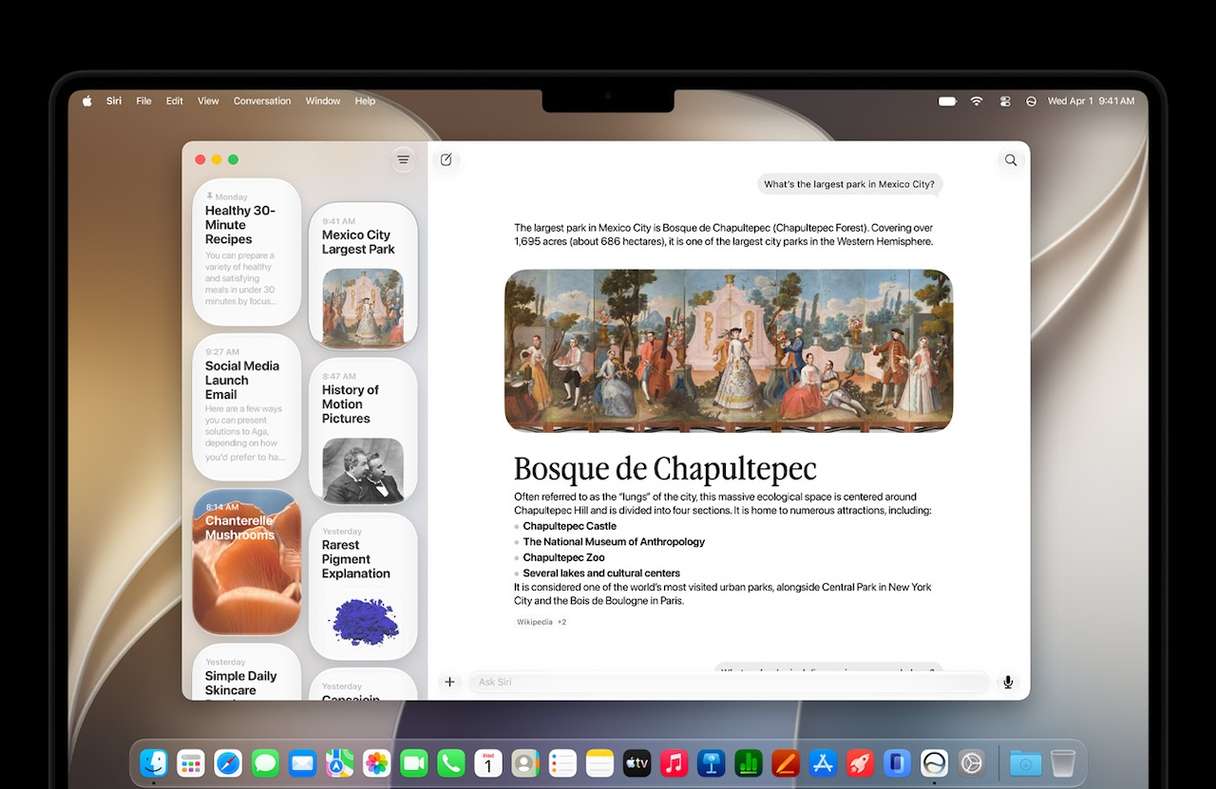
At a glance
macOS Golden Gate | macOS Tahoe |
macOS 27 | macOS 26 |
Apple silicon only | Final release to support Intel-based Macs |
Available for upgrade via System Settings | Currently shipping |
macOS Golden Gate vs Tahoe
Compatibility
macOS Golden Gate is the first version of macOS to drop support for Intel-based Macs completely. It will run on any M-series Mac as well as the MacBook Neo, which has an A18 Pro chip. macOS Tahoe will run on the same Macs, as well as the last of the Intel machines, including the 2019 Mac Pro, 2020 iMac and 2019 MacBook Pros.
Despite being Apple silicon only, Golden Gate does ship with Rosetta – the compatibility layer that allows Intel apps to run on M-series chips. However, Rosetta is set to be removed in macOS 28.
Performance
Many of the improvements in Golden Gate are performance-related. It’s leaner because all the code needed to support Intel-based Macs has been removed. And early performance tests show improved Geekbench scores. It certainly feels to me like apps launch more quickly.
One area where you should notice a big improvement in performance is Spotlight Indexing. Normally, when you notice your Mac becoming sluggish or unresponsive, one of the first things you check is whether Spotlight is indexing. In Golden Gate, Spotlight indexing is faster, and it delivers more accurate results in Mail, files, and Photos. One caveat to the improvement in Spotlight is that some early adopters have noticed that the initial indexing can take up to 48 hours running in the background.
Another area where performance has improved in Golden Gate is, thankfully, AirDrop transfers and network file browsing. If, like me, you use a NAS box to host files, you’ll know how painfully slow it can be to connect and transfer files. Golden Gate should put an end to that. Safari’s start page also loads more quickly.
Verdict: In performance terms, it’s clear that it will be faster and smoother than Tahoe.
Siri AI — the headline upgrade
It’s been a long time coming, but macOS Golden Gate finally sees the debut of the new AI-powered version of Siri. Where Apple Intelligence in Tahoe was limited to things like writing tools, Image Playground, and priority notifications, Golden Gate sees Siri get an AI makeover.
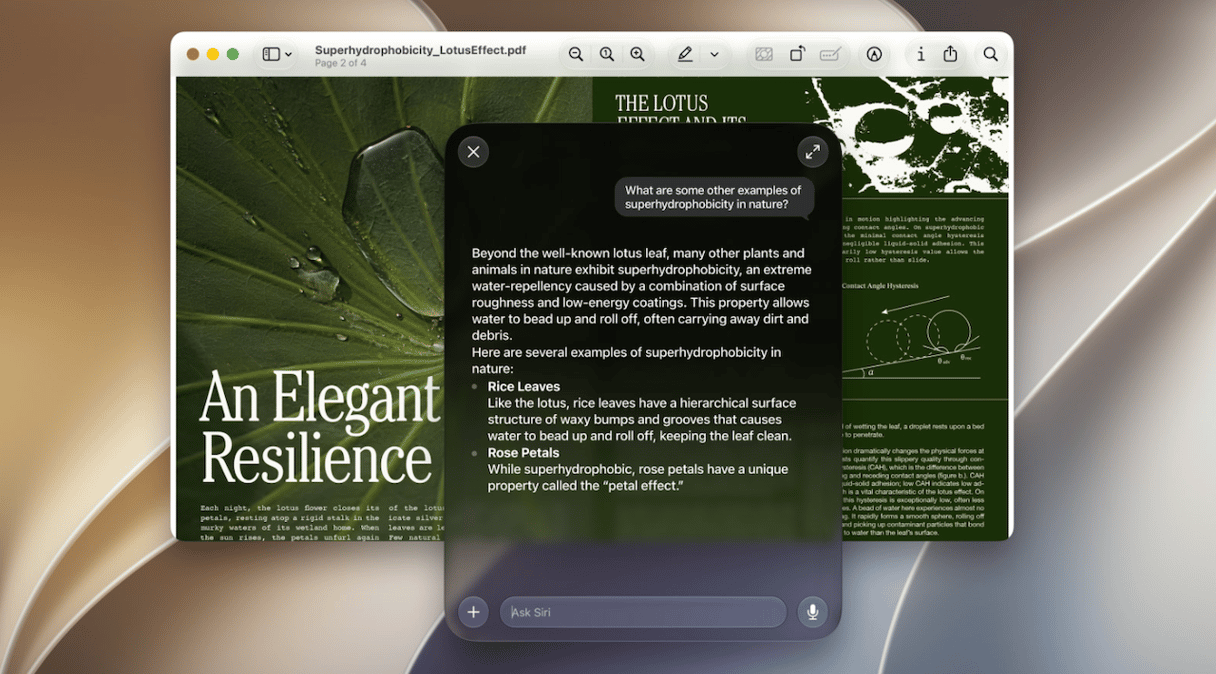
You can access Siri via Spotlight or the standalone Siri app. In the app, you can have a conversation with Siri, as you would with Claude or ChatGPT, and like those chatbots, it understands context. In Siri’s case, that means being able to compare different versions of files, as well as create Reminders, Mail messages, or Calendar entries and edit photos. On-device Siri AI works on any Mac supported to run Golden Gate, but some features, like choosing upgraded natural voices and enhanced dictation capabilities, need an M3 Mac and 12GB RAM. The good news for Mac users in the EU is that, unlike iOS and iPadOS, Siri AI will be available to you on Mac.
Verdict: Siri and Apple Intelligence are in a different league in Golden Gate, making it a clear winner.
Design: Liquid Glass refined
It’s fair to say that Liquid Glass wasn’t universally well received when it was launched with macOS Tahoe. Some of that was down to aesthetics – a lot of people just didn’t like the way it looked. But some of it was functional. Liquid Glass made it more difficult to see and select things. Icons in menus made them cluttered, sidebars in Finder windows were inset for no apparent reason, and their icons were the same color as the text. Corners of windows had different radii.
Golden Gate addresses many of these issues. It allows you to change the opacity of the Liquid Glass effect. Menus are not as cluttered, sidebar icons are a different color from the text, and windows have consistent corner radii. And window sidebars are edge-to-edge, not inset. One much smaller change, but which will be welcomed by lovers of tradition, is that the hand that appears when you hover over a link has reverted to the ‘Mickey Mouse glove’ style.
Verdict: Golden Gate is a clear winner here, as it fixes much of what Tahoe got wrong.
New features
While the new version of macOS focuses on improvements over its predecessor, there are plenty of new features.
- Visual Intelligence allows you to take a screenshot of any part of the screen and interrogate Siri about its content.
- Safari automatically groups tabs based on their content, can notify you when a tab changes in the background, and features ‘pull to refresh.’
- Photos gets AI-powered spatial reframing, perspective editing, and better cleanup tools.
- The Passwords app can auto-detect and replace weak or compromised passwords with a click.
- Parental controls are beefed up with a new Ask to Browse feature for websites and communication safety tools.
- Calendar gets support for adding and editing events using natural language.
- iPhone Mirroring windows can be re-sized and have different aspect ratios, and iPhone Mirroring now appears in Control Center.
- Messages get a sent indicator, consolidated Tapback notifications, and faster large photos and videos sending.
Verdict: Given that these features only appear in Golden Gate and are improvements on what went before, the new OS is the winner here.
Features missing in Golden Gate
As well as adding new features, Golden Gate also sees some existing features being retired.
- Boot Camp has gone for good because there’s no support for Intel-based Macs.
- Apple File Protocol (AFP) has disappeared, and SMB is now standard.
- There’s no more support for Time Machine backups to Apple Time Capsule.
- AirPort Utility is gone.
- Rosetta 2 is no longer automatically installed and has to be installed manually.
Verdict: If you need any of these features, macOS Tahoe is the winner in this section.
Before you upgrade
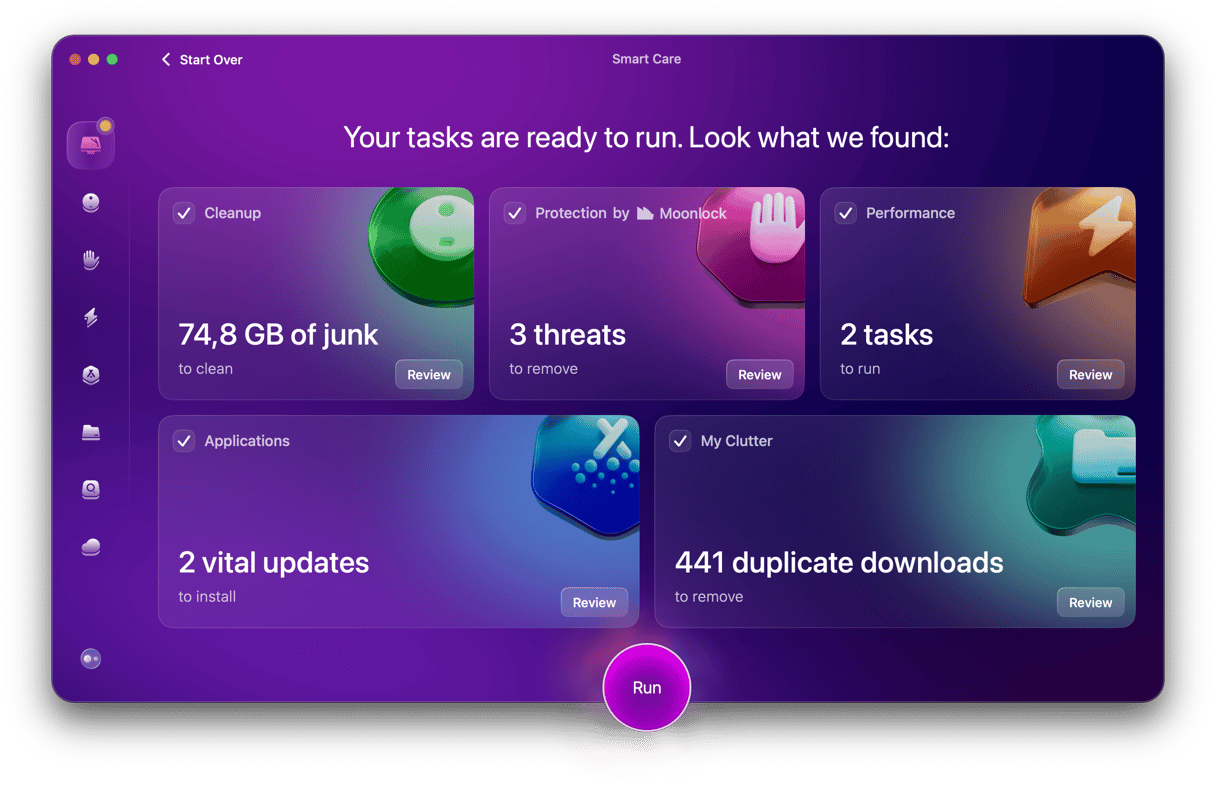
If you decide to go ahead and upgrade to macOS Golden Gate, it’s a good idea to get your Mac ready first. The installation will be much smoother and the new OS more stable if you get rid of junk files, optimize performance, and remove malware first. CleanMyMac scans for junk files, checks for malware, and runs performance optimizations — all in one click.
- Get your free CleanMyMac trial — you can test it for 7 days.
- Open the app and click Smart Care > Scan.
- Select items and click Run.
Should you upgrade to macOS Golden Gate?
If you have a Mac with Apple silicon and are running macOS Tahoe, absolutely you should upgrade to Golden Gate. If you have held off installing Tahoe because you don’t like the look of Liquid Glass, now is the time to give it a try.
If you rely on some specific apps, it may be worth waiting for the release of macOS 27.1 or, at least, check the developer's websites for the app compatibility with macOS Golden Gate 27.0 if you want to upgrade right away
If you need AFP or AirPort/Time Capsule support or you have an Intel-based Mac, Golden Gate is not for you.
Golden Gate is a big step forward from Tahoe. The Siri and Apple Intelligence improvements are the headline features, but the improvements to Liquid Glass may be more significant for those of us already using macOS Tahoe.