Knowing how to remove personal information from the internet has never felt more urgent and important. I was sent into panic mode when, recently, a friend of mine sent me a people-finder link with my old home address. I literally froze. What else was out there? Who else could see where I used to live? My online presence had been on my mind for a while, but what finally pushed me into action was the scale of 2026’s backdrop.
At the end of 2025, I’d already read the annual report from Identity Theft Resource Center, which reported that in the US alone, during 2025, there were over 3,322 companies that suffered data compromises, which was a 79% jump over the previous five years. Of those companies, that led to a shocking almost 279 million individuals being notified. Then, in January 2026, it was reported that 29.8 million SoundCloud accounts were added to Have I Been Pwned after attackers mapped public profiles to emails.
Tools are on the move, too. Google is discontinuing its Dark Web Report in February 2026; instead, users will be steered to more practical features like Results about you, Password Manager, and Security Checkup. In my opinion, we need good, sometimes less-shiny dashboards and more actionables that actually remove or lock down data, so in my opinion, this is a good move.
Data privacy, though, is a complex subject, and your rights depend on where you live in the world. For instance, in the European Union, GDPR Article 17 gives a right to erasure, while India’s DPDP Act gives a statutory right to correction and erasure in Section 12. Brazil’s LGPD lists deletion among data-subject rights in Article 18.
I imagine that some readers want to clean up after a breach, while others want to reduce future risk and get some peace of mind, and honestly, that’s exactly why I’ve put this complete guide together. Here’s a quick look at what I’ll cover:
- How to take an online data inventory
- How to remove listings
- How to remove images and map pins
- How to monitor and keep on top of results
- How to future-proof your online information and stay safe.
The 2026 risks that make removal a priority
These are the topics that I have seen time and time again in the news in the last 12 months.
1. Recycled data = Account takeover
Old breach info gets reused. Attackers try those same email and password combos on new sites and then lean on public crumbs to break through. I know a few friends who had their socials hacked. Losing access is really upsetting, and there’s often no way to recover those profiles.
2. Public-profile matching at scale
Public profiles can be really easily tied to real emails, then pushed into spam and takeover attempts. It is fast, cheap, and thanks to the rise of smart scammers, this has become an almost automated machine that doesn’t ever sleep.
3. Location trails sold and re-sold
Old map pins, property records, even private business information, and ad data can paint a picture of where you live and where you go. Once that bundle exists, copies can spread quickly.
4. Caller and voice scams that feel personal
Scammers pull your city, employer, or relatives from the open web and use them to sound legit on the phone. A little data goes a long way.
5. Photos that give away too much
House numbers, plates, and school logos in the background. One image can reveal more than a whole bio.
All of this together looks frankly terrifying, and we should be cautious. Let’s take a look at some of the most common signs that your personal info might be breached.
Signs your info is already in play
So, here are a few tips and tell-tale signs that your online personal information may be compromised:
- You keep getting password resets you did not request.
- New spam emails that use your full name and city.
- Login notifications from places you were not.
- Strange automated phone calls or WhatsApp messages for jobs.
If you’ve noticed an increase in any of these areas, it’s time to up your privacy game. I’ve got a ton of tips in the section below on how to remove personal information from the internet.
How to remove personal information from the internet for free
There needs to be a starting place, so I’ve structured these steps into what makes sense.
1. Take inventory
You first need to know what’s out there, to be able to do something about it, so that’s where we’ll start. I find it handy to keep an Excel spreadsheet and a Desktop file, where I can keep all my “proof” screenshots. That works for me, but it’s not for everyone.
- In a normal browser window, search for your full name, any nicknames, or former names. Add a city or employer to narrow the results down.
- Open a private window and repeat. (Results differ).
- Check the Images and News tabs for your name, too.
- Click through the first two pages. Take screenshots for proof (just in case).
- Paste each URL that you find into an Excel or Sheets file, so you can keep a record for now. I would say making a note of the Site, URL, what it shows, and the Date.

Here’s a good time to talk about People-finder pages and data-broker pages. In your research above, you might have come across these.
What they are
- People-finder: a public profile you never created that shows your name, old and current addresses, phone, and “possible relatives.”
- Data-broker: the behind-the-scenes company that collects and sells lists; those lists feed the people-finder pages.
How to spot them fast
- People-finder pages show an age range, a “view full report” button, and a map pin.
- Data-brokers have a corporate site with a Privacy or Delete my data link, but no public profile page for you.
2. Prioritize removal
Next up, after you’ve completed the above research and hopefully compiled an Excel sheet of online info, it’s time to prioritize which items need removing, fast. In my opinion, the order below is the priority.
- Items that show a phone number and full address or email.
- Anything on page one of the results.
- People-finder and data-broker pages.
- Images that give away sensitive information.
Once you know where to start, it’s time to spring into removal action itself. Keep on reading.
3. Remove at the source first
- Open the high-risk page on the site itself, not the Google link.
- On many People-finder pages and Data-brokers sites, you can “opt out”; you just need to find the site’s privacy or opt-out link in the footer and submit the request for removal.
- Use your real name and an email you keep, but do not pay or create an account.
- Save a screenshot of the confirmation.
- And keep a note of the timeline they gave you.
What if there is no opt-out?
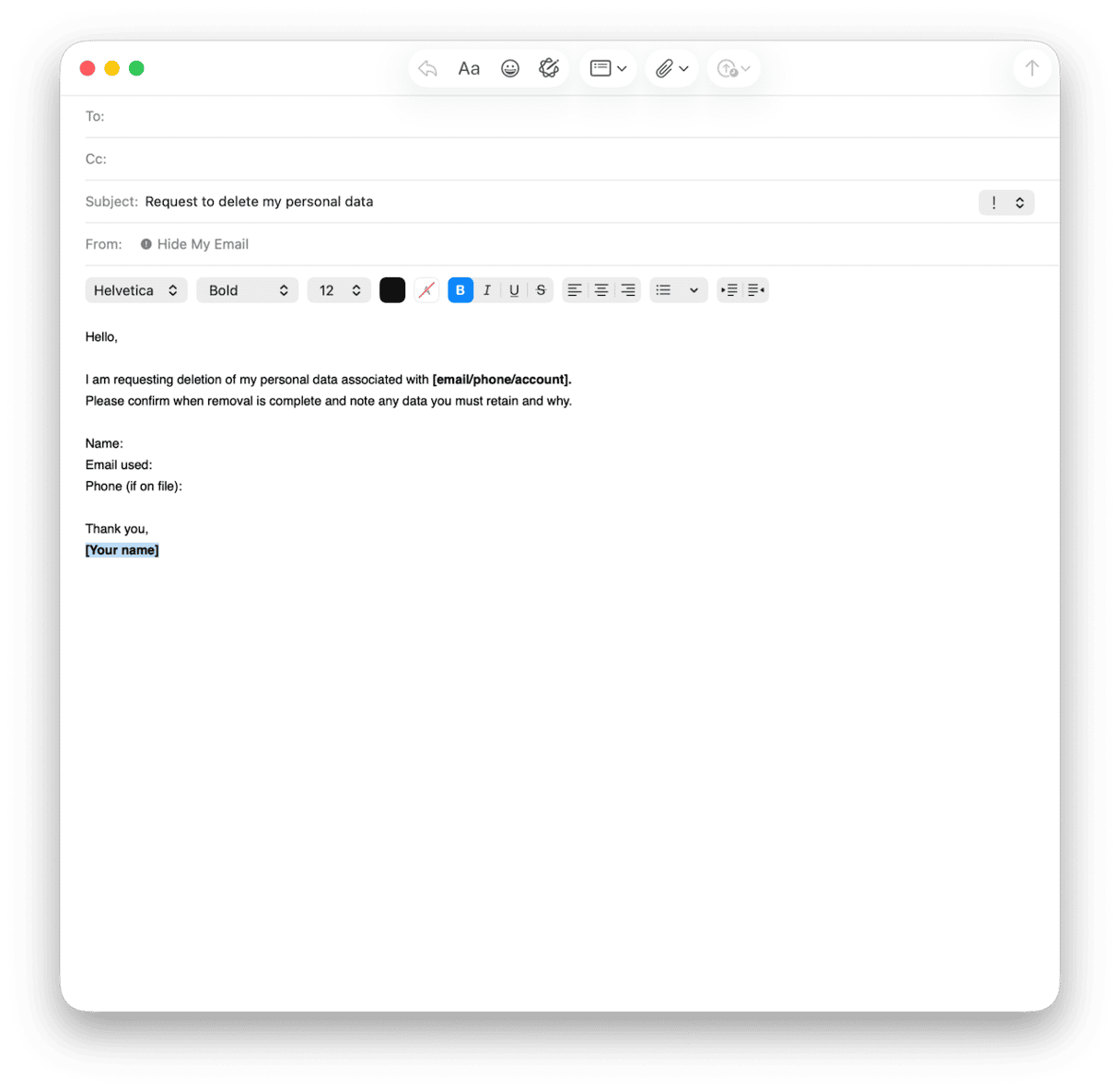
It’s often the case, and in that scenario, I suggest sending a short erasure request with enough info to find your record.
- Ask for written confirmation when done.
- File the reply with your proof.
- Calendar a follow-up if you get no response by their stated deadline.
4. Use Google's De-list service
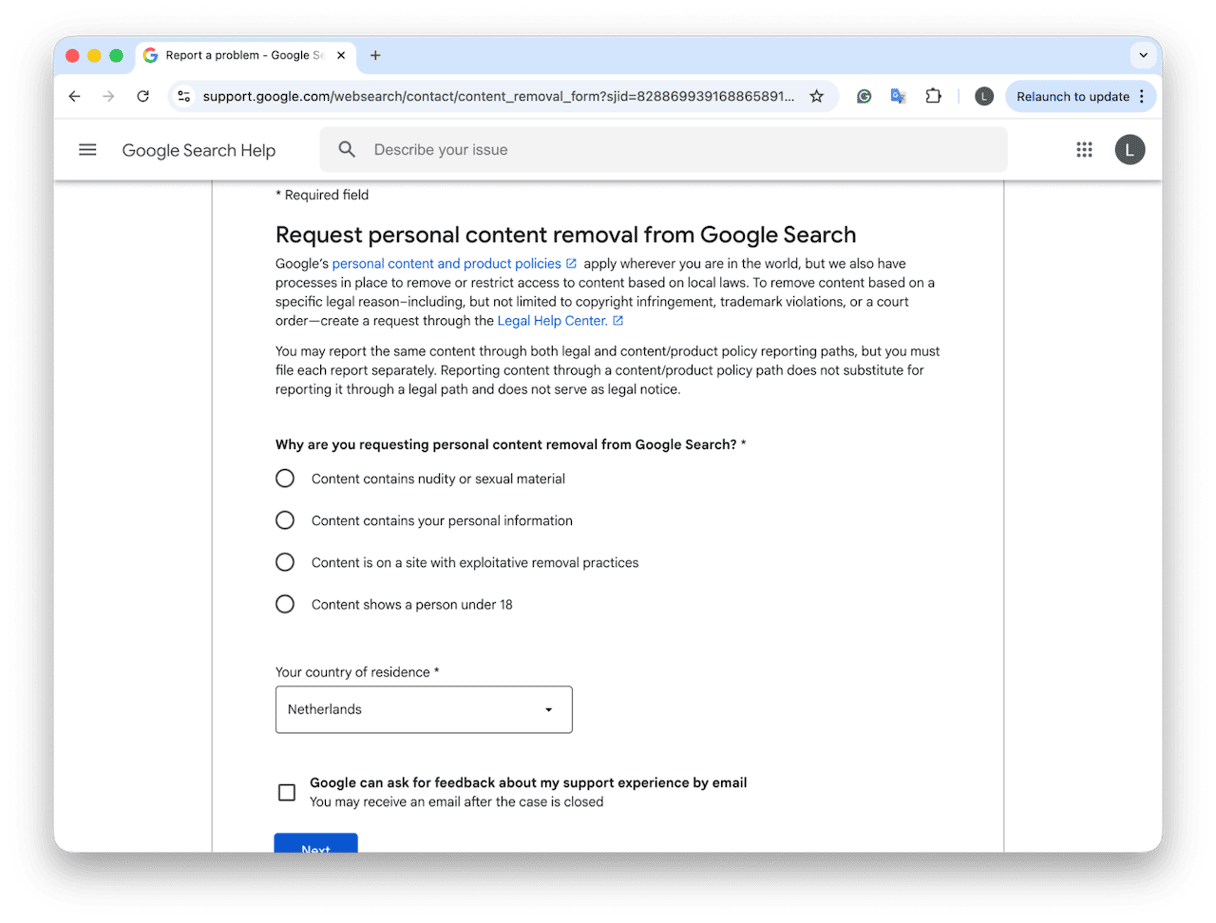
You can also request directly with Google to remove information about you. I personally find this really easy and straightforward to do; you get progress and status emails directly, too. Here’s how:
- Search for your name like before, and next to each listing, click the three dots.
- Press Remove Result.
- Start the removal flow and select the item type that matches what you see.
- Submit and watch for Google's reply, which will go straight to your mailbox.
Basically, Google will consider requests for things like full street address or phone, government ID numbers, bank or card numbers, medical or other highly sensitive records, and images of signatures or IDs. If what you see fits that bucket, send it.
5. Remove images
If any images turned up in your search, you’ve got a couple of steps to take here.
- Contact the site owner directly and ask for the images to be taken down.
- Ask Google directly to remove images here.
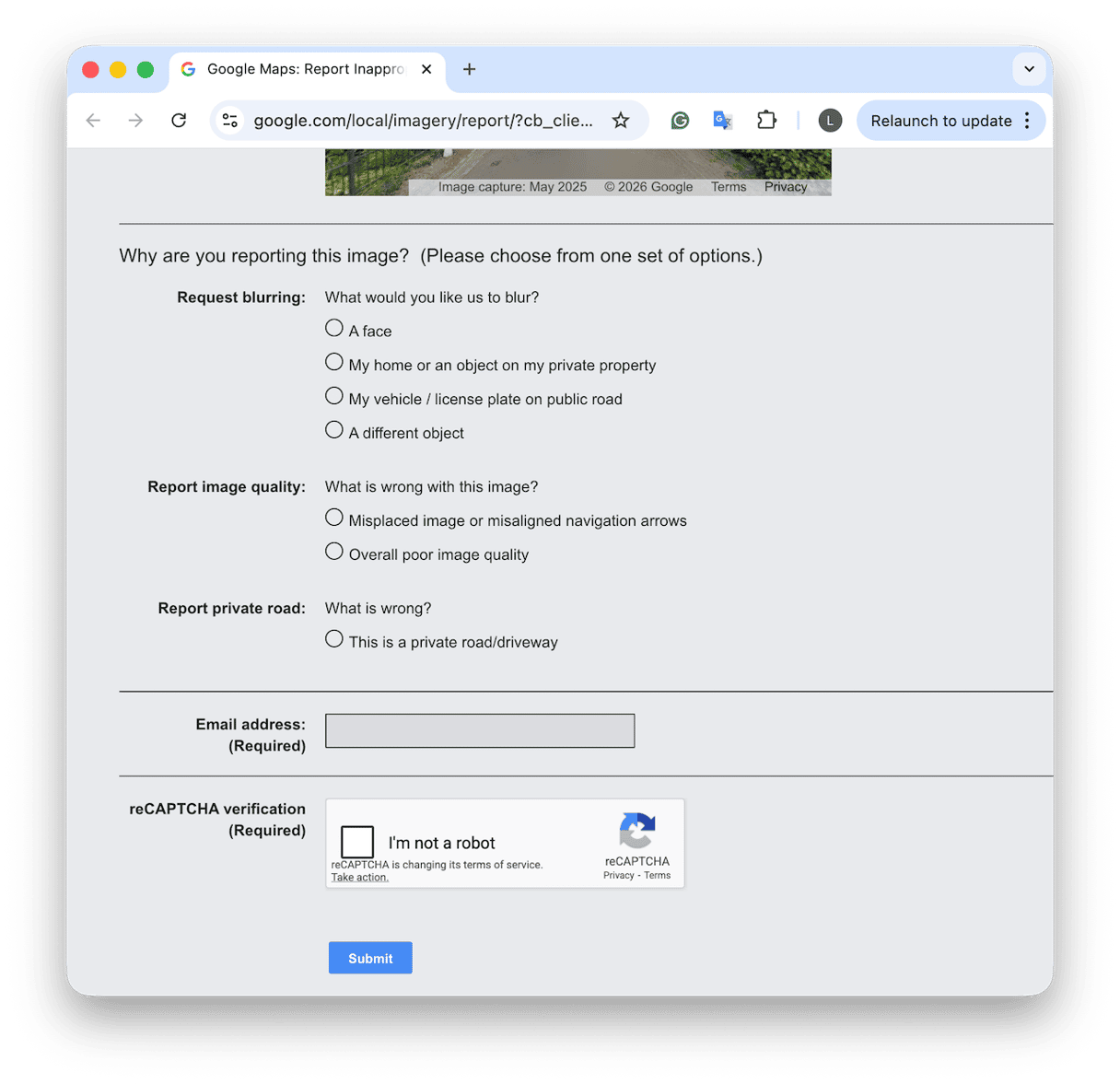
6. Blur your home on Google Maps Street View
If your home is visible in Street View, you can ask Google to blur it permanently; here’s how:
- Open up Google Maps, search for your address, and drop into Street View.
- Click Report a problem at the bottom right of the Street View window; it’s tiny lettering, but it’s there.
- Adjust the red box so it covers your home or the object you want blurred.
- Select the reason, add a brief note, and submit with your email.
- The blur, once applied, is permanent.
Ok, so we’ve covered a lot of steps on the how to remove all personal information from the internet, but there’s more we can do.
7. Fix the public profiles you do control
Not every result is a broker. Some are yours, like old social media accounts; here’s what you can do to lock these down:
- Open the account, check the visibility settings, you can often select who can see certain data.
- Remove phone, street address, and old workplaces.
- Update the display name if necessary to reduce exact-match hits.
- Delete the account if you no longer need it.
- Take a screenshot of the final settings for your records.
8. Kill easy re-sprouts at the source
If you find you’re deleting pages, but then a few months later your info is out there again, the source is essentially still out there. Here are a few things you can do to try to lock this down for good:
- If you own any domains, check and turn on domain privacy.
- For classifieds and marketplaces, remove any old posts that still show a location or contact info.
- Remove your address from public wishlists and registries.
- If you're plagued by phone calls, and blocking the senders doesn’t seem to help, it might be time to consider a new number.
9. Social Media scale back
When Facebook and Instagram first took off, no one imagined how exposed our lives would become. We posted birthdays, new homes, car photos, kids’ schools, and weekend routines. Not because we were careless, but because it felt normal. Everyone was doing it, and well, the risks weren’t obvious yet.
Fast forward a decade, and the context has massively changed. Scammers, doxxing, account takeovers, and data scraping are now part of the background, and most of us share less than we used to, but what is scary is that many of the old posts are still out there, often on accounts we don’t control. This is where friends and family come in.
- Search for your name on Facebook and Instagram and tap into tagged photos and posts.
- If anything shows my house number, car plate, location, kids' faces, or routine, I message the person who posted it and ask them to delete it.
- If the platform allows it, remove the tag and hide it from your profile.
10. Manage your newsletter subscriptions
You might not realize it, but newsletters are another sneaky source of exposure because they often store more than your email. In recent years, there has been a record number of data breaches involving email lists, often exposing names, email addresses, and, in some cases, additional profile data in bulk. According to the Identity Theft Resource Center, email lists were exposed in over 90% of reported data breaches in 2024 and 2025. So this part is worth the time investment.
- In your inbox, search your full name, then your street name or ZIP code.
- Open any newsletter email that includes those details, and find the unsubscribe button.
- If there’s a Manage preferences or Profile link, take the time to open this and remove any stored info like your address and phone number. If you don’t need the account, completely delete it.
Now you know how to remove personal information from the internet for free. But let’s continue and look at how you can prevent this from happening again in the future.
Prevention is key with privacy
While this step can’t remove any public web pages that share info, it can have a big impact. Keeping a regular eye on your online and offline traces is a great habit to get into.
I use the Protection feature from CleanMyMac to review and manage browser traces, app permissions, and real-time threats. You can quickly review and remove stored website cookies and cache, which adds another level to information security; here’s how to get started:
- Open the app — get your free trial here.
- Select Protection > Scan.
- Click Manage Privacy Items and take a look under Privacy and Application Permissions.
- Review and remove.
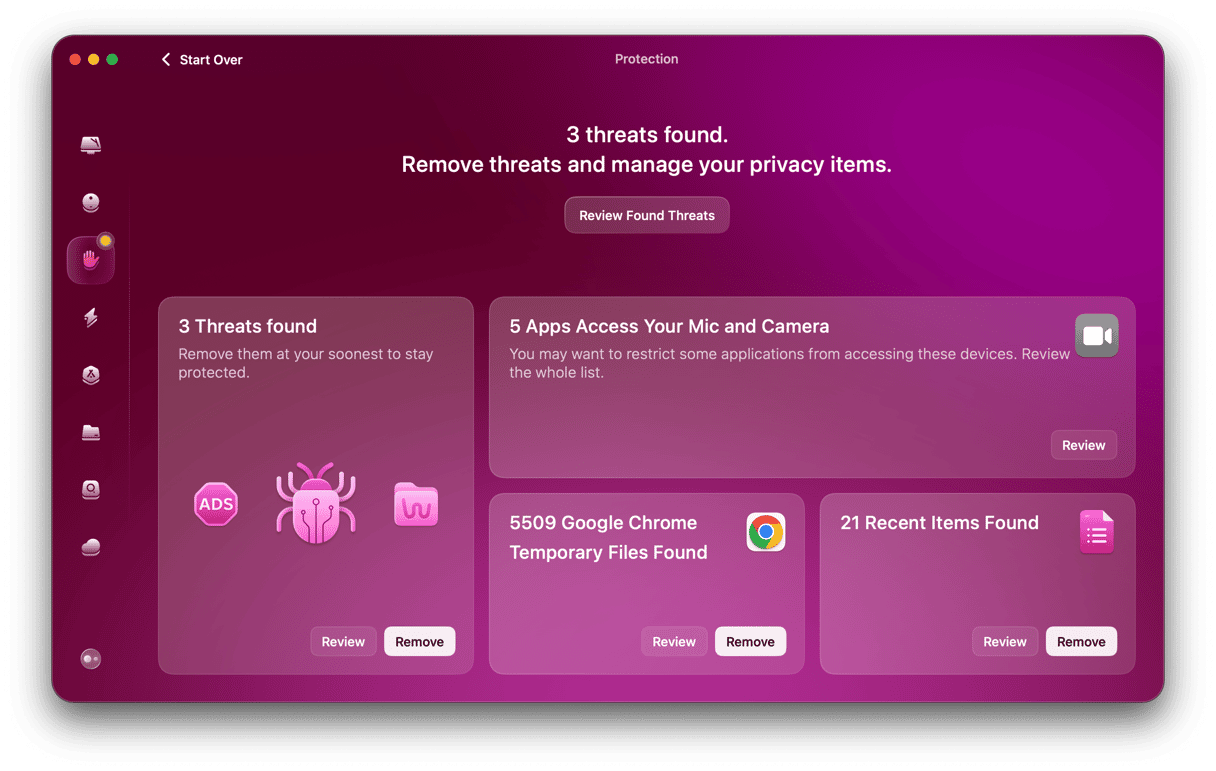
CleanMyMac is a really well-known and trusted macOS maintenance tool. Bonus points too because it’s Apple-notarized. I use this feature at least once a month as a quick privacy pass.
Best practices that keep your details out of sight
We’ve talked through all the ways on how to remove personal information from the internet, but as I mentioned above, prevention is always better than a remedy. So here’s my best practice guide on how to keep your details off the internet in the first place.
1. Update your public accounts and socials
If you haven’t already, now is the time to update any social or public profiles you do have and want to keep; here’s how:
- Remove or lock down phone numbers, street addresses, and exact birthdays.
- If you can, switch to a more secure visibility, like a private account.
- Archive or delete posts that expose your home, car plate, or routine.
2. Sign-ups going forward
There are certain lists and services we want to sign up for, and we shouldn’t be afraid to do so, but given how often email lists are involved in data leaks, here are a couple of things you can do to help keep your data secure, just in case.
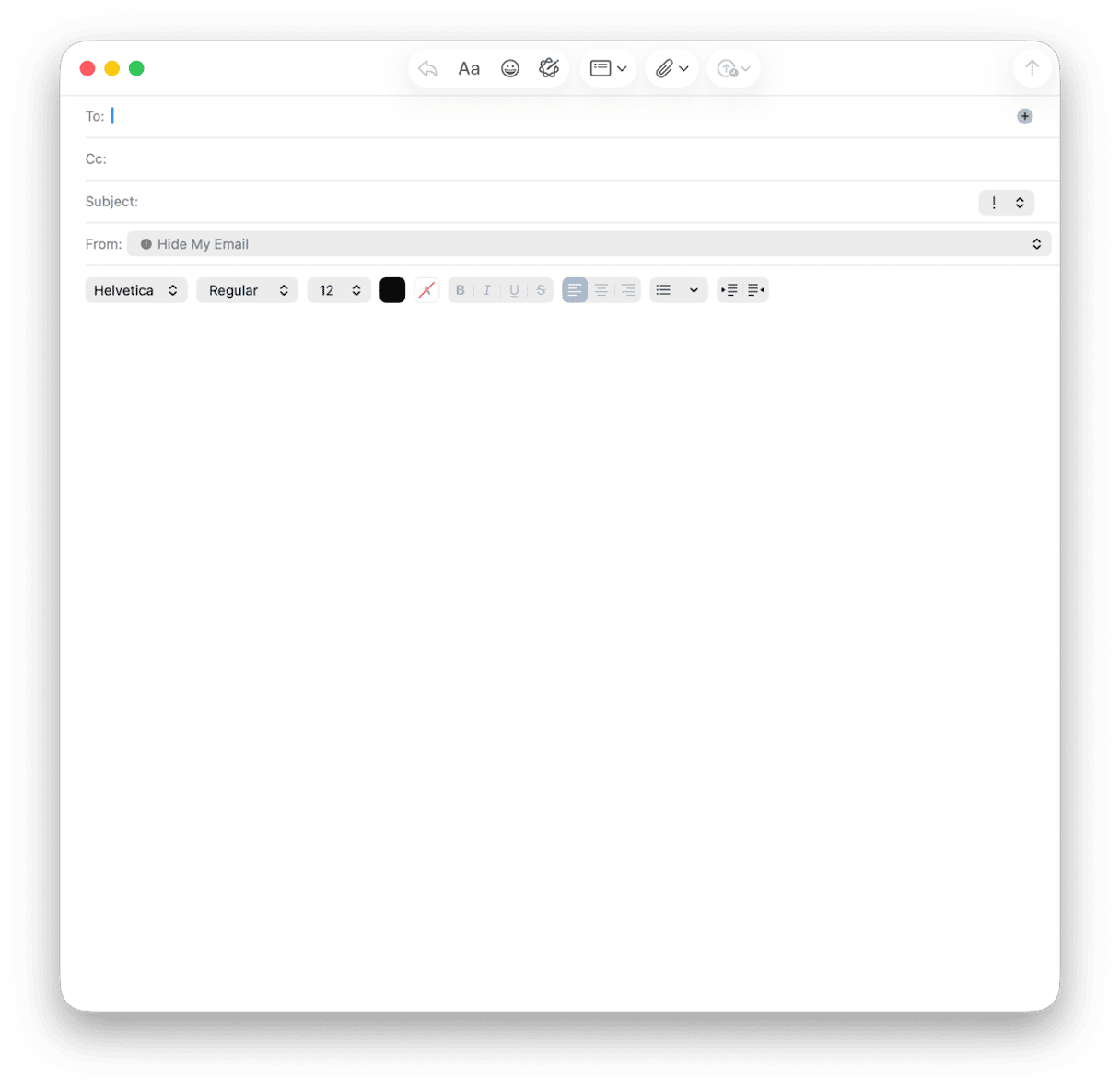
- Always use a masked email for sites you do not fully trust (the Hide My Email function from Apple is great).
- Provide a phone number only when required for security, like 2FA.
- Avoid using your full name as a username on open forums; always use a pseudonym or shortened version.
3. Safer browsing tips
- Always try to use a Private or Incognito window.
- Turn off third-party cookies where sites allow it.
- Regularly review your installed extensions and remove what you do not use.
4. Review devices and app permissions
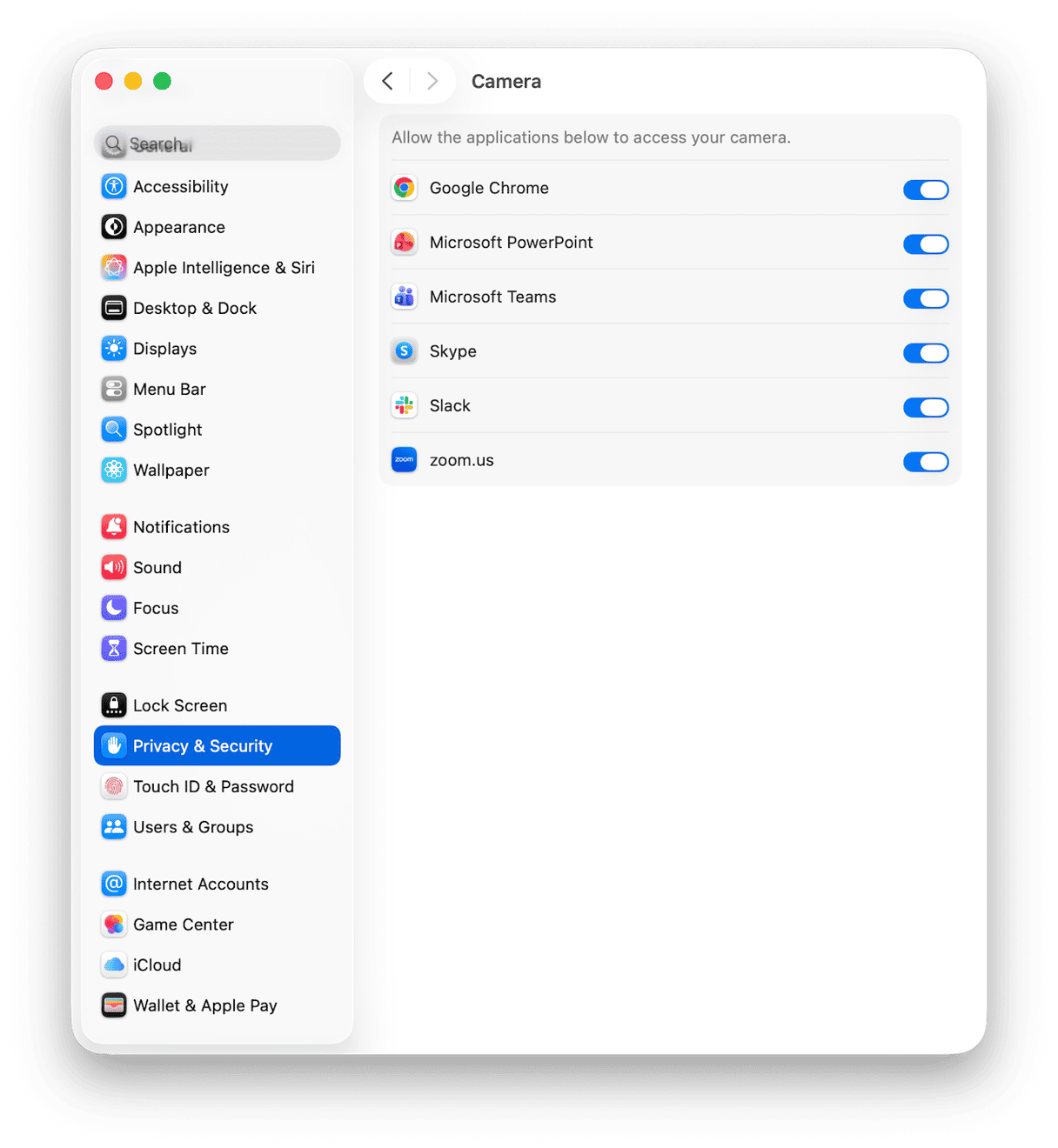
- On your Mac, review System Settings > Privacy & Security for Camera, Mic, Files and Folders.
- Remove access for apps you do not recognize.
- Delete old screen recording permissions you no longer need.
- Uninstall apps that have not been used in months.
5. Set up simple monitoring so new leaks don’t surprise you
No one wants to search each week for new leaks; instead, turn on Google Results About you to monitor for you; here’s how:
- Open Google’s Results about you page and sign in.
- Set up monitoring by following the steps, adding names and aliases you’ve used or found online.
- Turn on alerts.
- When Google flags a result, open it, confirm it’s you, and hit Request removal right there.
- You can consider adding the URL to your Excel and taking a screenshot for proof, too.
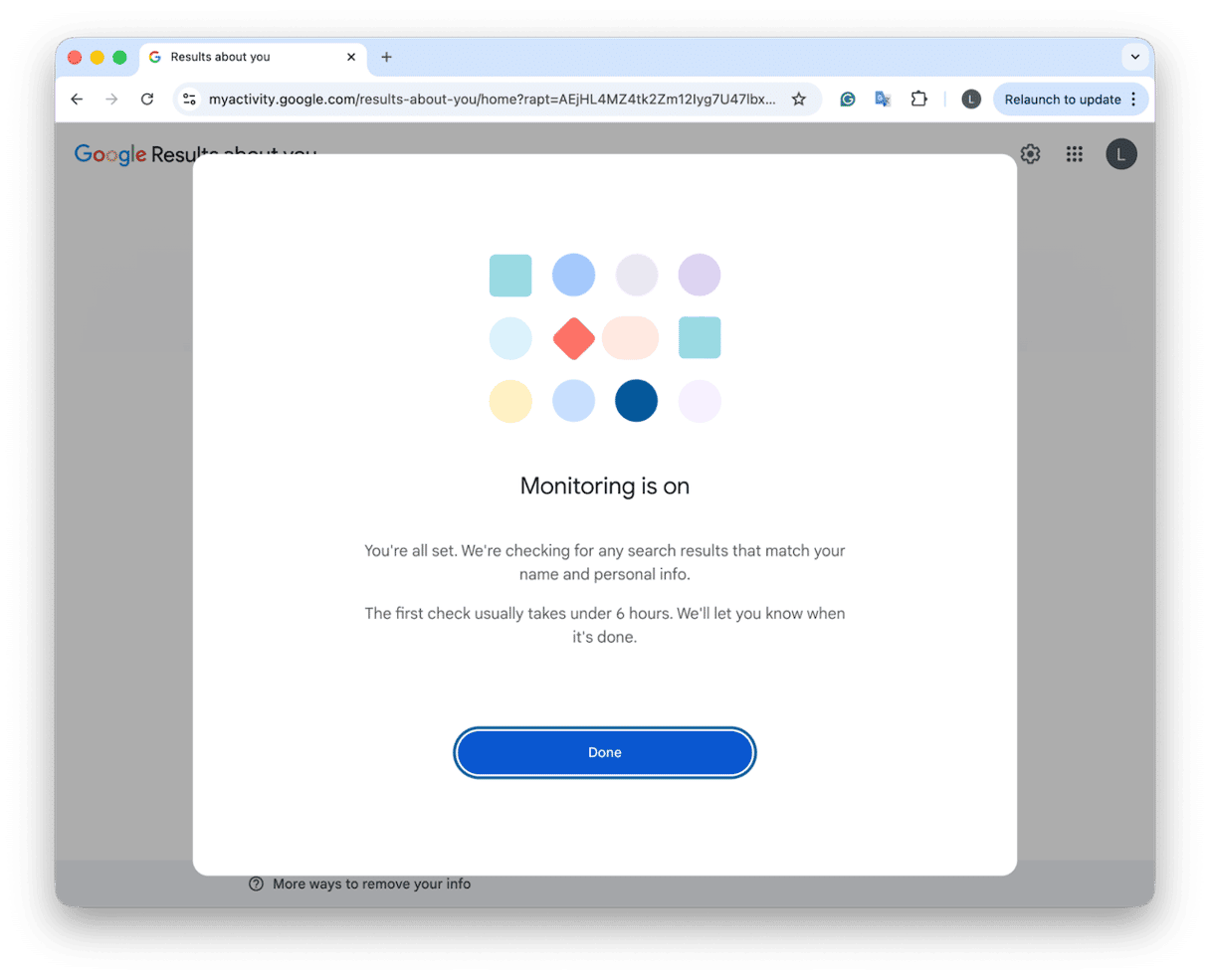
Another tip here, sometimes it’s wrong, and the flag isn’t you; you can simply mark this as Reviewed, so the feed gets cleaner.
What it catches vs what it doesn’t
- It flags search results that show your phone, address, or email.
- It does not delete the page itself. You still remove it at the source if needed.
- It won’t spot every mirror instantly. That’s normal. The alert gets you there faster than manual hunting.
6. Breach alerts for your email
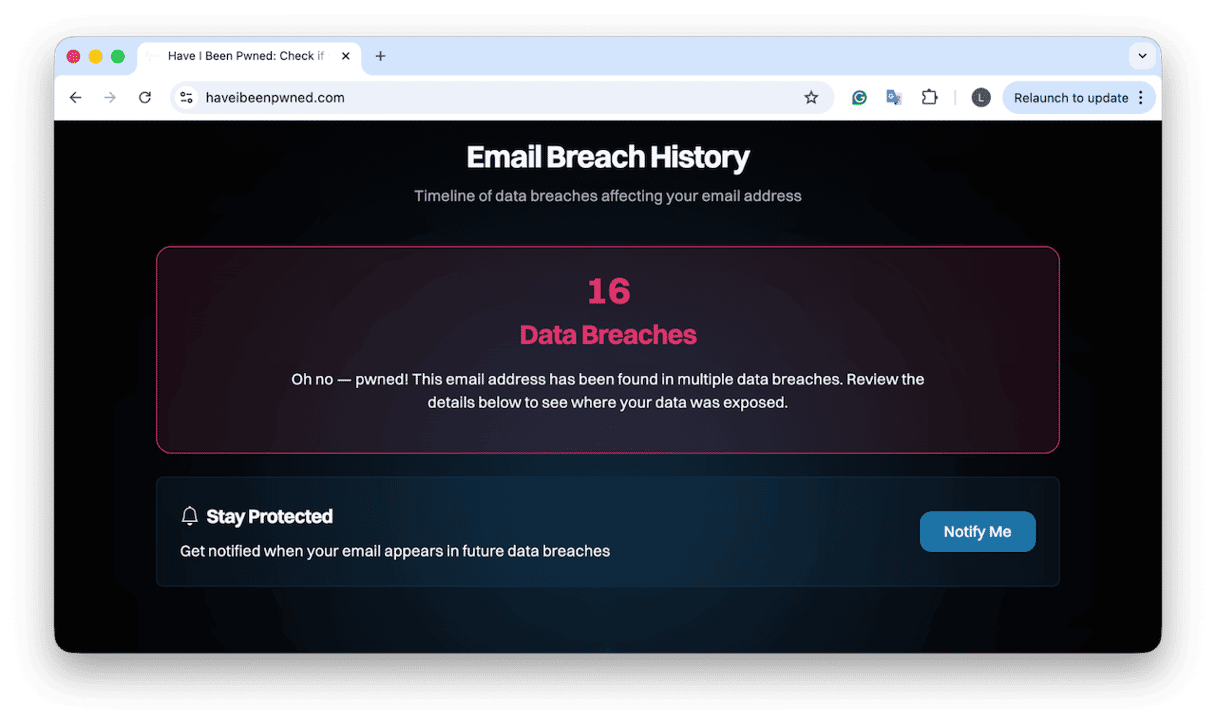
You can use Have I Been Pwned to find out if your email has been in any data breaches or leaks. If it has, here’s what to do:
- Select Notify me, so you can monitor future leaks.
- Scroll down and review where it was found. If you have accounts or profiles on any of the sites listed, go in and update your password immediately.
- Consider removing the account if you don’t really need it. If you do, then remove or clean up saved and stored account info, and change the main email.
How your online data is handled around the world
There isn’t one single global online data act in 2026, where you are in the world, depends on how your data is stored, protected and in some cases used. It’s a bit of a patchwork quilt of processes; here's a super quick overview.
United States
Removal is site-by-site and platform-by-platform. Your rights depend on state laws.
European Union and the UK
Often considered one of the world's most established frameworks, GDPR made big progress for individuals on what data companies are allowed to keep about us, meaning any companies in the EU or UK have to comply, so you can send erasure requests to companies that hold your data, and they have to comply or face tough consequences.
India
The DPDP grants correction and erasure. If you find something you don’t want online, you basically need to ask the company to delete your data to verify completion in writing.
Brazil
The LGPD lists the right to deletion in Article 18. If you’re trying to get data removed in this region, it’s recommended in your request that you always reference Article 18 in your written request.
Final thoughts: How to remove all personal information from the internet
Managing your online privacy might feel overwhelming at first, especially when you start to read more into the risks and threats. I was sprung into action on how to remove all personal information from the internet because my old address was visible to the world, which rattled me, but I kept going because it felt good to shrink the surface area a little each week.
I think really the goal should be less of your life in easy places. Fewer surprises when someone types your name. The web will keep changing, privacy laws will too and sadly so will scammers, but with practical steps and info like all the tips in this article, you can change with it.
Frequently asked questions
A site is requesting a photo ID to remove a listing, what do I do?
There are a couple of things to do here: search forums to see if any other users have encountered this, it’s not 100% normal practise, if you know the site and it’s legitimate, the only way I could consider doing this is by adding a watermark to my ID image that says “For identity verification only.” If you have any doubt, don’t do it.
Some sites ask to create an account to remove data. What should I do?
Skip account creation; you absolutely shouldn’t have to do this. A workaround is to look for a privacy email address in the site’s policy and send a direct deletion request, and as always, keep a copy of that email and any reply as proof.
How do I handle duplicates in languages I don’t read?
Use your browser’s built-in translation to confirm what’s exposed. If it shows contact info or an address, submit the opt-out and keep the screenshot. Treat it like any other listing.
Is paying for a removal service worth it?
They run the same forms you can run yourself, and reviews online are, honestly, pretty mixed. It wouldn’t be my recommendation to pay.