Chrome is a hugely popular web browser on both Mac and PC. While many of us prefer to stick with Safari, those who use other Google services like Docs and Gmail choose Chrome. And if you use the web on both Mac and PC, or even on an Android device, the ability to synchronize your browser bookmarks and history across those devices is something that’s not available in Safari.
However, Chrome has its downsides. Many of us are put off by the persistent ‘nagging’ to use it when we use Google search in Safari, for example. If you prefer to use Chrome at least some of the time, but don’t like its default behaviour, there are steps you can take to make it work the way you want it to. In this article, we’ll show you how to stop Chrome from opening on startup.
Why does Chrome open at startup?
Chrome is not configured to open at startup by default. If, as many users have reported, it opens automatically when you log in to your Mac, it is likely that either you or someone else has set it up that way or a rogue extension you’ve downloaded and added to Chrome has changed its settings so that it opens at startup.
If the reason in your case is the first of those, changing the behaviour is relatively simple. If it’s the latter, you may have to find the extension responsible and disable it to prevent it from happening again.
How to stop Chrome from opening on startup
There are a couple of different ways to stop Chrome — or any other app — from opening at startup:
- If Chrome is currently open, right-click or Control-click on its icon in the Dock and choose Options, then, assuming Open at Login is selected, click it to deselect.
- The other method works whether Chrome is open or not:
- Click the Apple menu and choose System Settings.
- Go to General > Login Items & Extensions.
- Select Chrome in the Open at Login section.
- Click the ‘-’ to remove it.
- Quit System Settings.
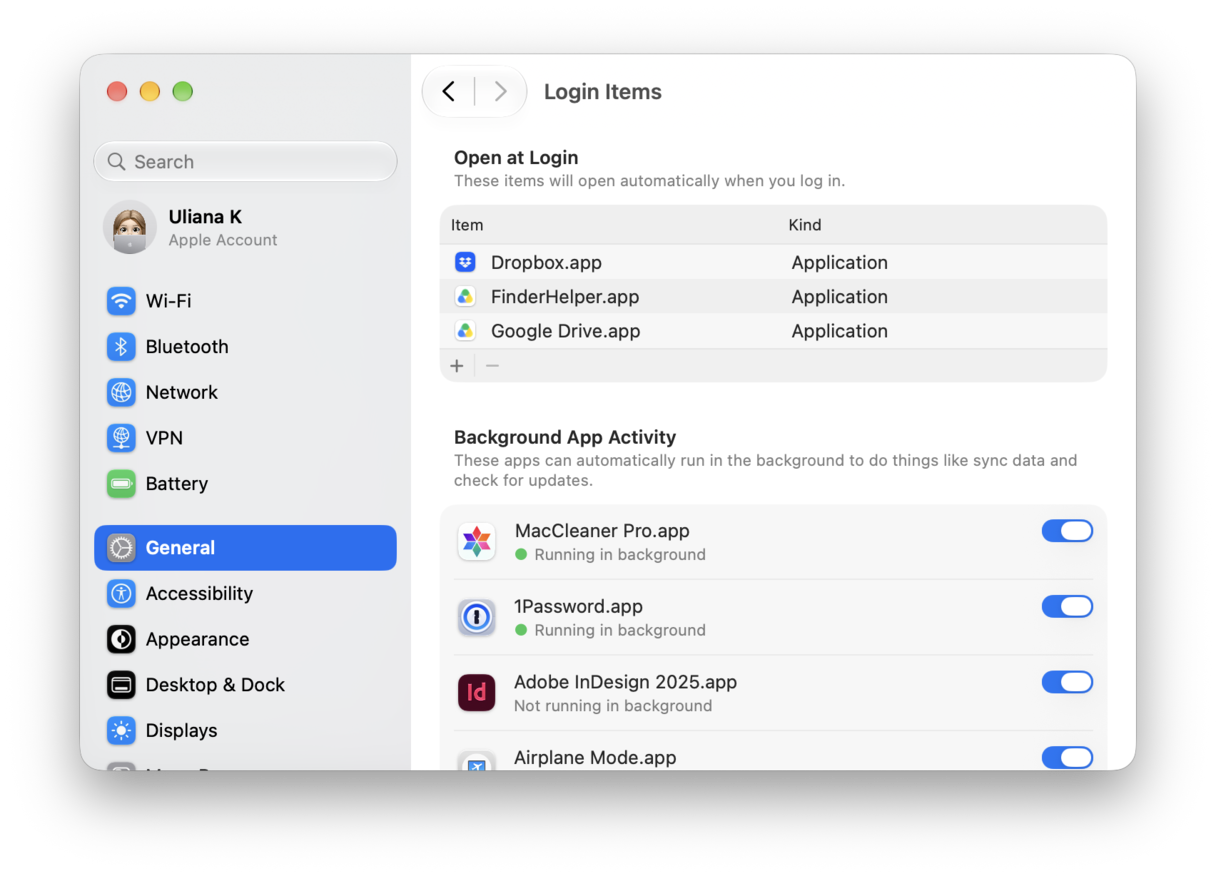
Once you’ve removed Chrome from Open at Login using either of those two methods, it shouldn’t open again when you restart or log out and log back in again. If it does, it means that either a rogue extension or malware has added it automatically.
In that case, here’s what to do:
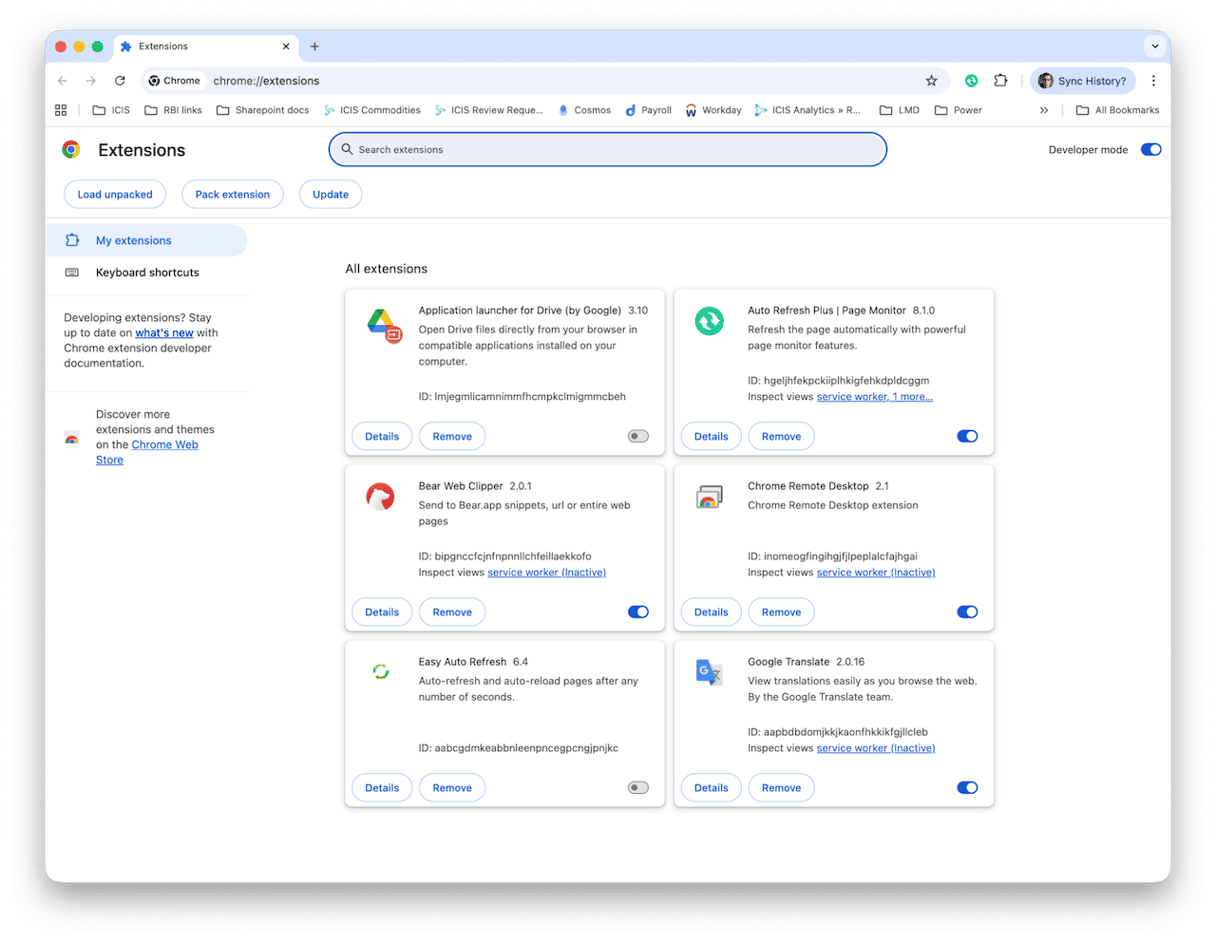
- Click the Chrome menu, choose Settings, and then select Extensions at the bottom of the sidebar.
- Review the extensions.
- If there are any that you don’t recognize or use, click Remove to get rid of them.
- When only those you want to keep are left, use the toggle switch next to each one and turn them all off. Quit Chrome and log out.
Log back in again and wait to see if Chrome opens automatically. If not, you will know it was a rogue extension. You can now turn them back on again one by one, quitting Chrome and logging out and then logging back in again each time until you find the extension that is causing Chrome to open automatically.
How to keep your Mac running smoothly
Managing login items and background extensions is just one part of keeping your Mac running speedily and smoothly. Running regular maintenance is another important part. Maintenance tasks include thinning out Time Machine snapshots, reindexing Spotlight, repairing disk permissions, and freeing up purgeable space.
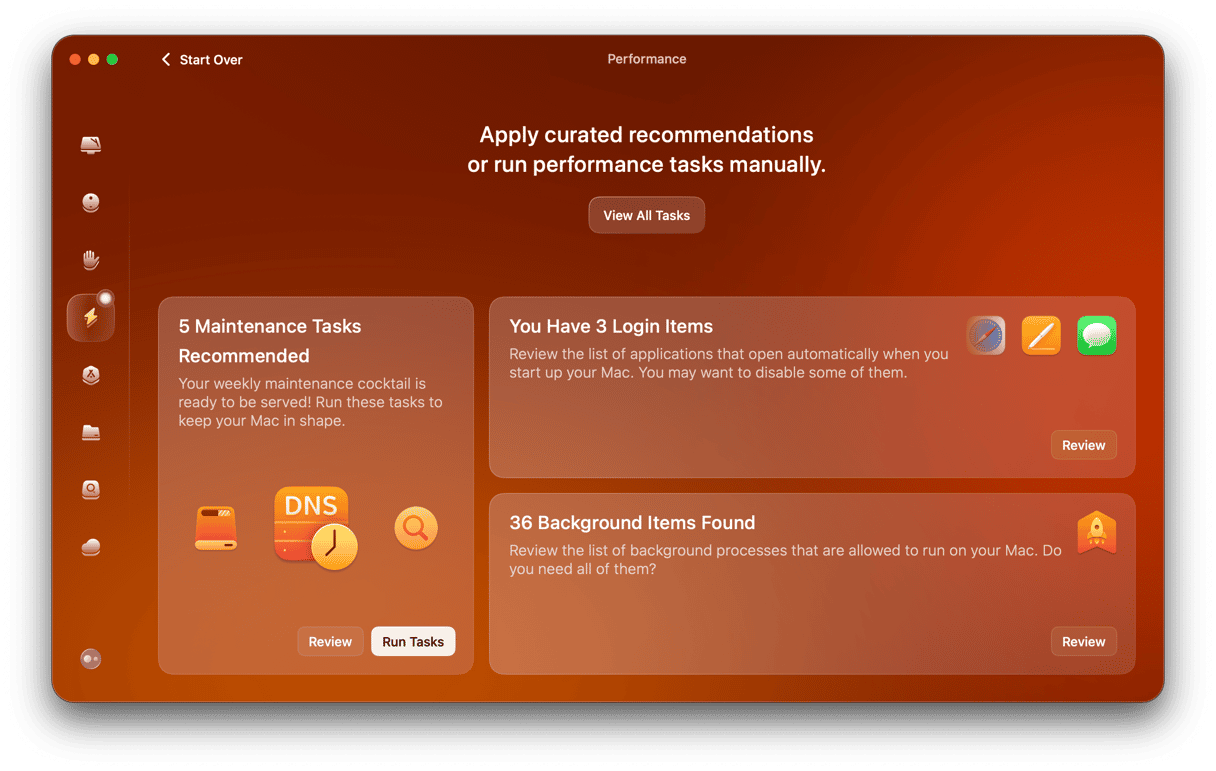
Carrying out all of those tasks manually is time-consuming and difficult. And for some, you’d need to be familiar with Terminal commands to do it. Thankfully, you don’t have to carry them out manually — CleanMyMac can do it for you. Its Performance feature scans your Mac and then recommends what tasks should be run. You can then run them with a click. The Performance feature also makes it easy to manage login items and background extensions.
Here’s how it works:
- Get your free CleanMyMac trial — you can test it for 7 days for free.
- Open CleanMyMac and choose Performance in the sidebar.
- Click Scan.
- When it’s finished, choose Run Tasks to run all maintenance tasks or View all Tasks to see everything CleanMyMac recommends.
If Chrome continues to open on startup even after you’ve made changes in System Settings and checked all the extensions that are installed, it’s possible that there may be malware on your Mac. The only way to check is to use a specialist malware removing tool to scan your Mac. You can use the Protection feature in CleanMyMac, which allows you to configure the scan and to get rid of any malware it finds with a click.
If Chrome launches automatically when you log in, it could be the way System Settings is configured, an extension, or even malware. Follow the steps above to stop Chrome from opening on startup.