Like most professional-grade cameras, your iPhone can make amazing shots and record videos at 4K resolution. It is crazy to think that you have such a powerful camera in your pocket at all times.
But what do you do with all these images and videos? What’s the easiest way to get them onto your computer? Well, read on! In this article, you’ll learn the ins and outs of how to transfer photos and videos from iPhone to Mac.
The best ways to transfer photos from iPhone to Mac
Because iPhone and Mac are parts of the Apple ecosystem, there are multiple ways to connect them and move content around. Some involve using a USB cable, others work wirelessly. These methods have proven the handiest in our experience:
- Sync photos from iPhone using Finder.
- Import photos from iPhone to the Photos app.
- Download photos to Mac using Image Capture.
- Use AirDrop to send photos from iPhone to Mac.
- Move photos from iPhone to Mac via iCloud.
Let's talk about all these in more detail.
Before you transfer your iPhone photos and videos to Mac
Although Macs have more storage than iPhones, that storage is not infinite, so you might want to avoid dumping thousands of unneeded pics onto your Mac. We’re talking blurry party selfies, multiple shots of the same sunset, taken just seconds apart, long-forgotten screenshots of long-forgotten conversations — those can add up to a few gigabytes.
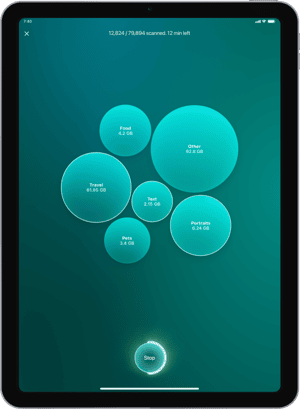
So before you start the transfer, scan your iPhone pics with CleanMy®Phone — a careful iPhone cleaner app. This app will find all the clutter you’ve accumulated over the years, such as similar shots and blurry photos, and help you delete them in no time.

Now that you’ve done that, here are our top ways to transfer photos and videos.
How to import photos from iPhone to Mac
Below, we'll provide different transfer methods divided into two groups: with a USB cable or wirelessly.
Use a USB cable
The most common ways to transfer pictures from your iPhone to your Mac involve connecting your devices with a USB cable. But even then, you have options depending on which application you want to use. Below you’ll read about four different apps that will help you sync your photos.
The Finder
Starting with macOS Catalina (10.15) or later, you can sync your iPhone with a Mac using Finder. Follow these steps to sync photos from your iPhone to your Mac:
- Connect your iPhone to your Mac with a USB cable.
- On the Mac, open a new Finder window and, under your Devices, click your iPhone.
- At the top of the window, click Photos and select the checkbox next to “Sync photos.”
- Choose the folder that you want to sync from.
- Choose to sync all photos and albums or just selected albums and click Apply.
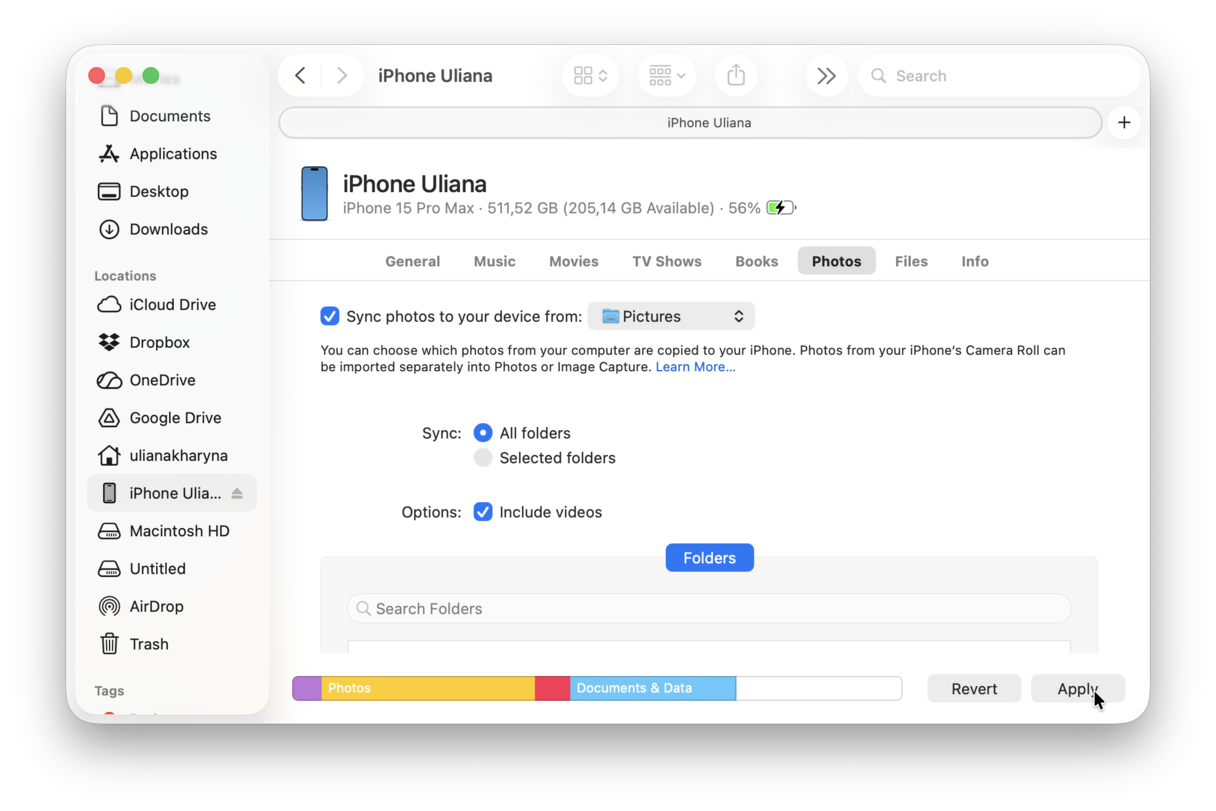
Tip: You can also select the checkbox next to “Include videos” to transfer videos along with the photos.
The Photos app
One of the quickest methods is to plug the Lightning-to-USB cable you use to charge the iPhone into one of your Mac’s USB ports. For newer iPhone models with USB-C ports, use a USB-C to USB-C cable or USB-C to USB-A adapter.
When an iPhone is connected, the macOS Photos app automatically opens and suggests importing your photos. Here’s the import process, step by step.
- Connect your iPhone to the Mac using a Lightning-to-USB cable. If needed, unlock your iPhone and confirm it trusts the device.
- Open the Photos app. It should load and show you the images from your iPhone in the main window. If that doesn't happen, select your iPhone from the sidebar. Now, you’ll see all of the images and videos stored in your iPhone’s Camera Roll.
- Click Import All New Items in the top right-hand corner or go through the photos, select the ones you want to import, and click Import Selected.
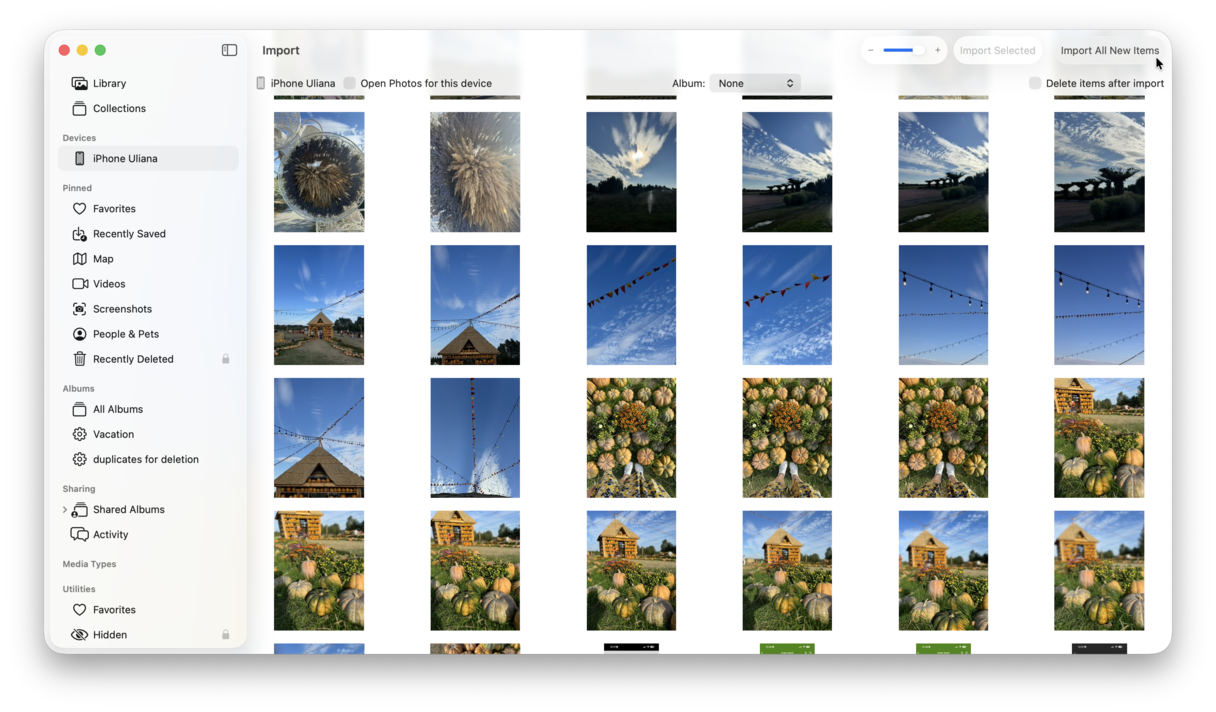
You can select the checkbox next to “Delete items after import” to make Photos automatically delete the pics on your iPhone, giving you space to start again and take even more pictures.
Clean large and old files to have more room for photos
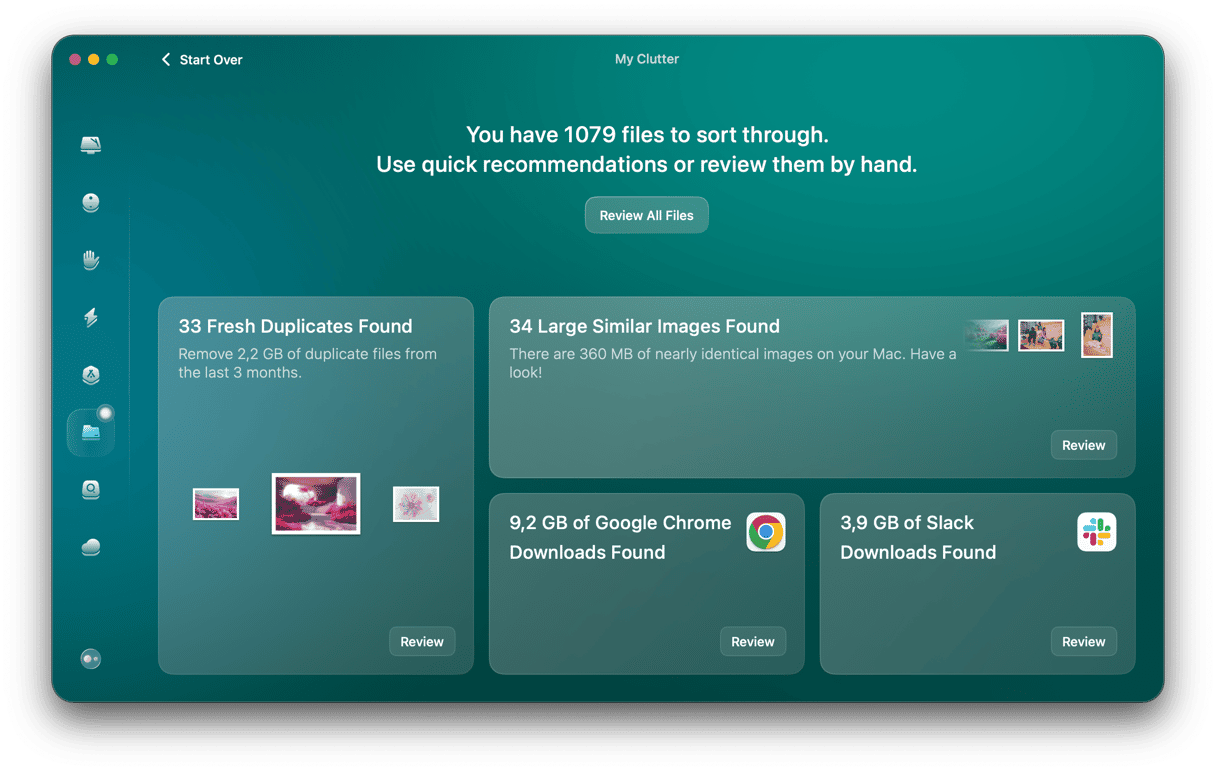
CleanMyMac's My Clutter feature is perfect for cleaning up your Mac by identifying and getting rid of forgotten items, such as archives, disk images, and videos, that can take up valuable space. It also detects duplicates and similar images.
You can remove unneeded media files, ensuring your Mac runs smoothly and you have enough space for transferring photos from iPhone.
You can test it for 7 days — try CleanMyMac for free.
Image Capture
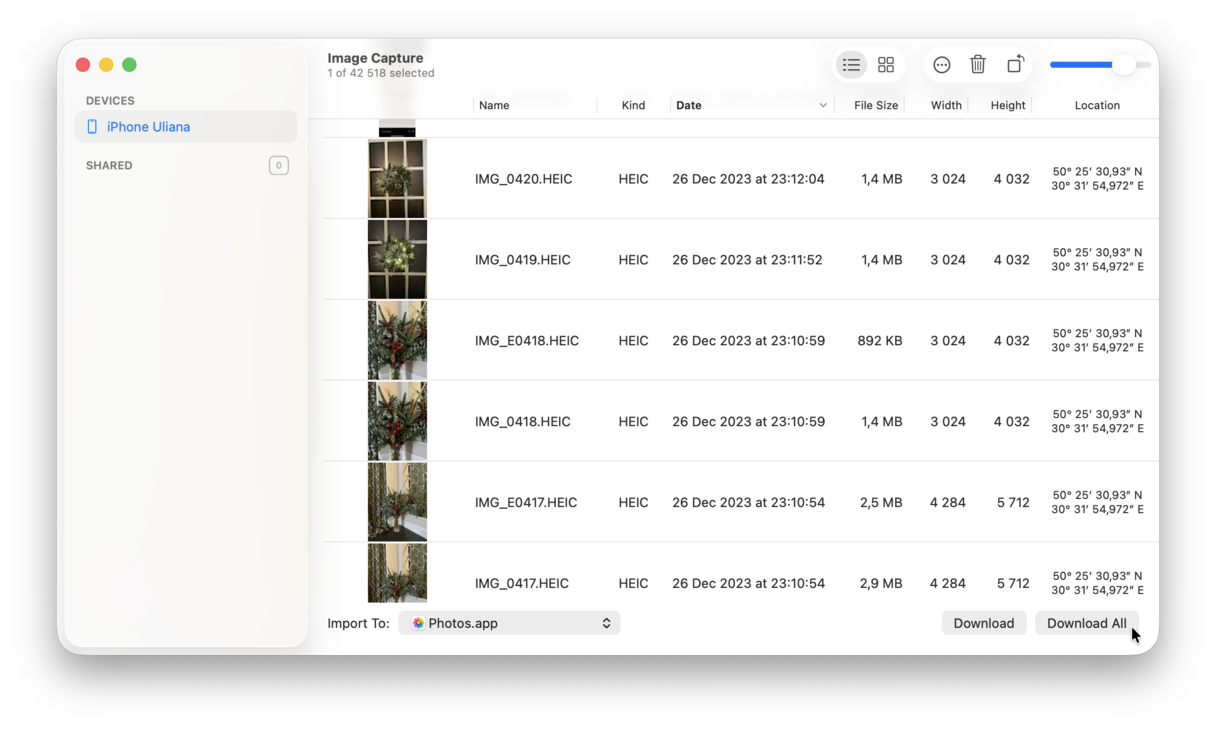
Another method for transferring your pictures from iPhone to Mac is with the Image Capture app, which comes by default with macOS. Follow these steps to import pics from your iPhone:
- Connect your iPhone to your Mac with a USB cable.
- On your Mac, open Image Capture and, in the sidebar, select your iPhone under Devices.
- At the bottom of the window, click the Import To menu to choose where to save your pictures.
- Select the pictures you want to import and click the Download button or click Download All.
How to transfer photos from an iPhone to a MacBook wirelessly
If you don’t have a USB cable nearby, don’t worry. You can still transfer photos from iPhone to MacBook wirelessly. And even if you have a cable close by, you might want to try one of these methods to save you the hassle of plugging your iPhone into your computer.
AirDrop
If you need to move just a few of your images over to your Mac, the quickest way to do that is by using AirDrop.

Give both devices a few moments to find one another.
Now, here’s how you transfer photos from your iPhone to your Mac with AirDrop:
- Open the Photos app on your iPhone and select the pics you want to transfer.
- Tap the sharing button in the bottom left corner.
- Wait till AirDrop finds your Mac and tap on it.
- On your Mac, you’ll see a pop-up window asking you to accept the photos. Click Accept.
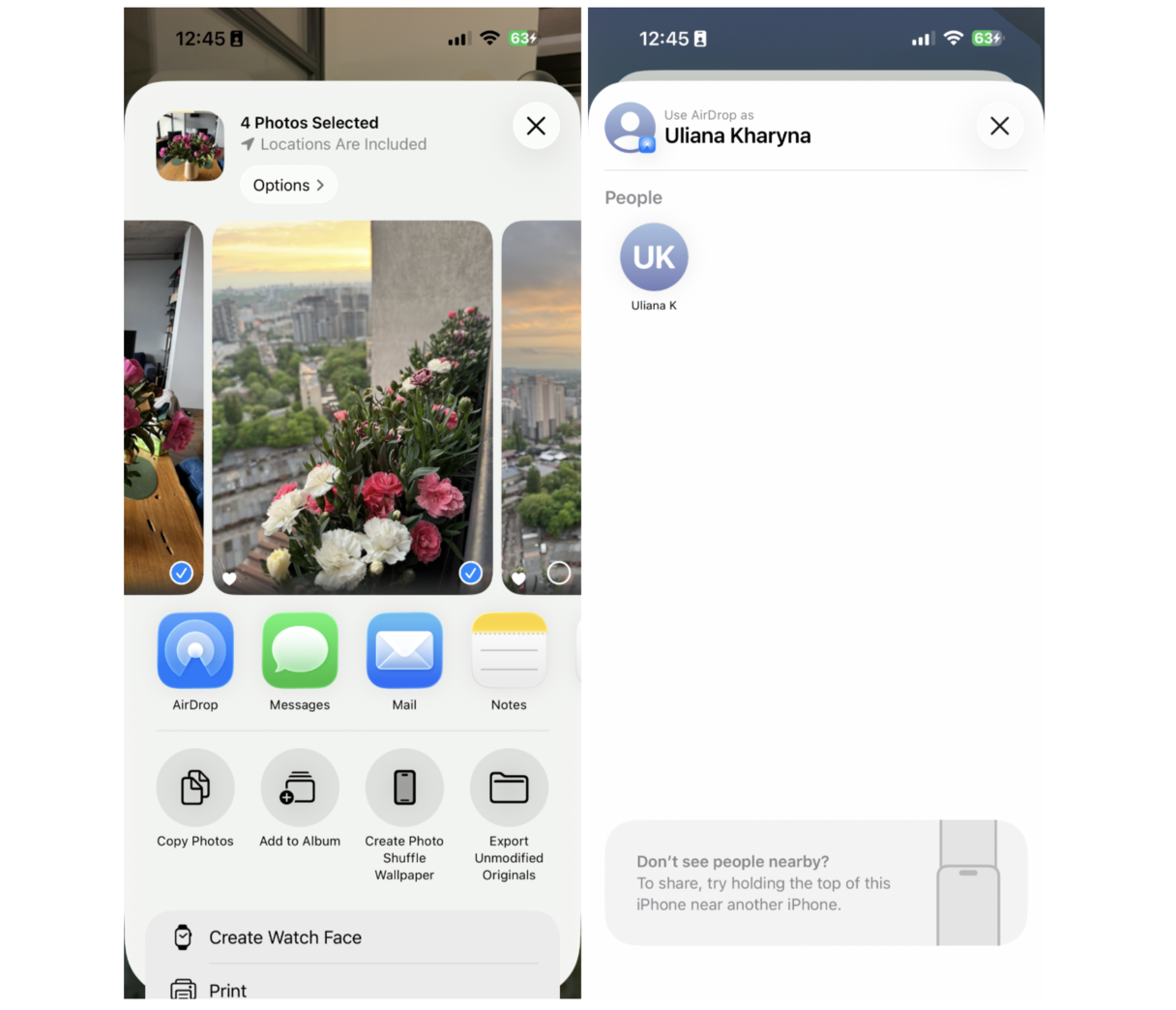
Depending on your Mac’s settings, you may be asked where you want to save the photos. Once you’re done transferring, you can switch off AirDrop on your Mac and iPhone.
Sync photos from an iPhone to a Mac using iCloud
Another way to move photos from an iPhone to a Mac is with iCloud. iCloud Photos can do all the heavy lifting. However, if you’ve got over 5GB of photos and videos, you’ll need to upgrade your storage plan, paying anything from $0.99 per month for 50GB to $9.99 for 2TB of cloud storage.
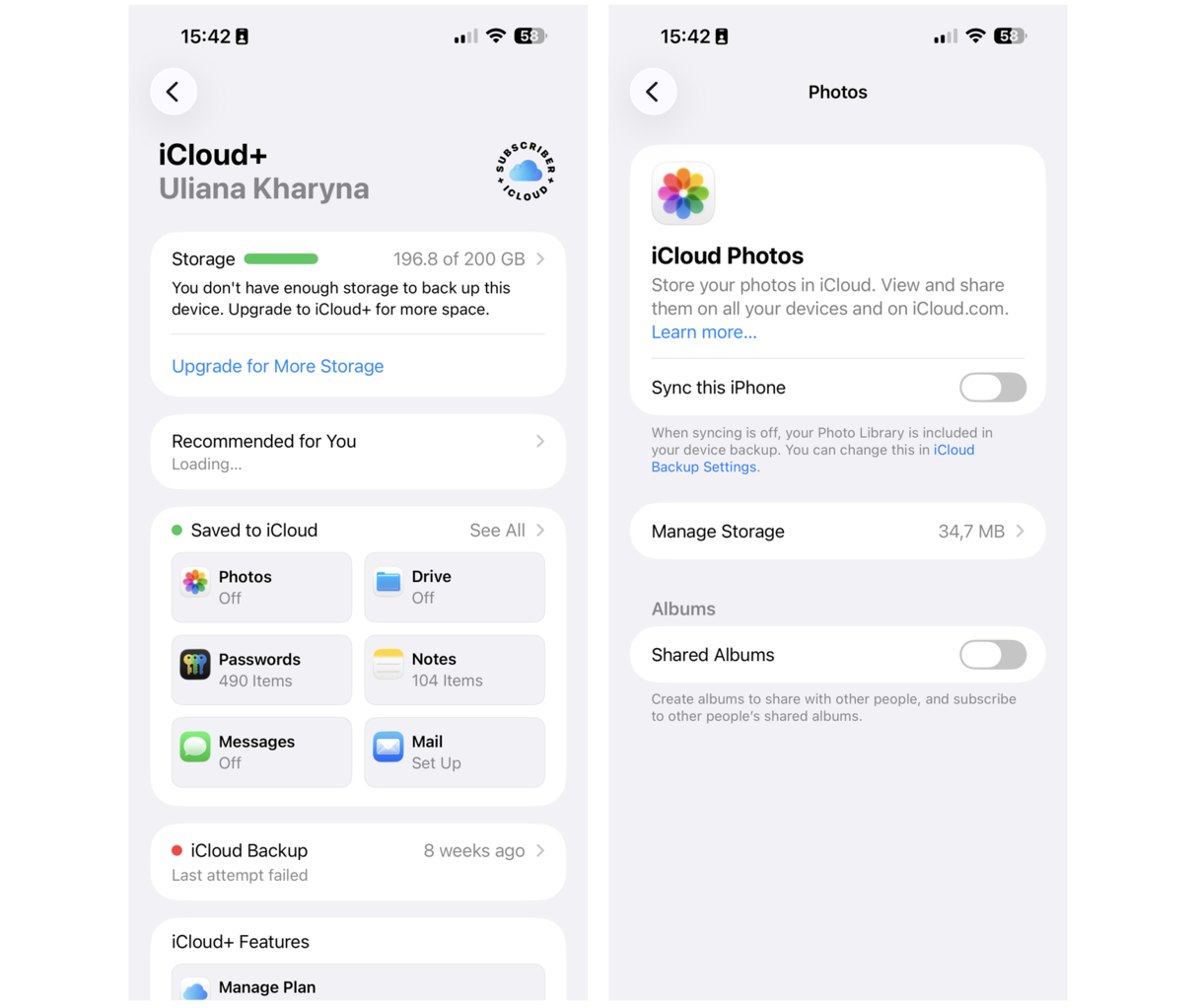
To set up iCloud Photos on your iPhone, follow these steps:
- Go to Settings > Apple Account > iCloud.
- Underneath the iCloud storage indicator, you’ll see a list of Apps Using iCloud.
- Tap on Photos.
- Turn on iCloud Photos.
Now, to set it up on your Mac:
- Launch the Photos app.
- Go to the Photos menu in the menu bar and choose Settings > iCloud.
- Select the checkbox next to iCloud Photos.
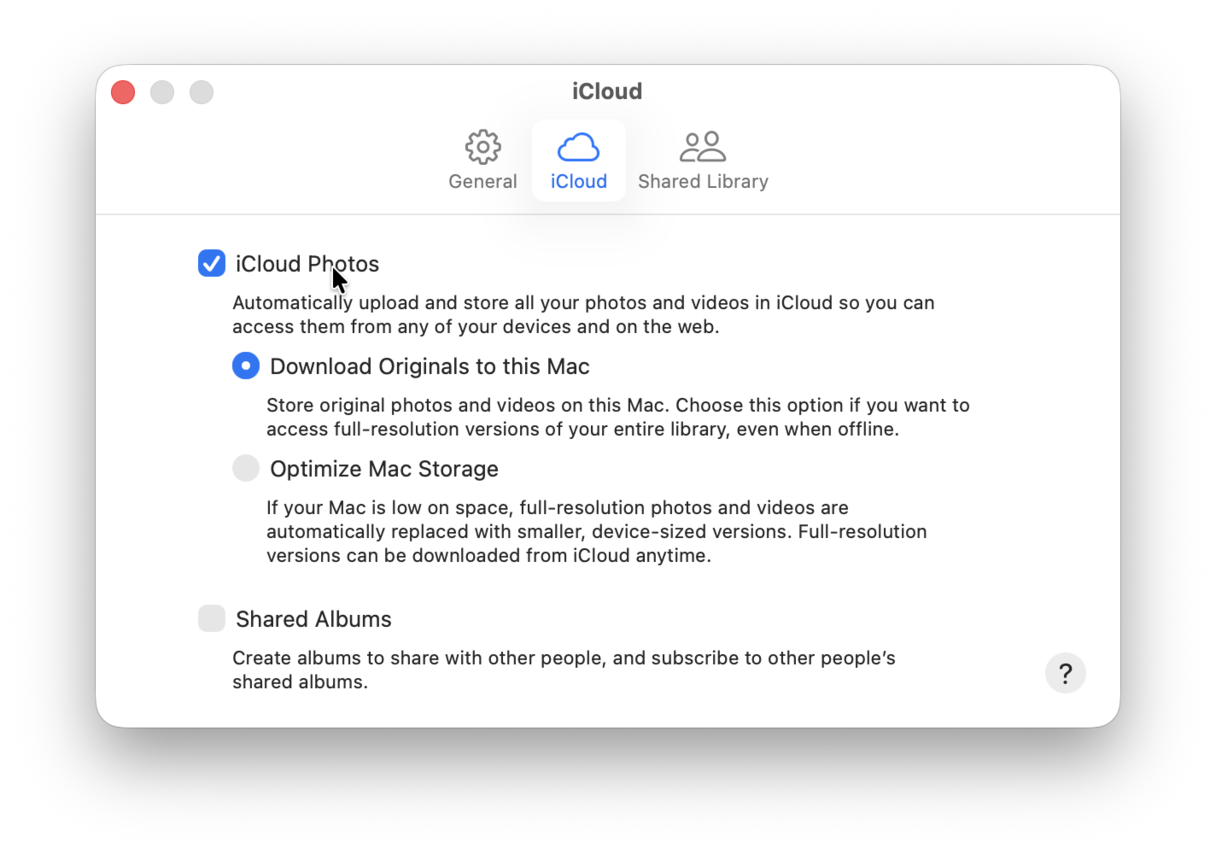
Provided you’ve followed both steps and both your devices are using the same Apple Account, your photos and videos will automatically sync between your iPhone and Mac.
Remember: while you have iCloud Photos on, any changes you make to photos on one device will automatically sync to the other. So if you want to delete them on your iPhone and keep them on your Mac, switch off the sync after transferring everything.
Bonus tip: How to transfer videos from iPhone to Mac
To quickly move videos from iPhone to Mac, you can use either the Finder or AirDrop as described above. In the Finder, you will have to select the checkbox next to “Include videos.” As for AirDrop, you will only need to choose videos instead of photos.
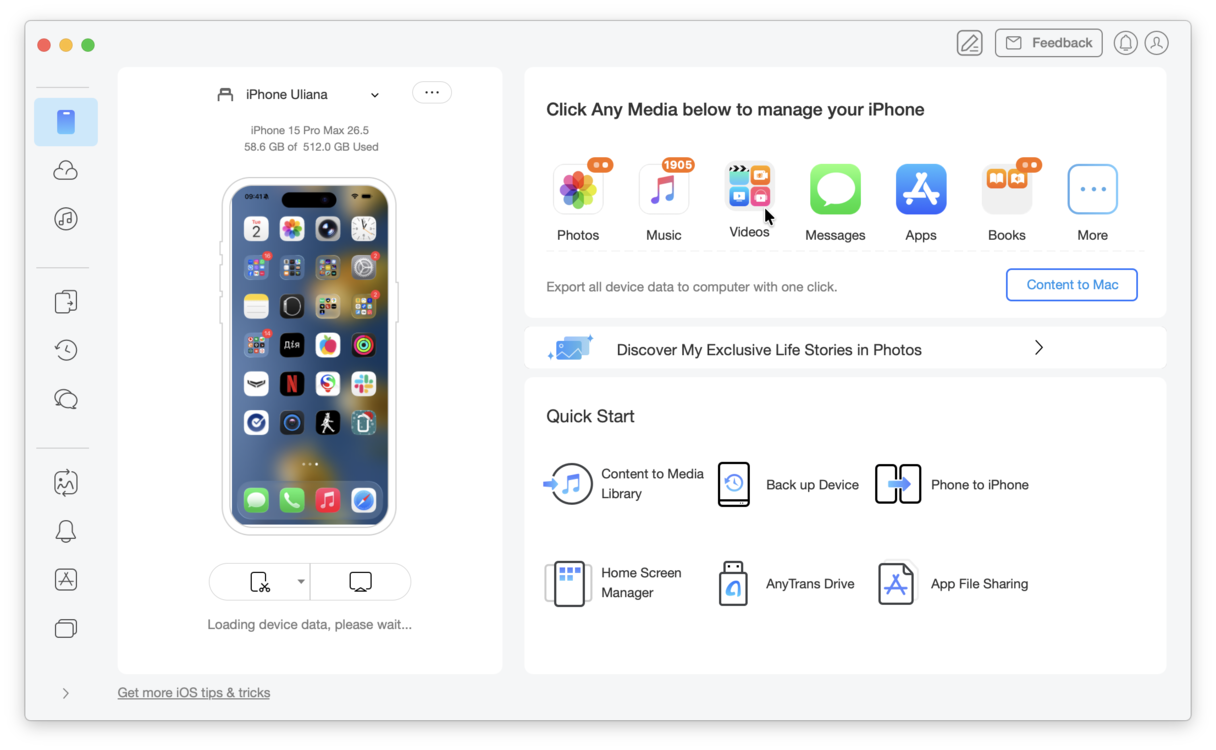
However, there is a third way to import videos from iPhone to Mac. If you’re not a fan of using the Finder or if AirDrop is giving you some issues, try AnyTrans instead. It allows to move videos between iOS and macOS within minutes.
- Connect your iPhone to your Mac using a USB cable.
- Open AnyTrans and wait for the data to load.
- Click Videos and select the video(s) you want to transfer.
- Click To Mac.
Whatever method you use, Apple makes it easy to transfer photos and videos from iPhone to Mac. Just make sure you move the pictures you really need; otherwise, you’re just shuffling clutter around.