Looking for tips on how to uninstall Logi Options on a Mac? Then, chances are, something isn't working the way you expected.
Maybe your Logitech mouse stopped responding after an update, or perhaps Logi Options+ keeps launching at startup even when you do not need it. I’ve also seen situations where custom button mappings stopped saving, or the app kept asking for permissions again after a system update.
Whatever your issue, you want to make sure it’s removed correctly and properly, not just dragged to the Trash with leftover files still running behind the scenes.
I’ve tested a few different removal methods on my device running macOS Tahoe 26.0.1, including manual cleanup and full uninstall approaches, and here’s everything I learned along the way, including what to check before uninstalling and how to confirm it’s truly gone. Let’s get started.
What is Logi Options+ for Mac?
Logi Options+ is Logitech’s configuration software for supported mice, keyboards, webcams and more. It allows customization of buttons, gestures, DPI settings, app-specific shortcuts, and device firmware updates. If you use a Logitech MX Master or MX Keys, this is likely installed.
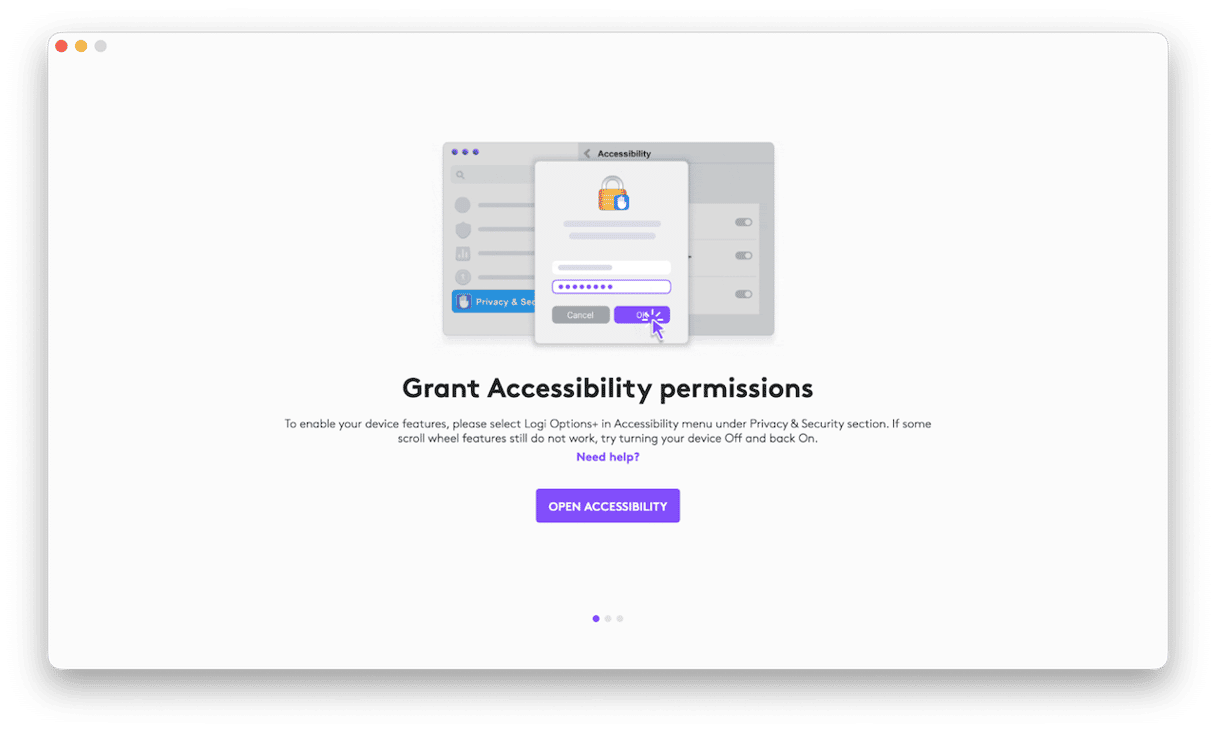
On modern macOS, Logi Options+ also runs background services. These services manage device profiles, Bluetooth communication, and system permissions. It requests accessibility permissions and input monitoring access to enable advanced features.
From my testing, Logi Options+ integrates fairly deeply with macOS. It installs launch agents and support files inside hidden Library folders. That is why uninstalling Logi Options+ Mac is not always as simple as removing the app icon.
Why uninstall Logi Options?
In my research, here are the most common reasons I found for why people want to know how to uninstall Logi Options+ on Mac.
- Performance concerns. Some users notice spikes in background CPU usage after updates. While not constant, it can happen.
- Conflicts. I have personally experienced gesture conflicts with third-party window management tools.
- Permission fatigue. Logi Options+ requires accessibility permissions. Some users are uncomfortable with that level of system access.
- Device switching. If you move away from Logitech hardware, the software becomes unnecessary overhead.
- Corruption after an update. Occasionally, after a macOS update, Logi Options+ may fail to detect devices correctly.
One thing I can tell you right now is that, whatever your reason for removing it, simply dragging the app to Trash isn't enough if you want a clean removal. If you read the online reviews and forums, users report that the software itself has improved, but it still leaves behind leftover files after this type of uninstall.
Before you uninstall Logi Options Mac
Before you uninstall Logi Options+, I recommend a few checks to make sure the removal process runs smoothly.
1. Power off your Logitech devices
Make sure you fully power off and disconnect any Logitech devices.
2. Make a note of any custom settings
Once removed, any custom profiles and customizations will be deleted. You can save yourself some frustration by making a note of anything important.
3. Fully quit the app
Right-click the Dock icon and select Quit. You can also open Activity Monitor and confirm no Logi Options processes are running.

4. Remove system permissions
Double-check that Logi Options+ left no ghost entries behind by checking in these locations:
- System Settings > Privacy & Security > Accessibility.
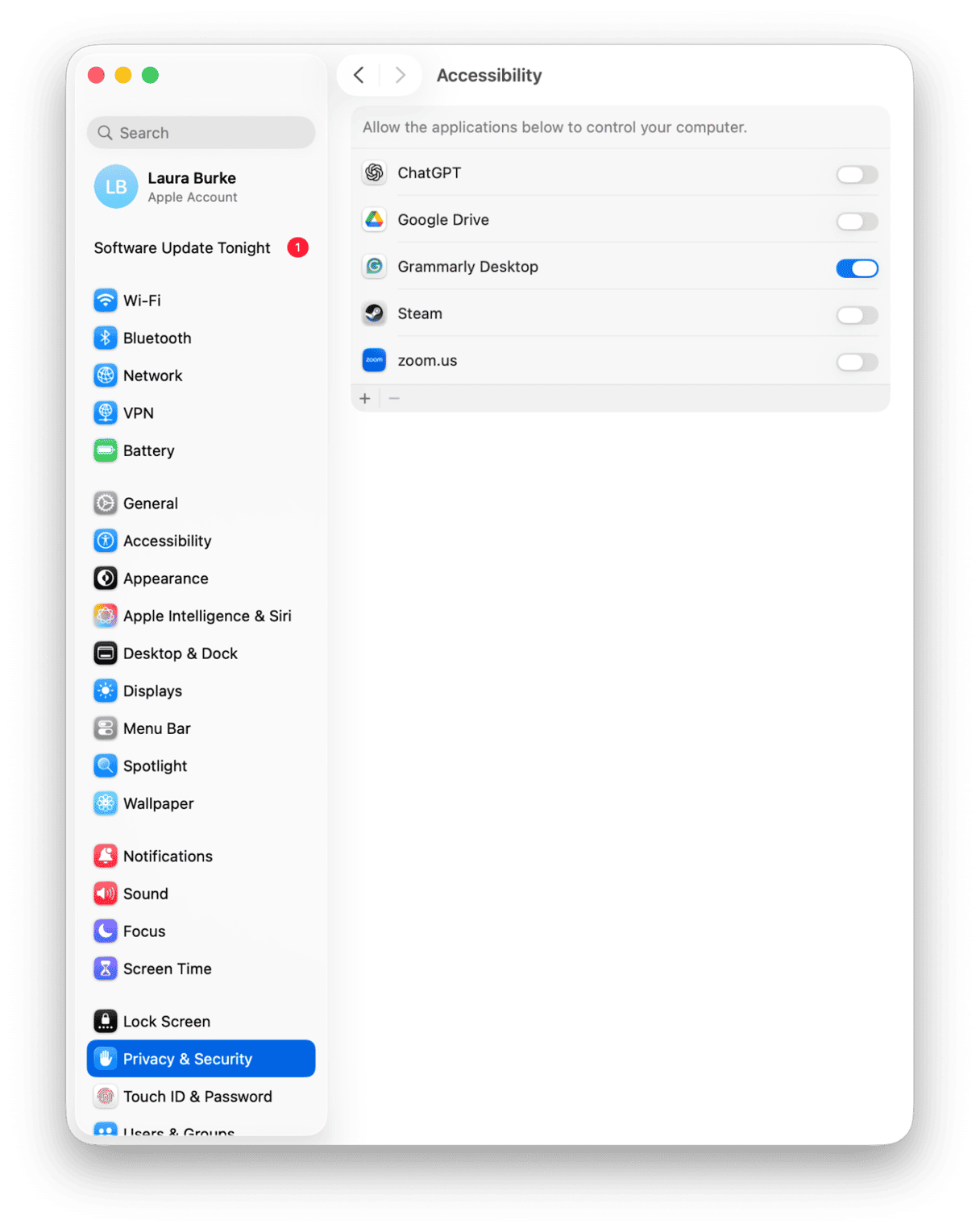
- Disable Logi Options+ if it’s listed.
- Repeat inside Input Monitoring.
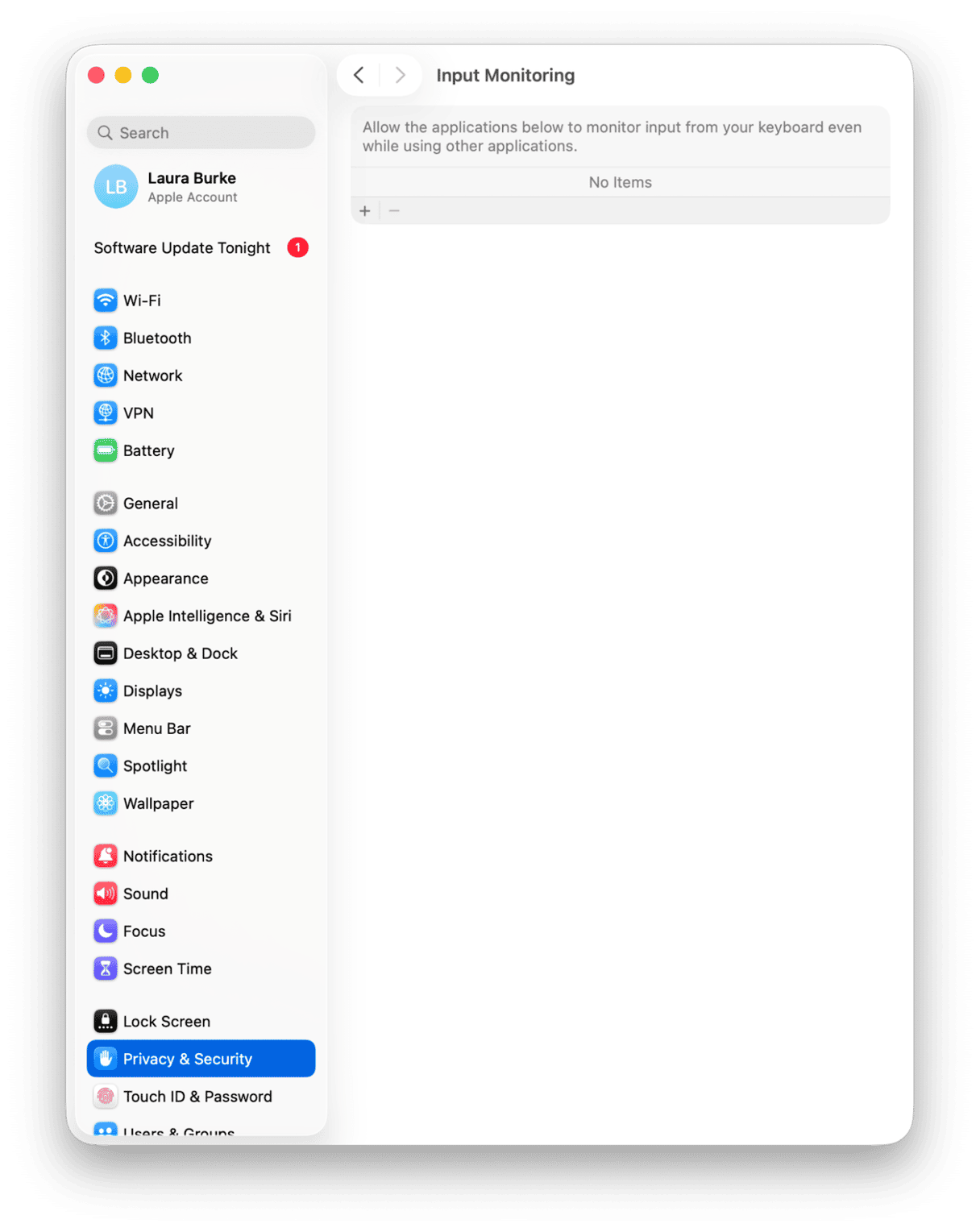
Taking these steps prevents permission errors during removal. Okay, so we’ve done the prep work, now onto the steps on how to uninstall Logi Options Mac.
How to uninstall Logi Options+ Mac
Manual app deletion
1. Remove the main application
- Open Finder > Applications.
- Find the Logi Options+ app and drag it to Trash.
- Empty your Trash.
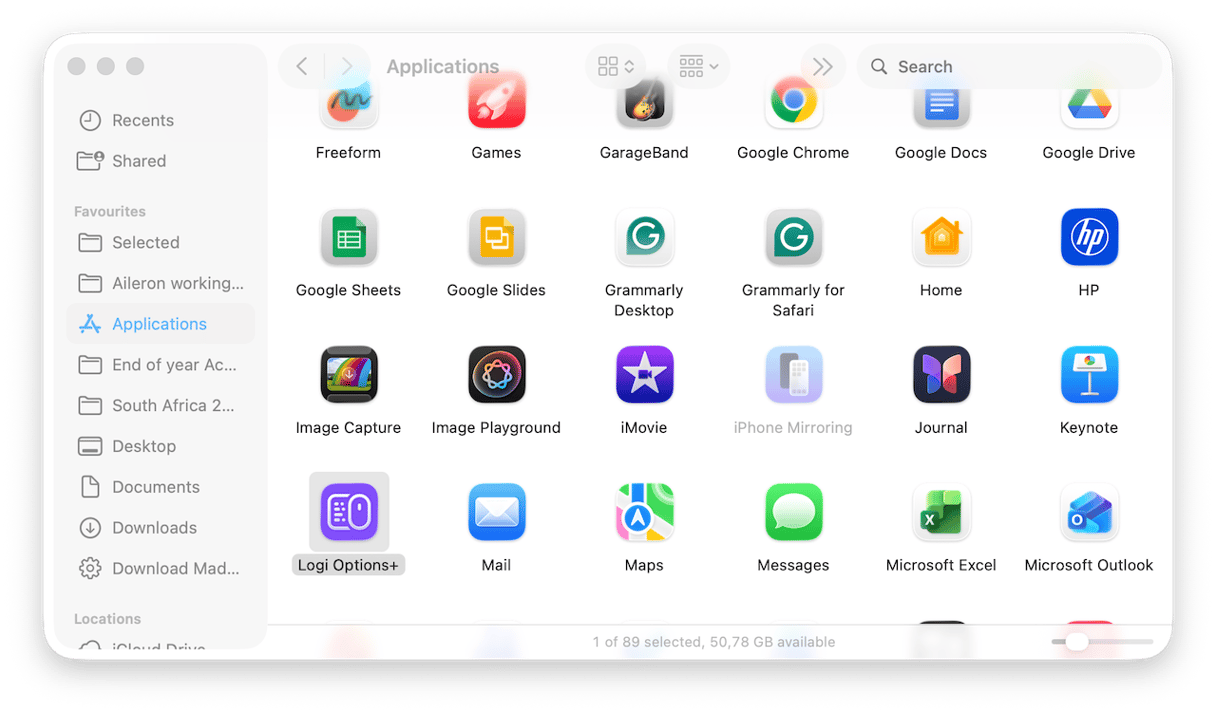
This removes the visible app, but not the background files. You need to make sure you follow the next step carefully.
2. Remove support files
- In Finder, press Shift - Command - G and paste the below location in:
~/Library/Application Support/LogiOptionsPlus - Delete that folder, then go to:
~/Library/Preferences - Delete any files beginning with:
com.logi.options - Finally check these locations and remove any Logitech-related daemon files, if present:
~/Library/LaunchAgents
/Library/LaunchDaemons - Restart your Mac.
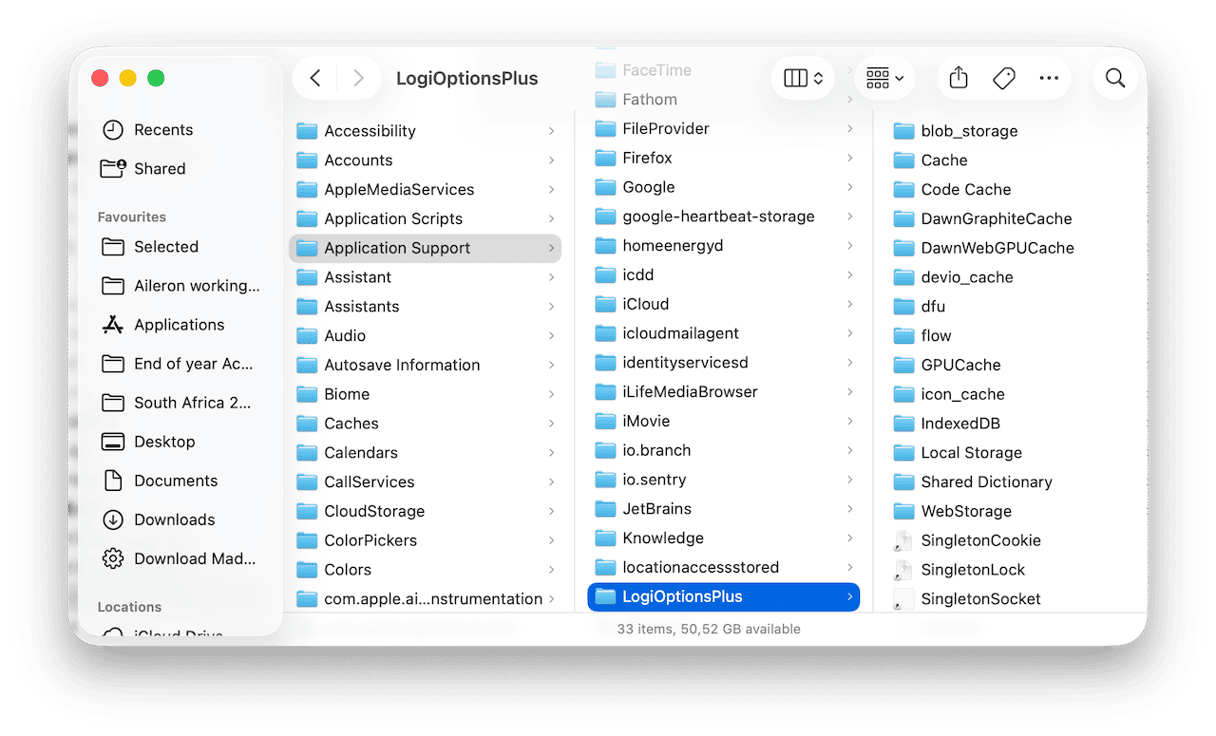
After you reboot, Logi Options+ should no longer appear in Login Items or background processes.
This manual method does work, but it requires careful searching through hidden folders. Missing one file can leave background services active. If you're not the biggest fan of rummaging around and deleting files from your Library folder, no problem; the next section is for you.
Uninstall Logi Options+ automatically
Manual removal is effective, but it is time-consuming, and many users prefer a cleaner approach, and honestly, so do I.
It's quite common knowledge that if you simply drag an unwanted app to Trash, it leaves behind a ton of hidden app data, background services, and preferences.
Using a tool like the Applications feature from CleanMyMac can make sure all associated components are found and removed completely; here's how:
- Start your free CleanMyMac trial — you can use all features at zero cost for 7 days.
- Open the app and go to Applications > Scan.
- Click Manage My Applications and find Logi Options+ in the list and any other of its installed agents.
- Select Uninstall and wait until it's finished.
- Finally, check the leftovers tab and remove any Logi items found here too.
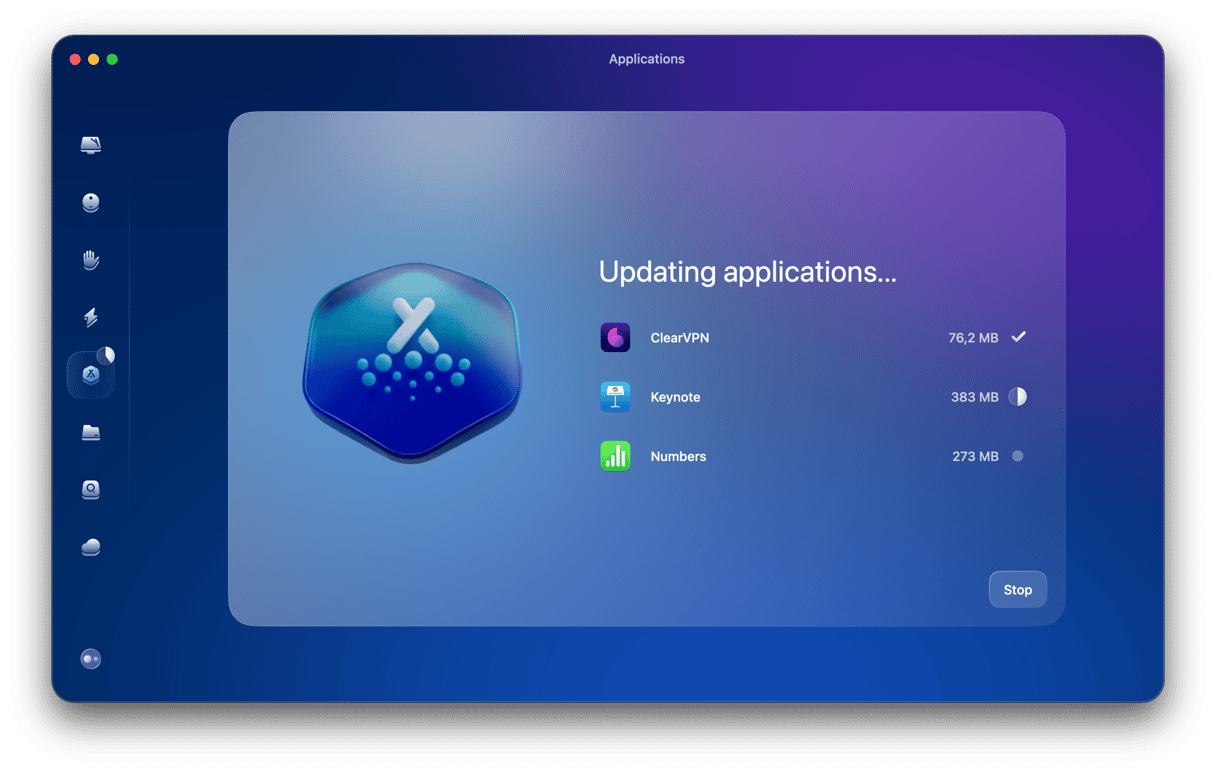
This tool finds and identifies support files, daemons, cache, and leftover data automatically, no digging around required. From my testing, this method consistently removes more residual files than manual searching. It is also faster and reduces the risk of accidentally deleting unrelated system files.
If you previously tried uninstalling Logi Options and the app still appears in background items, this method usually resolves it cleanly.
How to confirm Logi Options+ Is fully removed
I thought I'd add a quick section on this, because I did see a lot of threads online from users who had uninstalled Logi Options+ Mac only to find it still running programs in the background, so here's a quick checklist for you:
1. Check Activity Monitor
- Open Finder > Applications > Utilities.
- Open Activity Monitor and search Logi in the search bar.
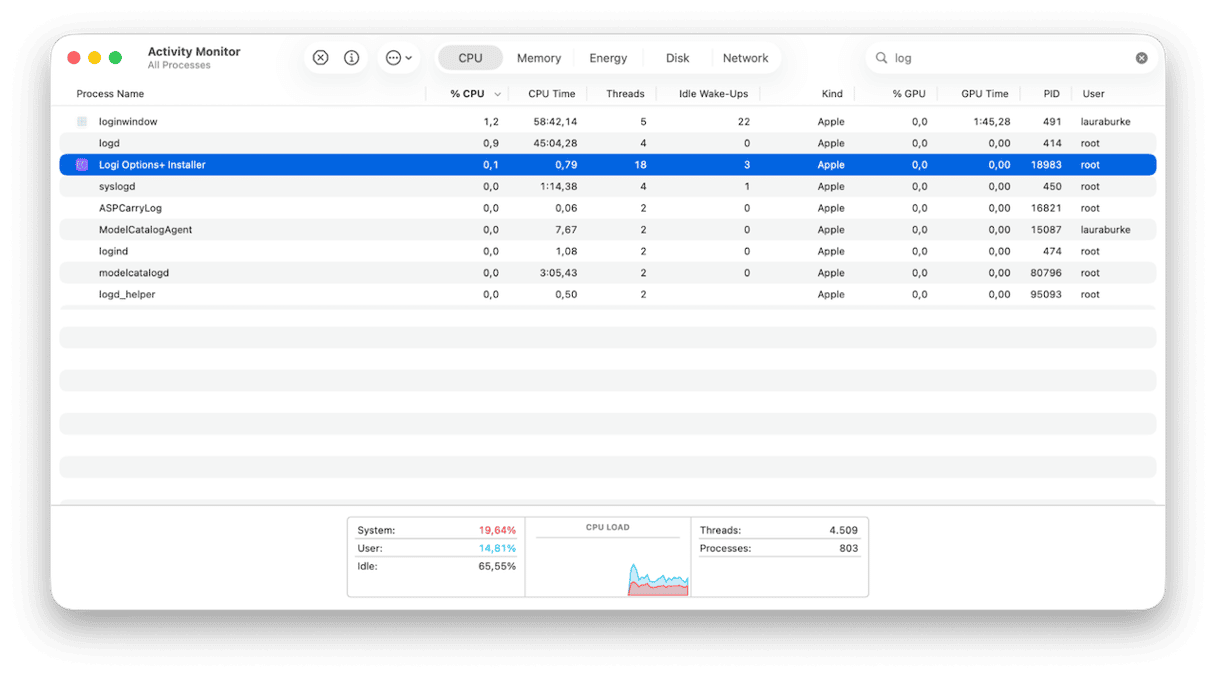
If you still see anything running, quit it. If it instantly relaunches, that usually means there is still a launch item somewhere.
2. Check login and background items
- System Settings > General > Login Items & Extensions.
- Check under both Open at Login and App Background Activity.
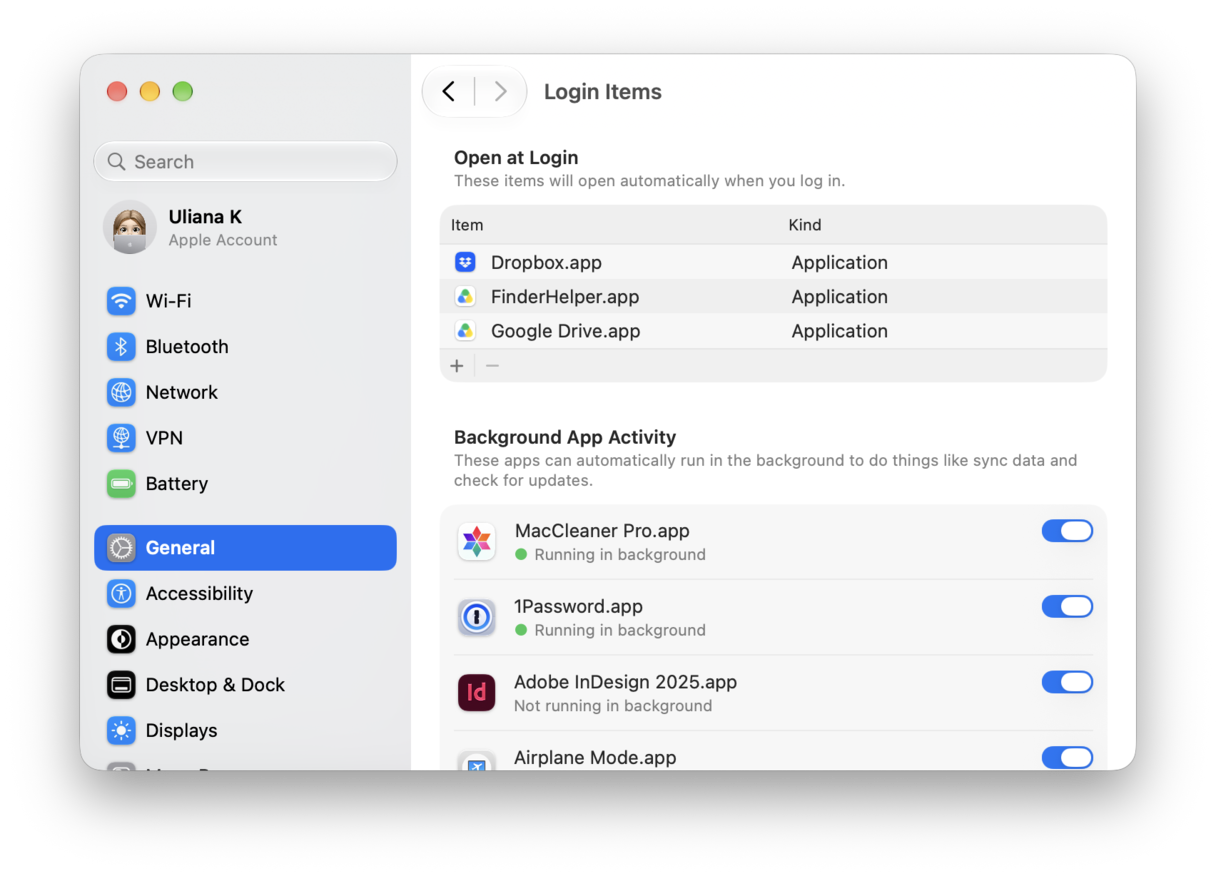
If Logi Options+ shows up here after uninstall, it's almost always because a LaunchAgent or helper file is still present. Toggle it off first, then restart your Mac.
3. Verify support folders are actually gone
- In Finder, press Shift - Command - G
- Check all of these locations one last time:
- ~/Library/Application Support/LogiOptionsPlus
- ~/Library/Preferences
- ~/Library/LaunchAgents
- /Library/LaunchDaemons
- Remove anything you find, and empty your trash.
Now you know how to uninstall Logi Options on a Mac. In fact, app removal in general is pretty simple when you know what your options are and how to do it safely. No matter which method you choose, manual removal or via an automatic dedicated uninstaller, the goal is the same: to eliminate background processes and leftover files so your Mac stays clean and stable. For me, doing it properly once is better than troubleshooting small leftover issues later.
FAQs: How to uninstall Logi Options+ on macOS
Okay, so before we finish up, let's just cover some common questions users have.
Will removing the Logi Options+ app also remove Logitech firmware updates?
This is a good question, but the answer is no. Firmware updates remain stored in the device itself.
Can I reinstall Logi Options+ later if I change my mind?
Absolutely, you can grab a download anytime from the official website here.
Will my mouse still work if I remove Logi Options+?
Yes, basic functionality will remain, but any advanced gestures and custom button mappings will all revert back to default.
Is it safe to uninstall Logi Options+ on macOS Tahoe?
Yes. Removing it does not affect macOS system files.
Will uninstalling Logi Options+ app affect my Bluetooth pairings?
No. Bluetooth pairing between your Mac and Logitech device is handled by macOS itself, not Logi Options+ app, so removing the software does not unpair your mouse or keyboard. The device will continue to connect normally, but advanced customization features will no longer apply.