
For most of us who like to dabble in making music or recording podcasts on our Mac, GarageBand does everything we need. And if GarageBand doesn’t, then Logic Pro usually has the tools for the job. But serious musicians and producers often need more than the tools and features available in even Logic Pro. And so they turn to plugins to provide those tools. And one of the most well-known and popular developers of plugins for Mac music apps is Waves. In this article, we’ll show you how to uninstall Waves plugins on Mac.
What are Waves plugins?
Every professional music production tool, or DAW (digital audio workstation), including Logic Pro, has a software architecture that allows for additional features to be added using other software. That software comes in the form of plugins, and Waves is one of the biggest developers in the plugins world. Whether you need to fix the pitch on vocals, apply compression, or remove noise, Waves has a plugin for the job. Once installed, plugins appear on the main interface of the DAW and can be used like any other feature.
Why uninstall Waves plugins on Mac?
Plugins tend to take up a lot of disk space, and musicians often collect them to try out or keep them ‘just in case.’ The result is several gigabytes’ worth of disk taken up with plugins that are never used. The main reason for removing them is to free up that space.
It’s also possible that if you don’t uninstall plugins you're not using, and so don’t keep them updated, that they could eventually cause problems by conflicting with other files on your Mac or even making you more vulnerable to malware. It’s always a good idea to uninstall any application or plugin you no longer use.
How to uninstall Waves plugins on Mac
There are a few different ways to uninstall Waves on your Mac, some easier than others. We’ll show you them all.
Use Waves Central
Waves Central is an app from Waves that allows you to manage Waves plugins. If the plugins you want to uninstall were installed using Waves Central, you should also use it to uninstall them.
- Quit any audio workstations or other audio apps that use Waves plugins.
- Launch Waves Central.
- Click the Install menu and choose Uninstall.
- You’ll see a list of installed plugins. Select the ones you want to uninstall.
- Click the Uninstall button at the bottom right of the window.

If the plugins were not installed using Waves Central, you have a couple of options: one easy one and not so easy.
Manual removal
Uninstalling Waves plugins manually means trawling through different folders on your Mac and dragging files they have installed to the Trash. It’s not enough just to drag the plugins themselves to the Trash.
- Go to your Applications folder and drag the Waves folder to the Trash.
- Click the Finder icon in the Dock and then on the Go menu.
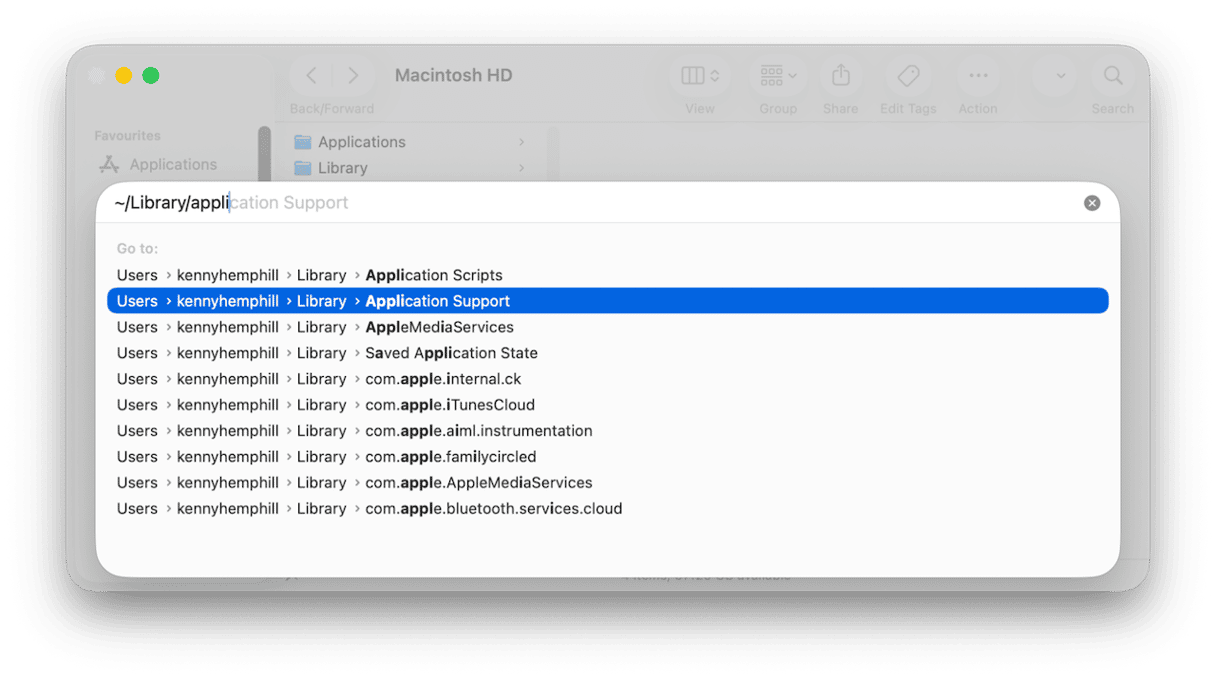
- Choose Go to Folder.
- In the text box, paste each of the file paths below — one at a time — and press Return after each one. At each location, look for files or folders with ‘Waves’ or the name of a plugin in their name and drag them to the Trash.
~/Library
~/Library/Caches
~/Library/Preferences
~/Library/Application Support
~/Library/Containers/
~/Library/Saved Application State/ - Empty the Trash.
The easy way
If you don’t want to go trawling through folders on your Mac to uninstall Waves plugins, there is an easier way. You can use a specialist uninstaller to do it for you. We recommend the Applications feature in CleanMyMac. It hunts down all the files on your Mac that were installed by an application or plugin. And when you uninstall that application, it removes all the files automatically.
As well as allowing you to uninstall any app with a couple of clicks, you can uninstall multiple apps simultaneously, remove leftovers from apps that weren’t uninstalled properly, and it will even tell you which apps on your Mac have updates available and allow you to update them easily.
- Get your free CleanMyMac trial — you can test it for 7 days for free.
- Open it and choose Applications in the sidebar.
- Click Scan.
- When it’s finished, choose Manage My Applications.
- Locate the Waves plugins you want to uninstall, select them, and click Uninstall. If you no longer need the Waves Central app, remove that, too.
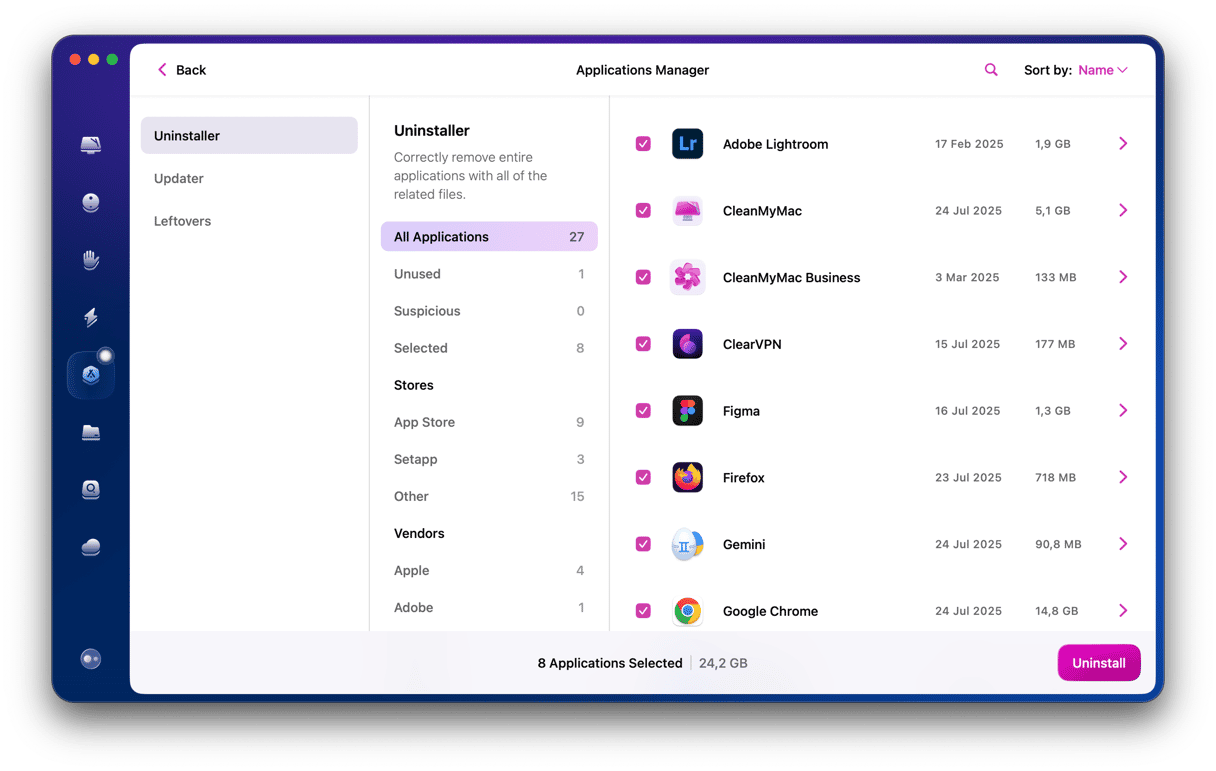
If you want to see the files that were left over when you uninstalled other applications previously, choose the Leftovers pane. You can then remove those files easily. And if you want to update all the applications on your Mac for which there are updates available, choose Updater in the sidebar.
Waves plugins allow you to add extra features to a DAW, such as tools for fixing vocals, compressors, limiters, and for removing unwanted noise from a recording. If you have installed one or more Waves plugins, perhaps try them out, and no longer use them, you should uninstall them to free up space. Follow the steps above to uninstall Waves plugins on your Mac.