Want to know how to uninstall Trend Micro on your Mac? If you’ve bumped into issues with application conflicts, slow startups, and maybe you're just switching to an alternative security tool, I’ve got plenty of tips for you.
Removing Trend Micro is not difficult, but you do need to make sure it’s done safely and correctly. Dragging app icons into your Trash does not remove or uninstall apps fully.
Trend Micro also integrates deeply with your macOS, which means it often installs background services and system permissions. In this guide, I will explain what Trend Micro is, why people decide to remove it, and the methods I used to uninstall Trend Micro Mac properly so nothing is left behind.
What is Trend Micro?
Trend Micro is an antivirus and security software designed to protect computers from malware, phishing attacks, and unsafe websites. The Mac version scans files, monitors web traffic, and warns its users about any suspicious downloads or links.

Like most modern antivirus tools, Trend Micro works quietly in the background. It checks files as they are downloaded and runs scheduled scans across your system.
In my testing of this tool on my Mac running macOS Tahoe, the software performed as expected. Real-time protection was definitely active, and the web filter did block suspicious sites, but one thing I did notice was that when I wanted to remove it, there were a few more extra steps than I expected.
Why do people want to uninstall Trend Micro?
Across the forums, I saw a few common threads on why users wanted to know how to uninstall Trend Micro on Mac; here’s a quick look at what I found:
- Performance slowdowns. Antivirus software constantly scans files and network activity. On some Macs, especially older machines or systems already running many background processes, this can make the system feel slower.
- Compatibility issues. Trend Micro can run into conflicts with other developer tools and network utilities.
- Switching provider. There are so many antivirus tools out there now that it’s pretty common for users to try multiple, and Apple has strengthened system protections significantly in recent years, which leads some people to reduce third-party security apps.
Finally, some people simply want to clean up their system. If the subscription expired or the software is no longer needed, uninstalling it keeps the Mac environment simpler. OK, so we’ve covered all the basics, let’s get into the uninstall steps.
How to uninstall Trend Micro on Mac manually
If you prefer the manual route, here is the process I used to uninstall Trend Micro on Mac.
1. Fully close the application
Before removing anything, make sure the app is not running.
- Click the Trend Micro icon in your Dock and select Quit.
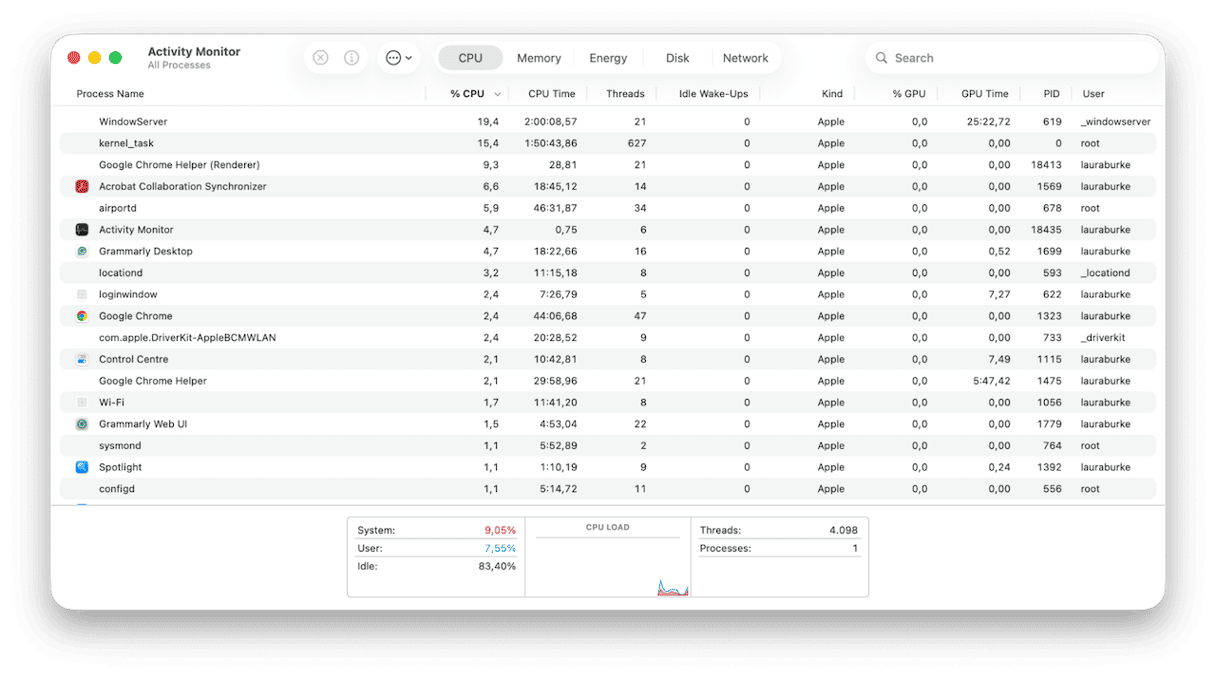
- Or use Activity Monitor to check for Trend Micro processes. If they are running, quit them.
2. Use the built-in Uninstaller
Trend Micro usually includes its own uninstall tool.
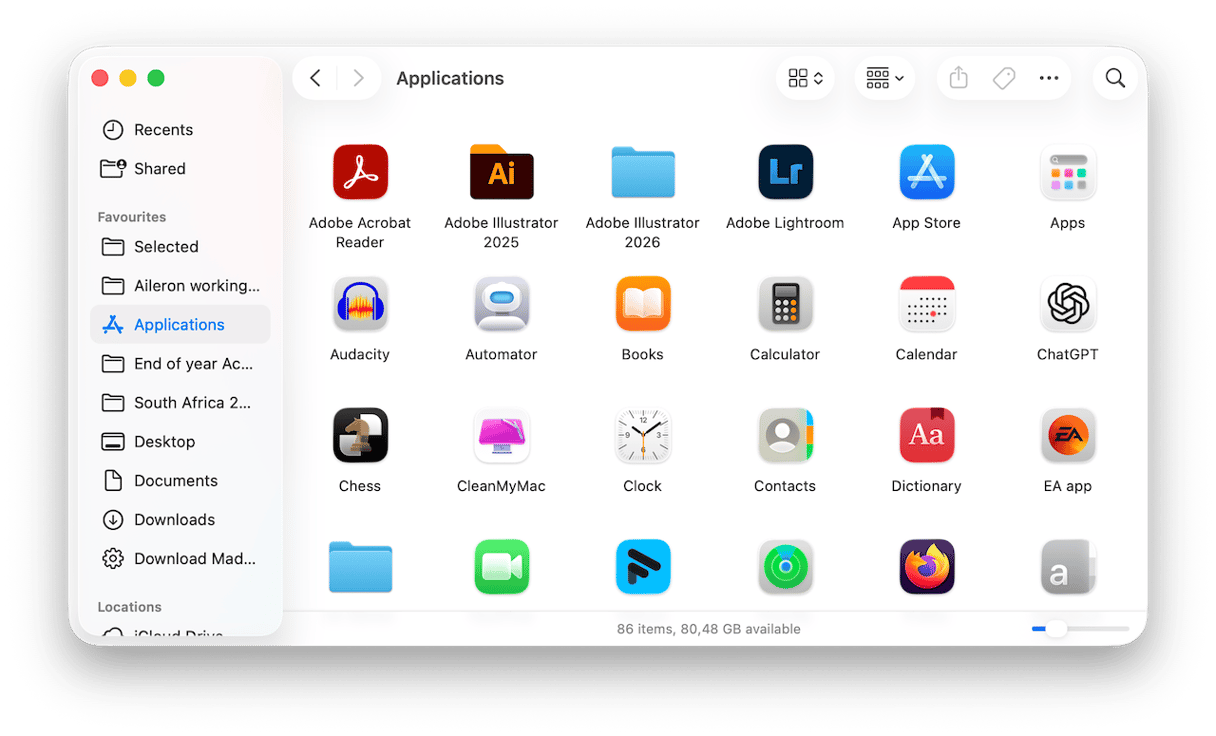
- Open Finder and go to Applications.
- Find the Trend Micro Antivirus folder.
- Inside that folder, you will often find an Uninstall Trend Micro Antivirus tool.
- Launch it and follow the prompts.
In some cases, the uninstaller asks for your administrator password. This step is normal because security software interacts with system-level services.
If you don’t have an uninstaller, then drag the application icon to your Trash, but do not skip the next step.
3. Remove any leftovers
After running the official uninstaller, I still check for leftover files. Antivirus programs often store additional configuration data.
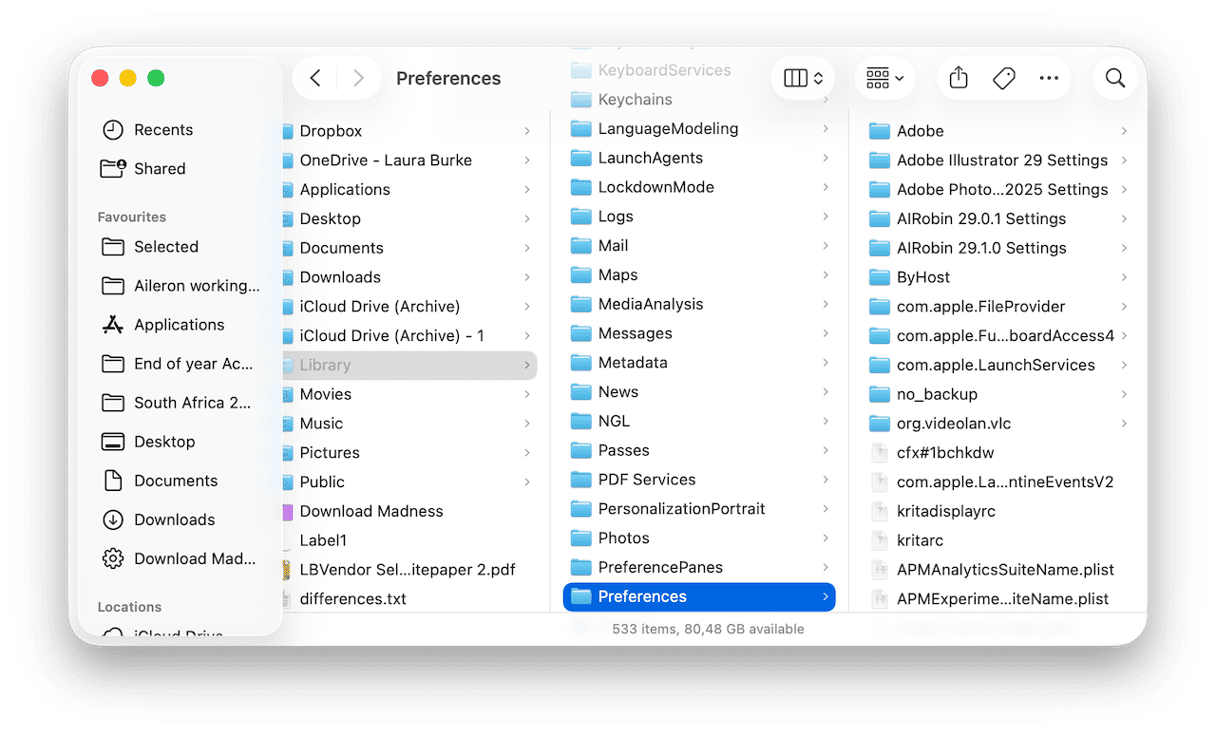
- Press Shift - Command - G in Finder and check the following locations:
- ~/Library/Preferences
- ~/Library/Application Support
- ~/Library/LaunchAgents
- Remove any files or folders you find here containing the Trend Micro.
- Restart your Mac.
4. Check login items
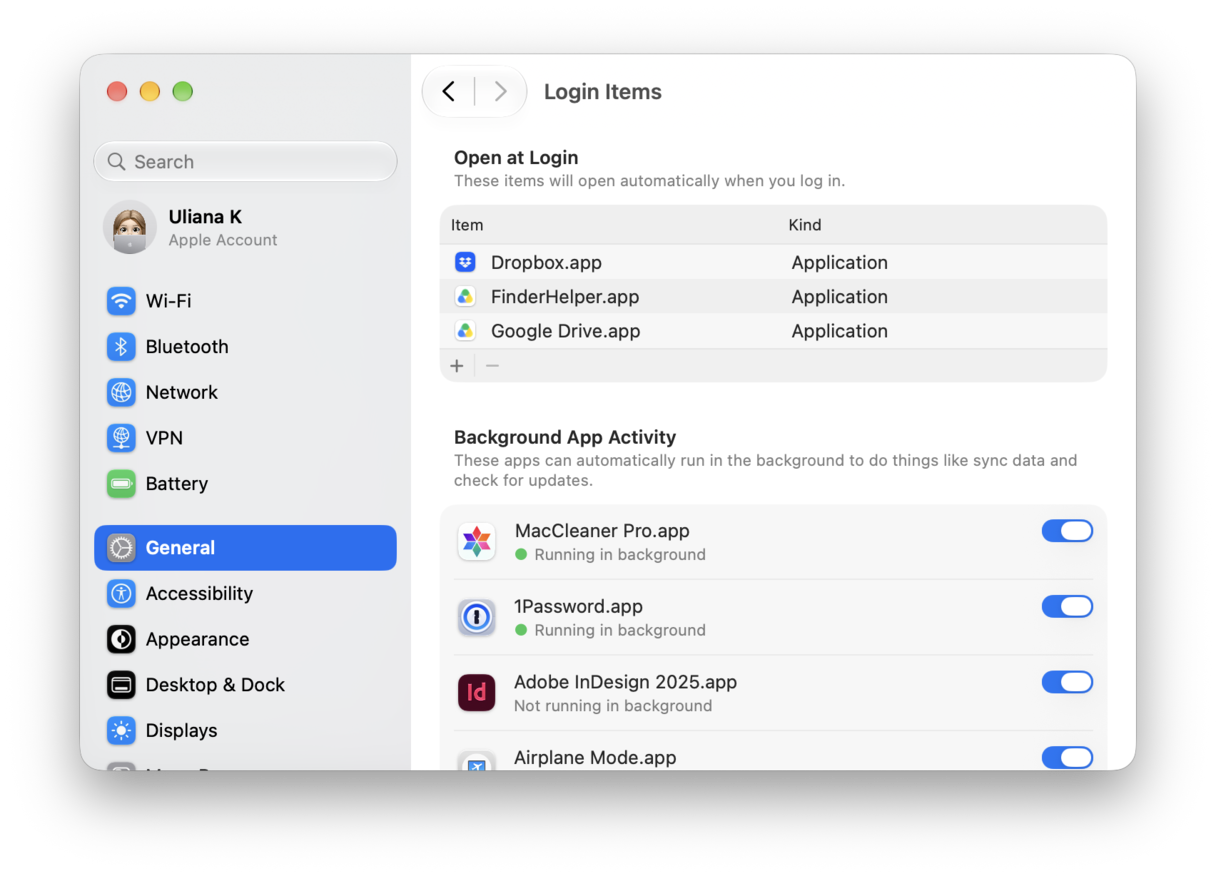
- Go to System Settings > General > Login Items & Extensions.
- Check here that there aren’t any ghost Trend Micro startup or background processes hanging around, which could cause conflicts later.
Uninstall Trend Micro without a password automatically
Removing Trend Micro manually absolutely works, but as you can see, it’s not a particularly quick process. Digging through your library folders takes time, and it’s easy to miss things. A quicker and safer way to uninstall Trend Micro from Mac is to use a purpose-built application removal tool, the Applications feature from CleanMyMac. This does all the hard work for you, scanning your entire system for all related files and removing them in one go; here’s how:
- Open CleanMyMac — get your free trial here (seven days).
- Click Applications > Scan.
- Select Manage My Applications.
- Find Trend Micro Antivirus in the list and click Uninstall.
- You can also check the leftovers category and remove any other apps you no longer need (even multiple applications at a time).
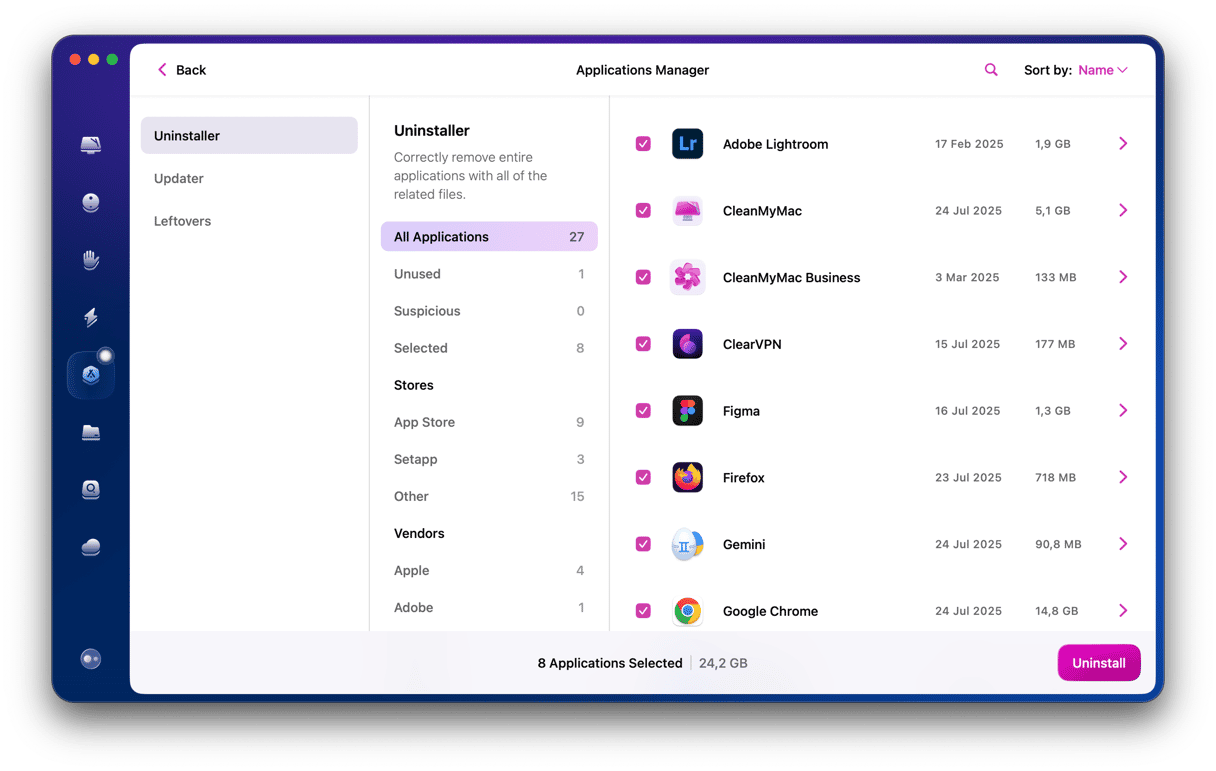
For people who regularly install and remove software while testing apps, this approach is often quicker and safer, in my opinion.
So, we’ve covered everything there is to know about uninstalling Trend Micro on your Mac.
Frequently asked questions
Can you uninstall Trend Micro without password access?
In most cases, you do need administrator privileges because the software installs system-level components. Without admin access, the uninstaller may not work.
Does uninstalling Trend Micro cancel the subscription?
No, and this is one that I saw users online confused with. Deleting the app only removes the software. Subscription management usually happens through the Trend Micro account dashboard.
Is Trend Micro still supported on newer macOS versions?
Trend Micro continues to update its macOS software regularly. Compatibility depends on the specific product version installed. You can find some compatibility support here.
Will removing Trend Micro disable macOS security features?
No. macOS still includes built-in protections such as Gatekeeper, XProtect, and system integrity protections; those will not be affected.
Why does Trend Micro keep launching after removal?
Make sure you check Login & Extensions in System settings and double-check there’s nothing lingering from Trend Micro here. If you find something, remove it, and restart your MacBook, that should clear the issue.