
If you've checked your iPhone storage recently, you might have noticed some categories that often take up more space than your Photos. It may be true about System Data, most of which is cache and cookies. Even if you have plenty of storage available, seeing unspecified data taking up space can be frustrating, but you can quickly reclaim that space. Keep on reading, and you'll learn how to clear cache on iPhone and how to remove cookies, too.
What is cache on iPhone?
Cache on an iPhone is temporary data that apps and websites store on your device. This includes images, scripts, and login information. The purpose is to help apps and websites load faster and remember your preferences.
While cache improves performance, it can pile up over time. This buildup can take up significant storage space. As a result, your device may slow down, and you'll need more room for new photos, videos, or apps.
What does clearing the cache on an iPhone mean?
Clearing the cache means deleting these temporary files from your iPhone. Doing this frees up storage space and can boost your device's performance.
When you clear the cache, you basically remove stored data saved by apps and websites. This can:
- Fix glitches
- Solve loading issues
- Ensure you see the latest content
After clearing cache, apps and websites load slower as they rebuild their cache, but overall, it leads to a smoother experience. Clearing cache is an easy way to keep your iPhone running well without deleting important personal data.
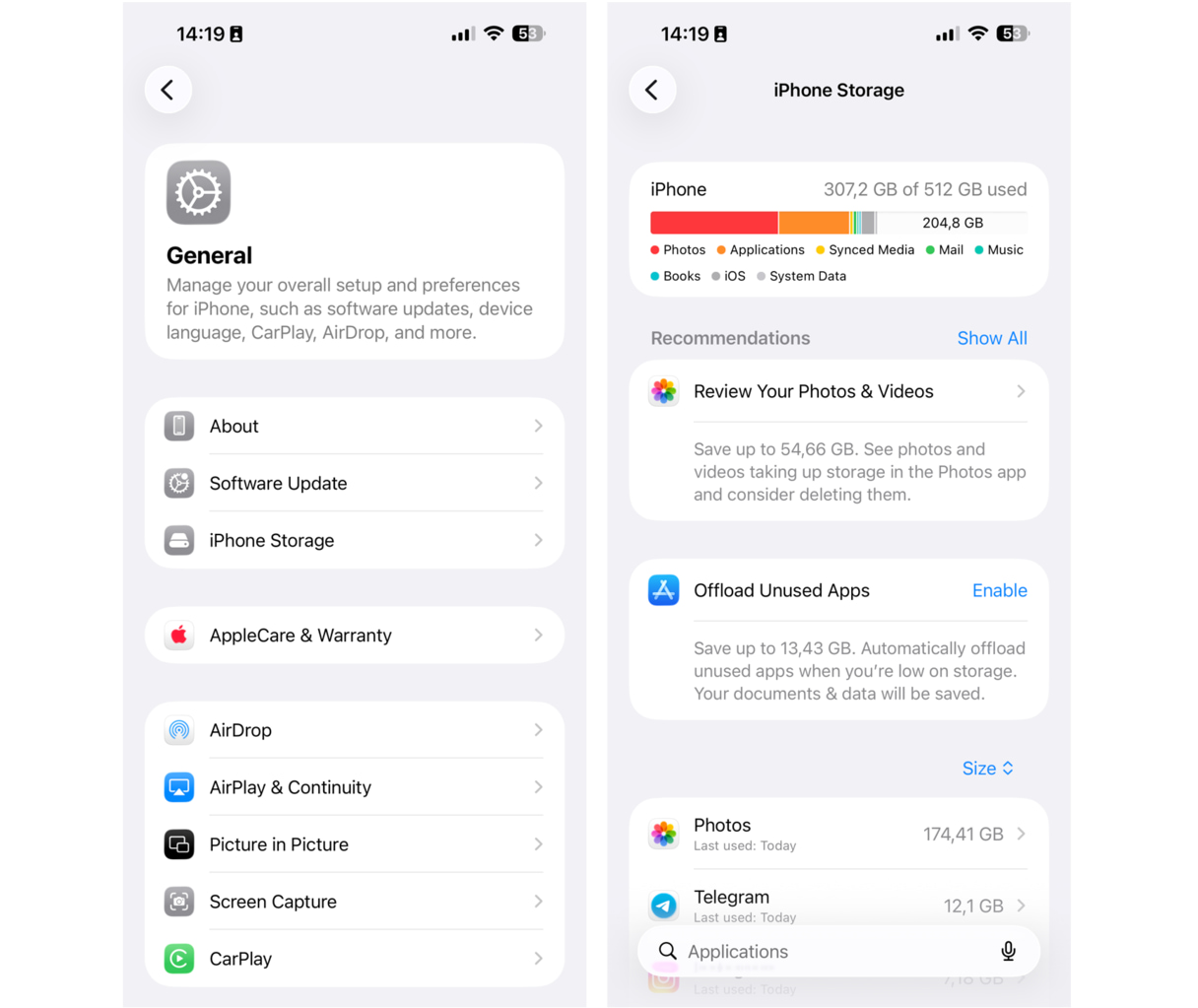
To check how much storage you have left, follow these steps:
- Go to Settings > General.
- Find and tap iPhone Storage.
- The bar will show how much storage you have left.
In most cases, knowing how to clean your iPhone cache can help with the abovementioned issue. Without further ado, here are three easy steps to deal with that cache.
How to clear the cache on an iPhone
There is a simple equation involved. Clearing the cache on the iPhone equals taking care of three things:
- Clearing general storage
- Clearing browser cache on iPhone
- Clearing app cache on iPhone
Step 1. Take care of storage first
The rule of thumb dictates — take care of the storage to make cache cleaning process faster and easier. There are two ways you can go. First, you can manually review all your photos, look for duplicates, and delete any clutter. It might take you a day or two. Second, you can use an automatic tool.
With CleanMy®Phone, you can quickly clean up some space on your device. It scans your iPhone and divides the clutter into categories, including duplicate photos, screenshots, and screen recordings, so you can quickly decide what you want to keep and what you want to get rid of.
Here's how to use it:
- Open CleanMy®Phone. Allow it full access to your library — worry not, with on-device scanning, it is safe.
- Tap Declutter and let it scan your iPhone.
- Check the categories of clutter and deselect everything you want to keep. Once you are happy with the selection, tap Clean. It will be sent to the Recently Deleted album in your Photos app.
- Empty the Recently Deleted album.

Simple as that. The less clutter you have, the faster your iPhone will later clear all the cache.
Step 2. Clear browser cache on iPhone
This works pretty well for browsers because Safari and Google Chrome actually allow you to delete cache, either in iPhone Settings or within the app.
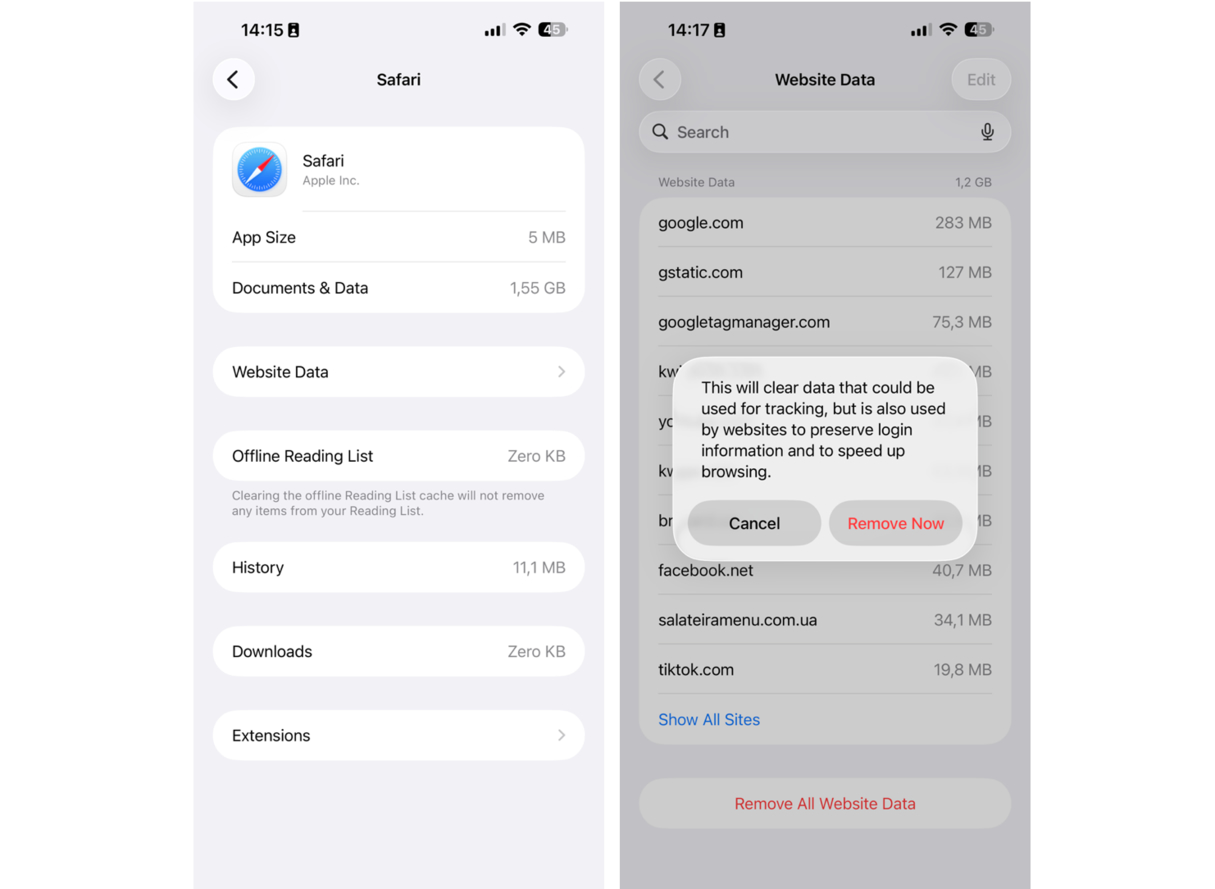
To clear Safari cache, do the following:
- Open Settings > General > iPhone Storage
- Scroll down to Safari > Website Data.
- Tap Remove All Website Data > Remove Now.
For Chrome, follow these steps:
- Open the app.
- Go to Options > Settings.
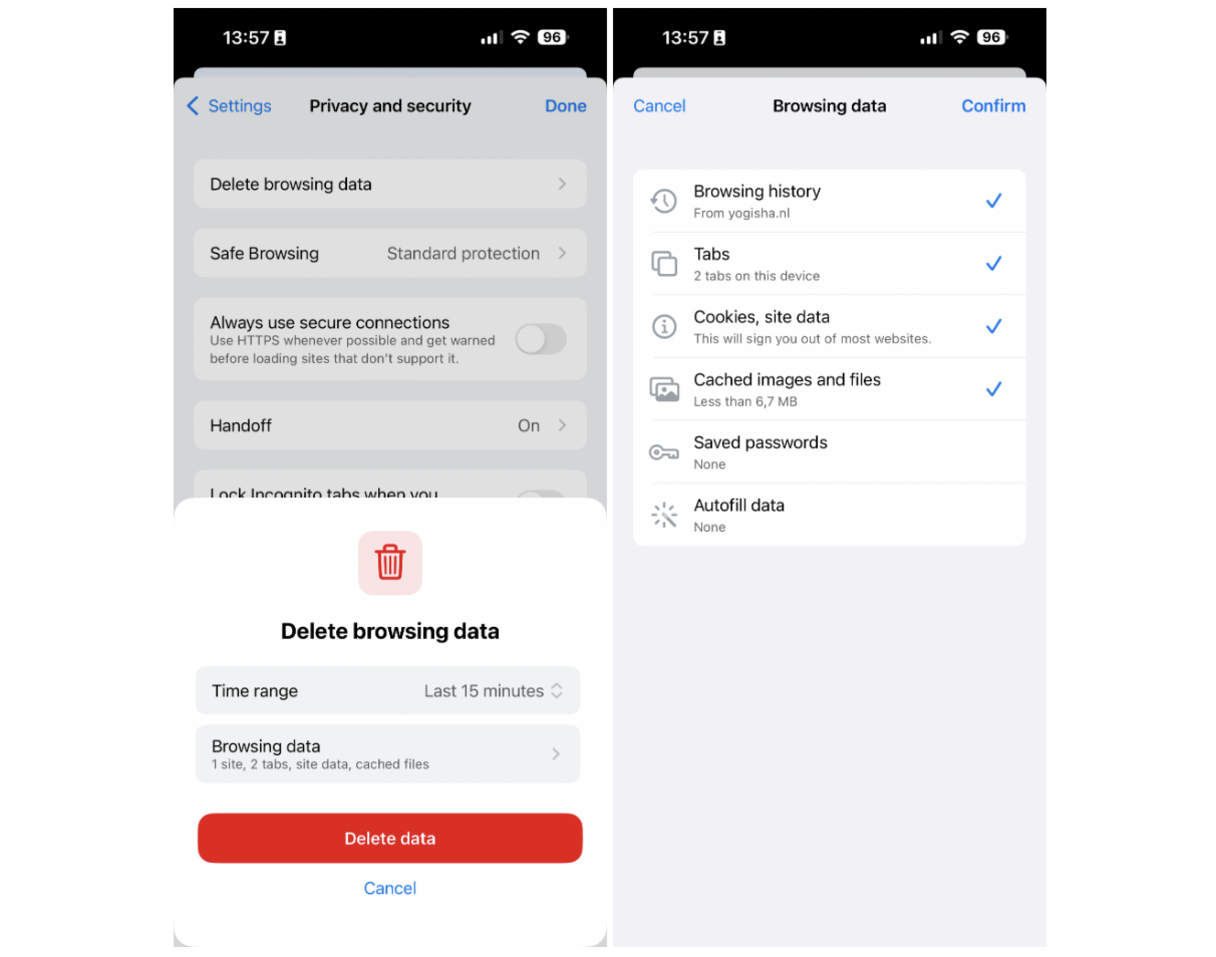
- Tap Privacy and security > Delete Browsing Data.
- Select the browsing data you want to delete (cookies, history, cached images, and files) and tap Delete Data.
Some other apps also have this feature, so check their Settings to see if you can clear the cache.
Step 3. Clear other apps cache without deleting app
Some cache-heavy apps, like Facebook and Snapchat, don't have a built-in cleanup. Naturally, the only way to delete the cache for an app like that is to delete and reinstall it.
Before doing that, make sure you have all your login info: deleting an app will clear not only its cache but all its Documents and Data, including login details. Also, you don't want to be logged out of all your accounts.
When you secured all your login info, here's what you should do next.
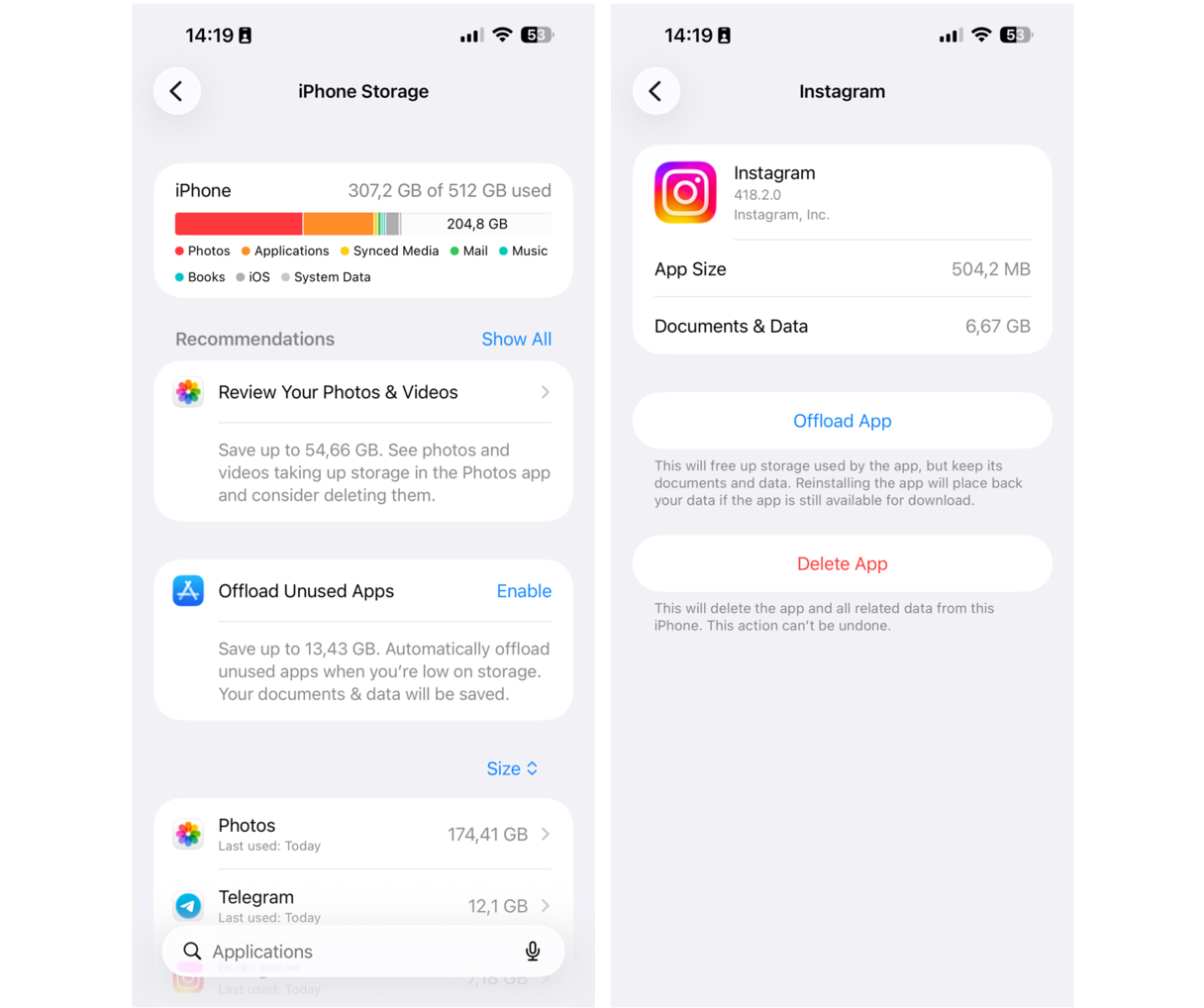
- Go to Settings > General > iPhone Storage.
- The apps at the top are the ones occupying the most space. Tap on an app to see how much Documents & Data it has. This is all the cache, login details, and offline content the app has accumulated over time.
- If it looks like a lot, tap Delete App.
- Repeat for all your "heavy" apps.
Now, reinstall the apps you just deleted. You can go back to iPhone Storage. The key change will happen. The app will occupy less space than before.
Next, let us proceed with how to remove cookies.
How to erase cookies on iPhone browsers
Clearing cookies on your iPhone browser takes only a few minutes and is easy to do. We’ll show you how to clear browser cookies on iPhone in Safari, Chrome, and Firefox for the best user experience and the protection of your online privacy.
What are cookies on your iPhone and why care about removing them?
Cookies are small digital files that track which websites you visit, what buttons you click on, and even how fast you scroll online. While cookies don’t track things like your name or address, they do paint a picture of your digital life so that companies can serve you appropriate ads.
For example, when you visit a clothing company’s website, that website attaches a cookie so that the next website you visit may include ads for the type of clothing you like. Some would argue that cookies and targeted ads make your online experience better, but others claim that it’s an invasion of privacy that we could easily do without.
There are several reasons why clearing cookies should be part of regular iPhone maintenance tasks:
- Clearing cookies will remove stored information about your browsing history and what websites you visit, and so it will keep online advertisers from learning your preferences to serve you targeted ads.
- It will also prevent websites from storing information that you’ve voluntarily provided, which will automatically populate for anyone using your device.
- Clearing cookies on your iPhone can sometimes speed up a slow or unresponsive browser, making the user experience better.
The method for clearing cookies on your iPhone will depend on which browser you use, but the method will be similar for all of them. Apple Safari, Google Chrome, and Firefox are the three most popular browsers on iPhone, so we’re going to focus on these three for clearing cookies.
Safari
To clear cookies in Safari, follow the steps we've outlined above — it removes both cache and cookies.
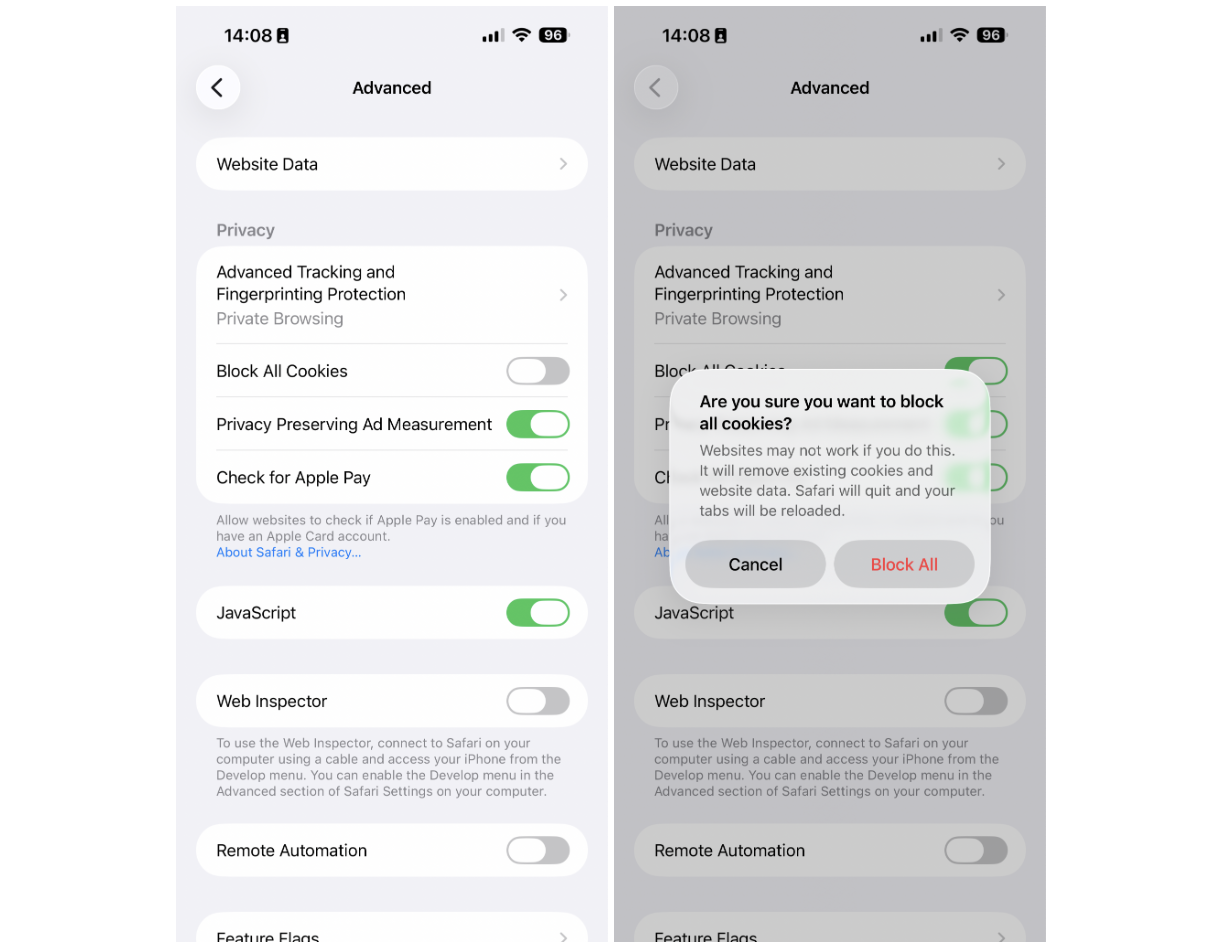
If you want to disable all cookies in Safari, you can toggle the option Settings > Apps > Safari > Advanced. While we recommend clearing the cookies occasionally, blocking cookies entirely could cause problems on the websites you visit, so we suggest doing it with strong reservations.
Google Chrome
Google Chrome is one of the more popular browsers for iPhone users and is a common alternative to Safari. The method for clearing cookies on Google Chrome is slightly different than on Safari but just as easy to do.
To remove cookies in Chrome, you will have to go to Settings > Privacy & Security > Delete Browsing Data. This time, make sure Cookies, site data is selected and tap Delete data.
If you wanted to disable cookies in Google Chrome, it does not give you the option to do it entirely. We recommend clearing the cookies occasionally for the best performance and security.
How to disable cookie tracking on your iPhone
In addition to cookies used by your browser, iPhone apps are also able to track your movements across the internet and the different apps you use.
When you install a new app on your iPhone, you may have noticed a pop-up asking if you want the app to track your activity. Declining the tracking option essentially blocks the app from using cookies. If you neglected to decline tracking when installing the new app, you can easily do it after the fact.
If you would like to disable cookies on all or some of your apps, follow these steps:
- Navigate to Settings on your iPhone.
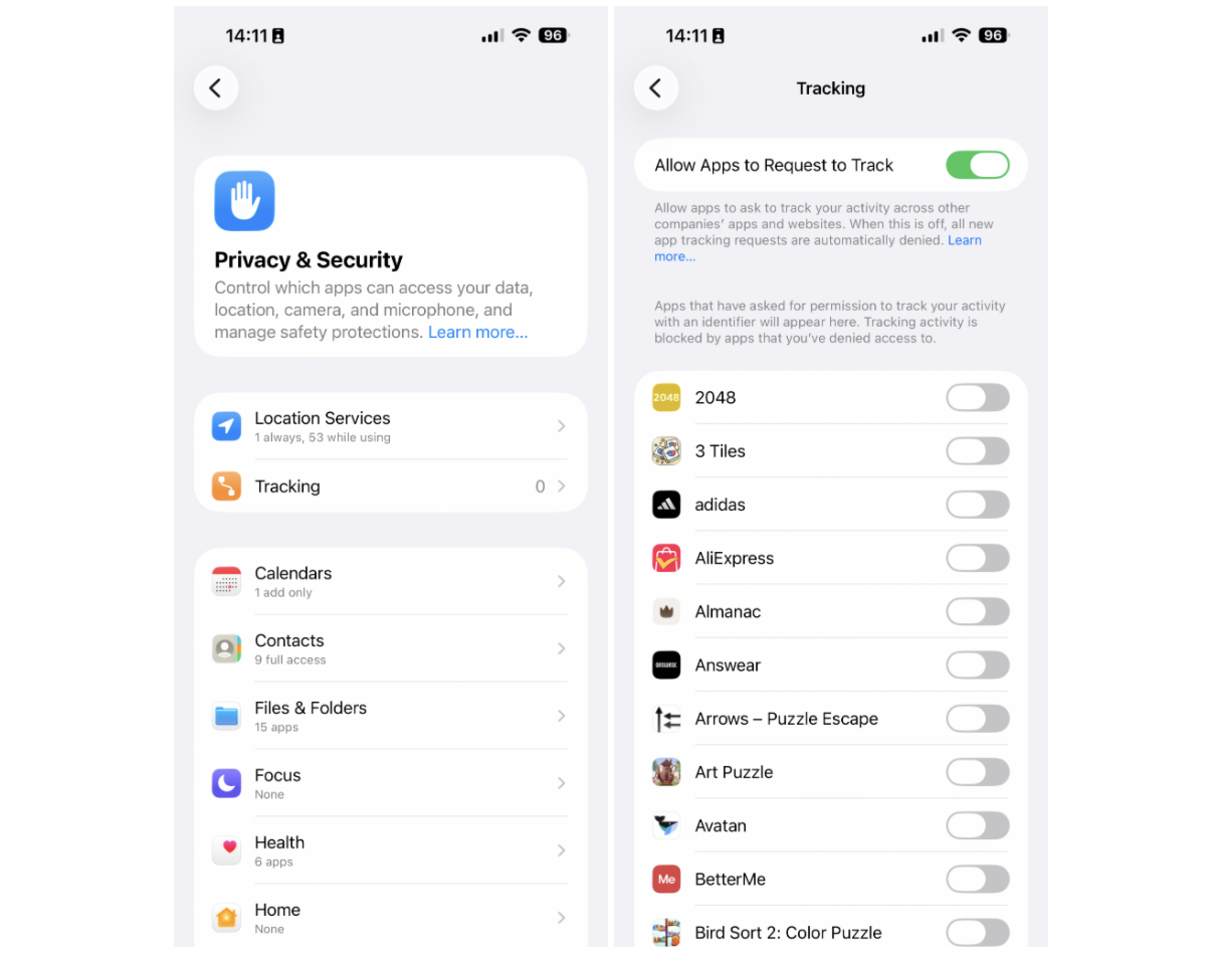
- Go to Privacy & Security > Tracking.
- Toggle off all of the apps that you don’t want to allow to track your activity across apps and websites.
If you want to enable tracking later, just toggle it on for the apps you’d like to grant this permission to.
You now know how to clean your iPhone cache and cookies. Just follow these steps from time to time to ensure your iPhone is always clutter- and glitch-free.