If you play Roblox on your Mac, you will know that most of the time it runs pretty smoothly. However, you'll also know that now and again it slows down or stutters. And when that happens, it can be frustrating and interfere with your gameplay. The solution is often to clear cache, just as you might on a web browser when it starts misbehaving. In this article, we'll show you how to clear Roblox cache on your Mac.
What is Roblox cache?
Like many apps that rely on connecting to remote servers, including web browsers, Roblox stores some files locally so it doesn't have to download them each time it needs them. Typically, cache includes the most frequently accessed assets in a game or app, such as graphics files. Storing these files locally speeds up gameplay in Roblox because pulling the files from cache is quicker than downloading them. However, sometimes cached files become corrupt, and that can cause problems for games and apps, such as slowing them down or causing them to crash.
Why clear Roblox cache on Mac?
The main reason for deleting Roblox cache on your Mac is that as it grows larger, it can cause problems when you play the game. For example, it might cause the game to slow down or become unstable. Deleting the cache will get rid of any corrupt files and force Roblox to download fresh copies of the assets it needs. Although this might make it run a little more slowly the first time you play it after deleting the cache, once the data is downloaded, it will go back to normal.
How to clear Roblox cache on your Mac
Like other apps, Roblox stores its cache deep inside your user Library folder. Here's how to delete it.
- Click on the Finder icon in the Dock.
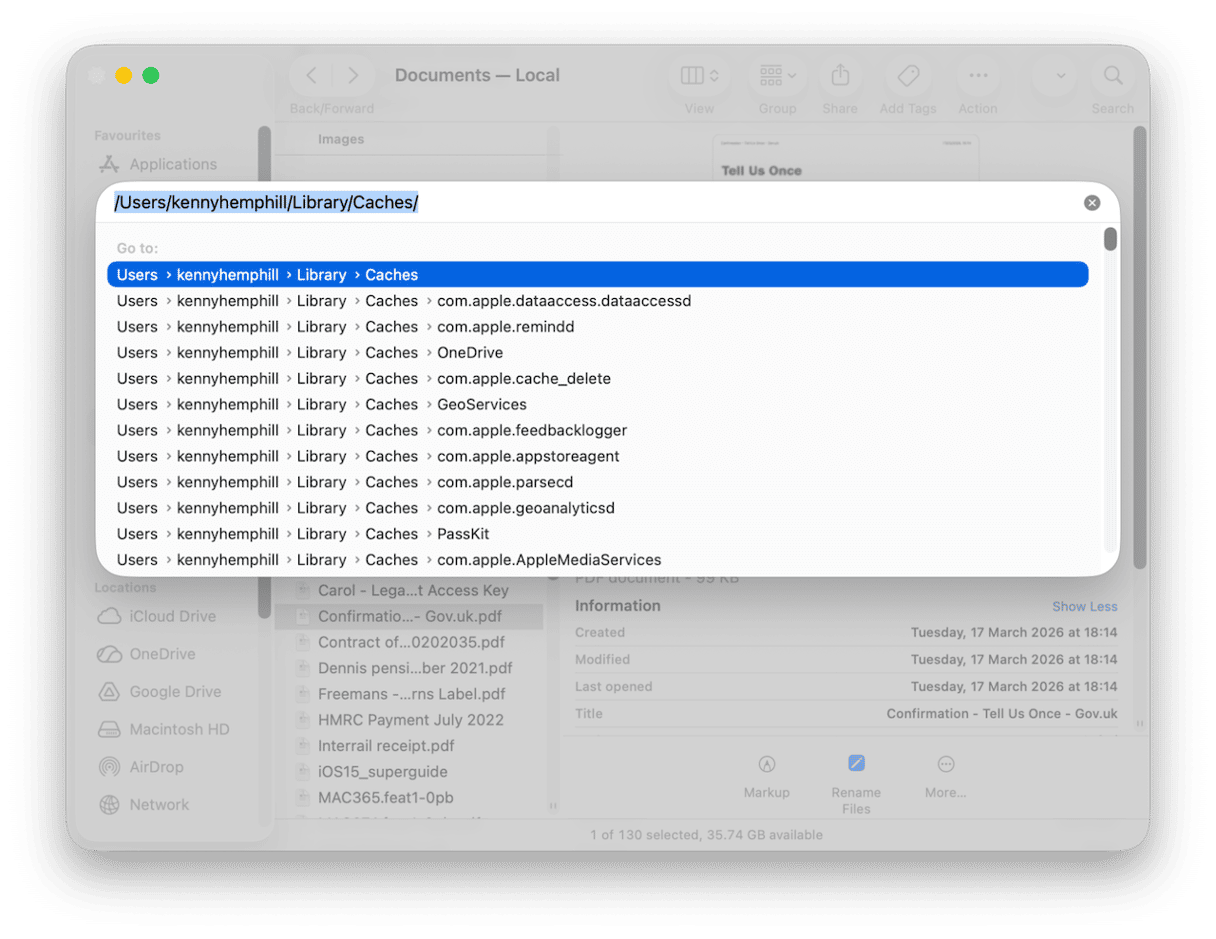
- Go to the Go menu and choose Go to Folder (or press Command-Shift-G).
- Paste this file path into the text box and press Return:
~/Library/Caches/ - Look for the Roblox folder and select it.
- Drag the contents of the Roblox folder to the Trash.
- Empty the Trash.
How to clear all cache on your Mac easily
As we've already mentioned, Roblox isn't the only app on your Mac that stores data in cache. Most apps and games do it, and web browsers are particularly notorious for hoarding data, sometimes several gigabytes' worth, in cache. When cache grows too large, it becomes unwieldy and prone to being corrupted. And that can slow down your Mac noticeably.
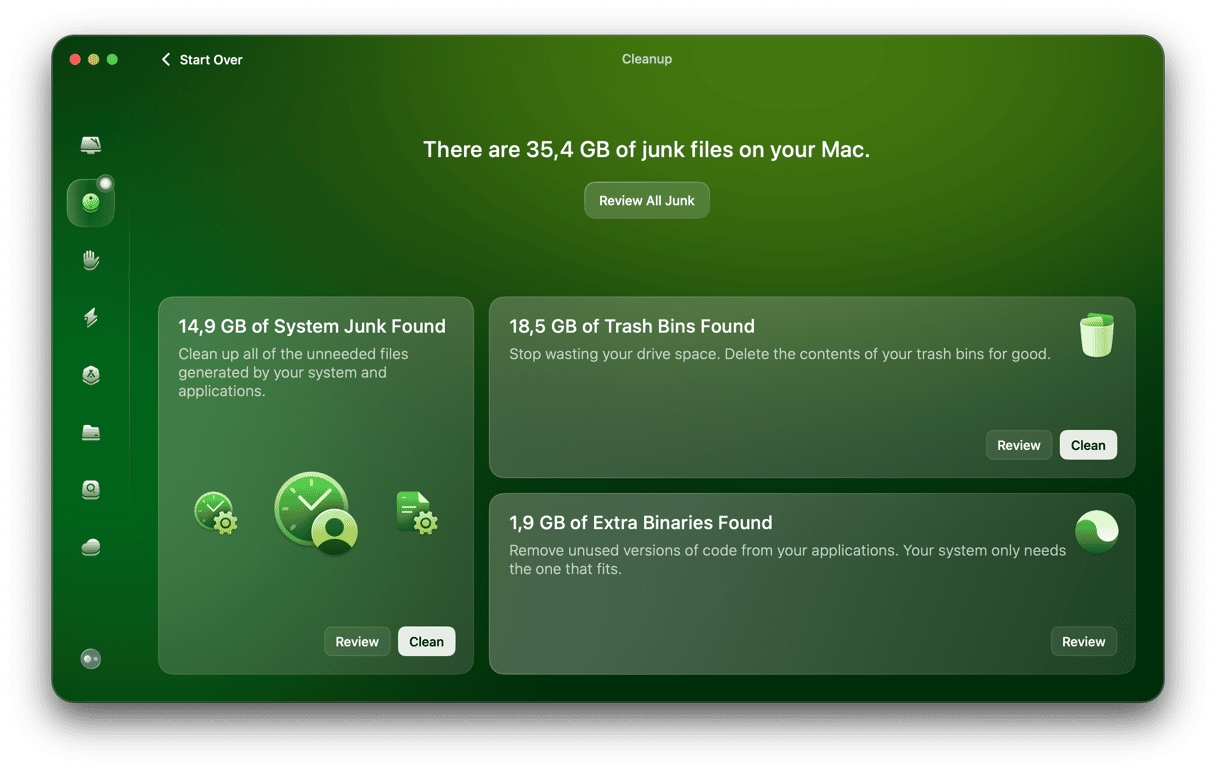
The solution is to clear out the cache regularly. But, as you can see above, doing that manually for every app would take a long time. Thankfully, you don't need to do it manually. CleanMyMac can do it for you. Its Cleanup feature scans your Mac looking for cache files, as well as unused application binaries, Trash Bins ready to empty, multiple versions of documents, and mail attachments you may not need. Once it's finished scanning, you can choose to delete everything with a click or review what it has found and decide for yourself what to do next.
- Get your free CleanMyMac trial — check out how it works for 7 days for free.
- Launch CleanMyMac and choose Cleanup in the sidebar.
- Press Scan.
- Choose Clean in each panel to delete everything in that category, or Review to see what it has found.
If you play Roblox on your Mac, it will download files it needs to access frequently and store them in a cache folder in your user Library folder so that it doesn't have to download them each time you play. Most of the time, that works well. However, if the cache grows too large or files become corrupted, it can cause Roblox to slow down or even become unstable. The solution is to clear out the cache and force Roblox to download a fresh copy of the files. Follow the steps above to clear Roblox cache on your Mac.
Frequently asked questions
What happens to my player profile and game progress when I delete Roblox cache?
Your profile and game data are saved separately from cache, so if you follow the instructions above, they won't be deleted.
Does clearing Roblox cache affect my in-game purchases?
No. Your in-game purchases are linked to your Roblox account, not stored locally in cache. Clearing cache will not affect anything you have bought or unlocked.
Can I clear Roblox cache without uninstalling the app?
Yes. The steps above delete only the cache files stored in your Library folder — the Roblox app itself remains installed and fully intact.
Can you play Roblox on the web?
No. You can access your Roblox account on the web and browse games, customize your avatar and chat, but when you play a game, it will launch the Roblox app on your Mac.
Should I delete Roblox cache regularly?
No. There is no need to delete cache regularly, and when you do, it slows down game play for a time until it has downloaded all the files it needs. So, only delete cache when Roblox is running slowly or crashing.