If you use the Discord app on your Mac, you may have noticed that it slows down or becomes unstable after a while. There are several possible reasons for this, but the most likely is that its cache has become unwieldy or corrupt. The solution is to delete the cache. In this article, we'll show you how to clear Discord cache on Mac and get the app working smoothly and quickly again.
What is Discord cache?
Like many other applications on your Mac, Discord connects to a remote server to access many of the resources it needs to run properly. This is separate from the connections Discord makes to send and receive messages or to stream. These resources may include graphics or user interface elements. By downloading them and storing them on your Mac, it removes the need to re-download them every time you use Discord. The cache itself is stored in a folder deep inside your Mac's user Library folder.
Why clear Discord cache?
Under normal circumstances, there is no need to delete cache files on your Mac. However, if an app, in this case Discord, starts to freeze or crash, or runs very slowly, deleting the cache may fix the problem. That's because cache files can become corrupt and start to conflict with other files on your Mac or simply become too big for the application to work with properly.
How to clear Discord cache on your Mac
There are a couple of different ways to clear Discord cache on your Mac. We'll show you both methods. The first is a manual process and involves a little bit of detective work tracking down files.
Manual cleanup
- Quit Discord if it's running.
- Select the Finder icon in the Dock.
- Click on the Go menu and choose Go to Folder.
- In the text box, paste the following path and press Return:
~/Library/Application Support/discord/ - Inside that Discord folder, you should see three more folders: Cache; Code Cache; and GPUCache. Drag all three to the Trash, or Cmd-click to select them, then right-click and choose Move to Trash.
- Empty the Trash.
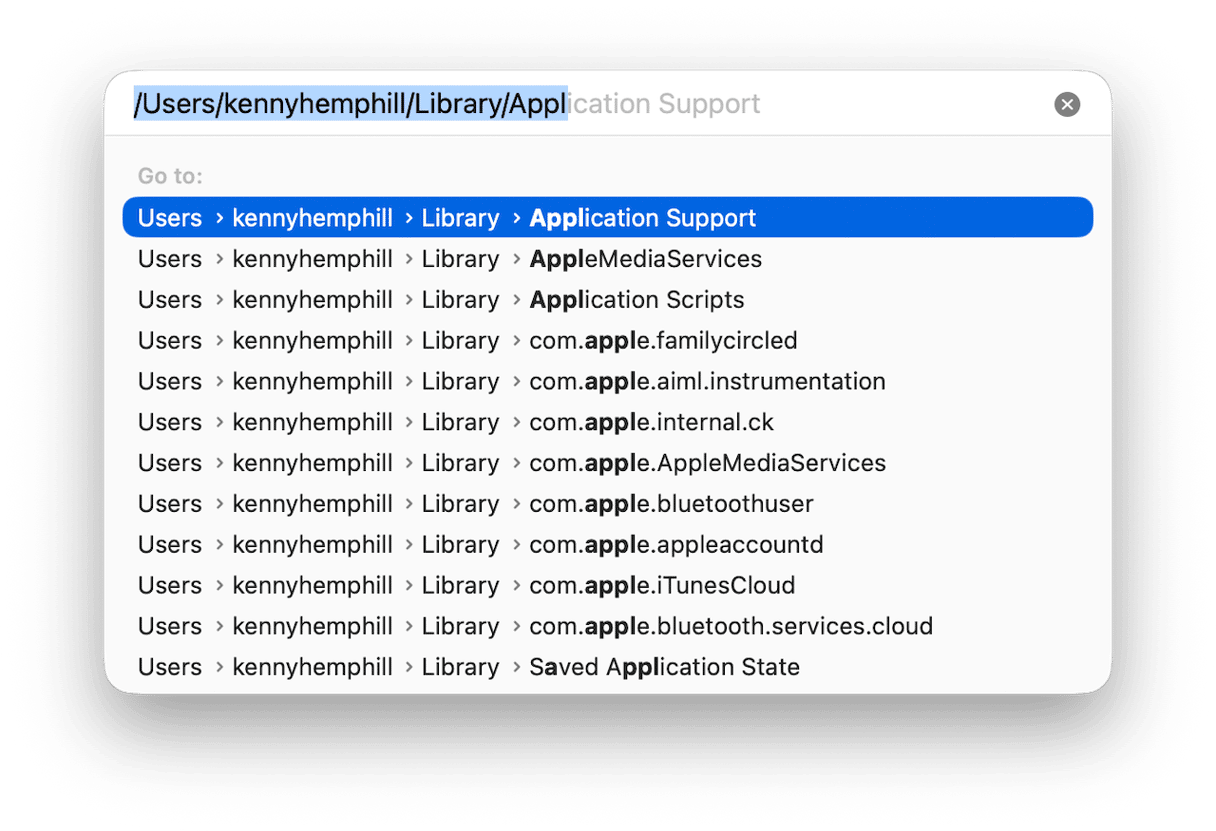
Once you've emptied the Trash, Discord's cache will be cleared, and the next time you use Discord, it will download fresh copies of the files it needs.
Automatic cleanup
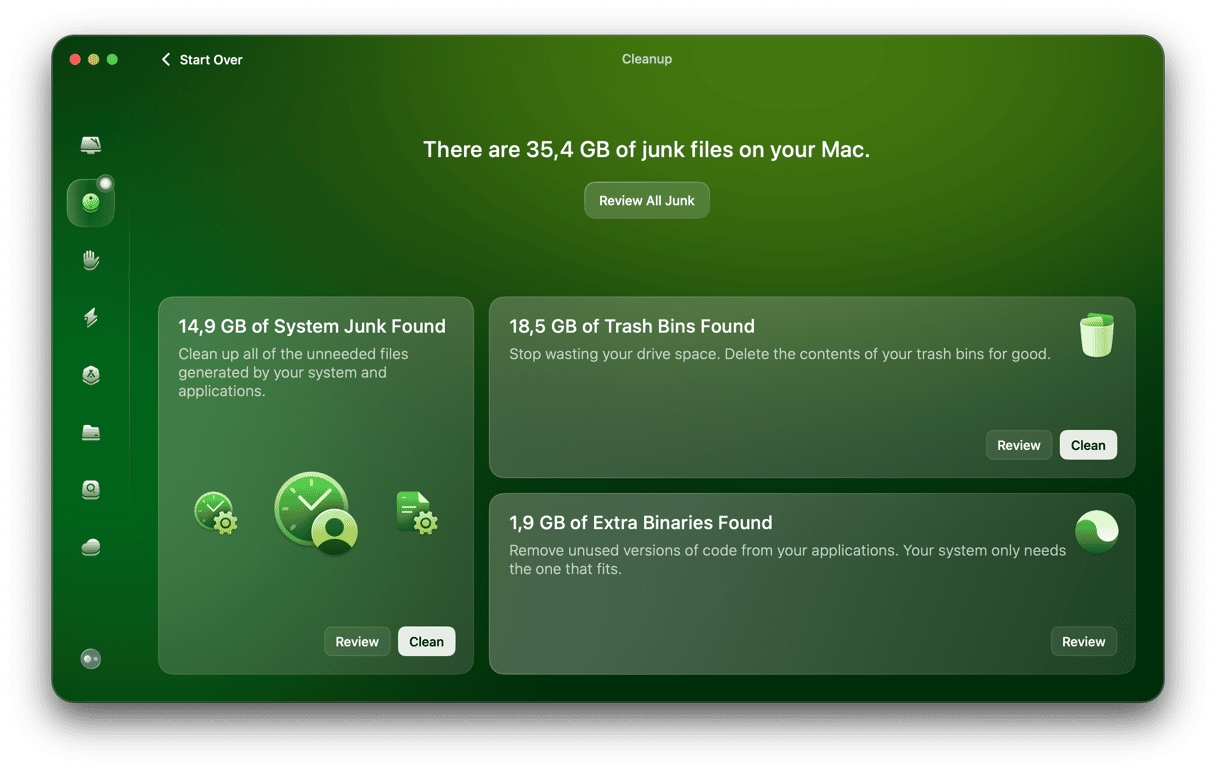
This method works for any app, not just Discord. It also allows you to free up gigabytes of disk space by deleting other files you don't need. As well as cache files, these files include log files that you'll probably never look at, language files for languages you don't use, application binaries you don't need, multiple versions of documents, and Mail attachments you can easily download from Apple's mail server if you ever need them. You could free up tens of gigabytes of space easily by deleting them. Best of all, by using the Cleanup manager in CleanMyMac, you can do it all with a few clicks. Here's how it works:
- Get your free CleanMyMac trial — check out how it works for 7 days for free.
- Open CleanMyMac and choose Cleanup in the sidebar.
- Click Scan.
- When it’s finished scanning, choose Clean in each panel to get rid of all the junk it has found, or Review to see its findings and decide for yourself what to do.
Bonus tip: How to clear Discord cache on your iPhone or iPad
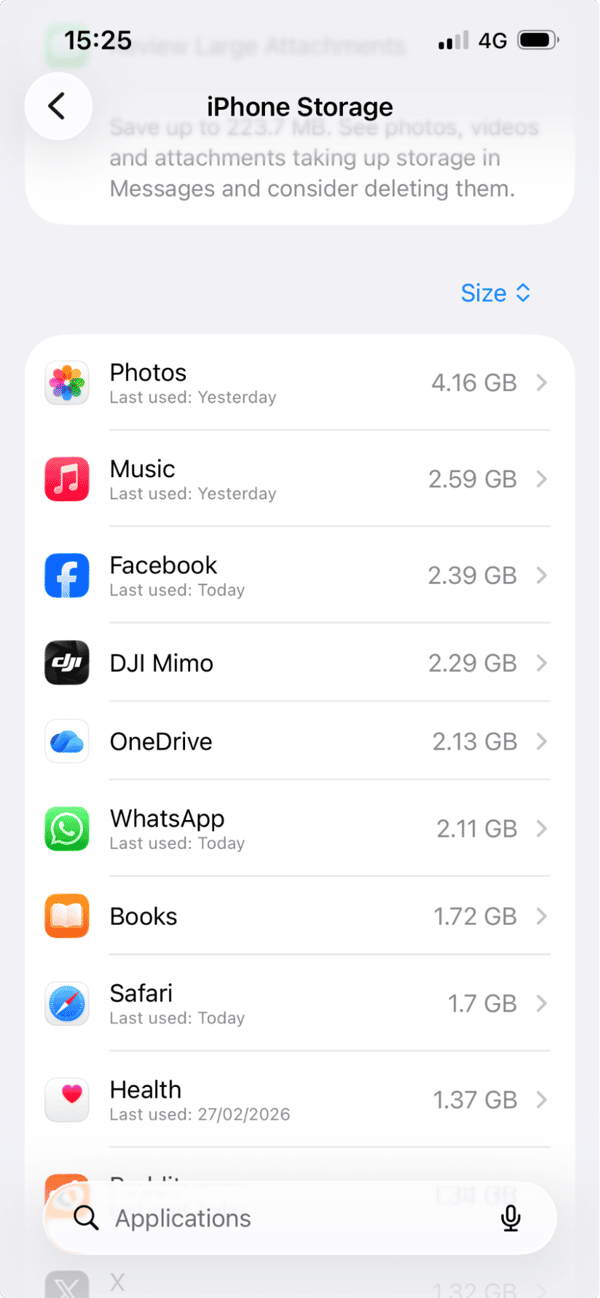
Sadly, there's no way to delete cache files in iOS or iPadOS. However, if you delete the Discord app from your device and then re-download it, you will achieve the same result — a fresh version of Discord with no cache.
- Tap on the Settings app.
- Go to General > iPhone (or iPad) Storage.
- Find Discord in the Applications section and tap it.
- Tap Delete App.
- Alternatively, you can tap and hold on Discord on the Home Screen and choose Remove App.
- Go to the App Store and search for Discord.
- Tap the cloud icon with a downward arrow coming from it to download it.
Once Discord has downloaded, you can open it and log in.
Discord should run quickly and smoothly on your Mac. If it doesn't, or if it crashes or glitches often, it could be that its cache has become corrupted or just too big. Cache files are temporary files that Discord downloads once so it can access them whenever you use the app without having to download them each time. Clearing the cache forces Discord to re-download the files and should fix problems with performance. Follow the steps above to clear Discord cache on Mac.
Frequently asked questions
What are the benefits of Discord cache?
Caching files means that the app loads faster because it doesn't have to download resources from a remote server. It also reduces bandwidth load on your wifi network and broadband. And it allows the app to run more quickly than it would if it had to download everything it needs each time.
Does Discord cache data if I only use it on the web?
Yes, but instead of storing it in a Discord folder in your user Library folder, it stores it in your web browser's cache, just like other websites you visit. To remove that cache, you would follow the steps for clearing browser cache. In Safari, for example, you would go to Safari Settings > Privacy and choose Manage Website Data. Then search for Discord, select it, and choose Remove.
Will I lose messages, servers, or account data when I delete the cache?
No, all your account details, including your messages, profile settings, and servers you've added are stored separately. They won't be affected when you delete Discord cache on your Mac. On iPhone or iPad, they will be available when you log in to your account after re-downloading the app.