Google provides every account with 15 GB of free storage, shared between Drive and Photos. That 15 GB covers all the photos, files, and — crucially — emails and attachments you store with Google apps. If you’ve been using Gmail for several years, and even if you don’t use Photos or store files in Drive, that 15 GB can fill up quickly. The solution is to delete old emails and free up space. But how to do it quickly? In this article, we’ll show you how to delete old emails in Gmail using the fastest methods for getting rid of them in bulk.
The key is Google’s search operators. These allow you to perform powerful searches in Gmail and quickly identify old emails you can safely delete.
How to delete old emails in Gmail quickly
Desktop
- Open your Gmail inbox in a new browser tab.
- Gmail’s search operators allow you to quickly identify messages that meet specific criteria. Choose one of those listed in the table below to identify messages to delete.
Search Operator | What it finds |
older_than:1y | All emails older than 1 year (also: 6m, 90d, 2y, etc.) |
before:2023/01/01 | All emails received before January 1, 2023 |
older_than:1y larger:5M | Old emails with attachments over 5 MB — biggest storage wins |
from:[email protected] before:2024/01/01 | Old emails from one specific sender |
category:promotions older_than:1y | Old promotional emails only |
3. Type or paste the search operator into the search box and press Return. You will see a list of messages that meet the criteria.
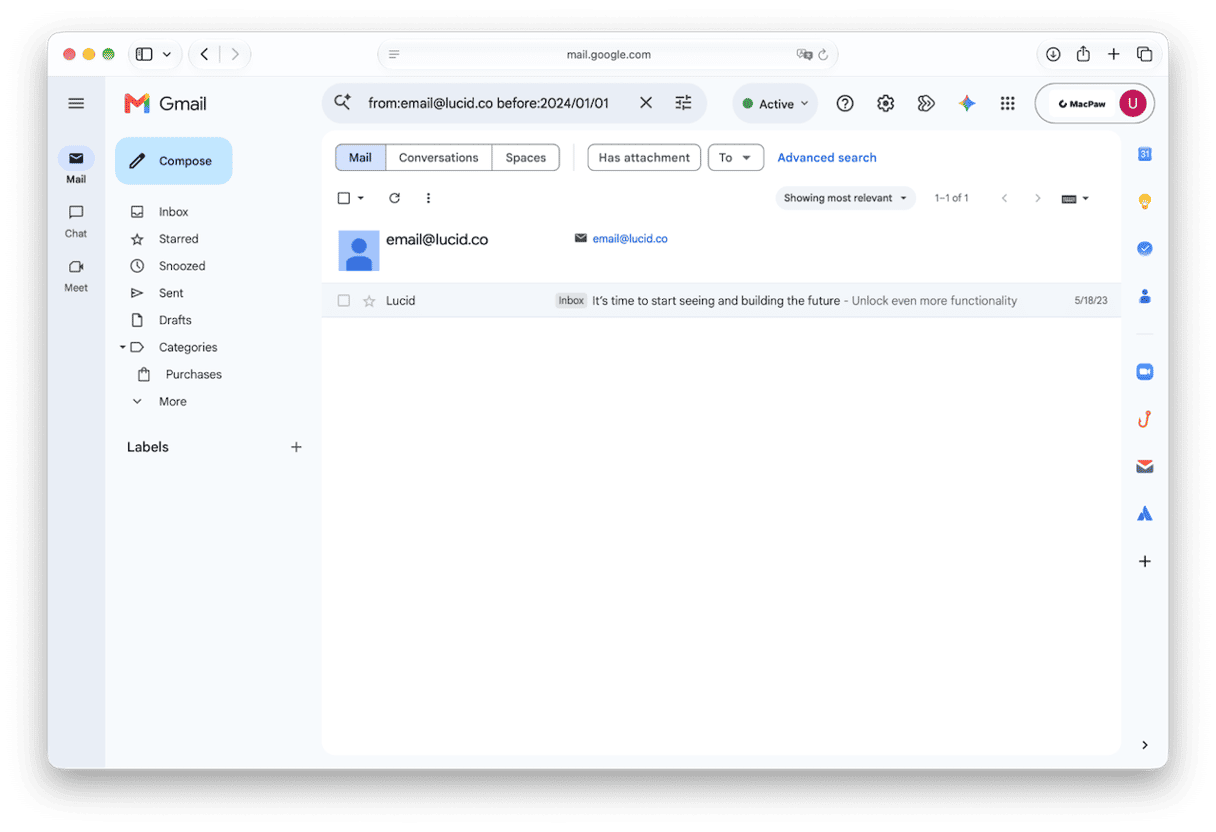
4. Check the box at the very top, above the list of messages, to select everything. Then, to select all messages that meet the criteria, rather than just those that are visible, click ‘Select all conversations that match this search’.
5. Click the Trash can to delete the messages, then click More > Trash and Empty Trash Now.
Alternative to manual cleanup
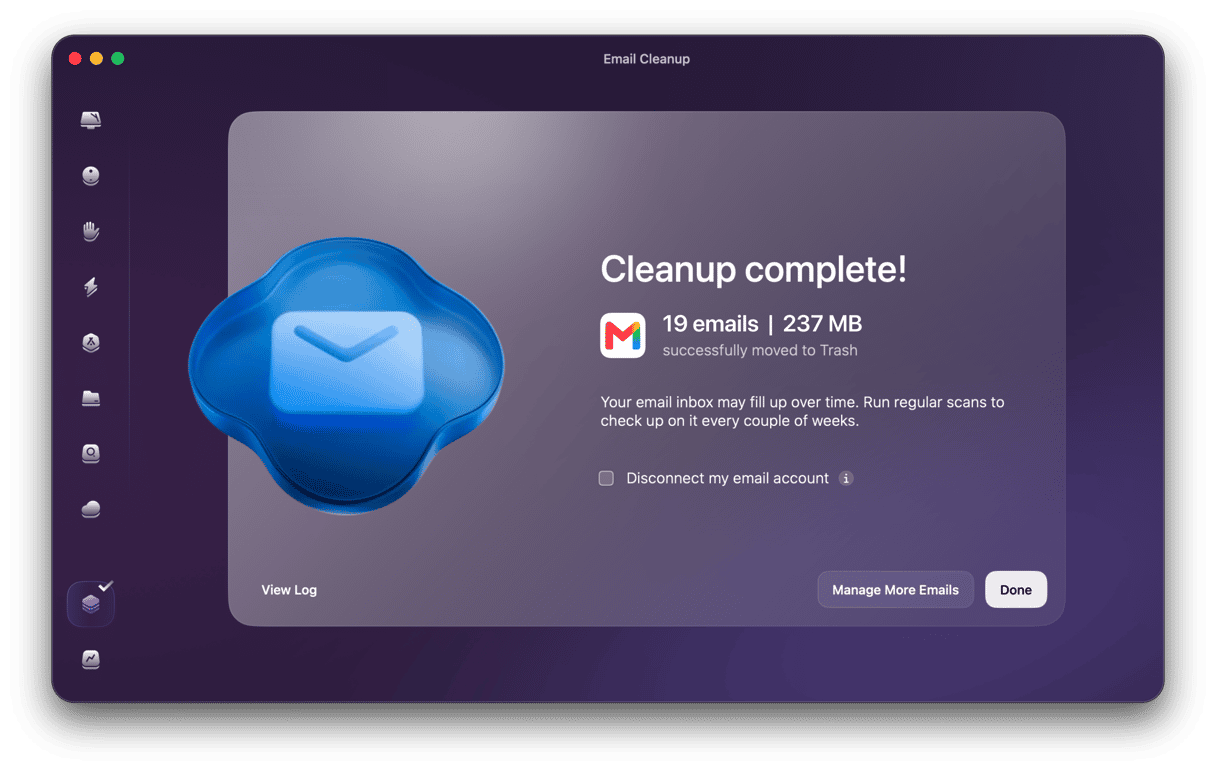
If you do not want to play around with different search criteria, we recommend checking out Email Cleanup in CleanMyMac’s My Tools. It scans your connected email for all kinds of clutter: old promotions, offers, spam, and drafts, so that you can delete them quickly. It also lets you unsubscribe from newsletters and promos. With its help, you can reclaim space in the 15 GB you share across Gmail, Google Drive, and Google Photos.
Here’s how it works:
- Open CleanMyMac — get your free trial here.
- Choose Tools > Email Cleanup > Connect Gmail > Continue. Follow the instructions to allow CleanMyMac to access your account.
- Choose Scan and wait for it to finish – you can also choose Review Now to review results as it continues scanning in the background.
- Browse the results.
- Select senders or individual emails to remove and confirm you want to proceed.
iPhone and Android
The same search operators that allow you to identify messages in Gmail on the web work in the mobile app.
- Open the Gmail app on your iPhone or Android device.
- Tap in the search box and type or paste the search criteria you want to use. Tap Return.
- Tap and hold on any message, then choose Select All.
- Choose the Trash can to delete selected messages.
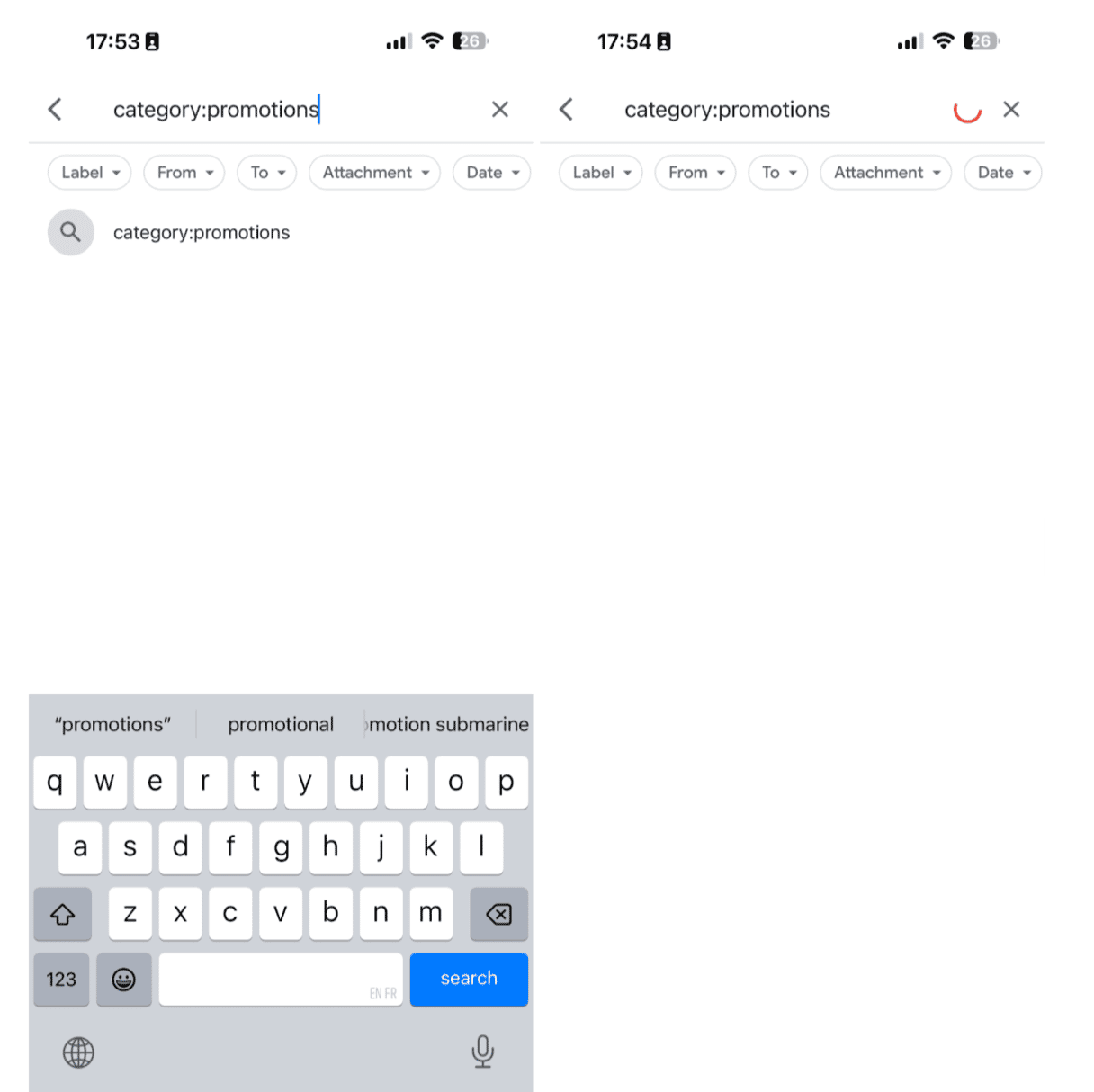
The Gmail app doesn’t have the option to select all conversations that match the search, so if you want to delete messages in bulk, it’s better to use the desktop web version.
How to automatically delete emails in Gmail
Gmail cannot automatically delete old emails, but you can use Gmail filters to automatically remove incoming emails before they touch your inbox. This is useful if unsubscribing doesn’t work.
- Click the search options button (it’s to the right of the search box)
- Type in the details of the emails you want to trash immediately, for example, the sender address or subject line. You don’t have to fill in all the boxes. And you can use the OR operator to include more than one item in each section.
- Choose Create Filter.
- Check the box next to the option for deleting the message.
- Click Create Filter.
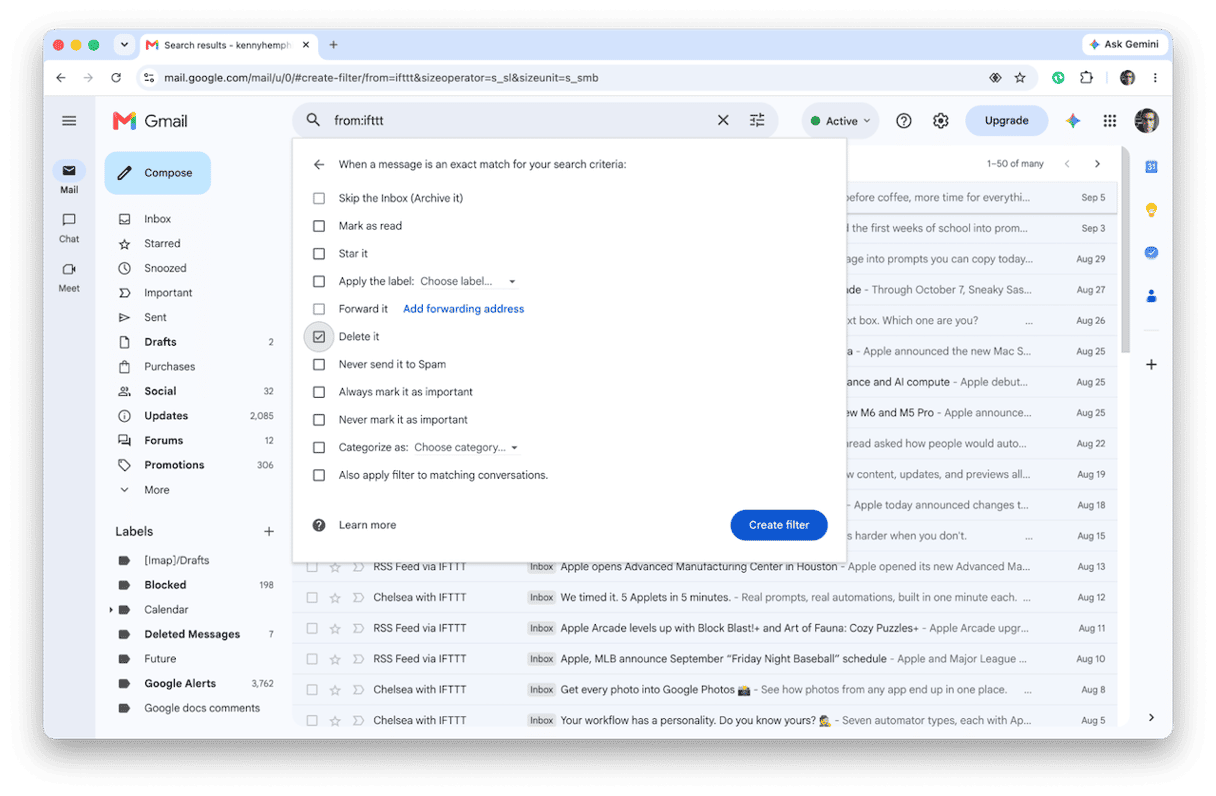
While the filter is active, any email that comes in and meets the criteria will immediately be deleted.
While this method only works for incoming emails, if you have administrator privileges for a Google Workspace account, you can configure retention policies to automatically delete emails once they reach a certain age.
Bonus: Free up Mac storage after deleting old emails
Deleting emails in Gmail gets rid of them from your inbox and frees up storage space in your Google allowance. But every attachment that arrived with those emails is still sitting in cache on your Mac.
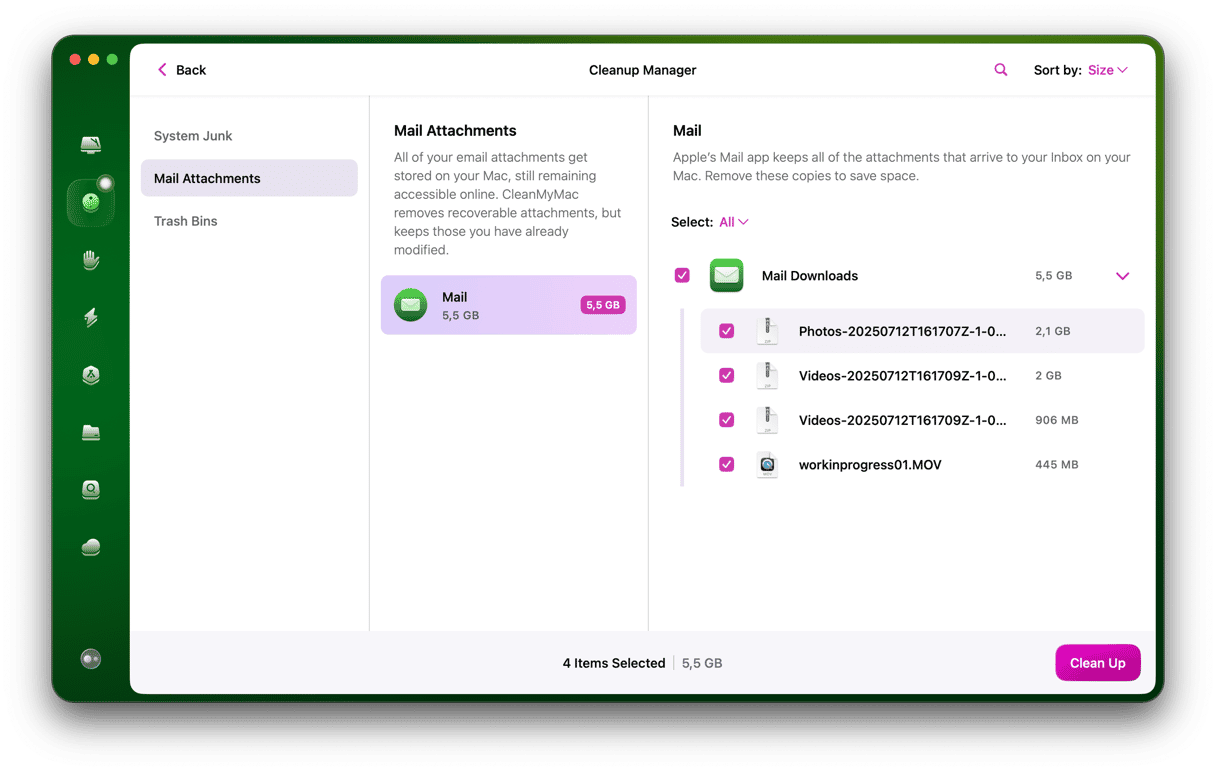
In addition, if you use Apple Mail to manage your Gmail account, it stores every attachment on your Mac, including PDFs, images, zip files, logos, and signatures. After a few years, this leads to gigabytes of cached files on your hard drive that Gmail’s delete button never touches.
CleanMyMac’s Cleanup scans for and removes all of this locally cached data in one scan. Here’s how to use it.
- Start your free CleanMyMac trial — you can test it for 7 days.
- Open the app and click Cleanup > Scan > Review All Junk.
- Go to the Mail Attachments category and remove attachments.
If you want to delete old emails in Gmail quickly and in bulk, Google’s search operators allow you to quickly identify messages that meet the criteria you specify, such as ‘older than a year’, and then select them all for deletion. However, deleting emails is only part of the story. To free up space on your Mac, you also need to delete attachments. And CleanMyMac’s Cleanup allows you to do that easily.
Frequently asked questions
Does deleting old emails in Gmail free up storage?
Yes, getting rid of emails in Gmail will free up some space.
Can I recover deleted emails in Gmail after they’re gone?
You can recover deleted emails if they are still in the Trash. But once you empty the Trash, they are gone for good.
How do I delete emails older than a specific date in Gmail?
You can use the search operator ‘older_than:x’ where ‘x’ is the time period. So, for emails older than a year, it would be ‘older_than:1y’. When you press Return, you’ll see a list of emails that meet that criteria. You can then select them all and delete them.
Why is Gmail still saying my storage is full after I deleted emails?
Email messages themselves don’t take up a great deal of space, so if you only delete a few hundred, it won’t free up much space. Attachments take up much more space, so to free up significant amounts of space, you need to delete those. And Trash also counts toward this space until you empty it.