

With Macs hitting ~16% market share, they have become increasingly attractive for widespread malware attacks. Spyware is one such type of threat known to affect both Intel-based and Apple silicon MacBooks. But what to look for to find spyware on Mac? Keep on reading, and we’ll outline the signs of spyware as well as how to remove it either manually or with the help of Mac spyware removal software. Let’s dive in!
What is spyware?
Spyware is malicious code that finds its way onto your computer and then sucks up personal data — that could be personal information about you, financial details, keystrokes, web browsing habits, or even images from your webcam. The main threat associated with spyware is that it usually works in the background, meaning that it can remain unnoticed for a long time.
Luckily, today, you’ll learn to remove spyware and take additional precautions to boost your safety and security.
How is spyware installed?
Spyware mainly installs itself if you click a link in a phishing email or on a suspicious website. It may also sneak onto your Mac in the form of a legit app when you download it from a freeware website instead of doing it directly from a developer. In some cases, someone who has physical access to your Mac can install spyware, too.
How to detect spyware on Mac
The answer to that “how to find spyware on Mac” question is the same way you would know that you got sick — observation and system monitoring. You can easily detect spyware on your computer with noticeable performance changes. Macs polluted with spyware are slower, drain a battery faster, and tend to overheat. There are as well other signs that may hint at spyware infection:
- Noticing new preferences, toolbars, and extensions installed without your knowledge
- Finding out that the homepage and default search engine were changed or seeing toolbars appear in a browser
- Being bombarded with pop-ups and adverts
- Seeing a black command line screen at the startup
- Noticing unexplained spikes in resource usage (e.g., CPU and bandwidth) — you can use a built-in Activity Monitor for monitoring resources
- Not being able to log in to a secure website using your password manager — being asked to enter your credentials instead of autofill
- Seeing webcam light on when you’re not using it or seeing a yellow icon indicating that the microphone is in use when it should not be
- Finding user profiles you’ve never created
- Noticing suspicious browser activity (e.g., websites you’ve never visited appearing in your browser history)
- Realizing that your security software has been disabled — some spyware can do that
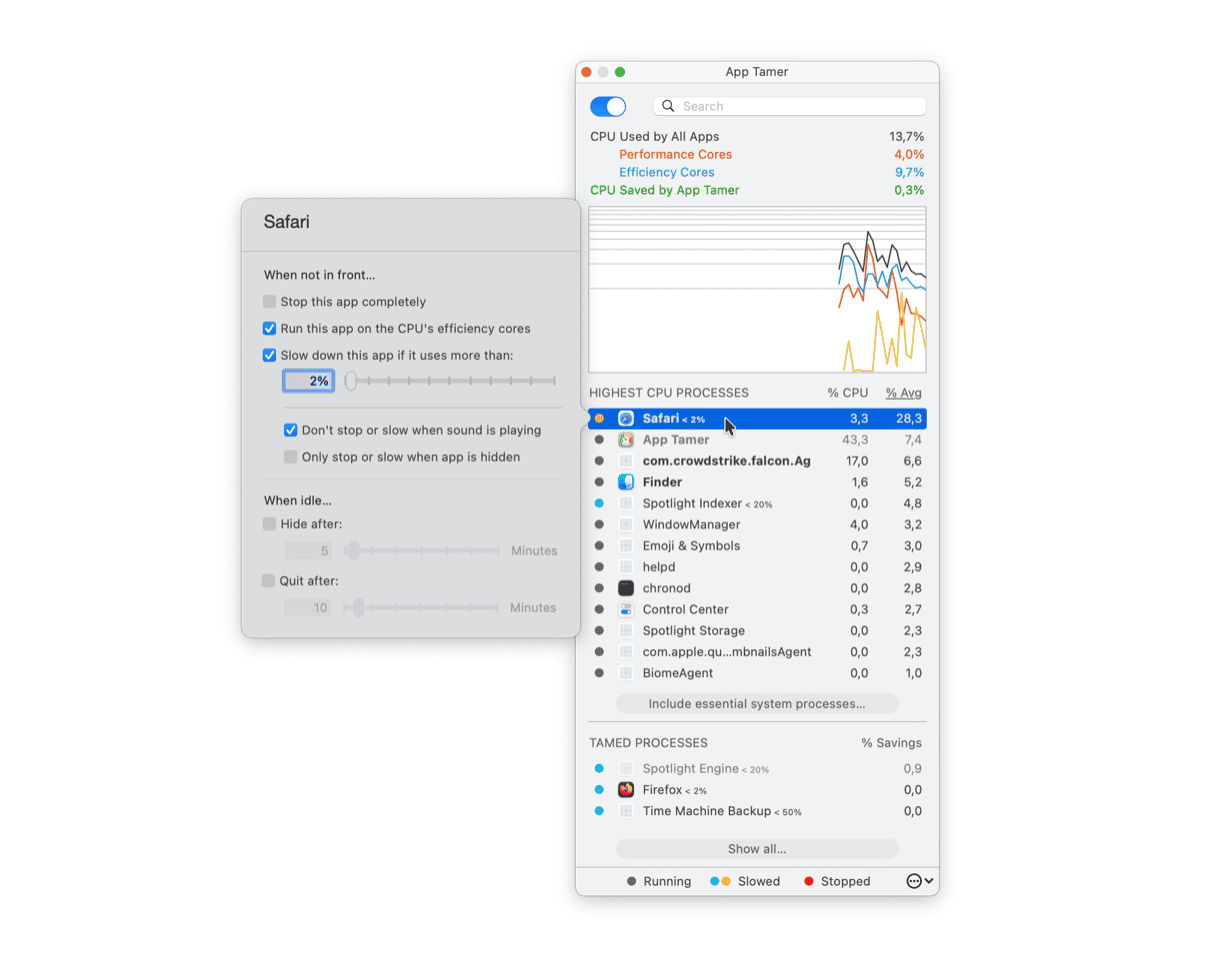
If you notice any of these dysfunctions, check what’s taking up all your CPU. Use App Tamer for that. It’s an advanced CPU monitoring solution for Mac. App Tamer allows you to track processes and put caps on any app, forcefully slowing it down to avoid system paralysis.
Here’s how you can set limits in App Tamer:
- Open App Tamer.
- Click the app you want to limit.
- Check “Slow down this app if it uses more than:”
- Type in the desired %.
How to get rid of spyware on Mac
Thankfully, while spyware is very annoying and potentially damaging, it’s usually not too difficult to remove. The easiest way to do it is to use a trusted cleaner tool to scan for spyware, and we’ll introduce our absolute favorite below.
Scan Mac with CleanMyMac — Mac spyware remover
Use a dedicated tool like CleanMyMac to find, neutralize, and delete spyware on your Mac. Although not an antimalware app per se, it can detect Mac-specific threats and lets you remove them with a click. Powered by the Moonlock Engine, it helps users detect, on average, 1 malware after the first scan.
When you scan your system with CleanMyMac, this spyware finder instantly removes malware threats (ransomware, worms, cryptocurrency miners, and spyware). Therefore, you can rest assured that your Mac has a professional bodyguard.
Here’s how to check for spyware on Mac with CleanMyMac:
- Start your free CleanMyMac trial.
- Go to Protection and run a scan.
- Click Remove.
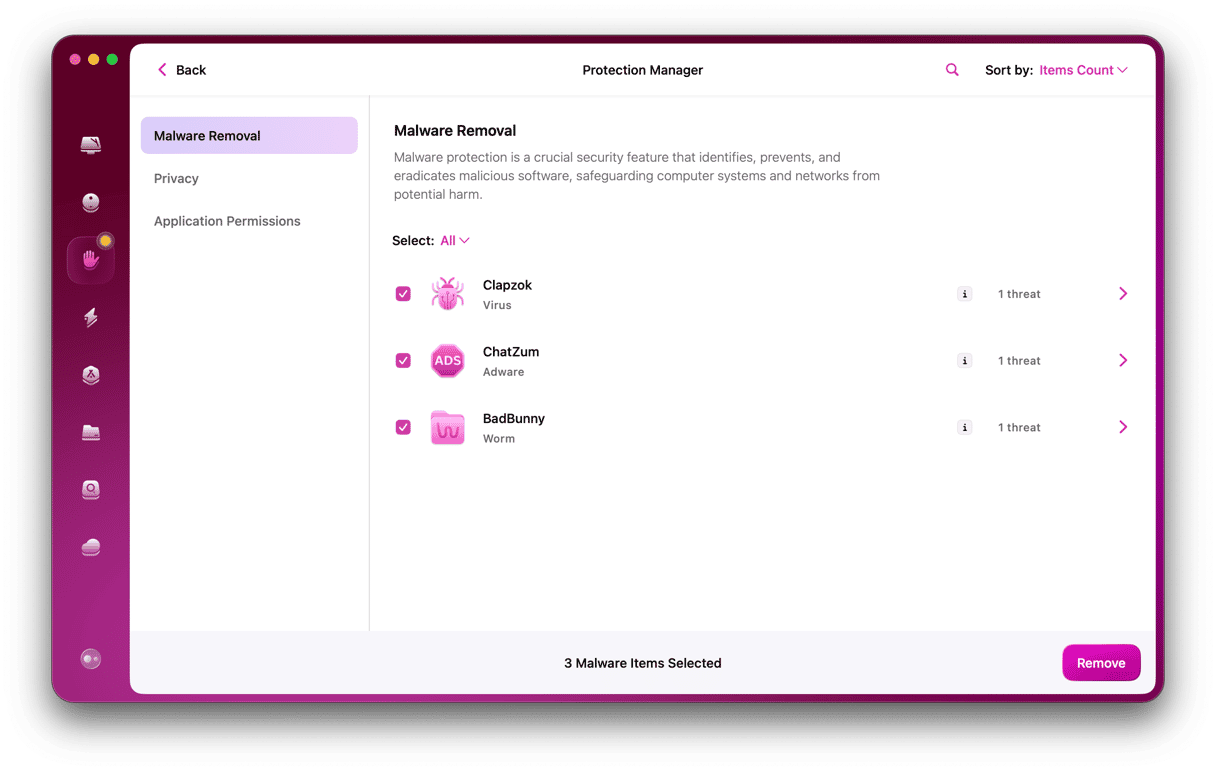
CleanMyMac’s Protection feature is a perfect spyware remover. However, the app can do a lot more for spyware protection. Checking your Mac in real-time, CleanMyMac notifies you when there is a risk of spyware infecting your machine. It monitors Launch Agents and other places on your Mac for any unauthorized presence. That’s a bit like a gatekeeper.
How to prevent spyware on Mac
There are several tips that can help keep spyware away from your Mac.
1. Update your Mac to the latest version
Every new macOS version comes with additional security patches, which can be more effective in terms of protecting your Mac. That is why keeping OS up to date is vital. Luckily, it’s easy enough:
- Go to System Settings.
- Click General > Software Update. If you’re not running the latest macOS version, you’ll see a software update waiting to be installed. Click Update and follow the instructions.
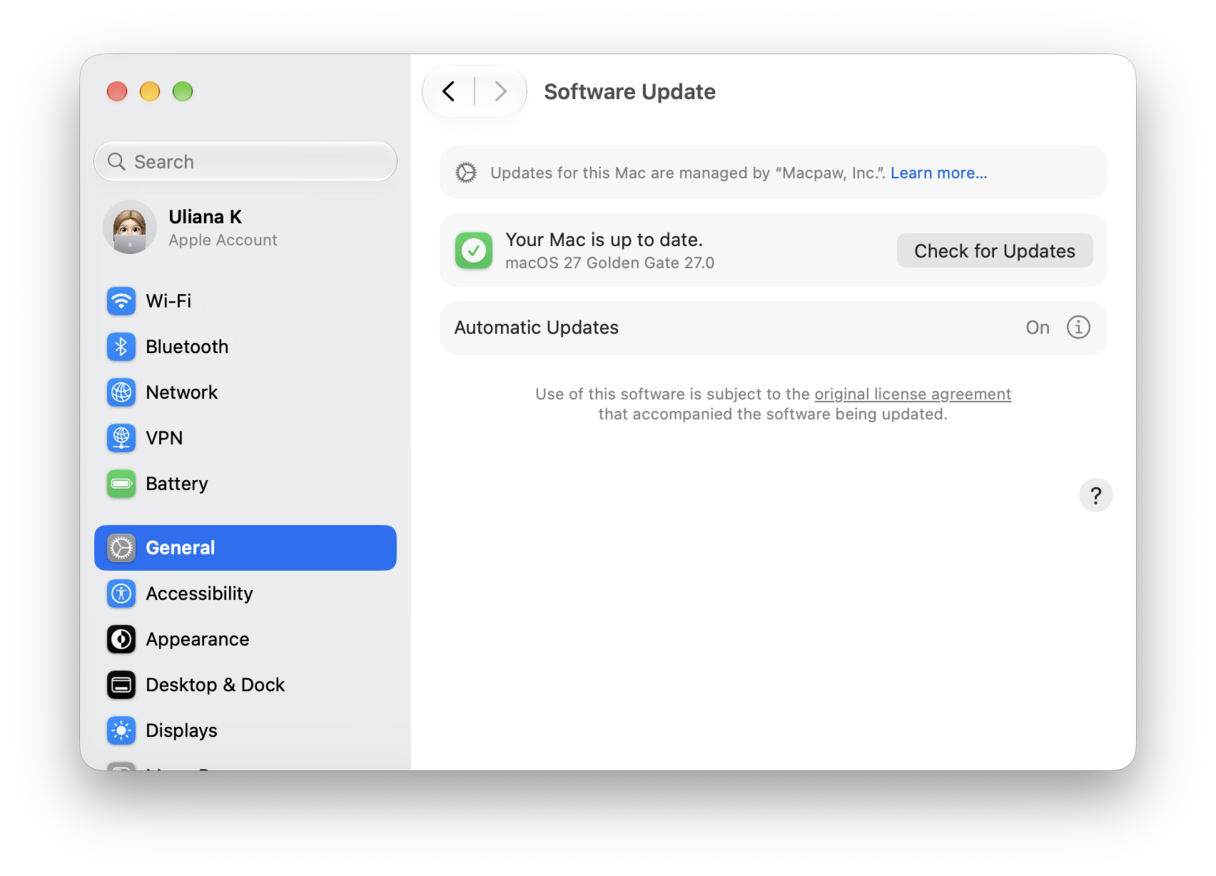
It is highly recommended to turn on Automatic updates. This way, you will have all of the latest security patches installed soon after their release.
2. Check your Applications folder
Go to the Applications folder on your Mac and look for apps you don’t recognize. If you see any, you should uninstall them. However, don’t just drag them to the Trash. That won’t uninstall them properly and will leave potentially harmful files behind. Instead, use an app like CleanMyMac to uninstall them.
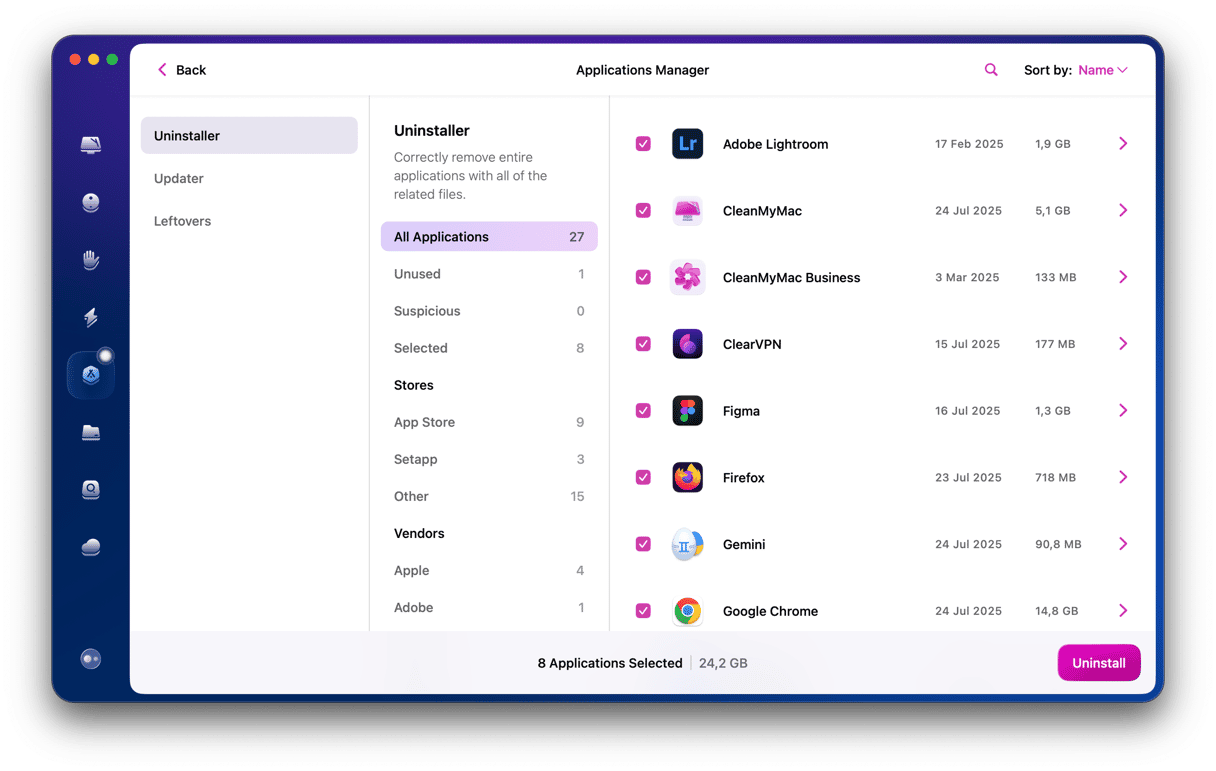
CleanMyMac uninstalls applications completely, removing all traces of them from your Mac. Get your free CleanMyMac trial. Once you’ve downloaded and installed it, do the following:
- Open CleanMyMac.
- Go to Applications and run a quick scan.
- Click Manage My Applications.
- Scroll through the list of apps and select the box next to the one you’d like to remove.
- Click Uninstall.
3. Get rid of browser extensions you don’t need
Some spyware is installed in the form of browser extensions. These microprograms run alongside web browsers and provide additional features. They can be handy, but they can also be troublesome if installed without your knowledge or permission.
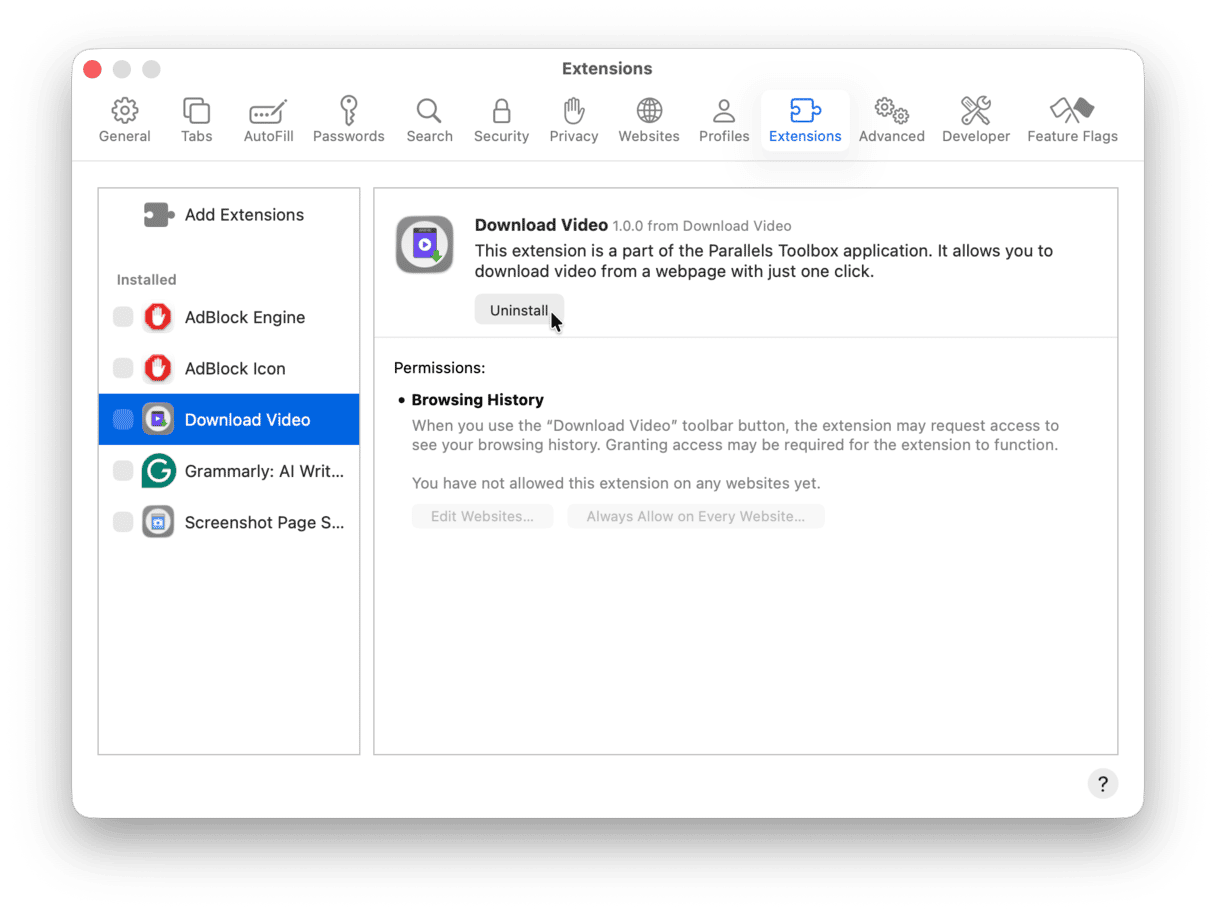
Here’s how to get rid of spyware by removing Safari extensions you didn’t install or don’t need:
- Open Safari.
- Click the Safari menu and choose Settings.
- Click the Extensions tab and look through the list of extensions. If you see one you didn’t install or don’t want, click on it and hit the Uninstall button.
- Repeat for every extension you want to uninstall.
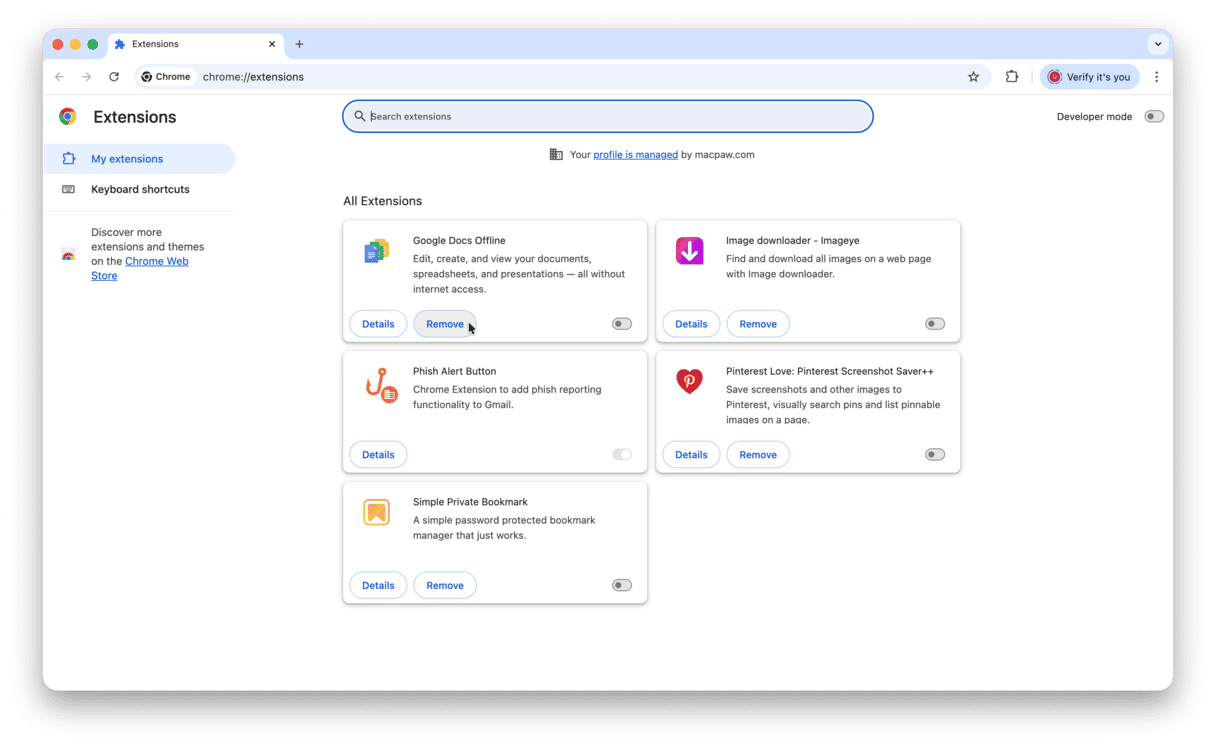
The process is similar for Chrome:
- Enter this
chrome://extensions/into the search bar and press Return. - Review your extensions.
- Click Remove to delete those you don’t need.
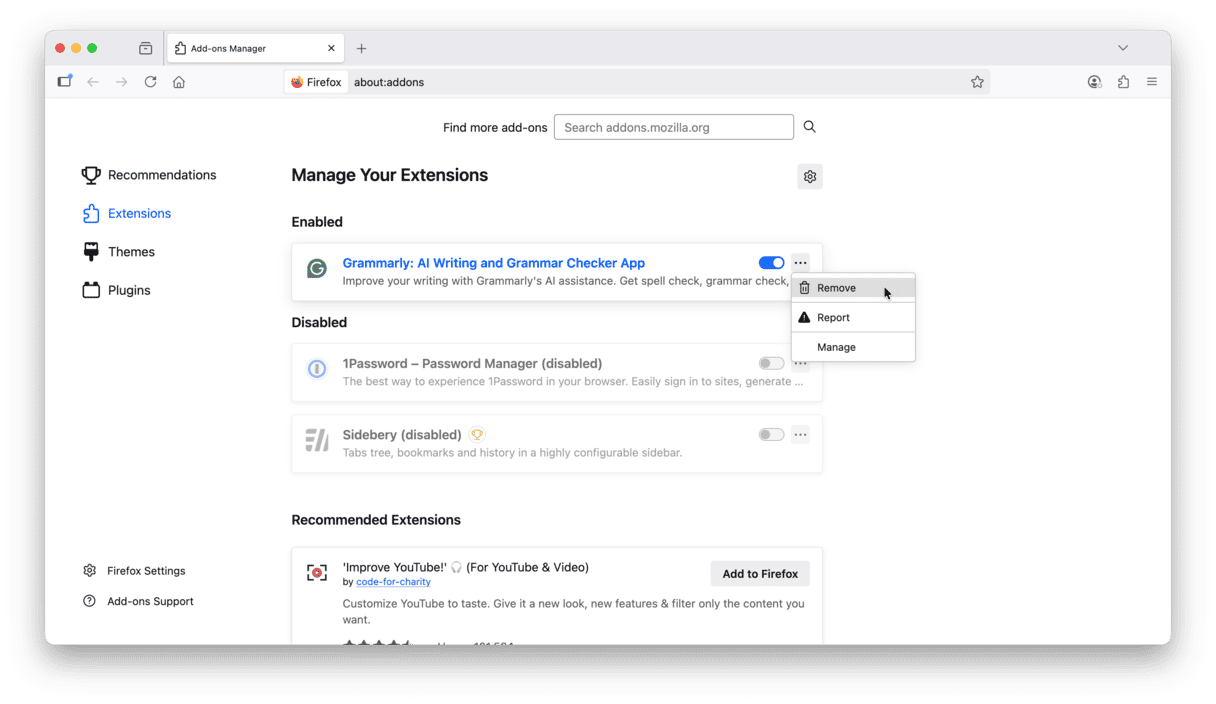
If you prefer Firefox, follow these steps:
- Open Firefox and click three horizontal lines.
- Go to Add-ons and themes > Extensions.
- Next to the extension you don’t recognize, click ... > Remove.
The last resort is to restore from a backup, either Time Machine or a third-party backup tool. Assuming you’ve been running a regular backup schedule, you can choose a snapshot from just before you noticed the spyware and restore from that. You should copy any documents you created or updated since the snapshot to another storage drive or online service first.
How to remove spyware from Mac: Best spyware removal tools
Proper malware scans require access to sensitive data stored on your Mac. That’s why we don’t recommend using free tools for that purpose. Because if they are free, there is no one responsible and no way of knowing they don’t contain any spyware themselves.
So, we recommend that you go with legit scanners like CleanMyMac to deal with malware threats, add monitoring performance and CPU processes with App Tamer to your routine, and use ClearVPN to hide your web traffic and Step Two to enable 2FA codes.
Spyware sounds scary, and it can potentially damage you and your Mac. However, spyware removal is not that troublesome to perform in most cases. If you stick to our tips, it’s like a walk in the park.
Frequently asked questions
What are the main types of spyware?
There are several main types of spyware. The most common ones are adware designed to collect user information and generate adverts or pop-up windows based on it, Trojans that look like legitimate apps, keyloggers aimed at tracking keys that are pressed and stealing personal data, remote control software serving as a backdoor for other malware, and different tracking apps like screen scrapers or cookie trackers.
Can Macs get spyware?
Although more secure than other operating systems, macOS is not bulletproof or 100% malware-protected. In fact, plenty of malware attacks have been made on various scales in recent years. Therefore, Macs can get spyware, and it is why knowing how to get rid of spyware is crucial.
What about iOS? Can it get spyware?
Like Macs, iOS can be infected with spyware. The cases are rare, but it is still possible. Spyware can be installed on iPhone or iPad either physically (when someone has access to your device) or remotely (via a malicious app). It may happen due to security flaws in iOS.
Does factory reset remove malware from Mac?
Yes, factory reset deletes all content and settings, and so it also removes any malware. However, it should only be a last-resort solution, especially if you do not have a recent backup to recover your Mac from. In most instances, using a dedicated malware remover will help you get rid of any malware that has sneaked onto your Mac.
Can I remove spyware manually?
You can try to, but it does not always ensure 100% deletion. To delete spyware, quit suspicious processes in Activity Monitor, uninstall apps you do not recognize, and remove browser extensions and login items and background extensions you do not remember installing and enabling. Empty Trash and restart your Mac afterward. But be informed that running a scan with a trusted antimalware software is more effective.
Does Mac have built-in virus protection?
Macs come with basic virus protection. It is based on XProtect, Gatekeeper, and app notarization process and updates with each new macOS version (even with minor updates). However, it is not enough to keep your Mac safe from threats since Apple is not a security company.
Can malware hide from antivirus?
Yes, some malware can hide from antivirus. Therefore, if you suspect that your Mac is infected and your antimalware tool detects nothing, try another trusted malware cleaner.



