Curious about error 640 on Mac? If you’re unable to expand when you try to unzip a file or Archive Utility quits with that number, then you might be wondering what is going on. Well, first up, the good news, it’s not a scary system failure. It is Archive Utility’s way of saying, “I cannot read this archive as given.” I’ve put together all the tips you need to solve it. So let’s get started.
What is error 640 Mac?
In plain English, the error 640 Mac appears when your macOS tries to extract a compressed file and hits something it cannot handle. That might be a corrupt ZIP, an incomplete download, a password-protected archive that the utility cannot open, a file that is not really a ZIP despite its .zip extension, or a storage issue, such as no permission to write the destination. Archive Utility throws the number and stops.
A few things it is not. It is not a virus warning. It is not a sign that your drive is dying all by itself. It is a read or write problem tied to the specific archive or where you are opening it.
Causes of the error 640 Mac unzip
From all my testing and reader reports, the same themes keep coming up:
- Incomplete or corrupt download. The server dropped partway through, leaving a partial file that looks fine until expand time.
- Wrong file type or mislabeled extension. A RAR or 7z named .zip will confuse Archive Utility.
- Password protection. Some zips are encrypted. Without the password, Archive Utility bails.
- Quarantine flags or security filters. Files from the internet carry a quarantine attribute. Extra strict filters can block extraction.
- No space or no permission. The destination is read-only, inside a restricted folder, or your disk is nearly full.
- Path or name issues. Very long paths or unusual characters can trip the built-in tool.
- Cloud placeholders. iCloud Drive shows a file that is not fully downloaded yet.
- Multi-part archives are missing pieces. Part 1 of a multi-volume set will not expand without the rest.
None of these requires a reinstall. You just work through them in a sensible order, which I’ll give to you in the how to fix it section below.
How to fix error 640 on my Mac
Step 1. Move and try again in a clean folder
- On your Desktop, create a new folder named Unzip Test.
- Drag your ZIP file into Unzip Test.
- Double-click the ZIP there.
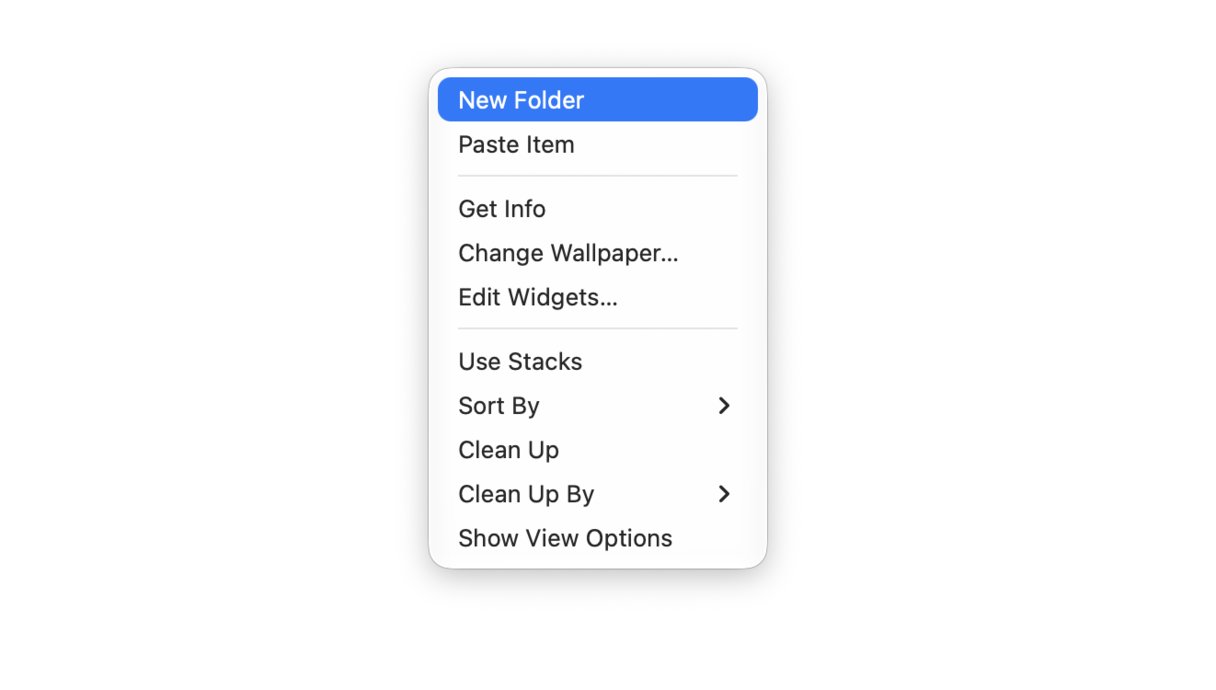
Basically, this means you avoid permissions problems and cloud placeholders. The desktop is local and writable by default.
If you see a little cloud icon next to the ZIP in Finder, right-click it and choose Download Now. Wait until the cloud disappears, then double-click again.
Step 2. Make sure you have enough free space
ZIPs need room to expand. If you are almost out of space, unzipping fails.
- Apple menu > System Settings > General > Storage.
- If you have less than 5 to 10 GB free, clear some space, then retry.
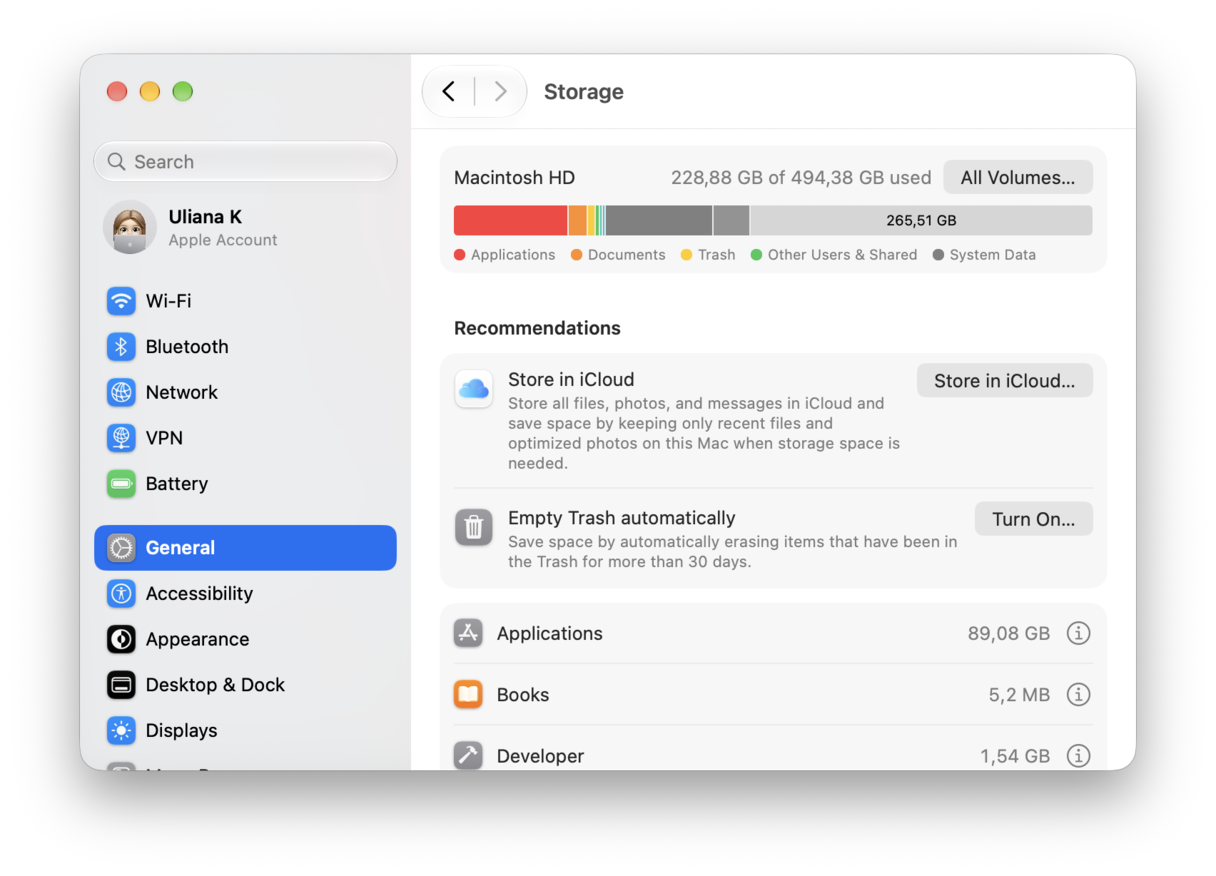
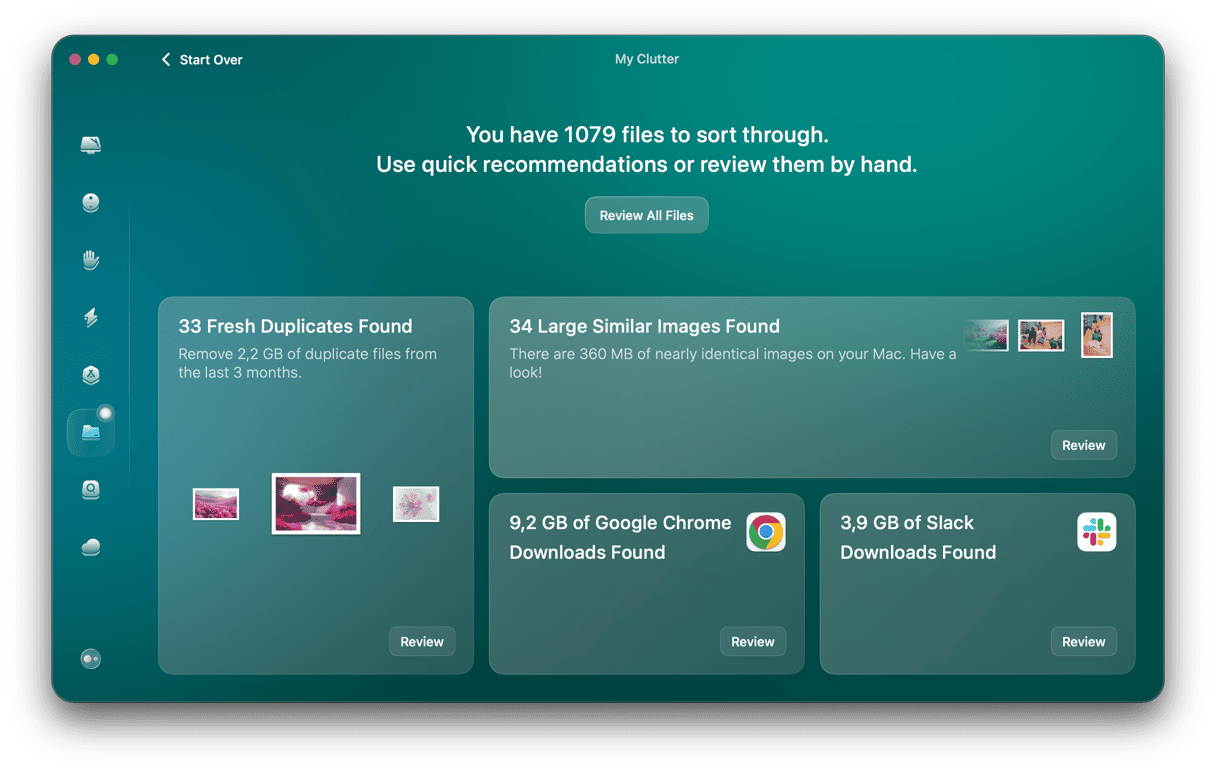
Quick way to create headroom: Use the My Clutter feature from CleanMyMac to quickly surface the biggest files in your user folders; here’s how:
- Open CleanMyMac (get your free trial here). It’s free for seven days.
- Click My Clutter > Scan.
- See what’s been uncovered and remove what you can.
Step 3. Check what the file actually is without typing long paths
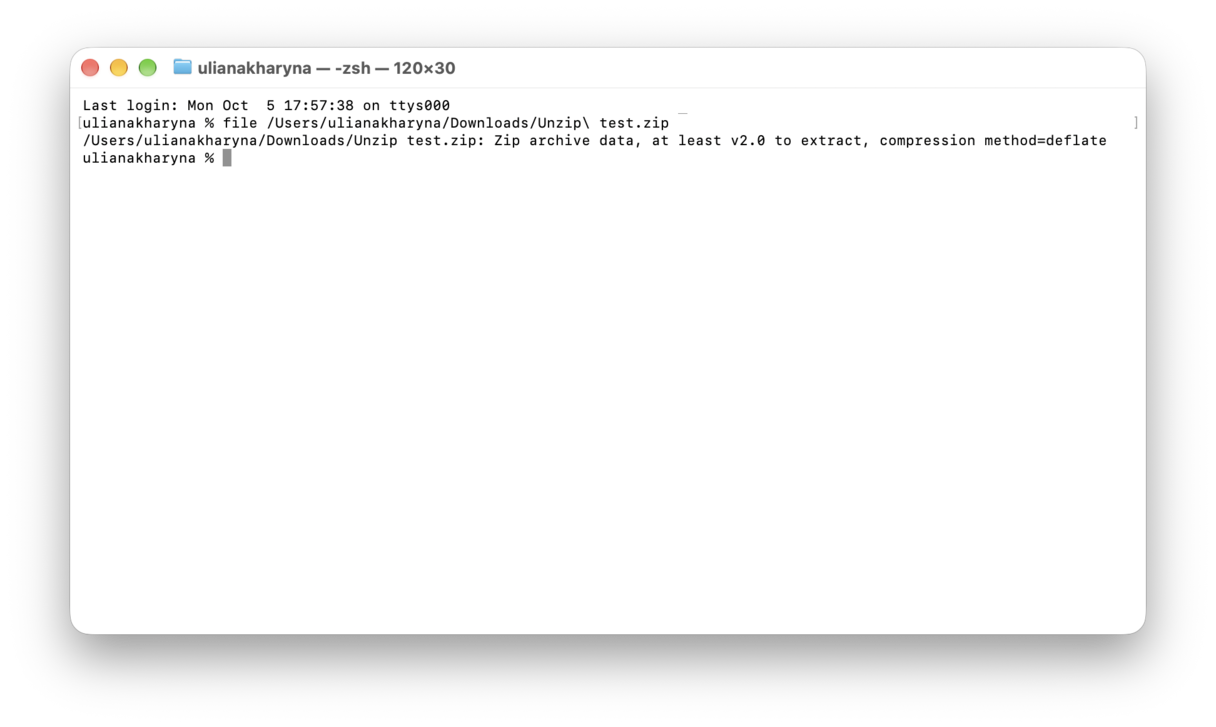
- Open Finder > Applications > Utilities > Terminal.
- Type:
filethen a space.
- Drag your ZIP from Unzip Test into the Terminal window and press Return.
- - If Terminal says Zip archive data, good. Continue.
- - If it says RAR or 7-Zip, it is not a ZIP. Install The Unarchiver or Keka from the Mac App Store, open the file with that app, and extract. Done.
Step 4. Extract with Apple’s built-in tools using drag and drop
Sometimes Archive Utility is picky. Terminal is friendlier than it looks.
Option A: unzip
- In Terminal, type:
unzip, then a space. - Drag the ZIP into Terminal, type a space, then type:
-dand another space. - Next, drag your Unzip Test folder into Terminal.
- Hit Return.
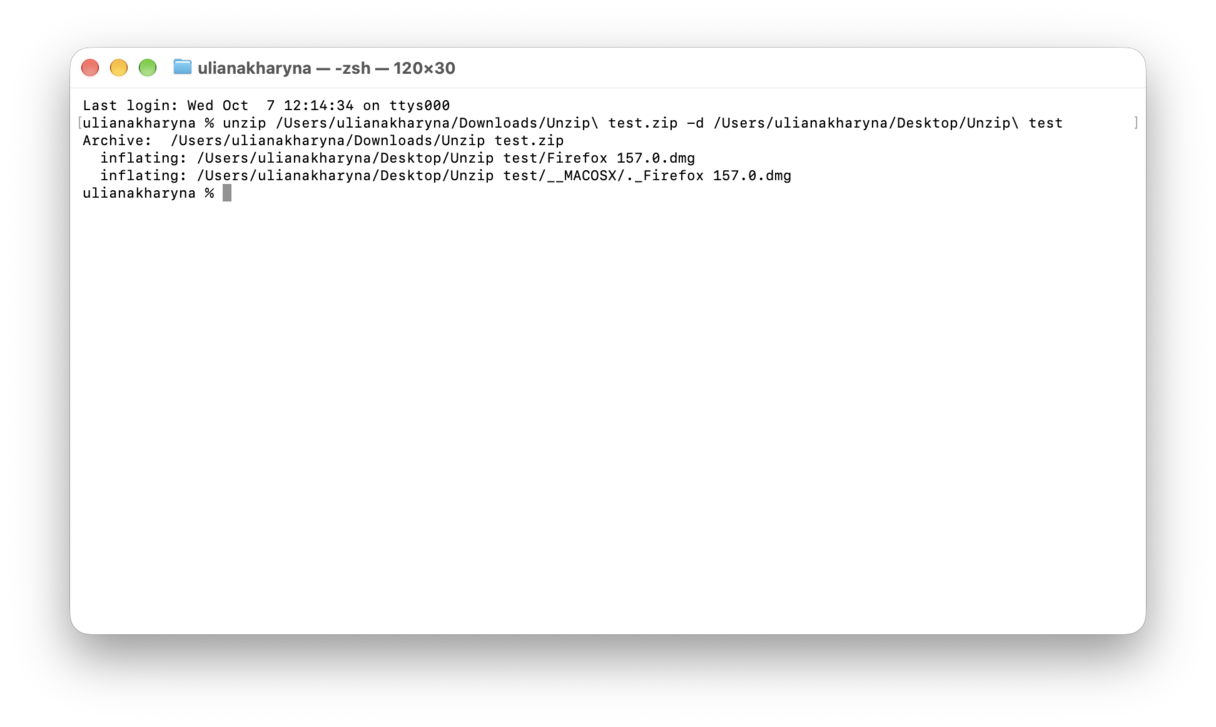
If you see files scrolling by, it worked.
If you see errors about “End-of-central-directory” or “cannot find zipfile,” the download is damaged. Go to Step 6.
Option B: ditto
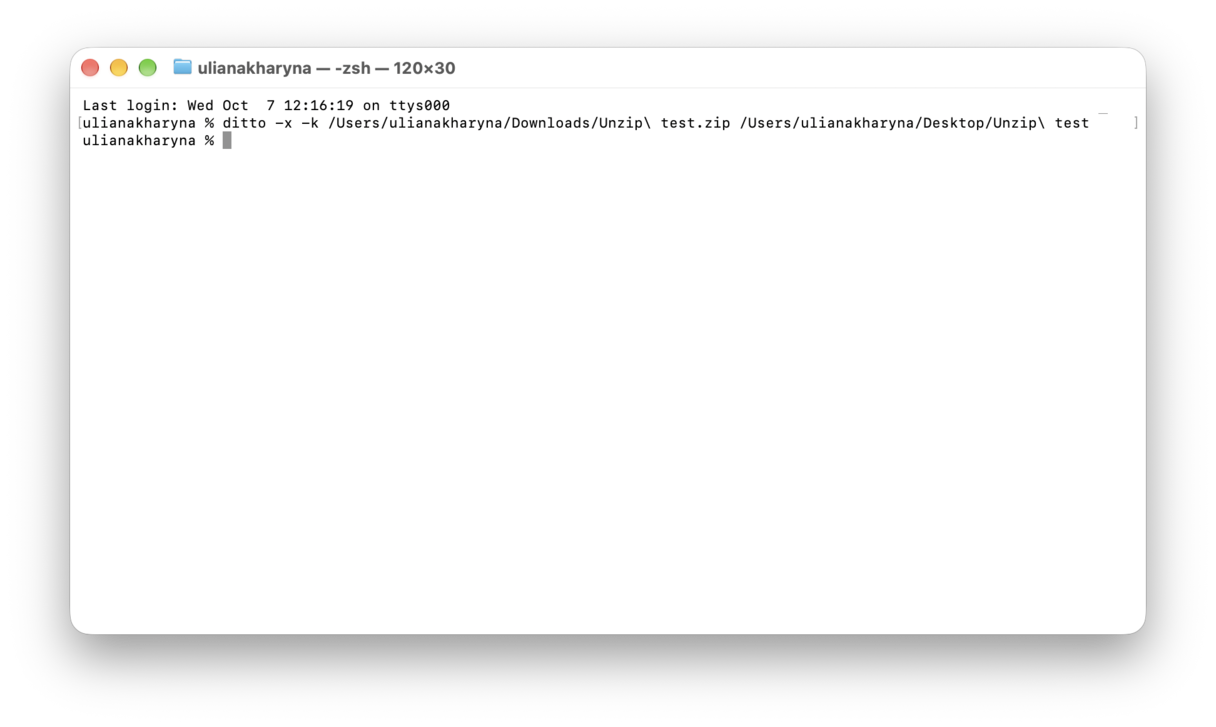
If unzip above doesn’t work, you can try Apple’s other extractor ditto; here’s how:
- In Terminal again, this time type
ditto -x -kthen add a space. - Drag the ZIP file into Terminal, type leave a space, then drag Unzip Test.
- Press the Return key.
Step 5. Remove the internet quarantine flag and retry
It’s quite common that web files can carry a quarantine attribute that blocks tools.
- In Terminal, type:
xattr -lthen a space and drag your ZIP in. Press Return. - If you see com.apple.quarantine, remove it:
- Type:
xattr -dr com.apple.quarantinethen a space, drag your ZIP, press Return. - Double-click the ZIP again or repeat Step 4.
Step 6. Re-download the file cleanly
Half of my error 640 Mac cases were just incomplete downloads.
- Download the file again using a different browser than the one you used last time.
- If you use a VPN or a strict proxy, turn it off for this one download.
- Place the new copy in the Unzip Test again, using the Step 4 method above.

Step 7. Test on another profile or Mac
Finally, this step will tell you where the problem lives. There are two things you can do:
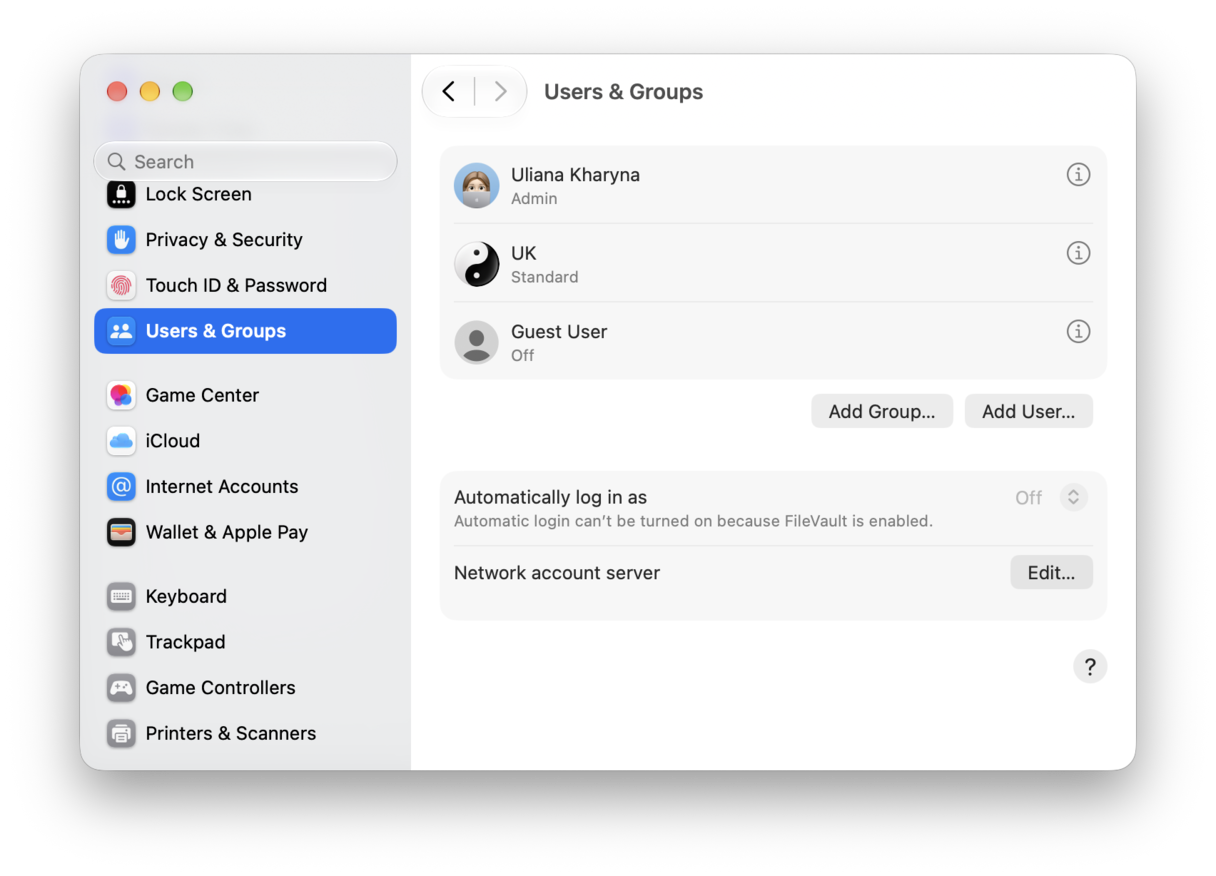
- New user test: System Settings > Users & Groups > Add User. Log in, copy the ZIP to that Desktop, and try Step 4.
- Another Mac test: if it fails there too, the archive from the source is broken. Ask the sender to repackage or offer a different format.
The unable to expand zip Mac error 640 is frustrating, but hopefully now, thanks to these tips, it’s behind you.