
If you've been searching for answers on 'Why are some websites not opening on my Mac?' I have been there. I've run into this issue a couple of times lately on my Mac running macOS Golden Gate. I've spent a lot of time troubleshooting this; sometimes it's the browser, sometimes it's your DNS, sometimes it's something small like a content blocker or a system date glitch that throws certificates off.
Anyway, this is the article I wish had existed when I first encountered the problem. I've put all the tips you will possibly need to troubleshoot, so you can get back to browsing.
Why won't some websites load on my Mac?
Before we get carried away with the fixes, it's always good to understand why this happens. Sometimes, that knowledge can actually help prevent issues in the future, so let's take a quick look at some of the common causes behind why some websites are not opening on my Mac.
- DNS problems
- Browser junk
- Extensions and blockers
- Network shape
- Time and certificates
- VPN, proxy, or system policies
Knowing which bucket your issue falls into can help.
Fixes: Why won't some websites load on my Mac?
OK, first up, run through these quick checks. If none of these change anything, move on to the fixes that actually clear the path.
- Try another browser. If Safari fails, open the page in Chrome or Firefox. If it loads there, your network is fine. The issue is the first browser.
- Private Window. Open a private window and try again. If it works, the site's cookies or cache are suspect.
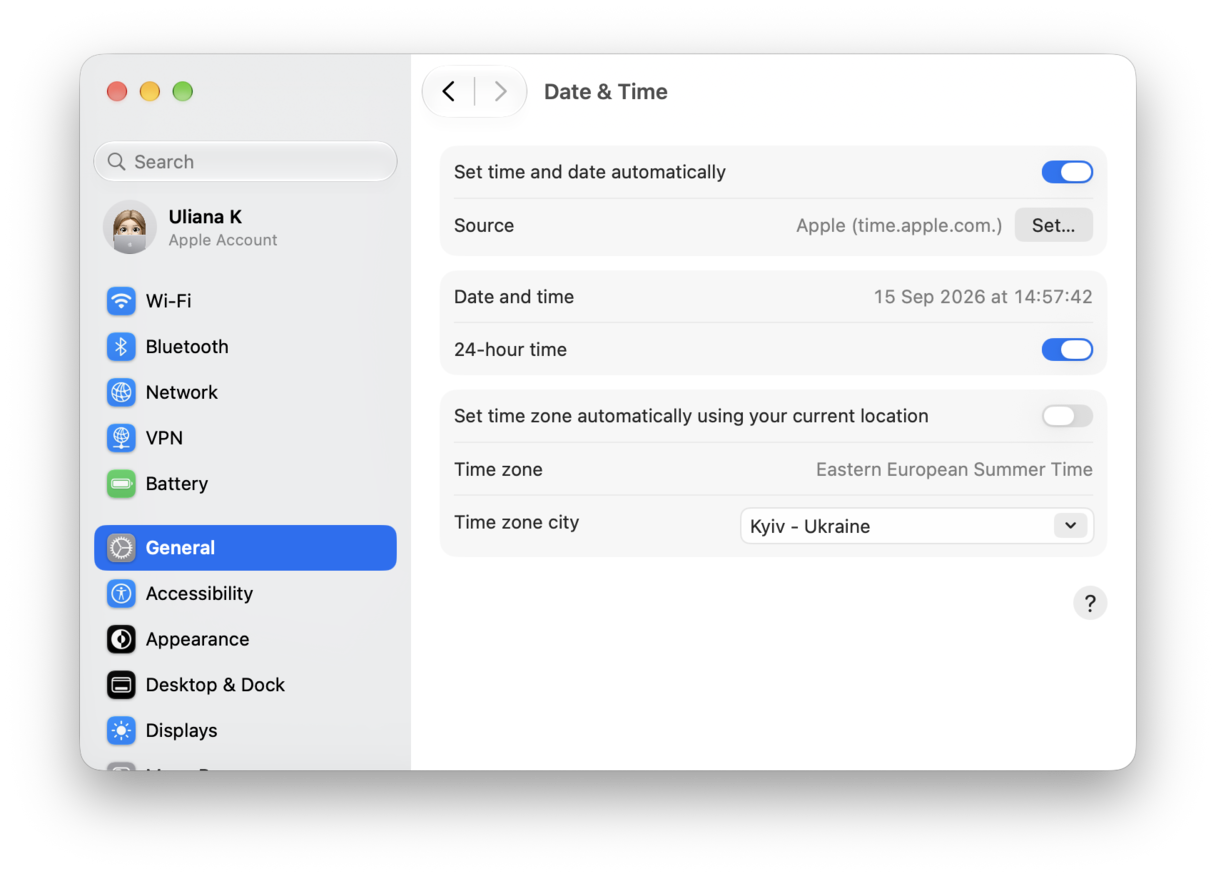
- Check the date and time. System Settings > General > Date & Time. Turn on Set time and date automatically. Certificates stop complaining once the clock is right.
- Toggle Wi-Fi off and on. Or switch to your phone's hotspot for one minute. If the site loads on the hotspot, the router or ISP is the issue.
OK, onwards to the bigger troubleshooting fixes.
1. Refresh DNS on your Mac
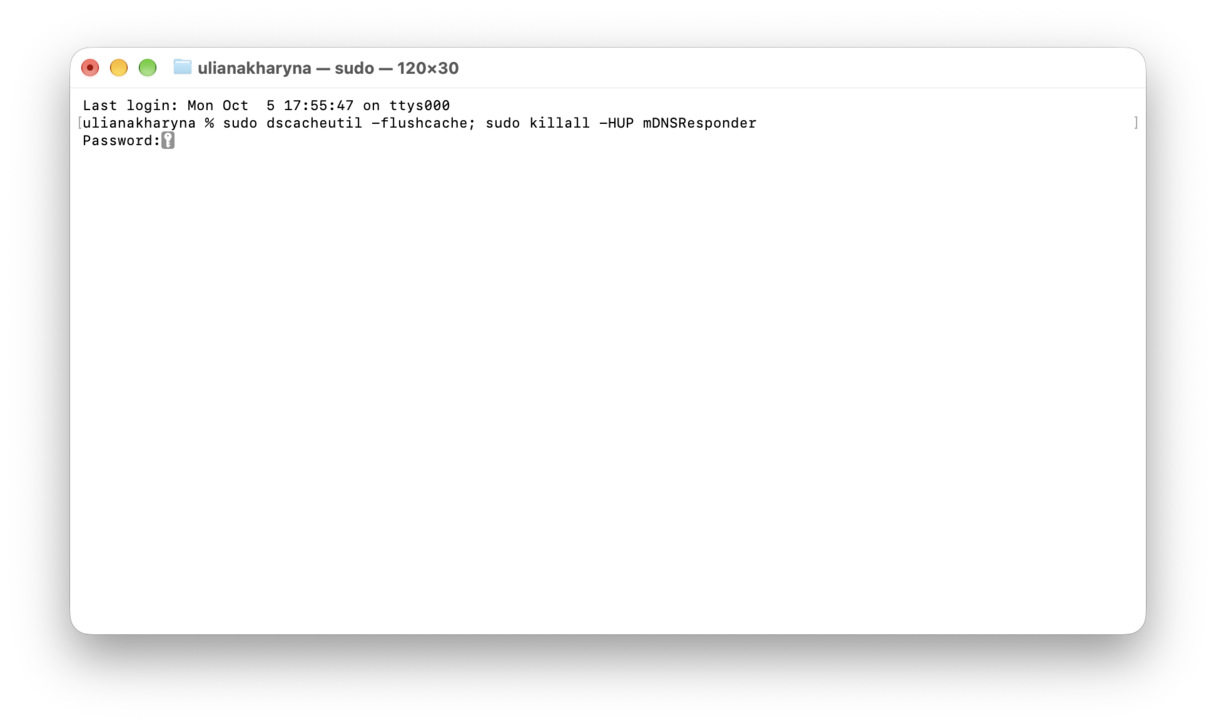
A stale DNS cache is a classic cause of some sites working, some not; here's how to handle that with Terminal.
- Open Terminal with a Spotlight search.
- Copy and run this command:
sudo dscacheutil -flushcache; sudo killall -HUP mDNSResponder
- Enter your password if asked. There won't be a success message; just retry the site.
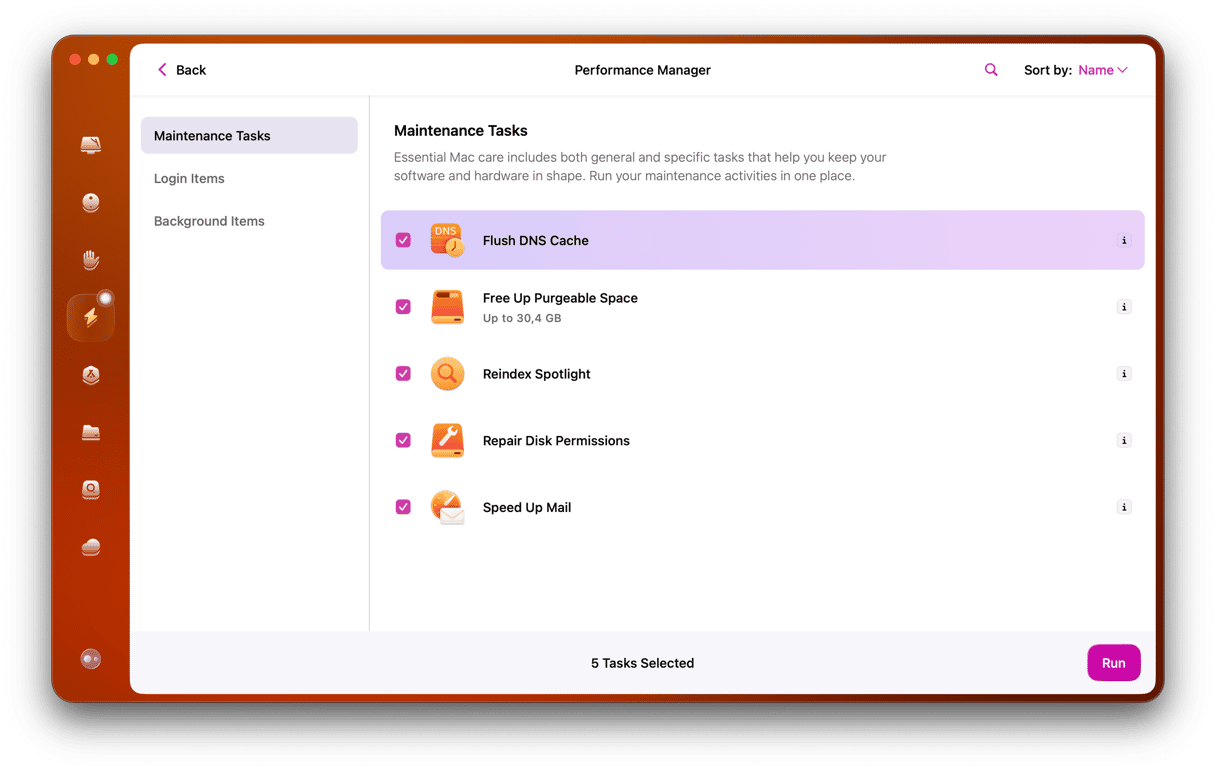
If you're not a fan of Terminal or poking around with settings, you could also use a tool like CleanMyMac to do this for you safely; here's how:
- Get your free CleanMyMac trial — you can test it for 7 days.
- Open the app and click Performance > Scan > View All tasks.
- Select Flush DNS Cache and click Run.
2. Change DNS servers
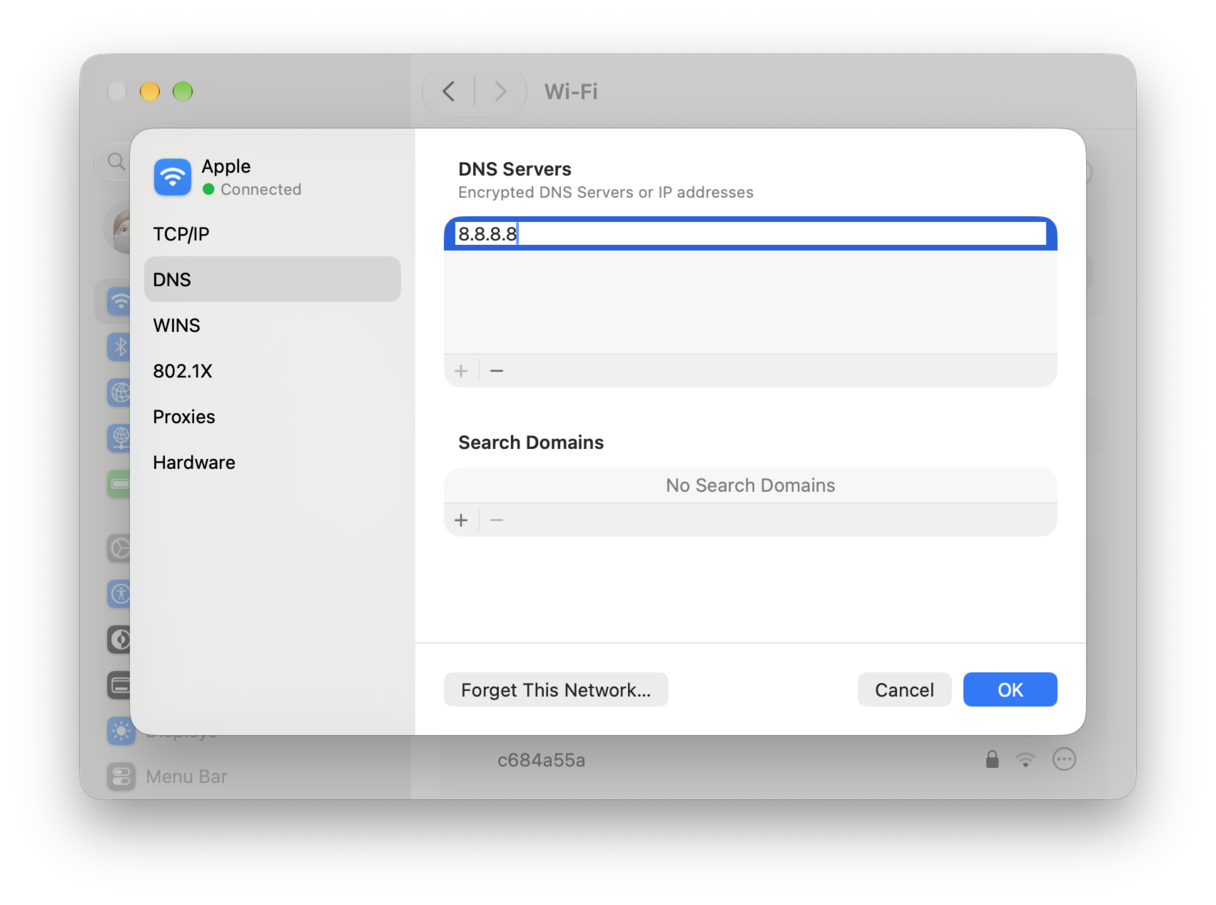
- Go to System Settings > Network > your active network > Details > DNS.
- Press + and add a known good resolver, for example,
1.1.1.1and1.0.0.1or8.8.8.8and8.8.4.4. Click OK, then Apply. - Start your browser again.
3. Clear only the broken site's data
When one domain is cursed and others are fine, target its data specifically; here's how:
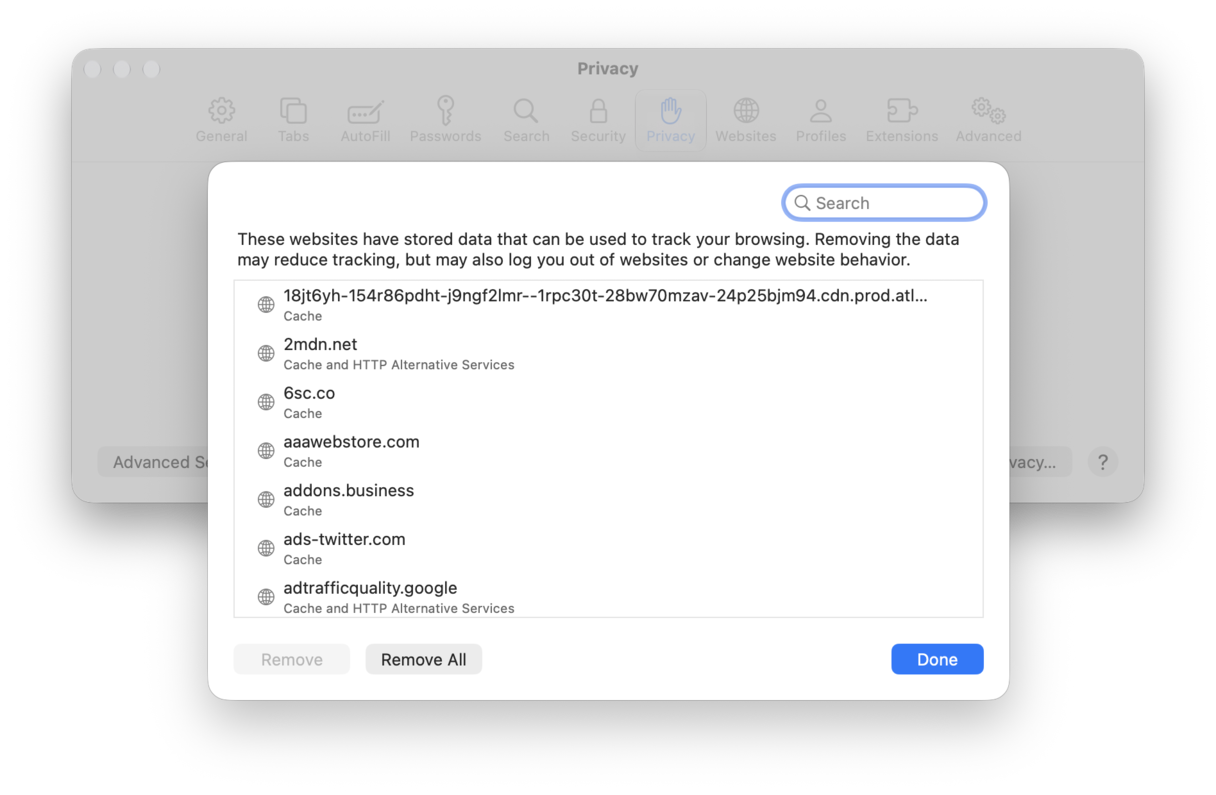
Safari
- Open Safari > Settings > Privacy > Manage Website Data.
- Search the site and remove its data. Close Settings and reload the page.
Chrome
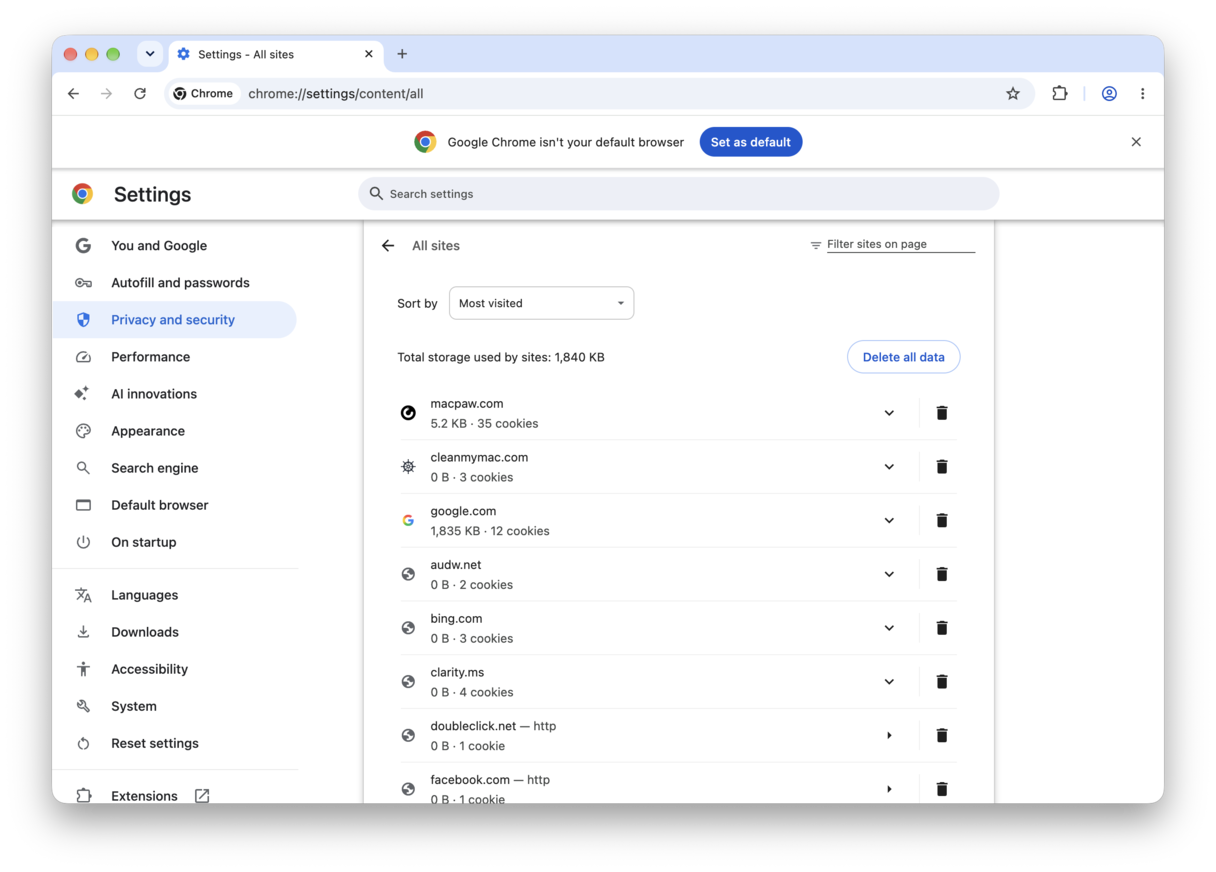
- Open Chrome and go to Settings > Privacy and security > Third-party cookies > See all site data and permissions.
- Search the site, remove stored data.
Firefox
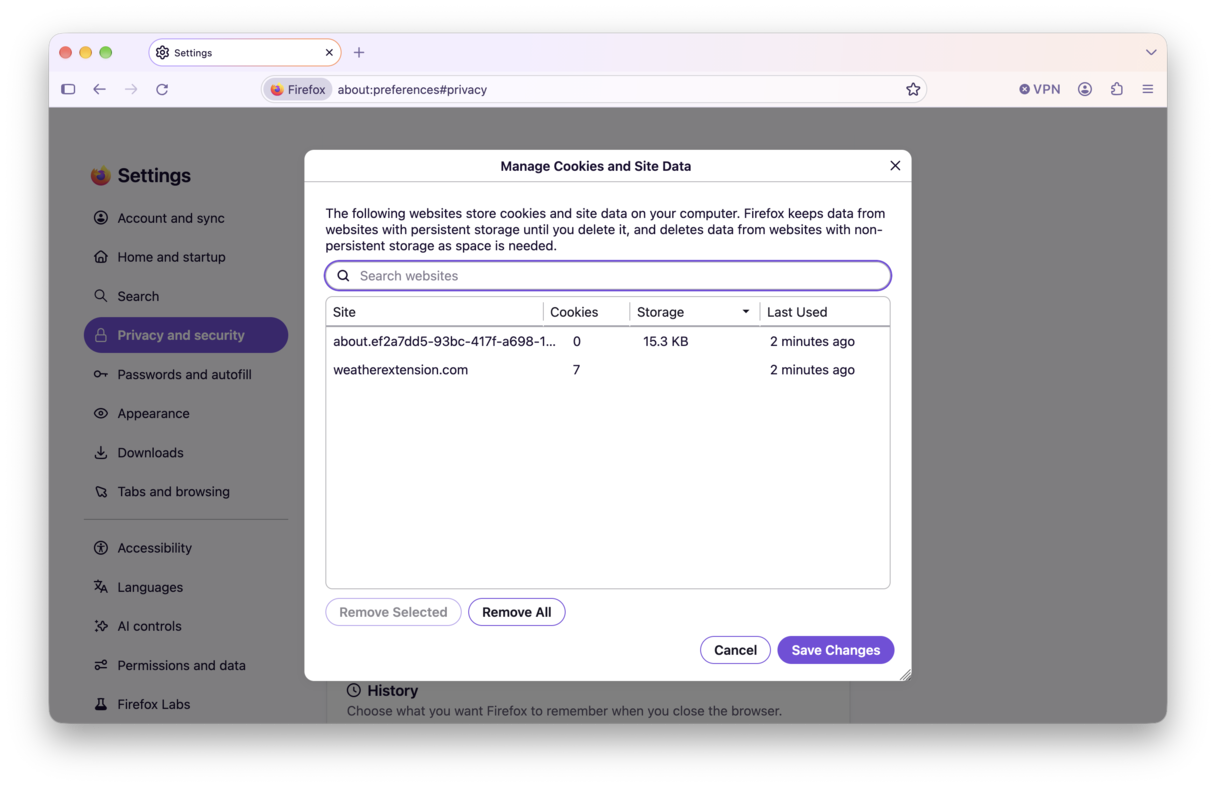
- Open Firefox and go to Settings > Privacy and security > Browsing data > Clear data for specific websites.
- Search, Remove.
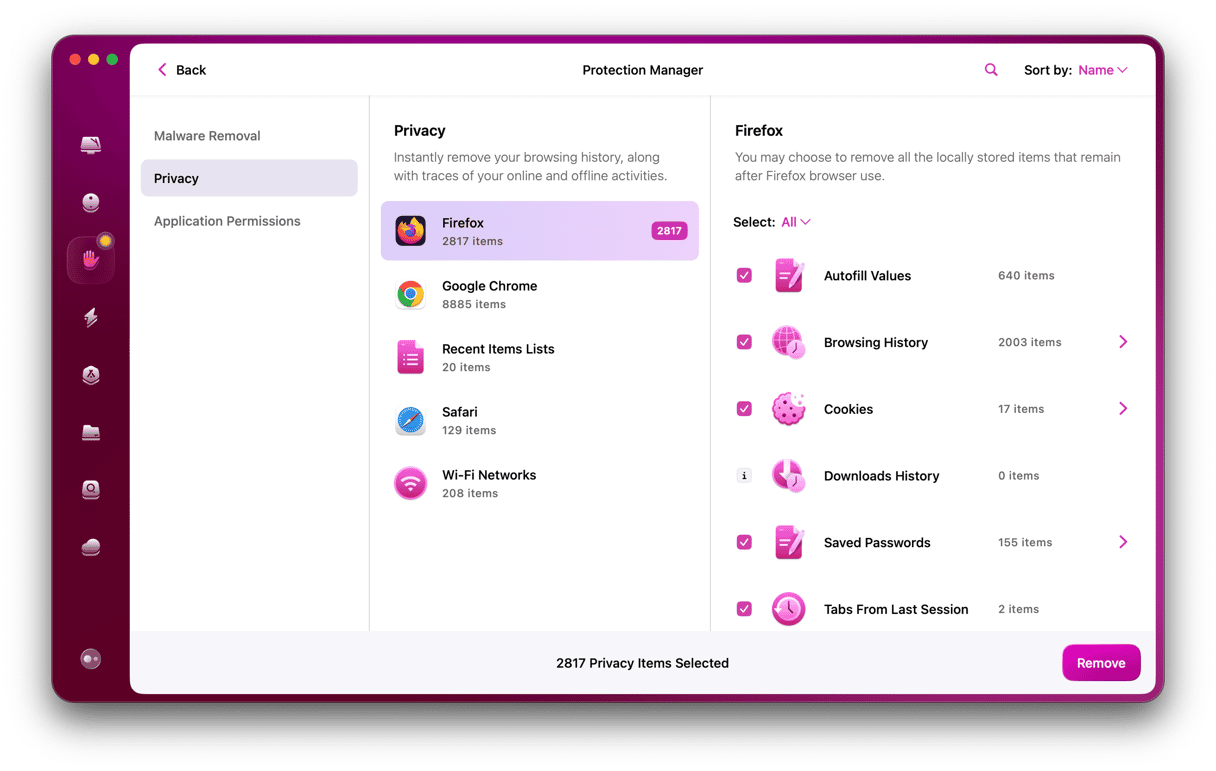
There is actually a quicker way to do this than going one by one into your separate browsers; here you can use the Protection feature from CleanMyMac; here's how:
- Open CleanMyMac > Protection > Scan.
- Click Manage Privacy Items.
- And take a look at all the stored website browser data.
- You can remove saved passwords, history, cookies, and more.
4. Disable extensions and content blockers
Blockers are great until they block the wrong thing. Here's how to check that any extensions aren't getting in the way.
- On your browser of choice, go to Settings > Extensions.
- Uncheck, toggle off, or remove anything that you don't recognise, that you don't use, or that has the ability to modify pages.
- Restart the browser and check if the website is loading.
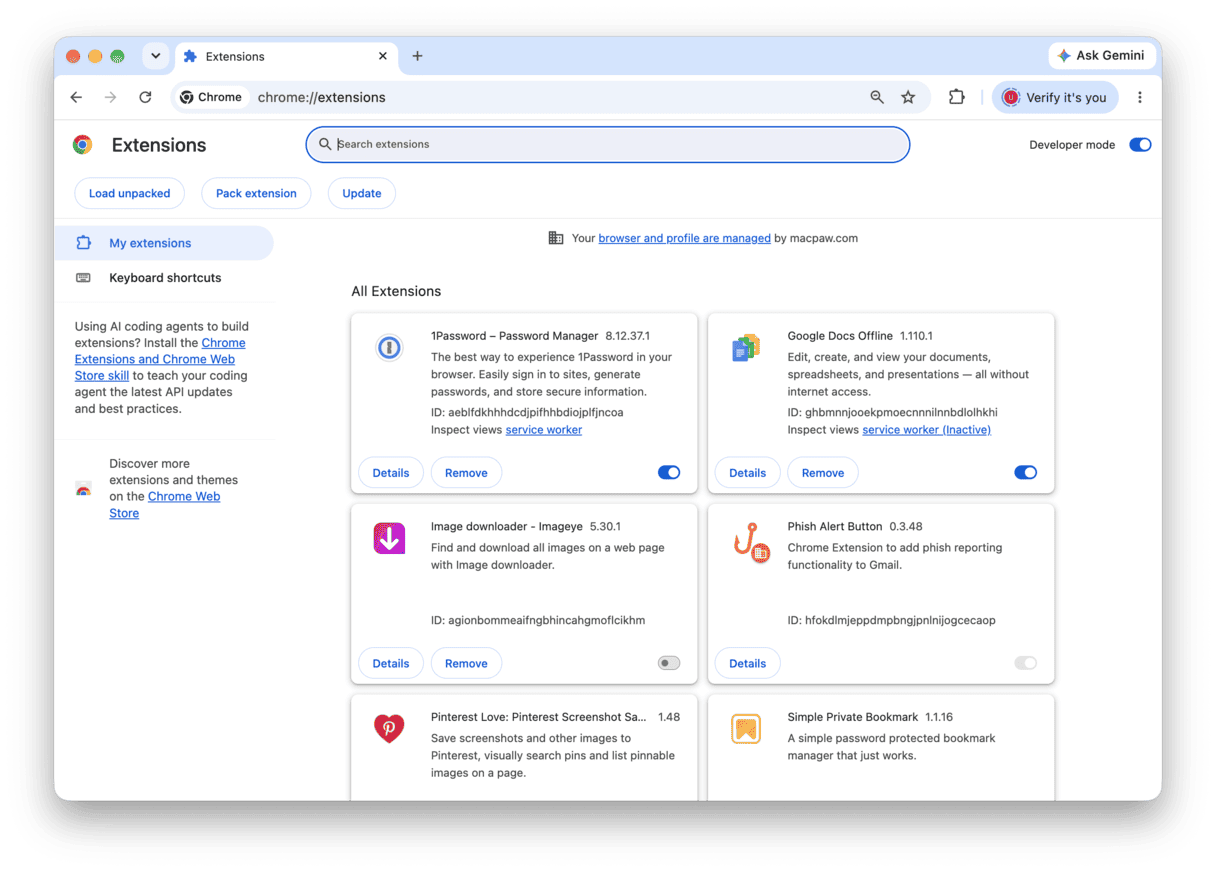
If the site loads with extensions off, turn them back on one by one until you find the culprit.
5. Check VPN, proxy, and Private Relay
OK, here are a few things to check and work through that could also be causing issues.
VPN
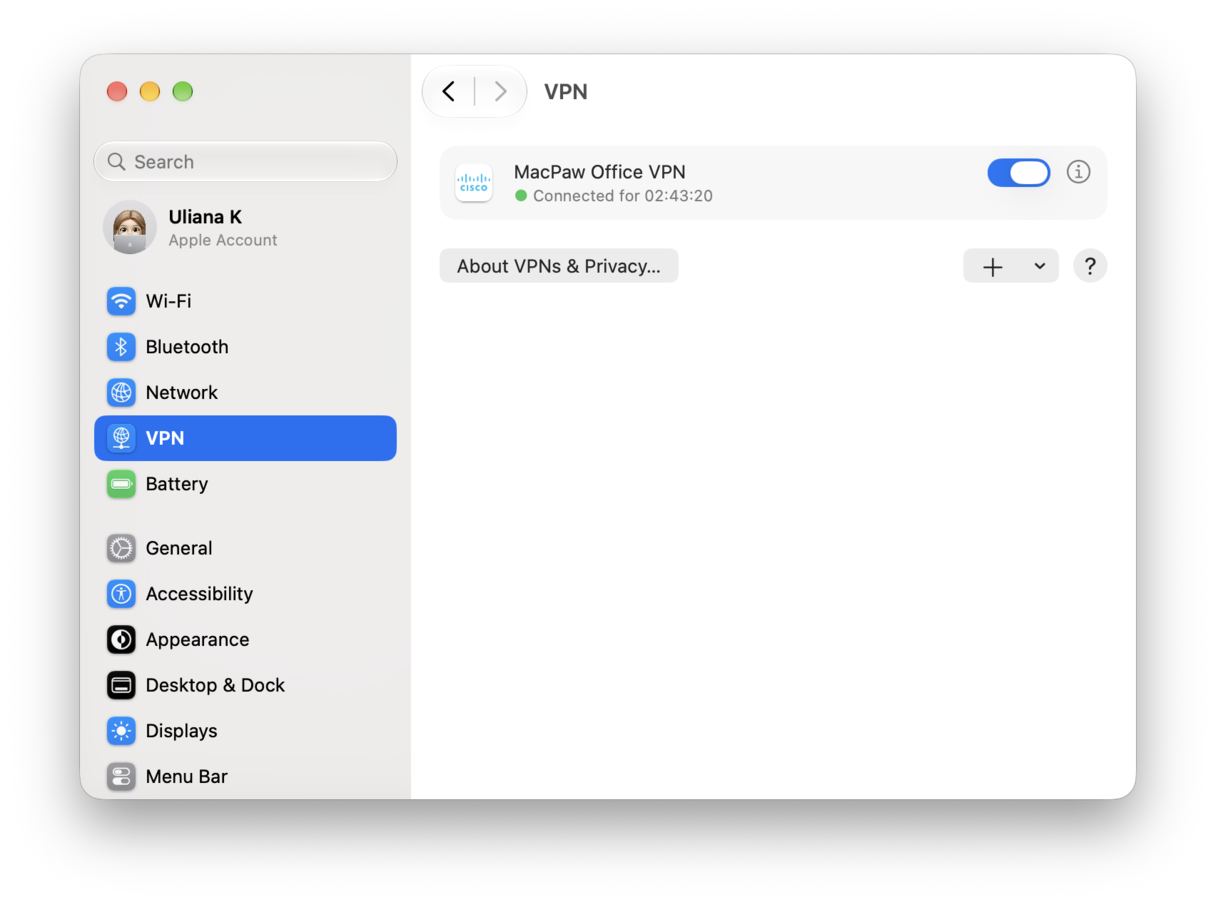
If you have a third-party VPN, turn this temporarily off, restart your browser, and try again.
iCloud Private Relay
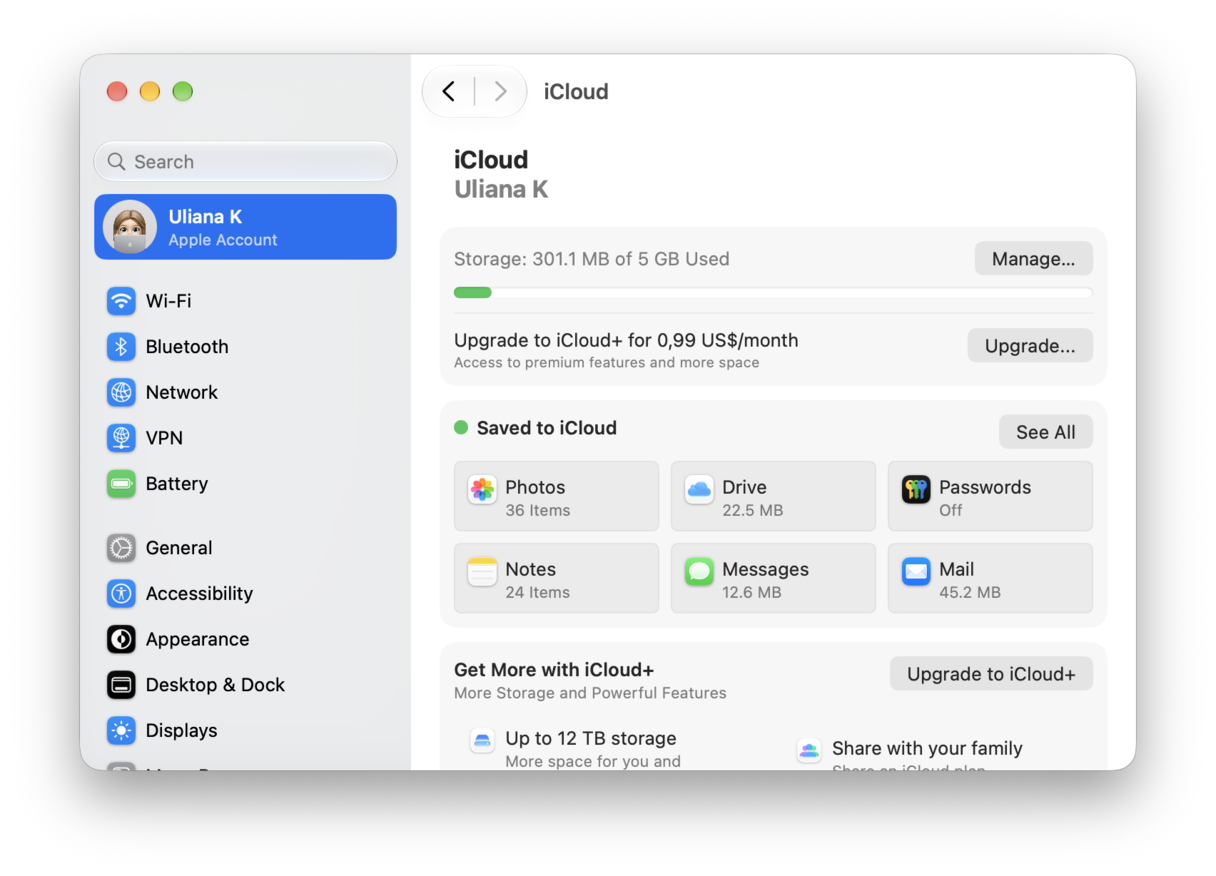
- System Settings > Apple Account > iCloud.
- Toggle off Private Relay and test. Some sites still dislike masked IPs in 2025.
6. Triage your network
Now, it's time to run a few network checks too. Follow these steps.
- Restart the router. Old firmware can poison DNS answers or block modern TLS. Power cycle, then try again.
- Check with your service provider. There could be known issues or outages, which are out of your control.
- Parental filters. If you manage a family network, make sure the site is not being filtered at the router or ISP level.
Some websites will not open on a Mac because the pieces between your browser and the site fall out of sync. Outdated DNS caches, troublesome Extensions, odd VPN rerouting — there can be a ton of causes. The good news is that all it usually takes is a little bit of good old-fashioned troubleshooting; hopefully, one of these tips solved your issues for good. Bookmark this page just in case.