Apple releases new iPhone models every year, and sooner or later, you will want to know how to transfer photos from your old iPhone to a new one. There are multiple ways to do it. In this article, we cover four methods you can try. Let’s dive in!
How you can transfer photos from iPhone to iPhone
Here are 4 most commonly used ways to move photos between iPhones:
- Moving all data using an iCloud backup
- Transferring all data, including photos, without iCloud
- Using AirDrop to send just the photos you want
- Sharing via the iCloud Link
The first two ways work best for when you’re trying to transfer your whole iPhone to a new one. You’ll copy everything you have on your old device, so that all photos and contacts are intact and ready to use on your new iPhone. AirDrop is a better choice when all you need to transfer from iPhone to iPhone is photos — like sharing a group pic with all your friends who are in it. As to the iCloud Link, it works best for sharing particular photos.
Before you start photo transferring within iPhone
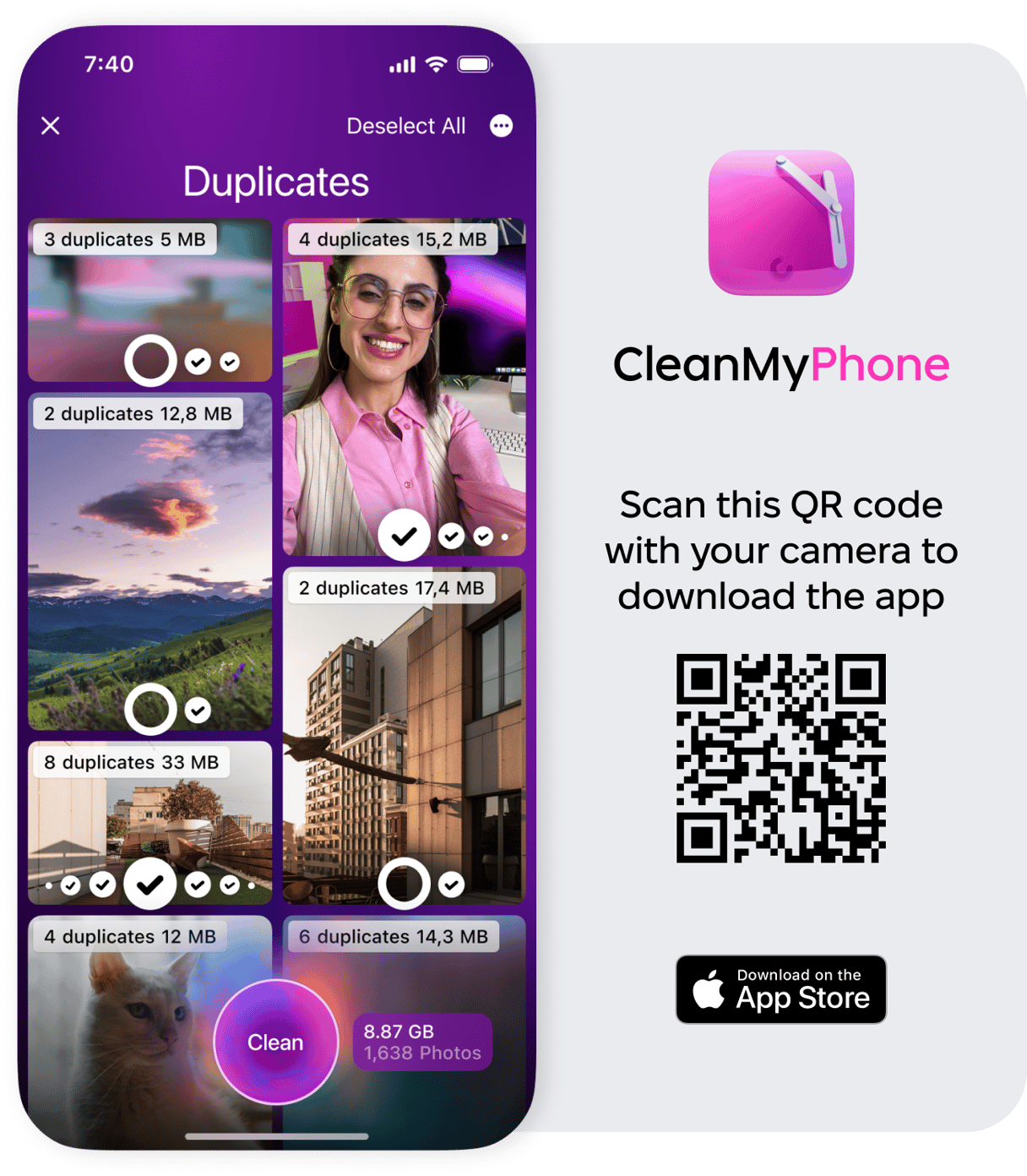
When it comes to gobbling up storage on your iPhone, apps are definitely one of the biggest culprits. Photos are a close second. To quickly sort and delete unwanted photos, download CleanMy®Phone. It shows you all your duplicate and similar images, so you can make fast decisions on what stays and what goes.
- Get CleanMy®Phone.
- Tap Declutter.
- The app will analyze your photo clutter and group it into folders, like Duplicates, Screenshots, Blur, etc.
- Tap any folder and clean the clutter.
Method 1. How to transfer pictures from iPhone to iPhone using iCloud backup
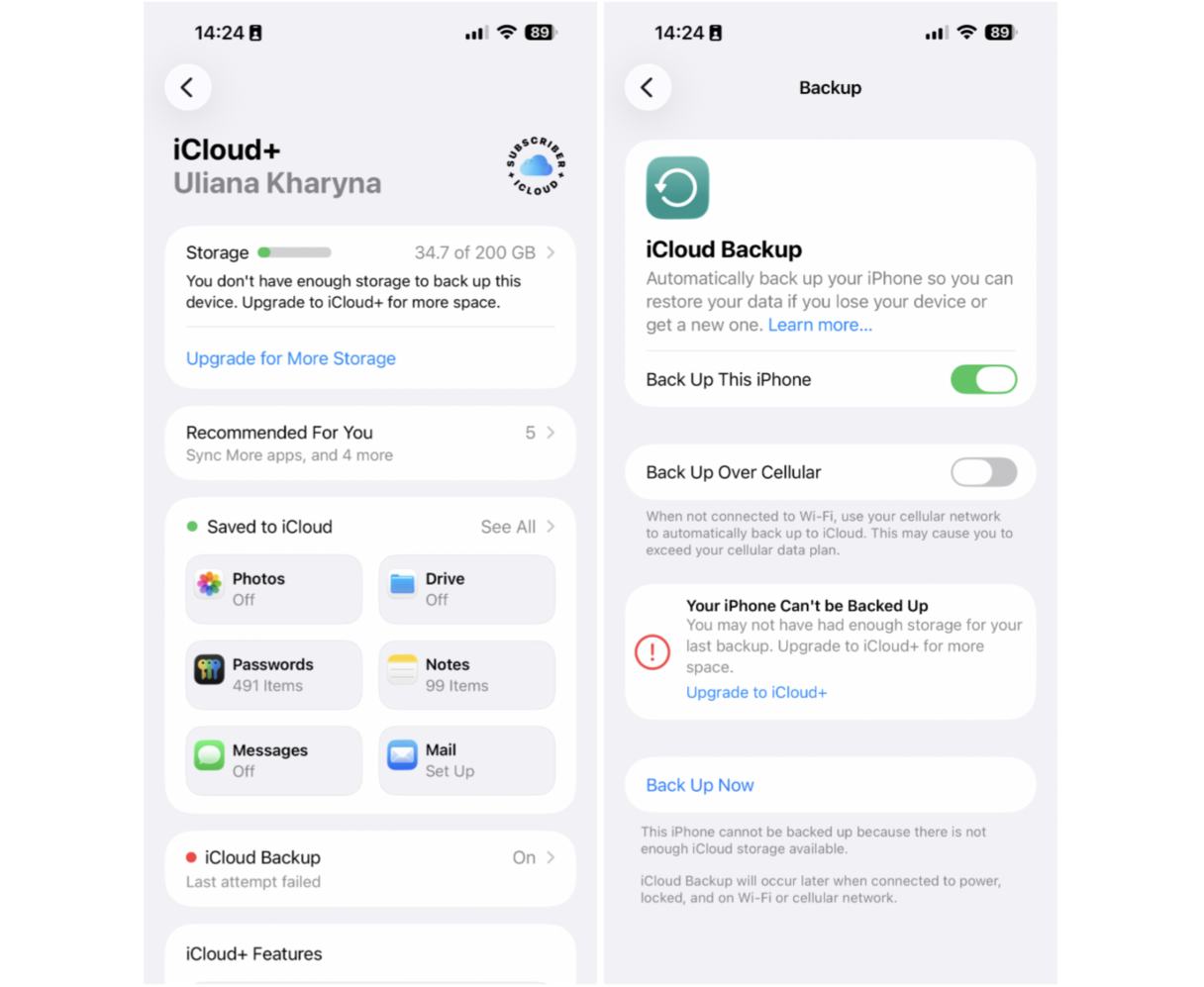
iCloud is one of the most effective methods to transfer data from one iPhone to another — or from any iOS or macOS device to another, for that matter. Both devices need to have iCloud enabled, using the same Apple Account (aka Apple ID).
To get started, set up an iCloud backup on your old iPhone:
- Go to Settings > Apple Account > iCloud.
- Scroll down to iCloud Backup.
- Tap Back Up Now and wait for the backup to finish.
Make sure your old iPhone is off. Now start setting up your new iPhone:
- Switch on your new phone.
- Slide or press the Home button and follow the setup instructions.
- Make sure the device is connected to Wi-Fi. Now, tap the Restore from iCloud Backup option (part of the setup process).
- Sign in using your Apple Account.
- Tap Next, then Agree (you may be asked this more than once).
- Choose the most recent backup. This will restore your new iPhone with everything that was on your old iPhone at the time of that backup, including every image and photo you want to transfer.
This process may take a while, and your iPhone could get warm as it’s absorbing all the apps, messages, photos, and videos. Don’t worry, once this process is complete, everything will work the way it did on your old iPhone — except with the benefits of this newer, faster, more modern device.
Method 2. Transfer photos to new iPhone without iCloud
On any iOS device running iOS 11 or later, there is an even quicker way to set up a new iPhone and transfer all the data.
Here's how to transfer photos from iPhone to iPhone without iCloud:
- Turn on your new iPhone and place it near your old iPhone.
- Make sure both devices have Bluetooth enabled.
- The Quick Start screen will appear on your old iPhone, offering the option to use your Apple Account to set up your new iPhone. Tap Continue.
- An animation will appear on your new iPhone. Hold your old iPhone over the new iPhone and center the animation in the viewfinder.
- Wait for a message that says "Finish on New iPhone."
- When prompted, enter your old iPhone's passcode on your new iPhone.
- Follow the instructions to set up Face ID or Touch ID on your new iPhone.
- Tap Transfer from iPhone to begin transferring your data from your old iPhone to your new iPhone. Keep the devices close together and plugged into power until the process is complete.
With that done, you can switch off your old iPhone or restore it to factory settings. Everything should be safely moved to your new iPhone.
Method 3. How to transfer photos from old iPhone to new iPhone via AirDrop
Now, sometimes, all you want to transfer to your new iPhone is the photos, and other times you just need to share a few pics with a friend who also has an iPhone. Here’s how you use AirDrop on both phones to transfer pictures and videos over:
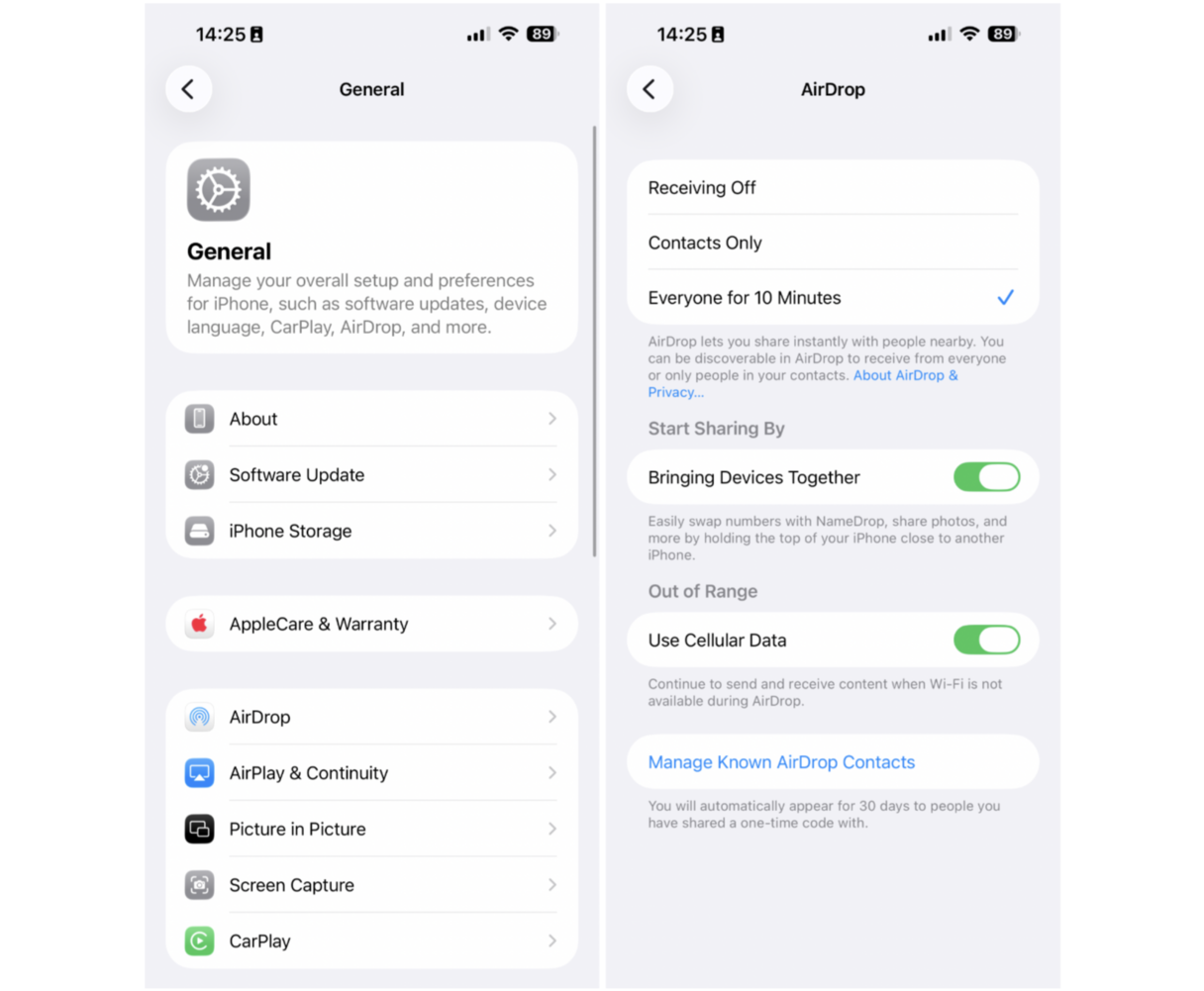
- On your new iPhone, go to Settings > General and scroll to AirDrop.
- Set it to Everyone for 10 minutes to receive an AirDrop from any iOS device.
- Now, go to the Photos app on your old iPhone.
- Select the photos you want to transfer, then tap the Share button > AirDrop. You’ll see devices available via AirDrop below the photos and above the rest of sharing options. Your new iPhone should show up here.
- Tap on the name of your new iPhone.
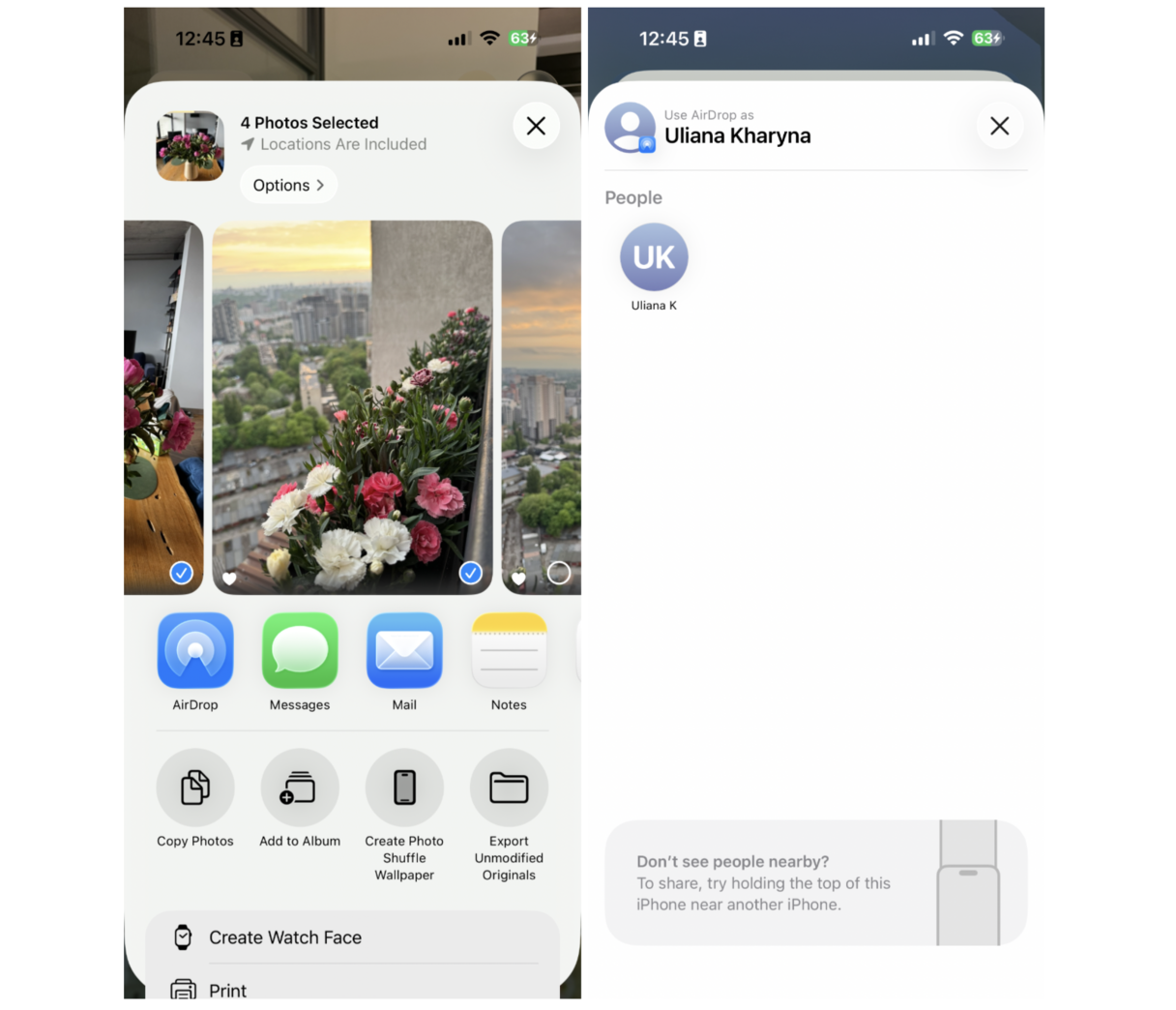
- Back on the new iPhone, press Accept to let the photos transfer from your old iPhone to the new one.
The photos will land in your Photos library on the new phone. When it’s done, you can delete everything from the old iPhone.
Method 4. How to transfer multiple photos from iPhone to iPhone with iCloud Sharing option
To use iCloud Sharing, follow these simple steps:
- On your old iPhone, go to the Photos app.
- Select the photos you want to share and tap the Share button.
- Choose the iCloud Link option. A link will be generated. Copy it and send it to your new iPhone.
- On your new iPhone, open the link to access the shared photos and save them to your device.
If you cannot see this option, make sure that iCloud Photos is enabled in Settings > iCloud.
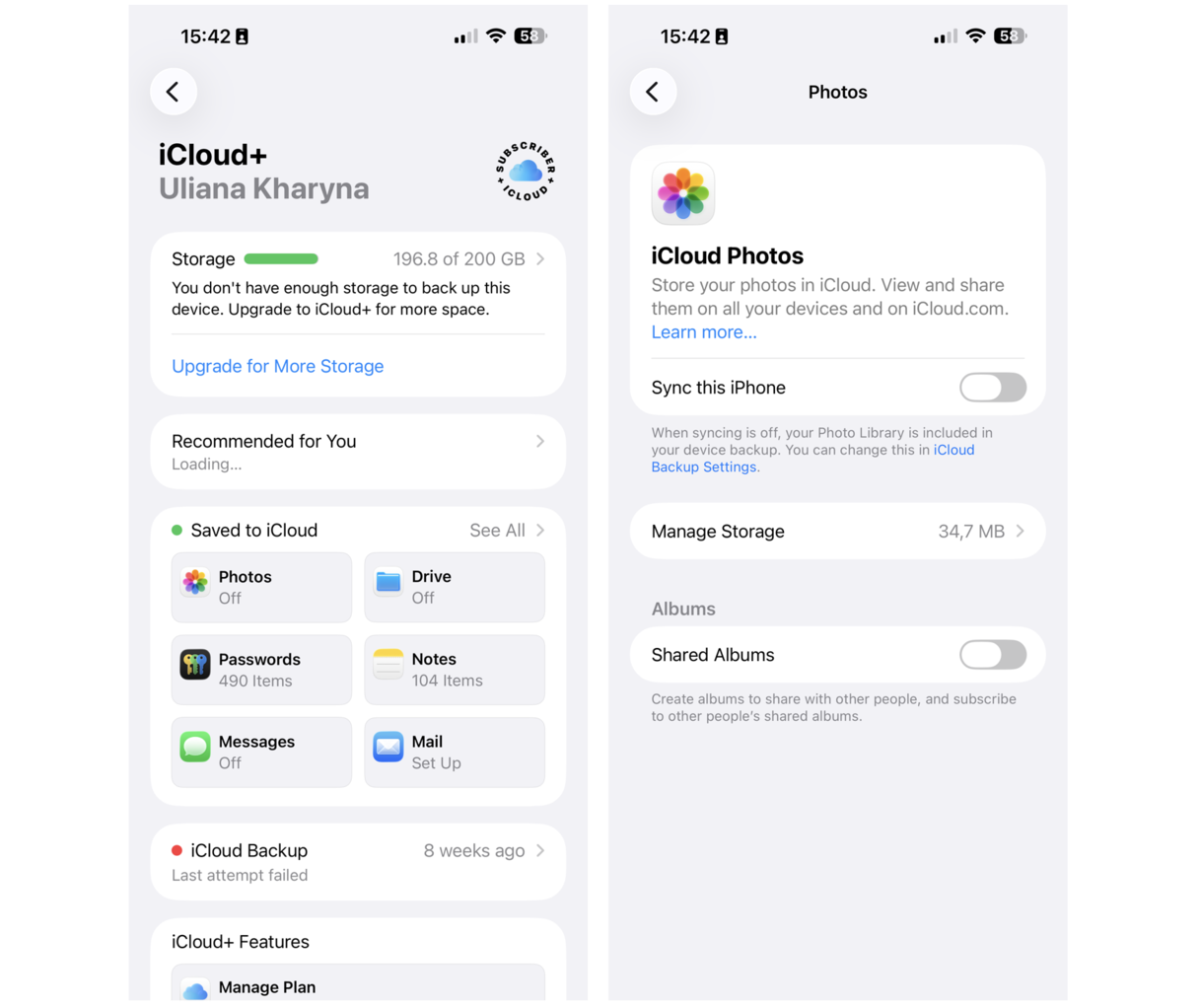
This method is efficient and quick, ensuring all your selected photos are easily transferred to your new iPhone.
Is it possible to transfer an iPhone to a new iPhone?
In the article, we mainly focused on photos, but you can also transfer all your data to your new iPhone, like contacts, emails, files, etc. If your new device has iOS 11, iPadOS 13, or later, you can use Quick Start to automatically set it up. Since Quick Start requires both devices, make sure to choose a time when you won’t need to use your current device for a few minutes. Read this Apple guideline on how to transfer data to a new iPhone or iPad using a wireless connection.
Whichever method you choose, Apple made it easy to transfer data from iPhone to iPhone and start using your shiny new phone right away. And if you'd also like to have your photos stored on your laptop, here's how to move photos from an iPhone to a Mac. But wherever you're moving your photo library, make sure to unclutter before the transfer.