Keeping passwords for websites and accounts safe is one of the great challenges of life online. On the one hand, we know that passwords should be long and difficult to guess. On the other hand, we know we shouldn’t keep note of them in plain text. One solution is a third-party password manager. The other, and simpler, solution is to use the password tools built into macOS. You can then generate and save secure passwords and use autofill in Safari to recall them whenever you need to. Until macOS Sequoia, those features were all part of Safari. So, in this article, we’ll show you how to view saved passwords in Safari.
What happened to passwords in Safari in macOS Sequoia?
macOS Sequoia, along with iOS 18 and iPadOS 18, introduced a new Passwords app that generates and saves passwords for websites and online accounts. It took the place of the password features in Safari. Now, when you want to create a password or autofill one you’ve already created in Safari, it offers you the opportunity to do it in Passwords.
How to view passwords on Mac Safari
Older versions of macOS
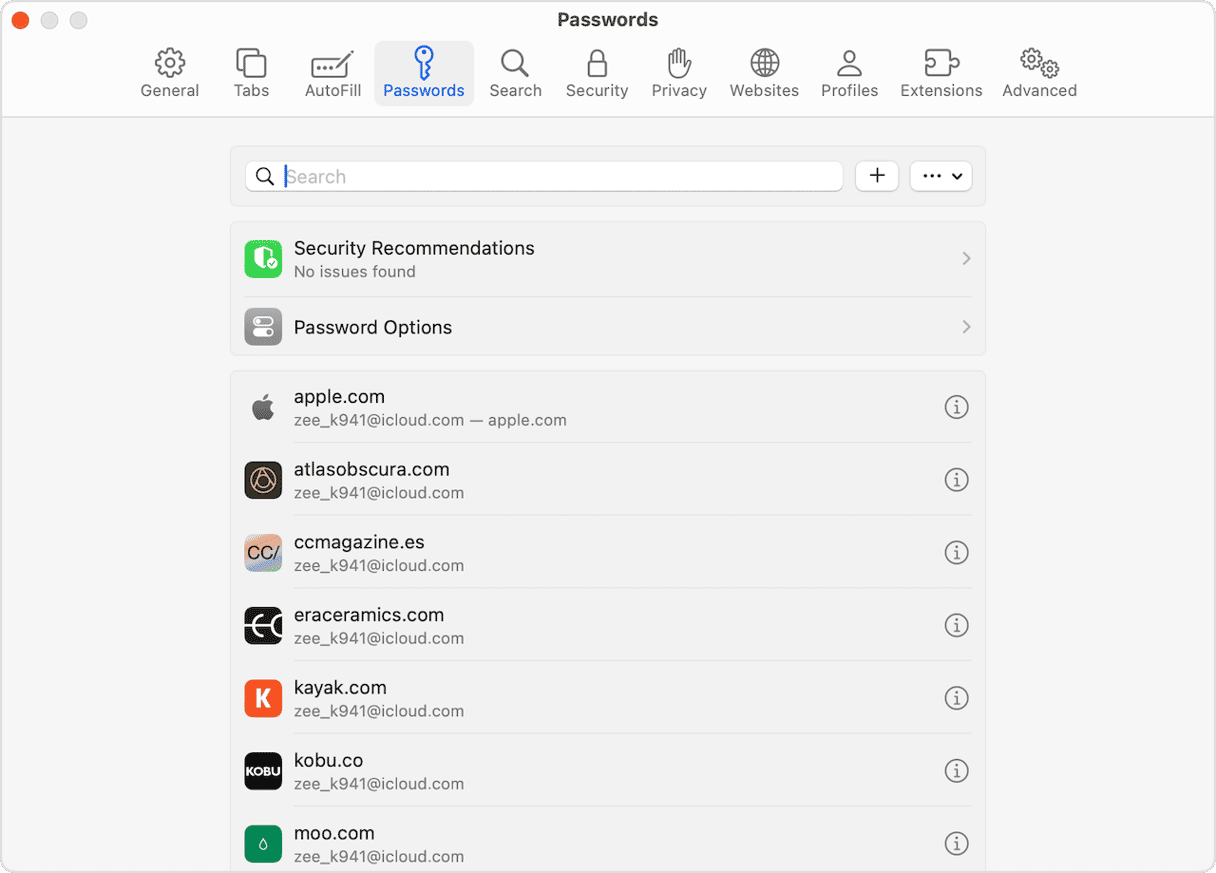
Prior to macOS Sequoia, creating and saving passwords was done in Safari. Here’s how to view passwords saved in Safari.
- Open Safari and click the Safari menu.
- Choose Settings (or Preferences in much older versions). When the Settings window opens, select Passwords. Type in your password or use Touch ID to authenticate.
- Choose the account whose password you want to view or use the search bar to find it. When you find it, click the ‘i’ next to its name to see details.
- If you want to update a password or username, click Edit, type in the new details, and then choose Save.
- If you want to delete a password, click Delete Password.
The Passwords app
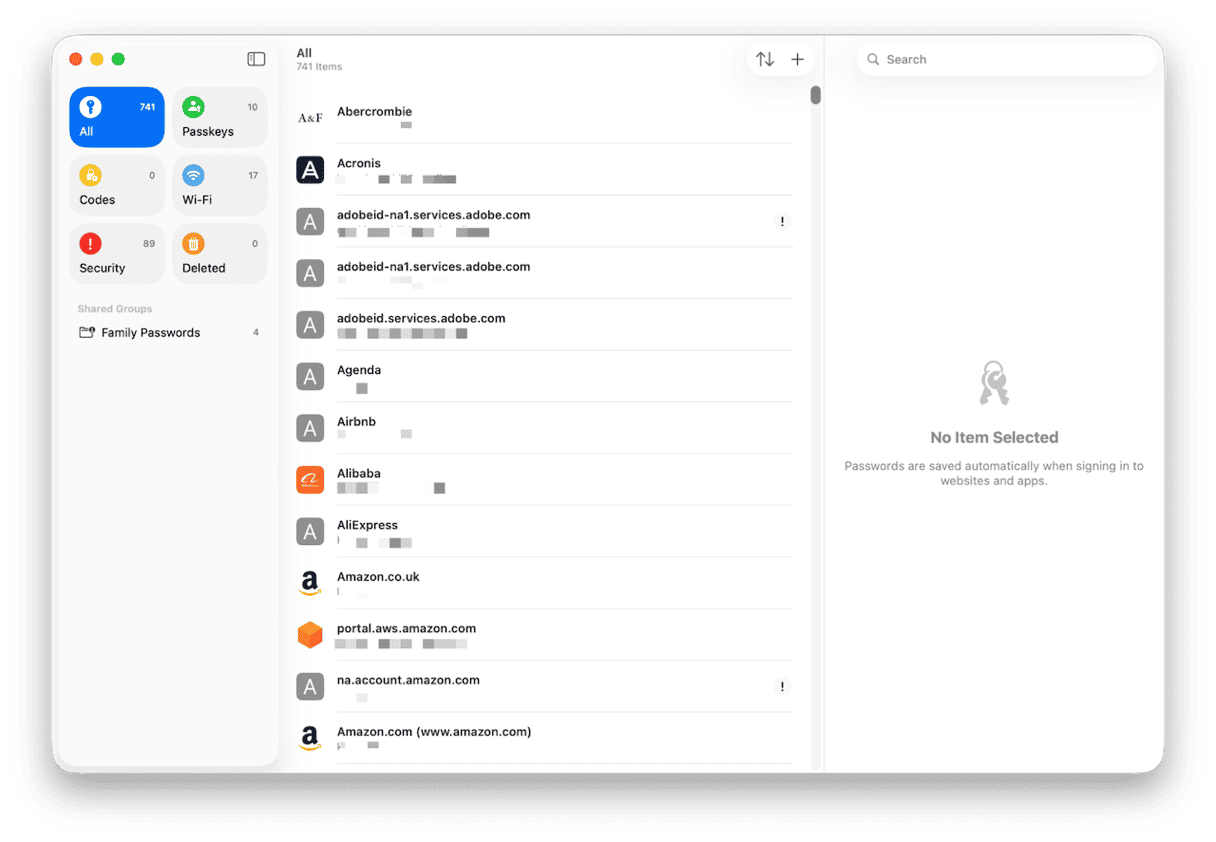
The Passwords app introduced in macOS Sequoia, iOS18, and iPadOS 18 allows you to generate, save, and auto-fill passwords in much the same way as Safari in older versions of macOS. Passwords are synced across all your devices.
- Go to your Applications folder and open Passwords. Type in your account password or use Touch ID to authenticate. Make sure ‘All’ is selected in the pane on the left.
- Scroll through the list of accounts until you find the account you’re looking for or search for it.
- When you find the account you want, select it.
- To view the password for the account, hover the mouse pointer over the password field. To edit a password, click Edit at the top of the window. To delete a password, right-click or Control-click on the account in the accounts list and choose Delete.
How to keep your Mac secure and your data safe
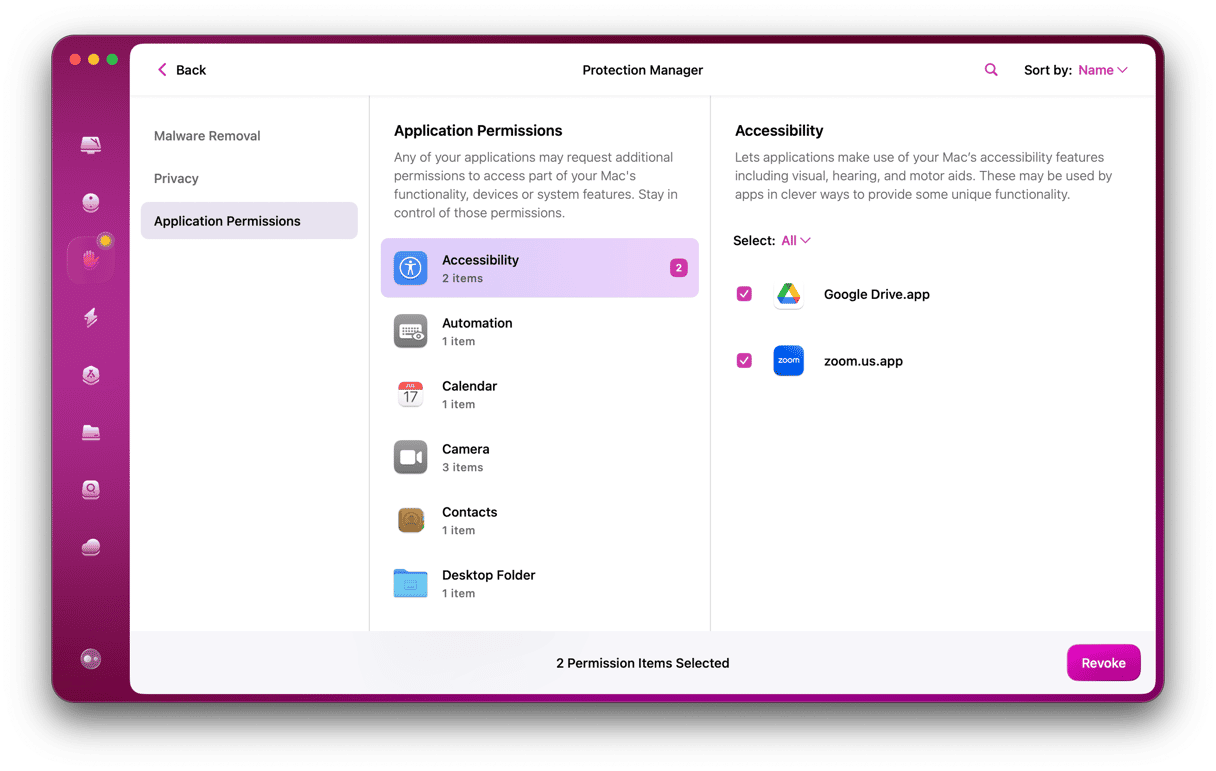
Using secure passwords and storing them in an encrypted format as Passwords does isn’t the only way to keep your Mac safe from harm. You should scan it for malware, review permissions granted to apps to access your webcam, microphone, and screen recording, and clear out sensitive data like your Recent Items list, browser history, and download history.
It’s not difficult for anyone who has access to all that data to build up a picture about you and your online activity or even steal your identity. The problem is that doing all that manually is time-consuming and laborious, not to mention difficult.
That’s where CleanMyMac’s Protection feature comes in. It scans your Mac, looking for malware, browser files that might be a threat to your privacy, application permissions, and recent items lists. Once it’s finished, you can easily remove any malware it has found as well as manage permissions and remove files.
- Get your free CleanMyMac trial — you can test it for 7 days for free.
- Open it and choose Protection in the sidebar.
- Click Scan.
- When it’s down, click Remove to remove any malware, temporary files, or recent items it has found, or review to check and, if necessary, revoke application permissions.
If you have a Mac that is running a version of macOS older than Sequoia and you want to see saved passwords, you need to use Safari. macOS Sequoia and newer versions use the Passwords app instead. Follow the steps above to view saved passwords in Safari on Mac or in the Passwords app.