
PDF documents are everywhere. Whether you download a receipt from an online store, receive an invoice, access a statement in a banking app, or fill in a form on a website, the document you’re working with is a PDF. Apple was quick to adopt PDF as a core part of the original Mac OS X, adding support for it throughout the OS and, for a time, making it the default format for screenshots before switching to PNG. Despite that, there is no standout option for editing PDFs on Mac. Preview handles the basics; beyond that, the choices are overwhelming.
So, in this article, we’ll show you the best PDF editors for Mac, free and paid.
What is the best PDF editor for Mac?
Here’s a quick overview of our top tools:
Tool | Best for | Free/Paid | Features |
PDF Expert | Editing text and images | Paid | Edit text, images, and links |
Adobe Acrobat | Collaborating in teams and using e-signatures | Paid | Edit text, images, and links. Collaborate with others. |
PDFgear | Filling in forms and annotating documents | Free | Annotate documents and fill in forms. Split and merge PDFs. |
Preview | Filling in forms and annotating documents | Free | Annotate documents and fill in forms. Split and merge PDFs. |
Foxit PDF Editor | Editing text and images | Paid | Edit text and images, including in OCR scanned documents. Collaborate with others. |
Nitro PDF Pro | Collaborating in teams and using e-signatures | Paid | Batch processing, e-signatures, collaboration |
PDF Squeezer | Compressing PDFs | Paid | Compress PDFs |
Cosmic PDF and Files Manager | Editing PDFs without downloading an application | Paid with some free features | Edit text and images in a web browser |
1. PDF Expert
PDF Expert is the closest tool to Acrobat that’s not made by Adobe. It allows you to edit text, images, and links in PDFs and supports editing of OCR documents. It has excellent tools for annotating documents and a clean, Mac-like interface.
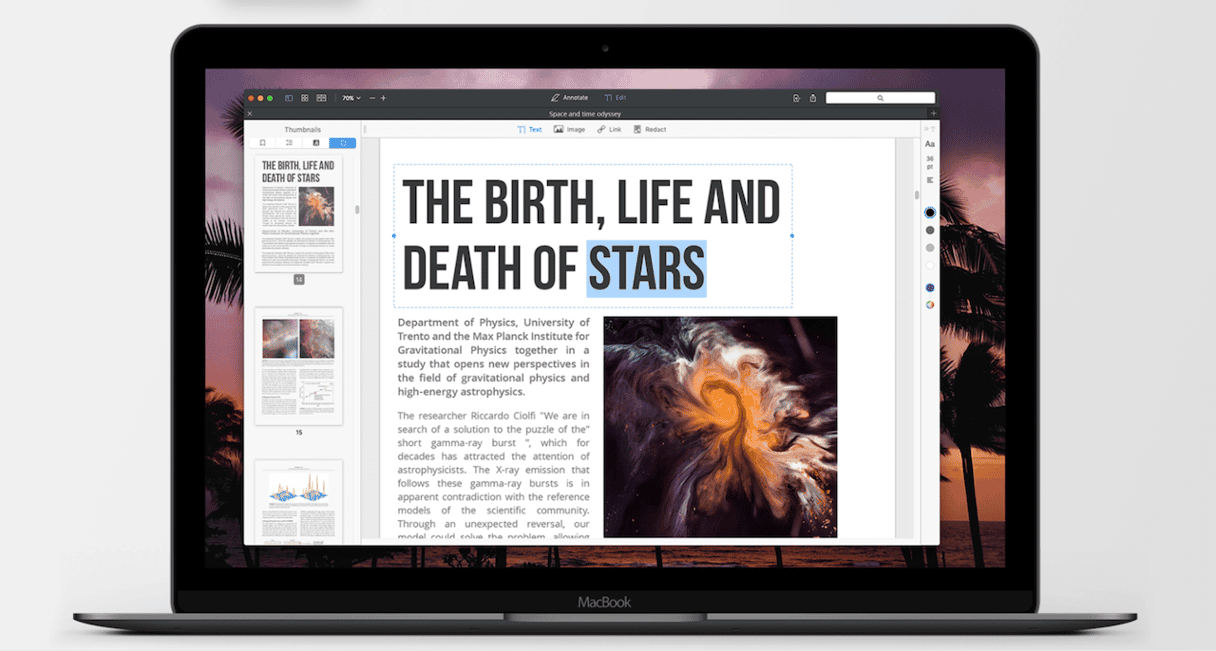
It’s not cheap, at $79.99/year, but that’s significantly less expensive than the Standard version of Acrobat and, for many users, provides everything they will need.
2. Adobe Acrobat
Acrobat is the best choice if you work for an organization that uses other Adobe tools or if you subscribe to Creative Cloud. If not, and especially for individual users, it’s expensive, starting at $14.99/month, and overkill for most needs. That said, Acrobat offers best-in-class editing tools, including form creation, redaction, electronic signatures, and cloud syncing.
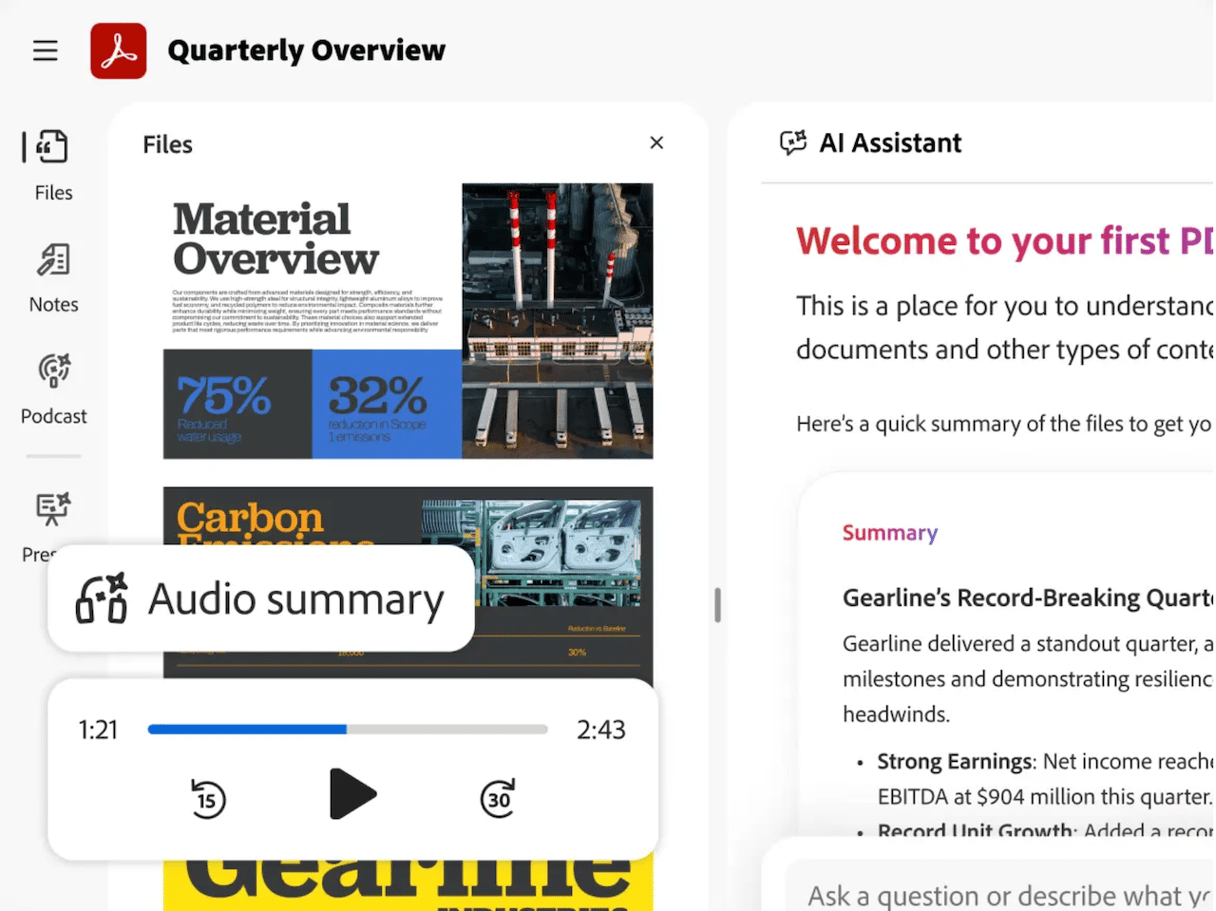
Some features, like turning scanned documents into editable PDFs and comparing document versions, are reserved for the Pro version, and others for the Studio tier, making them even more expensive.
3. PDFgear
If you only need a PDF editor for occasional use and so want a free option, PDFgear is an excellent choice. It offers a full range of editing tools like editing text, signatures, OCR, and annotations. It also allows you to compress, split, and merge PDF documents.
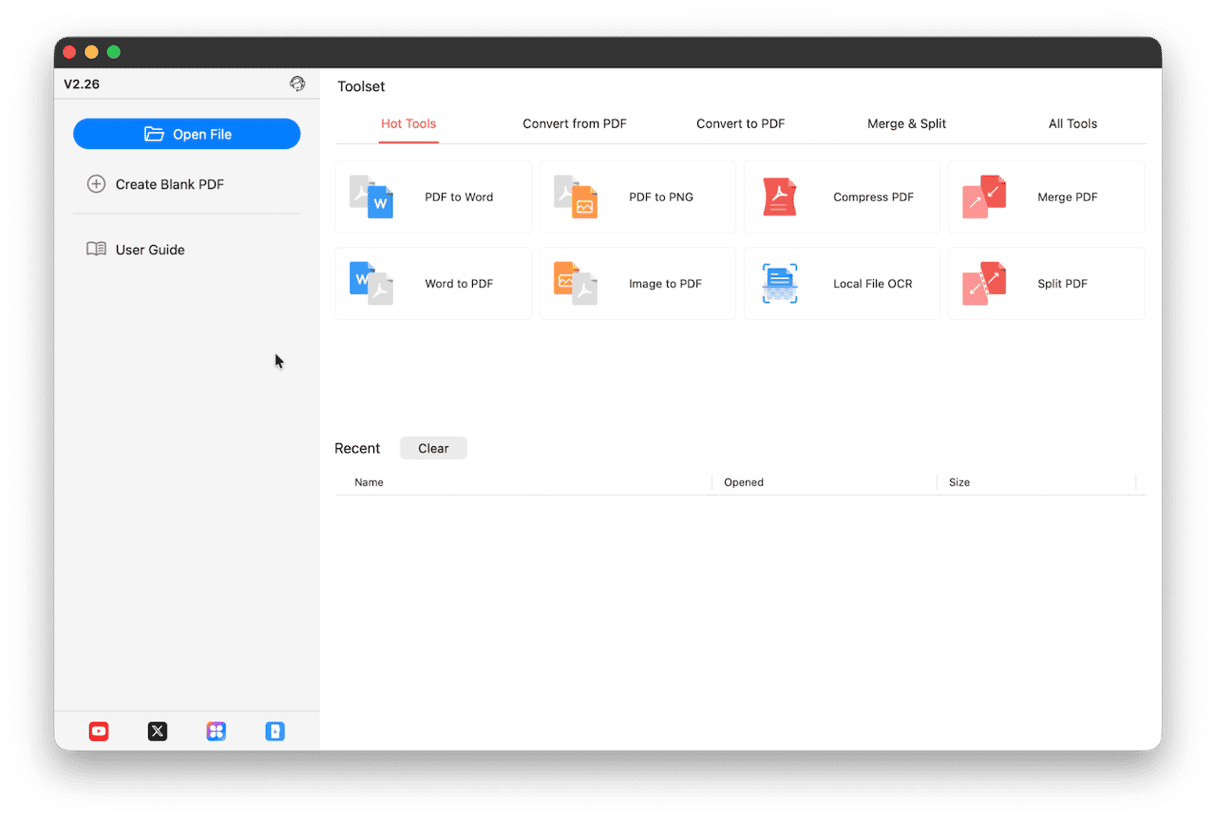
Importantly, and unlike some free options, it doesn’t add a watermark to your documents. Regardless of your needs, it’s worth starting with PDFgear and finding out whether it does enough for you.
4. Preview
Preview is the Mac’s built-in PDF and image viewing tool. However, it also has some useful editing tools like the ability to annotate documents, as well as to add text boxes and signatures, crop pages, merge documents, and fill in forms. However, you can’t edit text directly, which means it’s not suitable for many users.
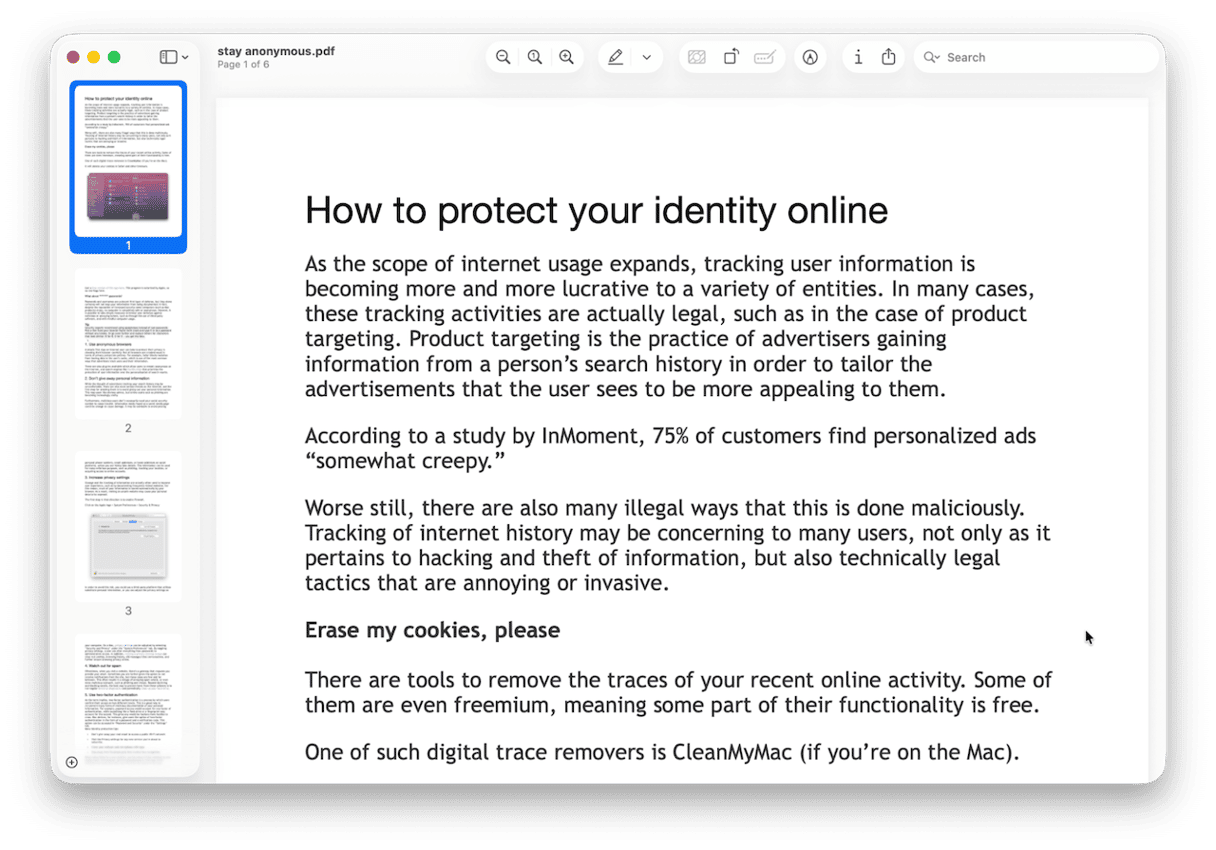
Nevertheless, if you only need to make basic changes to PDF documents, it’s worth giving it a go, given it’s already installed and free to use.
5. Foxit PDF Editor
Foxit PDF Editor is a good option for anyone who has recently switched from Windows or needs a PDF Editor that runs on both Mac and PC. The downside of that is that its interface isn’t particularly Mac-like. However, for $5.99/month it covers all the basics of PDF editing, allowing you to edit text in PDFs and scanned documents, add signatures, and collaborate with other users, whether they are on macOS or Windows. There’s also a free reader version.
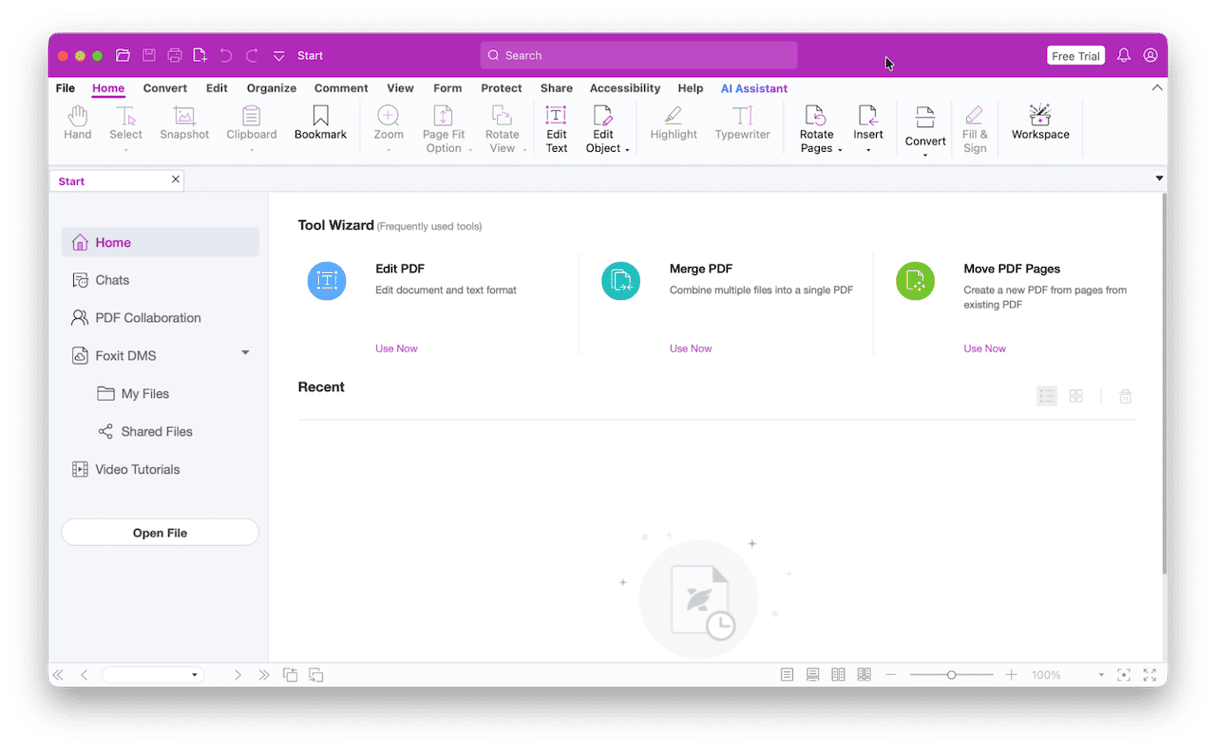
Foxit is a solid alternative to Acrobat, but some users may be put off by its interface.
6. Nitro PDF Pro
Nitro PDF Pro is another editor that’s available on macOS and Windows. At $9.99/month, it’s one of the pricier options on our list, but it does offer batch processing and collaboration and is particularly useful for teams who use e-signature workflows.
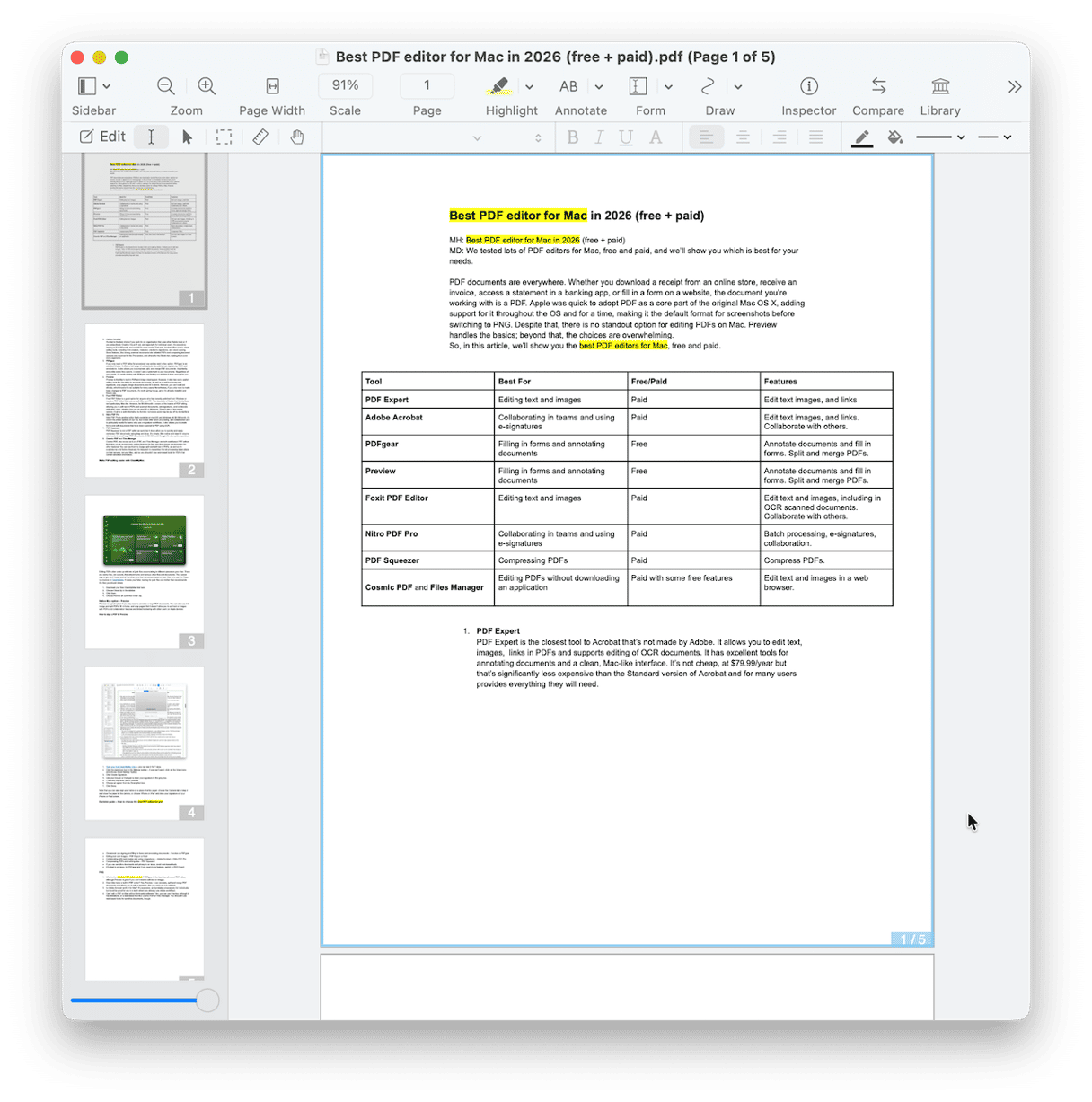
It also allows you to create forms and edit documents that have been scanned to PDF using OCR.
7. PDF Squeezer
PDF Squeezer is not a PDF editor as such, but it does allow you to quickly and easily compress PDF documents using drag and drop.
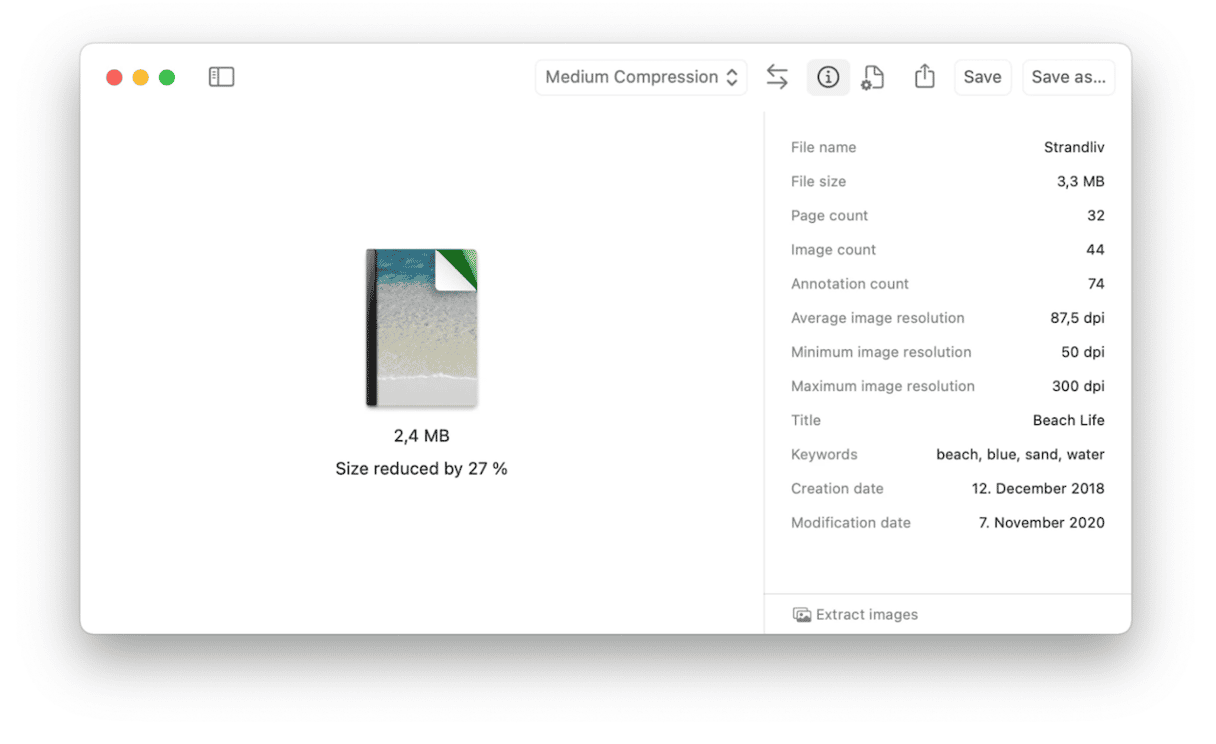
It’s simple, Mac-native, and ideal for anyone who needs to email large PDF documents. At $9.99/month, though, it’s also quite expensive.
8. Cosmic PDF and Files Manager
Cosmic PDF, also known as ILove PDF, and Files Manager are both web-based PDF editors that allow you to access basic editing features for free and then charge a subscription for other features. You can use them to merge, split, and edit text in PDFs, as well as for e-signatures and forms. However, it’s important to remember that all processing takes place on their servers, not your Mac, and so you shouldn’t use web-based tools for PDFs that contain sensitive information.
Make PDF editing easier with CleanMyMac
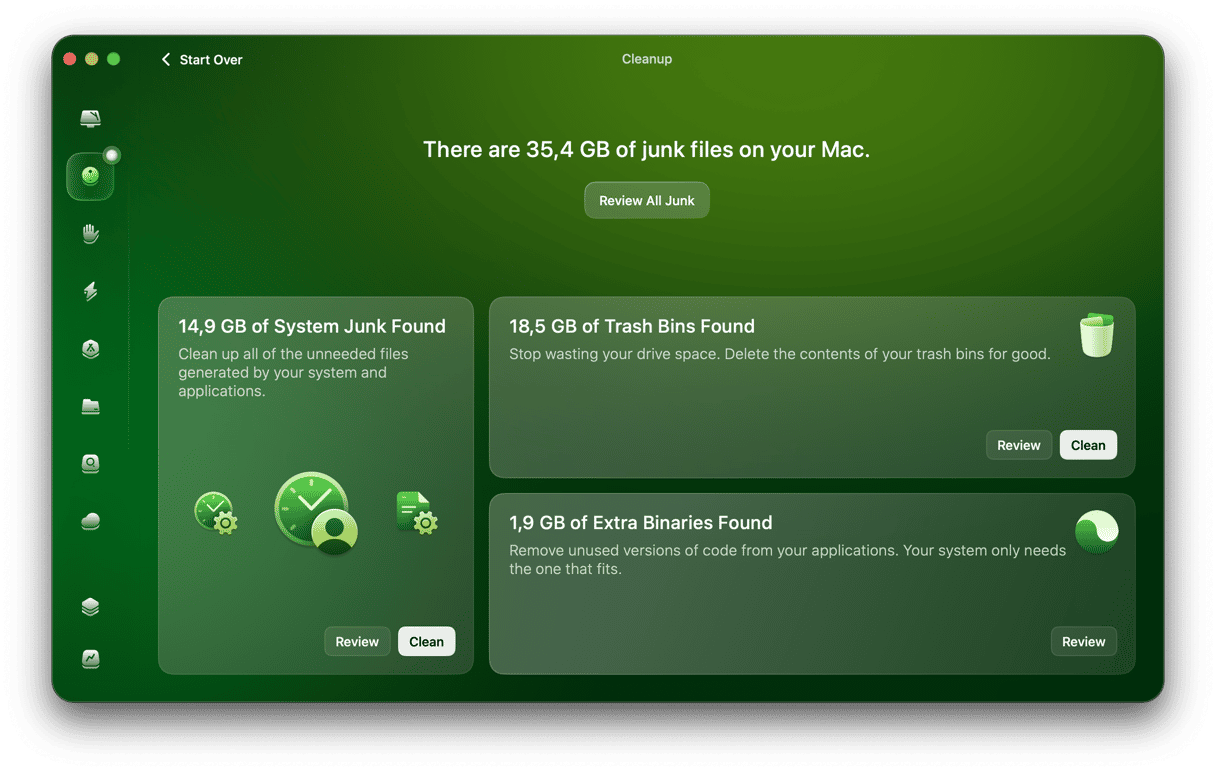
Editing PDFs often ends up with lots of junk files accumulating in different places on your Mac. There are cache files, old exports, Mail attachments, and various other files and documents. The easiest way to get rid of those, and all the other junk that has accumulated on your Mac over the months of work, is to use the Cleanup feature in CleanMyMac. It scans your Mac, looking for junk files and clutter, and then recommends the files you should delete.
- Start your free CleanMyMac trial — you can test it for 7 days.
- Choose Cleanup in the sidebar.
- Click Scan.
- Choose Review All Junk, select files for deletion, and Clean Up. Or click Clean right after the scan to remove preselected safe-to-delete files.
Native Mac option – Preview
Preview is a great option if you only need to annotate or sign PDF documents. You can also use it to merge and split PDFs, fill in forms, and crop pages. But it doesn’t allow you to edit text or images in PDFs, and collaboration features are limited to sharing with other users on Apple devices.
How to sign a PDF in Preview
- Open your PDF file in Preview.
- Click the signature icon in the Markup toolbar – if you can’t see it, click on the View menu and choose Show Markup Toolbar.
- Click Create Signature.
- Use your mouse or trackpad to draw your signature in the gray box.
- Press any key when you’re finished.
- Choose an option from the Description box.
- Click Done.
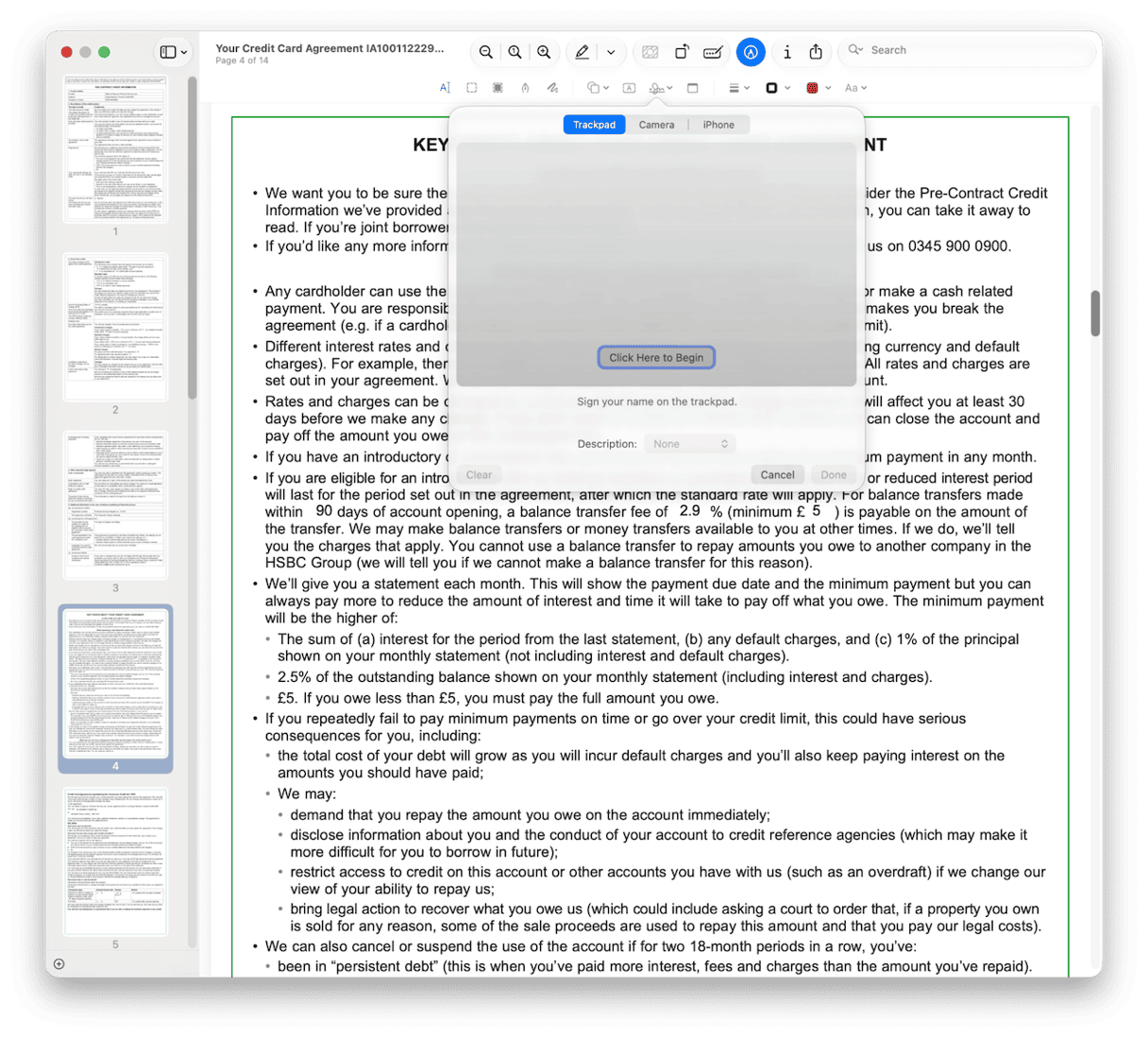
Note that you can also sign your name on a piece of white paper, choose the Camera tab at step 4 and show the paper to the camera, or choose ‘iPhone or iPad’ and draw your signature on your iPhone or iPad screen.
Decision guide – how to choose the best PDF editor for you
- Occasional use, signing and filling in forms, and annotating documents – Preview or PDFgear
- Editing text and images – PDF Expert or Foxit
- Collaborating with teammates and using e-signatures – Adobe Acrobat or Nitro PDF Pro
- Compressing PDFs and nothing else – PDF Squeezer
- If you use sensitive documents and privacy is an issue, avoid web-based tools
- If budget is an issue, try PDFgear, and if you need more features, switch to PDF Expert
Frequently asked questions
1. What is the best free PDF editor for Mac?
PDFgear is the best free all-round PDF editor, although Preview is great if you don’t need to edit text or images.
2. Does Mac have a built-in PDF editor?
Yes, Preview. It can annotate, split, and merge PDF documents and allows you to add a signature. But you can’t use it to edit text.
3. Is Adobe Acrobat worth it for Mac?
It’s expensive, and probably unnecessary for individuals, but could be good for use in a team where you already use Adobe workflows.
4. Can I edit a PDF on Mac without third-party software?
Yes, you can use Preview, although it has limitations, or a web-based tool like Cosmic PDF or Files Manager. You shouldn’t use web-based tools for sensitive documents, though.