
Siri AI is the headline new feature in macOS Golden Gate. Aside from improvements to Liquid Glass, it’s perhaps the main reason to upgrade from acOS Tahoe. But how good is it? If you’re not that bothered about Liquid Glass improvements, is it worth upgrading to Golden Gate just for Siri AI? I’ve been testing it for the last seven days and am going to share the real-world results of those tests with you.
Siri AI hardware requirements
Let’s address the elephant in the room. Siri AI has been long delayed and it’s likely, while not the only reason, that’s partly because Apple wanted to optimize performance so that it would run on as many Macs as possible. The good news is that if you have a Mac that can run Golden Gate – that means any Mac with Apple Silicon – it will be able to use Siri AI. There is a caveat, though. The on-device processing needed for features like natural voice options and upgraded dictation needs an M3 with 12GB RAM or higher, so if you have an M1, M2, or M3 with 8GB RAM, you won’t be able to use those.
It’s worth noting that while EU-based users can’t access Siri AI on iPhone or iPad, they can on Mac.
How to get Siri AI on Golden Gate
As with the original Apple Intelligence, Siri AI isn’t activated automatically when you install Golden Gate. You need to request to join a waitlist. Also, for Siri AI to work, Golden Gate must be installed on an internal APFS volume. It won’t work if you boot Golden Gate from an external disk. [Writer’s note: The Terminal hack that worked in the early developer beta no longer works]
Once you’ve installed Golden Gate, follow the steps below.
- Make sure your Mac’s language is set to English.
- Click on the Apple menu and choose System Settings.
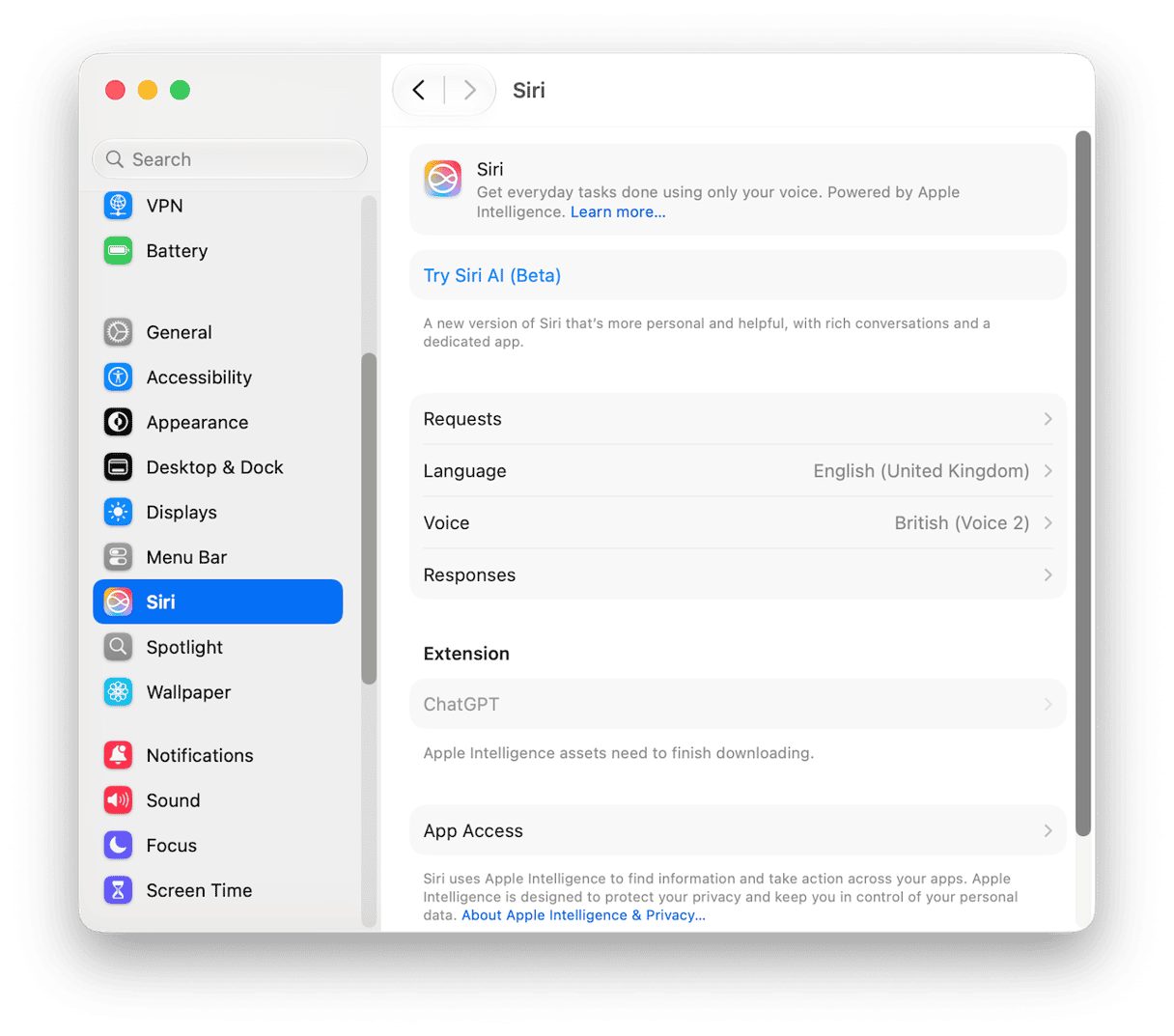
- Choose Siri and then Try New Siri.
- Select Join Waitlist and click Continue.
- Wait for a notification that you’ve been approved.
How I tested
I used five categories to test different aspects of Siri AI. Within each category, I ran several tests to find out how it performed. These are the categories I chose:
- Personal context and file awareness
- App actions and cross-app tasks
- Visual Intelligence
- General knowledge and research
- Writing assistance
macOS 27 Siri AI test results
The tests I carried out along with the results are shown below, broken down by category.
Personal context and file awareness
To test these features, I asked Siri AI a series of questions relating to content in apps like Calendar, Reminders and Notes.
- ’When is my next dentist appointment?’
- ‘Find the email from Jeremy with the PDF attachment’
- ‘Show me photos from my trip to Barcelona’
- Ask: ‘What did I write in my notes last Tuesday?’
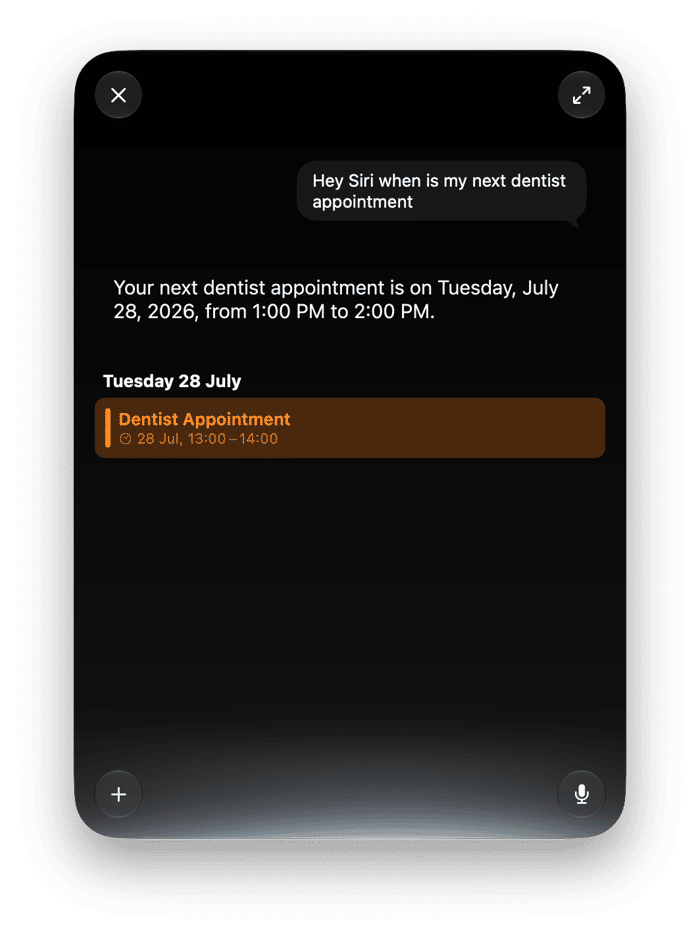
Siri was able to find the first Calendar appointment labeled ‘Dentist’ after the date on which I asked it, which is what I wanted. It correctly identified an email in Mail from my friend Jeremy which had a PDF attached. When I asked for photos from Barcelona, it showed thumbnails of some photos from my trip and asked if I wanted to see more. And when I asked about notes, it displayed a preview of a Note I had updated that day.
App actions and cross-app tasks
- Send an iMessage
- Create a Calendar event from a plain-English description
- Set a reminder
- Build a Shortcut from a description (key demo feature)
- Do something in a third-party app (e.g. Discord, Gmail)
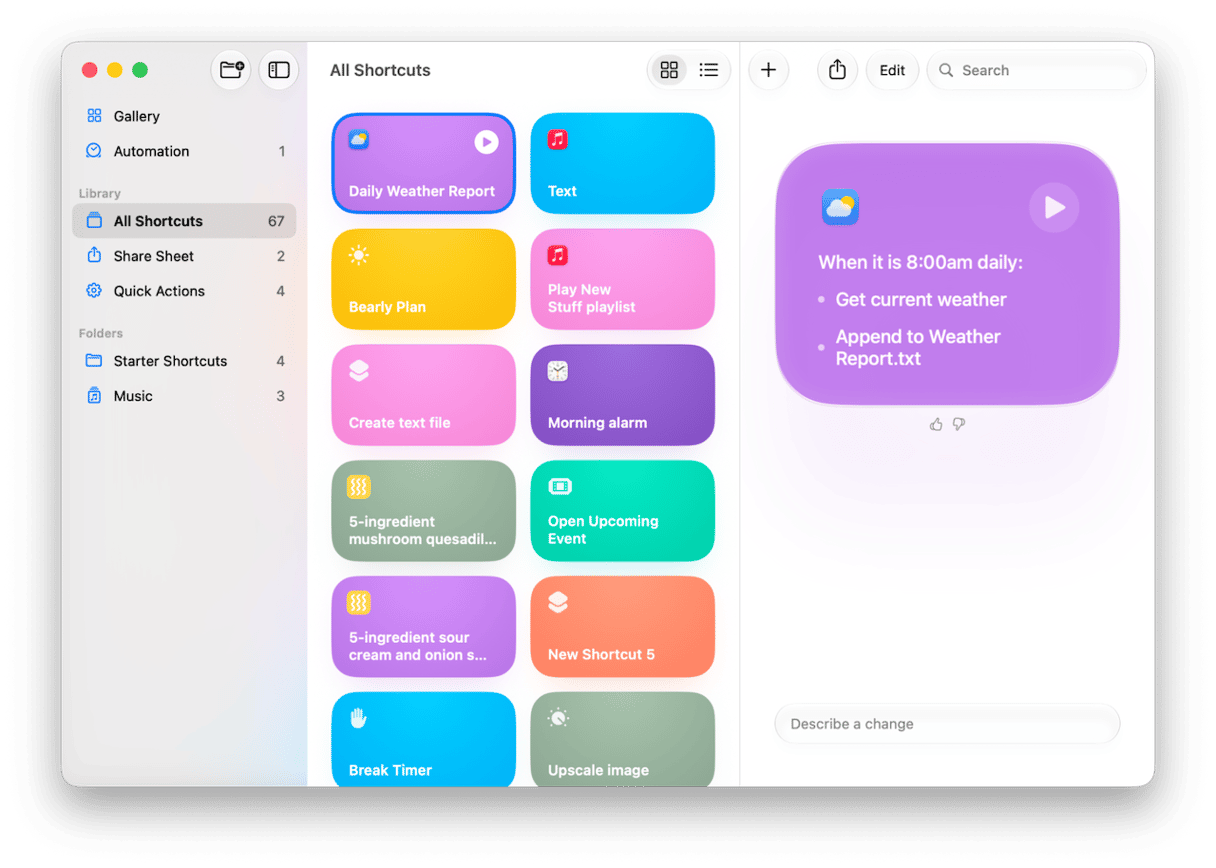
Sending a message using the Messages app worked, whether I gave Siri the content of the message or not. If I didn’t, it left a blank text box for me to type it. Setting a reminder worked every time. I tried creating two shortcuts in the Shortcuts app. One created a weather report at 8 am every morning and saved it to a text file, and the other resumed my most recently played podcast at 8:30 am every weekday. Both worked flawlessly. Using third-party apps was less successful, perhaps because this is still a beta. I couldn’t get Siri to send a message in the WhatsApp app or create a note in Bear.
Tip: macOS Golden Gate can feel glitchy right after an install. If you experience any issues with the new upgrade, jump to this article to learn how to fix them.
Visual Intelligence
- Ask Siri what’s on screen (test screen awareness)
- Plant/animal image identification
- Food nutrition identification from a photo
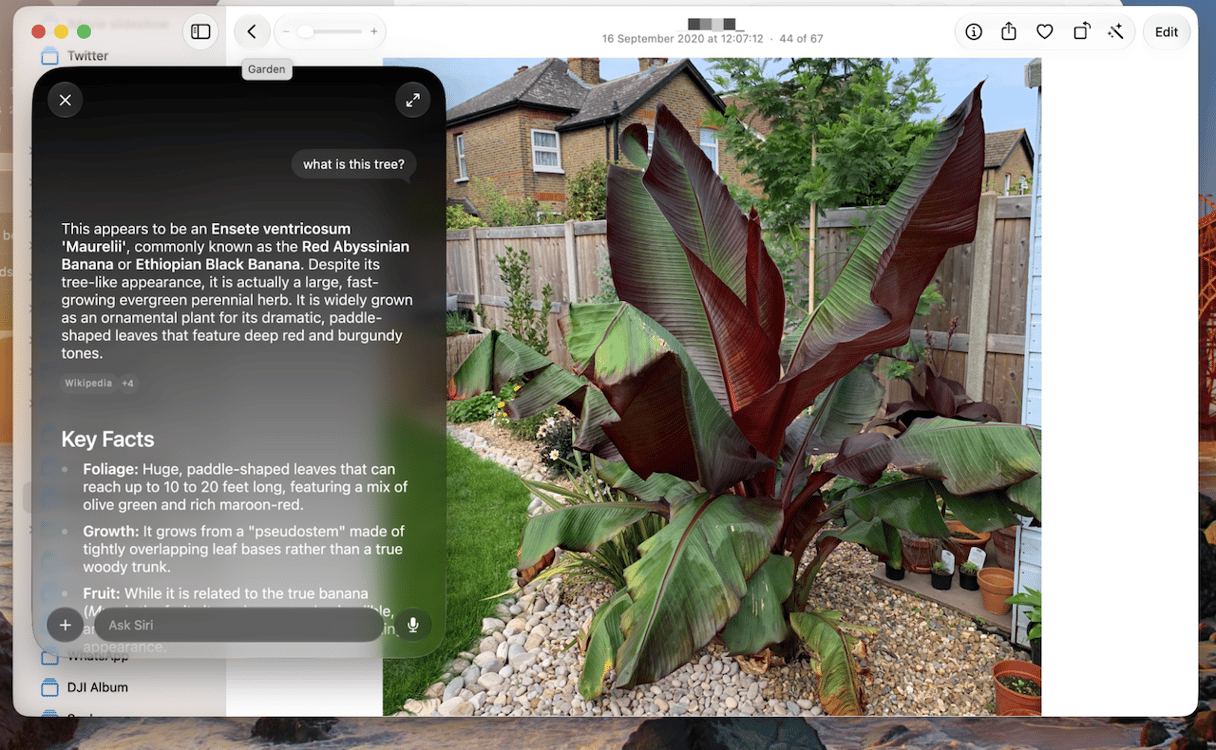
Asking Siri what was on screen worked well, and Siri provided an accurate description both when I used Command+Shift+Space and typed a text request and when I used image search. When I chose photos of plants and trees in Photos, Siri could identify them, and when I used a photo of food packaging, it correctly read and displayed the nutritional information.
General knowledge and research
- Factual question (e.g. release date, public info)
- Ask a multi-part question that requires combining web + personal data
I asked Siri several factual questions, and it provided detailed answers with links to sources and images where appropriate. When I asked it about Scotland’s performance in the recent World Cup and what I had said about it, in a multi-question conversation, Siri took information from my Calendar and Messages to find the personal element, and searched the web for factual information.
Writing assistance
- Draft an email in your writing style
- Rewrite a message to match your tone
- Write with Siri in Notes or Mail
Siri did a good job of writing a new email in my style. It had more difficulty rewriting existing text in my style because it didn’t have access to enough of my writing. Once I pasted a couple of examples, it did a good job of describing the style and replicating it. I then asked Siri to write a note in Notes that included information pulled from the web, and it did it.
Scorecard
Verdict: in most tests, Siri AI performed admirably, even on my M2 MacBook Air. There were some tests where it took up to a minute to respond, but the simplest requests, such as creating a new reminder or finding a Calendar entry, were completed in seconds. It can’t yet pull information from third-party apps or use those apps to carry out a request, but that will come in the final version. Overall, I was very impressed.
Before you upgrade
If you’re planning to upgrade to Golden Gate to try Siri AI, run CleanMyMac’s Smart Care first.
It removes junk files, checks for malware, and runs maintenance tasks in one click — so your Mac starts fresh, and Siri AI gets the resources it needs to run smoothly.
- Get your free CleanMyMac trial — test all 25+ tools for 7 days.
- Open the app and choose Smart Care.
- Click Scan > Run.
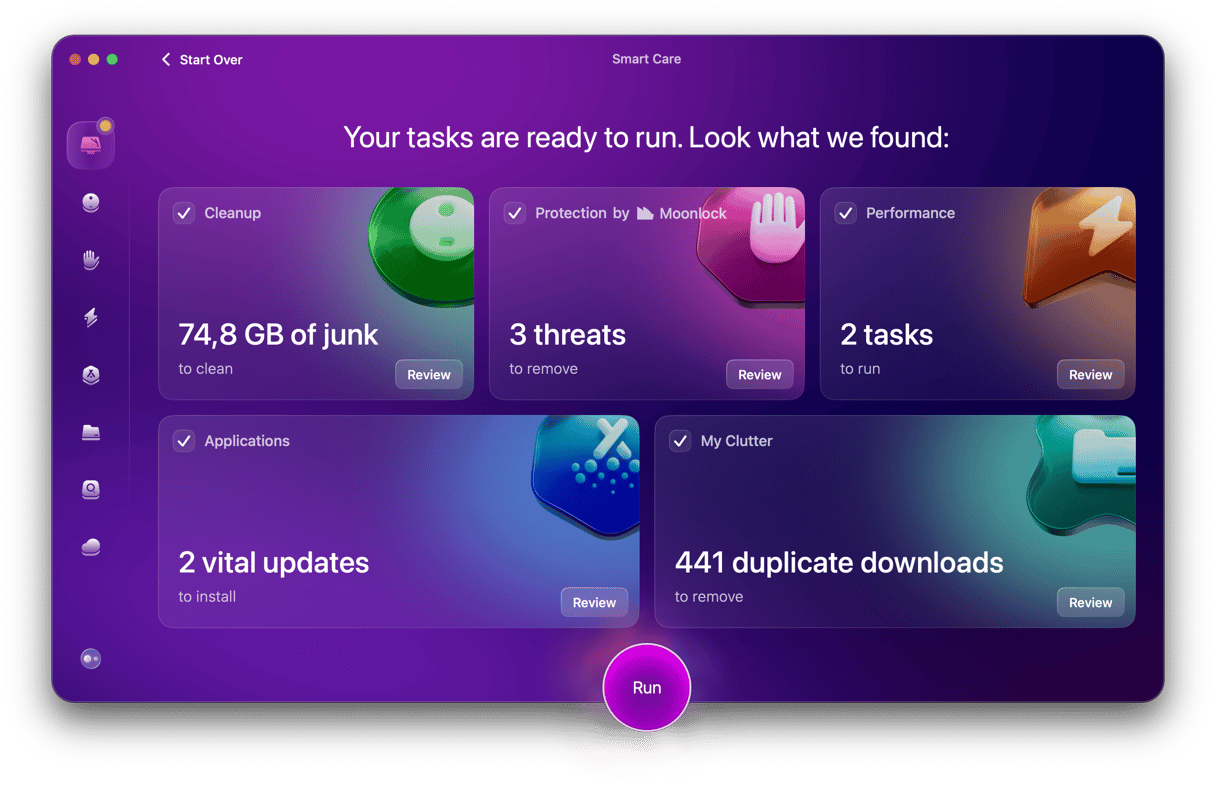
Now, you’re ready to upgrade to macOS Golden Date and use Siri AI.
Frequently asked questions
What Mac do I need for Siri AI on macOS Golden Gate?
All Apple silicon Macs (M1+) get basic Siri AI. Advanced features, like expressive voice, require an M3 with at least 12 GB RAM.
Is Siri AI available in the EU on macOS?
Yes — unlike iPhone and iPad, Siri AI is available on macOS in the EU.
How do I get Siri AI on macOS Golden Gate?
Install Golden Gate, then go to System Settings > Siri > Try New Siri and join the waitlist. Acceptance should take a few hours, but may take a few days.
Is Siri AI better than ChatGPT?
For tasks that require personal context — your emails, files, calendar — Siri AI has an edge no other chatbot can match. For general knowledge and creative tasks, ChatGPT and Gemini are still stronger. The two are complementary.
Does Siri AI work without an internet connection?
Basic features and some personal-context queries run on-device. More complex queries route through Apple’s Private Cloud Compute or extended knowledge, which require an internet connection.