
macOS Golden Gate delivers a lot of what Mac users have been waiting for: a smarter Siri, next-generation Apple Intelligence features, and Liquid Glass improvements, to name a few. But new software needs time to get polished. If you've already run into sluggish performance, battery drain, or apps that crash or won’t open, you're not alone. We've compiled a list of the most common macOS 27 problems and tested the fixes ourselves. Here's what to try first.
macOS Golden Gate issues & proven solutions
Most macOS Golden Gate issues are temporary and usually get fixed in the next update. Until then, here's what you can do on your own.
Issue #1. Sluggish macOS performance
After any major update, your Mac has extra work to do behind the scenes: Spotlight reindexes your drive while iCloud re-syncs your data, and both compete for resources. In macOS Golden Gate, that workload is even heavier because it rebuilds the entire search index and adds new Apple Intelligence features. All of this can leave your Mac extremely slow for hours or even days after the update.
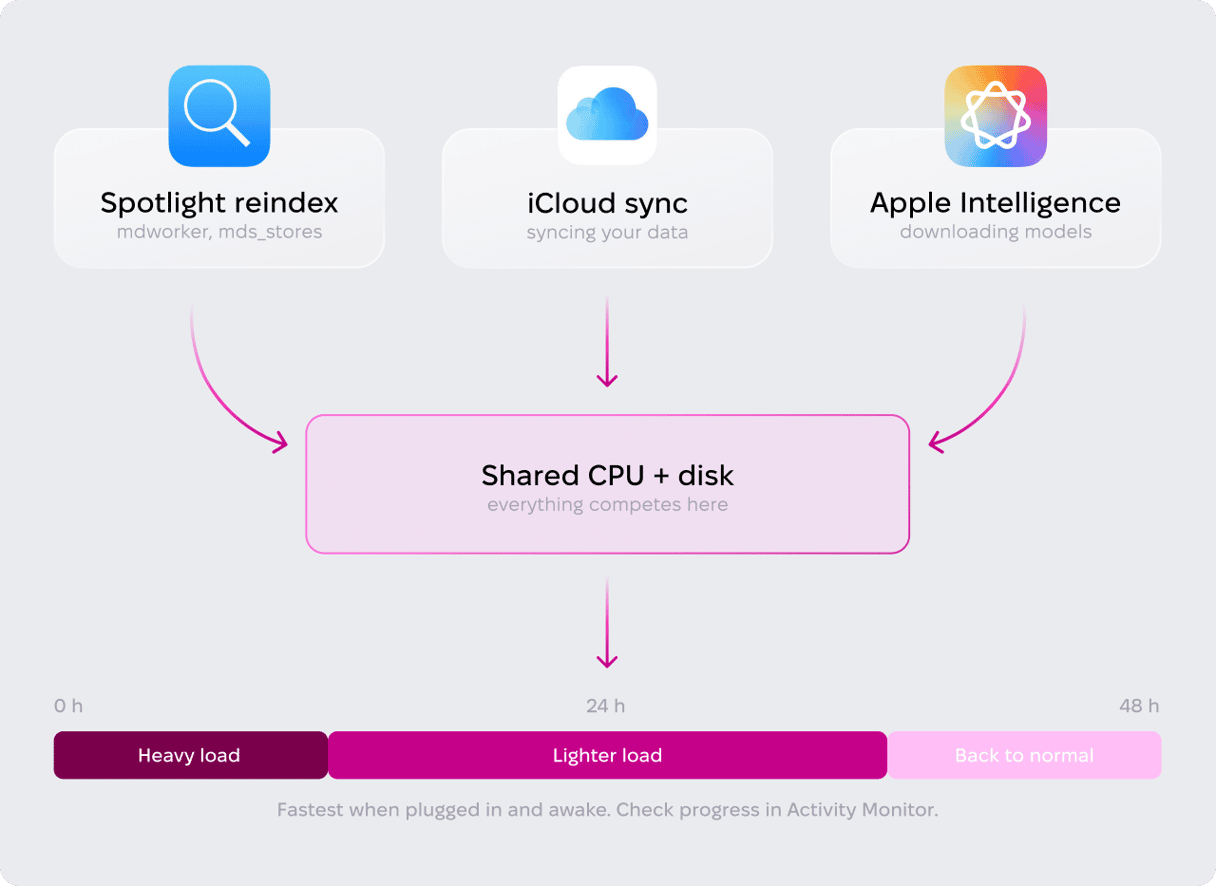
Fix #1. Leave your Mac plugged in and awake for 24 to 48 hours
macOS delays some heavy background tasks, such as indexing, until your Mac is connected to power. Plug in your Mac and keep it awake so indexing can finish: go to System Settings > Battery > Options and turn on "Prevent automatic sleeping on power adapter when the display is off."
To check progress, open Activity Monitor and look at the CPU column: if mdworker, mds_stores, or photoanalysisd are at the top, indexing is still running.
Fix #2. Remove unnecessary login items
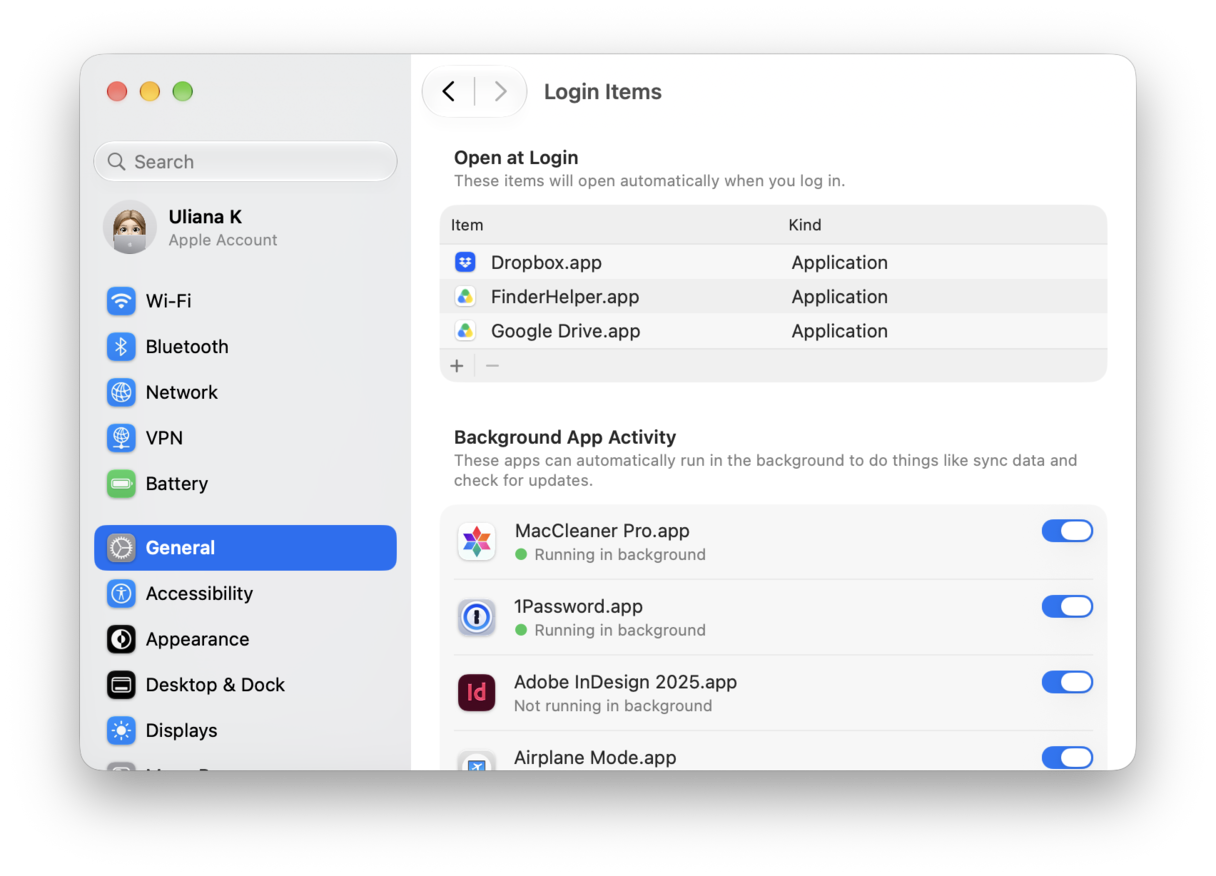
After a major macOS release, some third-party apps and their background agents may not yet be updated for the new OS, leading to crashes and unpredictable behavior. If that's the case, start by disabling unnecessary login items to see what's slowing things down.
Open System Settings > General > Login Items & Extensions and go through the list. Switch off anything you don't need at startup, and pay special attention to the "App Background Activity" section.
Fix #3. Restart in safe mode
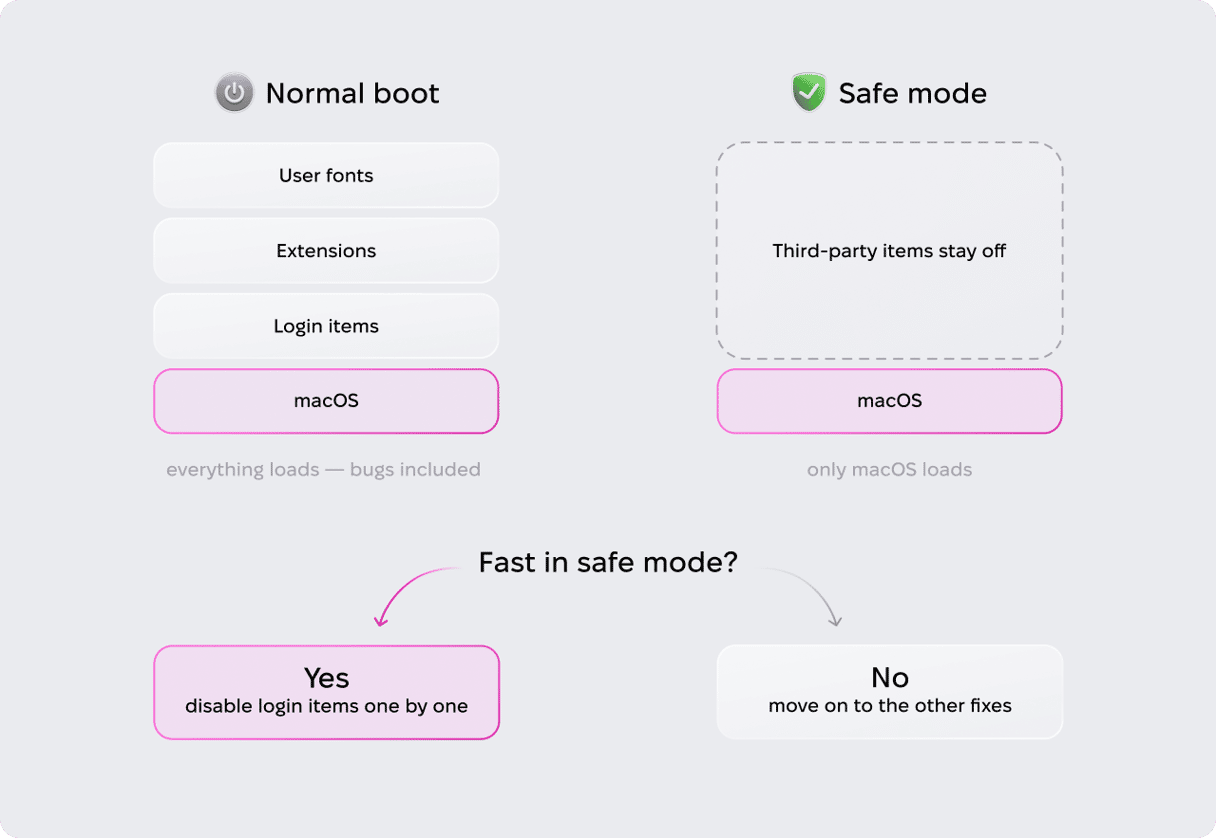
Safe mode loads macOS without login items, third-party extensions, and user fonts, so it's the quickest way to diagnose slow performance.
- Shut down your Mac, then press and hold the power button until "Loading startup options" appears.
- Select your startup disk, hold the Shift key, and click "Continue in Safe Mode."
If your Mac runs noticeably faster in safe mode, a login item or extension is likely the cause.
Slow performance after the upgrade can occur for several reasons, and identifying the cause may take time. If you'd rather skip the manual troubleshooting, an app like CleanMyMac puts the common fixes in one place: it can manage login and background items, reindex Spotlight, flush the DNS cache, and run other maintenance tasks. There's a free trial if you want to see whether it helps.
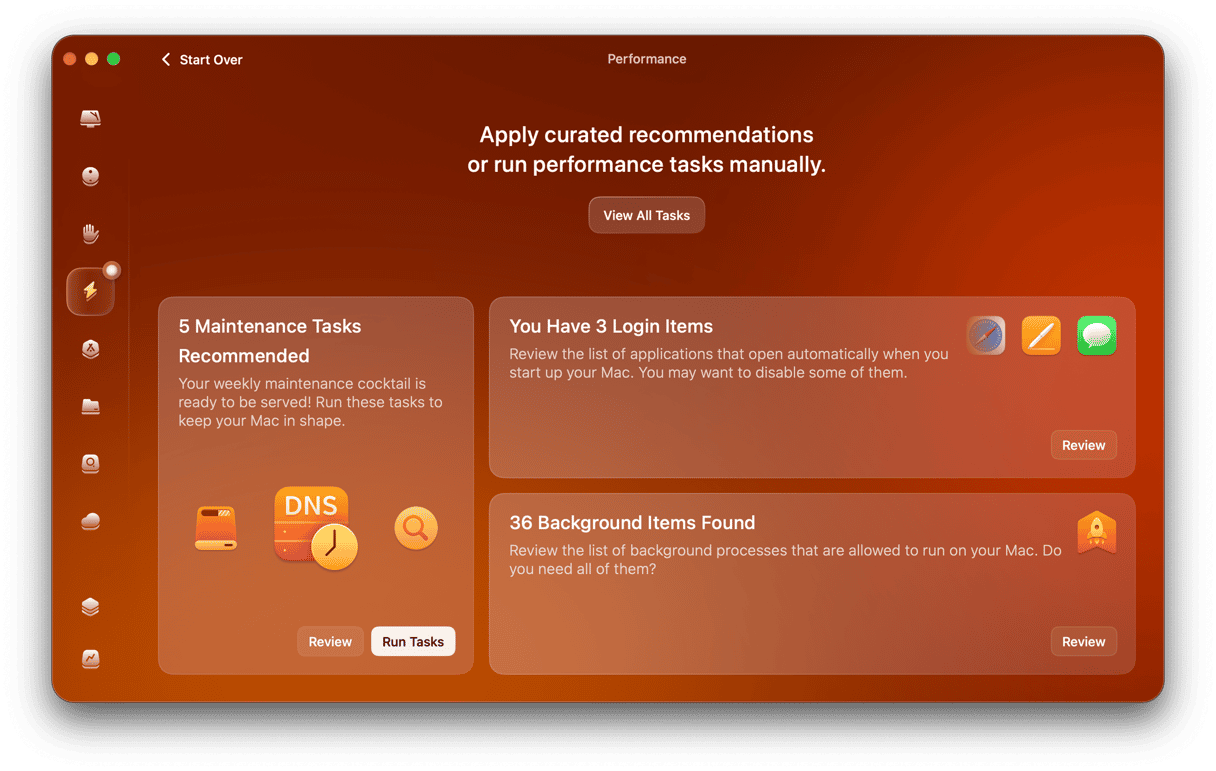
- Open CleanMyMac and choose Performance from the sidebar.
- Click Scan, and wait for it to complete.
- Click Run Tasks to apply the recommended maintenance, or click Review next to any suggestion to see the details.
Issue #2. macOS Golden Gate battery drain
Spotlight reindexing and iCloud syncing don't just slow down your Mac; they also drain the battery faster. The earlier advice applies here too: keep your Mac plugged in and awake for 24 to 48 hours so these resource-heavy processes happen on power, not on battery. If it didn’t help, move on to these fixes.
Fix #1. Check your charging limit
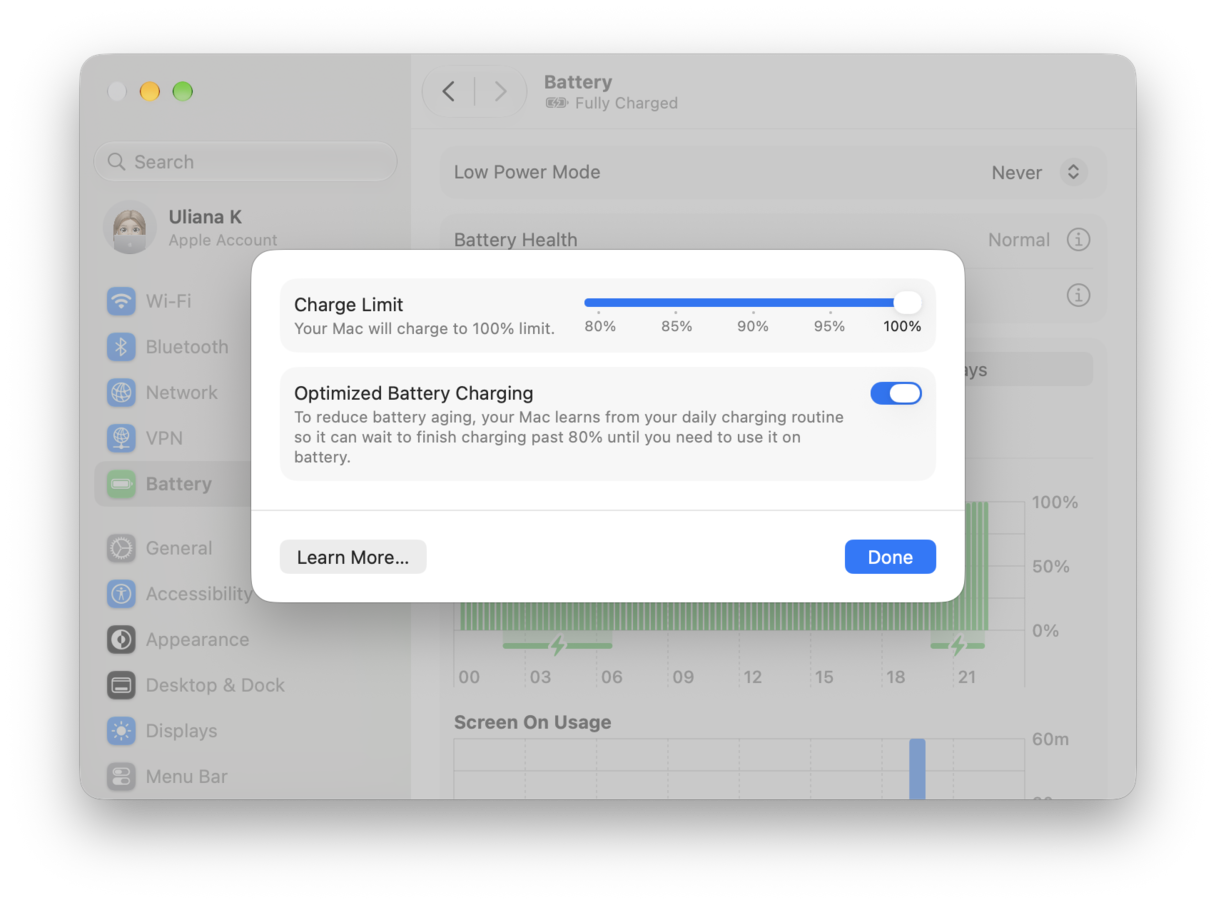
Some users have reported that the 80% charging limit resets to 100% after each restart. This bug doesn't directly drain your battery, but it can contribute to battery wear. Until Apple fixes it, check the limit after every reboot: go to System Settings > Battery, click the "i" icon next to Charging, and set the limit back to 80%.
Fix #2. Reduce Liquid Glass opacity
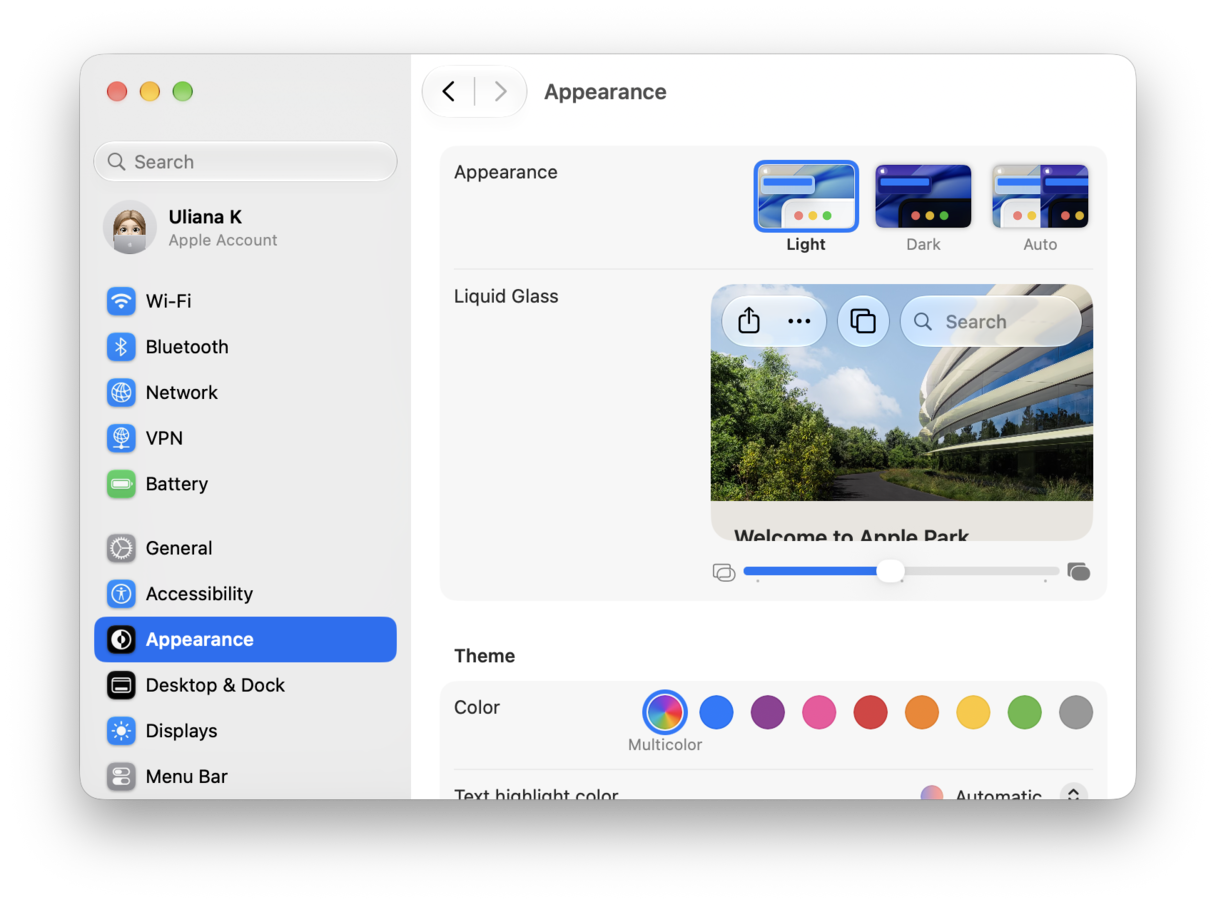
Golden Gate's refined Liquid Glass interface takes additional GPU resources to render, which can affect battery life. This version also introduces a new transparency setting to reduce the rendering load on the GPU: go to System Settings > Appearance and move the slider toward the opaque end.
Fix #3. Reboot to fix the sleep/wake bug
Some MacBook Pro users on M1 Pro report that after opening the lid, the Mac ignores keyboard and trackpad input for 5 to 15 seconds. The same bug keeps the system active during sleep, quietly draining the battery behind the closed lid. If you experience this, restart your Mac.
Issue #3. macOS Golden Gate apps crashing or not launching
Whether it's Rosetta or a missing app update, there are a few reasons why apps aren’t launching or keep crashing on Golden Gate. Here’s what you can do about it.
Fix #1. Install Rosetta
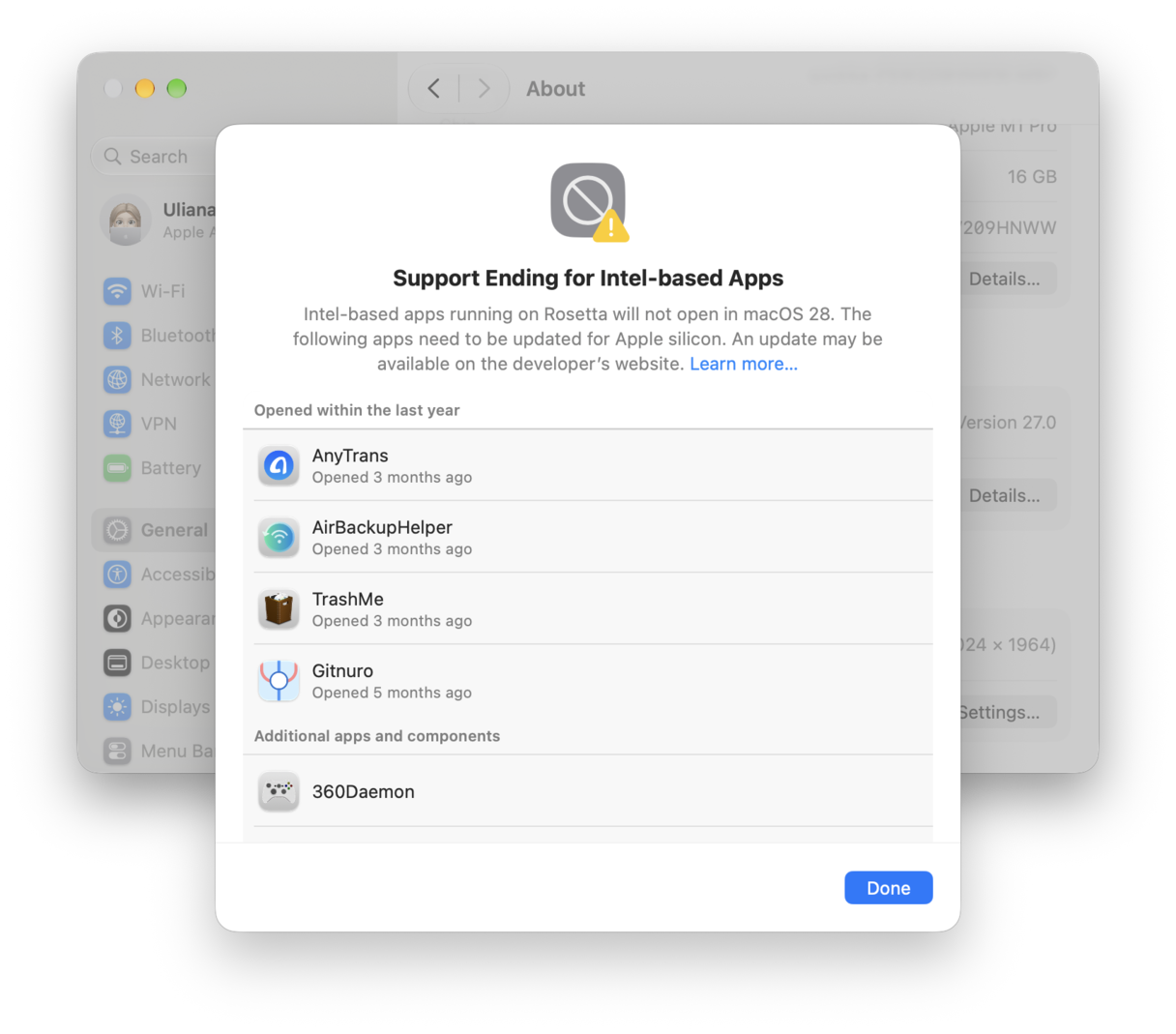
Even if you have Rosetta on macOS Tahoe, Golden Gate will prompt you to install Rosetta before launching the Intel-based app. However, macOS 27 is the last macOS to support Rozetta, so it may affect your Intel-based applications.
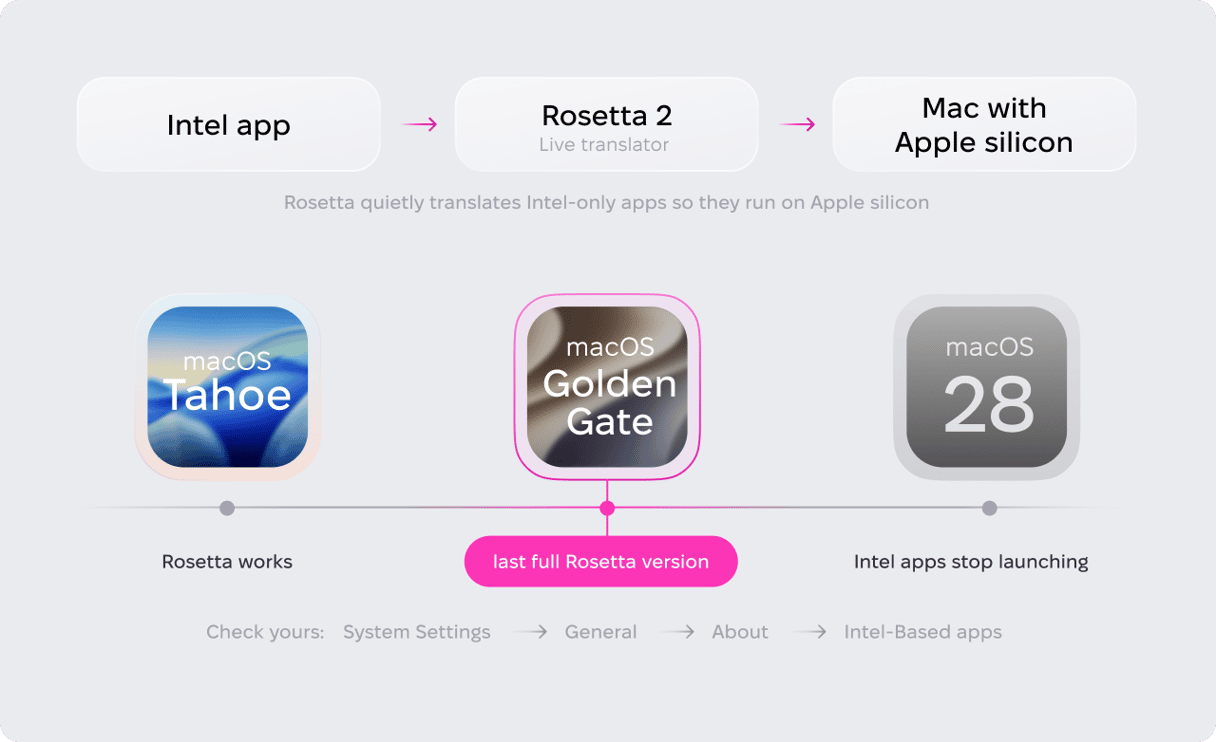
To see which of your apps depend on Rosetta, go to System Settings > General > About > Intel-Based Apps and click Details.
Fix #2. Update your apps
For apps that crash or misbehave rather than refuse to launch, the cause is usually simpler: the developer hasn't updated it for Golden Gate yet. Check for updates in the app menu or update from the App Store.
Fix #3. Reset misbehaving apps
If an update doesn't fix the crashing, you can try resetting the app. A reset clears all user-related data and removes app preferences, returning the app to its initial state. Corrupted settings files are often the cause, and this removes them along with everything else. Use the Applications tool in CleanMyMac to reset any app. First, open CleanMyMac and go to My Tools.
- Find the Uninstaller panel and click Scan.
- Find the app you want to reset, then click the arrow next to its name to expand its files.
- Select everything except Binaries, then click Remove.
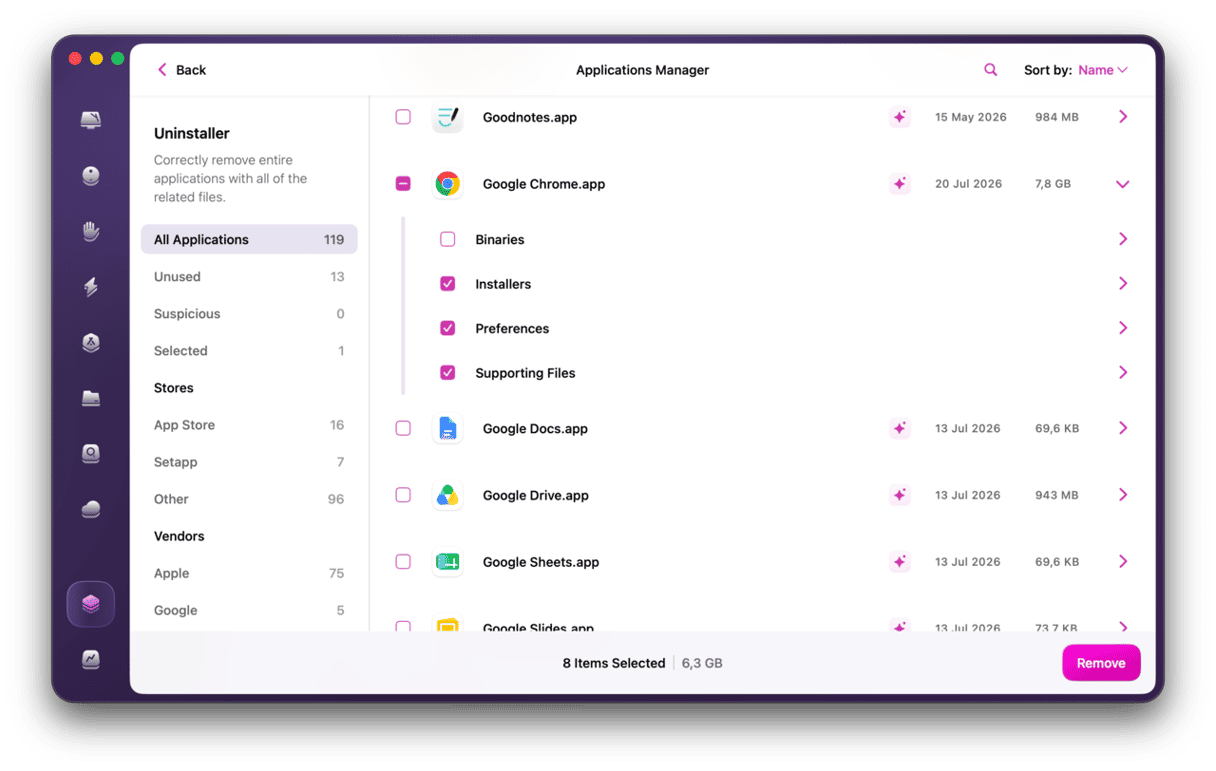
Launch the app again — it will start fresh with default settings.
Issue #4. Wi-Fi dropping or not connecting
Wi-Fi trouble on Golden Gate is usually caused by one of three things: networking bugs, outdated settings carried over from your previous macOS, or third-party security software.
Beyond the obvious first steps, like toggling Wi-Fi off and on or forgetting the network and reconnecting, there are a few more fixes you could try. Start with the configuration files below.
Fix #1. Clear old network configuration files
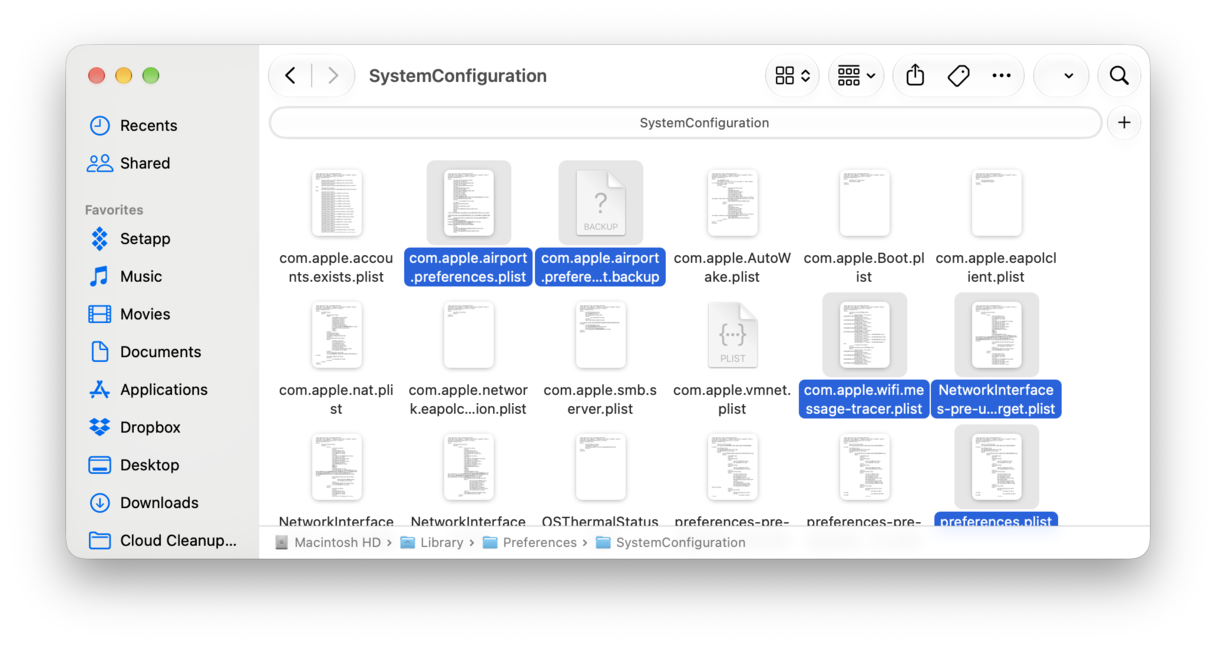
Your network preferences transferred from your previous macOS are a usual cause of random Wi-Fi drops. To clear those outdated configurations, in Finder choose Go > Go to Folder, paste /Library/Preferences/SystemConfiguration/, and look for these files:
com.apple.airport.preferences.plist
com.apple.wifi.message-tracer.plist
NetworkInterfaces.plist
preferences.plist.
Move these to a folder on your desktop as a backup and restart your Mac. Then reconnect to your Wi-Fi network.
Fix #2. Turn off Limit IP Address Tracking
This fix has been discovered by the MacRumors community. Basically, it routes some of your traffic through Apple's privacy relay, and that path doesn’t work smoothly in early macOS Golden Gate versions. Go to System Settings > Wi-Fi, click Details next to your network, and turn off Limit IP Address Tracking. Just be mindful that with this turned off, your IP may be visible to trackers.
Fix #3. Check your security software
A VPN, antivirus, or corporate security tool that isn't optimized for Golden Gate yet may interfere with your connection. Try disabling the software temporarily, or uninstall it completely. If that solves the problem, check the developer's site for a Golden Gate-compatible update.
Issue #5. Spotlight / Siri AI not working as expected
Long reindexing is the common cause for Spotlight not working properly after the upgrade. Rebuilding may take a while, so if the issue continues, try the fixes below.
Fix #1. The app's view is showing up empty
In early betas, opening the Apps drawer in Spotlight sometimes didn’t show any apps. If you’re experiencing this bug, click the Spotlight icon in the menu bar once. Your apps should show up from then on. The bug has been fixed in the major release.
Fix #2. Join the waitlist for Siri AI
Siri AI is gradually rolling out to all Macs powered by an M3 chip or later with a minimum of 12 GB of RAM. To get access, you'll need to join the waitlist: go to System Settings > Siri and click Try New Siri. Follow the instructions to set it up, then click Join Waitlist.
Fix #3. Rebuild Spotlight index
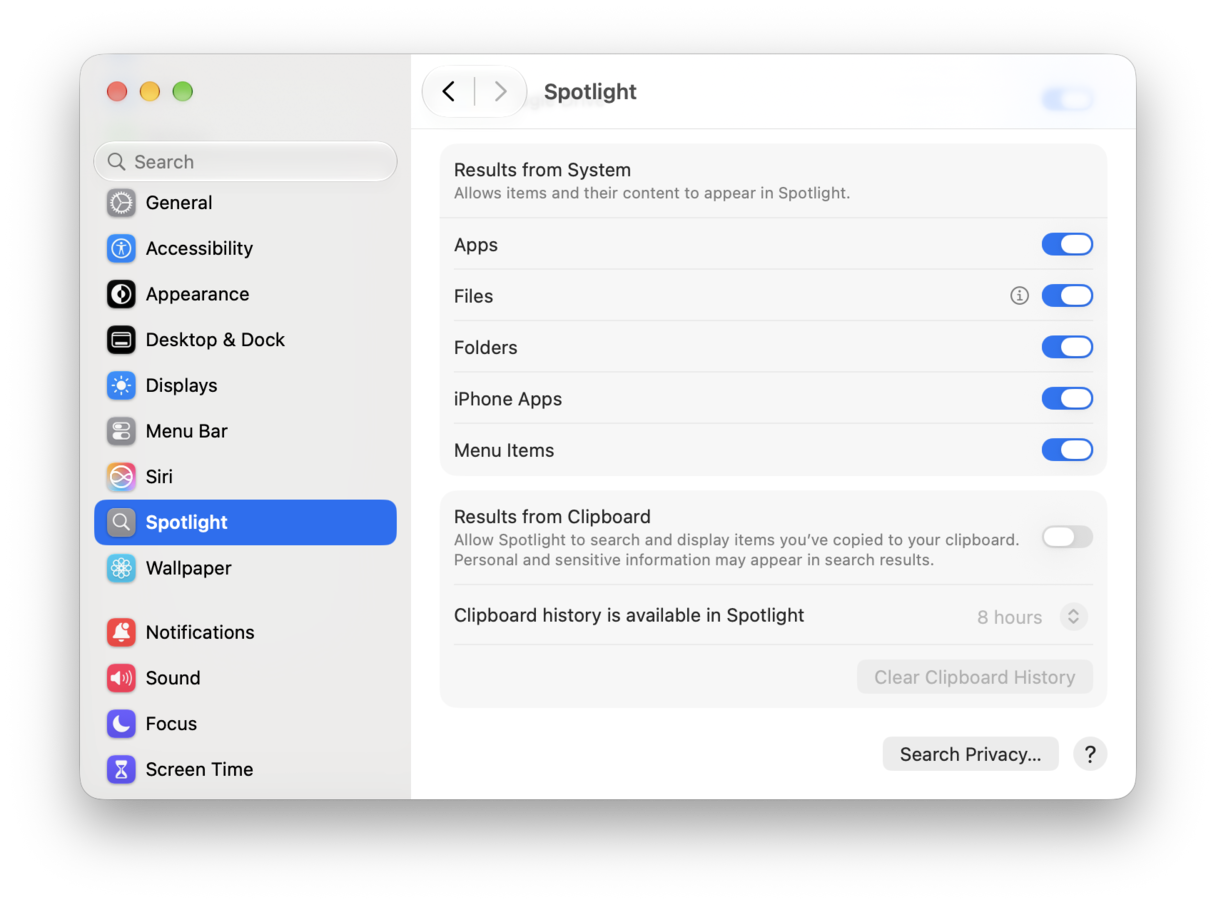
If reindexing takes too long or gets stuck, you can force Spotlight to start over. Go to System Settings > Spotlight and click Search Privacy. Drag your startup disk into the list, wait a few seconds, then select it and click the minus button to remove it. Spotlight will now rebuild the index from scratch.
Issue #6. Installation / update not showing or failing
If the Golden Gate update doesn't show up in Software Update, Rosetta 2 may be the reason. Apple doesn’t release Rosetta builds at the same time as macOS betas, so if you have Rosetta installed, you may see an update delayed.
If the update shows up but fails, try the following fixes.
Fix #1. Free up space
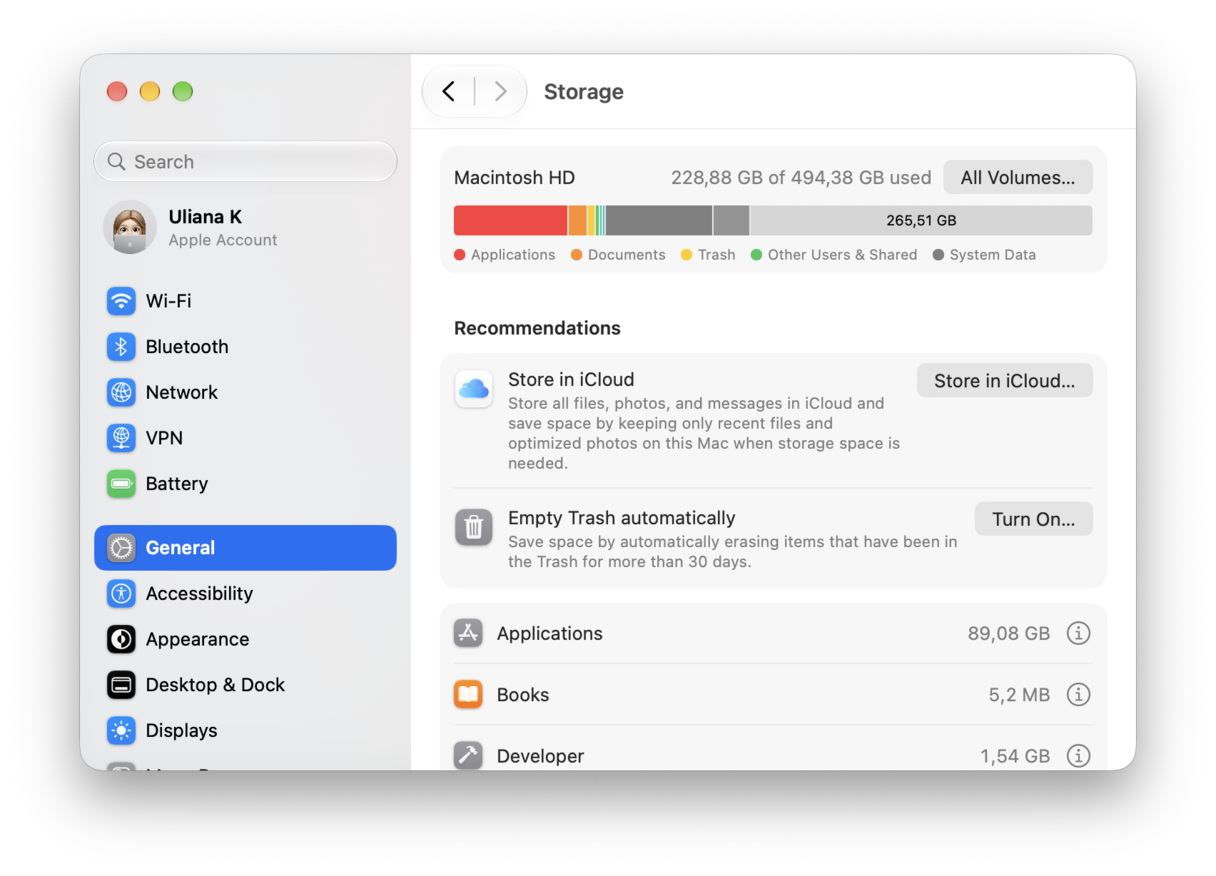
Check that you have at least 20–30 GB of free space before installing, and more if you plan to use Siri AI, which takes tens of gigabytes on its own. Go to System Settings > General > Storage and explore the categories to see what you can remove.
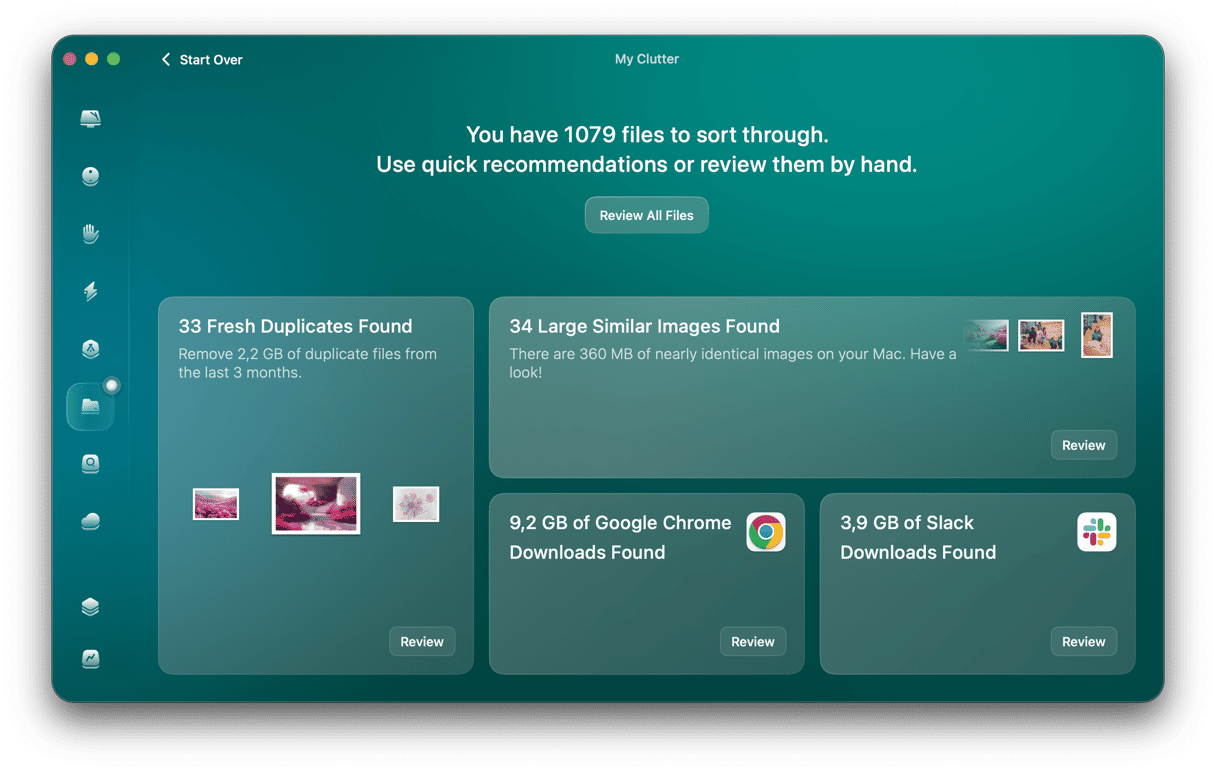
If you'd rather not sort through files manually, CleanMyMac can speed things up. Its My Clutter feature finds large files you haven't touched in a while. Chances are, you forgot half of them exist.
Fix #2. Install via safe mode
As we covered above, safe mode starts your Mac without third-party login items and extensions, so anything that's been blocking the installer stays out of the way.
- Shut down your Mac, then press and hold the power button until "Loading startup options" appears.
- Select your startup disk, hold the Shift key, and click "Continue in Safe Mode."
- Log in to your Mac. You might be asked to log in twice.
- Go to System Settings > General > Software Update and try updating again.
Fix #3. Reinstall via macOS Recovery
If you have problems with Golden Gate not working properly, you can reinstall it through macOS Recovery if Software Update keeps failing.
- Shut down your Mac.
- Press and hold the power button. Continue holding it until your Mac turns on and loads startup options.
- Click Options > Continue, and choose Reinstall macOS.
Issue #7. Missing or removed features
Not every Golden Gate problem is a bug. Some things were removed on purpose. Here’s what has been gone on macOS 27 and what you can use instead.
- Boot Camp
- Time Machine backups to AirPort Time Capsule
- AFP file sharing
Golden Gate officially removes Boot Camp, though you're not really losing anything: it only ever worked on Intel Macs, which can't run Golden Gate at all. If you need Windows on your Mac, use a virtualization app like Parallels Desktop, VMware Fusion, or the free UTM.
Apple has ended support for Airport Time Capsule backups, and AirPort Utility has disappeared along with it. Back up to a different destination instead: an external drive, an SMB-capable NAS, or a shared folder on another Mac.
Golden Gate drops the Apple Filing Protocol, which older NAS devices and Macs still use. Switch your NAS to SMB and turn off AFP entirely: leaving it enabled can cause connection issues for Golden Gate Macs, even when SMB is available.
Frequently asked questions
Is macOS Golden Gate stable enough to install?
Early betas had their share of bugs, but the release version is stable for everyday use. Before upgrading, back up your Mac, verify that your critical apps support Golden Gate, and ensure you have at least 20–30 GB of free space.
Why is my Mac slow after updating to macOS 27?
Slow performance right after the update is usually temporary. Golden Gate rebuilds the entire search index, so Spotlight reindexing, iCloud syncing, and Apple Intelligence setup compete for resources. Connect your Mac to power and keep it awake for a day or two, and performance should return to normal. If it doesn't, check login items.
How do I reset an app that keeps crashing on macOS Golden Gate?
First, go to the App Store or the developer's website to check for an update — an outdated app is the most likely culprit. If the app is up to date and still crashes, reset it to its default state by removing its preference and support files while keeping the app itself, either manually via the Library folder or with an app like CleanMyMac.
Will my Intel apps still work on macOS Golden Gate?
macOS 27 Golden Gate is the final version of macOS with full Rosetta 2 support. macOS prompts you to install Rosetta the first time you open an Intel app. However, Apple plans to sunset Rosetta, which means Intel apps will stop launching in macOS 28.