So, you've decided you want to stop using Telegram and delete all aspects of it from your life. Maybe you've grown tired of spam messages, or maybe you've decided to switch to Signal. Whatever the reason, getting rid of Telegram takes quite a bit of effort. That's because there are two separate parts to deleting Telegram from your life. Deleting the app from your Mac doesn't delete your Telegram account, and all your messages remain online. If you want to delete your account, you need to do that separately. In this guide, we'll take you step by step through the process of deleting your Telegram account and then through all the different methods for removing Telegram and all its data from your Mac.
Before you delete
Before you delete, it's important to understand what you will lose and what you should back up if you want to keep.
- All your messages and media that you've shared or that have been shared with you
- Access to any channels or groups you have joined
- Your Telegram username and profile
It's also important to understand what won't be deleted and will be left behind when you delete your account.
- Groups and channels you created, even if you were the only admin — in that instance, the groups or channels will continue without an admin
- Messages and media you sent to other people on Telegram
- All the data Telegram stored on your Mac, including the app itself
With all of that in mind, here's what you should do first, before you delete your account.
- Launch the Telegram app on your Mac.
- Choose Telegram > Settings > Advanced.
- Select Export Telegram Data. Note: You might not see this option if you’ve downloaded the app from the App Store; it is available for the app downloaded from desktop.telegram.org
- Go into each chat that has media you want to keep and download it manually to your Mac.
- Notify any contacts you want to stay in touch with how they can reach you on other platforms.
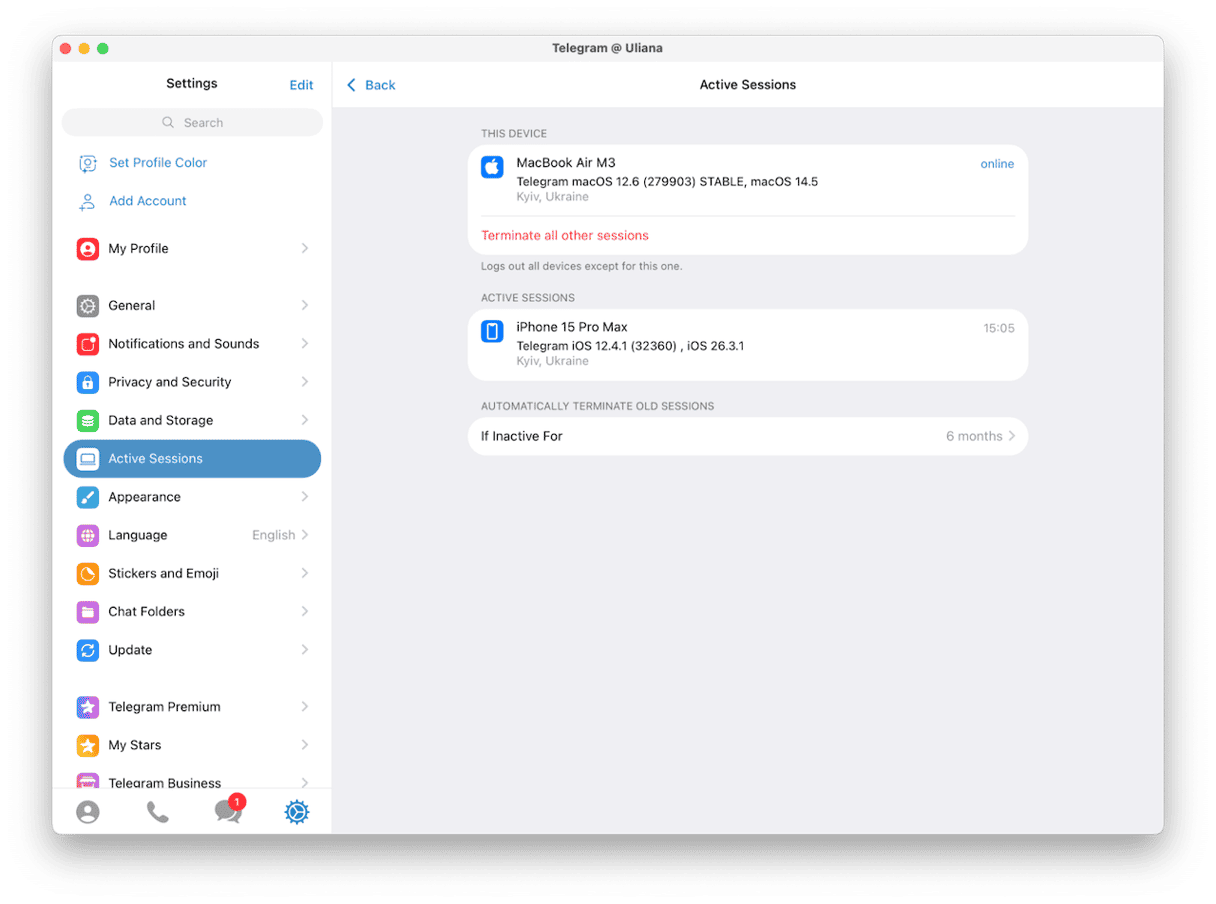
- Go back to Telegram > Settings and choose Devices/Active Sessions, then disconnect linked devices and terminate all sessions.
How to delete your Telegram account
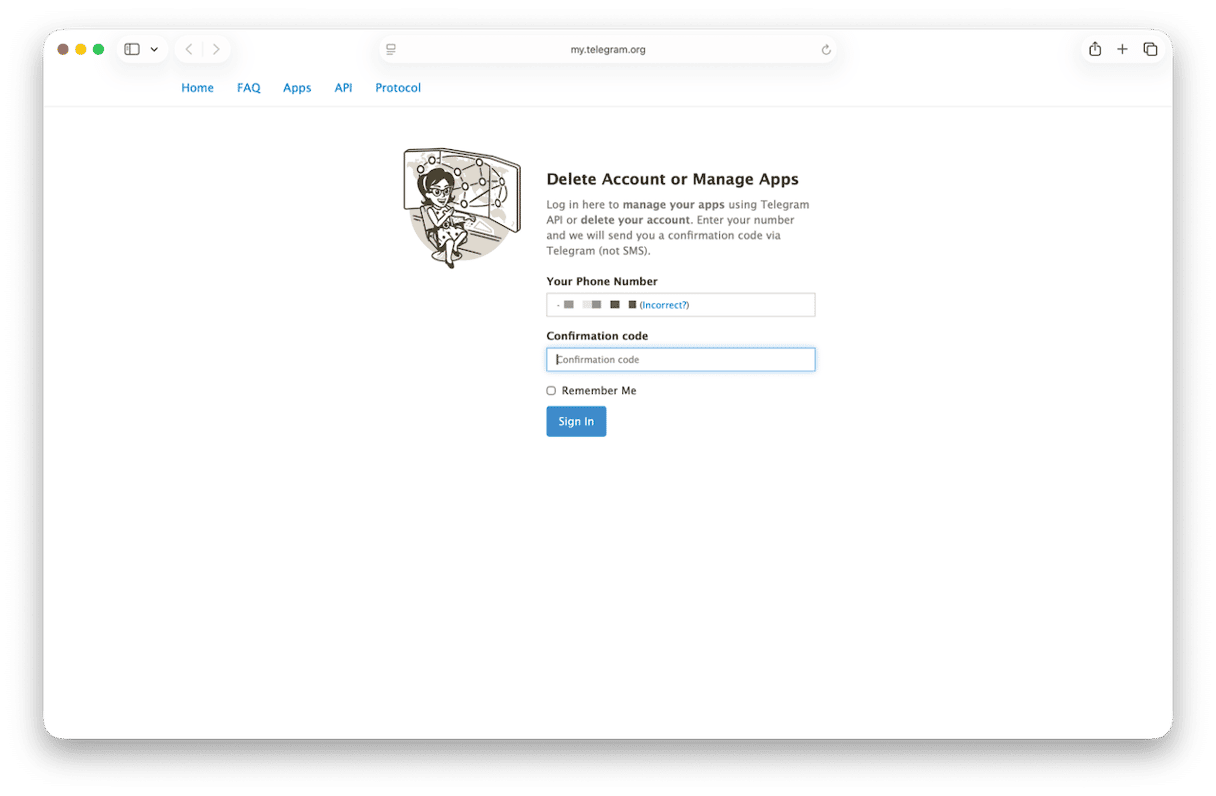
There are a number of ways to delete your Telegram account, depending on which platforms you use. The best method, though, is to do it in a web browser because that works on all devices. So, we'll start with that.
- Open a new tab in your web browser and go to my.telegram.org
- Type in your telephone number with the country code and choose Next.
- Check your phone for the confirmation code and enter it into the box on the website.
- Choose Delete My Account.
- Provide a reason for leaving, if you want.
- Confirm you want to delete your account.
You can also delete your Telegram account on your iPhone:
- Open the Telegram app on your iPhone.
- Tap the Settings icon at the bottom of the screen.
- Go to Privacy and Security.
- Tap If Away For under Automatically Delete My Account.
- Tap Delete Account Now.
You can also choose to delete your account after a period of inactivity. That way, you can keep using it for now, but when you stop using it, it will be deleted.
- Go back to Settings in the Telegram app and choose Privacy and Security.
- Tap If Away For.
- This time, choose a time period for inactivity after which your account will be deleted.
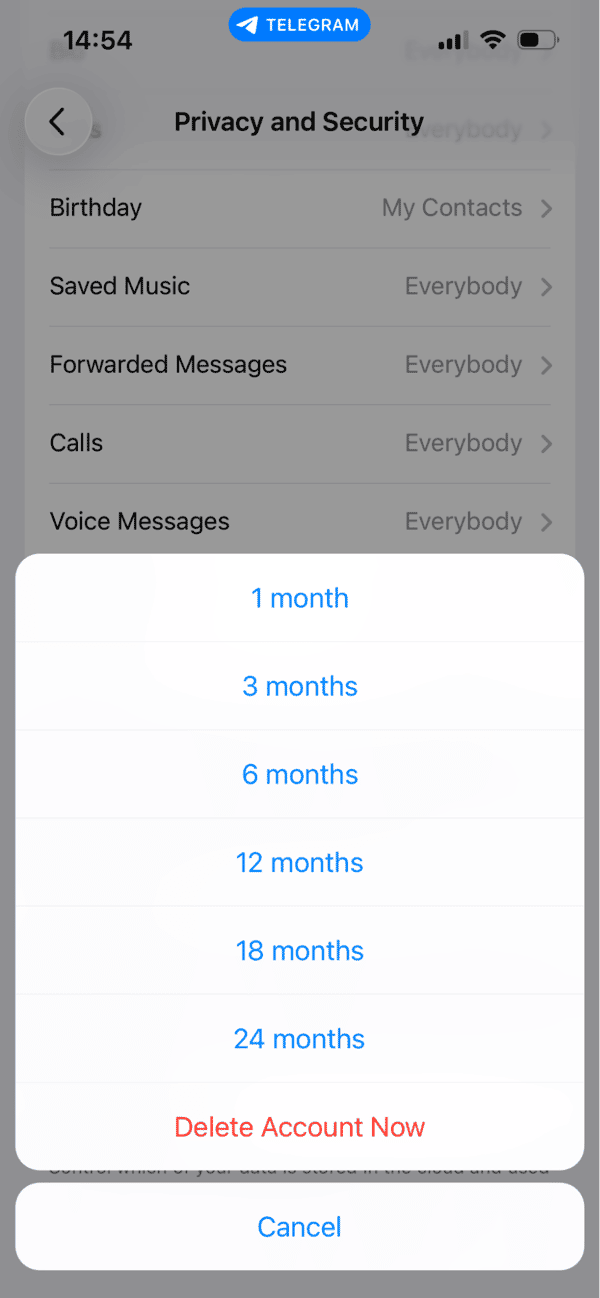
It's important to note that if you log back in again before the time period is up, you will need to restart the clock on the inactivity timer by following the steps above again.
Note: If you use Telegram on an Android device, it won't have an account deletion option so you will need to follow the steps for deleting your account on the web.
How to remove Telegram from your Mac after you delete your account
Deleting your Telegram account doesn't remove the app or any of the files it has created or downloaded from your Mac. You'll need to take further steps to do that. Sadly, just dragging the Telegram app from your Applications folder to the Trash isn't enough. There will still be lots of Telegram files left behind. That's because Telegram, like other apps, puts lots of files in your Mac's Library folder or your user Library folder, inside these sub-folders:
- ~/Library/Application Support/
- ~/Library/Caches/
- ~/Library/Preferences/
- ~/Library/Logs/
All those orphaned files can add up to several hundred megabytes and, as well as taking up disk space, may become corrupt and cause problems for your Mac including slowing it down or causing it to crash.
There are a couple of different ways to remove Telegram from your Mac completely: one easy and quick, the other slower and more difficult, but which gives you a little more control. We’ll show you both.
First, the quick and easy method, and the one we recommend. This uses CleanMyMac’s Applications feature to scan your Mac, identify all those orphaned Telegram files and allow you to get rid of them with a click.
- Open CleanMyMac and choose Applications in the sidebar.
- Click Scan, and when it's finished, select Manage My Applications.
- Look for Telegram in the list of applications – CleanMyMac shows you the complete footprint, including all the associated files and their sizes, not just the application binary.
- Review the list of files and select those you want to remove, including all the support files.
- Click Uninstall and confirm.
- As a final check, use the Applications feature to scan for any remaining Telegram leftovers.
- Empty the Trash and restart your Mac.
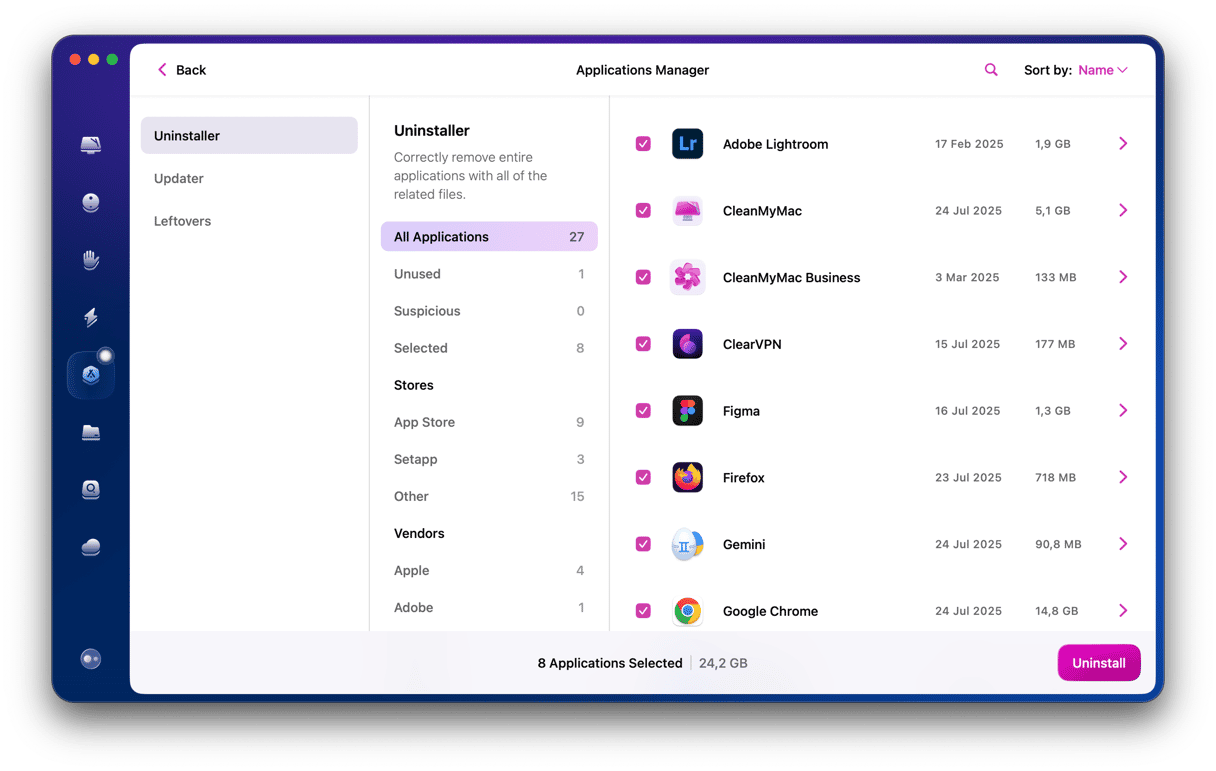
CleanMyMac is better than removing apps manually because it finds every associated file with one scan and means you don’t need to trawl through your user Library folder looking for them. There’s no risk of missing files and no risk of deleting the wrong files.
Start your free CleanMyMac trial — see how easy it is to completely remove Telegram from your Mac in seconds.
If you'd rather uninstall Telegram from your Mac manually, perhaps because you prefer to control exactly what is dragged to the Trash and deleted, you can do that instead of the method above. Here's how.
- Quit Telegram if it’s running. Then go to Applications > Utilities and launch Activity Monitor to make sure there are no Telegram processes still running. If there are, select them and click ‘x’ in the toolbar to quit them.
- Drag the Telegram application binary from your Applications folder to the Trash.
- Click on the Finder icon in the Dock and then on the Go menu.
- Choose Go to Folder.
- Paste each of the paths below into the text box, one at a time, pressing Return after each one. At each location, look for files or folders with Telegram in their name. If you find any, drag them to the Trash.
~/Library/Application Support/
~/Library/Caches/
~/Library/Preferences/
~/Library/Group Containers/ - When you are sure you have got all the Telegram files, empty the Trash.
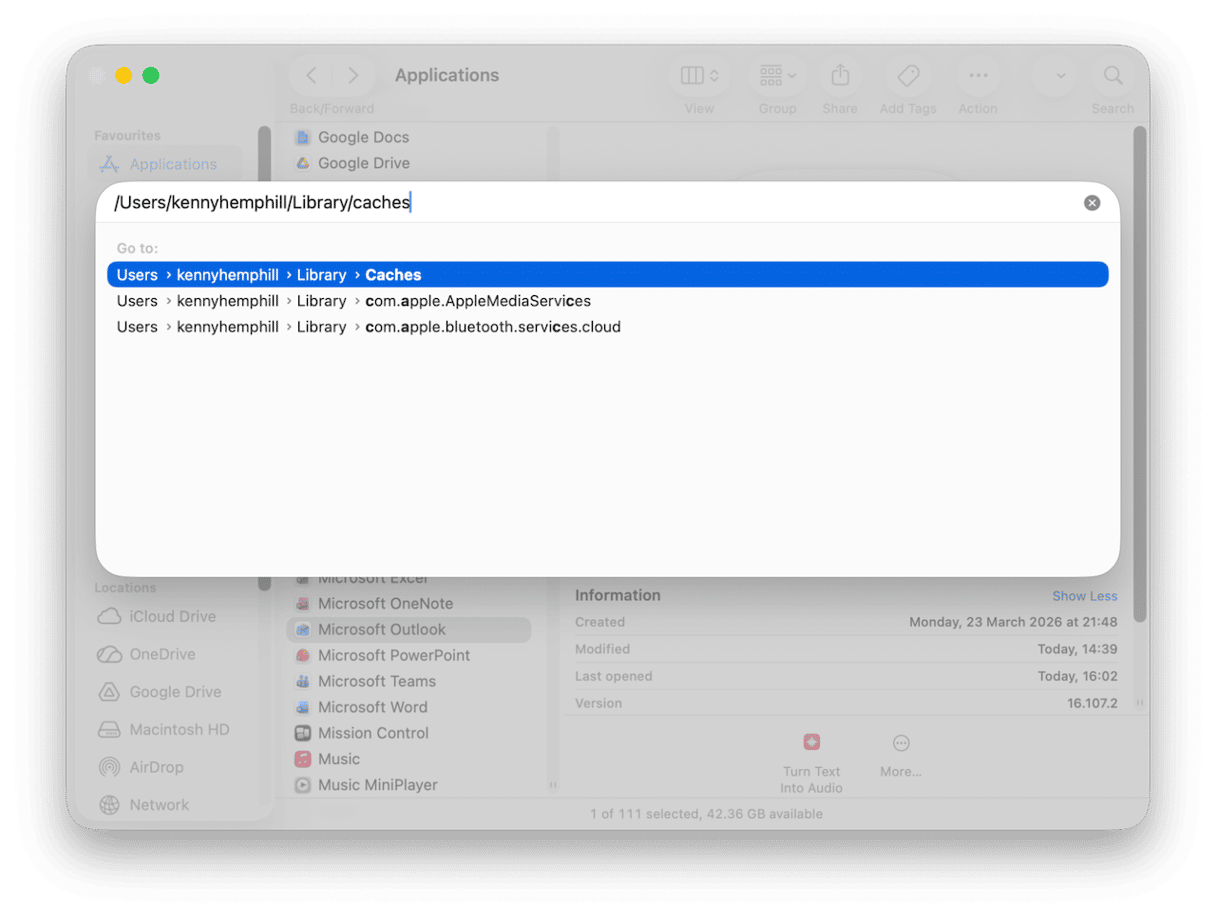
Manual removal, when done properly and carefully is very thorough and will completely uninstall Telegram. However, you do have to make sure you get all of its files. Those in an unusual folder, like Group Containers, can be easy to miss. CleanMyMac finds them automatically.
If you no longer use Telegram, you should delete your Telegram account as a security precaution and uninstall the app from your Mac to free up space and prevent file conflicts. These are two separate actions, and you need to do both to get rid of Telegram. Follow the steps above to do that.
Frequently asked questions
Can I recover a deleted Telegram account?
No, once you’ve deleted your account, it can’t be recovered.
Can I reuse the same phone number?
Yes. You may have to wait a few days, but you can set up a new account with the same phone number.
Does deleting my account delete my messages for others?
All your messages, media, and contacts are deleted from Telegram’s servers, but may still be present on other users’ devices.
Is there a way to temporarily deactivate Telegram?
No. You can log out, delete the app or use the steps above to permanently delete your account and data, but there is no temporary deactivation option.
Does uninstalling the Telegram app delete my account?
No, these are two separate things. You need to delete your account on the web or an iOS device and uninstall the app.