
Developer Macs fill up faster than they probably should, and knowing how to free up disk space on a Mac is vital. Xcode DerivedData can balloon into tens of gigabytes, Docker images grow rather rapidly in the background, and every half-finished project seems to come with its own node_modules, build folder, package cache, or local environment.
You’re not doing anything wrong; it’s just that all of these tools tend to be on the greedy side. I tend to think the key lies in knowing where all the junk actually hides, what’s safe to delete, and when to use targeted commands instead of random cleanup. There are quick wins to be had, and some great one-line command options, too.
Here’s how to find the main culprits and clear them safely.
How to free up disk space
Step one: Freeing up disk space on a Mac. Always diagnose first
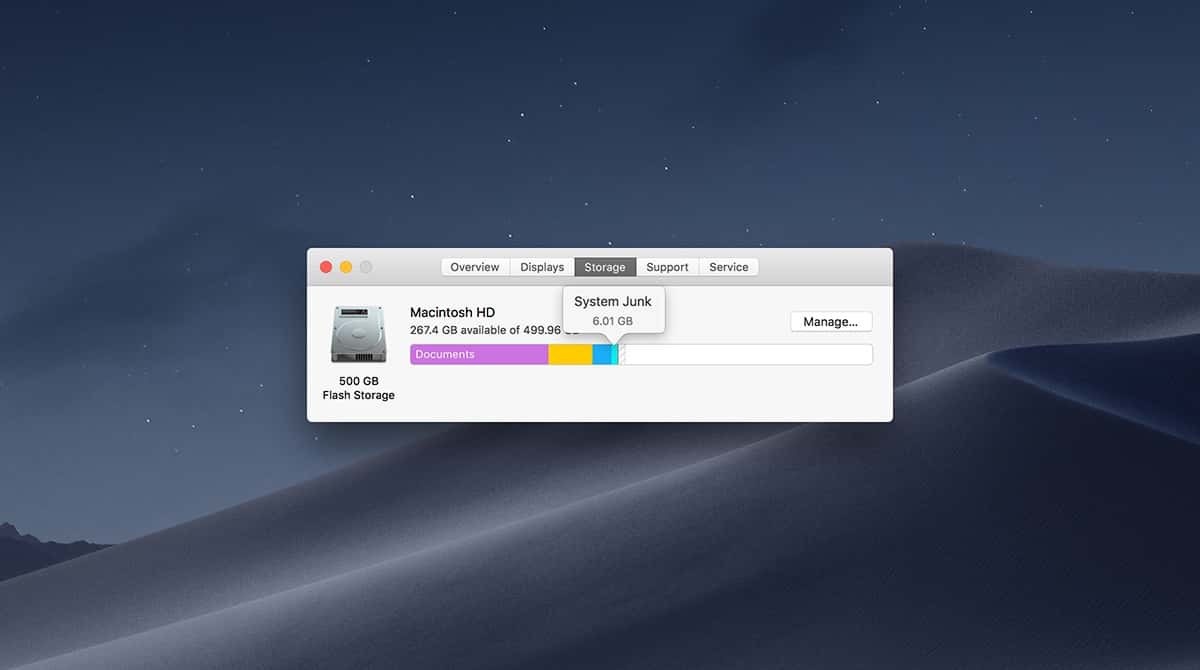
I never start deleting without getting a solid storage read first. You can, of course, use the Storage Settings breakdown in System Settings > Storage, but as most of us have come to understand, that “other” category is a bit vague; it often hides the detail of what's actually categorized there, so it’s not exactly helpful.
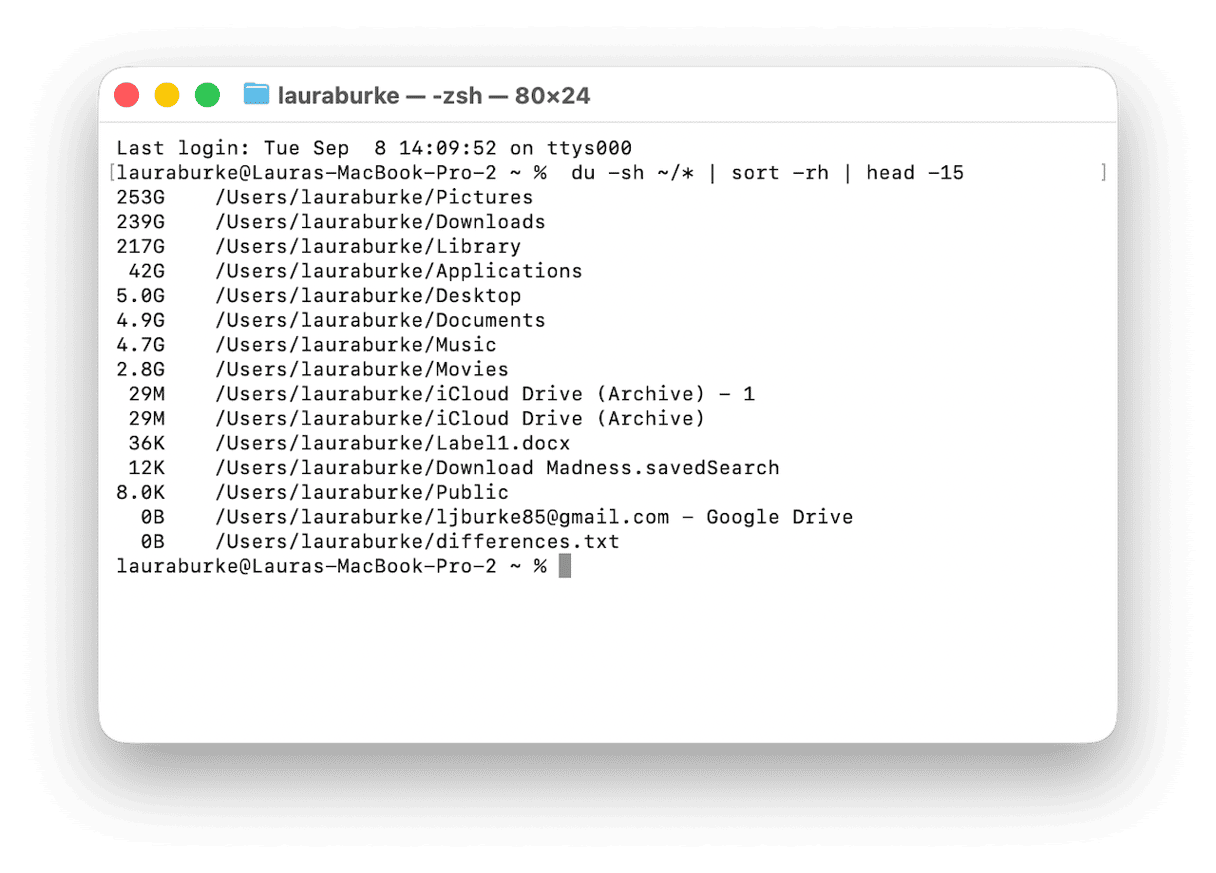
You can also run a breakdown of your Home folder in Terminal using:
du -sh ~/* | sort -rh | head -15
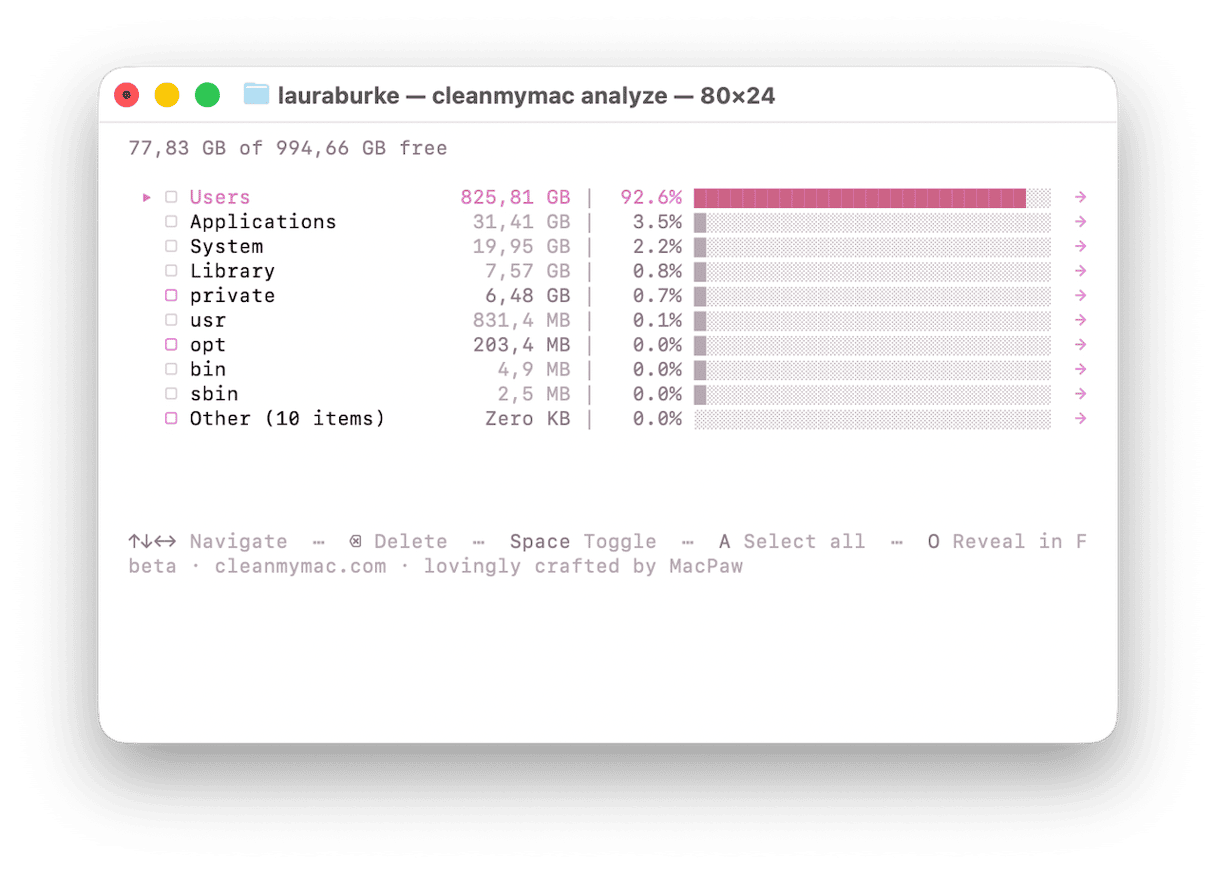
But if you want a more detailed and category view, then I’d use CleanMyMac CLI and run:
cleanmymac analyze
Step two: Disk is full Mac: Clear Xcode cache & DerivedData
Xcode is often one of the biggest areas of built-up clutter, so I think it often makes sense to start here. DerivedData can easily hit 20–100GB on active projects, and it’s safe to delete because Xcode rebuilds it automatically.
For the manual Terminal approach, you can start by running these two commands:
rm -rf ~/Library/Developer/Xcode/DerivedData/*rm -rf ~/Library/Caches/com.apple.dt.Xcode
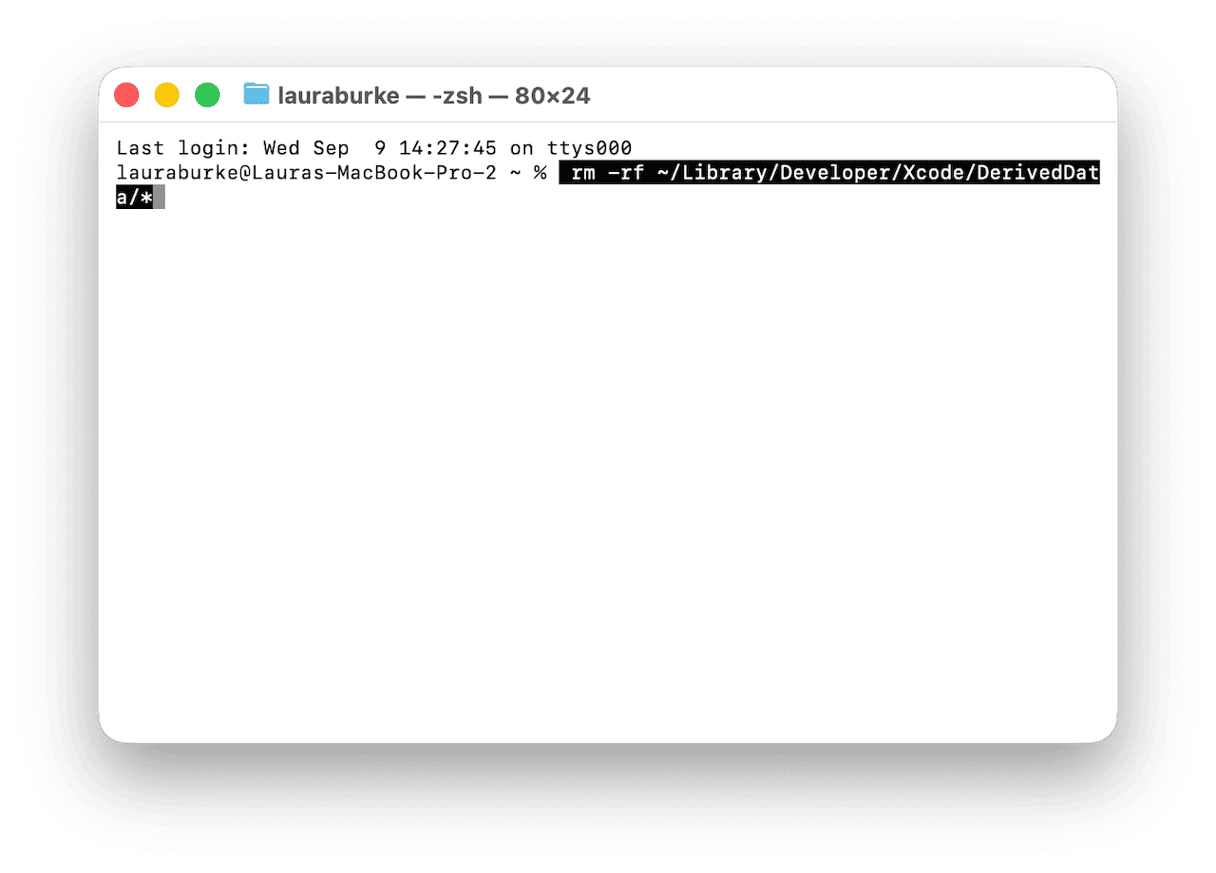
I like to use CleanMyMac CLI, which can also clear Xcode-related junk, including DerivedData, Device Support, Module Cache, Documentation Cache, and user logs. You’ll need to run:
cleanmymac clean junk
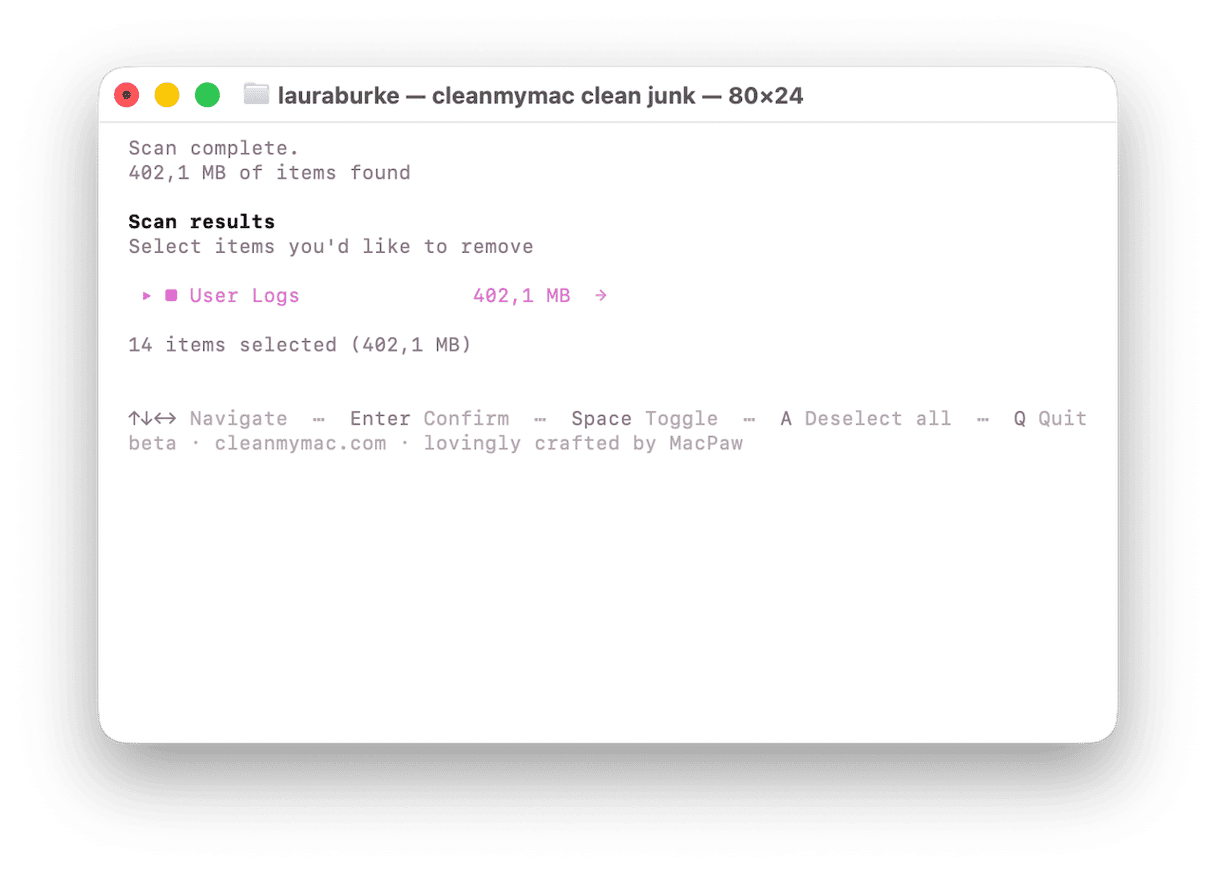
Did you know? iOS Device Support files can add around 2GB per iOS version tested, so old ones are worth clearing.
If you want even more info on Xcode cleanup, this article has a lot of valuable tips.
Step three: Clean up npm, Yarn, and package manager caches
All your package manager caches will add up quickly on a busy dev machine. So this is the area I’d look at next. For npm, clear the cache with:
npm cache clean --force
For Yarn v1 Classic, use:
yarn cache clean
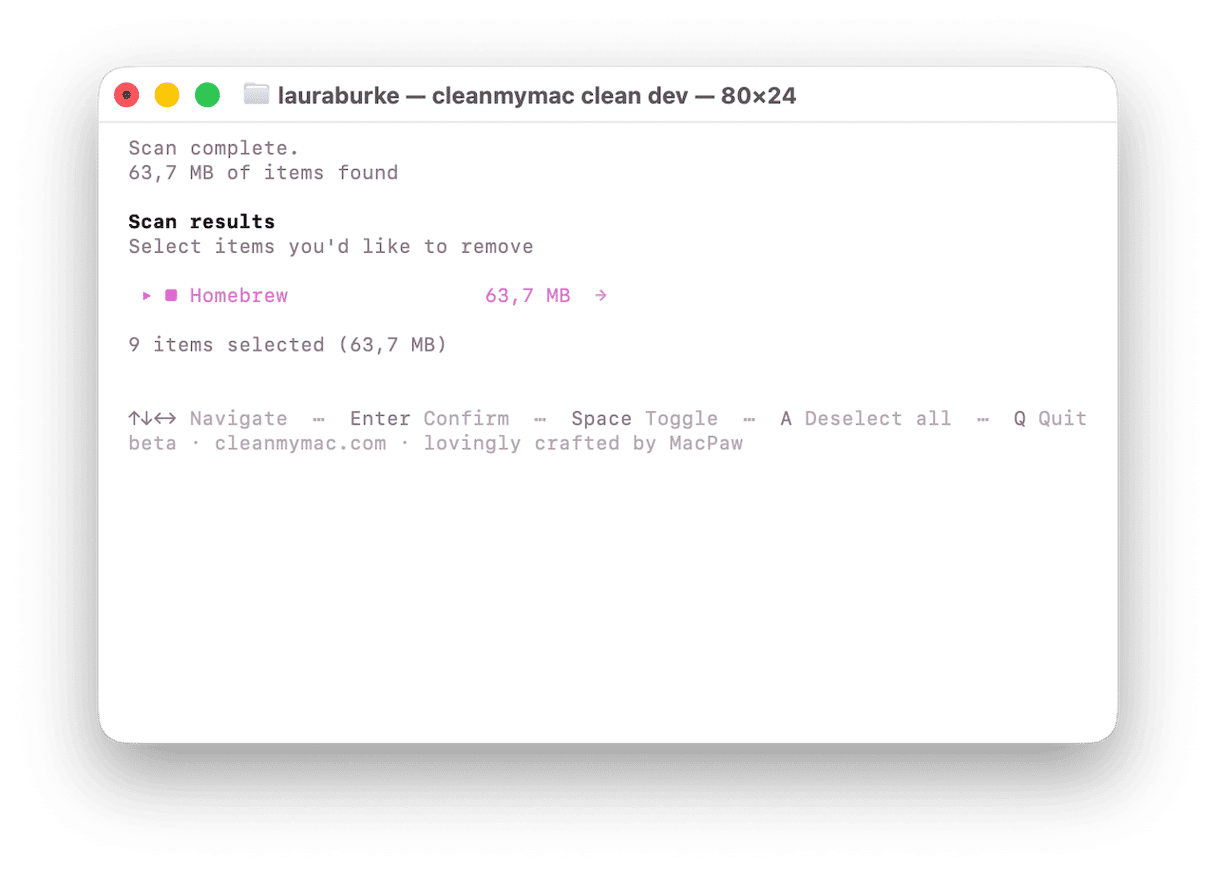
If you want an option for clearing a lot in one go (npm, Yarn, pnpm, pip, Cargo, Go, Homebrew, CocoaPods, Docker, VS Code, JetBrains, Maven, Gradle, Poetry, uv, Bun, Deno, and mise caches), run:
cleanmymac clean dev
Good to know; this targets package manager and developer-tool caches only, not Xcode junk or system junk.
There’s also a full guide on how to clear npm and Yarn cache.
Step four: Remove Docker images, containers & build cache
Docker is no surprise a bit of a storage monster on a Mac because Docker Desktop stores data inside its own virtual disk. Check usage first:
docker system df
You can then remove all unused images, stopped containers, and build cache with:
docker system prune -a
This is usually safe, because deleted images can be re-pulled from the registry when needed. Just be careful with volumes; that’s where local database or app data may live. Docker artifacts are also covered by:
cleanmymac clean dev
If you want more tips, I’d recommend this article on cleaning Docker.
Step five: Purge stale project build artifacts
Next, I’d start looking at all your project folders. So, node_modules, .next, .build, .turbo, dist, and old virtual environments- these can all multiply across repos and easily add up to tens of gigabytes.
CleanMyMac CLI can scan all the common project locations like ~/Projects, ~/Code, ~/dev, ~/GitHub, and ~/Workspace, then groups artifacts by project for review:
cleanmymac purge
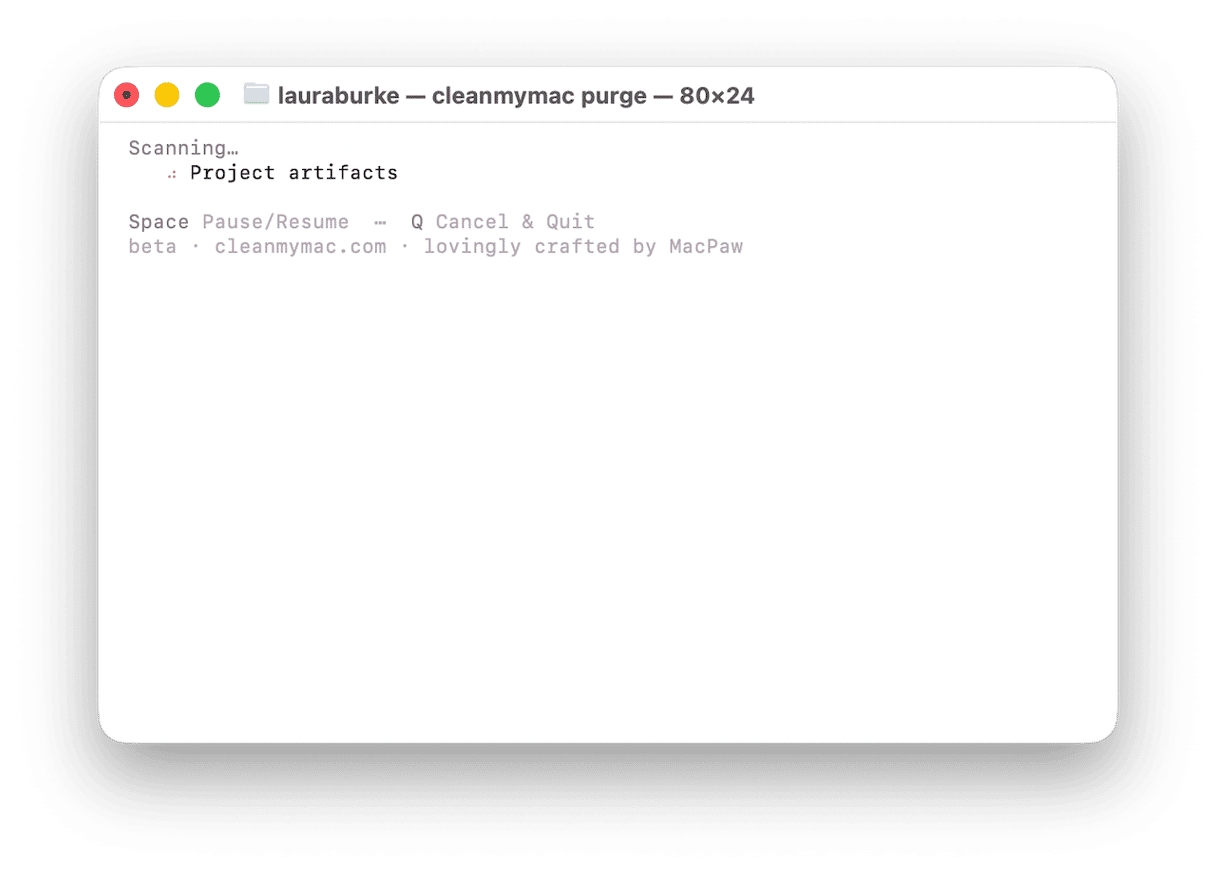
Artifacts older than seven days are preselected, while newer work is left untouched.
For a single project, you can also opt to remove artifacts manually, with this command:
rm -rf ~/Projects/my-app/node_modules
Step six: Clear Homebrew cache
Lots of developers forget that Homebrew keeps old downloads and formula versions after upgrades. So, yes, these can be initially useful, but if it’s been a while, they might have swollen up in size. Preview what could be removed first with:
brew cleanup --dry-run
Then run the cleanup with:
brew cleanup
Homebrew is also covered by CleanMyMac CLI, so if you’re already using that, then you don’t need to clear it separately.
cleanmymac clean dev
How do I free up disk space on my Mac with CleanMyMac CLI?
You can literally replace all the manual steps above that were detailed in steps two to six with one Terminal workflow, and CleanMyMac CLI is the shortcut.
Install once via Homebrew:
brew install --cask macpaw/taps/cleanmymac-cli
Then you can run a full cleanup, including your system junk and ALL dev-tool caches and their trash in one pass, with
cleanmymac clean
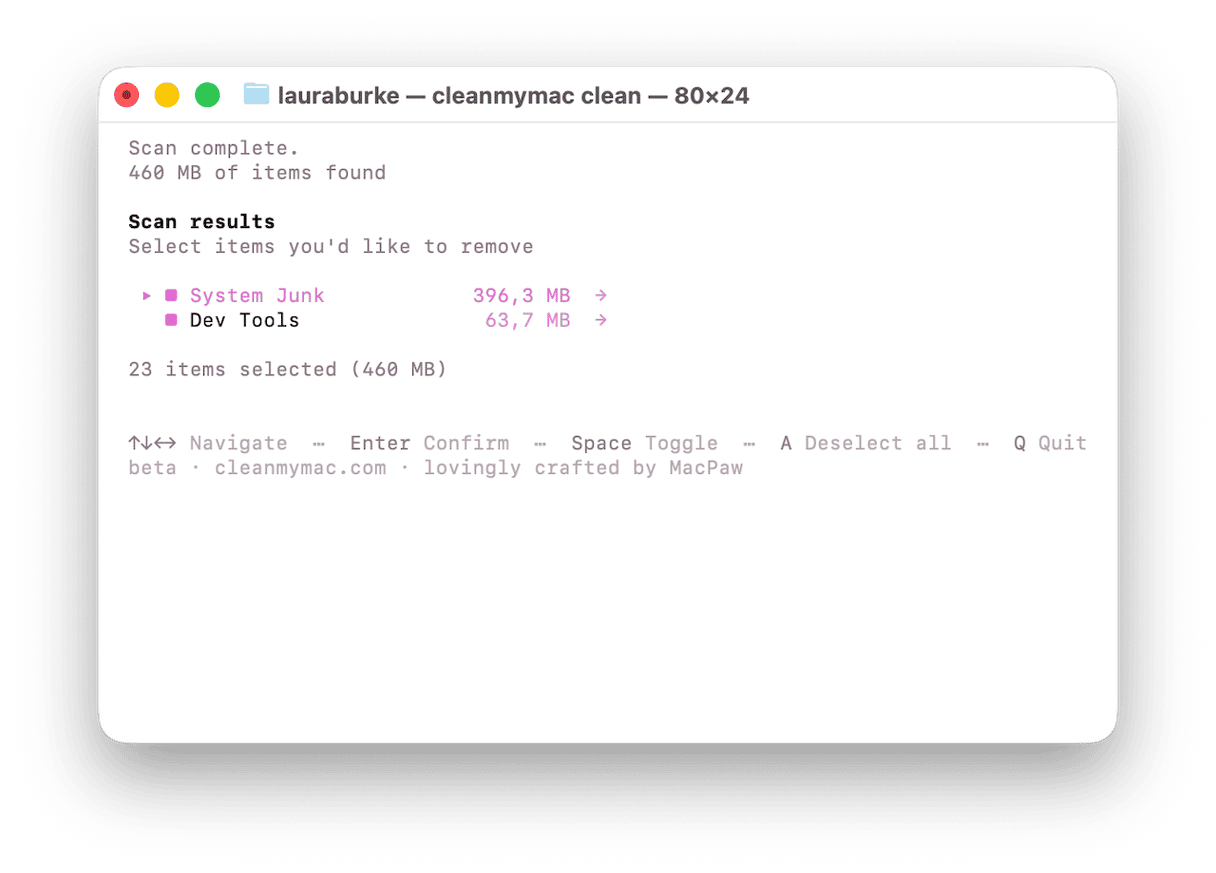
If you just want to target package manager caches only (npm, Yarn, Homebrew, Docker, pip, Cargo, etc.), then run:
cleanmymac clean dev
When you want to target only Xcode and system-level developer junk (DerivedData, Device Support, logs):
cleanmymac clean junk
For finding and removing stale project build artifacts, use:
cleanmymac purge
One important thing to mention about this tool is that every command previews what will be removed and asks for confirmation; absolutely nothing gets deleted without explicit approval.
Good to know: it requires macOS 11 Big Sur or later. And you can get an early developer preview on GitHub here.
When your developer Mac storage is full, you’ll probably start to notice a few predictable patterns here: Xcode, Docker, package managers, Homebrew, and old project artifacts. The good news is that you’re mostly deleting caches and generated files, not source code. Start with CleanMyMac CLI’s analyze if you want visibility, then I’d use CleanMyMac CLI’s clean as the developer shortcut for a full, reviewed cleanup.
Frequently asked questions
What is eating up space on my Mac as a developer?
It’s almost always down to these culprits. Xcode DerivedData, Docker images, node_modules, package manager caches, Homebrew downloads. Diagnosing the issue is always the best part, so it is really worth checking where the junk buildup is before you start deleting anything randomly.
Is it safe to delete Xcode DerivedData?
Yes, it’s always considered safe, and that's because Xcode rebuilds it automatically on the next build.
How much space can I realistically recover?
This is probably the big question that every developer wants to know the answer to, you do have to be a tiny bit realistic here, it's seriously going to depend on your setup, but anywhere easily from 20–50 GB on an active dev machine, but I’ve seen threads online where some users reclaim 100 GB+.
What is the difference between cleanmymac clean and cleanmymac clean dev tools?
In the simplest terms, the clean command is a full sweep, so everything from system junk to all your dev caches and trash, while the clean dev targets only package manager caches.
Will any of this delete my code?
No. And I get why developers worry about this, because the word cleanup can sound dangerously vague when your project files are involved. But the commands covered here target caches, build artifacts, downloaded packages, old images, and generated files, not your actual source code.