
It seems there are two types of Mac users when it comes to Apple Intelligence. Some are excited and can’t wait to see what it can do in the future, while others would rather have nothing to do with it because they’re concerned about privacy or simply don’t like the idea of AI in general. So, if you fall into the latter group, you may ask yourself, “Can I disable Apple Intelligence?” In macOS 27, Apple’s own instructions turn Apple Intelligence off feature by feature rather than with one switch, and we’ll show you how.
What is Apple Intelligence?
Apple Intelligence is a name Apple gives to a group of AI features on Mac, iPhone, and iPad. Here are just a few examples:
- The ability to proofread and rewrite text and summarize long documents
- Text-to-image features in a new Image Playground app, customized emoji, the prioritization of emails and messages, and Siri AI (Beta), the new version of Siri in macOS 27
- Tools for grouping and summarizing notifications
- Features for editing photos in the Photos app using AI for removing objects
Why turn off Apple Intelligence?
Although Apple says many Apple Intelligence tasks run entirely on your Mac and only more complex requests go to its Private Cloud Compute servers, some people worry about privacy. Others don’t trust it to get things right. This was illustrated in early 2025 when Apple turned off an AI feature that summarized notifications from apps because it had summarized them incorrectly, most damagingly in the news apps where it displayed summaries that incorrectly represented headlines. Others don’t like that Apple Intelligence is very demanding of their Mac’s resources, and some just feel they will never use it, so they might as well turn it off. By the way, if you’d like to keep using Apple Intelligence but feel compelled to turn it off because of the demands it places on your Mac, don’t skip the next part of the article.
How to turn off Apple Intelligence on Mac
In macOS 27, you can turn off Apple Intelligence features in two ways. You can turn off Siri AI and other features in their own settings, or use Screen Time to block Siri and specific capabilities in one place. We’ll show you both. Note that when you turn off Apple Intelligence, you also turn off features like Writing Tools, Genmoji, and Image Playground. Some machine learning will still take place on your Mac for other features like Face ID.
How to disable Apple Intelligence completely
- Go to the main Apple menu and choose System Settings.
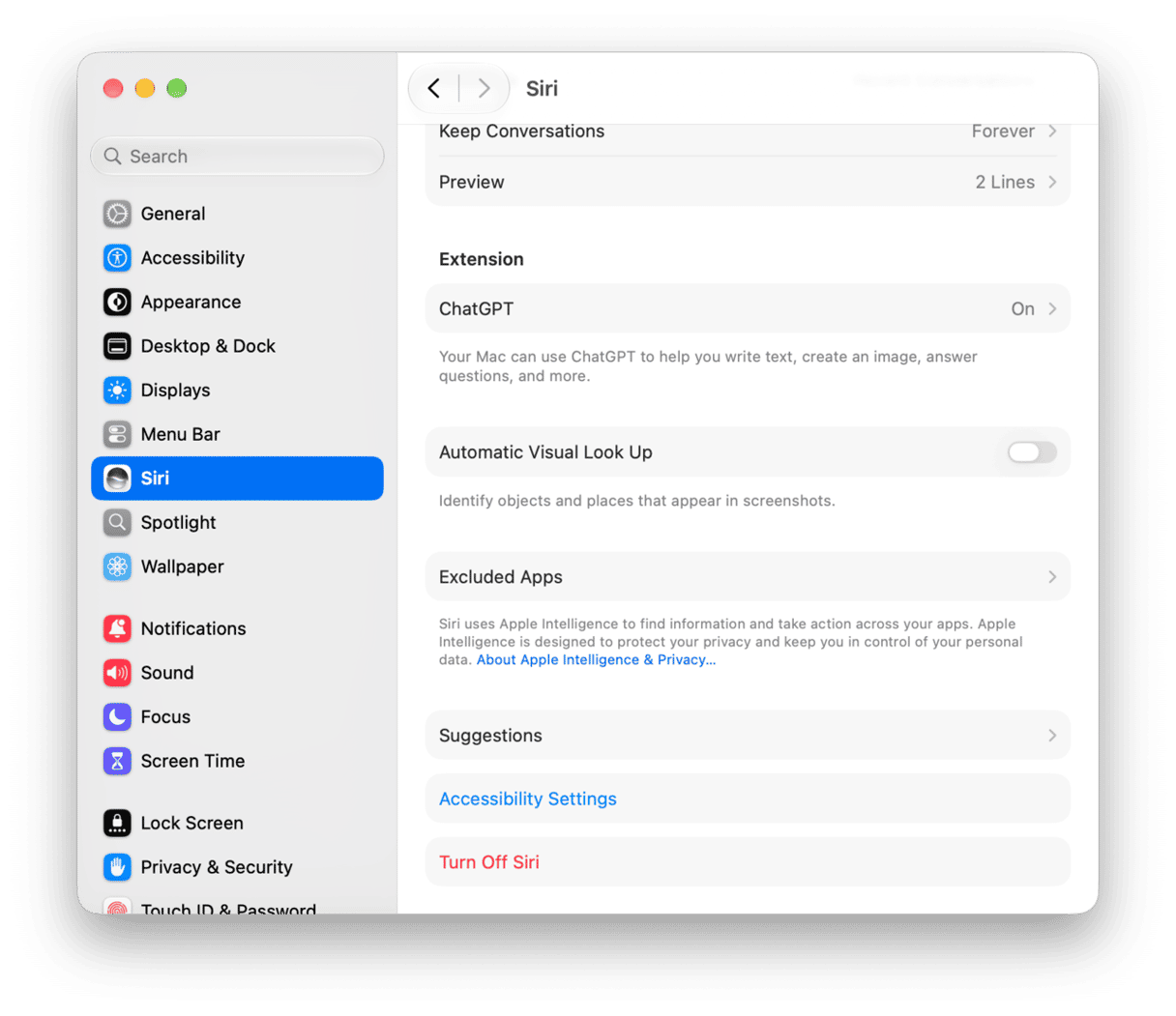
- Click Siri in the sidebar, then click Turn Off Siri.
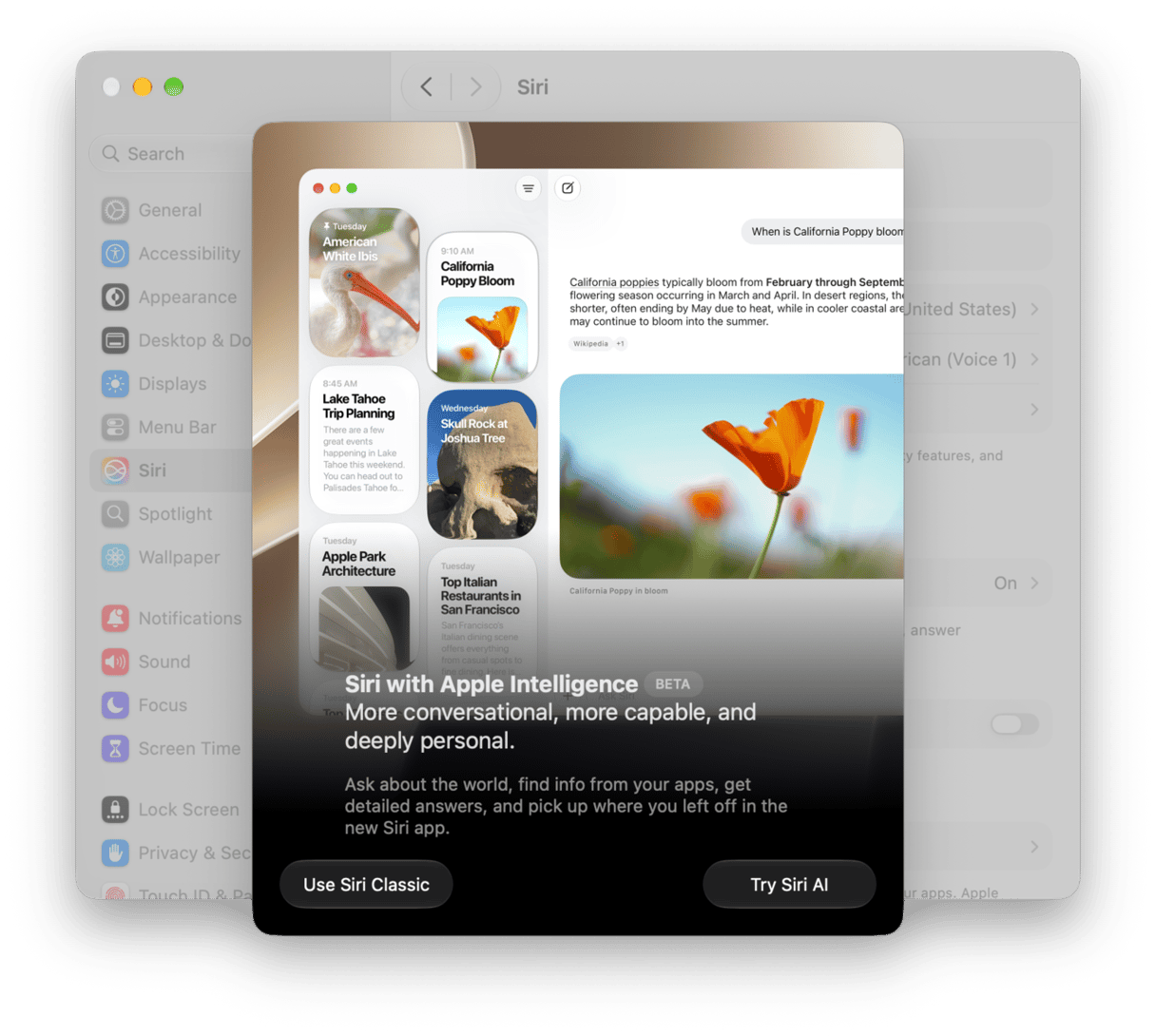
Click Turn Off Siri again to confirm. To keep Siri without AI-generated responses, click Turn On Siri, then select Use Siri Classic.
- To stop notification summaries, click Notifications in the sidebar, click Summarize Notifications, then turn it off.
Some features are turned off in their own apps:
- Messages summaries: in Messages, choose Messages > Settings, then turn off Summarize Messages.
- Email summaries: in Mail, choose Mail > Settings, click Viewing, then turn off Summarize Message Previews.
- Smart Replies: in Mail, choose Mail > Settings, click Composing, then turn off Personalize Smart Replies.
In macOS 27, Apple says Apple Intelligence needs up to 14 GB of storage on Macs with M3 or later and at least 12 GB of unified memory, and up to 8 GB on other supported Macs. Apple’s instructions for turning off Apple Intelligence features don’t say whether turning them off frees that space.
Apple Intelligence can take far more than 14 GB on some Macs. See how to free up space on Mac for Apple Intelligence below.
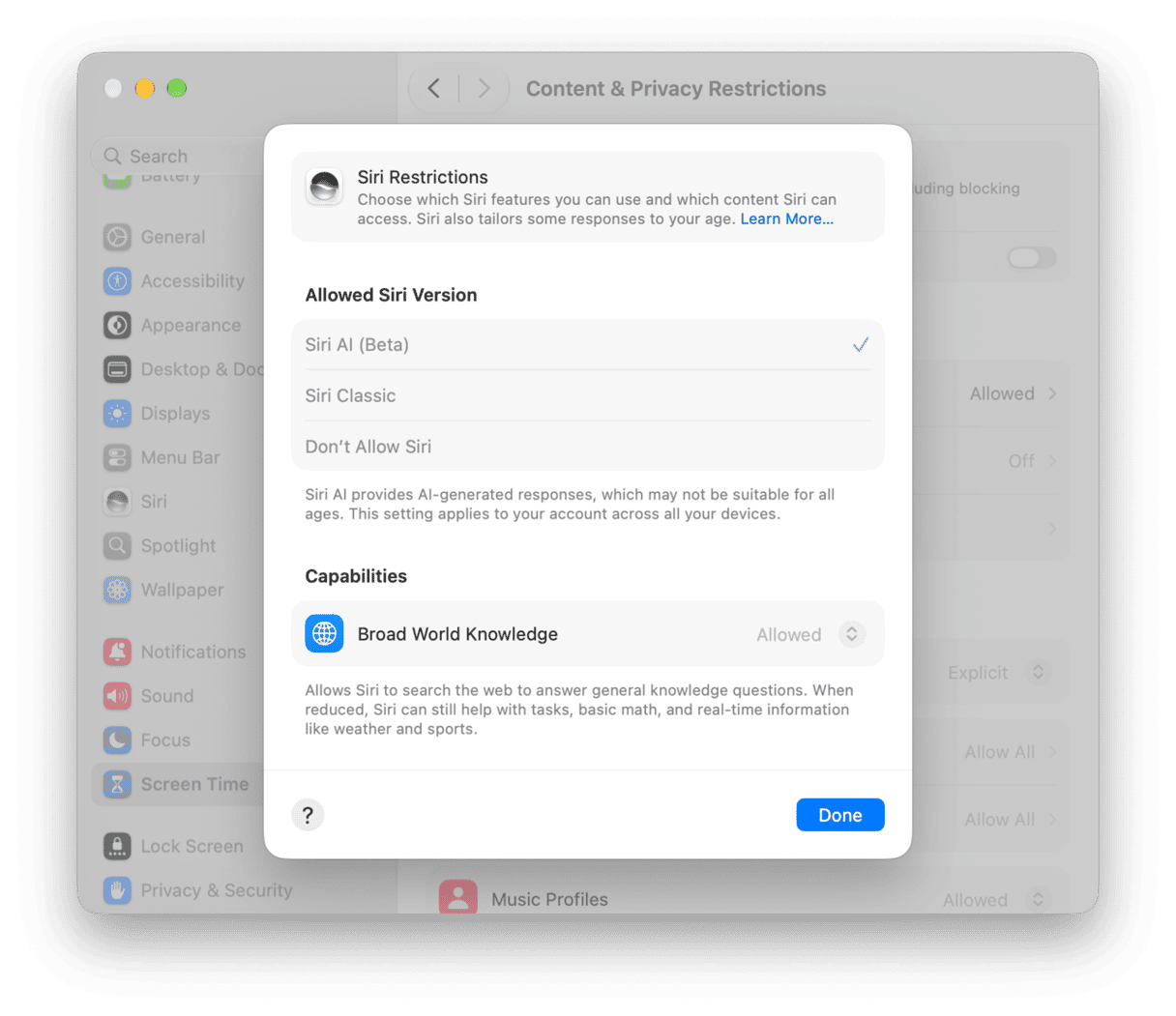
How to block Apple Intelligence features with Screen Time
- Go to System Settings > Screen Time.
- Click Content & Privacy Restrictions.
- Click Siri.
- To turn Siri off, click Don’t Allow Siri under Allowed Siri Version, or click Siri Classic to keep Siri without AI-generated responses. To block a capability like Writing Assistance or Image Creation, choose Blocked in the menu next to it.
- Click Done.
If you want to turn off Siri AI on an iPhone with iOS 27; here are the steps to follow:
- Open the Settings app.
- Tap Siri, then scroll down.
- Tap Turn Off Siri.
- Tap Turn Off Siri again to confirm.
- Close Settings.
How to free up space on Mac for Apple Intelligence
macOS 27 downloads Apple Intelligence’s models whether you want them or not, so the best way to get that space back is to clear out files you don’t need. And you won’t find that much space in a few small caches. It’s in the big files you’ve forgotten about.
That’s where CleanMyMac’s My Clutter tool comes in. It finds large and old files, duplicates, similar images, and forgotten downloads, so you can see what’s worth deleting. Start your free CleanMyMac trial, open the app, and go to My Clutter. Then review what it found and choose what to remove.
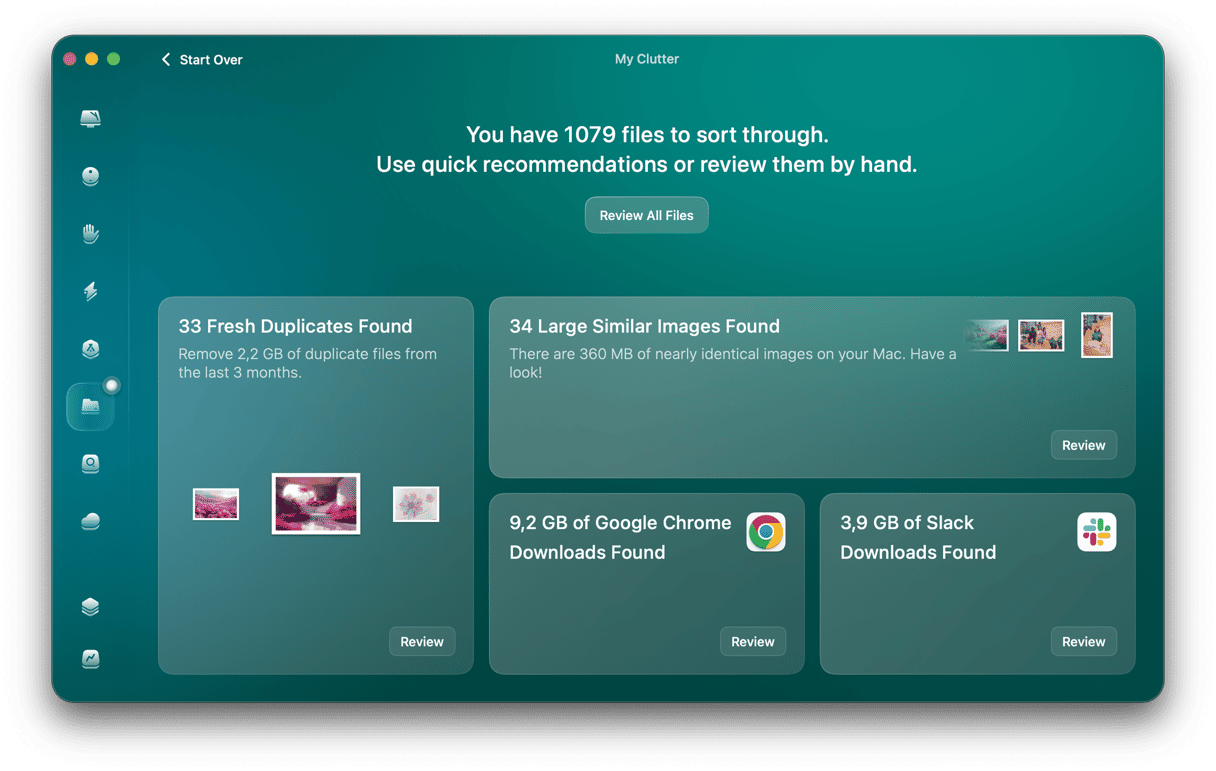
Not sure where your storage is going? Space Lens can help. It maps your Mac’s storage and shows your biggest folders first, so you can spot the space hogs before you delete anything.
Apple Intelligence is the name Apple has given to a group of new AI features in macOS Sequoia. If you’ve tried them and don’t want to use them, or just don’t like the idea of AI, follow the steps above to turn off the Apple Intelligence features you don’t want on your Mac.