

The dispute between Apple and Epic Games that led to the removal of the Mac version of Fortnite has been dragging on for years and, sadly, shows no sign of being resolved. So, if you're one of the many Fortnite players who still have the game installed on your Mac in the hope of updating it one day, it's probably time to remove it. The footprint left behind by Fortnite on your Mac has a surprising number of files stored in lots of different folders. In fact, according to some reports, a Fortnite install can occupy around 95GB of internal storage. So, not only will removing it free up tens of gigabytes of space on your Mac, but it also will remove any chance of old Fortnite files conflicting with other files on your Mac. In this article, we'll show you how to remove Fortnite from your Mac completely. We'll take you step by step through each method, starting with the fastest.
Before you start — what Fortnite leaves behind
Unlike regular apps, Fortnite's application binary isn't stored in your Applications folder. That's because it's installed via the Epic Games Launcher, which puts the executable file in a folder deep in a shared folder: Macintosh HD/Users/Shared/Epic Games/Fortnite/FortniteGame/Binaries/Mac/
Why is that important? Because if you decide to uninstall Fortnite manually, you will need to track down that file and put it in the Trash, along with all the other Fortnite files scattered around your system. These include files in sub-folders of your Library folder, including Application Support, Logs, Preferences, and Caches. And they include resources like high-resolution textures, character models, environment meshes, cinematics, soundtracks, and VFX, as well as engine binaries, middleware, shader caches, and compiled shaders.
In addition to all the Fortnite files on your Mac, the Epic Games Launcher also has its own file footprint, and if the only Epic game you have installed on your Mac is Fortnite, you will want to uninstall that, too.
How to uninstall Fortnite with CleanMyMac
This is the method we recommend. It's the fastest and most complete option and finds files that other methods often miss, like those stored in /Users/Shared, and then lists them all so you can see exactly what it will remove. Importantly, nothing is removed until you confirm you want it deleted.
- Launch CleanMyMac (get your free trial here), choose Applications in the sidebar, and click Scan.
- When it’s finished, click Manage My Applications.
- Locate Fortnite or Epic Games in the list of applications.
- Toggle the arrow at the right to see the files and folders CleanMyMac has found.
- Select Fortnite and click Uninstall.
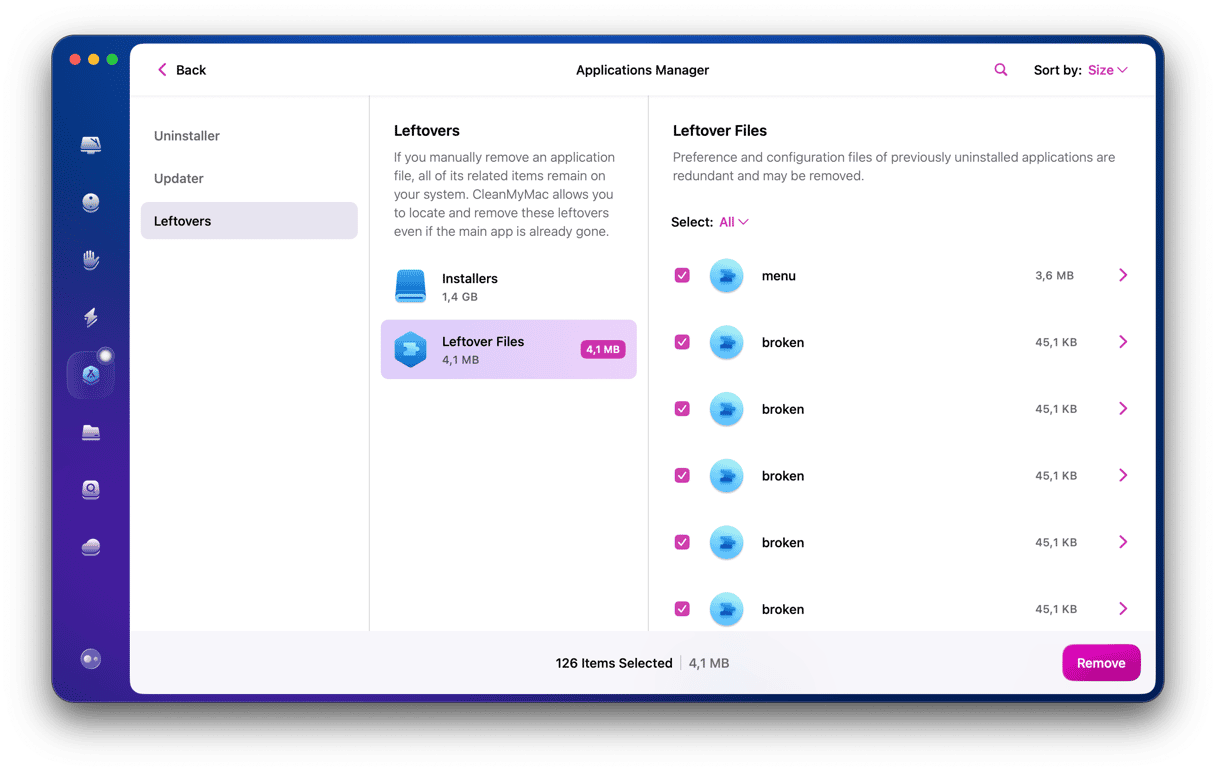
- If you want to make sure all Fortnite files have been removed, go back to the main Applications screen and click Review under Leftovers. Check the files listed there for Fortnite files leftover from previous uninstalls.
- Empty the Trash and restart your Mac.
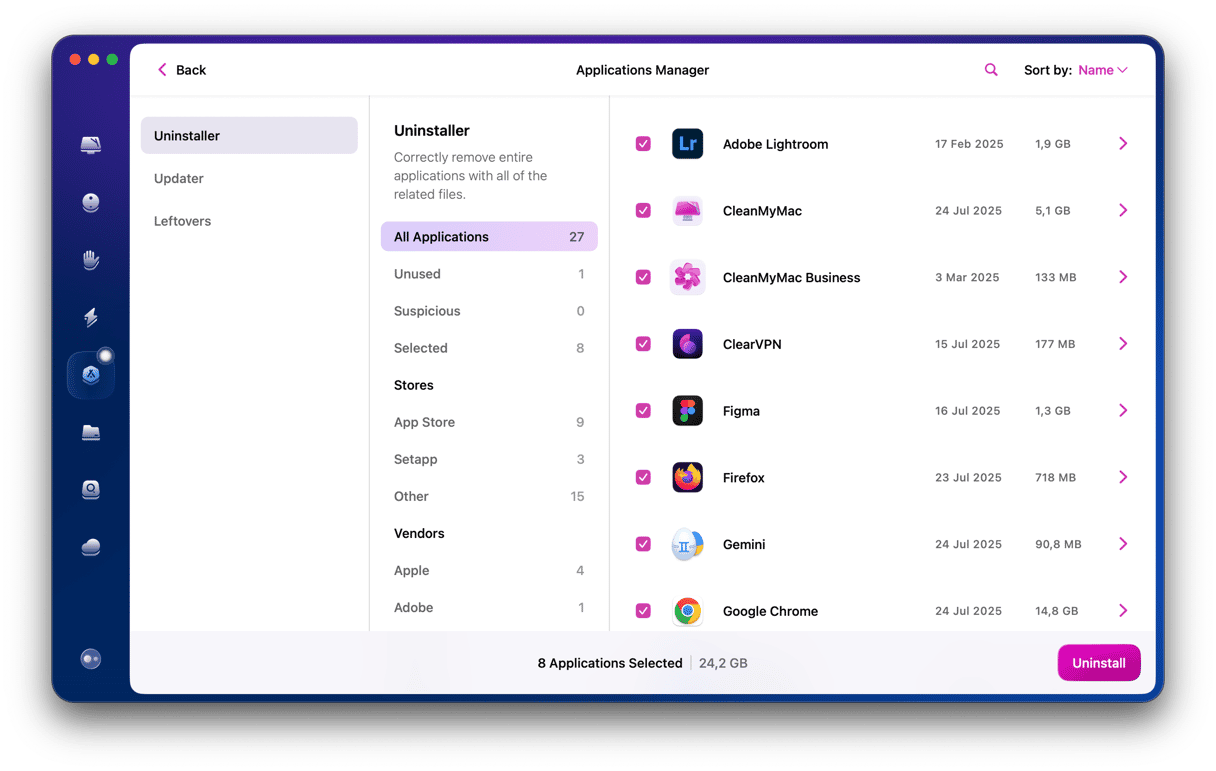
This is much better than the manual method because it automatically finds files that you might miss because they are hidden away in obscure locations, like /Users/Shared/, and allows you to get rid of them with just a click.
Uninstall Fortnite from your Mac: alternative ways
Epic Games Launcher
If you still have the Epic Games Launcher on your Mac and it's working, you can use it to uninstall Fortnite. This method is quicker than uninstalling manually but it doesn't catch all the files Fortnite has placed on your Mac, so we'll show you how to deal with that.
- Go to your Applications folder and launch Epic Games Launcher.
- Click Library and locate Fortnite.
- Select the gear icon and choose Uninstall.
- Confirm you want to proceed by clicking Uninstall in the dialog box.

This method removes: the main game folder in /Users/Shared/Epic Games/Fortnite/
This method doesn’t remove: Support files in
~/Library/Application Support/Epic/FortniteGame,
~/Library/Logs/FortniteGame,
~/Library/Preferences/FortniteGame
~/Library/Caches/com.epicgames.com.chairentertainment.Fortnite
To get rid of all those files that are left behind, you can use the Leftovers feature in CleanMyMac.
- Launch CleanMyMac and click Applications > Scan.
- Click Review in the Leftovers pane, then choose Fortnite files and select Remove.
The Epic Games Launcher is a good starting point for uninstalling Fortnite, and if you use it in conjunction with CleanMyMac’s Leftovers feature, you can completely uninstall Fortnite without having to hunt down files and folders yourself.
Manual removal
If you want complete control over removing Fortnite and all its files from your Mac, this manual method is the way to do it.
- Quit Fortnite and Epic Games Launcher. If necessary, use force Quit (Cmd + Option + Esc).
- Quit any Epic Games processes that are still running. Go to Applications > Utilities, search for ‘epic’ and ‘fortnite’ and use the ‘x’ in the toolbar to quit the processes.
- Select the Finder icon in the Dock and click Cmd+Shift+G to open the Go to options.
- In the text box, type or paste this file path and press Return: /Users/Shared/Epic Games/Fortnite
- Drag the Fortnite folder to the Trash.
- Repeat steps 4 and 5 for the file paths below to remove all of the support files.
~/Library/Application Support/Epic/FortniteGame
~/Library/Logs/FortniteGame
~/Library/Preferences/FortniteGame
~/Library/Caches/com.epicgames.com.chairentertainment.Fortnite - Empty the Trash and restart your Mac.
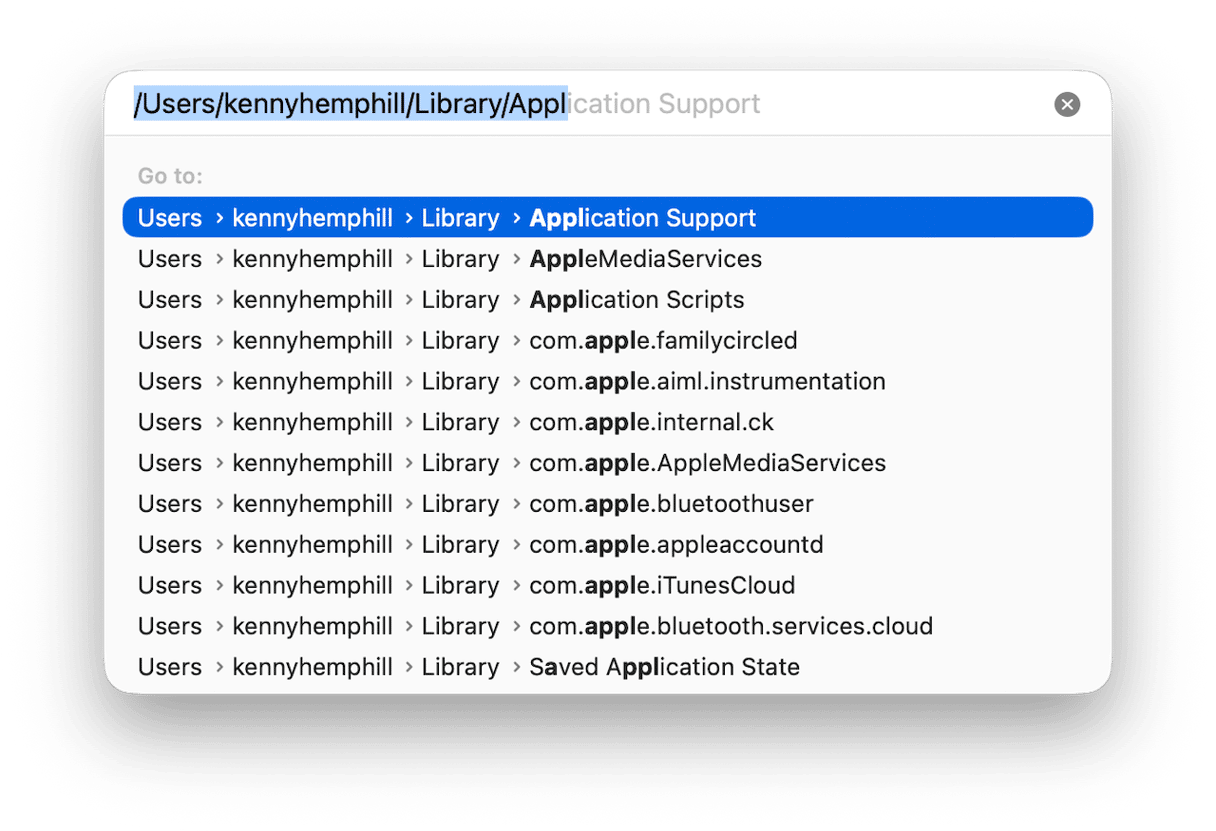
While this method works, it takes quite a bit of work to navigate to the various folders and move support files to the Trash. And, if you've had Fortnite installed for a long time, there's a chance that shader caches and other files may exist in other folders and won't be cleared. CleanMyMac's Leftovers tool is the best way to remove all files installed by Fortnite.
What About the Epic Games Launcher?
If you have other Epic Games on your Mac, then you may want to keep the Launcher on your Mac. If not, you should consider removing it. It has its own associated files, and you will need to remove those, too. The easiest way to do that is to use the uninstaller in CleanMyMac.
You can find out how to remove Epic Games Launcher on your Mac here.
How to verify nothing is left behind
If you want to make absolutely sure there are no files left behind after you uninstall Fortnite or Epic Games Launcher, you can use the Leftovers feature in CleanMyMac. This will highlight any remaining files from either Fortnite or the Launcher, no matter where they are on your Mac. This is particularly useful if you have tried to uninstall Fortnite previously by dragging the app icon to the Trash and haven’t taken any of the steps described above to remove associated files.
You’ll find the Leftovers section in CleanMyMac > Applications > Scan > Manage My Applications > Leftovers. Just click Review to see the leftover files and Remove to delete them.
Fortnite’s unusual installation location inside the /Users/Shared/ folder and its complex file structure make it one of the most difficult apps to uninstall from your Mac. However, CleanMyMac’s Applications does the job for you automatically. It tracks down all the files Fortnite has installed and highlights them for you, allowing you to remove Fortnite from your Mac completely with just a few clicks. Try CleanMyMac free — see how easy app removal can be.




%20%201200x670_1717085339.png)
