In their support articles, Apple recommends using an app’s own uninstaller when it has one, as the best way to delete the app together with any login items, extensions or other data it stored in other locations, and dragging the app to the Trash only when there is no uninstaller. Dragging an app to the Trash removes the app itself, but it can leave all sorts of residual files (cache, logs, launch agents, etc.). So, is there any effective way to remove apps completely if there is no native uninstaller? From our practice, there is, and it is to use a Mac uninstaller — a utility automating the process.
CleanMyMac, our top pick, is made by MacPaw, the publisher of this article. Here is our top 3 list:
| Rating | Name | Features | Info |
|---|---|---|---|
| 1 | CleanMyMac | Multi-uninstaller that detects unused apps | Link |
| 2 | Hazel | Automated organization of apps and folders | Link |
| 3 | AppZapper | A lightweight drag & drop uninstaller tool | Link |
Does macOS have a built-in uninstaller?
No. Dragging an application to the Trash is not the same as completely uninstalling an app, as it can leave behind data the app stored in other locations.
With this in mind, using a third-party uninstaller can be a real game changer. This software can remove not only an app binary but also the leftover files it finds in other folders. We’ll show you how to choose one later in the article.
Best uninstallers for Mac reviewed
How to pick which uninstaller to use? Plenty of apps can improve your ability to get rid of junk files, but not all uninstallers are alike. Some uninstallers are a feature of a more comprehensive Mac file manager. Others are designed for only that task.
It can be hard to choose the one that suits your needs. That’s why we created the ranked roundup of the best Mac uninstallers below:
1. CleanMyMac
CleanMyMac tops our list of app uninstallers for Mac. This powerful all-in-one utility has a variety of features designed to help get the most out of your computer, including malware protection and speed optimization. The app’s Uninstaller tool that comes with the Applications feature can compete with single-function uninstaller apps. You can get started with a free CleanMyMac trial and check it out.
When you first open CleanMyMac and go to Uninstaller after a quick scan with the Applications feature, you will be pleased to find that it lists all of the apps you have installed on your Mac. It makes uninstalling apps significantly easier since you do not have to browse your Applications folder. You can also sort apps by the date you last opened them, group them by vendor, or focus on specific categories, like apps from the App Store.
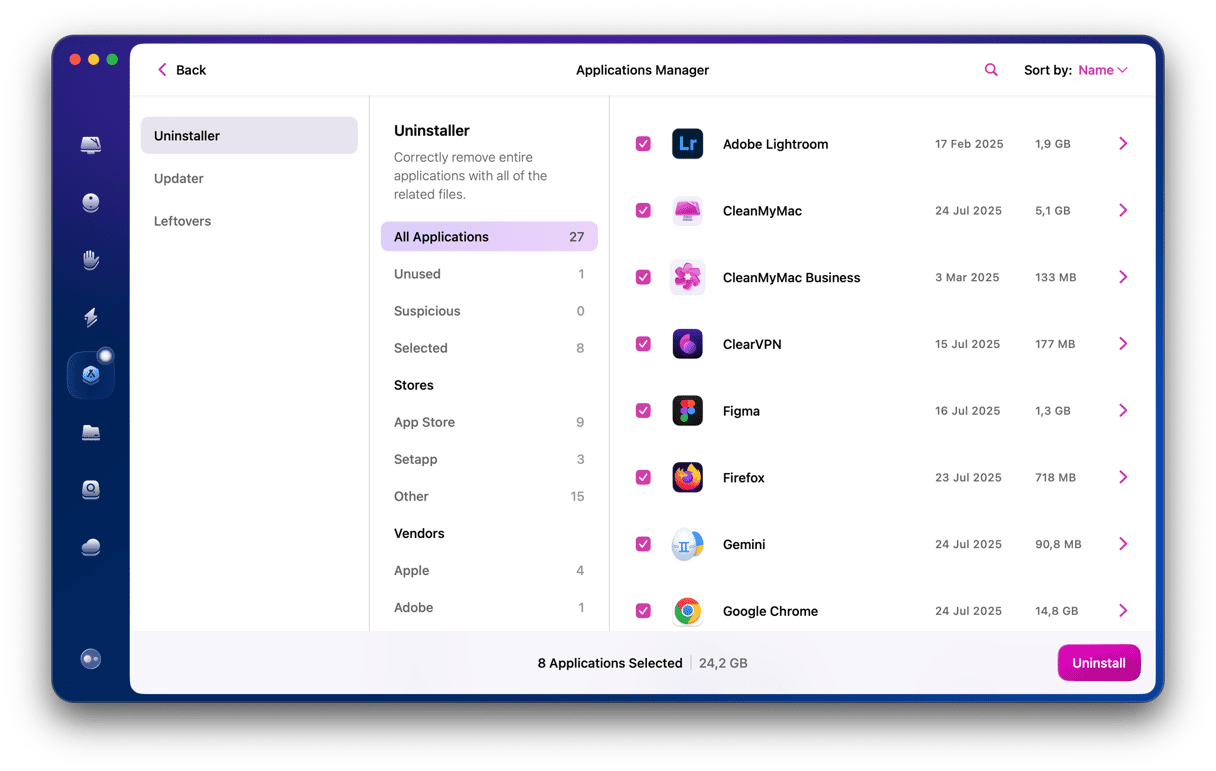
When it scans for installed apps, CleanMyMac automatically locates the related files that support each app, including those outside the Applications folder. It can also find leftover files — those that were not removed when you uninstalled apps manually in the past. And if you want to check your Mac for malicious apps, run a scan using the Protection feature.
In addition to removing app-related files, CleanMyMac has another great feature that hunts down junk files quietly sitting there and taking up gigabytes of space — Cleanup.
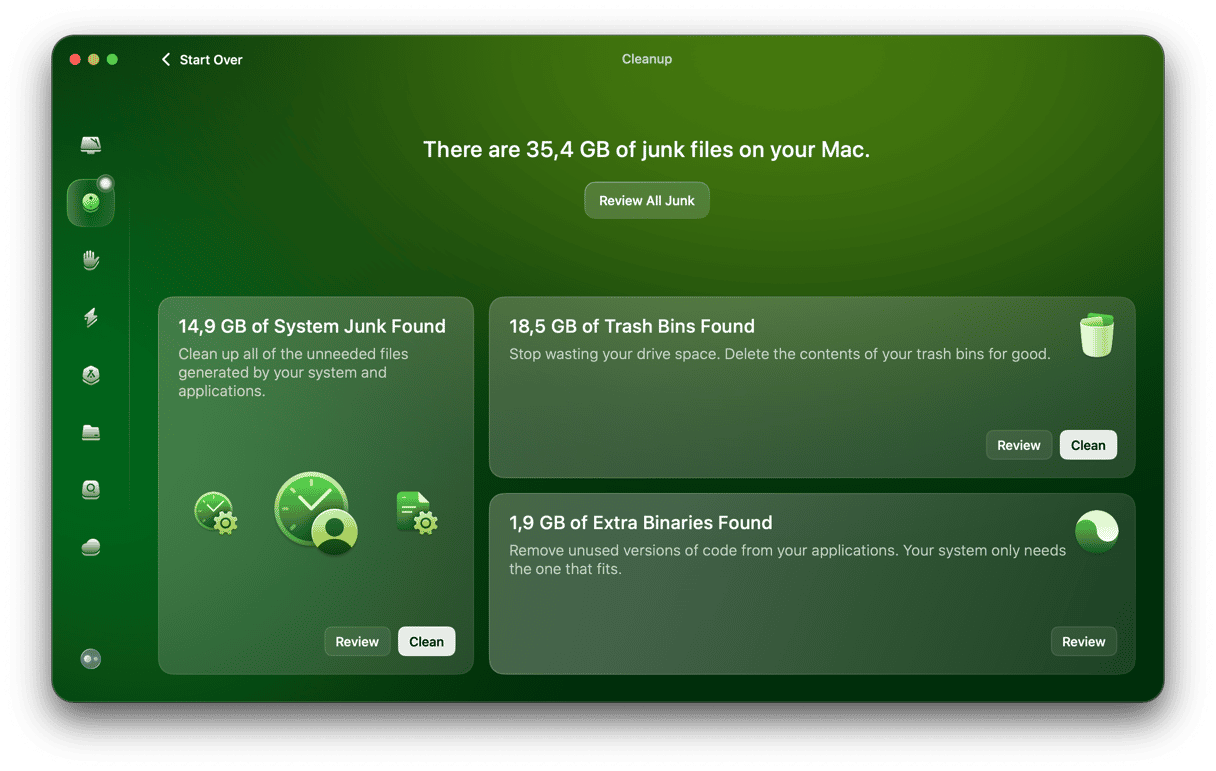
It finds such files as unnecessary language files, user cache files, system log files or broken login items, to name just a few. macOS does not need them to run properly. In fact, having lots of junk on your Mac may significantly slow it down. So, when you get rid of this clutter, it may speed up your computer and make it work smoothly.
Official website
Price: $39.95/year
Free trial: available
Compatibility: macOS 11 or later
| Pros | Cons |
| An all-round problem fixer for Mac that goes beyond uninstalling apps, and the 7-day free trial version provides unlimited functionality | Some users report that notifications are annoying (they can be turned off, though) |
| Comes with 25+ tools for all-around Mac care and maintenance | No dark mode that a lot of users love |
| Notifies you about app leftovers if you drag any app to Trash | Does not have the option to schedule an automatic scan for leftover files |
2. Hazel
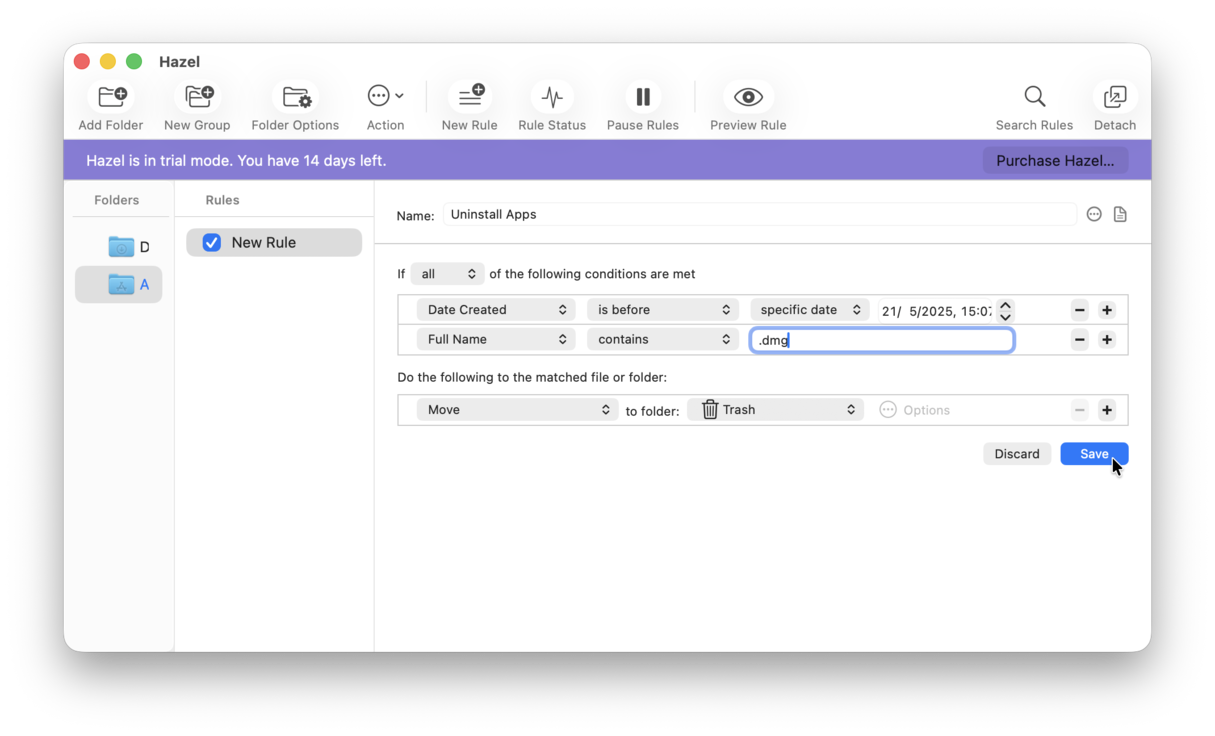
Hazel is another app with the power to get rid of unneeded apps and junk for good. Another tool with a range of possible uses, Hazel lets you create condition-based rules that automate certain actions on your Mac.
This is useful for file organization, photo naming, archiving, and generally keeping your desktop clean. But this function also shines when you need to get rid of apps for good.
Hazel lets you set up special rules for your Trash, ensuring that files don’t sit in the bin for too long and take up space on your drive. You can configure the app to automatically empty your Trash when it reaches a certain size or to delete files that have been in it for too long.
Hazel’s rule-based interface certainly makes it useful as an app uninstaller, but some may find it a little more complicated to use. It also lacks some features for identifying and comparing unused apps.
Official website
Price: $42
Free trial: available
Compatibility: macOS 12 or later
| Pros | Cons |
| Comes in handy for file organization, not only app removal | Rule-based interface can be too complex |
| Users can add different rules to keep Mac storage optimized | If you add too many rules, the app quickly consumes too much RAM |
| Rules can produce notifications so nothing remains unnoticed | No way to export a single rule — you export all rules of a folder |
3. AppZapper 3000
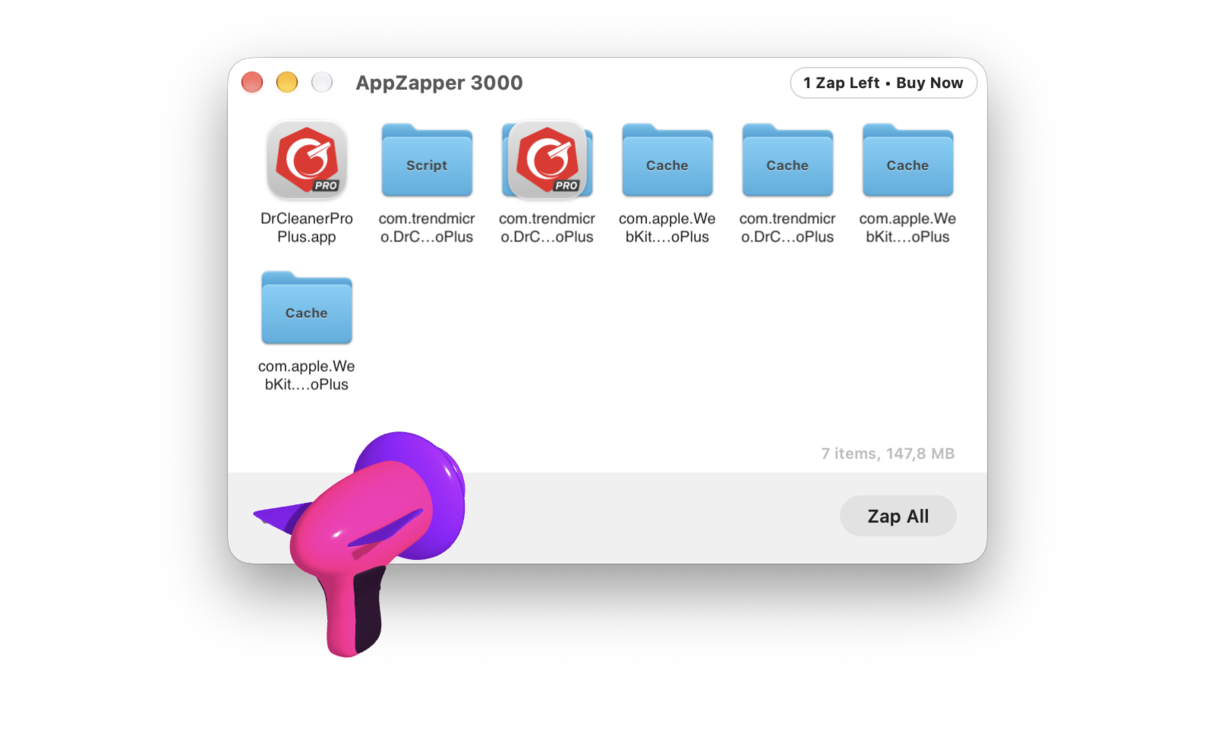
With AppZapper 3000, drag and drop is the name of the game. This compact uninstaller lets you pull applications from your drive into its interface and then hunts down all the related support files. It stands out for its simplicity and for the depth of its cleanups.
AppZapper is simple but thorough. The app can remove:
- Settings
- Junk files
- And more
AppZapper stands out as a straightforward and powerful tool for uninstalling unwanted apps.
Official website
Price: From $18
Free trial: available
Compatibility: macOS 15.6 or later
| Pros | Cons |
| Comes with a Practice Mode — shows you how the app works without deleting anything | The free trial version is limited to 3 zaps only |
| A fun way to uninstall apps due to being based on a drag-and-drop feature | Does not let remove extensions and plug-ins |
| Can remove different types of files, not only apps | Does not have the functionality for automatic leftover files detection |
4. Avast Cleanup Premium
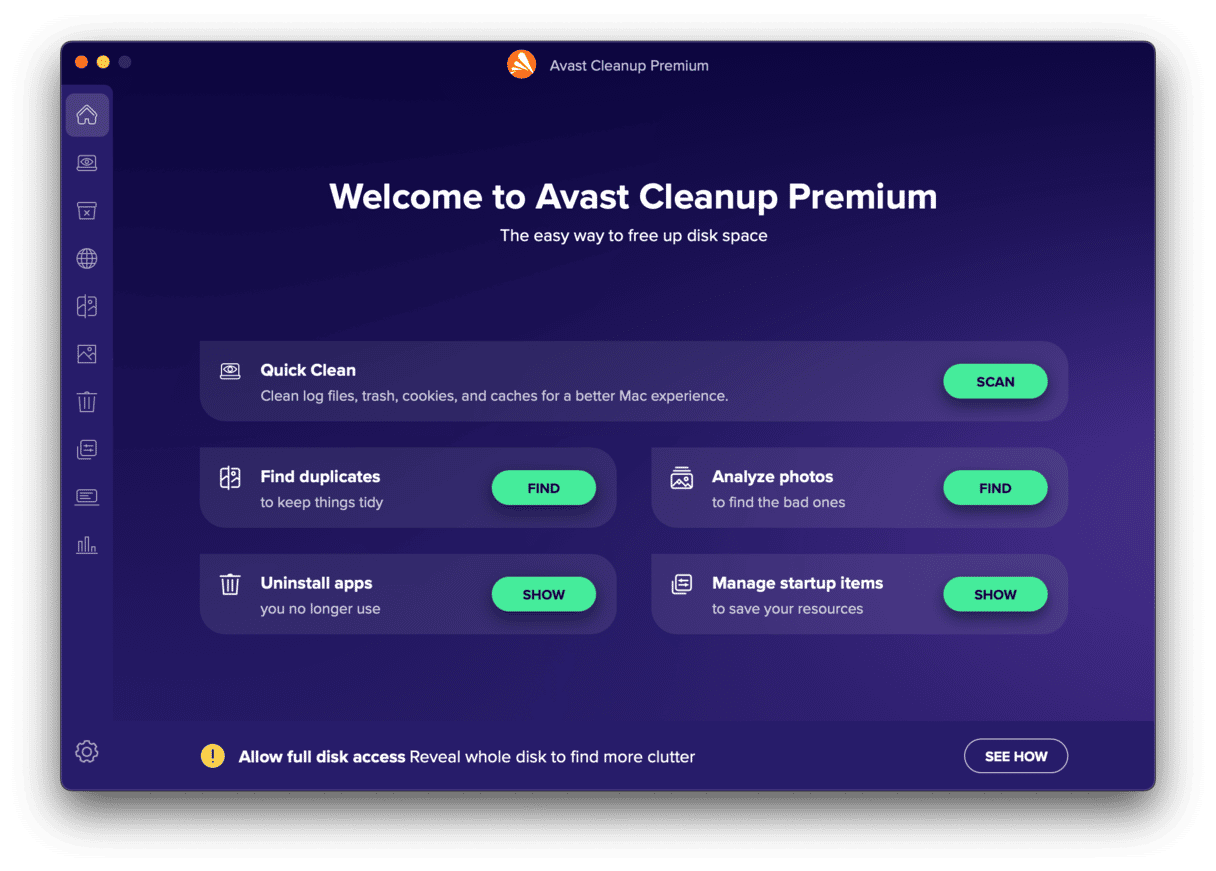
Avast is a known name in the world of malware detection and removal, but the developer made another step in cleanup and launched a Mac uninstaller — Avast Cleanup Premium, which is now sold as Avast One with Cleanup Premium. Except for uninstalling apps, it can also detect and delete junk files, find duplicates, and clean up browsers.
Returning to app uninstall features, after a quick scan, it lists all applications installed on your Mac and detects large and unused ones — those you have not used for more than six months. But be ready that the old app finder will not work accurately right away, as it simply won’t know which apps were installed long ago.
Extra point for letting manage startup items, which are not always easy to find but can sometimes affect Mac performance and are not always wanted.
Official website
Price: $65.99/year
Free trial: available
Compatibility: macOS 10.13 or later
| Pros | Cons |
| Has a 30-day free trial | More expensive compared with other apps |
| Comes with extra tools for Mac cleanup | Does not have tools for removing malicious software like other apps on the list |
| Detects large and old apps | Too intrusive — sends too many notifications |
5. AppCleaner
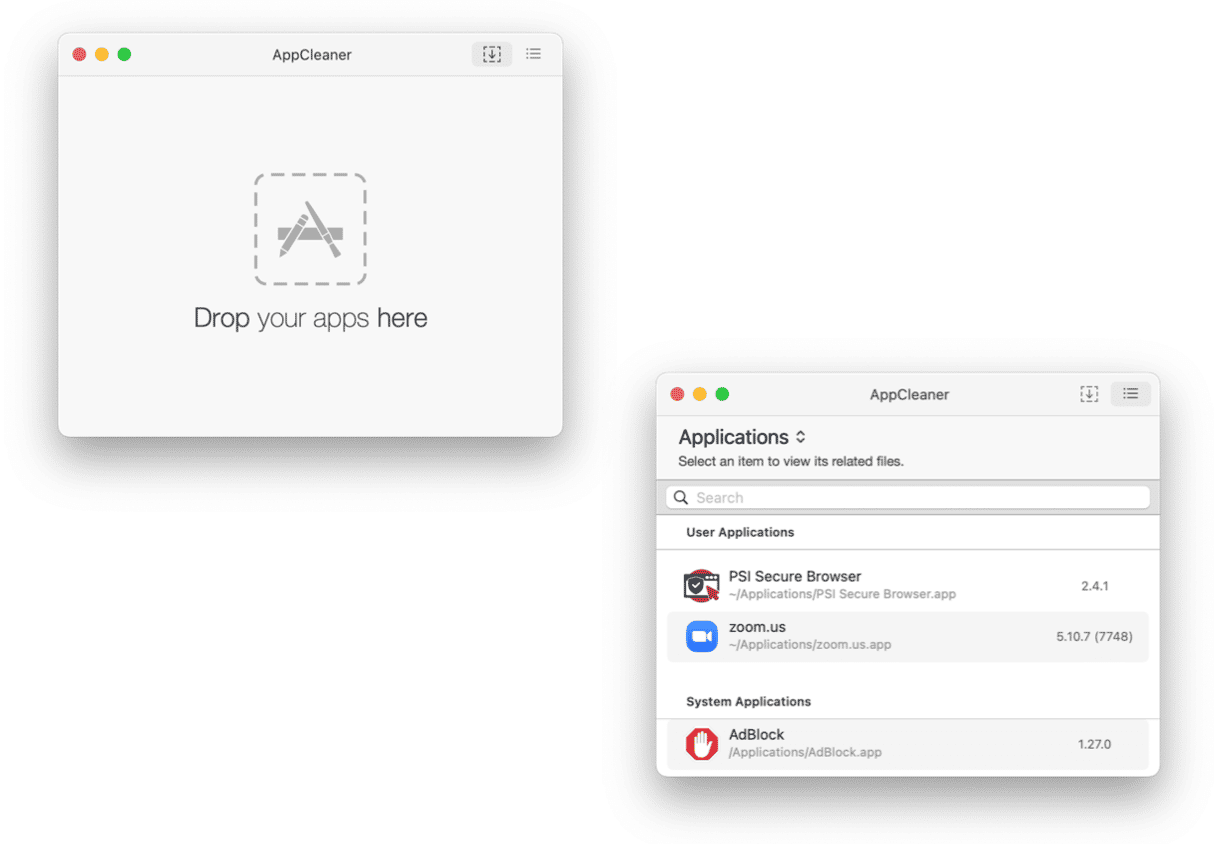
If you are looking for a little, free app that does nothing but removes apps completely, look no further than AppCleaner — an app uninstaller loved by users on forums. It lists all of the apps installed on your Mac, along with add-ons and widgets. Or you can drop an app from the Applications folder instead of searching for it on the list of all apps.
AppCleaner also has a SmartDelete function that notices if you drag an app to the Trash and offers to delete it completely. And the deletion is good — no residual files remain on your Mac after using this uninstaller. Moreover, it is fast and flexible since you can select which files to remove and which to leave, should you need it.
The main downside of the app is that it focuses on uninstalling only, meaning that users looking for additional functionality, like junk or duplicate files removal, will have to install more apps. And such cleaners usually come with their own uninstallers.
Official website
Price: free
Free trial: not applicable
Compatibility: macOS 15 or later (AppCleaner 3.7); older versions are available for macOS 10.10 to 15.6
| Pros | Cons |
| A free, easy-to-use app | A user cannot mass-delete apps with this uninstaller |
| Minimalistic app design | No malware removal feature available like in other apps on the list |
Can delete widgets and add-ons | Does not remove apps protected by the system |
6. App Cleaner & Uninstaller
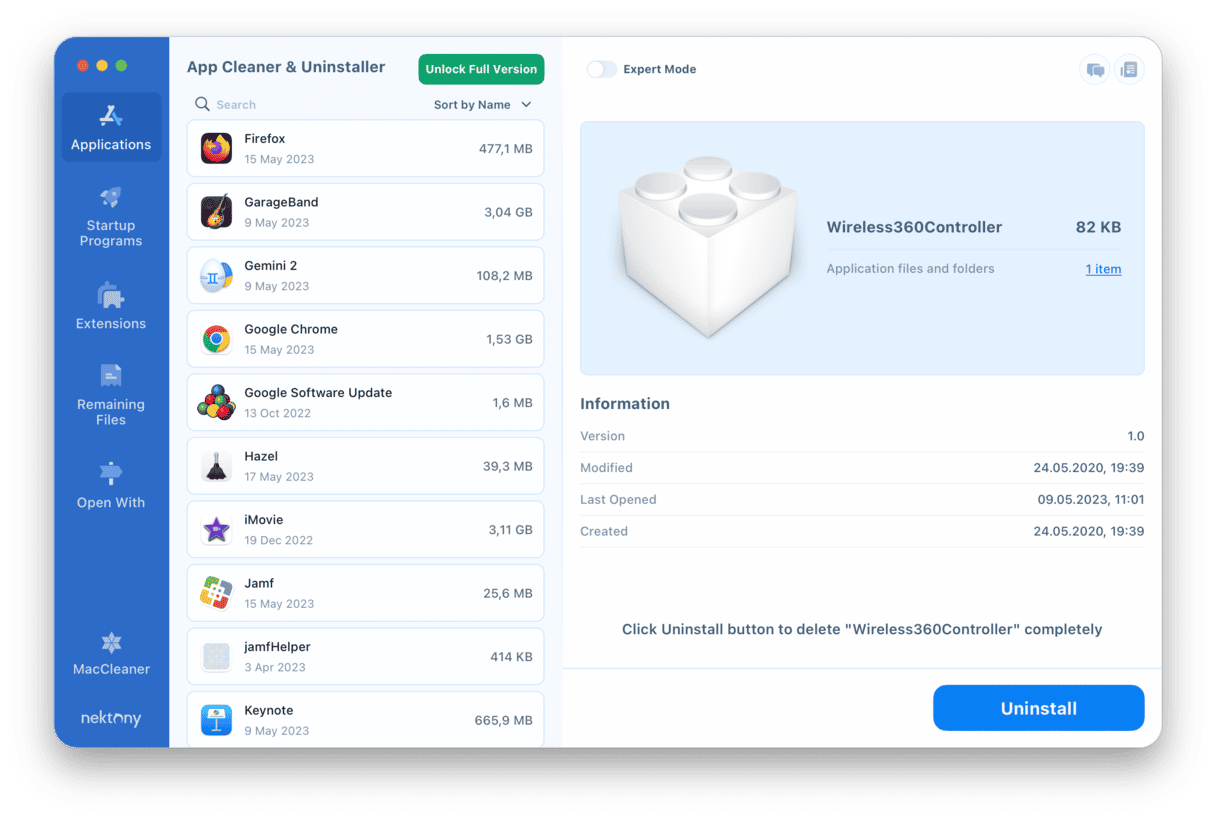
App Cleaner & Uninstaller is a full-featured app uninstaller. It stands out for the range of scans and operations it can perform.
Unlike some of its competitors, which only have a drag-and-drop window or list, App Cleaner & Uninstaller has an extensive interface that clearly organizes its features. This means you can do specific tasks, like managing extensions and startup programs or removing remaining files.
This uninstaller also outlines all data and files generated by an app and calculates the space it occupies, so you can use it to free up disk space. It also allows you to delete several apps at a time by selecting them from the list of all applications. Conveniently, it will show the space that will be reclaimed after removing apps.
Official website
Price: $14.95/year
Free trial: available
Compatibility: macOS 11 or later
| Pros | Cons |
| Lets manage login items and extensions | No resources for offline support available |
| Has features for mass-deletion | Some users report that scanning process is long |
| The removal of files is complete and thorough | Lacks additional features for Mac cleaning |
7. TrashMe
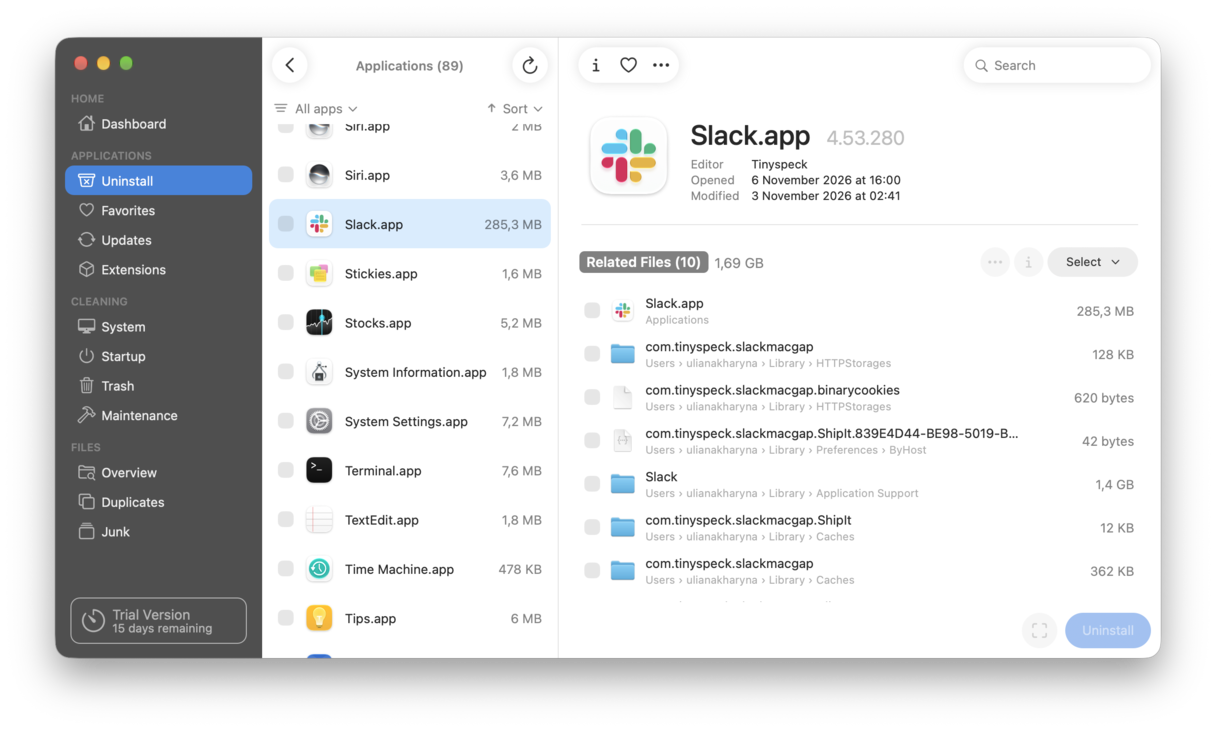
The name says it all: TrashMe hunts down your junk files, whether they belong to an app or not. This uninstaller for Mac not only gets rid of your unwanted apps and their support files but also seeks out unnecessary duplicates and redundant files, giving you the option to toss them permanently.
It also cleans out your cache to give you back all the disk space it can. TrashMe can even find and erase incomplete downloads and “orphaned” files, which may not show up on other scans.
With its thorough scanning and deletion features, TrashMe is a great option for completely uninstalling apps. It also offers a high level of control. Instead of emptying the whole Trash bin, TrashMe lets you select which files to delete permanently and which you want to leave in the Trash in case you need them later.
Users who like its deep searches should also check out CleanMyMac, which offers fine-tuned detection.
Official website
Price: $17.99
Free trial: available
Compatibility: macOS 10.13 or later
| Pros | Cons |
| Can delete all types of unnecessary app-related files, including cache files and leftovers | Some users report that the app deleted shared caches and support files — risks of overcleaning |
| Provides different options for app and file removal: permanent deletion and sending to Trash | There are better alternatives for the same price |
| Easy-to-use app known for deep scans | Users report that some leftover files still remain on Mac after app deletion |
Are there completely free uninstallers?
The short answer is yes. There are free apps, like AppCleaner mentioned above, but they may not offer all the tools you need or may work less effectively. AppCleaner, for example, may miss some app-related files. Also, some completely free apps may be unsafe to use if they come from developers that macOS cannot verify.
On the other hand, though, all the paid uninstallers on our list come with free trial versions. Some of them may be limited in functionality (e.g., the limited number of apps you can delete, like in AppZapper), but at least you’ll have enough time to test what you’ll pay for if you decide to sign up for a subscription.
How to choose an ideal uninstaller for Mac
We promised that we’ll explain how to choose an uninstaller. So, here are a few things to focus on:
- Safety. Conduct a quick online search to find out if an uninstaller comes from a trusted developer. If you are not sure if a developer is trustworthy, look for an application on the App Store. Also, avoid free software download websites — they can distribute malware instead of legitimate apps. Hint: When you install an app from outside the App Store, macOS checks that it comes from an identified developer and, on macOS Catalina and later, requires it by default to be notarized by Apple, which means Apple checked it for known malicious software.
- Compatibility. Check which macOS version and devices the app works with as well as how much free space you need to install it. Look for the system requirements section on the developer’s website. Commonly, you won’t be able to install an incompatible app even if you could download the installer.
- Additional functionality. Ask yourself if you need anything more than just deleting apps. If you need extra tools for optimizing storage or removing malware, consider investing in an all-in-one Mac cleaner app.
- Effectiveness. You can conduct a quick online search for app reviews. Alternatively, download a few trial versions first, send any application to the Trash, and check which uninstaller finds leftover files.
- Ease of use. Test the app to ensure that the design meets your needs and is intuitive enough.
- Price. Consider your budget. If you aren’t sure if an app is a good value for the price, check out a free trial first.
That was our take on the best Mac apps to delete other apps. Now, try them in action and start deleting things — getting rid of old clutter is such a relief! But if uninstallers are not for you, and you prefer manual app removal, check out our comprehensive guide on how to uninstall apps on Mac.
Frequently asked questions about Mac uninstallers
Is there an alternative to using Mac uninstallers?
Yes, you can try to remove apps manually. For instance, you can find vendor-specific uninstall instructions online. Some apps even come with their own uninstallers. If an app has no uninstaller, drag it to the Trash, then choose Finder > Empty Trash to delete it permanently, as Apple describes. Until you empty the Trash, you can still put the app back.
It is also a good idea to check for app leftovers if you remove apps manually and remove them so fewer files are left behind. With either of these ways, you can remove the apps you downloaded and installed yourself, but be aware that a Mac uninstaller can find leftover files you might miss by hand.
How to delete DMG files after installing apps?
The process is simple and straightforward: just click the eject button in the Finder sidebar next to the installer name and then send the DMG file itself to the Trash. Easy!
What is the best way to prevent app clutter and keep my Mac clean without bloat?
We recommend uninstalling unnecessary apps and, if you do it manually, removing app-related files, too. Also, delete apps right away after testing them if you realize that you do not like or need them. Another effective tip is to install only essential apps. Putting it all together, the best cleanup advice is to prevent clutter in the first place.
What do I do if an app won’t uninstall properly?
If you can’t remove an app, make sure it does not run in the background. Either force quit it using the Force Quit feature from the main Apple menu or quit all app-related processes via Activity Monitor. If it doesn’t help, try uninstalling it in safe mode.
What should I do about programs remaining in background after removal?
If processes remain after uninstalling apps, you need to check the Library folder for app-related Launch Agents and Launch Daemons. Alternatively, you can use a Mac cleaner app that allows you to review and control login items and background items. Also, you can force quit the processes in Activity Monitor, but if you do not remove these app-related items completely, the processes may restart themselves.
Should I do a clean install of macOS to remove all leftover files?
In most cases, no. As long as you use a dedicated app uninstaller or hunt down all app-related files, there is no need for a clean install.
How does Mac app uninstallation compare to Windows?
The two are alike in that both leave app-related files if you do not use an uninstaller. Except for that, on a Mac, a process is considered simpler because you do not have to run a system-level uninstaller; you just drag an app to the Trash as the first step in the uninstall process.