

I use ChatGPT for all kinds of things these days, from meal planning to researching vacation destinations and organizing research notes. So, when I logged on the other day and found that I couldn’t connect to it, I was frustrated. It wasn’t the first time it had happened either, so I figured there was a deeper issue somewhere. Why was ChatGPT not working on my Mac? It turned out that there were several possible causes, and the only thing to do was work through them one by one until I could use ChatGPT again. Thankfully, I got there in the end, so here’s how you can fix it if it happens to you.
Common reasons ChatGPT stops working on Mac
There are a few things that sometimes stop ChatGPT from working on a Mac. These are:
- Overloaded servers
- Browser cache or cookies causing problems
- Outdated browser
- VPN problems
- Lack of free storage space
- Corrupted app data
ChatGPT not working: How to fix it
1. Check your internet connection
It seems obvious, but it’s often overlooked. To use ChatGPT, you need a reliable internet connection. All the heavy lifting is done on ChatGPT’s servers. So, if your internet connection isn’t working properly, ChatGPT won’t work. Check your wifi network, if that’s how you connect on your Mac, your router, and your broadband connection.
2. Make sure ChatGPT isn’t down
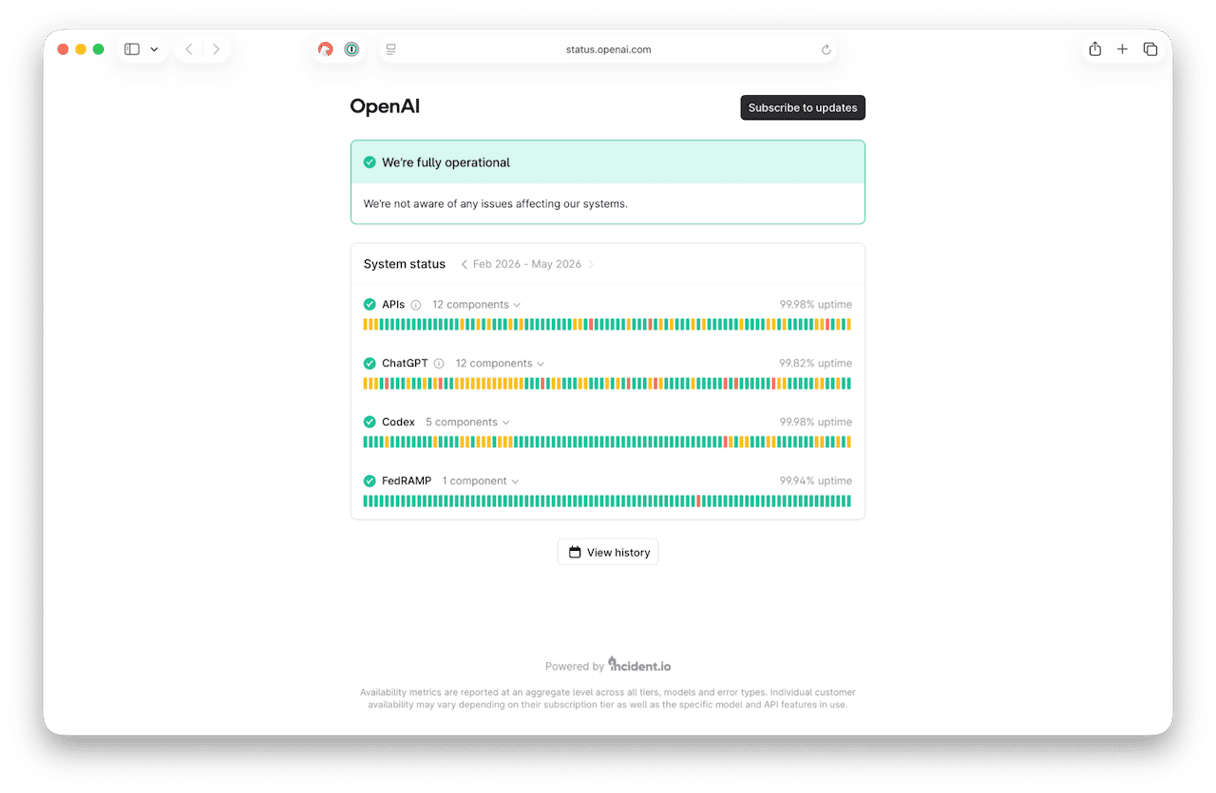
Once you’ve confirmed your Mac can connect to the internet, go to status.openai.com and check that ChatGPT is online. Look at the last mark on the ChatGPT line on the graph. It should be green. If it’s amber or red, hover over it with the mouse pointer and read what it says in the pop-up box. If it’s down or having significant problems, you’ll just have to wait until it’s back up again.
3. Clear browser cache and cookies
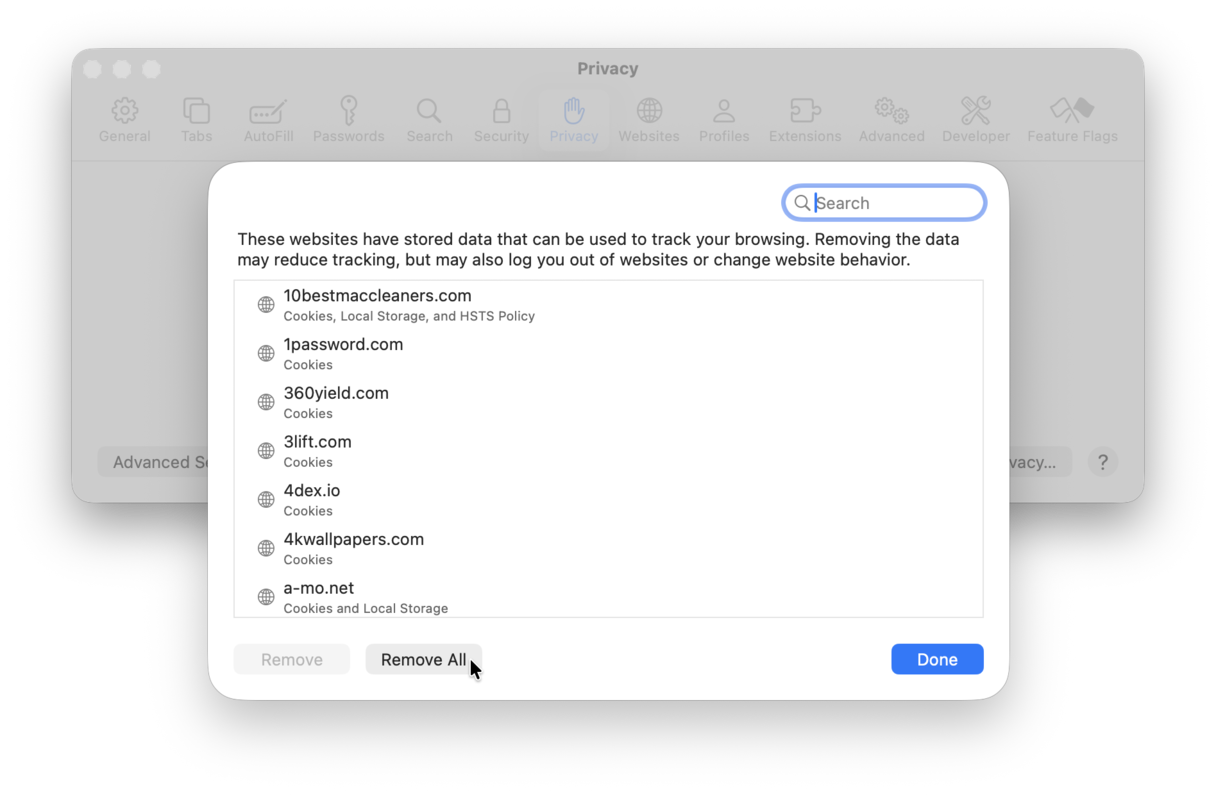
In Safari, click on the Safari menu and choose Settings, then the Privacy tab. Choose Manage Website Data. Wait for the data to load, then click Remove all. Now, head to Develop in the menu bar > Empty caches.
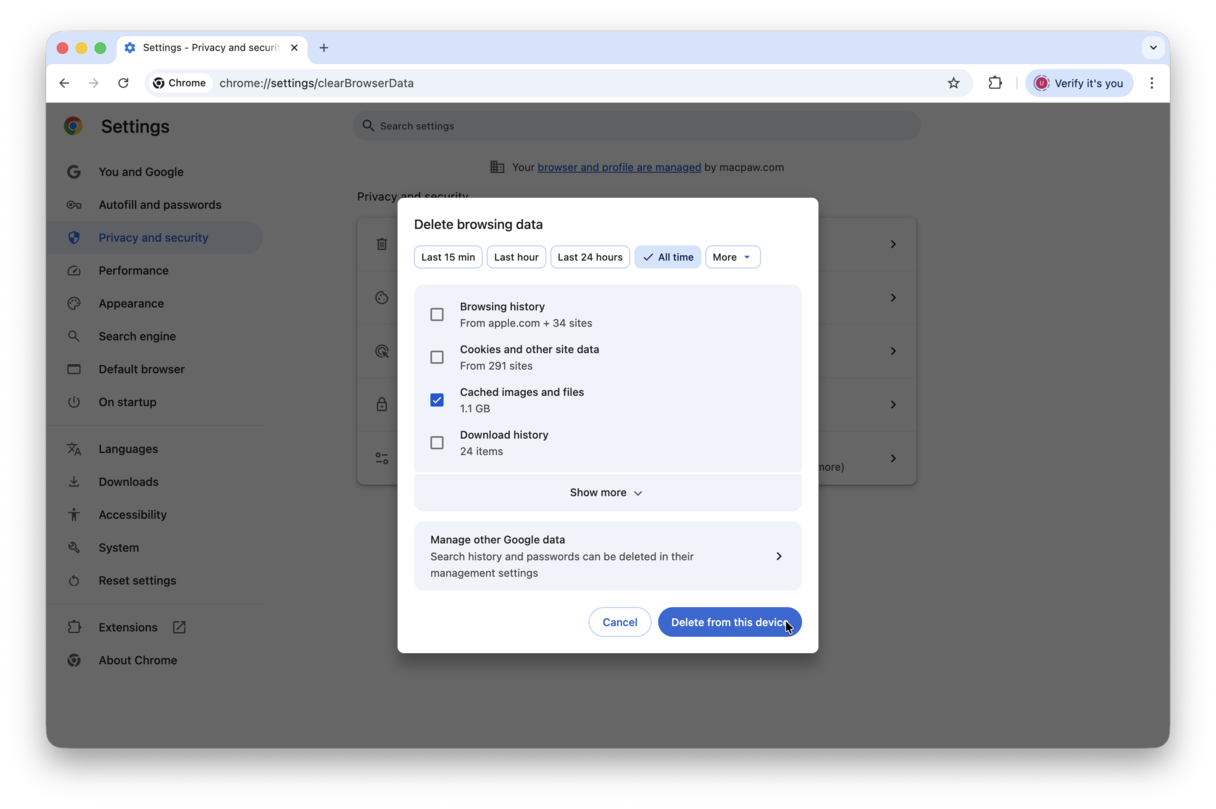
In Chrome, click on the three dots at the right of the address bar and choose Settings. Select Privacy and Security in the sidebar > Delete Browsing Data. Check the box next to ‘Cached images and files’ and click Delete Data.
4. Delete system cache
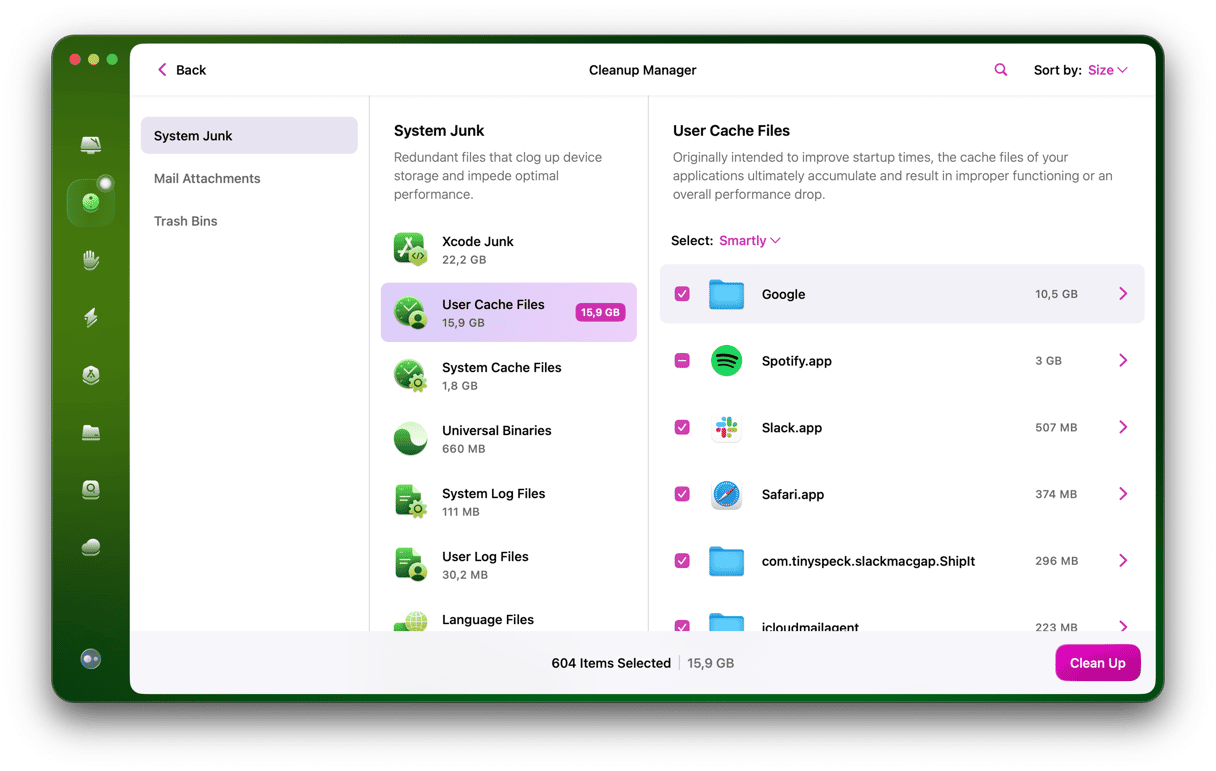
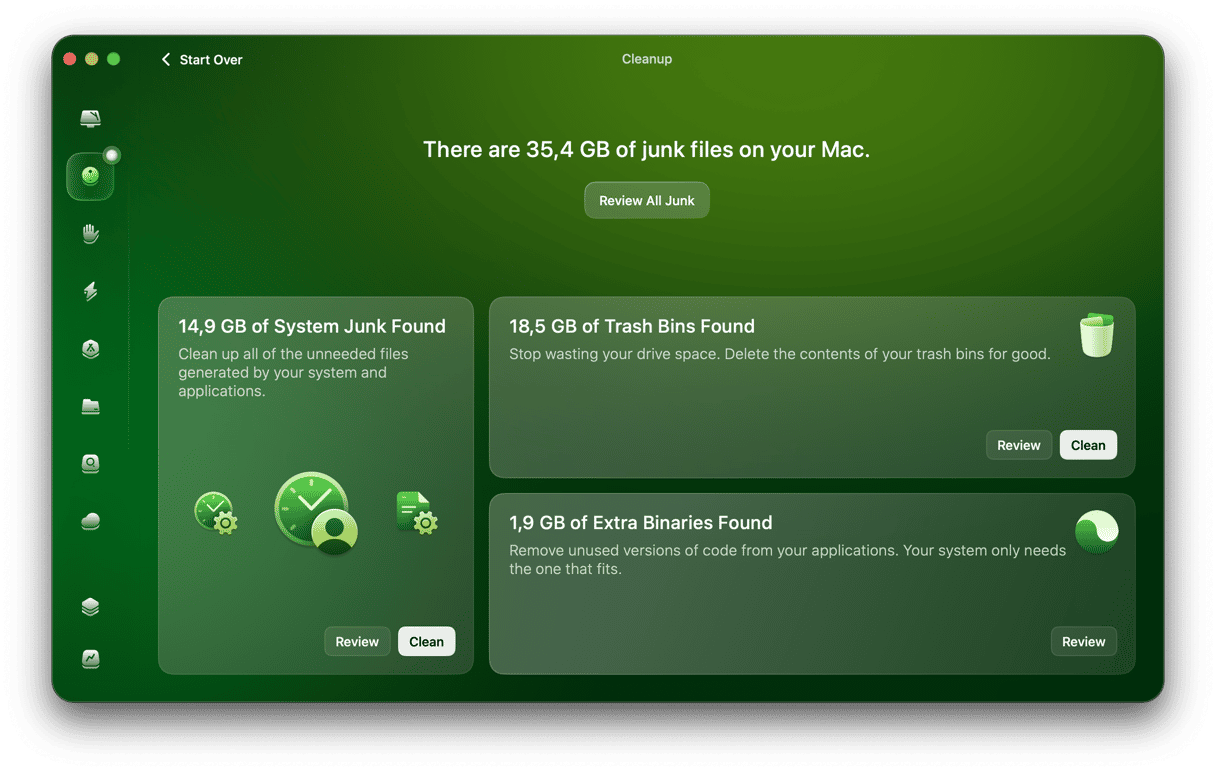
Manually removing cache and cookies is a laborious job, especially if you use more than one web browser. And there’s always a chance that you will miss some data. CleanMyMac’s Cleanup feature scans all your web browsers at once, looking for cache and other junk that builds up over time, then removes it. It takes about 30 seconds and often fixes issues with sites like ChatGPT when they refuse to load properly. Here’s how to use it:
- Start your free CleanMyMac trial — you can test it for 7 days.
- Open the app and choose Cleanup.
- Click Scan.
- Select Review all Junk.
- Choose what to remove and click Clean Up.
5. Try using a different browser or the ChatGPT app
If you normally use ChatGPT in Safari, try using Chrome instead. You should also make sure that whatever browser you’re using, you update it to the latest version.
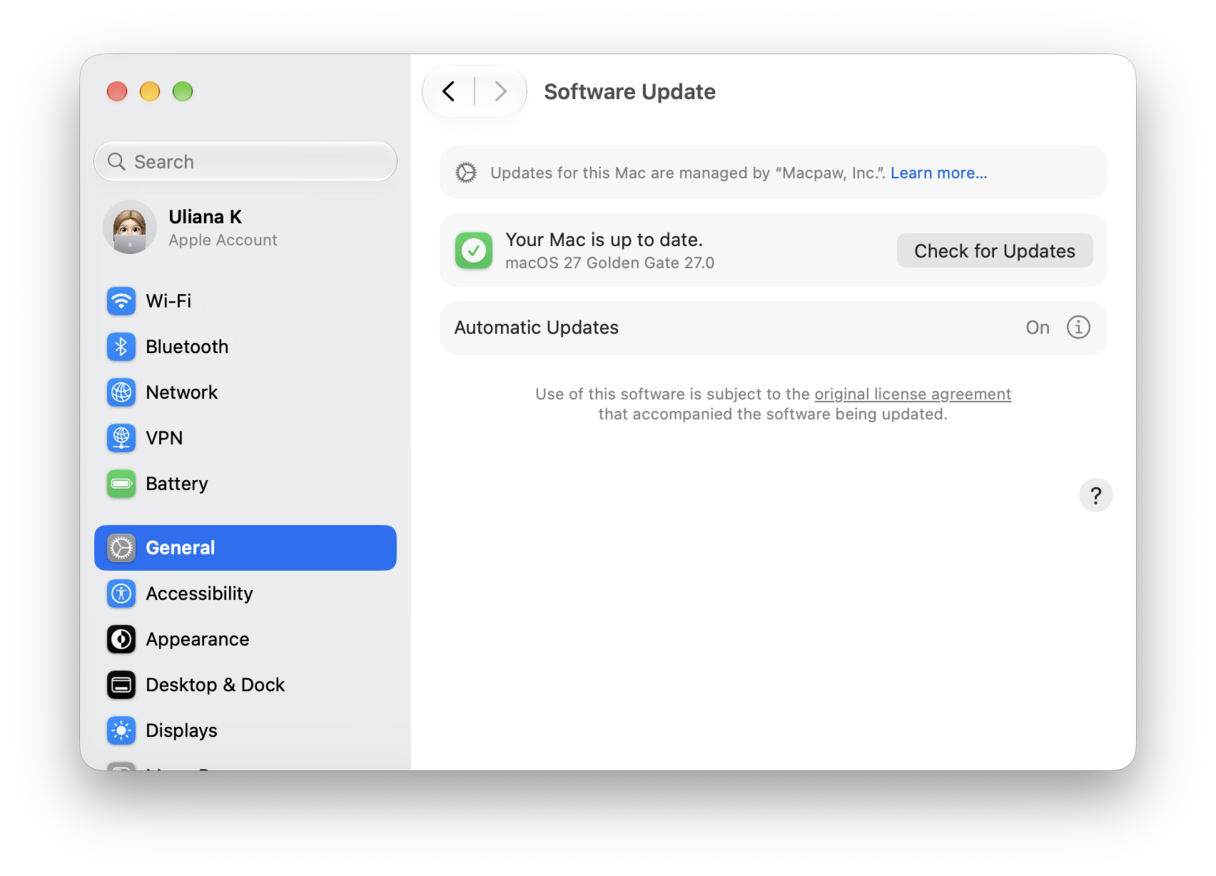
Safari is updated with macOS, so make sure you’re using the latest version of that. Check System Settings > General > Software Update. If there is an update available, install it.
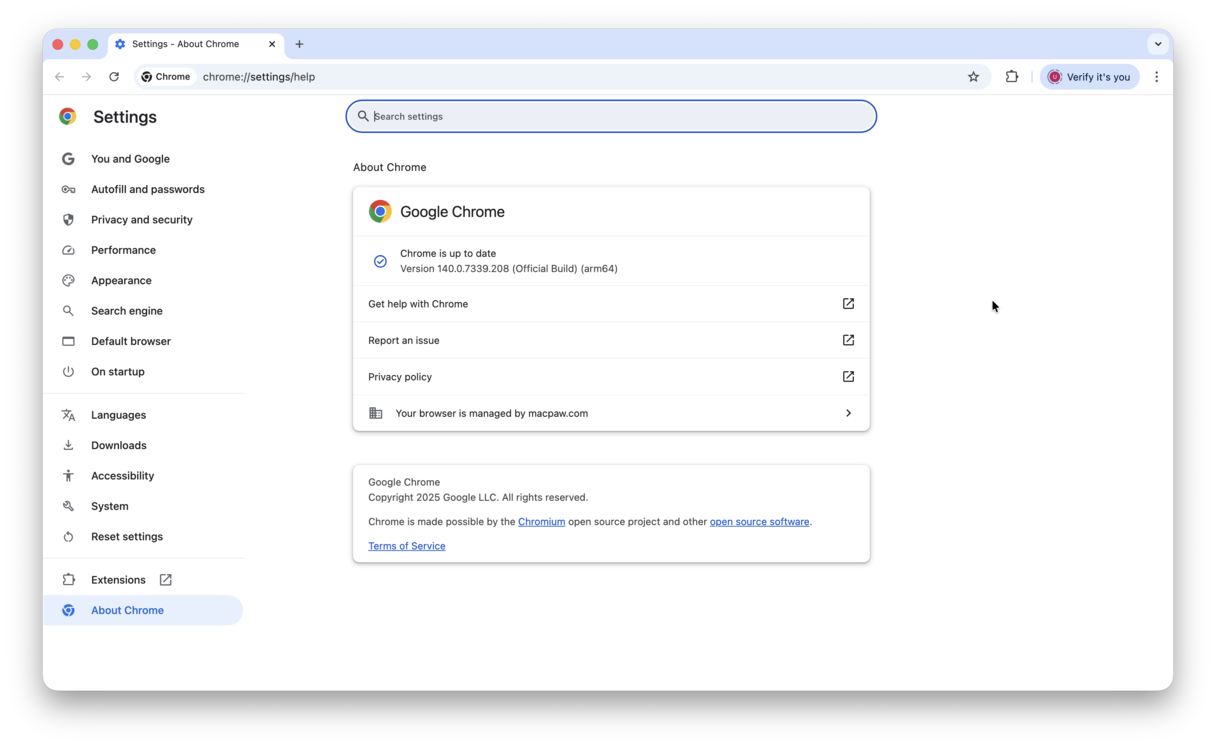
Chrome and other browsers can be updated via their own Settings, though it’s a good idea to turn on automatic updates. For example, in Chrome, click the three dots at the right of the address bar, choose Help > About Google Chrome. If there’s an update available, you will be able to install it there.
Alternatively, you could download the ChatGPT Mac app and use that.
6. Disable VPN and browser extensions
If you use a VPN to connect to the internet, try turning that off and then check ChatGPT again. If the VPN server you’re connected to is slow or is in a country that is blocked from access to ChatGPT, that could be the cause of the problem. If you’ve ruled out VPN issues, try disabling browser extensions, as those could interfere with the connection.
7. Restart or reinstall ChatGPT app
If you use the ChatGPT app on your Mac and it’s not working, and you’ve checked that your internet connection and ChatGPT’s servers are ok, the next step is to restart the app by quitting it and relaunching. If that doesn’t work, you can try reinstalling the app. But first, you’ll need to uninstall the old one fully. That means dragging the app binary from your Applications folder to the Trash, but it also means searching your user Library folder for all the files it has placed there and dragging them to the Trash.
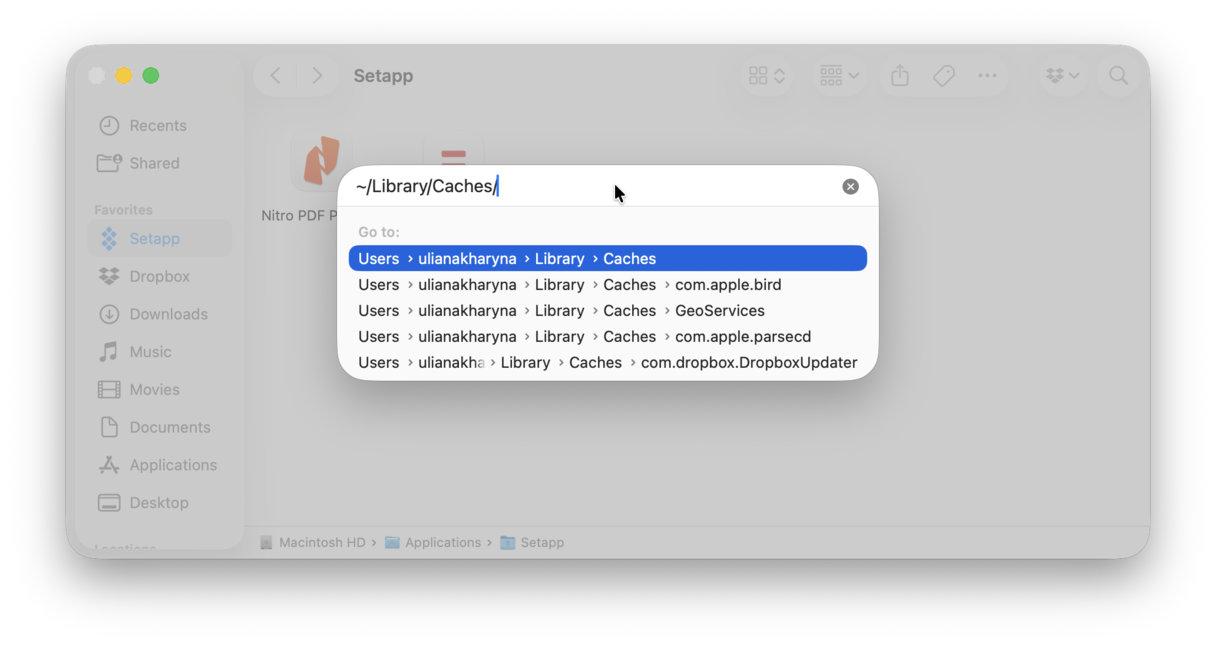
To do that, click on the Finder icon in the menu bar, then the Go menu, and paste the paths below into the box, one at a time, hitting Return after each one. Look for files at each location with OpenAI or ChatGPT in their name and drag them to the Trash.
~/Library
~/Library/Caches
~/Library/Preferences
~/Library/Application Support
~/Library/Containers/
When you’re done, empty the Trash.
8. Free up disk space
When your Mac gets low on disk space, and especially when it has less than 10% of the total free, it can start to misbehave and things can start to go wrong. So, even if you have more than 10% available, it’s a good idea to free up some more. There are a few ways to do that. You could do it completely manually, or you could use the recommendations in System Settings > General > Storage.
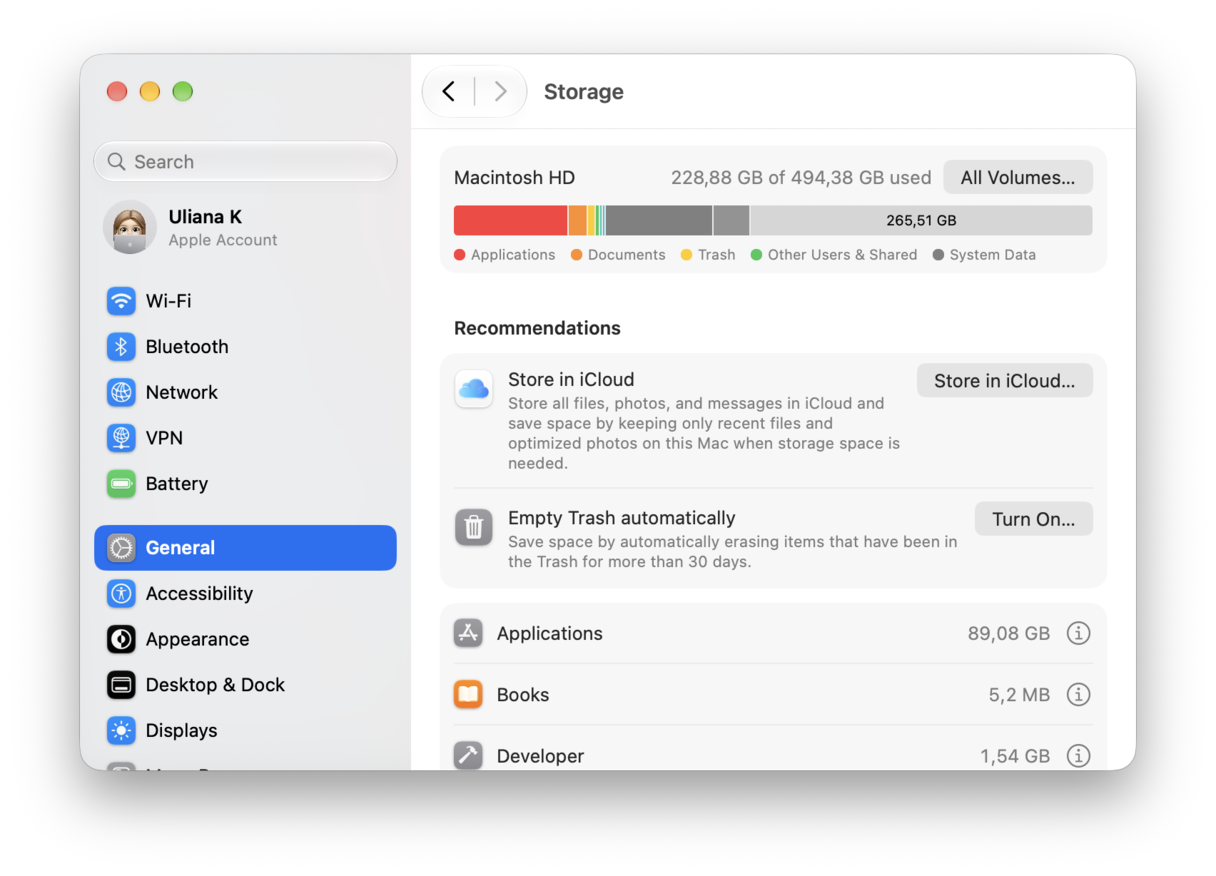
But the easiest way to do it is to use the Cleanup feature in CleanMyMac. It scans your Mac in just a few seconds and then makes recommendations for how to free up space by clearing out junk, old caches, or trash bins you’ve kept but forgotten about.
If ChatGPT is still not working, you can try contacting ChatGPT support and asking for help. Or, alternatively, take a look at Reddit’s ChatGPT subreddit — it’s a useful resource and may provide another solution.
If ChatGPT is not working on your Mac, there are a number of possible explanations. It could be that your internet connection is down or unstable or that OpenAI’s servers are down. Or it could be your wifi network or a VPN you’re connected to. However, the more likely explanation is that there’s a software problem on your Mac. That could be within the browser, such as corrupted cache files or an outdated browser. It could also be a browser extension causing problems. If you use the ChatGPT app, restarting it or even reinstalling it may fix the issue. The other possibility is that junk files on your Mac are causing trouble. That might be because you have too little storage space available for your Mac to function properly or that junk files are conflicting with each other and causing your Mac to be unstable. The solution is to clear browser data, check browser extensions, and clear the other junk files on your Mac.