If your family uses Apple devices, Family Sharing is one of the most useful features on your Mac, iPhone, and iPad. It lets everyone share apps and subscriptions, and helps keep costs down. Most of the time, it works perfectly well. But when it doesn’t, things can quickly get confusing and frustrating. In this article, we’ll show you how to troubleshoot Apple family error 1005 on your Mac.
What is Family Sharing?
Family Sharing on Apple devices allows you to share purchases from the App Store, iTunes, and Book Store, as well as subscriptions to apps and other content you’ve subscribed to through Apple. You can also use it to share locations with family members, including each family member's device. If you use the Home app to control compatible devices, you can share it with family members, too. Other features include sharing passwords in the Passwords app, calendars, and iCloud storage if you subscribe to iCloud+. There are several privacy features built in, including safeguards that require any family member who wants to make a purchase using the family owner's card details to obtain permission from the family owner.
What is Apple family error 1005?
Apple family error 1005 means that there has been a problem setting up or using Apple Family Sharing. It’s usually the result of incorrect configuration settings. But it can also be caused by an incorrect Apple ID or a change in a family member’s Apple ID. If, for example, a family member has one ID for some Apple services, like iCloud, but uses a different one for Music, that could cause the problem. It could also be caused by some sharing features being disabled on your device or a device belonging to a family member you are trying to add.
How to protect your privacy on your Mac
Family Sharing, like every other feature in macOS, is privacy-focused and lets family members choose what to share, while keeping personal data, such as photos, private. However, privacy risks can still exist elsewhere in macOS — including the Recent Items list, browser history, and saved Wi-Fi networks. Managing all of this, along with app permissions for things like your camera and microphone, can quickly become confusing. CleanMyMac’s Protection module simplifies privacy management in macOS and makes it easier to stay protected.
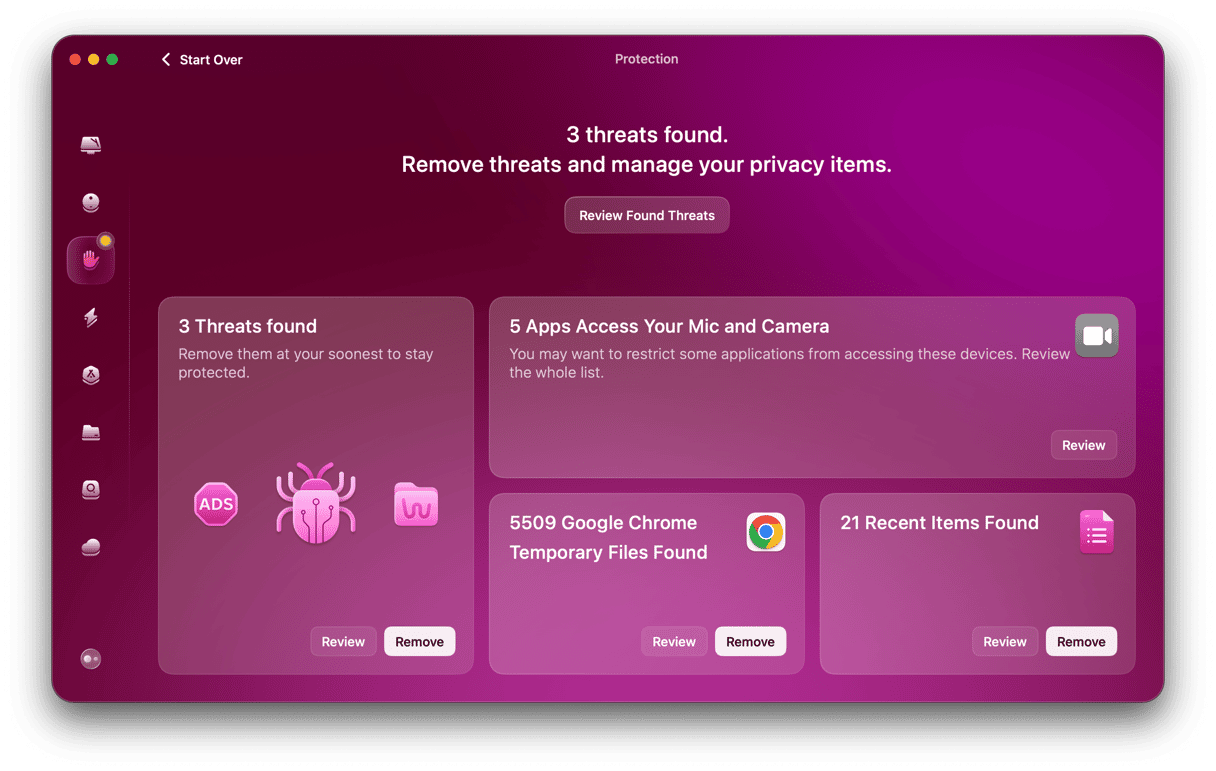
- Get your free CleanMyMac trial — you can test it for 7 days for free.
- Launch it, then select Protection in the sidebar.
- Click Scan.
- When it’s finished, choose Review or Remove in each panel, or select Manage Privacy Items for an overview of everything it has found.
How to fix Apple family error 1005
- Check you’re using the correct Apple ID. It’s essential when you set up Family Sharing that you use the correct Apple ID for yourself and any family members you want to add. So, the first step is to make sure that you have all the Apple ID email addresses correct. These should be the email addresses that you and other family members use to sign into Apple ID on your devices.
- Sign out of Media & Purchases and back in again. Signing out of Media & Purchases is different from signing out of your Apple ID. In this case, it only affects your ability to play media, such as Apple Music, and to access purchased apps, games, books, and other content.
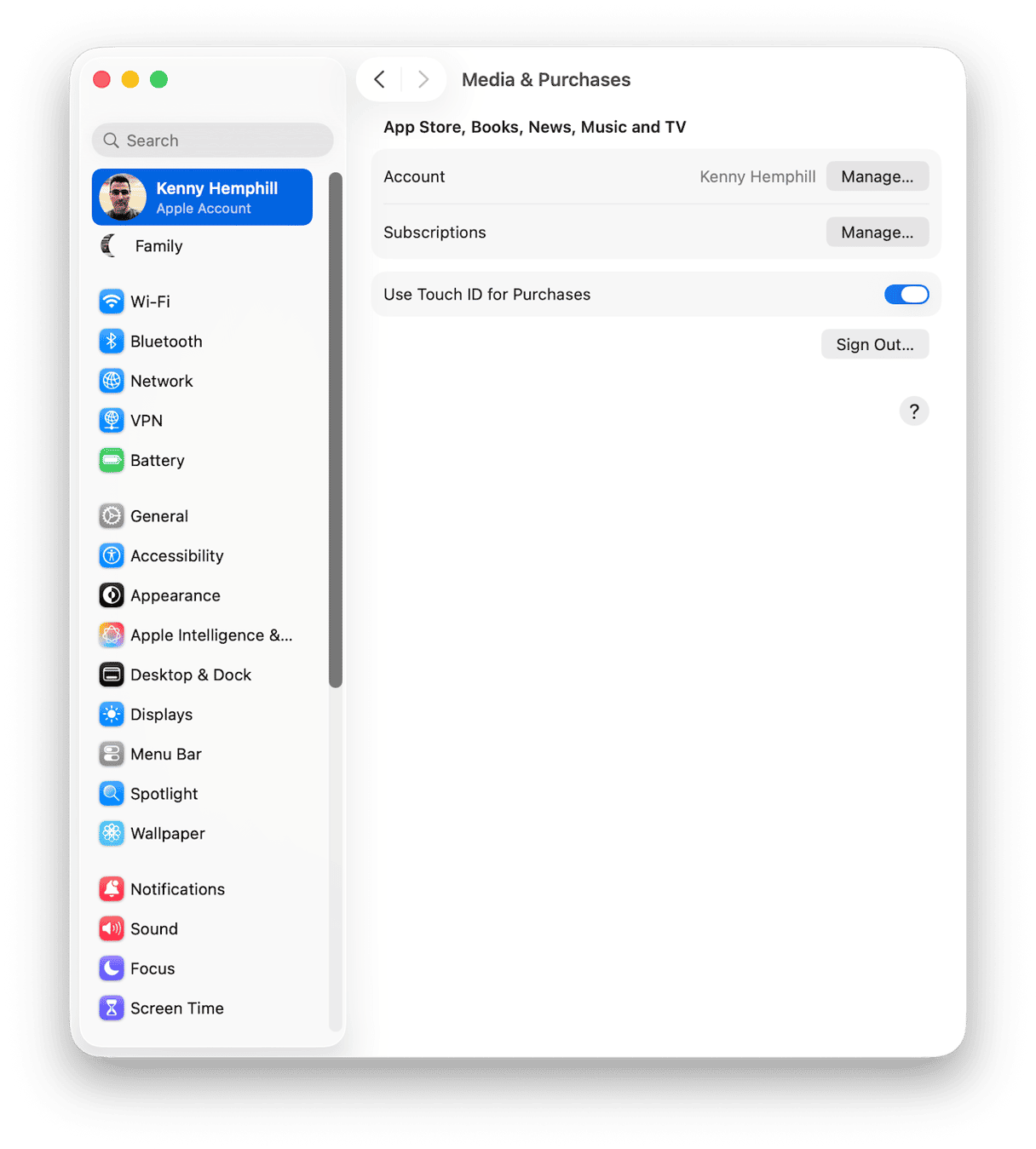
2.1. Click on the Apple menu and choose System Settings.
2.2. Select your Apple ID.
2.3. Click Media & Purchases, then click Sign Out.
2.4. Once you have signed out, wait a minute or so, then sign back in.
2.5. Try Family Sharing again. - If signing out of Media & Purchases doesn’t work, sign out of your Apple ID entirely, then sign back in.
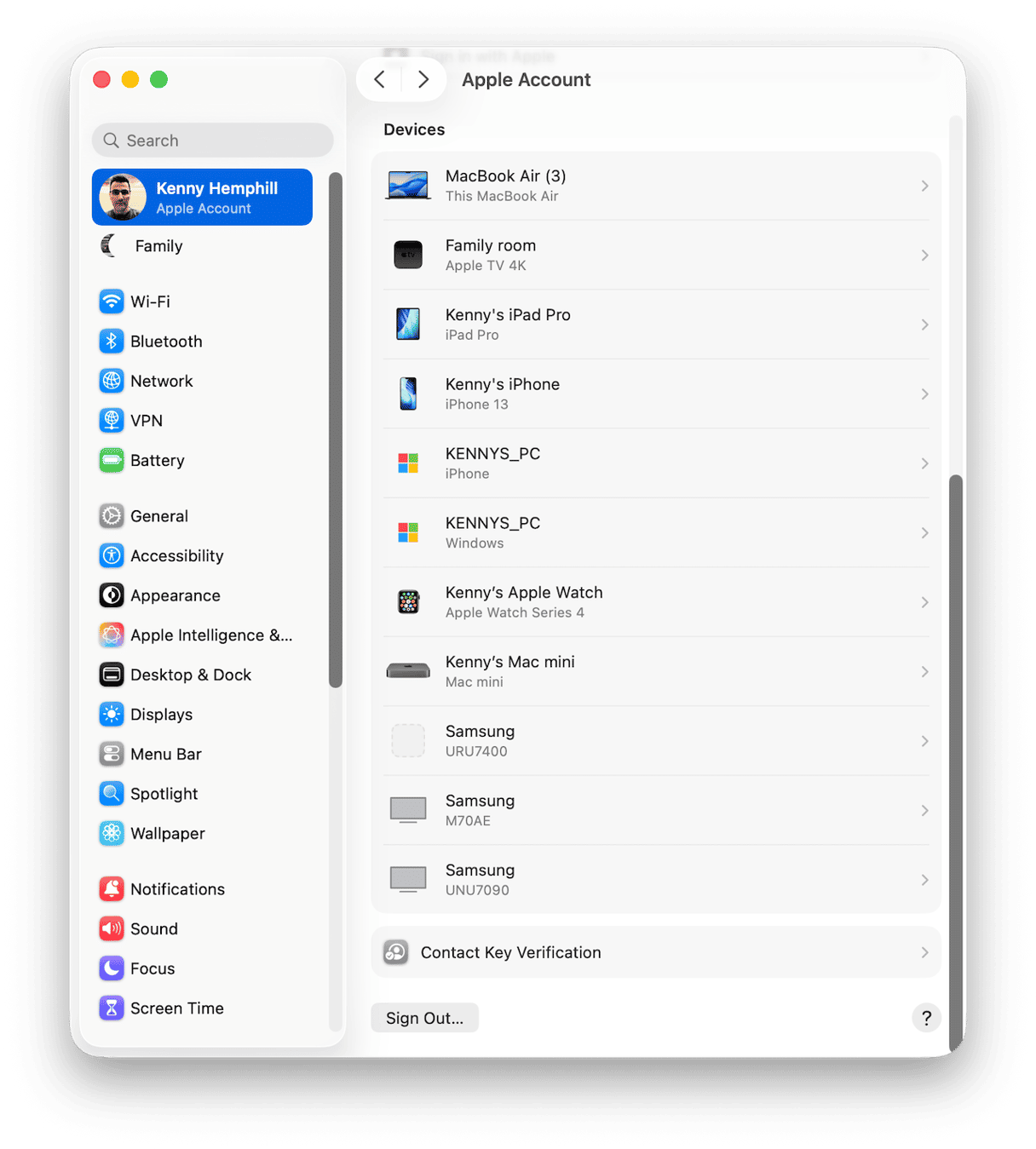
3.1. Go to System Settings and click on your Apple ID.
3.2. Scroll to the bottom of the window.
3.3. Click Sign Out.
3.4. Once you have signed out, wait a minute or so, then sign back in.
3.5. Try Family Sharing again. - Remove and re-add family members. If the problem occurs when you try to change settings for a family member, or when you have added a family member but they can’t access features, try removing them and re-adding them.
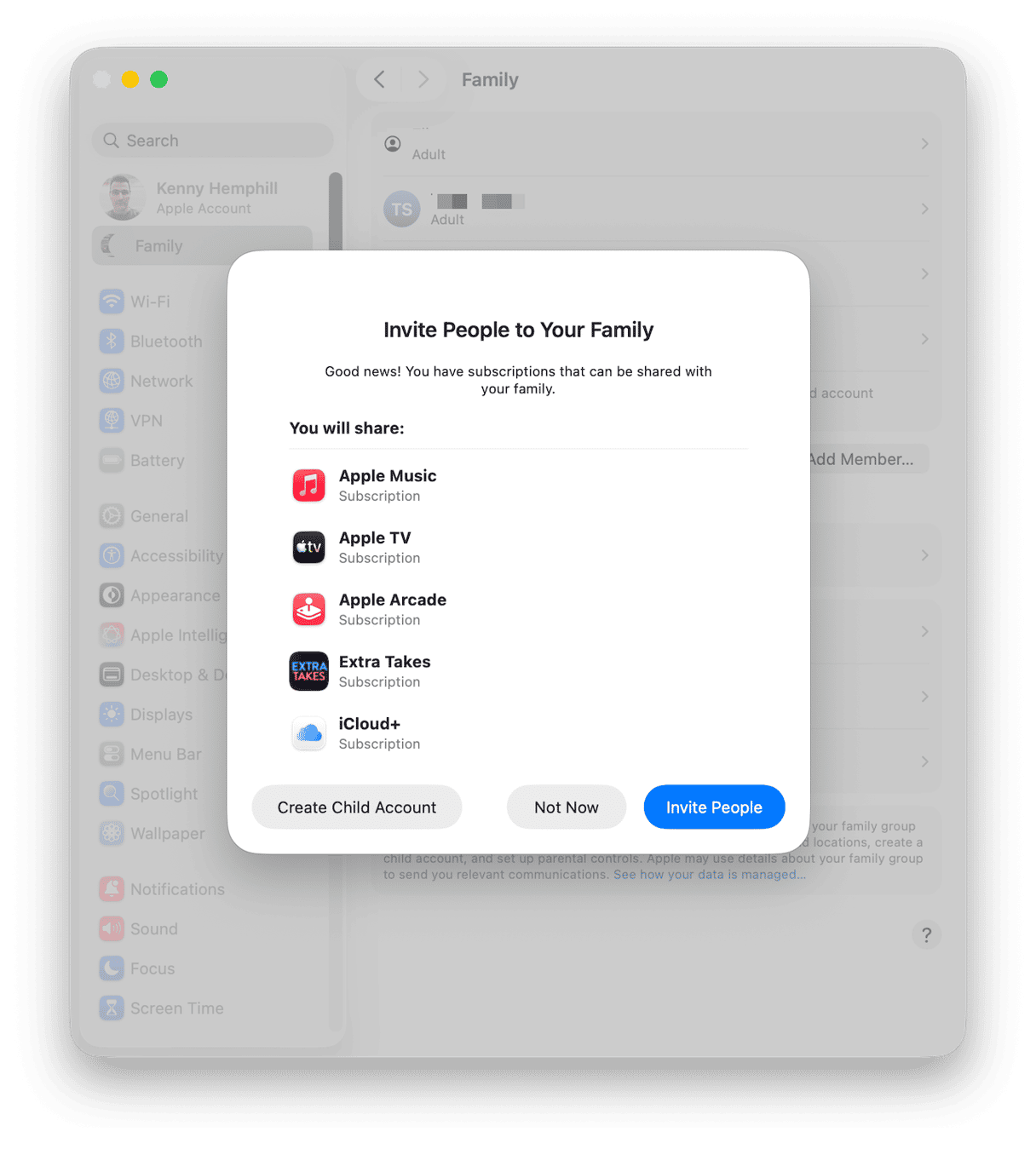
4.1. Go to System Settings > Family.
4.2. Select the family member you want to remove.
4.3. Click ‘Remove [Name] from Sharing Group’
4.4. Once the family member has been removed, add them again by clicking Add Member in System Settings > Family.
4.5. Select Invite People, then choose how you want to invite them.
4.6. Type in their details, for example, their email address, and click Send - Update macOS. If nothing has worked so far, check for an update for macOS and install it if one is available.
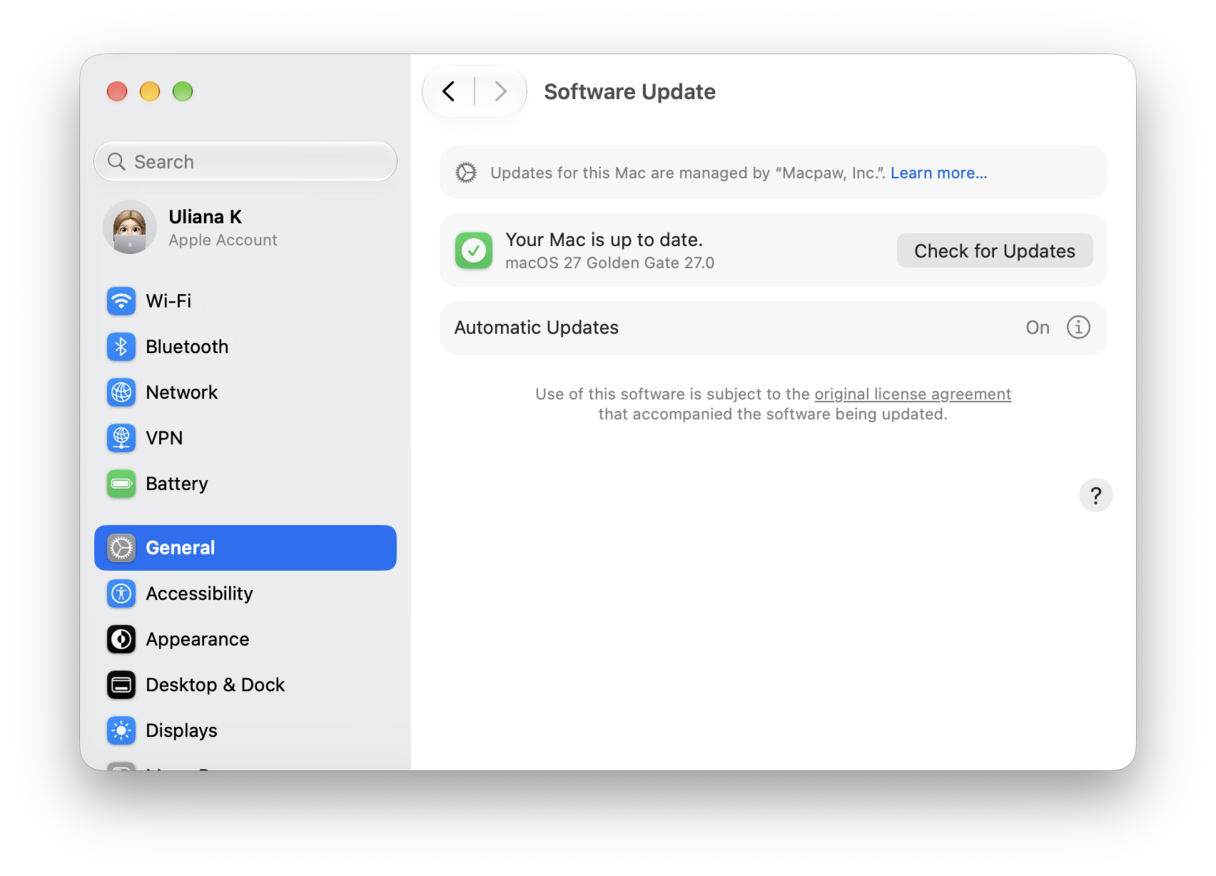
5.1. Go to System Settings > General.
5.2. Choose Software Update.
5.3. Wait for it to check for updates.
5.4. If there is an update available, follow the instructions on screen to install it.
5.5. When your Mac restarts after the update, try Family Sharing again. - Try a different device. It’s worth trying to do it on your iPhone or iPad, if you have one. You can add family members and change settings in the Settings app.
Family Sharing is a really useful feature if you want to share App Store purchases, media, or iCloud+ storage with family members. It’s usually quick and easy to set up, but sometimes things don’t go as expected. Follow the steps above to troubleshoot Apple family error 1005 on Mac.