If ClipGrab keeps crashing on your Mac? You’re likely stuck with a downloader that quits before it even grabs a link. I’ve worked through a handful of fixes that actually stop the crashes. Some are simple. A few are a bit hidden. I’ll go in the order that saved me time, let’s go.
What is ClipGrab for Mac?
ClipGrab is a free video downloader and converter. You paste a link, pick a format, and it saves the file locally. On macOS, it is a regular app you drag to Applications. ClipGrab crashes for a number of very relatable Mac reasons:
- Blocked by Gatekeeper
- Corrupted app data
- An outdated build that does not play nicely with the current macOS
- Conflicts from network tools that try to route or filter traffic.
None of these means your Mac is broken. It just needs a clean pass through the usual culprits.
Fixes: ClipGrab keeps crashing
Work your way through these fixes.
1. Force quit, reboot, reopen from Applications
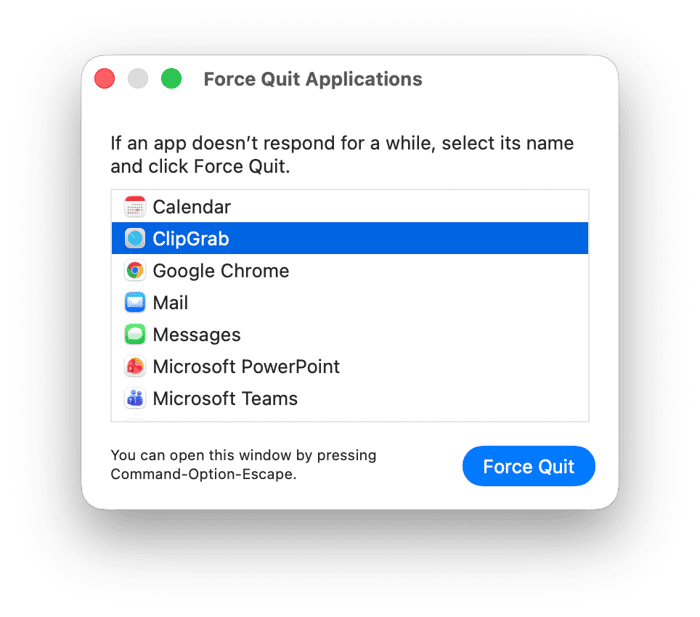
If ClipGrab is bouncing in the Dock and then disappears, force-quit it first.
- Apple menu > Force Quit > ClipGrab > Force Quit.
- Restart the Mac, then open ClipGrab from the Applications folder. This rules out odd permissions in temporary locations like Downloads.
2. Allow it to open if Gatekeeper blocked it
Unsigned or newly updated apps sometimes get blocked on the first run.
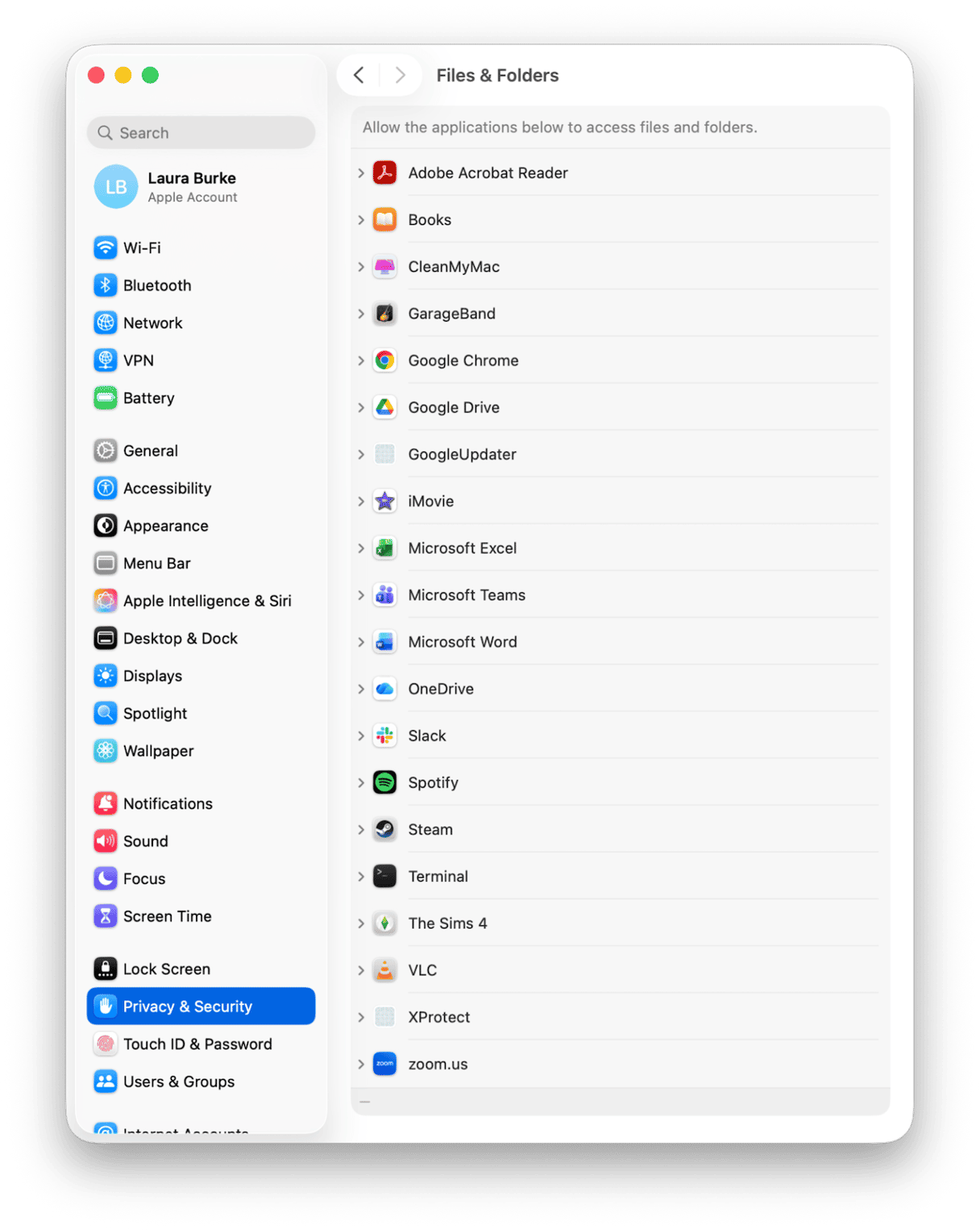
- Open System Settings > Privacy & Security > Files & Folders.
- Add ClipGrab if it’s not there by clicking the + button.
3. Check you’re on the latest compatible build
Why does ClipGrab keep crashing? Is the app up-to-date? Download the current Mac version from the official ClipGrab site. Replace the existing app in Applications. If you are on Apple silicon, Rosetta installs automatically when macOS needs it, so you do not need to toggle anything. A fresh binary solves more than it should.
4. Try a clean network test
Some VPNs, proxies, or school or office filters can cause ClipGrab to stall or quit.
- Turn off VPN or proxy temporarily.
- Switch to a different network or hotspot for one test.
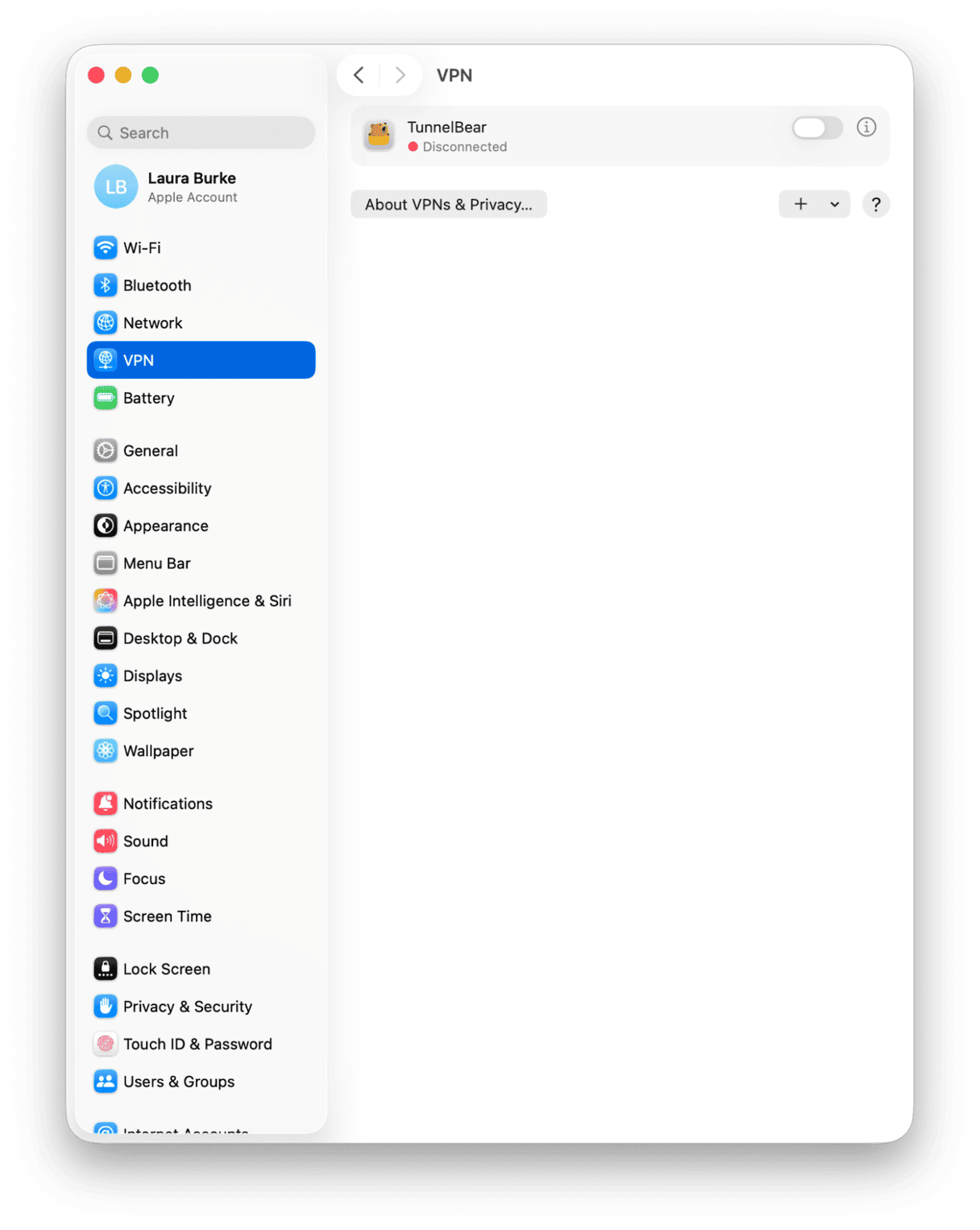
If the crash vanishes when your VPN is off, you have found the conflict.
5. Create a fresh app profile by moving its support files
If ClipGrab crashes on launch every time, its local settings might be corrupted. You can safely test with a fresh profile without deleting anything.
- In Finder, press Shift - Command - G and go to
~/Library/Application Support/ - If you see a ClipGrab folder, move it to the Desktop.
- Also check:
~/Library/Preferences/for a ClipGrab plist and move that to the Desktop.- Launch ClipGrab again.
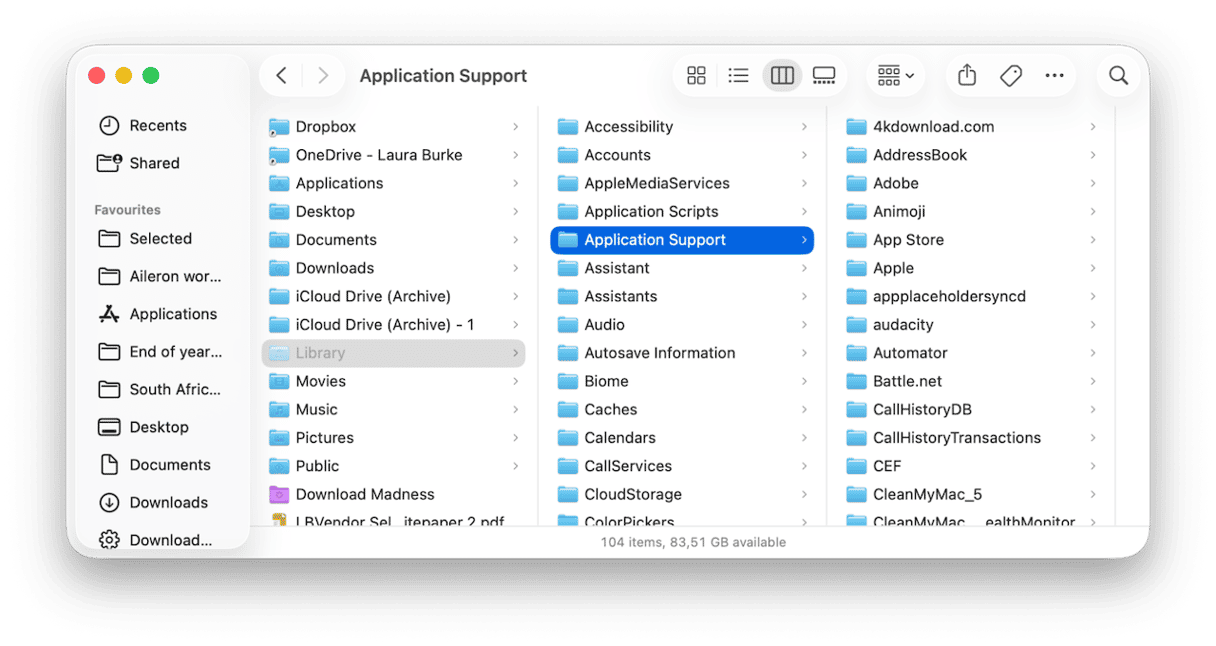
If it works now, the old files were the issue. Keep the backup folders for a few days, then delete them if you do not need them.
6. Test in a new macOS user account
This tells you if the problem is system-wide or just your profile.
- System Settings > Users & Groups > Add User.
- Log in to the new account, open ClipGrab.
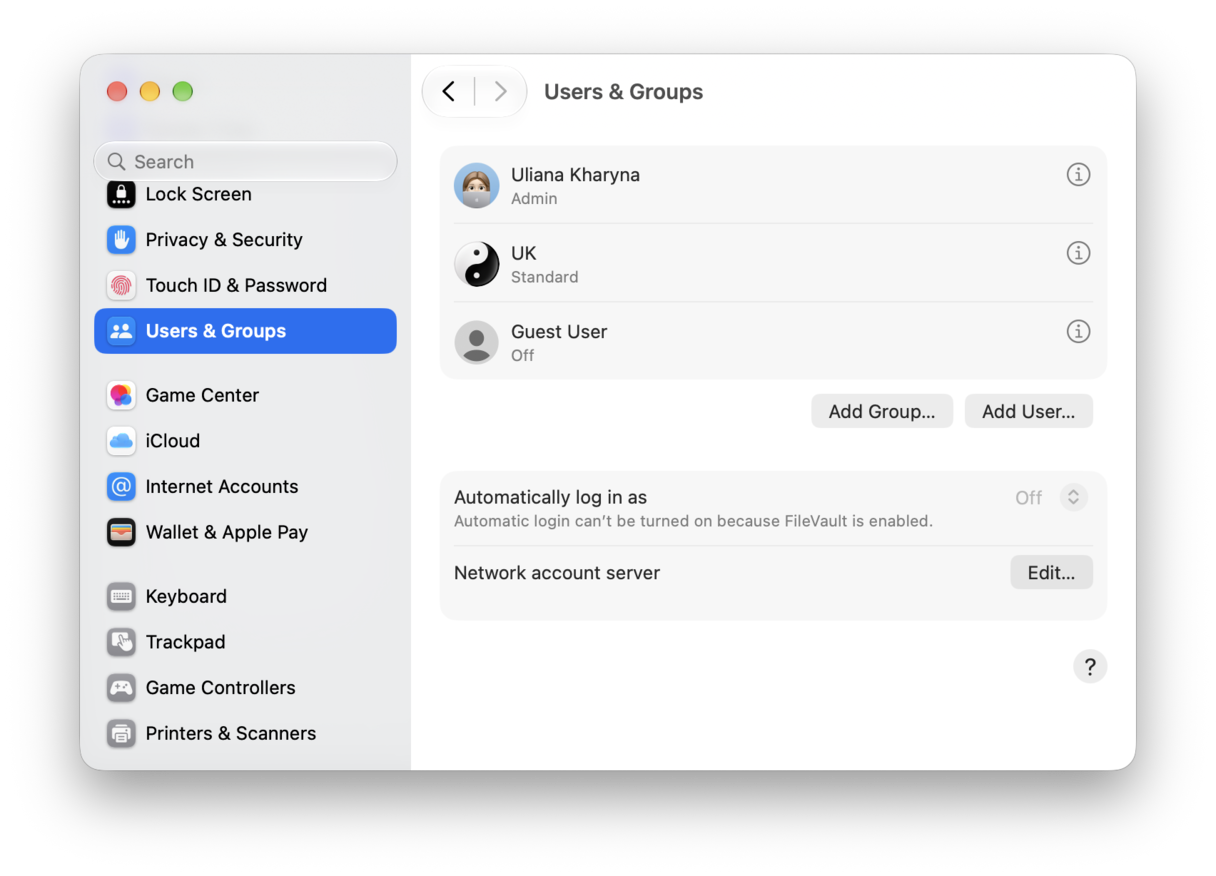
If it runs fine there, the original user profile has the conflicting data. Stick with the new profile or continue tidying the old one with the next steps.
7. Safe mode run, then normal reboot
Safe mode clears caches and loads the bare minimum. Sometimes, a single safe mode boot often fixes crash-on-launch loops.
- Shut down.
- On Apple silicon, hold the power button until you see startup options, choose your disk, then hold Shift and click Continue in Safe Mode. For Intel, restart your Mac and immediately press and hold the Shift key until the login window appears.
- Open ClipGrab once, then reboot normally and try again.
8. Do a full remove and clean reinstall
When in doubt, start fresh. Dragging an app to Trash leaves pieces behind, which can re-break the new install. This is where a tool like CleanMyMac can help to remove all traces; here’s how:
- Test and open CleanMyMac here, free for seven days.
- Open > Applications > Scan > Manage My Applications> Uninstaller.
- Select ClipGrab and press Remove.
- In Leftovers, remove any remaining ClipGrab fragments.
- Download the latest ClipGrab and reinstall it in Applications.
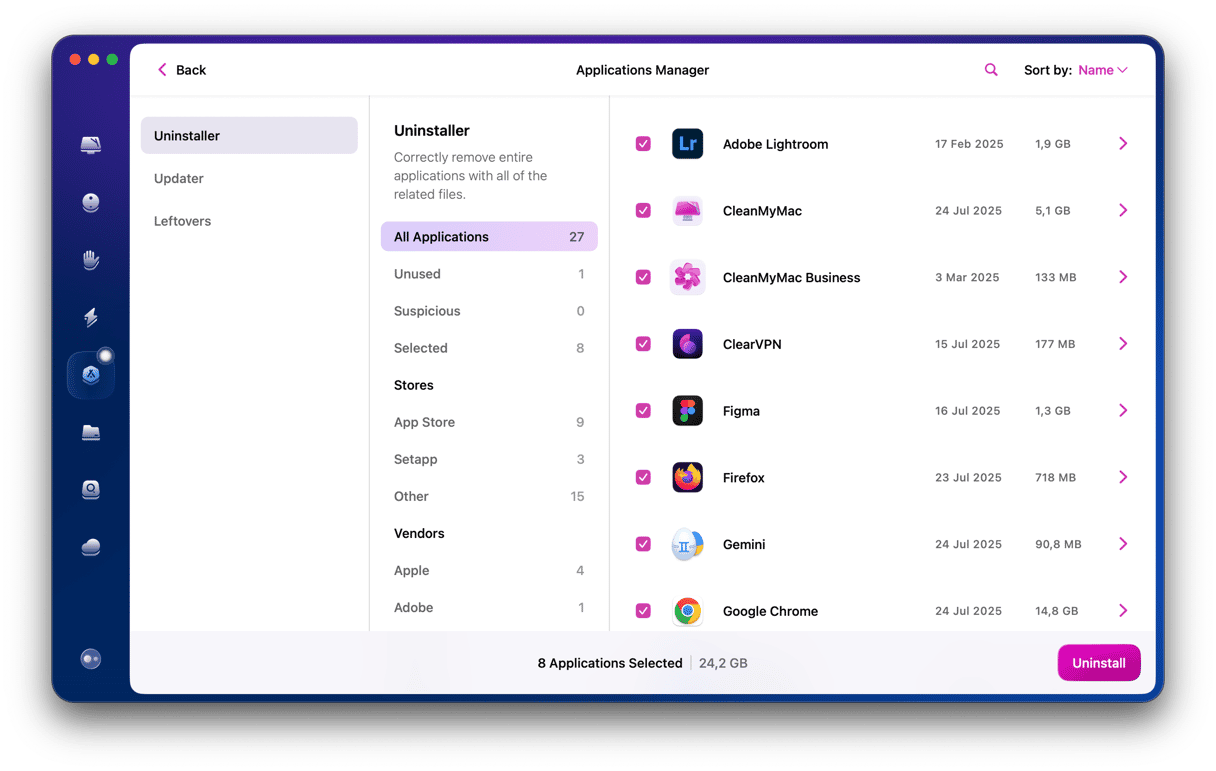
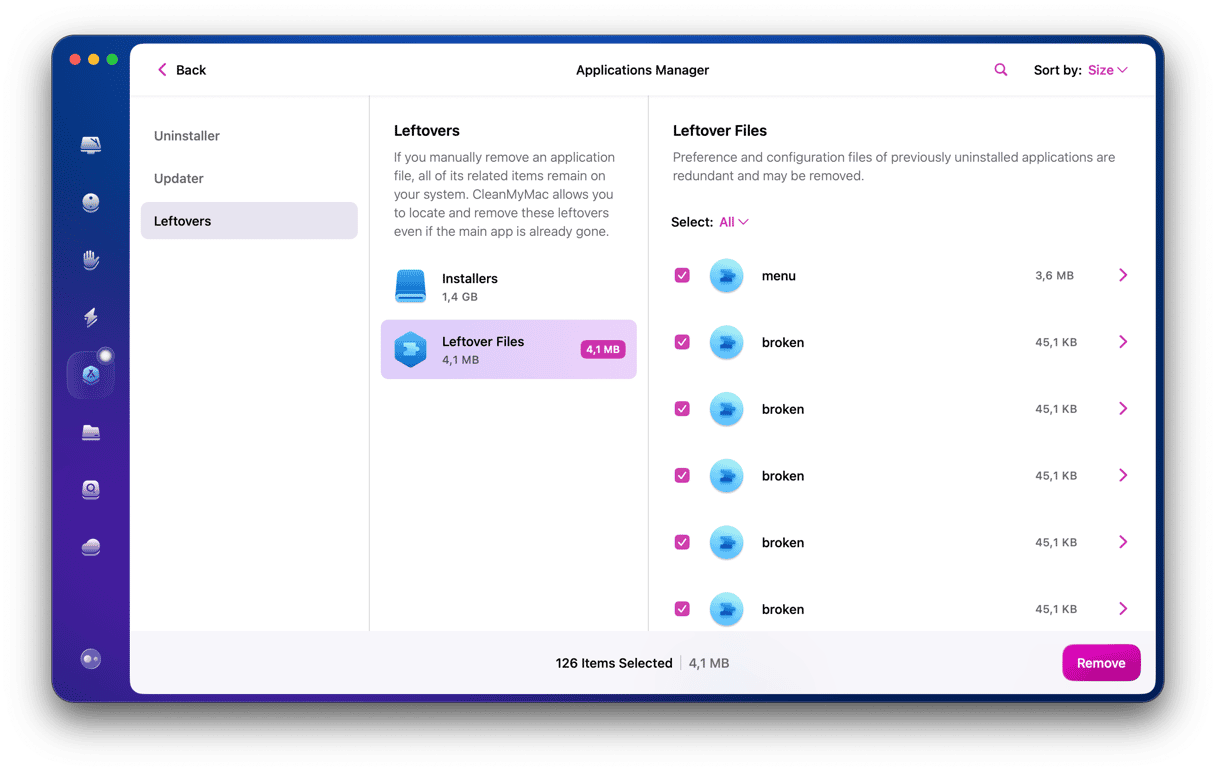
This is the least painful way to ensure old caches, launch agents, and preferences do not poison the new install.
A few notes on ClipGrab keeps crashing on Mac
- After big macOS releases, older utilities often need a maintenance update; a temporary crash issue is not unusual.
- Gatekeeper prompts look slightly different this year, but the path is the same. Approve once via Open Anyway, and the app should launch normally afterward.
Crashing ClipGrab usually comes down to one of four things on my Mac. A blocked first launch, stale app data, an outdated build, or a conflict from login items or network tools. These tips will help you solve the problem quickly.