Generative AI models are everywhere. Since the early 2020s, it seems that every tech company is jumping on the AI bandwagon and either developing its own large language and generative AI models or investing heavily in those made by others. One of the most well-known and most controversial generative AI models is Grok, developed by xAI, a company owned by Elon Musk and part of a stable that also includes the social media platform X (formerly Twitter). Most people who use Grok use it within X. But you don’t have to, since you can even run it as an app on your Mac. Keep on reading to learn how.
What is Grok?
Most people know Grok as a chatbot on X. But that is only part of what it can do. Grok is also a text-to-image generation tool, thanks to X’s Aurora text-to-image model.
As a chatbot, Grok scours X, ingesting data and learning through that data about the world. In recent times, it has become controversial because Musk declared it to be too ‘woke’ and redesigned it to reflect his own beliefs about the world, leading Grok to produce some rather surprising answers to some questions.
Despite this, Grok remains a powerful generative AI tool and a match for those made by the likes of OpenAI and Google.
Does Grok have an app for Mac?
No, for now, there’s no standalone app for MacBook because Grok is designed for iPhone or iPad. However, there are a few workarounds that will let you install and run it on your MacBook.
Why install Grok on my Mac?
The main reason for installing Grok is for fun and to be able to use it in an interface that is not X. However, you may also want to install it to conduct research into generative AI models, or to compare it with others like ChatGPT and Gemini.
How to install Grok on Mac
1. Use Fello AI
To install Grok on your Mac, you will first need to install a front-end for it so that it has a user interface. We’re going to use Fello AI. Once you’ve installed Fello AI, you can use it with lots of large language models (LLMs), including Grok, ChaptGPT, Deepseek, Claude, and LLaMA.
It’s worth noting that, while you get five free queries per day in Fello AI, if you want to ask more than that, you will have to subscribe to one of its paid-for plans.
On the plus side, it offers plenty of additional features, including a menu bar item that allows you to access a chat window quickly.
- Open the App Store app and search for Fello AI. Download and launch it. You will see a window with subscription options. If you’re not ready to subscribe yet, click outside it to close it.
- Click the Model menu at the top right of the main Fello AI window and choose Grok.
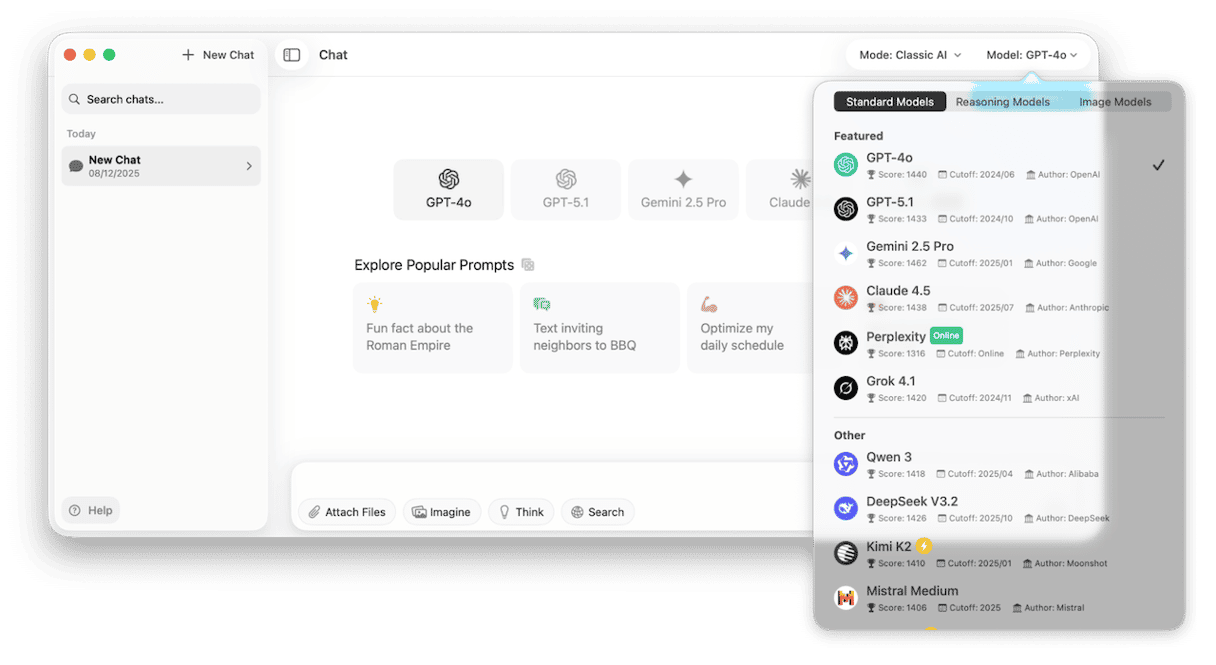
Type your first prompt or question into the text box. If you want to attach a file, perhaps to ask Grok to summarize it, click Attach Files and press Return.
2. Use Python
Fello AI isn’t the only tool available to install Grok on your Mac. There is a Grok Launcher available for macOS that can be downloaded from GitHub and installed on your Mac using Python. Once it’s installed, it runs as a background process that you can configure to launch a startup and summon using the keyboard shortcut Option + Space.
This method is best used if you already have Python and its package installer, pip, on your Mac. If you don’t, you will have to install them first. You can find the steps to install Python here and pip here. Once you have installed those, follow the steps below to install the Grok launcher:
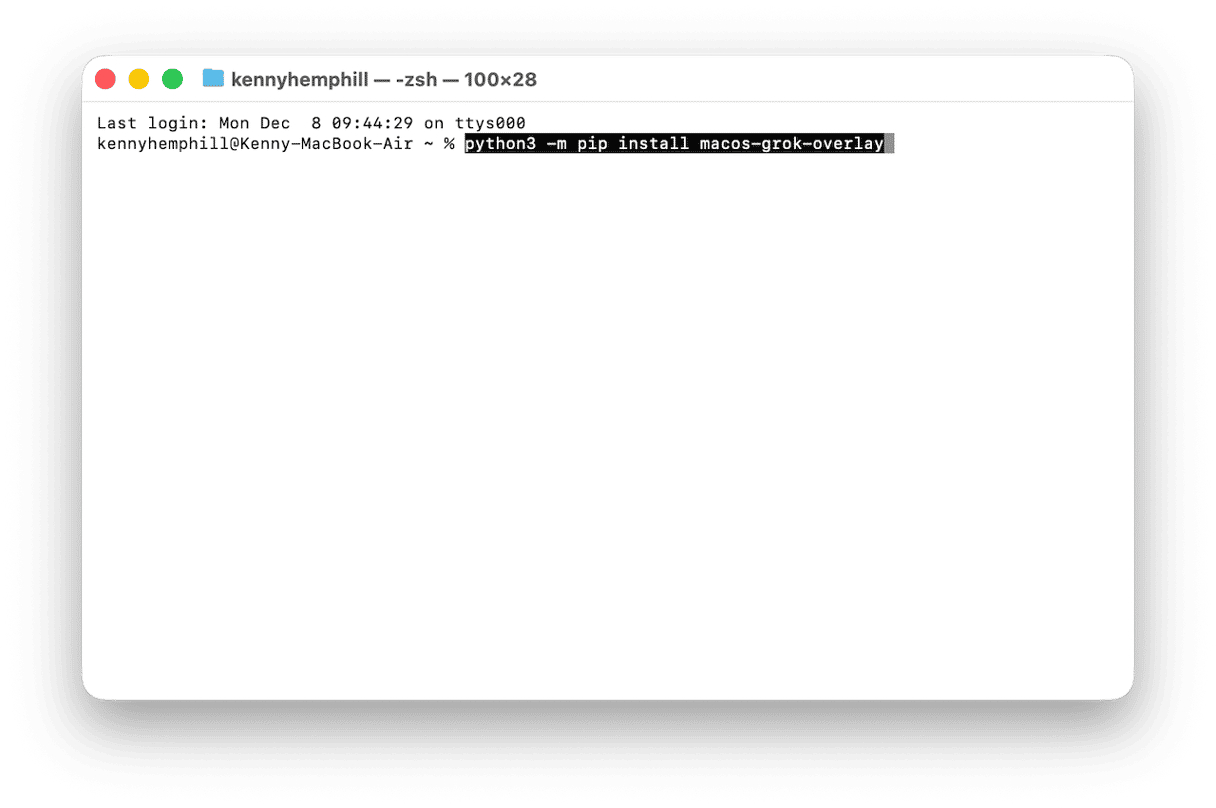
- Open Terminal and paste this command followed by Return:
python3 -m pip install macos-grok-overlay - If you want the background task to launch at login, paste this command and press Return:
macos-grok-overlay --install-startup - Quit Terminal. You should now be able to summon the Grok launcher by pressing Command + Space.
More options for running Grok on your Mac
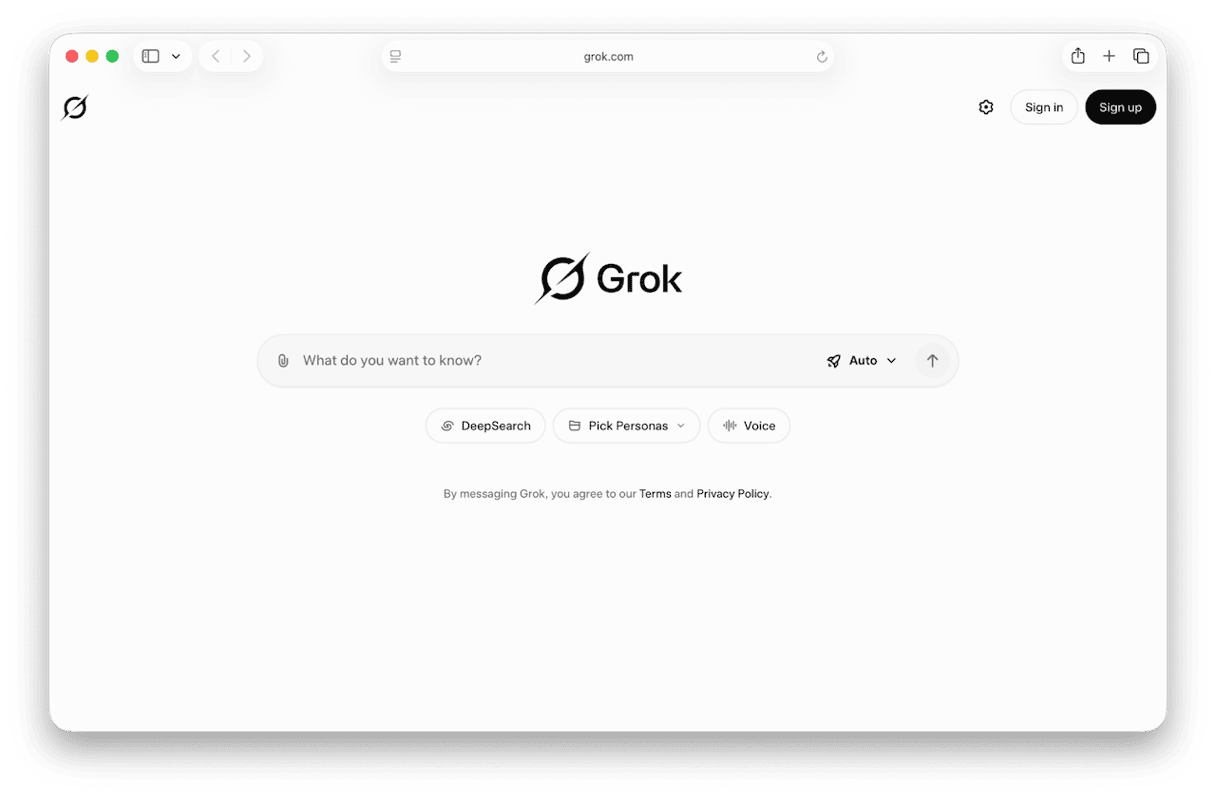
- You can visit grok.com in any web browser and create an account using your Apple Account or email address or sign in with your xAI account details.
- You can also access Grok from your X account in a browser or the X Mac app, which can be downloaded from the App Store.
- xAI’s Elon Musk confirmed in June 2025 that an official standalone app for both Mac and Windows is in development. Depending on when you’re reading this, it may already be available. If not, you could choose to wait until it is released, although there is no timescale for that at the time of writing.
- If you’re running a version of macOS that includes the iPhone Mirroring app, you could download the official Grok app from the iOS App Store onto your iPhone and then use iPhone Mirroring to run the app from your Mac.
Tip: Protect your Mac from malware
Although the Grok launcher we showed you how to install is completely safe, there are lots of risks online to the privacy and security of your Mac. And if you install software using Terminal and by downloading using package installers, that risk is higher than if you install applications using conventional means. So, it’s a good idea to regularly scan your Mac for malware using a specialist tool.
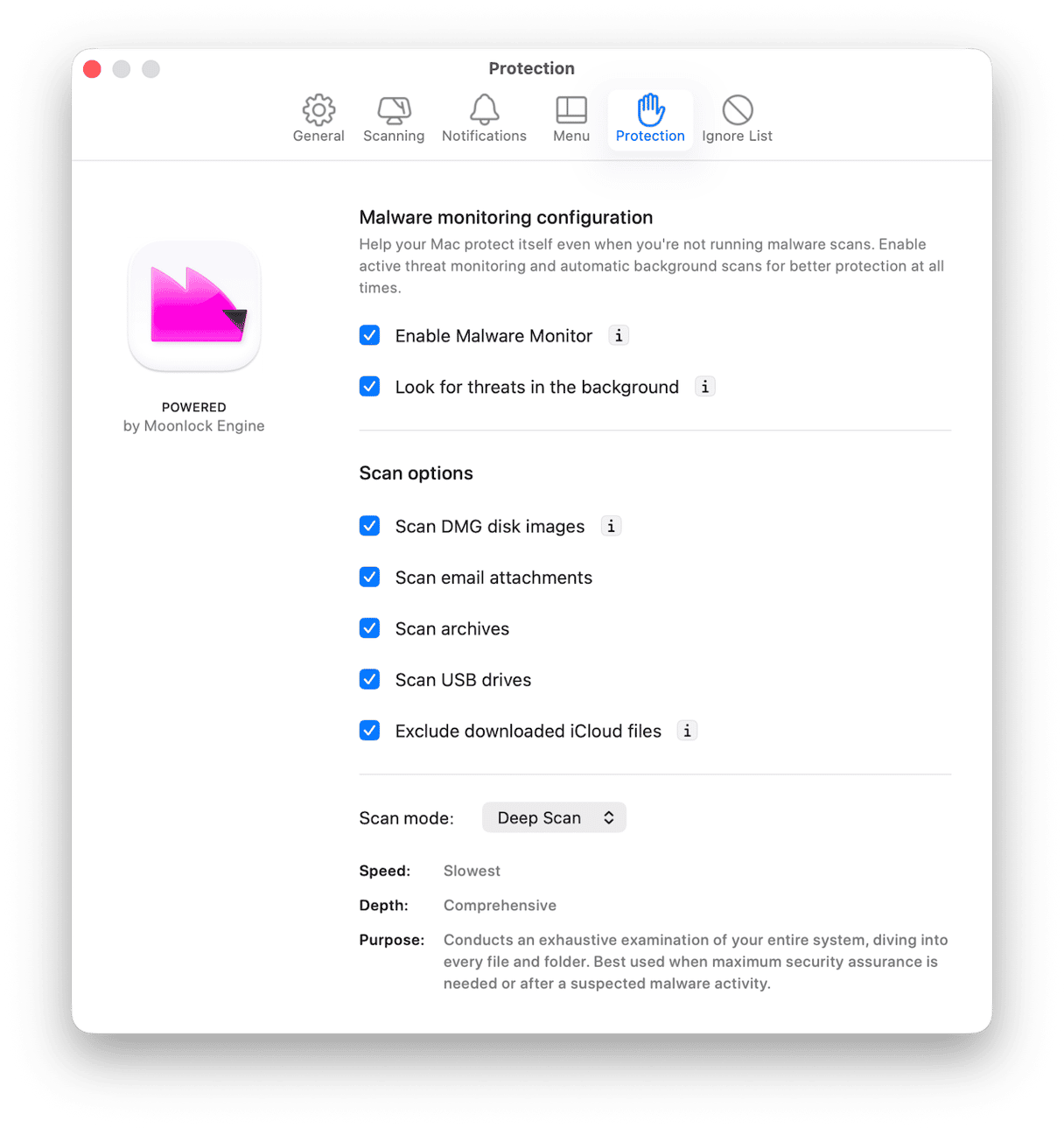
We recommend the Protection Manager in CleanMyMac. It uses Moonlock Engine to check for malware and allows you to scan your Mac’s startup disk as well as USB drives, email attachments, and disk images. You can configure it to scan whatever you like and can also choose between a quick scan, a deep scan, or a balanced scan, which is a combination of the two.
Here’s how it works:
- Get your free CleanMyMac trial — you can test it for 7 days for free.
- Choose Protection in the sidebar.
- Click Scan or, if you want to select options, choose Configure.
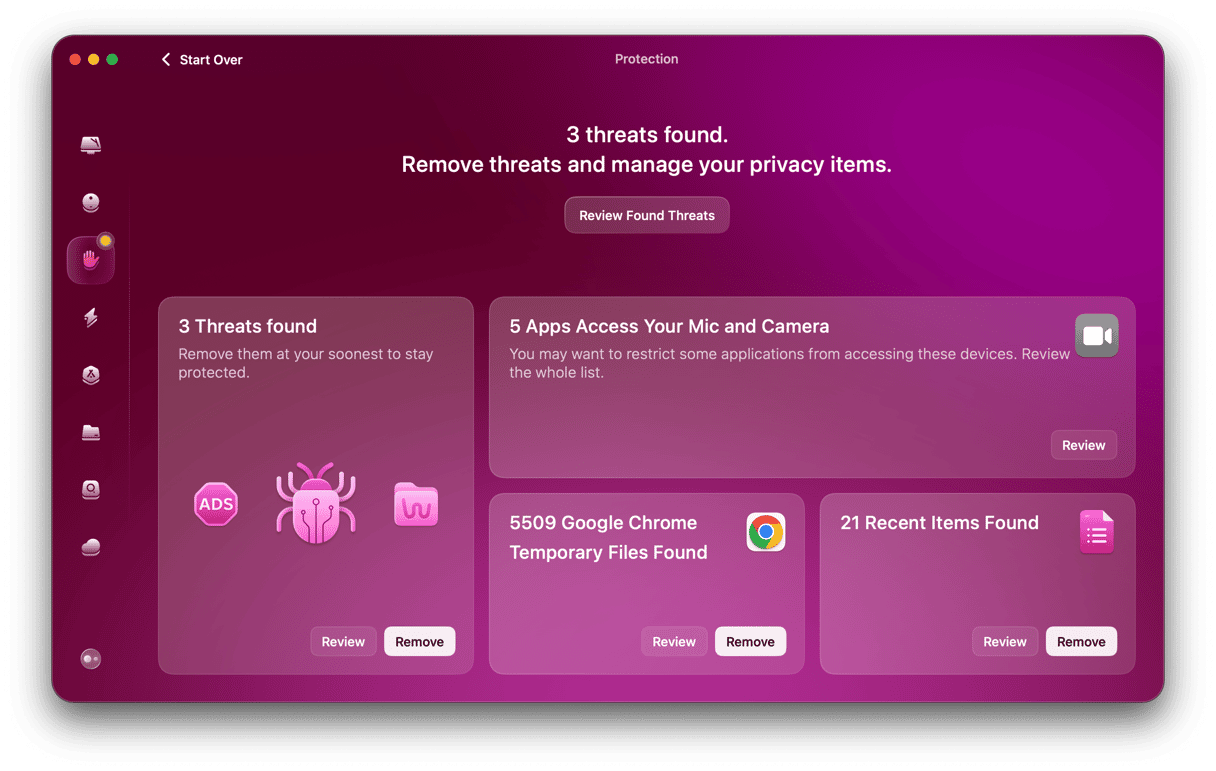
- If malware has been detected, click Remove
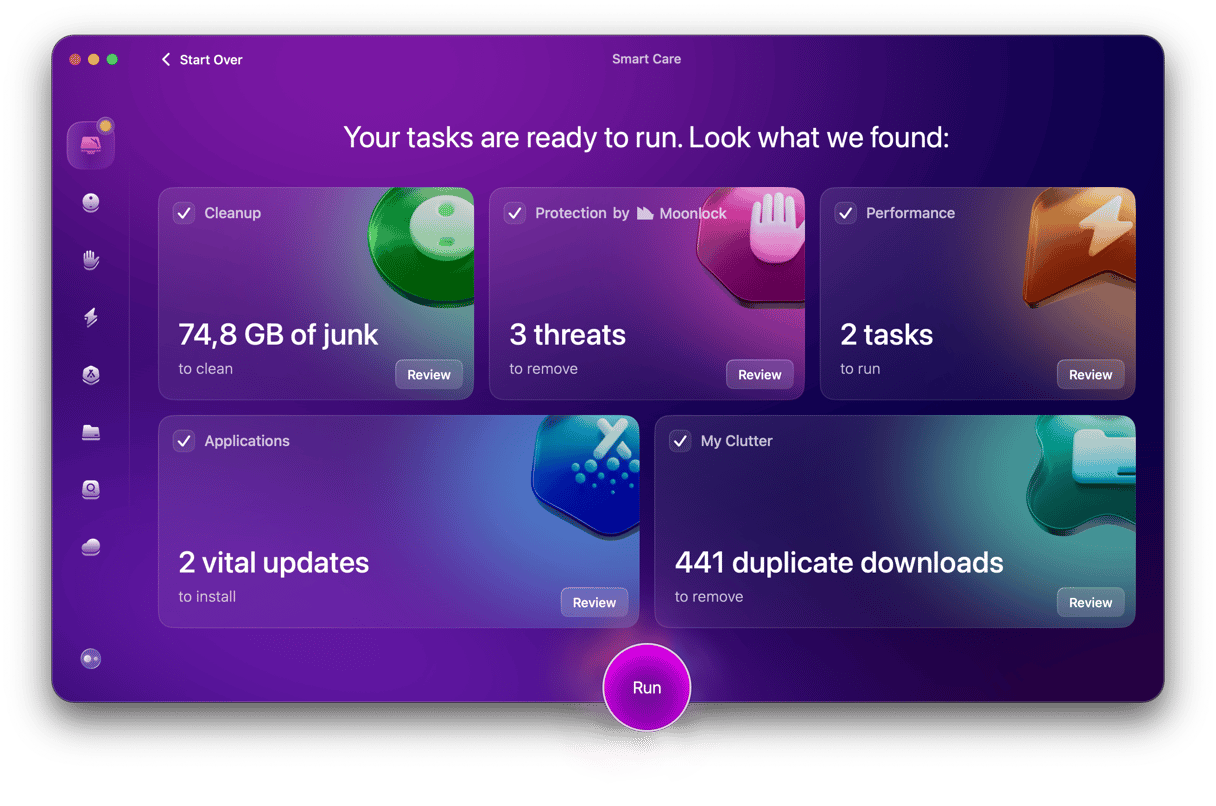
You can also run the Protection feature as part of CleanMyMac’s Smart Care manager. This scans your Mac, looking for junk files, clutter, malware, applications that have updates available, and ways to boost your Mac’s performance. And it allows you to implement all of its recommendations, including the installation of vital updates, with just a few clicks.
If you want to use Grok but don’t want to have to log in to X to do it, there are a number of different options. Follow the steps above to install and run Grok on your Mac.
Frequently asked questions
Does running Grok on macOS mean unlimited usage?
No. While usage restrictions differ depending on how you access Grok, they still exist no matter how you access it, unless you have a premium account.
Does Fello AI use the most recent version of Grok?
Yes, it does. It provides access to the latest versions of Grok once such are released.
Is Grok better than Claude, Gemini, ChatGPT?
That depends on what you mean by better. All LLMs are different and none should be used to check facts. Some are more up to date than others in terms of data, while others may be better at reasoning.