Why is my Notes app not working? If you’re staring at Notes that will not open, refuse to sync, or keep beachballing at launch. I’ve also run into this a few times. The good news is, most fixes are simple once you separate an iCloud problem from a local one, and work in the right order. I’ll show you exactly what to do, so let’s get started.
Why does Notes stop working on a Mac?
The Notes app from Apple is tied to iCloud, Keychain, and local databases in your user Library. If something goes wrong with any one of these connections, then you’ll likely see missing notes, stuck syncing, or crashes. In all the troubleshooting research I did, here’s what stood out as the usual culprits:
- iCloud is off for Notes, or you switched Apple IDs and forgot.
- You are viewing the wrong account. Notes can live on My Mac, in iCloud, or in other accounts, such as Gmail.
- Low disk space. Notes tries to download attachments and stalls.
- Old app data or caches after a major macOS update.
- VPNs, proxies, or captive Wi-Fi blocking Apple services.
- Locked notes password mismatch after you changed your login password.
- Very large attachments inside a single note choke the app.
It looks scary, but most of this is fixable in minutes. So, now we’ve covered why is my notes app not working on Mac, let’s move on to the fixes.
How to fix Notes not working on Mac
Work your way through these quick fixes until you find the one that resolves your frustrating Note app issue.
1. Quick checks and the basics
Restart your Mac
If you haven’t yet, just simply take a moment to restart your Mac; this can solve so many glitches.

Free up 5 to 10 GB of space
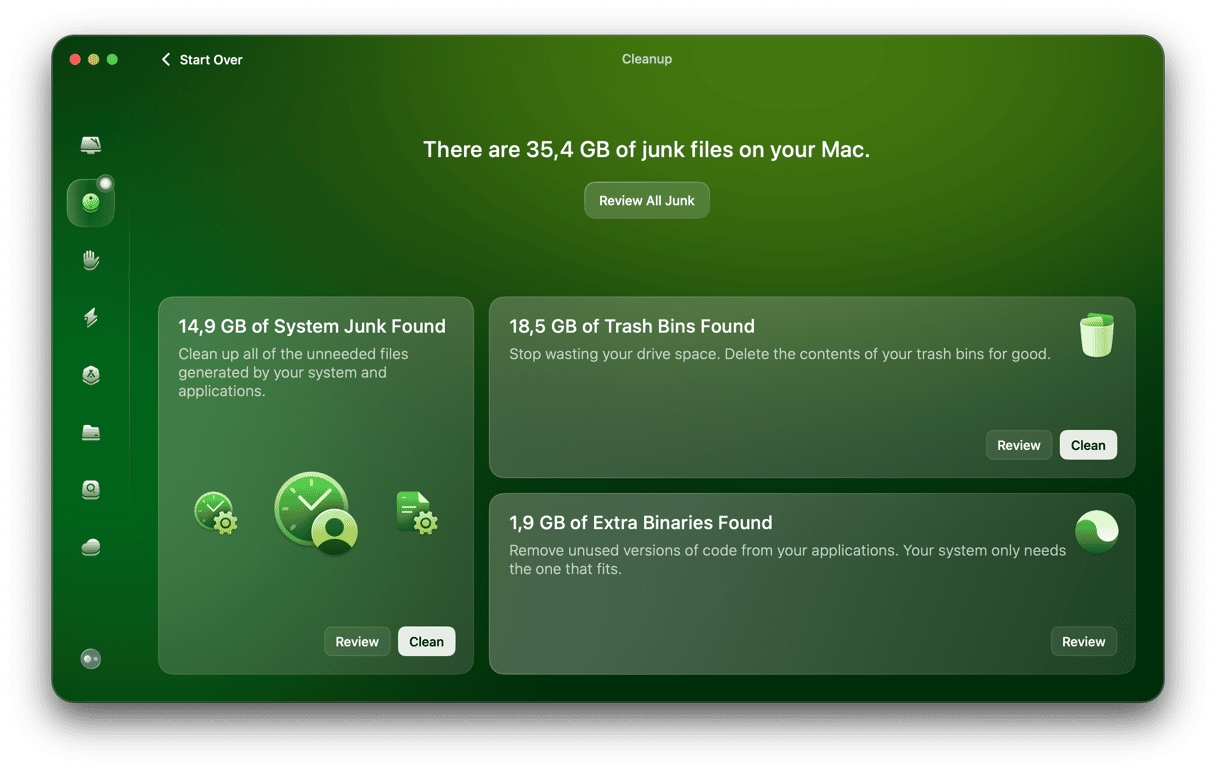
Notes need headroom for attachments and indexing. You could use the Cleanup feature from CleanMyMac to do this quickly and safely; here’s how:
- Open the app (get your free trial here). You get seven days free.
- Click Cleanup > Scan.
- Review and remove junk.
Check your account
If Notes opens but seems empty, look at the left Sidebar and switch between iCloud, On My Mac, and any mail accounts. Your notes may be in the other account.
2. Confirm iCloud is enabled for Notes
- System Settings > Apple Account > iCloud > See All > Notes.
- Toggle Notes On. (If it was already on, toggle Off, wait 20 seconds, toggle On again).
- Then, open Notes > Settings and check the Default Account.
- In the same panel, enable On My Mac Account if you want local-only notebooks visible.

Give it a minute. If notes start appearing, you have found the issue.
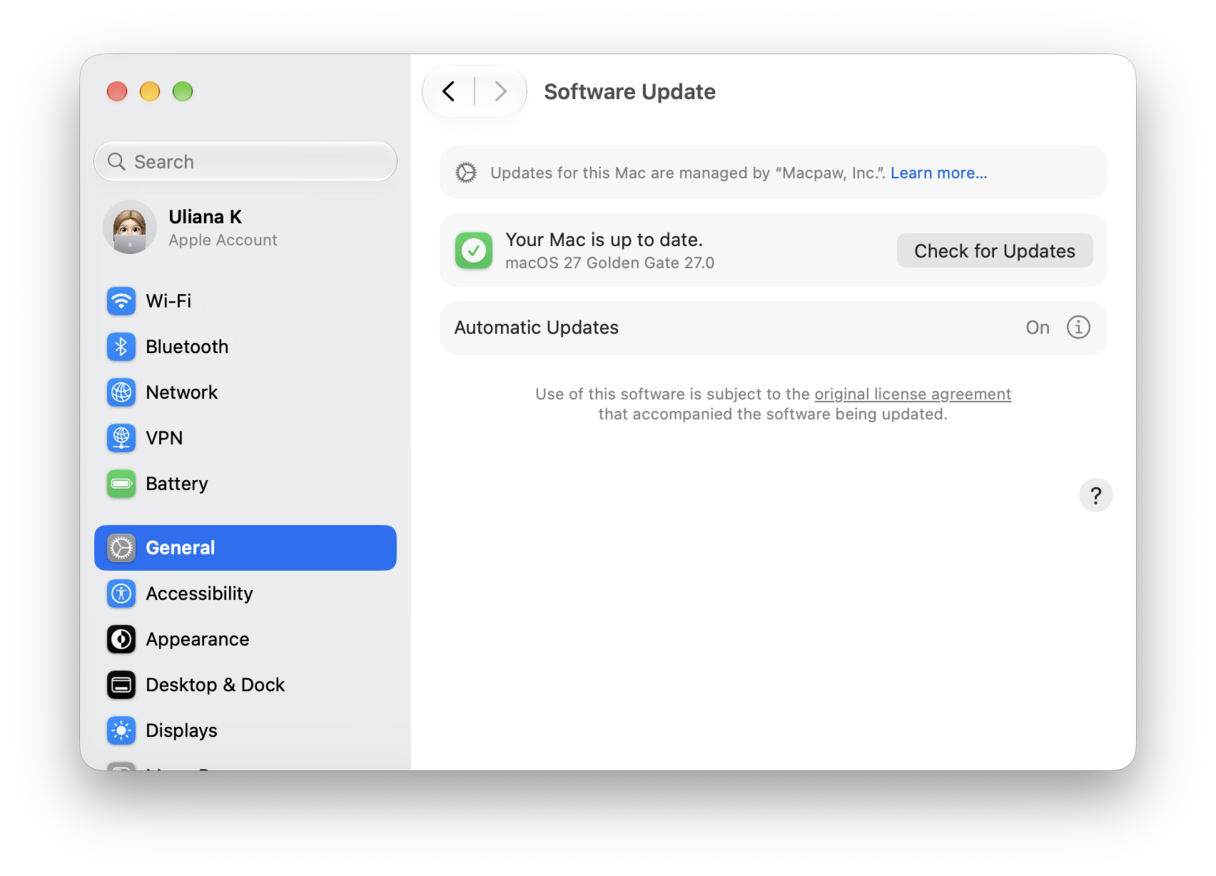
3. Update macOS and Notes
- System Settings > General > Software Update. Install the latest Tahoe point release.
- Quit and reopen Notes.
4. Make sure you are signed into the right Apple Account
- System Settings > Apple Account and verify the email.
- If you recently changed your Apple Account or password, sign out and back in only after you’ve confirmed your notes are synced to icloud.com (see next step). Signing out removes iCloud data from the Mac until it re-downloads, so check first.
5. Look at the server: are your notes in iCloud at all?
- Visit icloud.com > Notes in a browser and sign in.
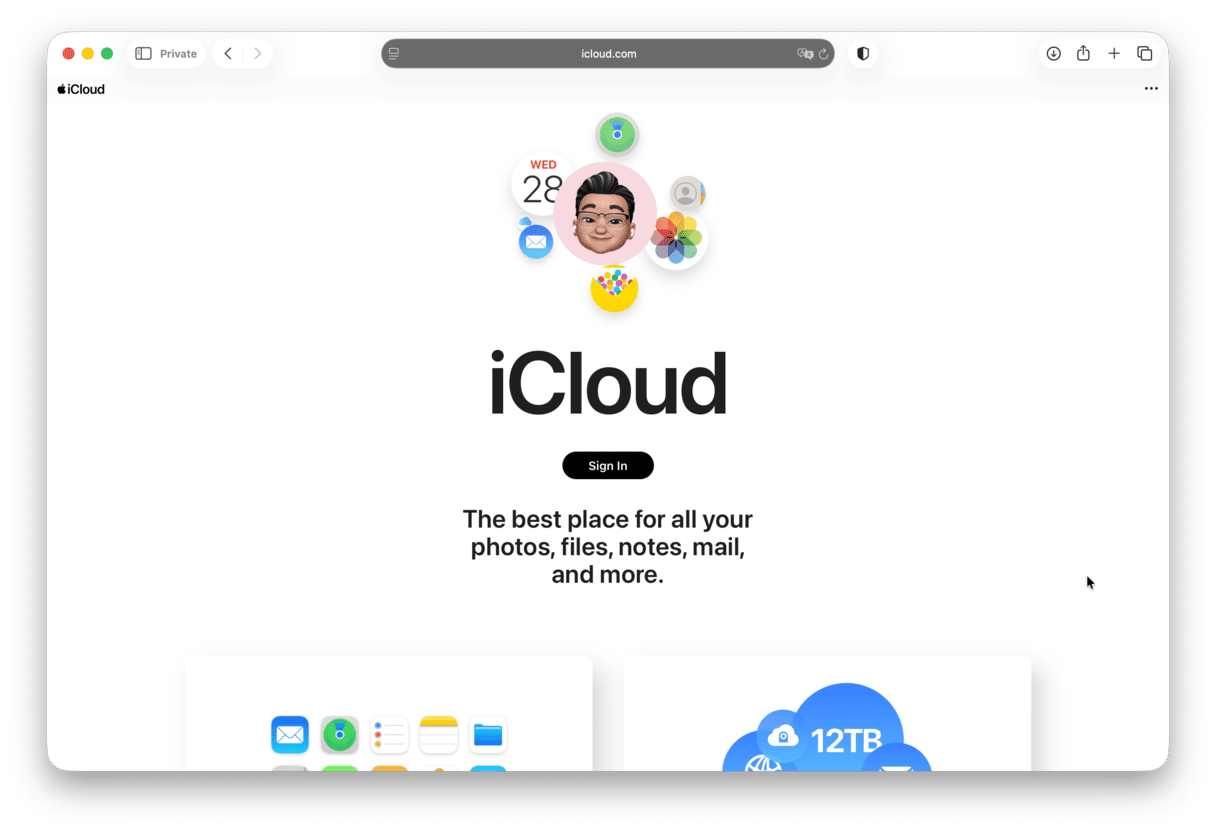
If all your notes are there, the Mac just needs to sync. If they are missing online, too, restoring from a backup or Recently Deleted is your path.
6. Recently Deleted and big attachments
- Inside the Notes sidebar, click Recently Deleted.
- Restore anything you did not mean to trash.
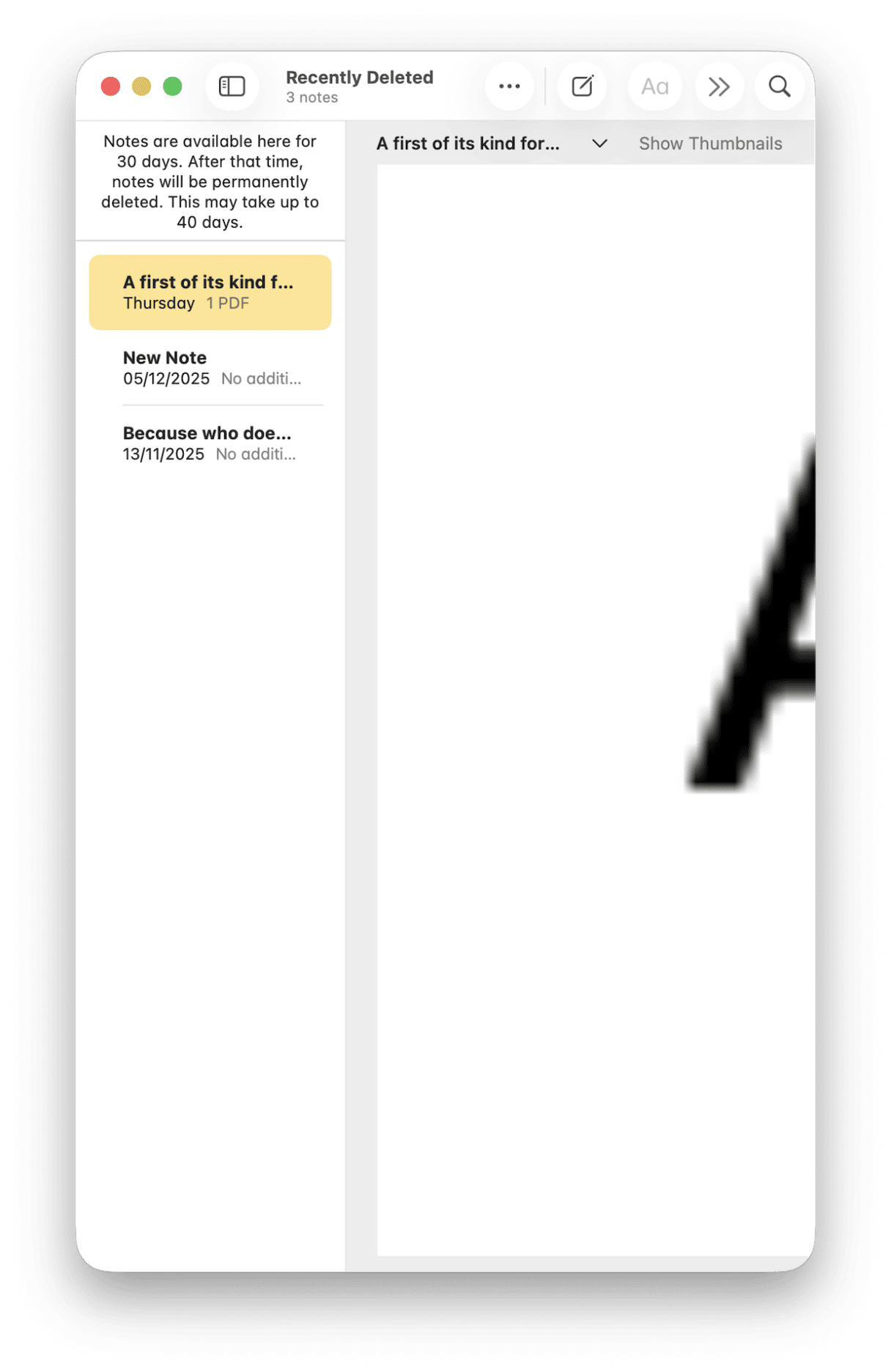
Also worth a mention, if a single note has a huge PDF or long video that freezes the app, move that attachment out of Notes. And delete the note.
Keep your system steady while you troubleshoot
If you just upgraded to Tahoe or installed a ton of apps, your system can feel sluggish while indexes rebuild. That's not unusual.
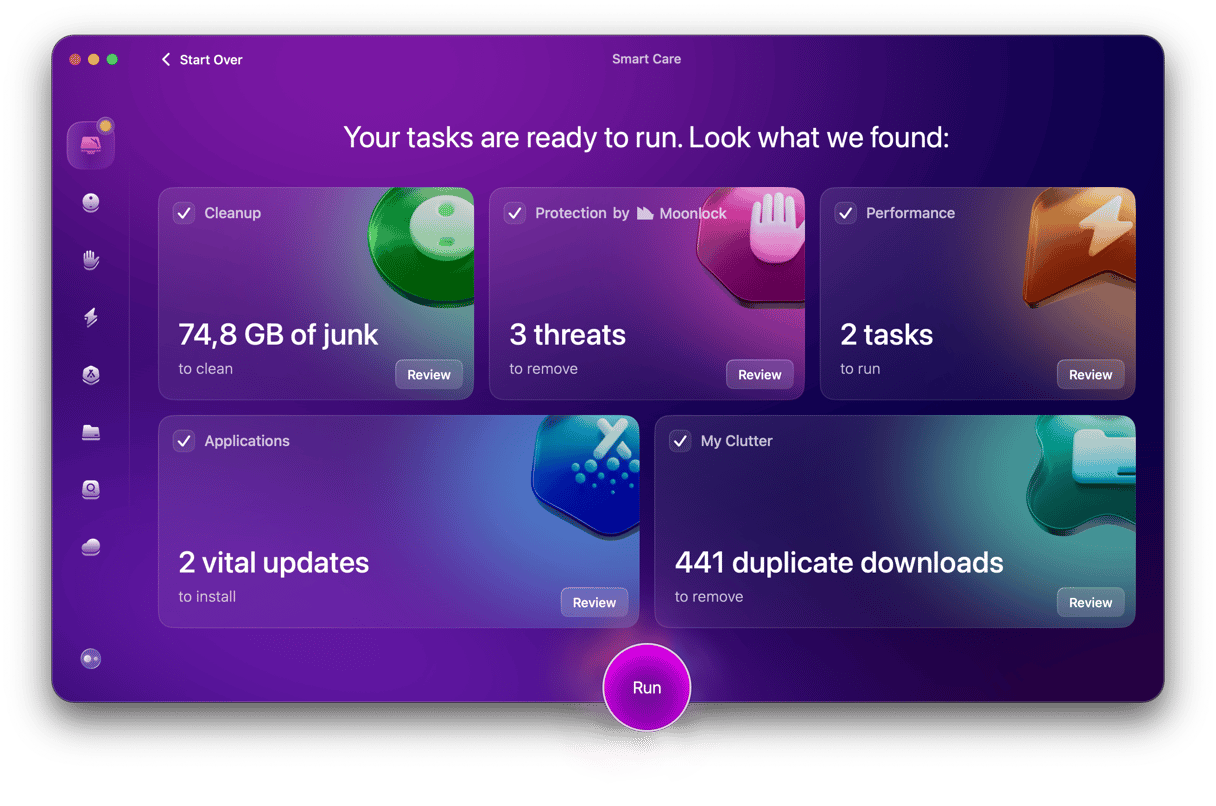
You can give your Mac a helping hand by running CleanMyMac’s Smart Care feature. In one go, it can remove junk, run a quick security check and detect malware, and perform basic optimization, which will keep your System Settings and iCloud panels responsive while troubleshooting. It doesn’t modify Notes.
Hopefully, this article answered your questions on why my Notes app is not working on Mac. When it comes down to it, for me personally, when Notes refuses to cooperate, I do three things in this order. One. Confirm the right account is selected. Two. Make sure the iCloud toggle for Notes is truly on, and three. Give the system a bit of space and time to sync.
Frequently asked questions
Can I reinstall the Notes app to fix it?
No. Notes is part of macOS. You cannot remove and reinstall it separately. But you can reinstall macOS from recovery mode, and it will also reinstall Notes.
Why do I see some notes on my iPhone but not on the Mac?
They are probably in different accounts. On iPhone, check Settings > your name > iCloud > Show All > Notes.
How do I recover a note I deleted last week?
Open Recently Deleted in the sidebar. Items sit there for a limited time. If it is gone, check Time Machine backups or the icloud.com > Data Recovery page if available for your account.
Notes keeps saying “Updating.” Is that normal
Briefly, yes. If it lasts hours, leave the Mac on power with the lid open, try another network, and make sure disk space is available. Very large attachments slow the counter.



%20%201200x670_1710955534.png)