

If you’re looking for the magic keyboard combo for how to take a scrolling screenshot, macOS still doesn’t have a built-in feature for this. That’s right, not in Tahoe and not in Golden Gate. The usual Command + Shift + 3, 4, or 5 shortcuts only capture what’s visible on screen. So if you want a full-page screenshot on Mac, you need another method. I’ve ranked the best free and paid options for you.
How to take a scrolling screenshot
So when it comes to taking full-page screenshots, you’ve got options. Personally, if you want the fastest no-install option, I’d go with Firefox; it has a built-in full-page screenshot tool. But the best free app for system-wide scrolling screenshots is Shottr, and the most polished paid option with cloud sharing is CleanShot X. You can compare for yourself here.
Method | Cost | Best for | Works in | Key limitation |
Firefox built-in | Free | Quick web page capture | Firefox | Firefox only; saves to Downloads |
GoFullPage | Free | Full-page web capture | Major browsers | Web pages only |
Safari DevTools | Free | Occasional Safari captures | Safari | Quite complex |
Chrome DevTools | Free | Full-page Chrome captures | Chrome | Can change your page layout |
Shottr | Free | Any app or window | System-wide | Requires install |
CleanShot X | $29 once | Power users, sharing | System-wide | Paid |
Snagit | $62.99 a year | Enterprise annotation | System-wide | Expensive for individuals |
6 Methods for taking a scrolling screenshot
1. Firefox
If you want to take screenshots within your browser, then Firefox is the best free option.
- Open the page in Firefox.
- Right-click anywhere on the page.
- Select Take Screenshot.
- Click Save full page.
- Save the PNG to your Downloads folder.
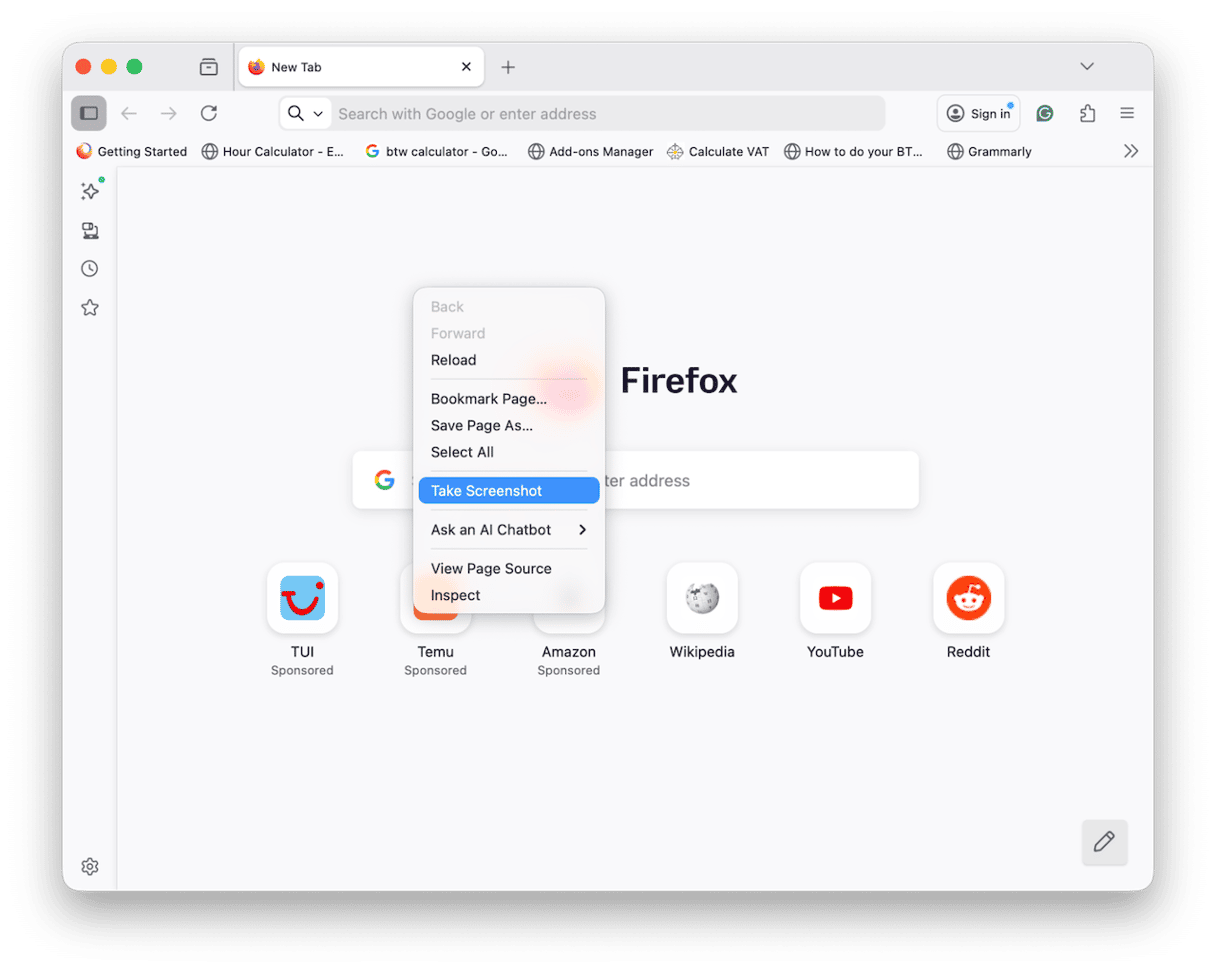
Pros: It’s free and built-in to Firefox, so no extra installs; super fast and the quality output is good.
Cons: It only takes screenshots within Firefox, so no system shots, and the image saves to your Downloads rather than your clipboard.
2. GoFullPage browser extension
GoFullPage works across Chrome, Firefox, Edge and Safari; it’s pretty simple to use.
- Once you’ve installed GoFullPage from your browser’s extension store, open the page you want to capture.
- Click the GoFullPage icon in the toolbar. (little camera).
- Wait while it scrolls and stitches the page.
- Download the result as PNG or PDF.
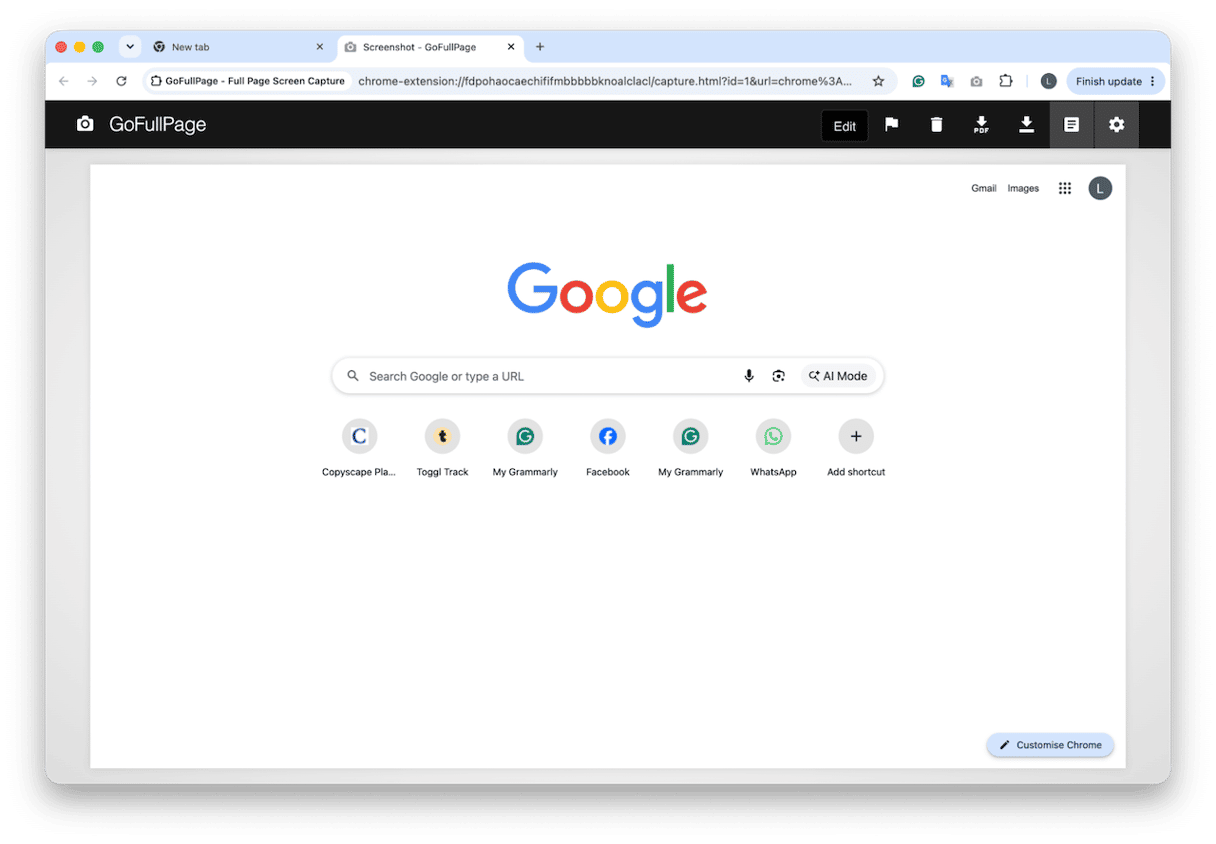
It works well for long web pages and usually handles sticky headers better than DevTools.
Pros: It’s another free option. It’s one click and works consistently across different browsers.
Cons: Again, this one is browser-only, can’t capture apps or documents, and extensions need access to page data.
3. Safari DevTools full-page capture
Safari can also take a full-page screenshot, but the feature is hidden inside Web Inspector.
- Open Safari > Settings > Advanced.
- Turn on Show features for web developers.
- Open the page you want to capture, then click the Developer menu in the top menu bar and select Show Web Inspector.
- In the Elements panel, select <body> or the main page container.
- Right-click it and press Capture Screenshot.
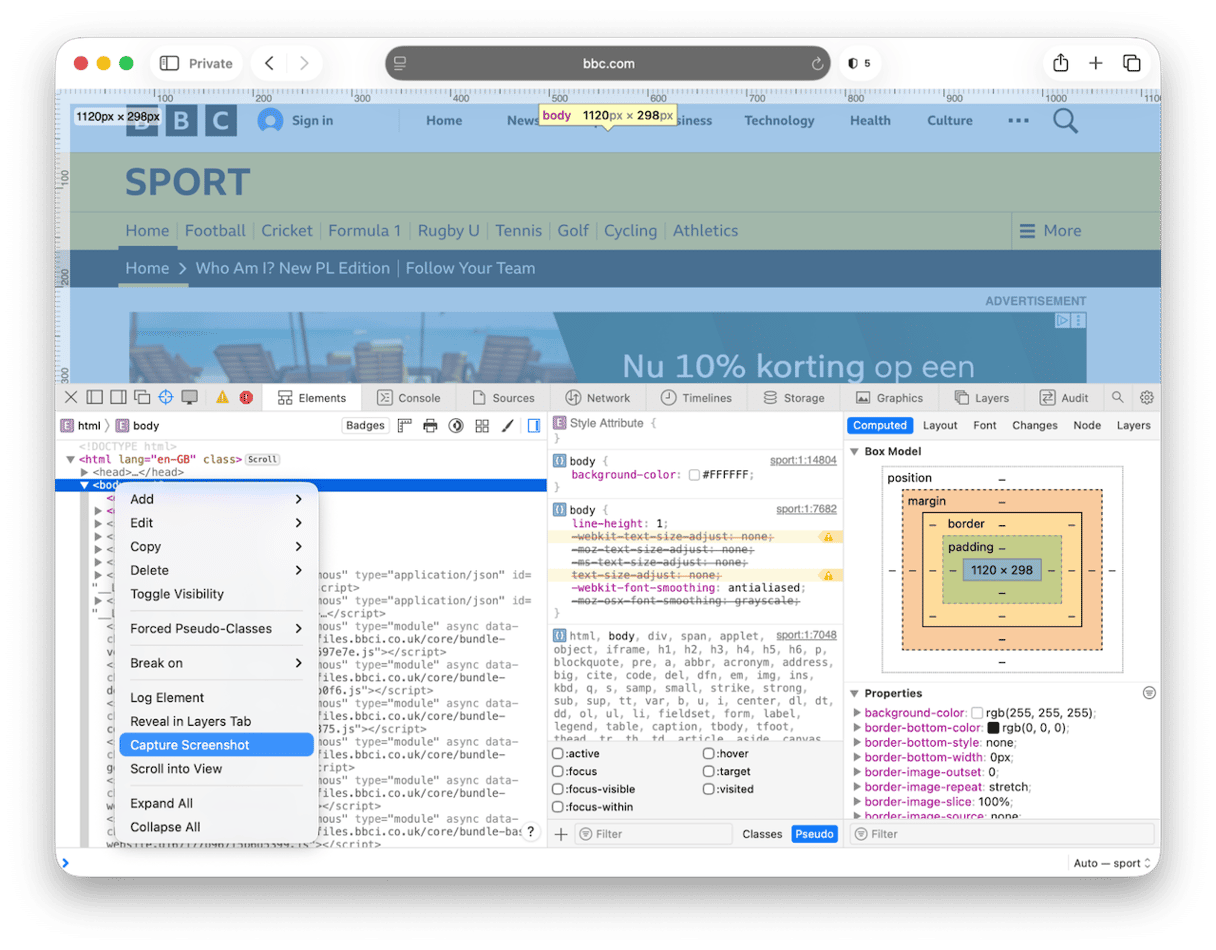
Pros: It's free and built into Safari.
Cons: Too many steps, not beginner-friendly, and not ideal for regular use.
4. Chrome DevTools full-page capture
Chrome also has a built-in full-page screenshot option like Safari.
- Open the page in Chrome.
- Press Command - Option - I.
- Click the three-dot menu inside DevTools.
- Select Run Command.
- Type screenshot and select Capture full-size screenshot.
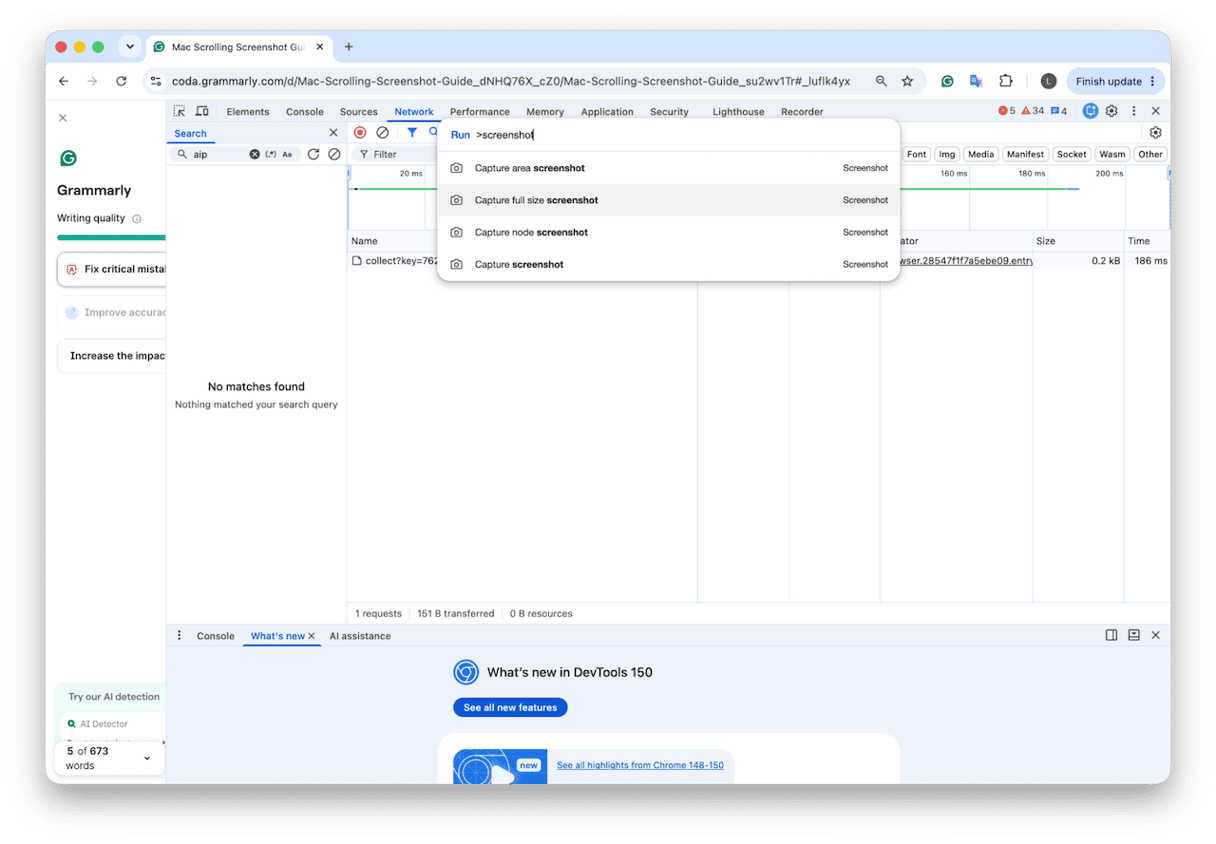
Pros: Free and built into Chrome.
Cons: DevTools can affect page layout, there are several steps, and it’s not clipboard-friendly.
5. Shottr
Shottr, I think, is one of the best free dedicated scrolling screenshot apps for most Mac users. Unlike browser methods, it can capture scrolling content in apps and windows, not just web pages.
- Download Shottr from shottr.cc.
- Open Shottr and set it up from Preferences.
- Choose Scrolling Capture from the menu bar icon or hotkey.
- Let Shottr auto-scroll and stitch the image.
- Annotate, blur, copy, or save the result.
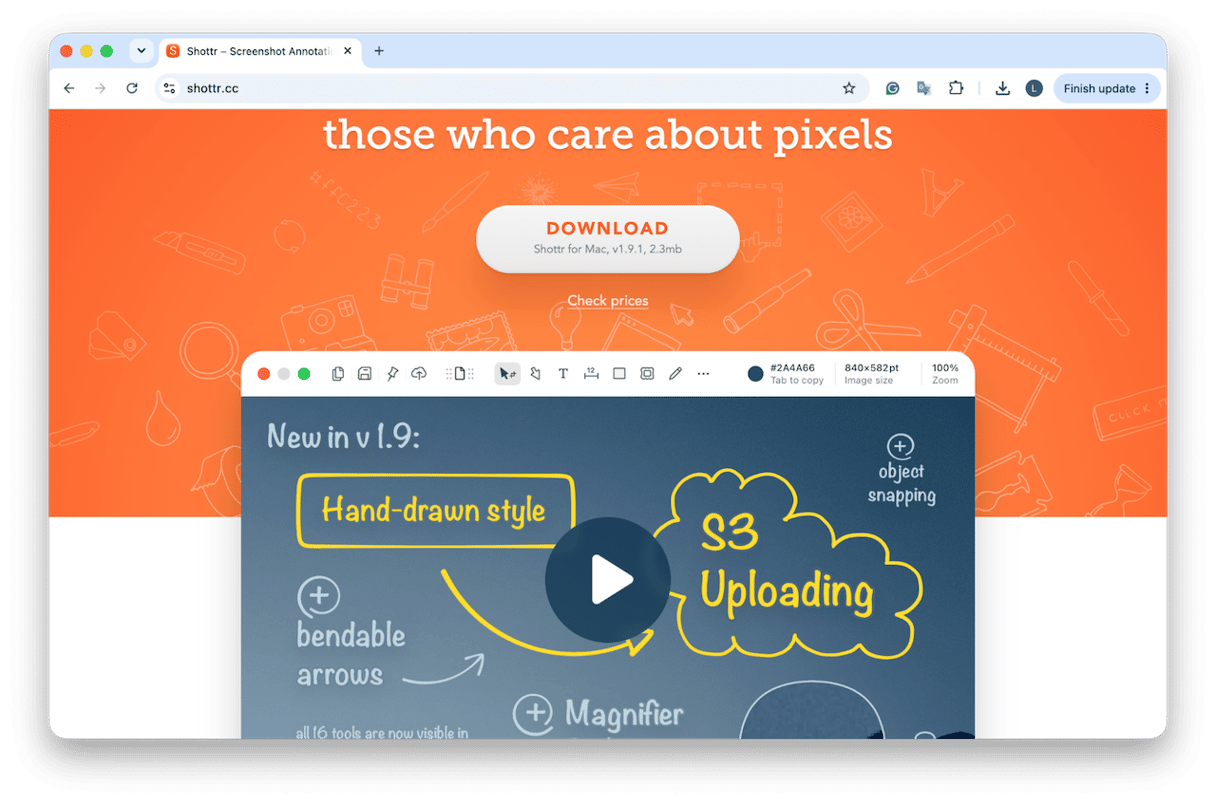
Pros: It’s a free tool, works system-wide, it’s really fast, and includes annotation and OCR.
Cons: Requires an app install, and free feature limits may change over time.
6. CleanShot X
CleanShot X is the best paid option if screenshots are part of your daily workflow.
- Download CleanShot X.
- Click the menu bar icon.
- Press Capture Scrolling Content.
- Click the blue Capture button.
- Edit, annotate, blur, save, or upload to CleanShot Cloud.
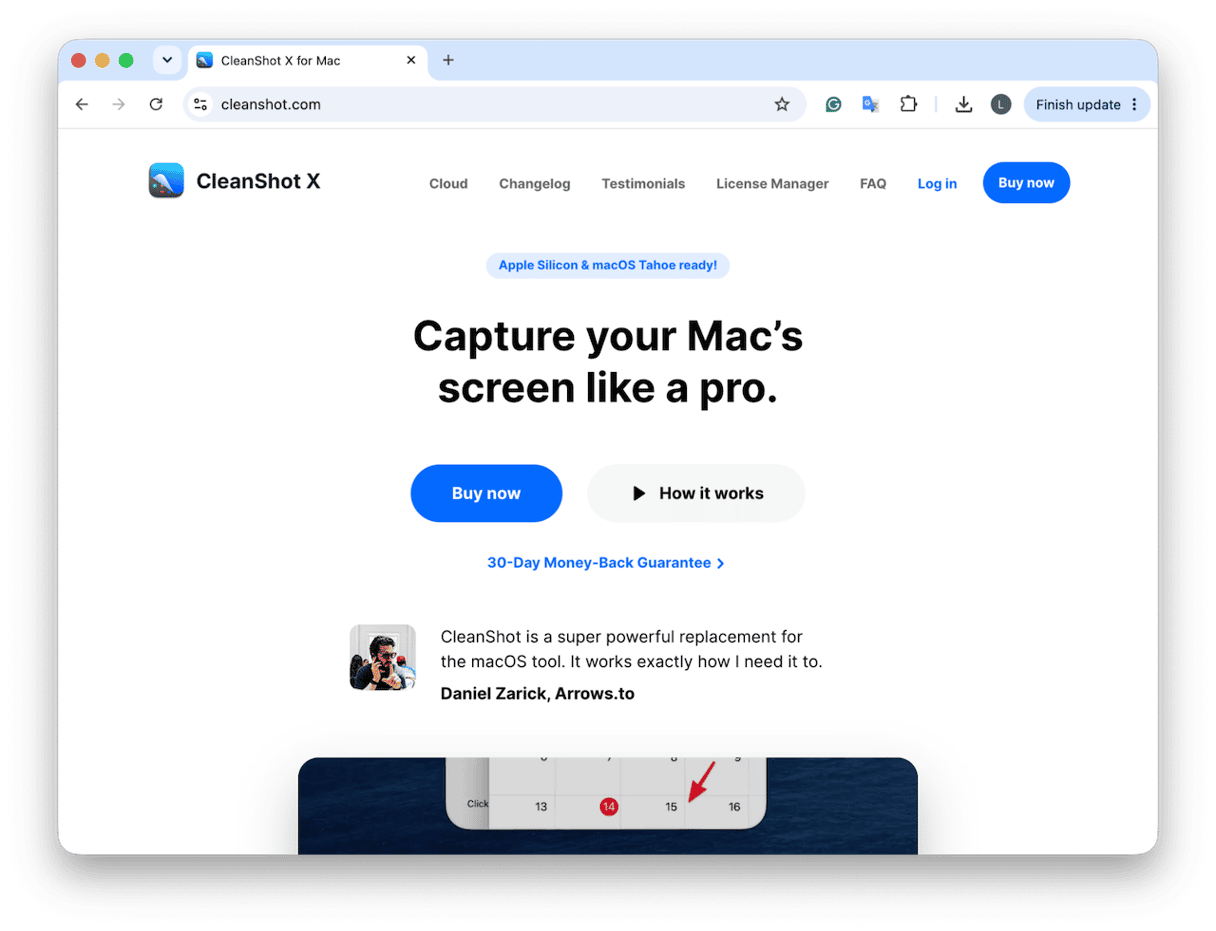
It costs $29 one-time or is available through Setapp. It’s a bit overkill for occasional users, but excellent if you take screenshots for work.
Pros: Polished UI, works in any app, strong annotation tools, cloud sharing, hides desktop icons.
Cons: It’s quite expensive for what it is.
Other ways to take a scrolling screenshot
There are so many options out there; I thought these did deserve a quick mention too. Snagit is worth considering for enterprise teams or anyone who needs advanced annotation, templates, and documentation tools. It costs $62.99 a year, so it’s expensive for individual users.
You can also use File > Print > Save as PDF for some web pages or documents. It’s not a true screenshot, and the output is a PDF rather than an image, but it can work as a quick workaround.
Full-page screenshots can be several MB each, and they usually pile up in your Downloads or Desktop, making them a bit easy to forget.
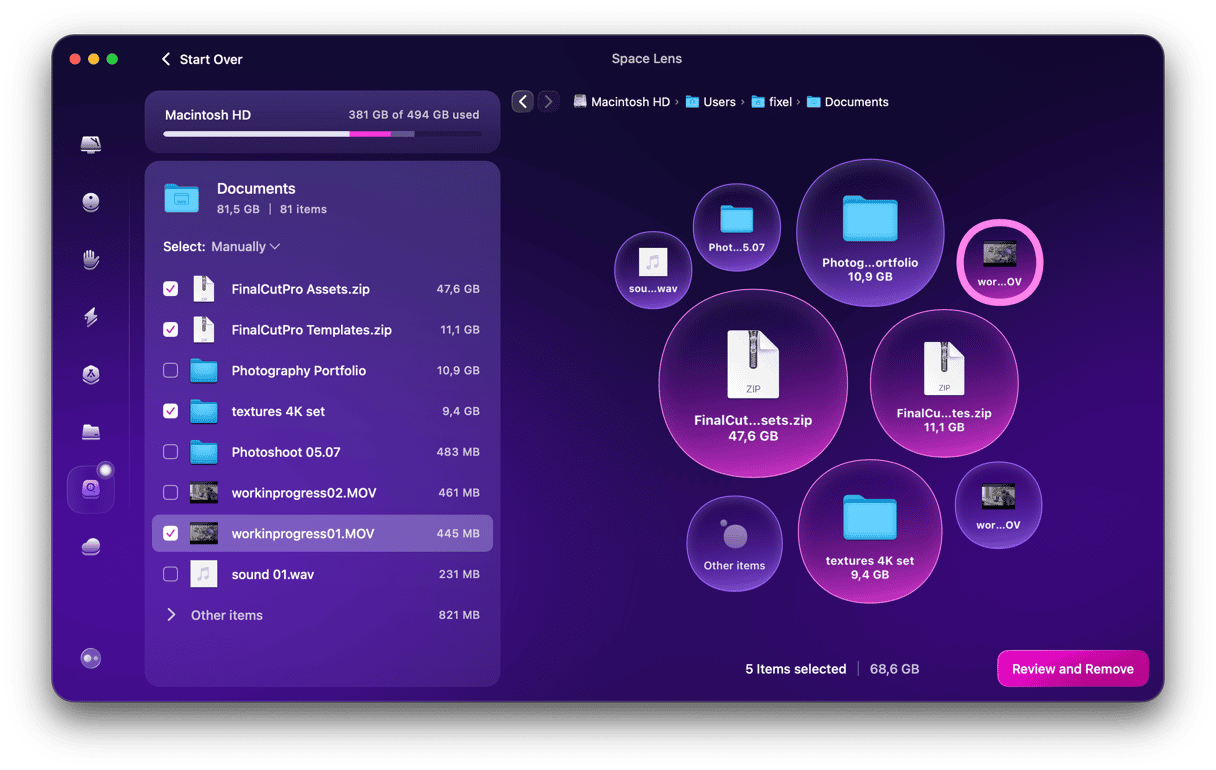
The Space Lens feature from CleanMyMac lets you have an interactive map of your disk, so you can see exactly where screenshots are stored and how much space they’re using, then review and delete them.
Frequently asked questions
Do Macs have a built-in scrolling screenshot feature?
No. macOS does not include a native scrolling screenshot tool.
What is the best free app for scrolling screenshots on Mac?
I would say Shottr is the best free dedicated app because it captures scrolling content system-wide, not just in browsers.
What’s the difference between Shottr and CleanShot X?
Shottr is free, while CleanShot X is paid (with a few extra features).
Where do scrolling screenshots get saved on Mac?
It depends on the tool. Browser methods usually save to your Downloads. Shottr and CleanShot X let you choose.



%20%201200x670_1715336612.png)