
macOS Golden Gate is almost here. And if you’ve been reading about it and seen the new features, you’re probably asking yourself: should I upgrade to macOS Golden Gate? The answer to that question is different for everyone, and the answer to an extent will depend on whether the Mac you’re using can run Golden Gate. I’ve installed macOS 27 right away and in this article, I’ll explain what you should check before you upgrade and also whether you should upgrade or not.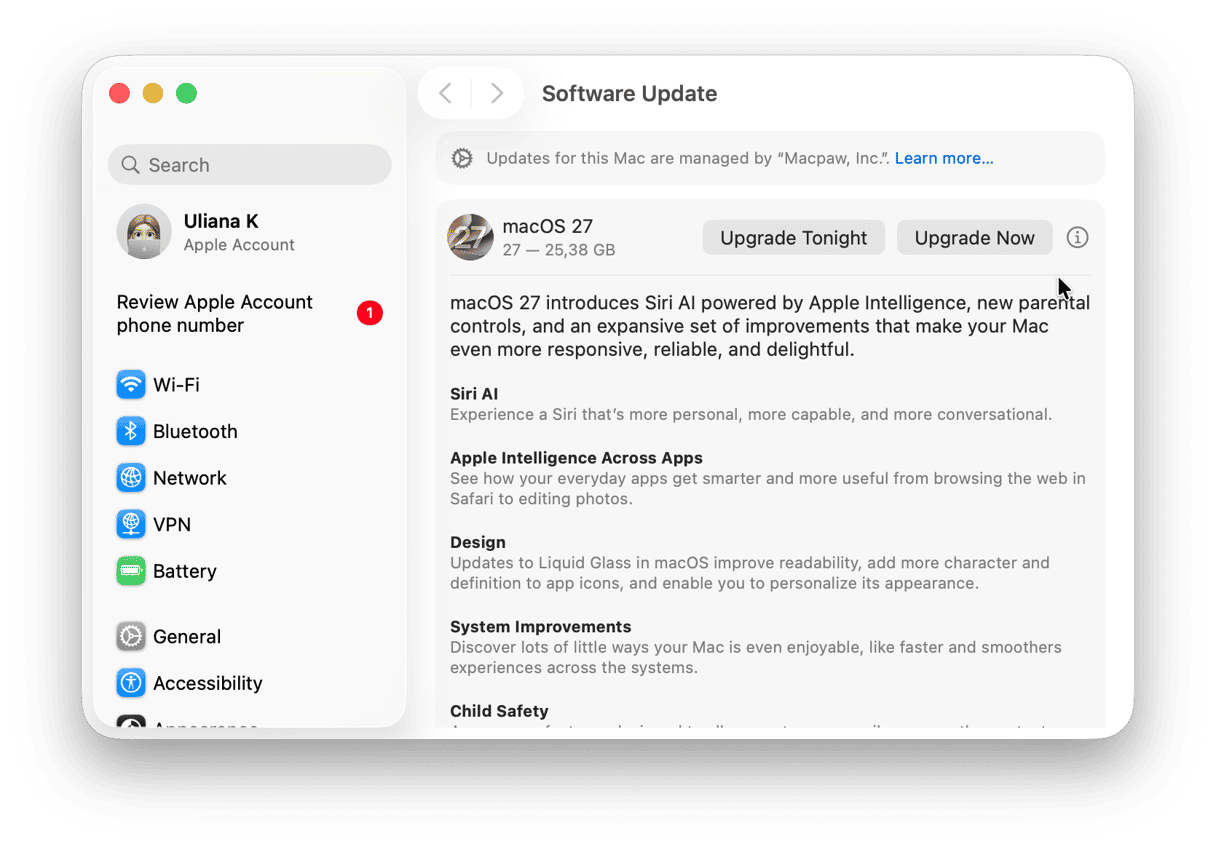
What to check before upgrading to macOS Golden Gate
Check 1: Is your Mac compatible?
This is the most important question: whether your Mac isn’t supported to run Golden Gate. Everything else is academic. The simplest way to check is to go to the Apple menu and choose About this Mac. If the chip is an Apple M-series, you’re good to go. If it’s Intel, you can’t install Golden Gate. Here’s a list of all the Macs that can run the new macOS.
- MacBook Neo (2026)
- MacBook Air with Apple silicon (2020 and later)
- MacBook Pro with Apple silicon (2020 and later)
- iMac with Apple silicon (2021 and later)
- Mac mini with Apple silicon (2020 and later)
- Mac Studio with Apple silicon (2022 and later)
- Mac Pro with Apple silicon (2023 and later)
Check 2: Do you have enough storage space
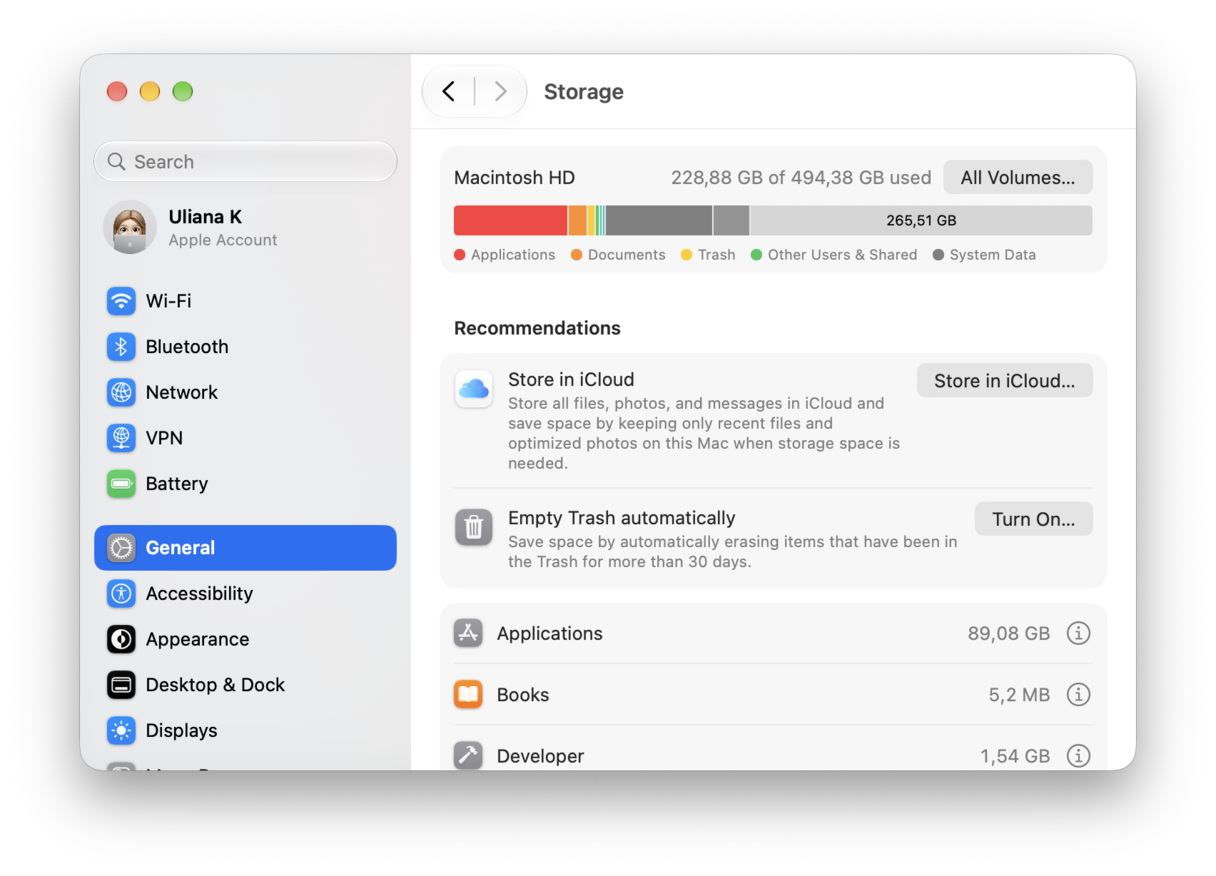
It’s generally recommended that your Mac has at least 35 GB of free space to install Golden Gate. The installer itself is around 12 GB, and it needs plenty of headroom to install successfully.
To check how much free space is on your Mac, go to System Settings > General > Storage and look at the two figures above the chart. The difference between them is the amount of free space on your Mac.
Check 3: Will your key apps work?
This is where you’ll have to do your own research. Most apps should run on the new macOS once it is released. But if you use devices like audio interfaces, MIDI-USB gear, or legacy applications, you should check that they will work. Intel apps will still run in Golden Gate because Rosetta 2 is still supported. But from the next version of macOS, Rosetta 2 won’t be installed with the OS, so it’s worth looking for replacements for apps that still rely on it now.
Should you upgrade to macOS Golden Gate?
Reasons to upgrade
Once you’ve done your checks, it’s time to decide whether it’s worth upgrading now or whether you should wait. Here are some reasons to upgrade to Golden Gate now.
- Liquid Glass refinements. Liquid Glass was the most controversial change in macOS Tahoe. The new interface was a big change and not all for the better. Many of the issues with it have been fixed in Golden Gate. You can now change the transparency of Liquid Glass elements using a slider in System Settings. Edges are darker and highlights brighter to improve depth and separation. Window shadows have been improved to make it easier to see which window is active.
- Siri AI. When Apple Intelligence was launched, we were promised a new, smarter Siri. This is it. You can call it up from Spotlight or use the new dedicated Siri app. It’s context-aware and knows the content of your Apple apps, so you can ask it questions in plain English about Calendars, Notes, and more.
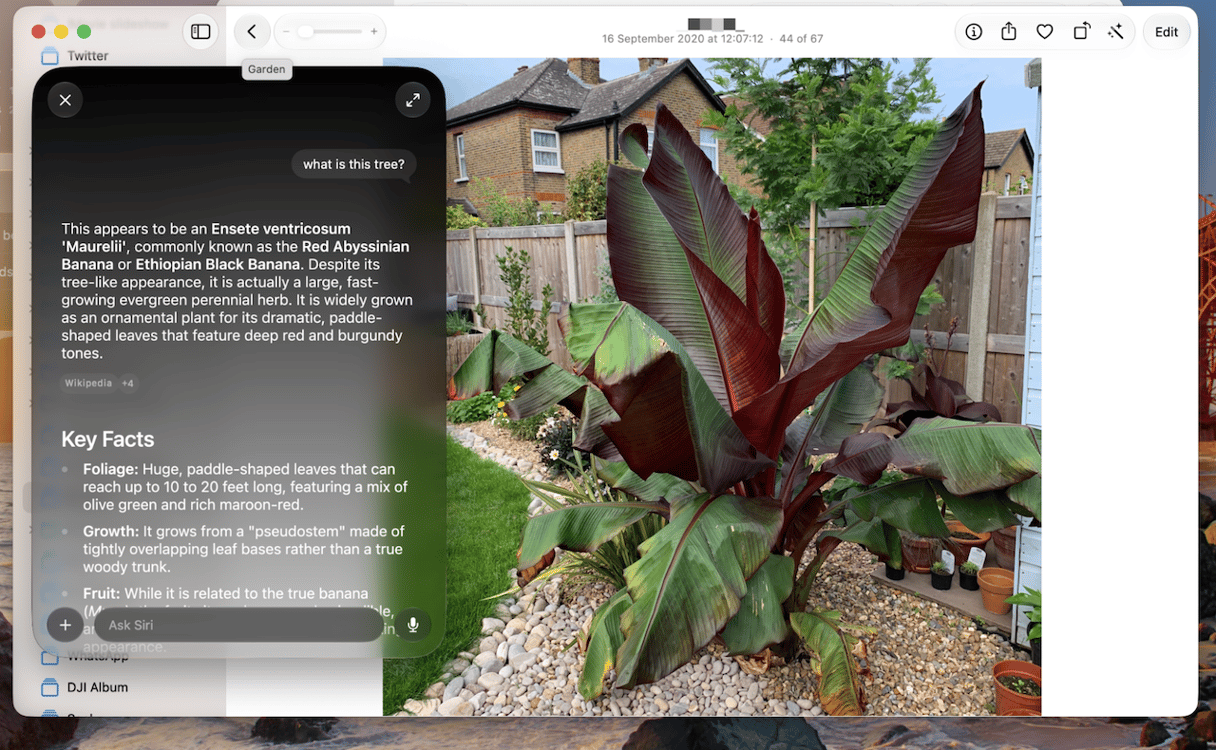
- Visual Intelligence. Siri AI understands what’s on screen, whether it’s a photo in Photos or a screenshot. You can ask it questions about the image, such as what kind of plant or tree is in a photo.
- Performance improvements. Performance is one of the focuses of Golden Gate, and it shows. Geekbench scores on the beta versions showed marked improvement over macOS Tahoe, and Apple has overhauled Spotlight indexing to make it faster, as well as boosted performance in AirDrop transfers and network server file transfers.
- Safari. Apple’s web browser gets some new features, including automatic tab grouping, pull to refresh, and notifications when an open tab updates in the background.
- Improved photo editing and child safety features. Photos gets the ability to reframe images, as well as add more background. And removing unwanted objects has been improved. There are a number of child safety features too, including Ask to Browse, which allows parents to set up a child’s Mac so they have to ask to browse, via Messages, a specific website.
Reasons to wait
- Bug fixes and performance tweaks. Although macOS Golden Gate is officially released, there are likely to be one or two bugs that need to be squashed or areas where performance could be improved. If you want to be ultra-sure of getting the best from it, wait for macOS 27.1.
- AI features are restricted. While Golden Gate runs on any Apple Silicon Mac, some AI features are restricted to Macs with an M3 chip and 12 GB. If you have an M1 or M2 Mac, you might want to wait until you upgrade.
- Third-party app compatibility. If the apps you rely on haven’t been upgraded to support Golden Gate, you should wait until they are.
Before you upgrade to Golden Gate
When you decide the time is right to upgrade, there are a couple of things you should do first to prepare your Mac.
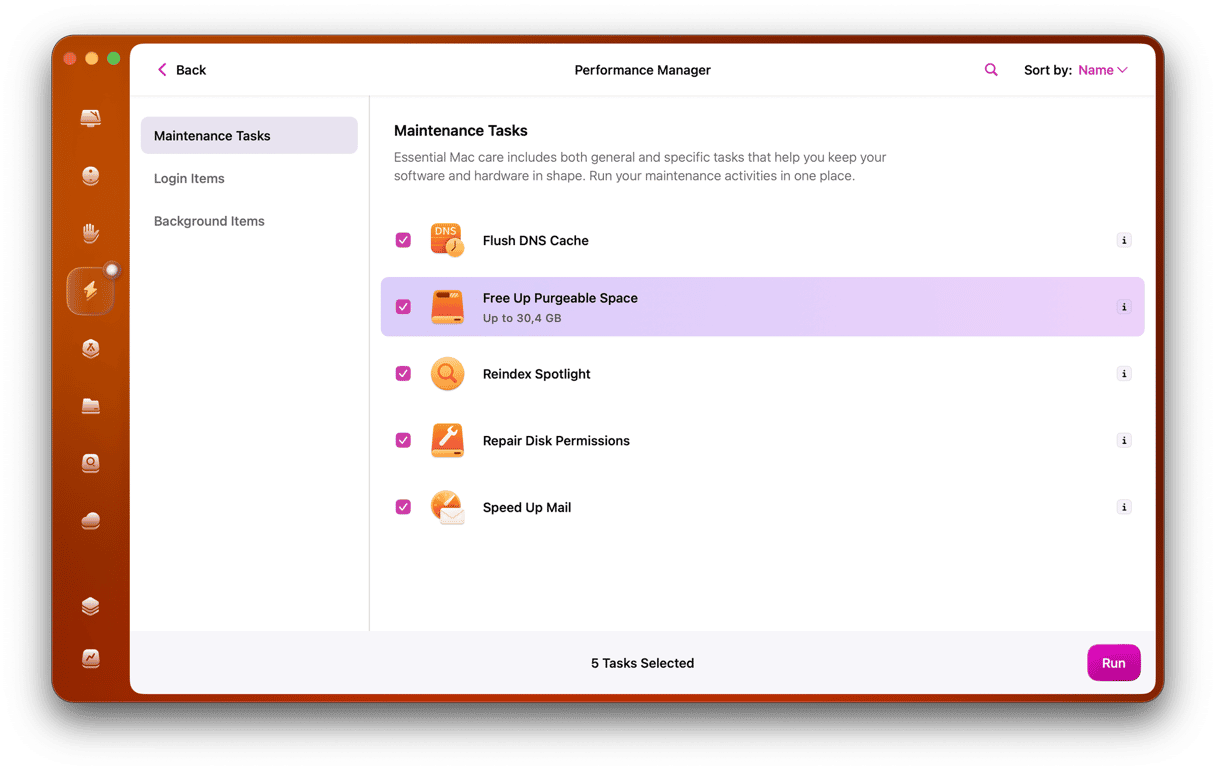
- Carry out maintenance tasks. Before a major system upgrade, it’s worth running maintenance scripts, flushing the DNS cache, and reindexing Spotlight so you start with a clean system state.
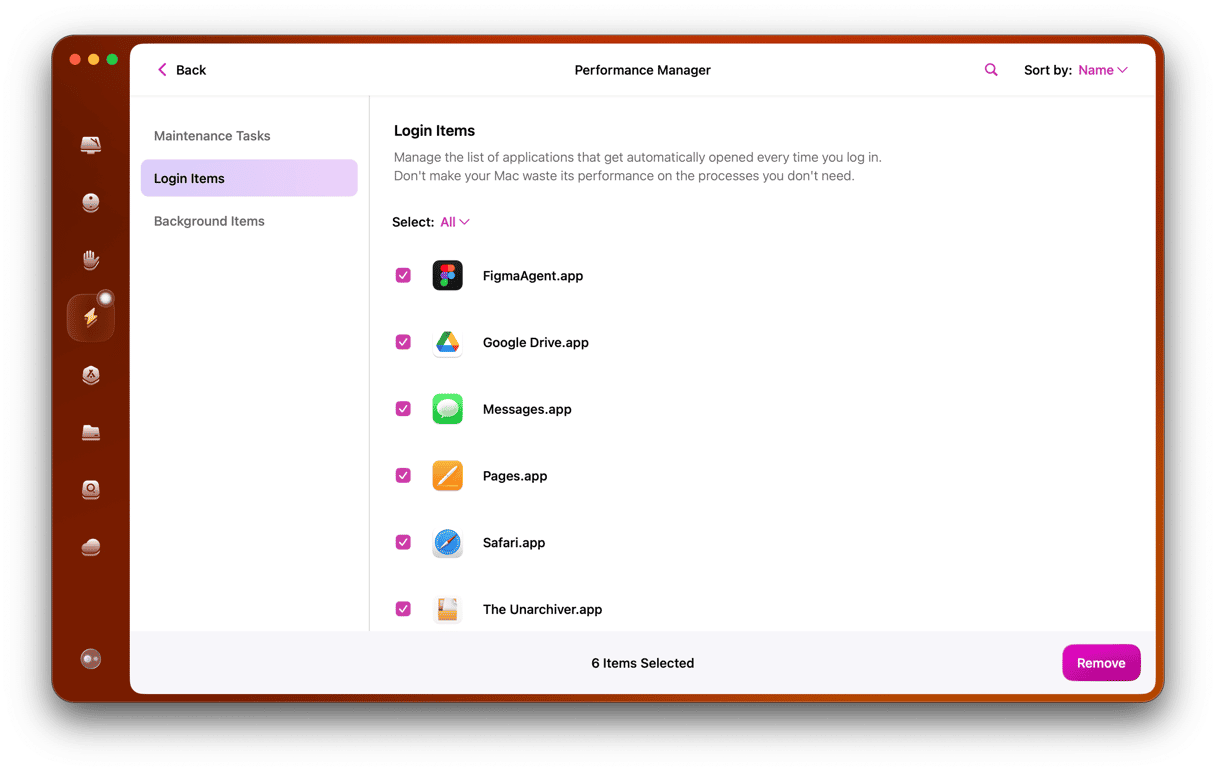
- Review login items. Login items that run at startup can slow the post-upgrade boot and occasionally conflict with a new OS. Now is a good time to audit them.
Here’s how I did both with CleanMyMac — a Mac maintenance app that comes with 25+ tools designed to keep your Mac glitch- and clutter-free.
Maintenance tasks
- Start your free CleanMyMac trial — you can test the app for 7 days for free.
- Launch the app and select Performance in the sidebar.
- Click Scan and, when it’s finished, View All Tasks.
- Select the maintenance tasks you want and click Run.
Review login items
- In CleanMyMac, choose Performance in the sidebar.
- Click Scan and then View All Tasks.
- Choose Login Items and select anything you don’t need, then click Remove.
macOS Golden Gate is a significant upgrade with several improvements and new features. If you have a Mac with Apple silicon, it’s well worth upgrading. However, if you use your Mac for work and particularly if you rely on apps that haven’t yet been updated for the new OS, you should wait until macOS 27.1 or until the apps have been updated.