So, you’ve decided to uninstall Audacity on your Mac. But you’re savvy enough to know that just dragging the Audacity application binary from your Applications folder to the Trash won’t do it. Audacity, like every other application on your Mac, stores lots of files in different folders, and to uninstall it properly, you need to remove those too. Otherwise, they might conflict with other files you install later on. So, in this article, we’ll show you the step-by-step process for uninstalling Audacity on your Mac. In fact, we’ll show you two processes – one manual method that takes about five minutes and involves a bit of hunting for files, and another one-click method that’s much easier and quicker.
How to uninstall Audacity
Manual removal
- Quit Audacity if it’s running.
- Go to your Applications folder and drag the Audacity application to the Trash.
- Click on the Finder icon in the Dock.
- Press and hold Option and click on the Go menu, then choose Library (if you don’t press Option, the Library folder won’t appear in the menu)
- Using the table below, visit each file path in the left-hand column and drag the file in the right-hand column to the Trash:
Location | What to look for / delete |
/Applications/ | Audacity.app — the main application binary |
~/Library/Application Support/ | audacity folder |
~/Library/Preferences/ | org.audacityteam.audacity.plist and any audacity.* files |
~/Library/Caches/ | org.audacityteam.audacity or audacity folder |
~/Library/Logs/ | Audacity folder if present |
/Library/Application Support/ | audacity folder if present (system-level) |
The last path in the table above is your Mac’s main Library folder. It sits outside your user folder. To find it, choose Computer > Macintosh HD in the Go menu, or choose Macintosh HD under Locations in a Finder window sidebar.
Caution: Only delete files/folders with ‘audacity’ or ‘org.audacityteam’ in the name. Don’t delete anything you don’t recognize. Library folders contain lots of files that are important for the applications that place them there, and deleting files without knowing why they are there can cause the application to crash or lose data.
Automatic removal with CleanMyMac
For a guaranteed complete removal, CleanMyMac’s Applications feature does it in one scan — no Library hunting.
- Open CleanMyMac — get your free trial here.
- Choose Applications in the sidebar.
- Click Scan and wait for the results.
- When it’s finished, click Manage My Applications.
- Select Uninstaller in the sidebar, then find Audacity in the list, and select the checkbox next to it.
- Click Uninstall.
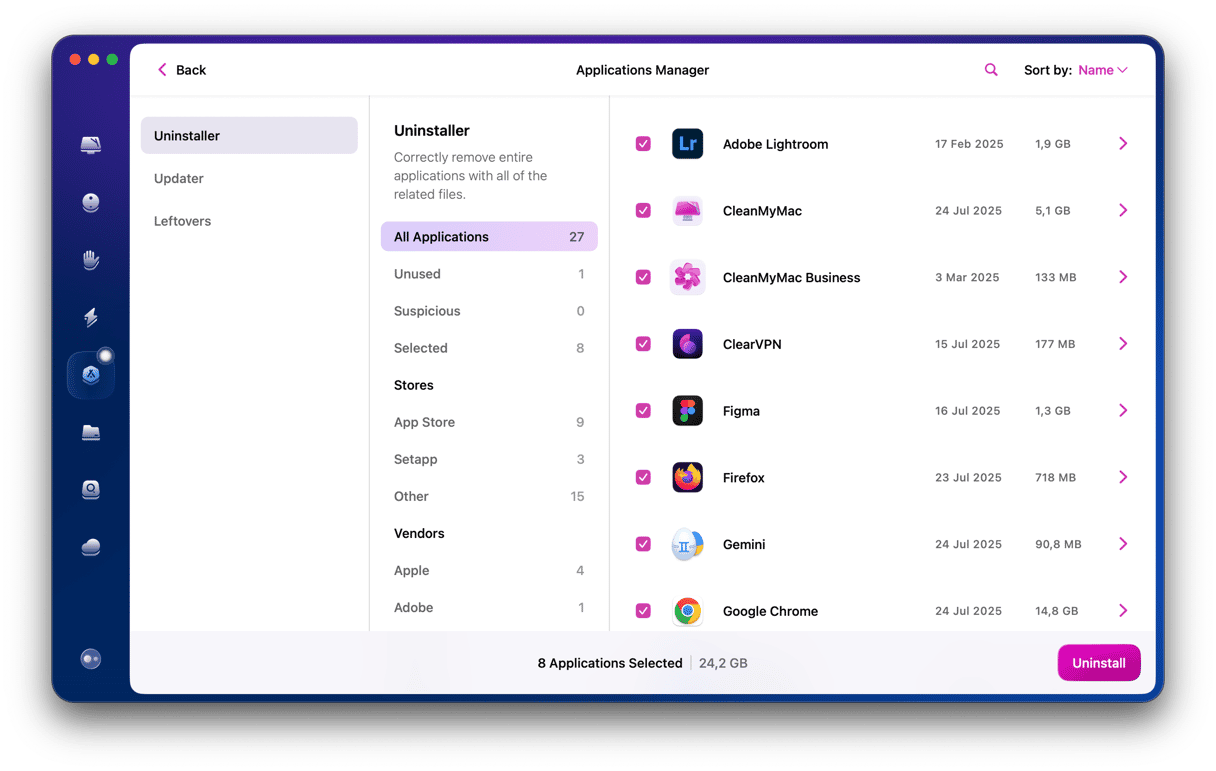
If you’ve already tried to uninstall Audacity manually and want to check that there are no leftover files, you can use CleanMyMac to do that, too.
- In the Manage My Applications screen, choose Leftovers in the sidebar. Alternatively, in the main Applications results, choose Review in the Leftovers pane.
- Select Leftover files.
- Choose Select All from the dropdown menu at the top of the window.
- Click Remove.
Frequently asked questions
Does dragging Audacity to the Trash fully uninstall it?
No, it removes the app binary but leaves behind preference files, caches, and support folders in the Library. These take up space on your startup disk and may also conflict with other files on your Mac in the future, causing it to slow down or become unstable.
Can I reinstall Audacity after following these steps?
Yes, a complete removal means a fresh reinstall won’t inherit any corrupted settings from the previous installation. Make sure you download the latest version from the Audacity website.