
Your internet is working fine, then why is YouTube so slow? This has to be up there with one of the most irritating Mac issues, but it’s not uncommon, and the best news is, you can fix it pretty quickly.
Why is YouTube slow even with fast internet?
This is one of those problems that needs a little investigation work, because surprisingly it can be caused by a few different things.
First, your browser cache and cookies. If they’ve got bloated or even corrupted, then YouTube is going to bump into issues, and that’s because it relies on fresh cached data for smooth streaming.
Extensions play a role too; stuff like Ad blockers and content blockers clash with YouTube’s ad system, causing all kinds of glitches from black screens to delays and buffering loops.
Hardware acceleration is another reason for YouTube issues; while it should help video playback, on some Mac setups it actually causes stuttering and sometimes dropped frames.
iCloud Private Relay can interfere too, and that’s because it masks your IP address, which then makes YouTube struggle to route you to the best regional video server.
Also, common background processes anything from iCloud sync to Time Machine, or even app updates or any macOS downloads eat up bandwidth, leaving YouTube slow.
Slow DNS can cause delays to YouTube’s initial connection, even if download speeds are strong.
And finally, YouTube’s Auto playback quality can pick 1440p or 4K when your Mac or connection literally can’t handle it.
So, as you can see, there are quite a few reasons why YouTube is so slow.
How to fix slow YouTube
Go through these fixes, one by one; they start easy with the quickest fixes and work into harder ones.
1. Check YouTube’s server status
This one literally takes 30 seconds, so don’t skip it.
- Go to downdetector.com/status/youtube
- And just for good measure, check Apple System Status and look for issues here with iCloud Private Relay.
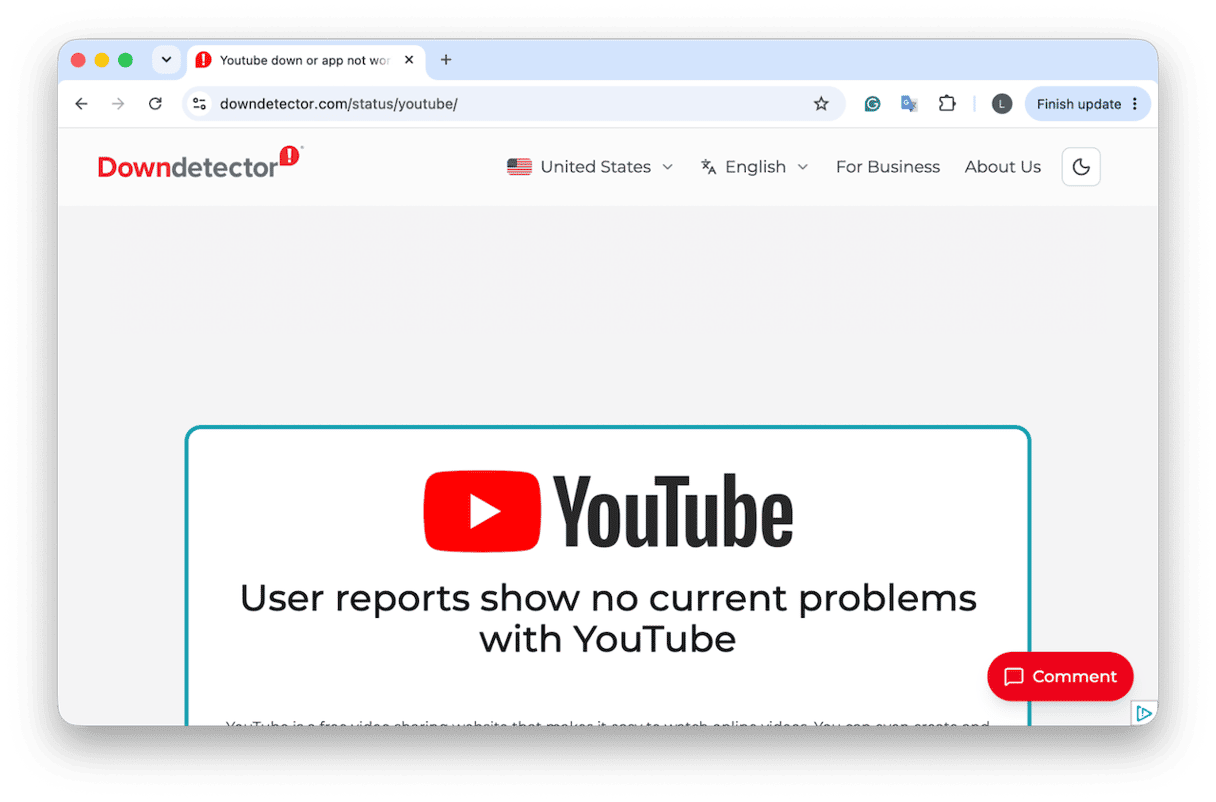
If you find issues here, then it’s out of your hands; you need to wait until the bugs are fixed.
2. Lower video quality manually
When your video keeps stuttering or buffering.
- Open the video on YouTube you’re having issues with.
- Click the gear icon and select Quality > 1080p or 720p (not Auto).
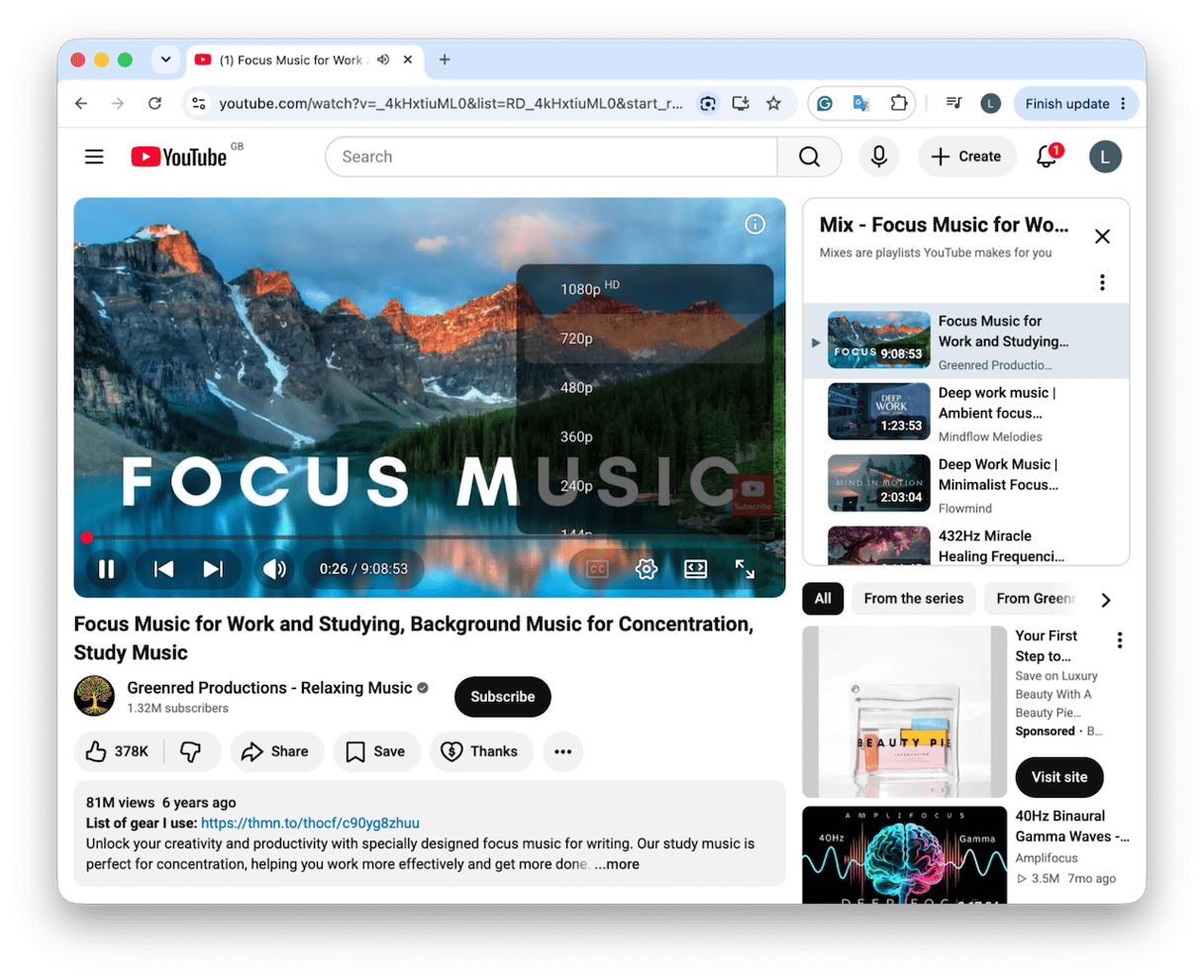
If the video plays smoothly at lower quality, the issue is bandwidth or hardware decode.
3. Disable iCloud Private Relay
When your videos don't even load.
- Go to your System Settings > Your name > iCloud > Private Relay > toggle off.
- Reload YouTube and test playback.
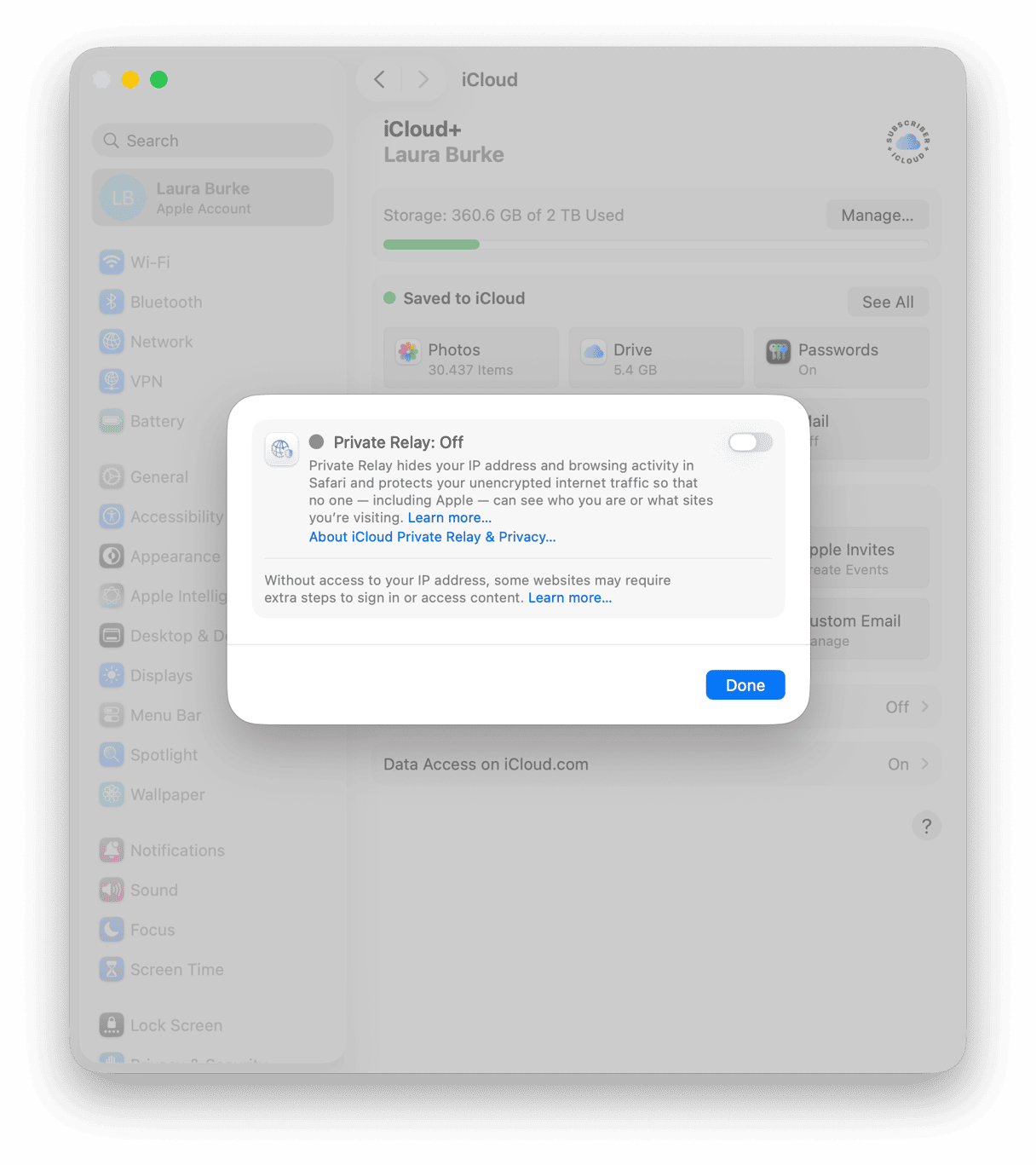
If this doesn’t help, then re-enable Private Relay.
4. Clear browser cache and cookies
This is another really important one, but depending on your browser, the method varies a little.
- For Safari, go to Settings > Privacy > Manage Website Data > search YouTube > Remove.
- For Chrome, type in chrome://settings/clearBrowserData select all, and press Clear Data.
- For Firefox, go to Settings > Privacy & Security > Clear Data > Cached Web Content.
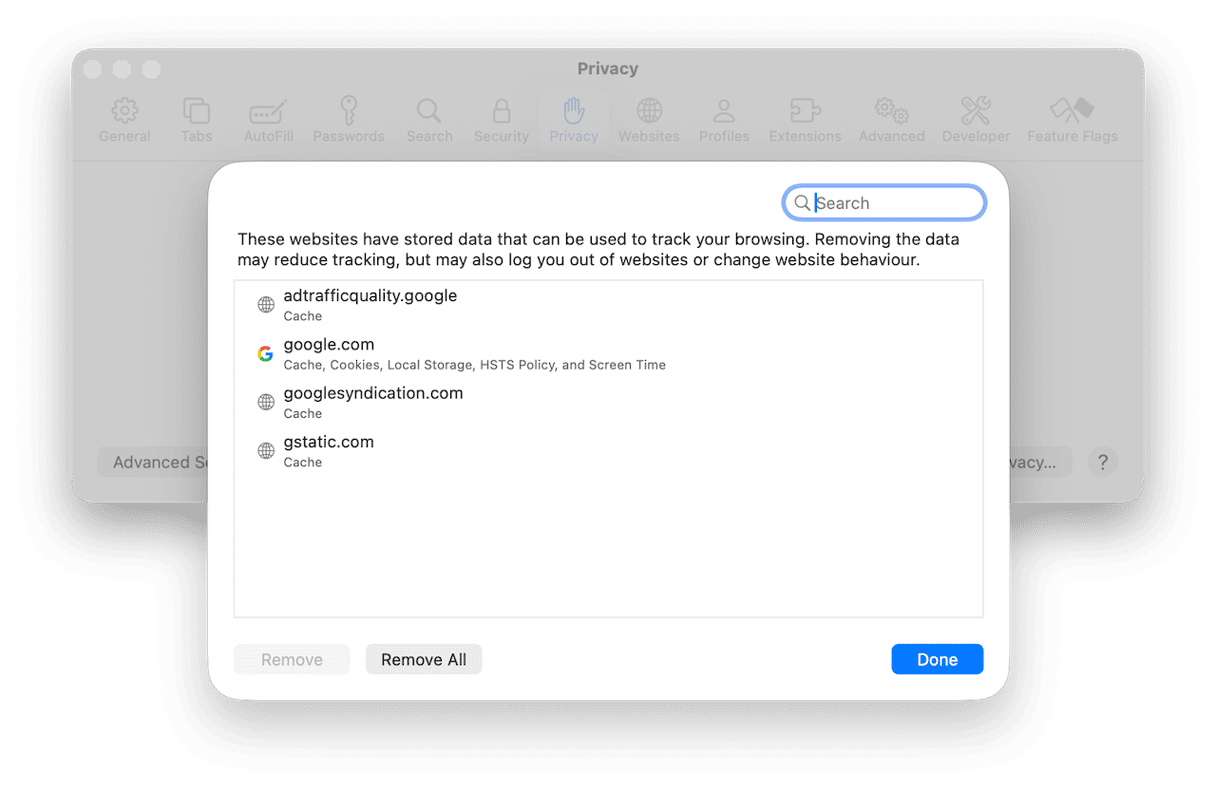
Tip: You can start with removing YouTube cache only instead of removing all browser cache. Learn more here.
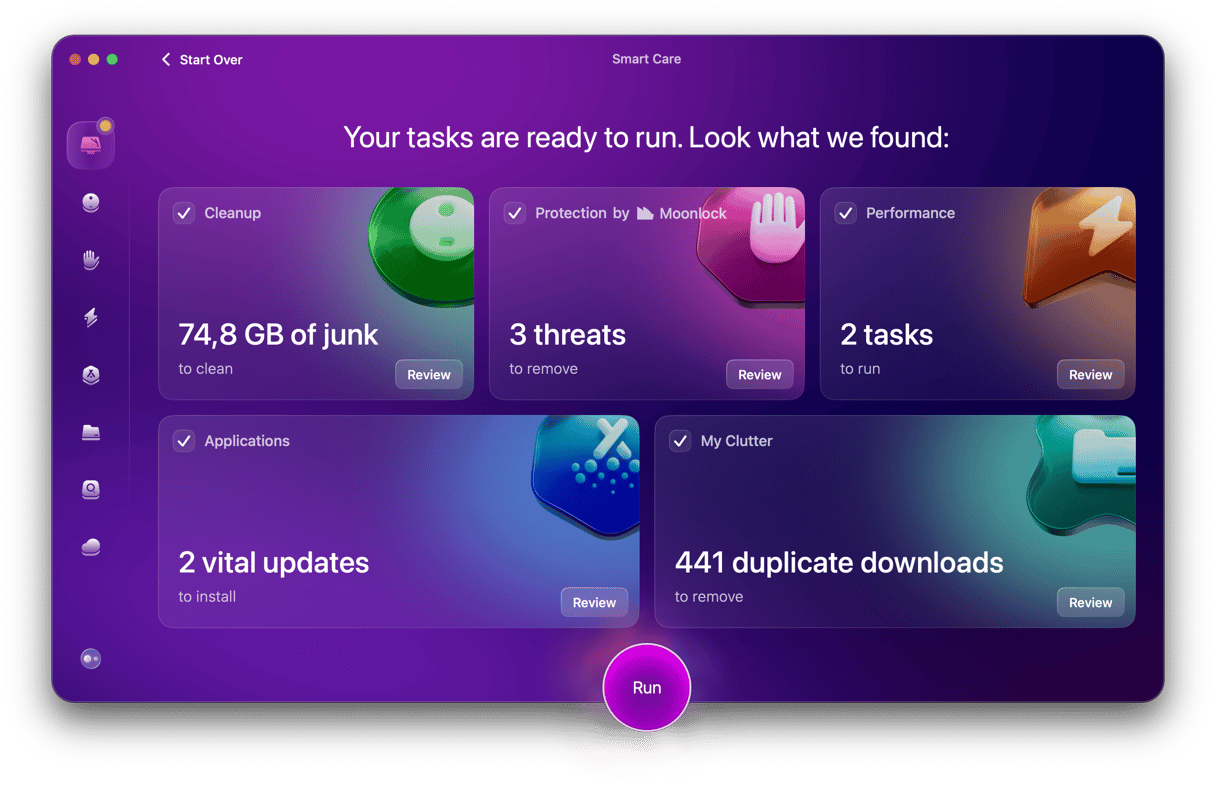
Instead of clearing cache in each browser separately, you can do it all at once using the Smart Care feature from CleanMyMac. It does all the hard work, scanning for outdated browser data, junk files, and even malware threats, and fixes them in one click, across Safari, Chrome, and Firefox simultaneously. Test CleanMyMac for 7 days — get your free trial here.
5. Disable ad blockers or extensions temporarily
Again, you’ll need to do this for each browser separately, and test YouTube after you’ve disabled each extension to try and find which one is causing the issue.
- For Safari, go to the Safari menu > Settings for youtube.com > uncheck Enable content blockers.
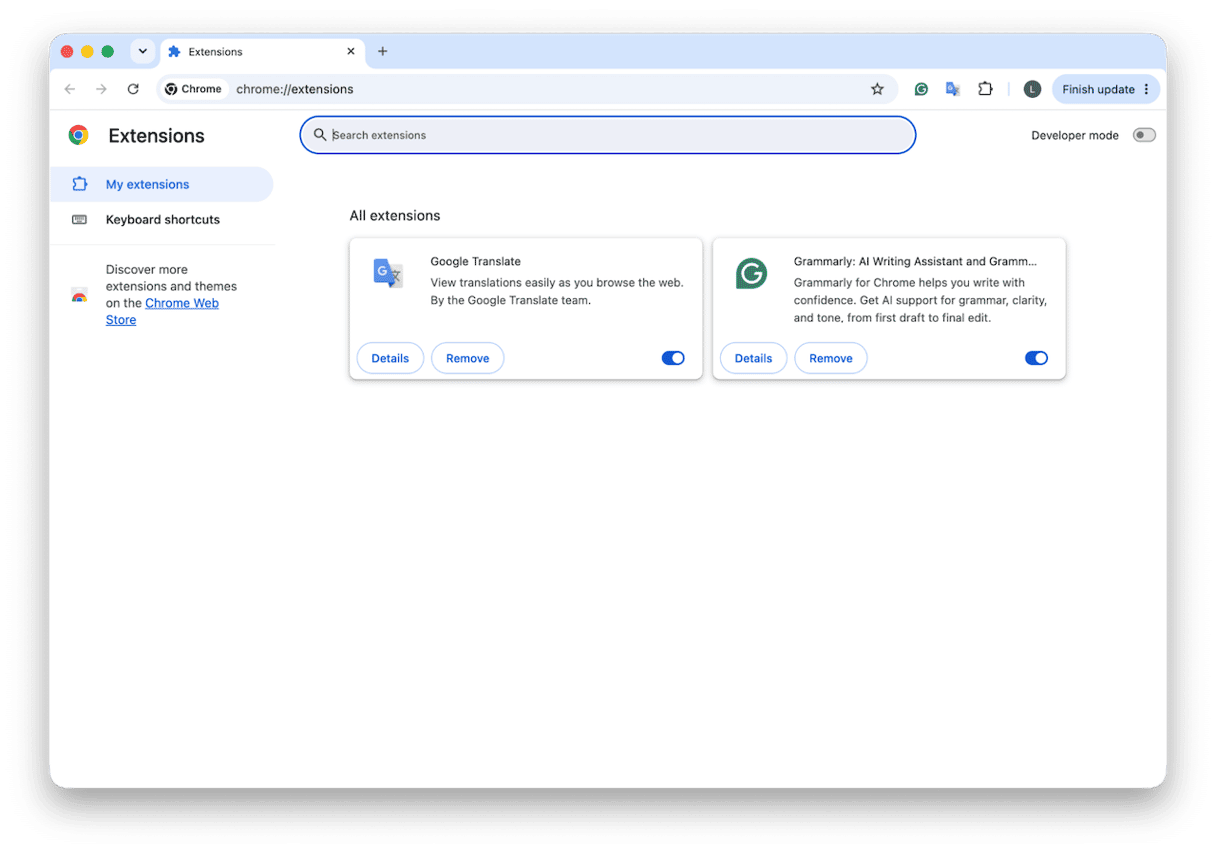
- For Chrome, click on the three-dot menu > Extensions > Manage Extensions. Turn off ad blockers one at a time.
- For Firefox, press Add-ons and themes > Extensions > disable extensions one at a time.
6. Toggle hardware acceleration off
This method may vary depending on your OS, but it’s absolutely worth trying when all the above tips haven’t helped so far.
- In Chrome, click the three-dot menu > Settings > System > toggle Use graphics acceleration when available. Then click Relaunch.
- In Firefox, go to Settings > Tabs and Performance, uncheck Use recommended performance settings. Then the Use hardware acceleration when available option should appear. Uncheck it, restart Firefox, and test YouTube again.
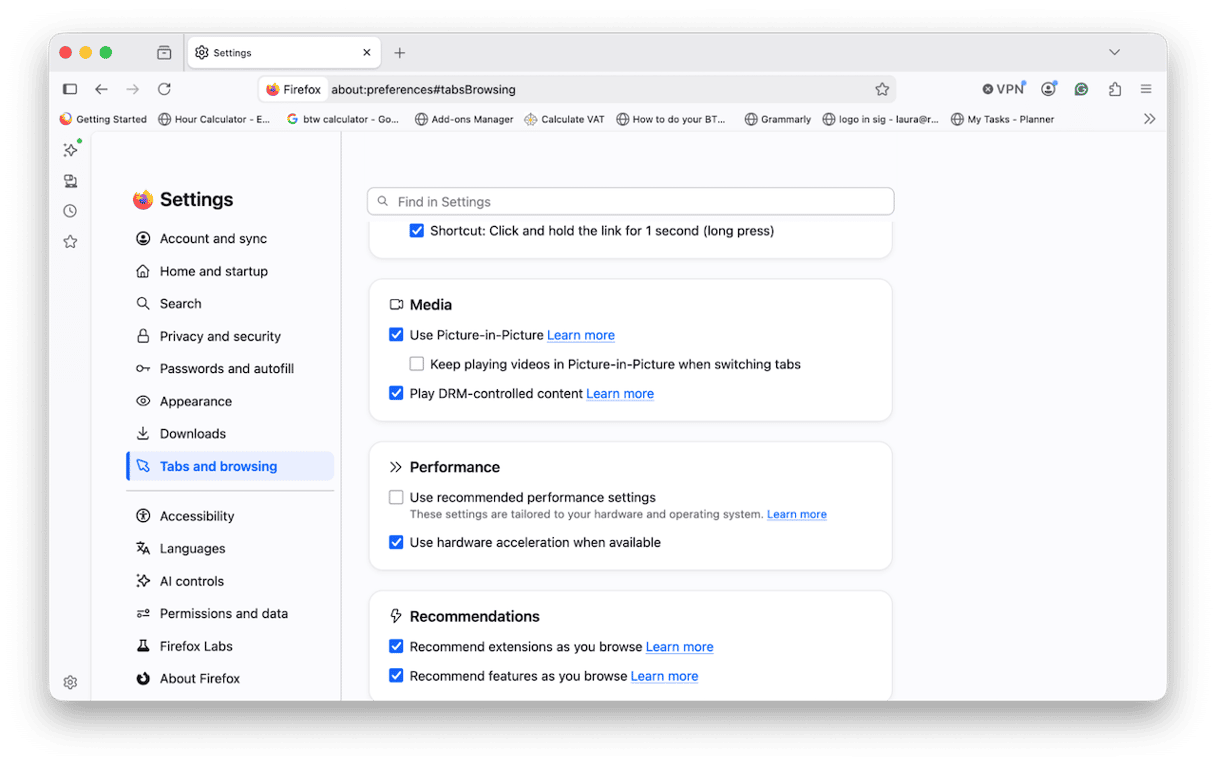
Then you’ll need to restart the browser and test YouTube.
7. Flush DNS cache
To rule out issues with your network.
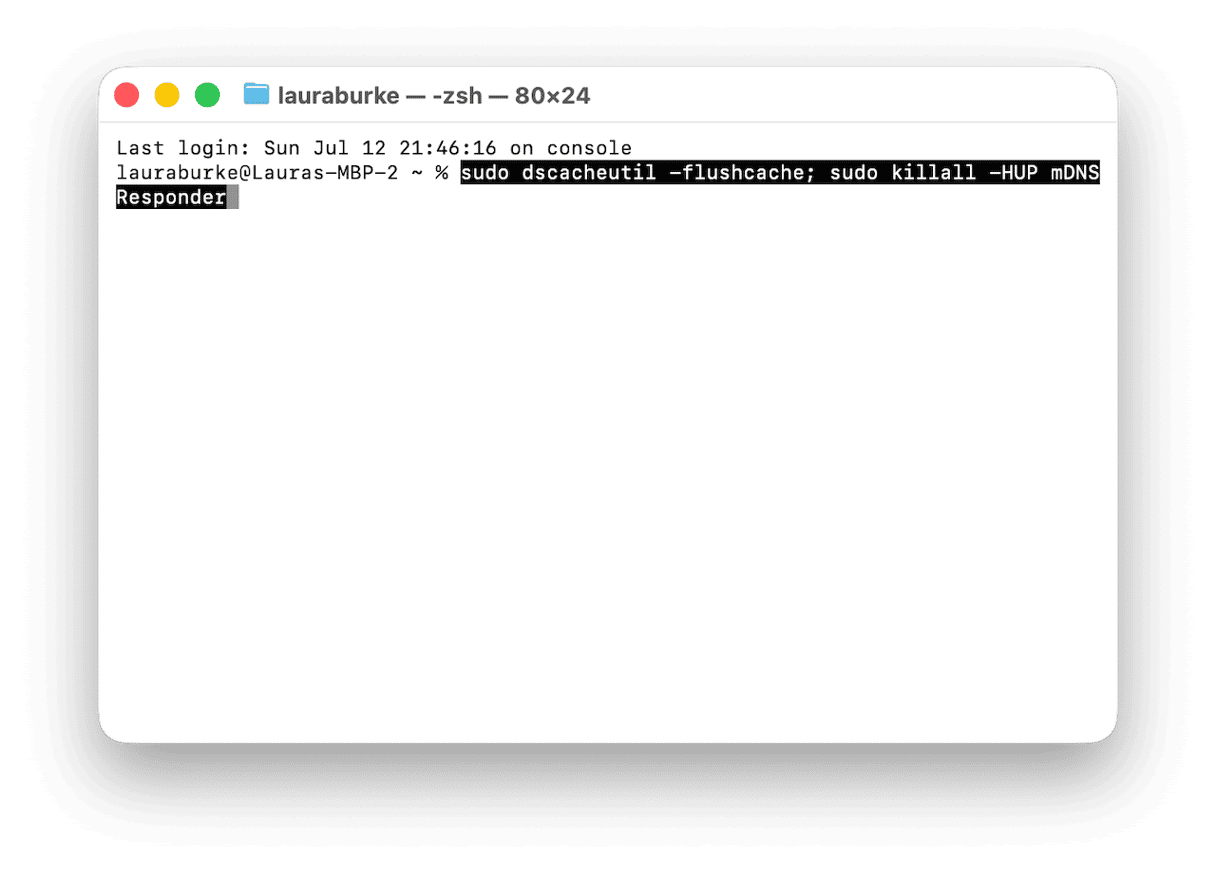
- Open up Terminal from Applications > Utilities.
- Type:
sudo dscacheutil -flushcache; sudo killall -HUP mDNSResponder - Press Enter and fill in your password.
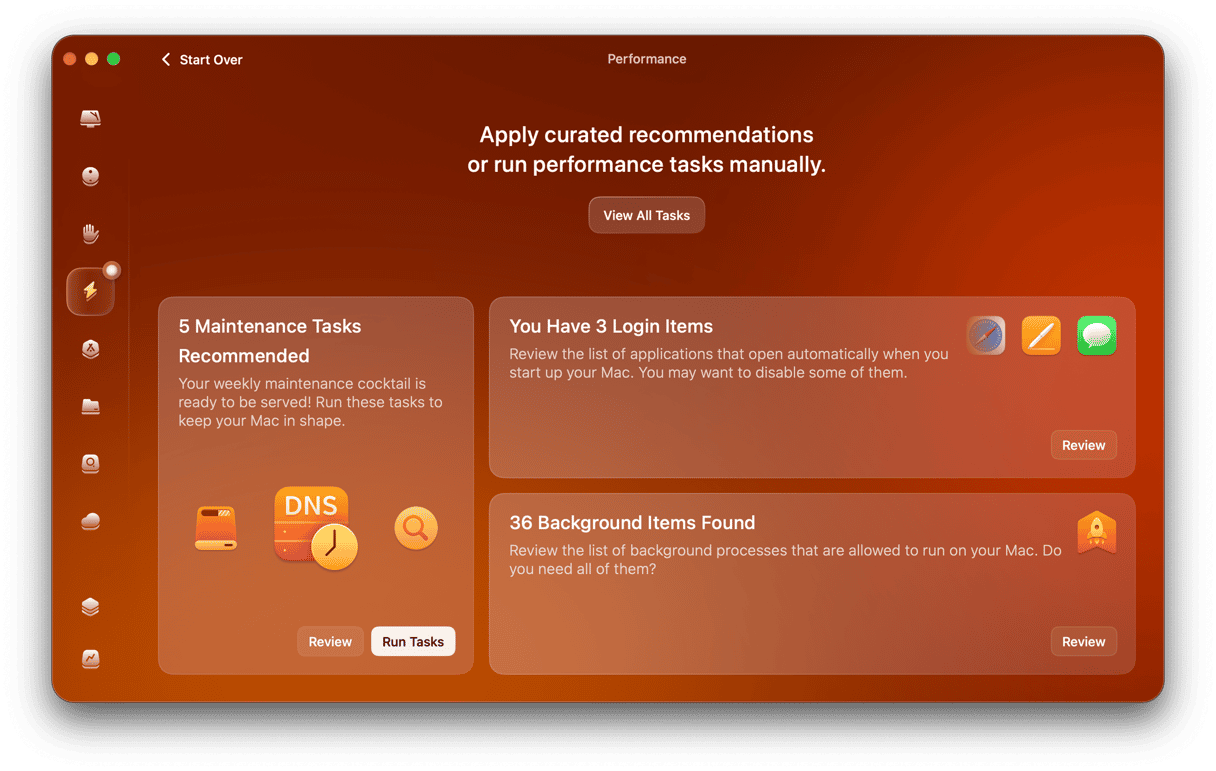
You could actually use here CleanMyMac’s Performance feature > Scan > View All Tasks > Flush DNS cache > Run.
I’d also consider switching DNS in System Settings > Wi-Fi > Details > DNS > add 1.1.1.1 (Cloudflare).
8. Close background apps
If resources could be interfering.
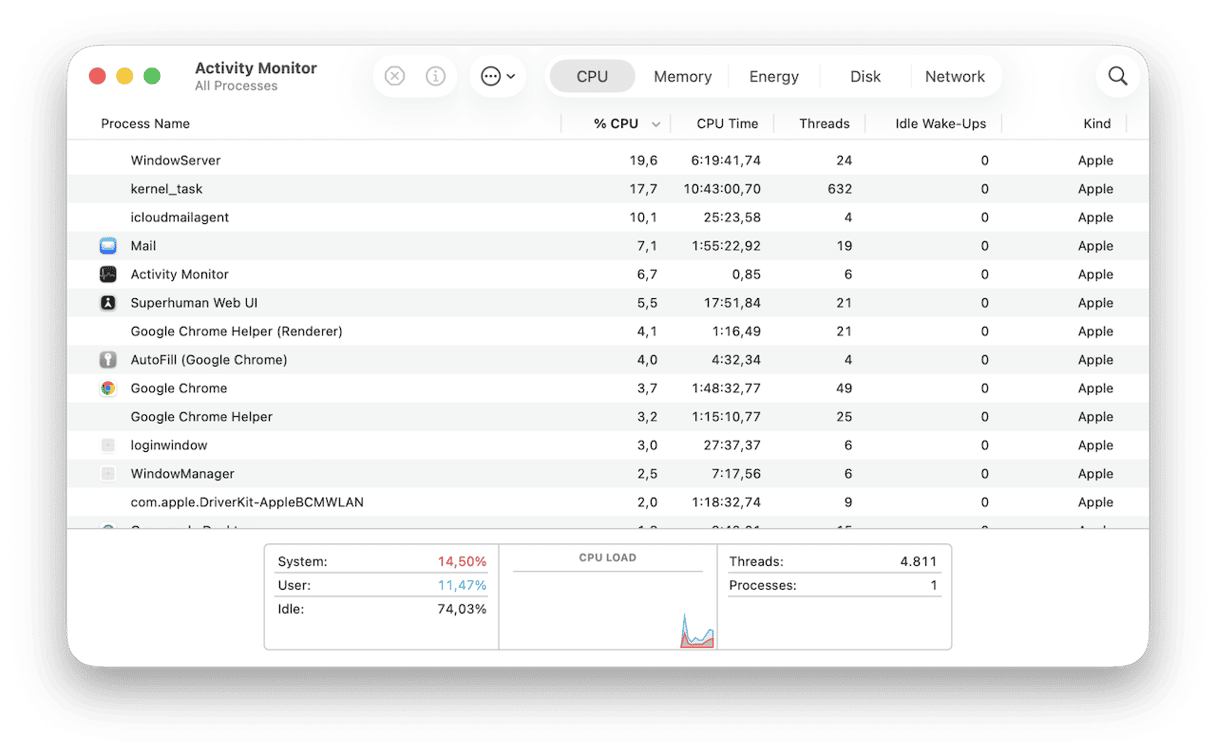
- Open Activity Monitor from Applications > Utilities.
- Check CPU and Network tabs for apps using excessive resources or bandwidth.
- Pause iCloud sync and Time Machine, or any large downloads.
- Close down any unused browser tabs.
9. Try a different browser
If YouTube is slow in Chrome, then if you haven’t already, try another browser. Safari tends to be more power-efficient for video on Apple silicon Macs. If YouTube works better, then the issue is definitely browser-specific (cache, extensions, or hardware acceleration).
Hopefully, one of the fixes above helped speed up YouTube. If still no luck or YouTube stopped loading altogether, jump to this article for more tips.
Frequently asked questions
Why is YouTube buffering when my internet is fast?
Sadly, fast internet alone doesn’t guarantee smooth YouTube playback. I’ve detailed the most common causes like cache, extensions, and even iCloud Relay above.
Why does YouTube keep buffering in Safari on Mac?
It is mainly because of content blockers interfering with YouTube, browser cache buildup, or iCloud Private Relay. To fix it, clear the cache and disable iCloud Private Relay as described in the article. And you can disable content blockers in Safari > Settings for youtube.com (you can access it when YouTube is open in a tab).
How do I fix YouTube lag on Mac?
I’d start by lowering YouTube quality to 1080p, disabling iCloud Private Relay, and clearing your browser cache.
Does iCloud Private Relay slow down YouTube on Mac?
Surprisingly, it can. Private Relay basically masks your IP address in a way that can confuse YouTube’s regional servers, causing slow loading or errors.
Which browser is best for YouTube on Mac?
I’d say Safari is generally the best for video playback on Apple silicon Macs; it uses less CPU and battery than Chrome.