
Have you had a problem with the macOS Golden Gate download getting stuck? It happened to me too. I excitedly clicked Update Now to upgrade my Mac right away, and at first, everything seemed ok. Then it stalled. Nothing seemed to happen, it just sat there, stuck. I tried out lots of different solutions until finally, I found one that worked. In this article, I’ll show you what worked for me and explain why the macOS Golden Gate sometimes gets stuck.
Why is my macOS Golden Gate download stuck?
One of the most frustrating aspects of the download getting stuck is that it’s not immediately obvious that anything is wrong. It’s difficult to see if progress is stuck or if it’s just moving very slowly. Already, there have been reports of multiple different issues when a download gets stuck. These can be caused by the following problems.
- Corrupt or partial installer files from a previous attempt.
- Not enough free disk space – Golden Gate needs 35 GB minimum.
- Stuck background processes (softwareupdated, installd)
- An interruption to your internet connection mid-download or mid-verification.
How to fix it when macOS Golden Gate download is stuck
The first step to fixing the problem will depend on whether your Mac is completely frozen. If it is, follow the steps below.
- Press and hold the power button for at least 10 seconds.
- After it powers off, wait another 10 seconds.
- Press the power button to turn your Mac back on.
If your Mac boots back to its normal state, or if it was never frozen, you can continue troubleshooting by following the steps below. If it boots back to the frozen installer, you should try booting it in safe mode.
1. Force-quit the installer and clear stuck update cache
If you didn't have to reboot your Mac because it was frozen, the first thing to do is to quit the installer (Command-Q) and clear the stuck update’s cache. Old cache files from failed attempts are often the cause of future failures.
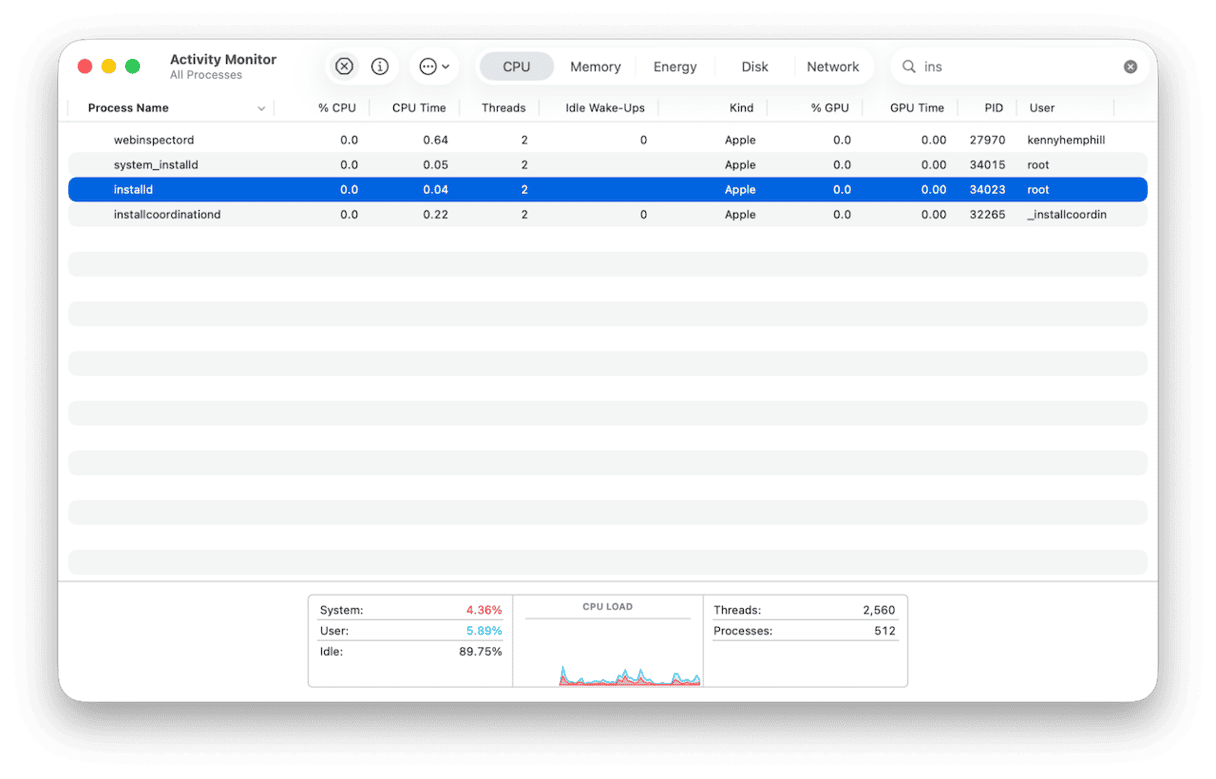
- Go to Applications > Utilities and launch Activity Monitor. Look for processes called ‘installer', 'softwareupdated', or ‘installd’. If one of them appears to be stuck, select it and click the ‘x’ in the toolbar.
- Click on the Finder in the Dock, then press Command-Shift-G. In the text box, type ‘ /Library/Updates’ and press Return. Delete anything you find in that folder. Next, search for /macOS Install Data on your drive (Macintosh HD) and delete that if you find it. Restart your Mac.
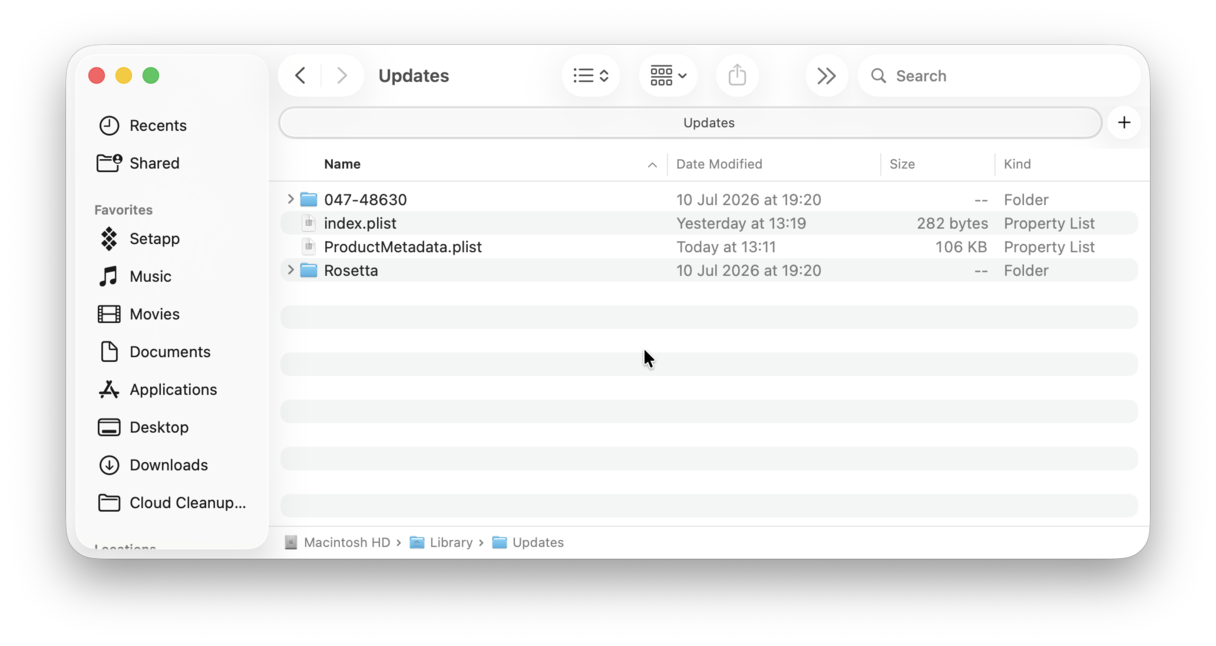
This step fixed a stuck macOS update for me, so it’s worth trying before you do anything else.
2. Free up disk space
macOS Golden Gate needs around 35 GB of free disk space to install. If you have less than that, the installation could fail, and it won’t give a clear indication as to why. To check how much free space you have, go to System Settings > General > Storage and check how much free storage there is on your Mac.
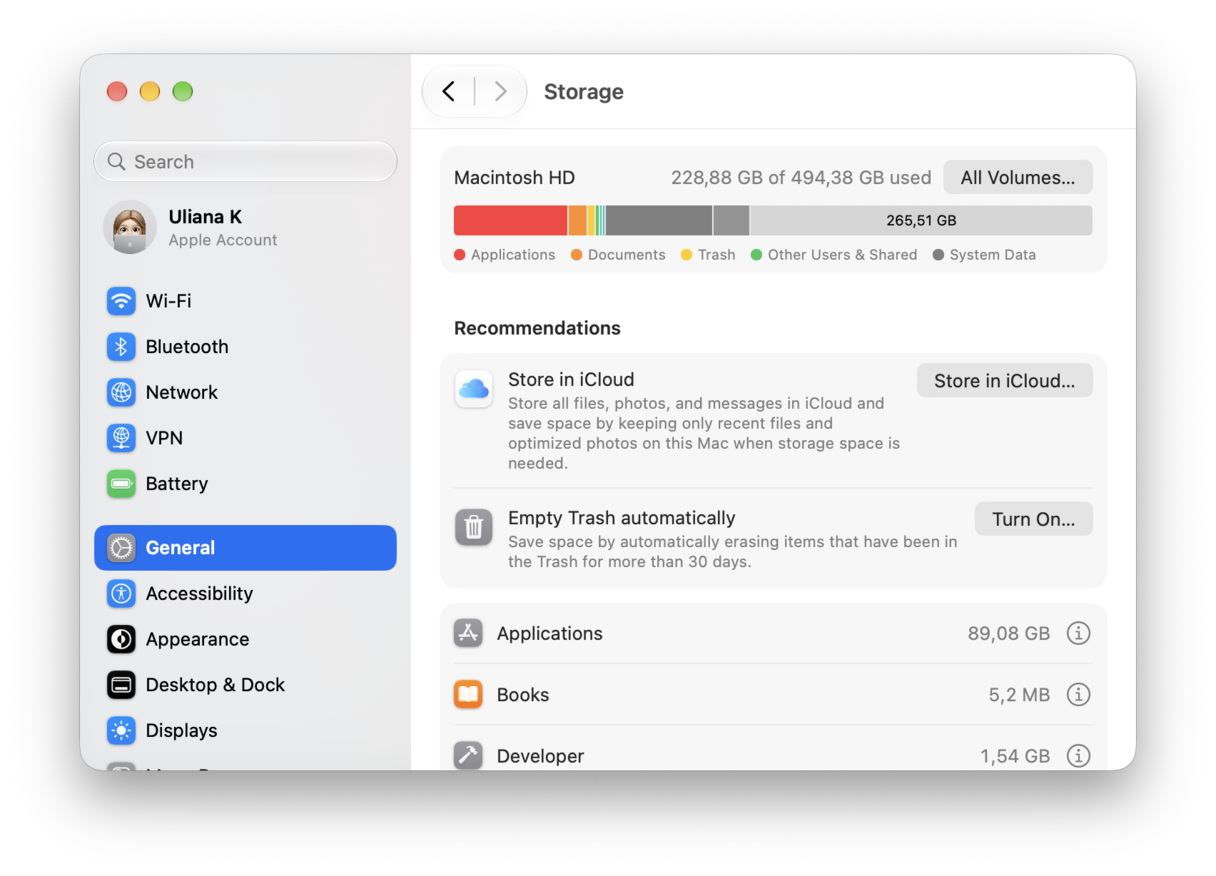
If there is less than 35 GB, you need to clear some more space. The recommendations in System Settings > General > Storage are a good place to start, but it may not be enough.
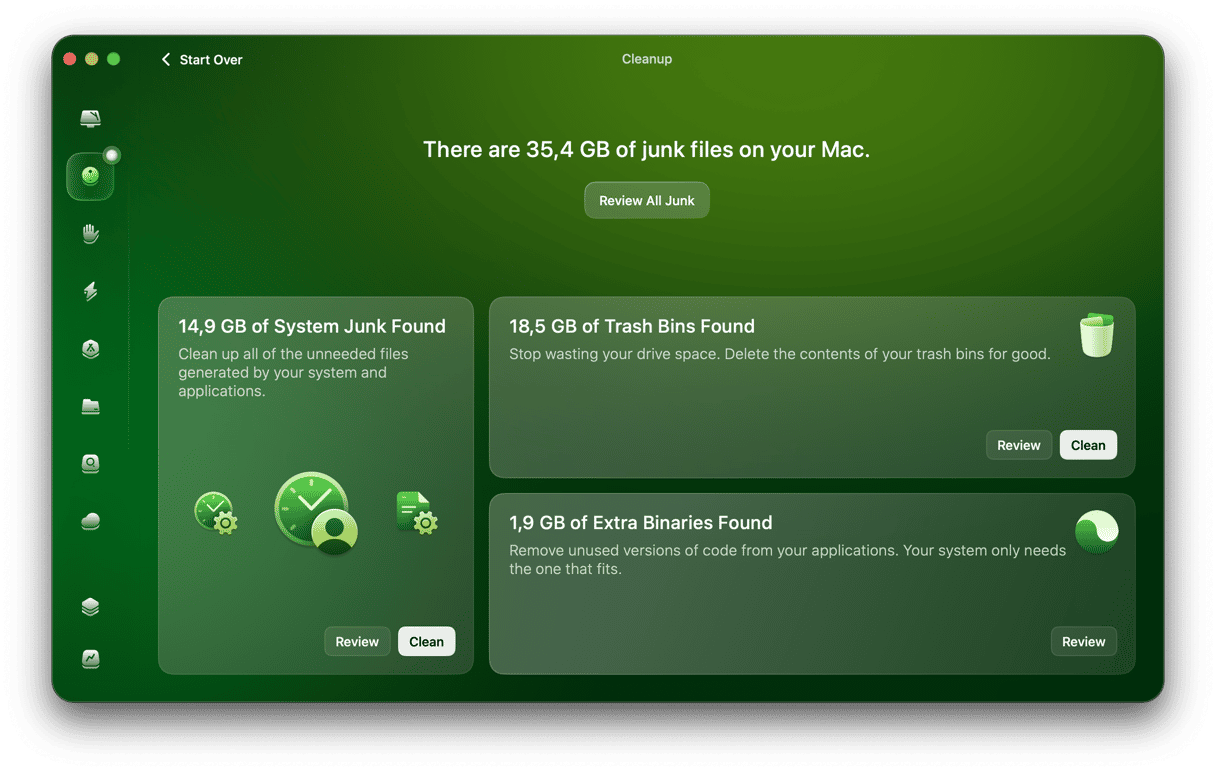
Freeing up more space after that is tricky. You need to go through the folders on your Mac hunting for files to move or delete. Getting rid of junk files, duplicates, and multiple versions of files and photos that are very similar is a great way to clear space, but it’s time-consuming and difficult. That’s where CleanMyMac comes in. CleanMyMac’s Cleanup feature does all the hard work for you. It scans your Mac looking for all those files you don’t need and didn’t even realize were there and allows you to review what it has found, or get rid of everything with a click. It’s the fastest way to recover space without manually hunting through system folders.
Here’s how it works:
- Start your free CleanMyMac trial — you can test it for 7 days at zero cost.
- Open the app and choose Cleanup in the sidebar.
- Click Scan.
- When it’s done, review its findings using Review All Junk.
- Select what you want to delete and click Clean Up.
- After that, run the My Clutter scan to remove similar images, large and old files, and duplicates.
For more tips on reclaiming space manually, check out these articles about how to free up disk space on Mac and how to uninstall apps on Mac.
3. Reset the Software Update catalog via Terminal
If Software Update seems to be stuck in a loop and is spinning endlessly, or if clicking it does nothing at all, the next step is to reset the Software Update catalog.
- Go to Applications > Utilities and launch Terminal.
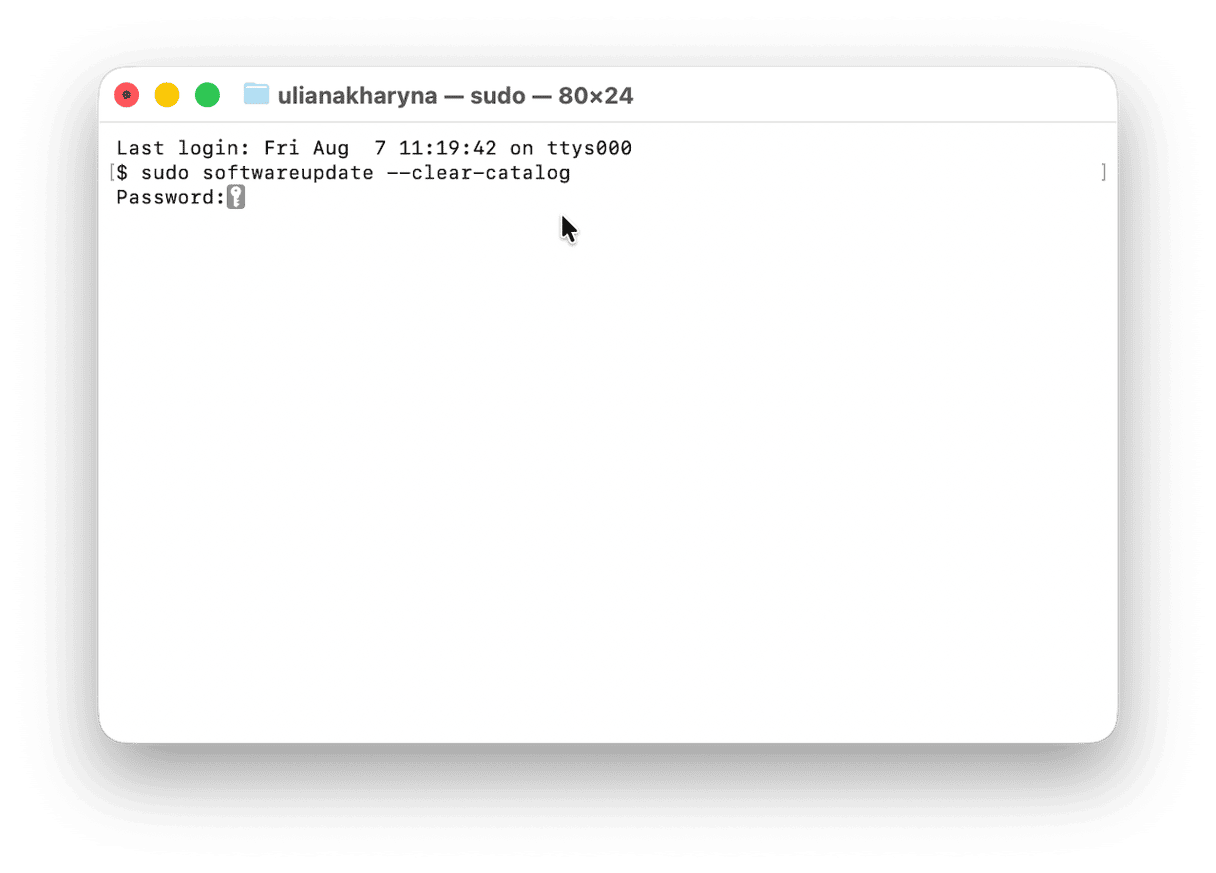
- Type the following command and press Return:
sudo softwareupdate --clear-catalog
You will need to enter your admin password. - Now, type this command and press Return:
sudo softwareupdate --reset-ignored - Quit Terminal and restart your Mac.
- Retry Software Update.
4. Check internet connection and try App Store download
If nothing so far has worked, check that both your Wi-Fi network and broadband connection are working. Once you’ve done that, turn Wi-Fi on your Mac off and then on again from Control Center. Try Software Update again. If it still doesn’t work, go to the App Store and search for macOS Golden Gate and install it from there.
It’s frustrating when macOS Golden Gate gets stuck when you’re trying to download it, but thankfully, it’s usually easy to fix. In most cases, clearing the stuck update cache or freeing up more disk space solves the problem.