

New Macs come with at least 256 GB of storage space, but that is rarely enough. Even users who opt for the 512 GB option often struggle with storage limitations. If you fall in that category, you’re probably wondering how to get extra storage for Mac. Luckily, it’s pretty easy, and we’ll explain the options here along with how to free up space on MacBook.
How to check storage on Mac
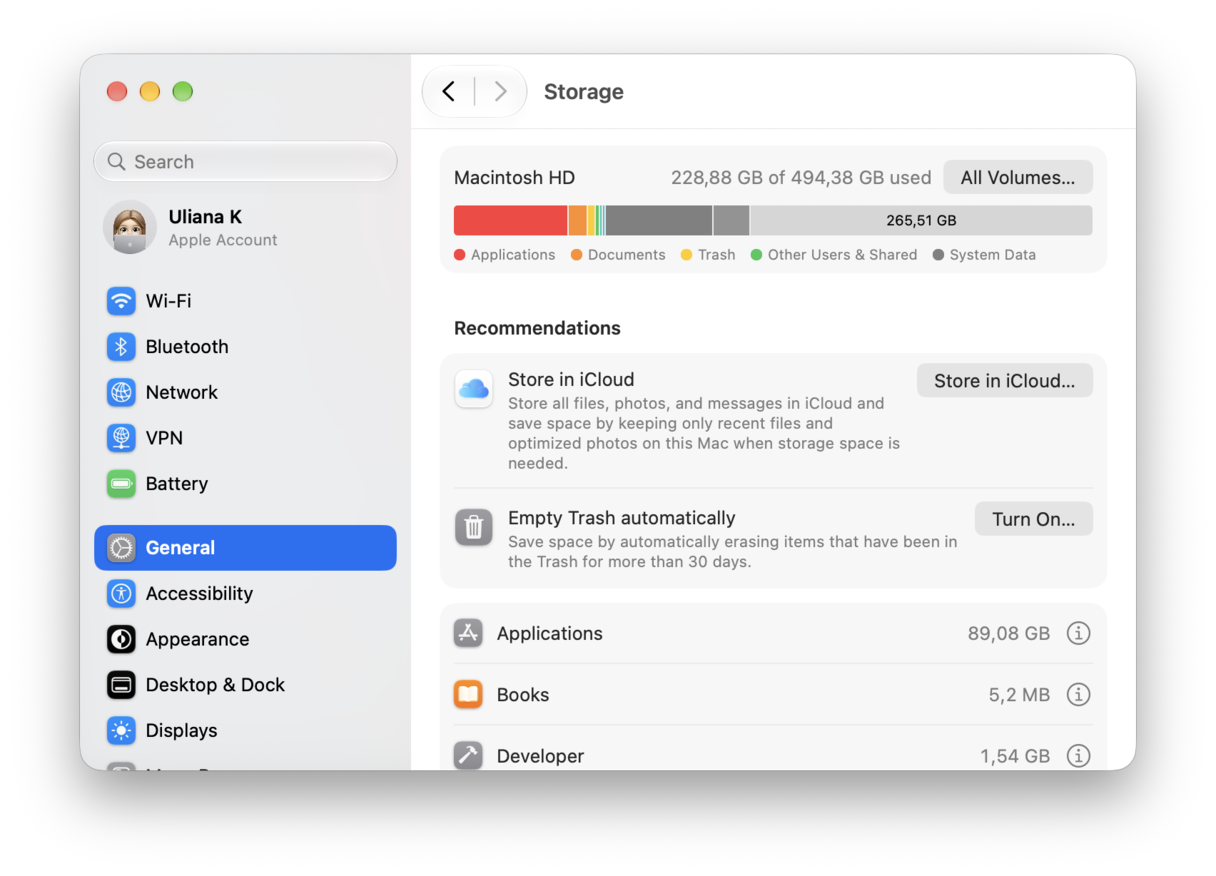
Let's start with the basics — checking storage on Mac. Just go to System Settings > General > Storage and wait for the colored graph to load. You will now get an approximate overview of what is eating up space. For more accurate estimates, check categories under the bar.
Why add more storage?
The obvious answer is that your Mac doesn’t have enough. If you have lots of photos in your Photos Library, for example, that can very easily run to tens of gigabytes. And if you use your Mac to edit videos or photos, you will quickly run up against storage limitations on an older 128 GB model or even a new Mac with 256/512 GB of storage. For many users, the first time they realize that they are running short of storage is when they try to update macOS and get a message telling them there is not enough space to install the update.
Besides, a full Mac is slower than a MacBook that has at least 15% of the total capacity free. Some apps may also crash or freeze.
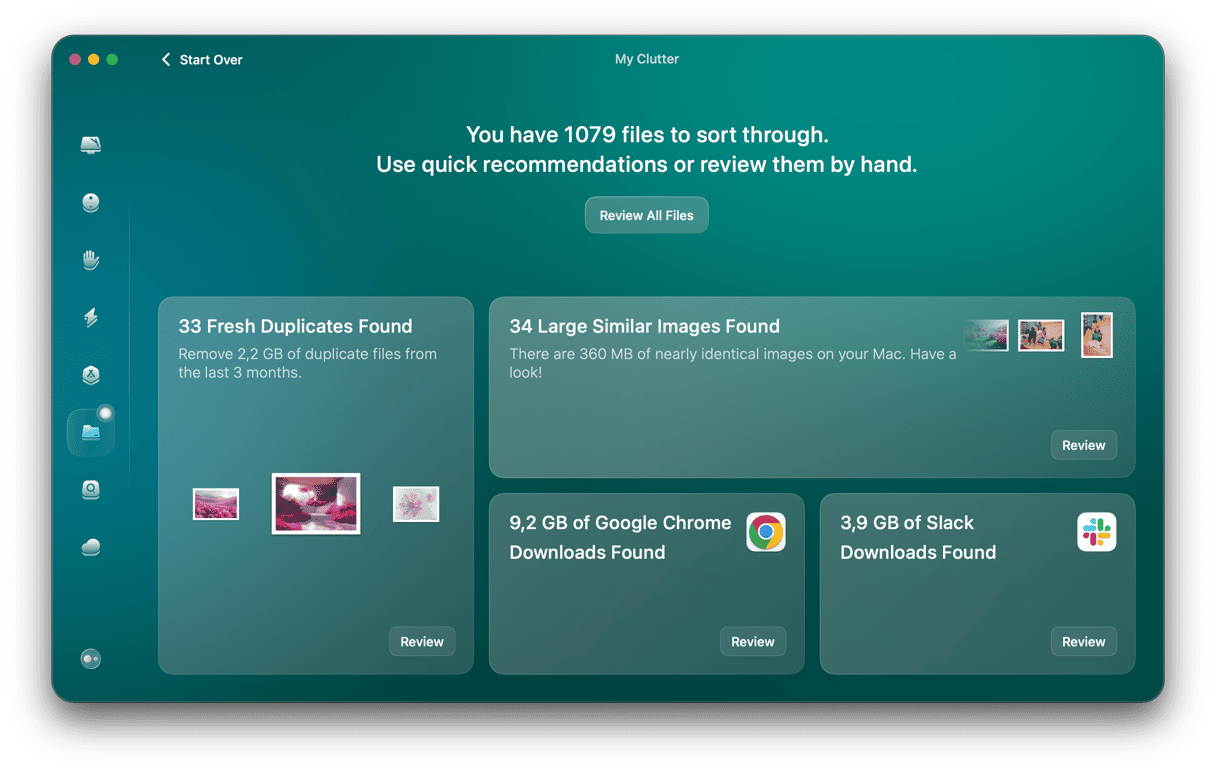
As well as adding extra storage for Mac, it’s a good idea to free up the existing storage. The quickest way to do that is to identify the files that take up the most space or those that you haven’t opened for a long time. However, that’s not easy to do manually. Fortunately, CleanMyMac’s My Clutter tool can do it for you. It scans your Mac and then shows you the largest and oldest files on your Mac as well as duplicates and similar images. You can then copy them somewhere else or delete them. Get your free CleanMyMac trial — see it in action on your Mac. For more tips on how to free up space on MacBook, keep on reading.
Options to upgrade storage on your Mac
So, how to increase Mac storage? There was a time when adding internal storage to a Mac was a realistic option for many Mac users, either by using a spare drive bay in a tower Mac or by replacing the existing hard drive with a larger one. Even with the early SSD MacBook Pros, it was possible to upgrade the internal SSD with the help of an authorized service center. However, in recent years, this has become, if not impossible, then so expensive and time-consuming as to render it unrealistic.
A cloud storage
Some users see cloud storage as a way of adding extra space. However, iCloud Drive, Dropbox, and Google Drive all mirror their contents locally on your Mac, so storing files there doesn’t move them off your Mac. You could use other online storage options to add more space. But this is more suitable for backing up or archiving files than for files you need regular access to.
Instead, the most convenient and often cost-effective method of adding extra storage is to connect an external hard drive or SSD directly to your Mac or to your local network.
External hard disk or SSD
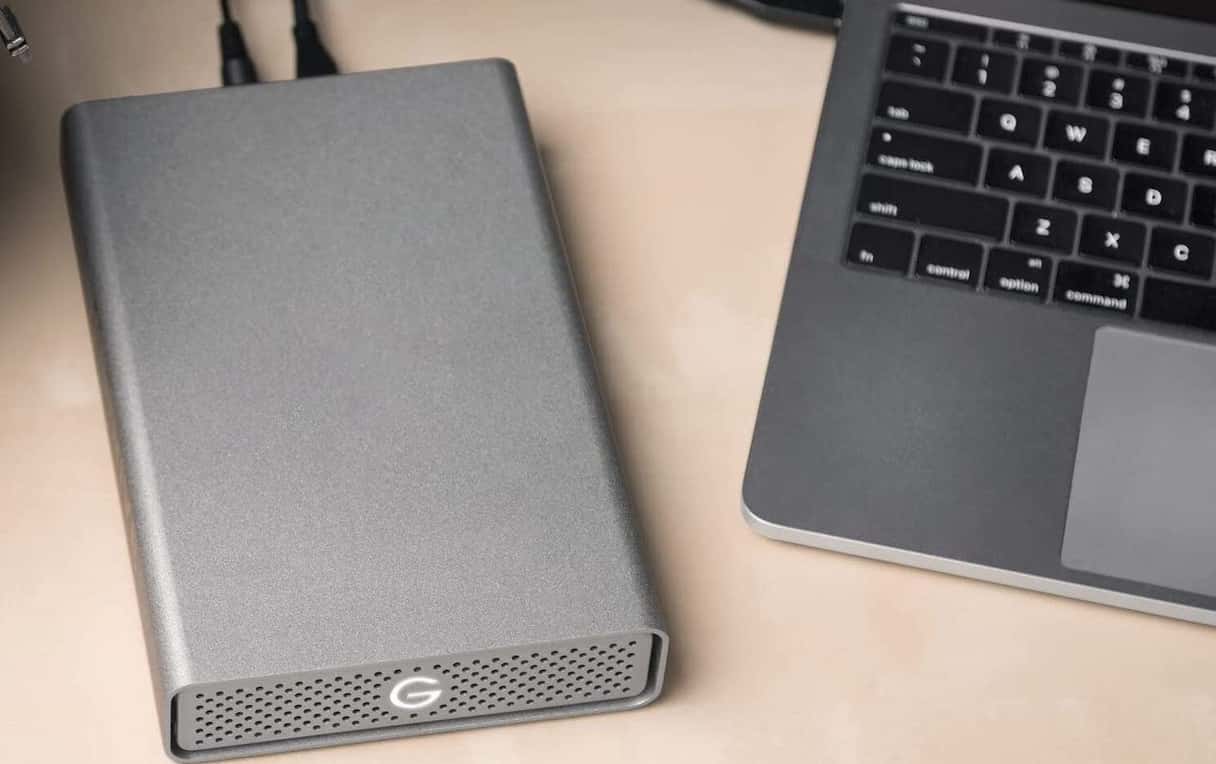
If you have a desktop Mac like an iMac, Mac Studio, or Mac mini, adding an external disk is easy. And because you can keep it connected permanently and set it on your desk, you can choose either a large 3.5in disk or a 2.5in portable disk. A hard disk will give you more space for your money, while an SSD is much faster and more reliable.
If you have a MacBook Pro or MacBook Air, a portable disk makes much more sense, as you can throw it in your laptop bag and use it wherever you use your MacBook. Portable disks are powered by your Mac, so you don’t even need a plug socket for it.
We suggest investing in a 1 TB external drive. You can then use it to back up your Mac, send unneeded files to this drive, or even store your Photos and Music libraries there. To do it, you will have to check Photos/Music Settings (General in Photos and Files in Music). You can buy an external drive on Amazon or in any local computer shop.
You can choose any manufacturer, but we recommend choosing between SanDisk, Samsung, and Crucial. No matter which one you buy, you will have to format it into a Mac-compatible format — APFS. Just connect it to your Mac, open Disk Utility, select the drive from the sidebar, and click Erase. Then, fill in all the details and hit Erase.
Network disk
A network-attached storage device (NAS) is also a good MacBook storage upgrade option. You can connect it to your router, leave it running all the time, and then access it wirelessly from your Mac. It’s also a good option if you want to share files with other devices on your network. And you can even access files on it when you’re away from home. On the downside, copying data to and from a NAS is slower than using a disk directly connected to your Mac.
Some options to choose from include TerraMaster F8 SSD Plus, Synology DiskStation DS925+, Ugreen NASync DXP2800 or DXP4800, or Western Digital My Cloud EX2 Ultra. They are available on Amazon or in local shops.
USB stick
If you’re wondering how to buy more storage on Mac, consider investing in a USB stick. While USB sticks are mostly used for moving files between computers or carrying data around, these days, affordable USB sticks have as much storage as the base storage on a Mac. This makes them a viable solution for adding extra storage. On a desktop Mac, you can keep one plugged in permanently, or you can keep it in your laptop bag if you use a MacBook. They’re as fast as an SSD and don’t draw much power. You can choose any manufacturer, like SanDisk, Samsung, or Kingston.
As you see, all options above require an additional investment. So why not try to get more storage on Mac by reclaiming it? Here are the most effective tips to try. You can always return to one of the above if you fail to free up enough space.
How to free up space on Mac
1. Use the built-in Optimize Storage feature
macOS comes with a built-in tool that lets you quickly reclaim some space. Here’s how it works:
- Go to System Settings > General > Storage.
- Wait for the colored graph to load and check Recommendations under the bar.
- Read what each option does and enable what works for you. We recommend turning on one that empties Trash automatically after 30 days and the other that offloads files to iCloud.
- Now, click an i next to each category and remove what’s no longer needed.
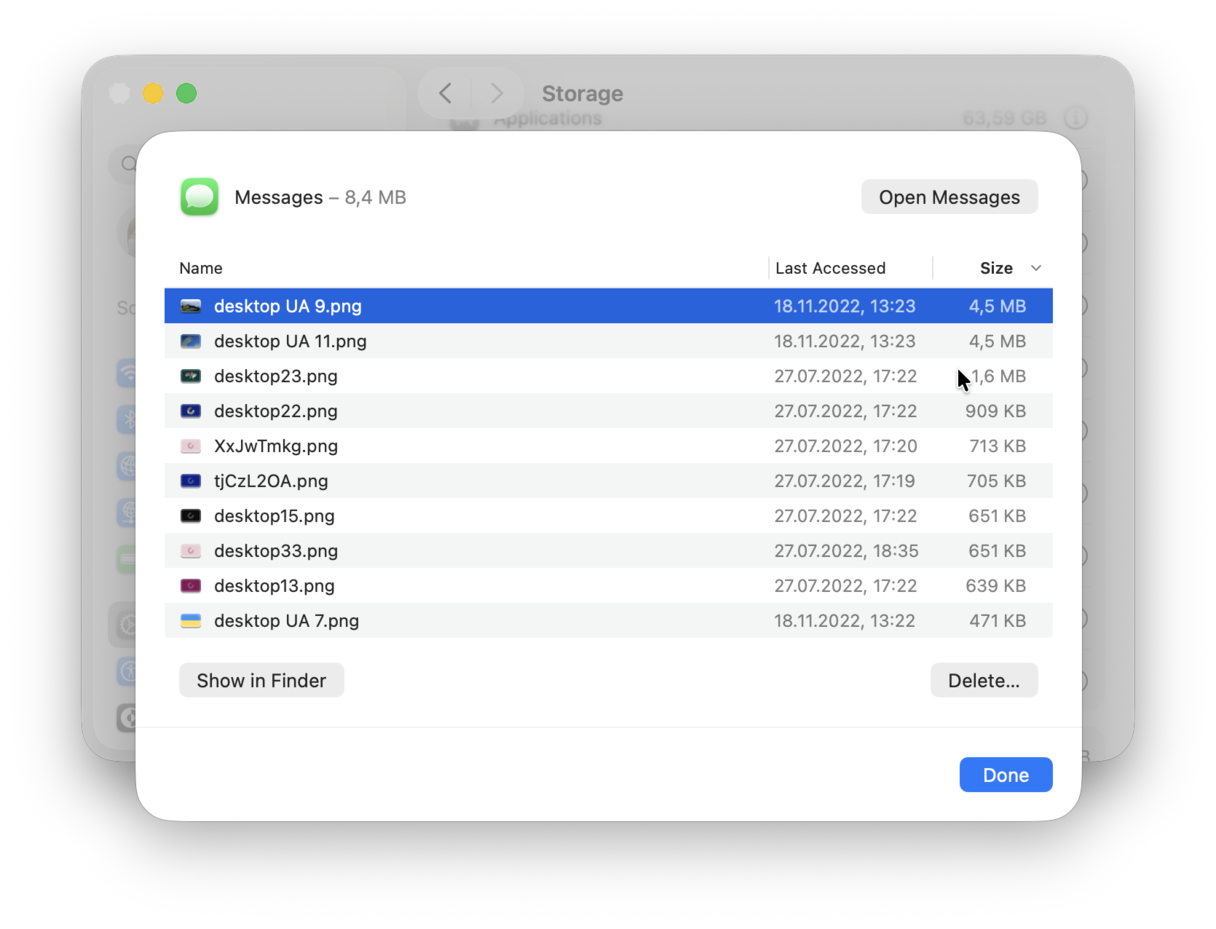
Pay specific attention to Documents, Messages, Mail, Music Creation, and Applications.
If that seems like a lot of work, there’s an easier way — just jump to the next tip.
2. Use a Mac cleaner app
Did you know your Mac accumulates gigabytes of junk files like leftover caches and forgotten temporary files? Finding and deleting these manually can be time-consuming. There is a simple way to do it, though. CleanMyMac’s Cleanup feature scans your Mac, finds all those files, and lets you review and remove everything with a click. It also lets you remove Mail attachments — another known space eater. Get started with a free CleanMyMac trial.
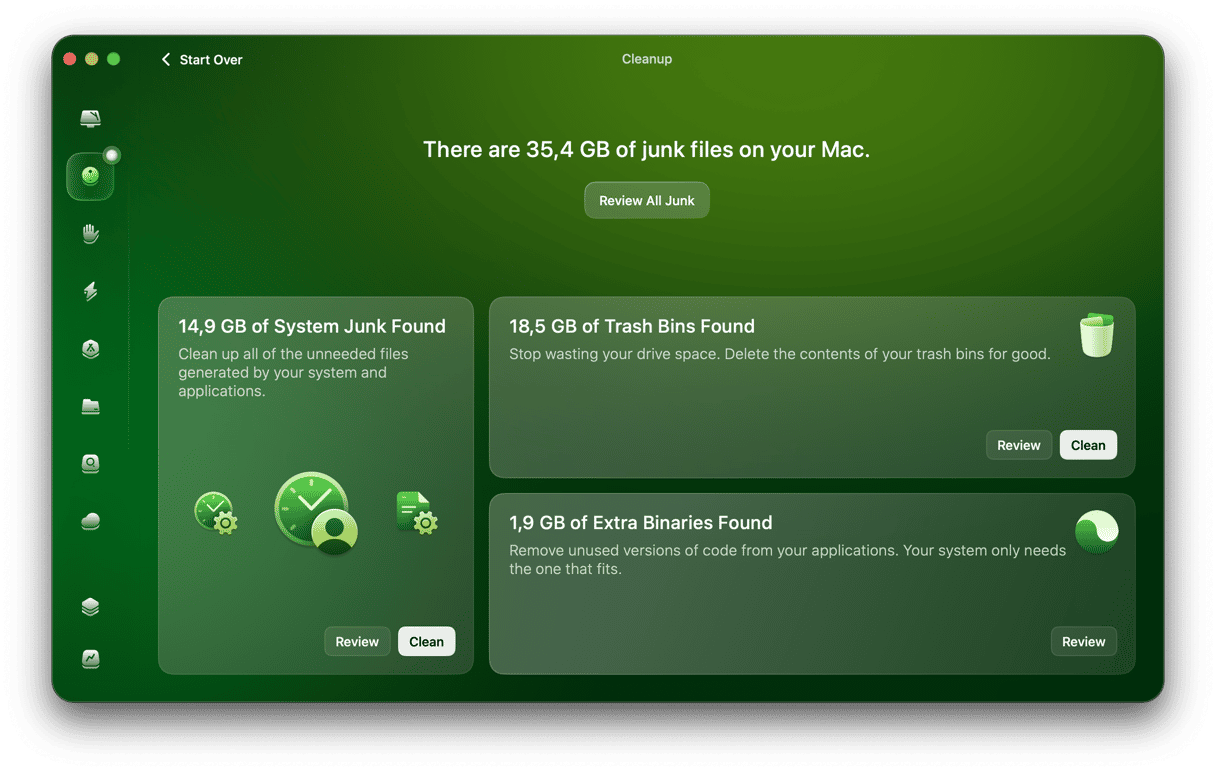
In addition to the Cleanup and My Clutter features, you can use a few other tools to keep your Mac decluttered:
📌 Applications to completely uninstall apps (dragging an app icon to the Trash leaves tons of files behind, so it makes little sense in terms of reclaiming space)
📌 Space Lens to visualize the storage space and see the largest space eaters and quickly remove them
📌 Cloud Cleanup to declutter your cloud storage in case you use it
The benefits of using CleanMyMac
- On average, users find and remove over 10 GB of safe-to-delete junk files in under 15 seconds
- Comes with 25+ tools to declutter, optimize, and protect your MacBook
- Trusted by users in 180+ countries, with a Trustpilot rating of 4.7/5
- Offers a free 7-day trial — you can test all tools without any limits
Try CleanMyMac for free — see how easy it is to keep your Mac clutter-free and optimized with its help.
3. Clean up clutter
The last tip is to remove all unnecessary stuff. By now, you should have deleted most space hoggers, but here are a few more ideas for reclaiming space:
✅ Clear browser cache (Settings > Privacy & Security > browser/cookies and site data in Chrome & Firefox or Develop > Empty Caches in Safari).
✅ Declutter your desktop (especially if you use Stacks — check what's been hidden for months).
✅ Clean up the Downloads folder (pay specific attention to .dmg and .plg files).
✅ Remove old iOS backups in ~/Library/Application Support/MobileSync/Backup (make sure to keep the latest one)
✅ Empty the Trash.
Running out of storage space is a common occurrence, especially for owners of Macs that have 128GB or 256GB capacities. There are two ways to deal with the problem: you can either clear out files and make more space on your boot disk or get more storage. If you choose the latter, you have a number of options, but for most people, it means connecting either a desktop or portable drive to your Mac. Read the advice above and decide which is best for you.



