

Golden Gate battery drain is a real thing. I noticed it myself shortly after install, and although I know it’s to be somewhat expected after an update, this felt different, much more than when I first installed Tahoe. The more I looked into it, I soon started to realize it’s probably because of all the new AI features, Liquid Glass refinements, and even the new Spotlight reindexing improvements.
Might not seem like much, but they are all contributing to the drain. If this all sounds familiar, then keep on reading; I’ve got some easy fixes.
Is macOS Golden Gate battery life really draining?
You’re definitely not imagining it; the internet is rife with threads from users reporting the same issue, and I've experienced it firsthand myself.
Like I said in the intro, some drain is totally to be expected, but it’s usually only temporary, and that's down to the fact that Spotlight needs to reindex and even your Photos Library, so until that’s complete, you’ll notice a bit more CPU usage and battery drain.
The thing is with macOS Golden Gate battery drain, there’s even more at play now. You’ve got all the new Apple Intelligence background processes running, even when you’re not actively using them, plus the Liquid Glass UI effects will add extra burden to your GPU.
Then there’s stuff like Login items and background apps; often, after a major update, they need to be checked because many can re-enable themselves, even if you have them switched off pre-upgrade.
Anyway, I’ve got six fixes below for you that should really help.
How to fix macOS Golden Gate battery drain
Work your way through these tips one-by-one.
1. Wait it out
Probably not what you expected to see in this list, but macOS Golden Gate draining battery in most cases is quite normal while Spotlight and Photos reindex. Depending on your setup, this can take anywhere between 24–48 hours. Waiting it out is, in my opinion, the most logical option. Let it do its thing, and you can check this by typing a few characters in the Spotlight bar. If you see the word Indexing in the progress bar, then you know it’s still busy.
Once this is finished, you should notice an improvement in battery life and general speed.
2. Clean up all your old system junk
If it’s been a while since you last tidied up cache, app leftovers, even stuff like system logs and language files, then that could actually be causing CPU overload. If you use the Cleanup feature from CleanMyMac, it can find all of this stuff in literally a few clicks. You can test the app for 7 days — get your free trial here.
Then, just open it up > Cleanup > Scan > Clean.
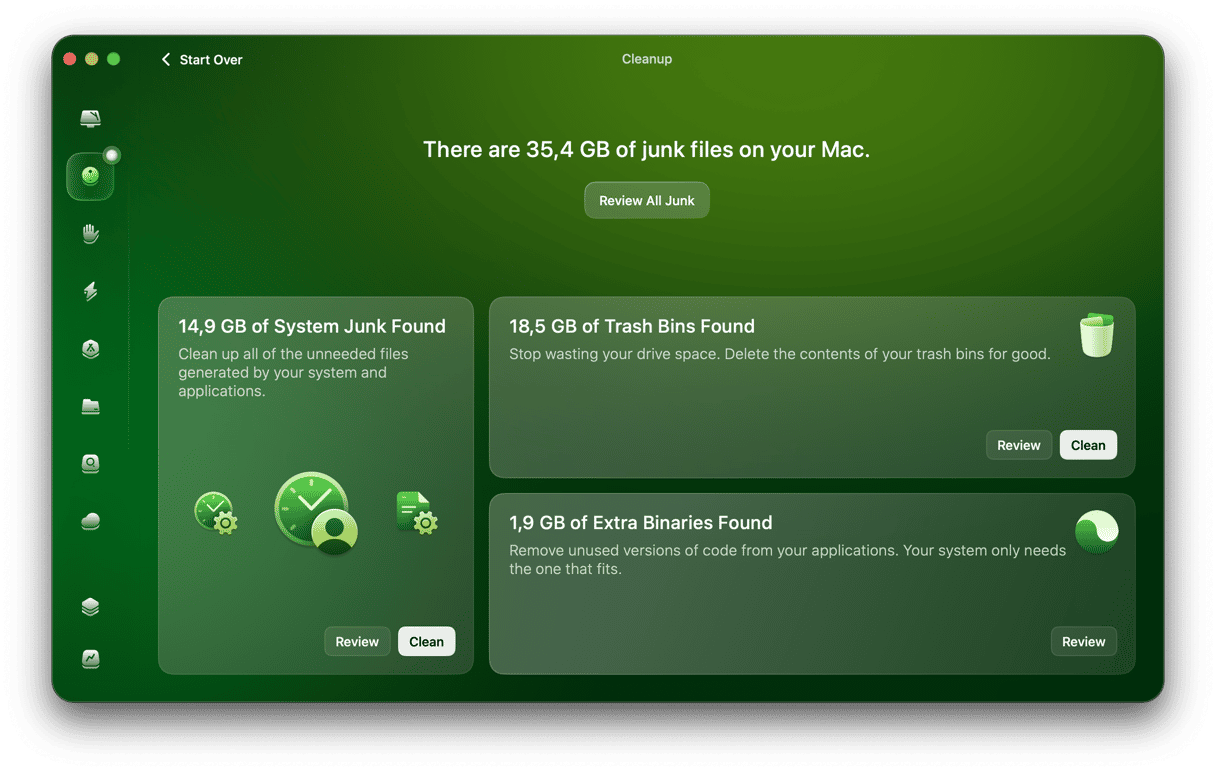
This is pretty useful to do after any major system upgrade; you should feel the difference instantly.
3. Disable or limit Apple Intelligence features you don't use
After upgrading and playing around a little with some of the new Golden Gate AI features, it’s worth really taking note of what you’re going to use, and what you're not.
Go to your System Settings > Siri, then look at turning off live summaries, even background analysis in Photos, and writing tools that you don't use.
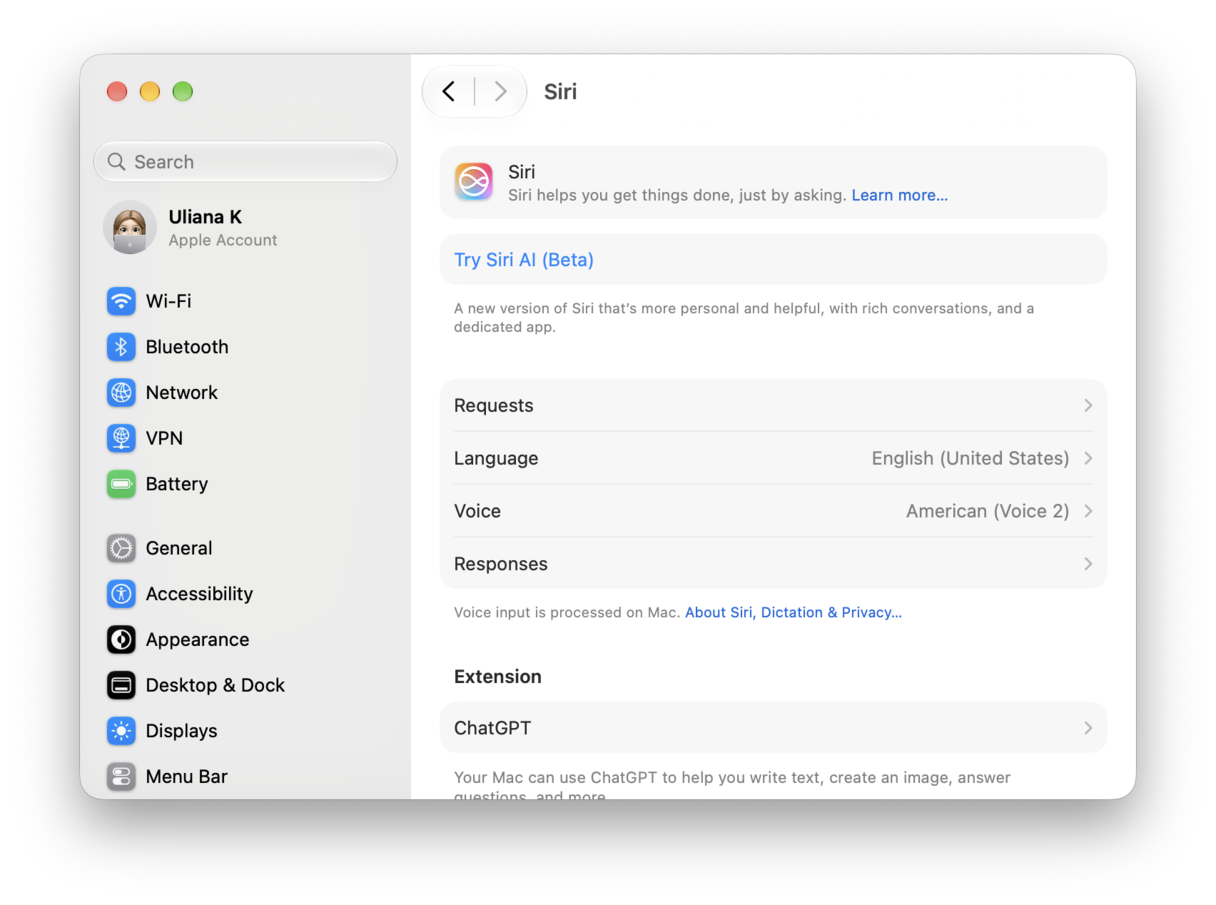
It’s easy to miss, but Golden Gate's AI is even more deeply integrated than Tahoe, so selective disabling will make a big difference.
4. Remove unnecessary login items
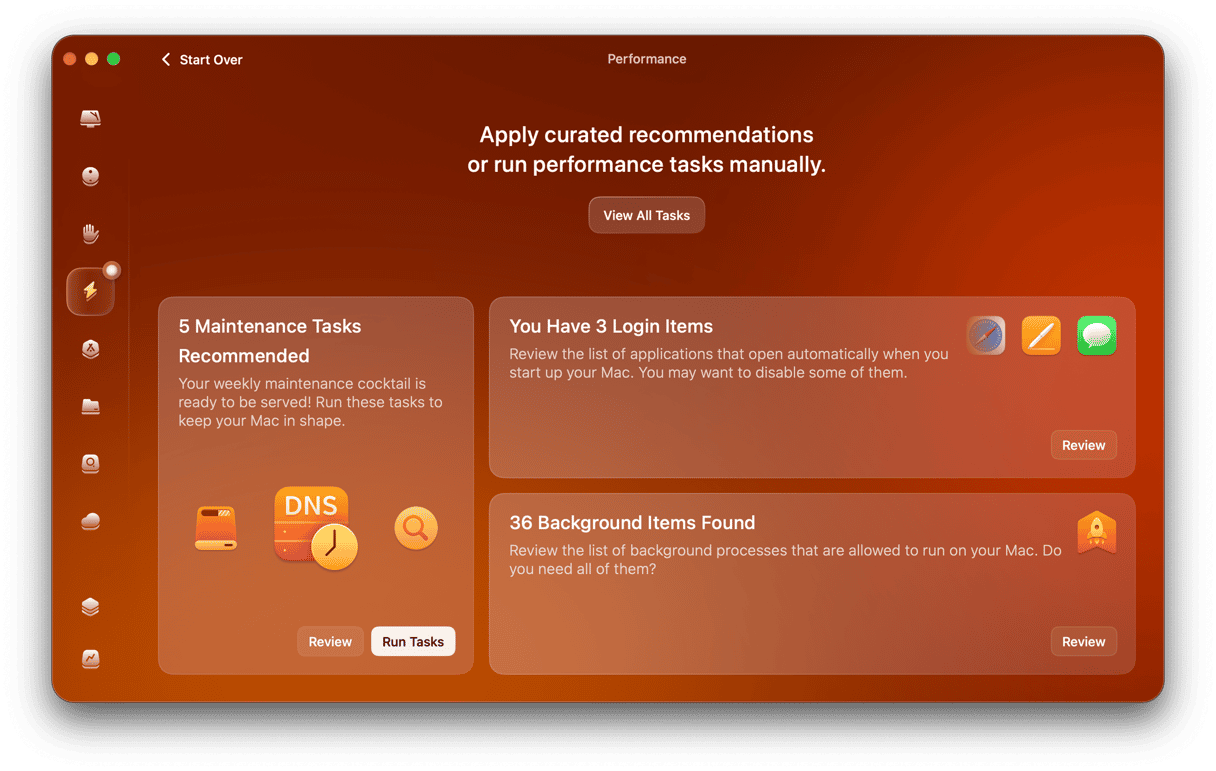
After a big OS update, it’s not unusual for apps and old utilities to sneak their way back into your login items. So suddenly your resources are weighed down each time you boot up, draining power and running silently in the background.
Open up the Performance feature in CleanMyMac and check your login items; you might be surprised what’s running here. Just remove the ones you really don’t need, like Zoom or Dropbox.
5. Reduce Liquid Glass display effects
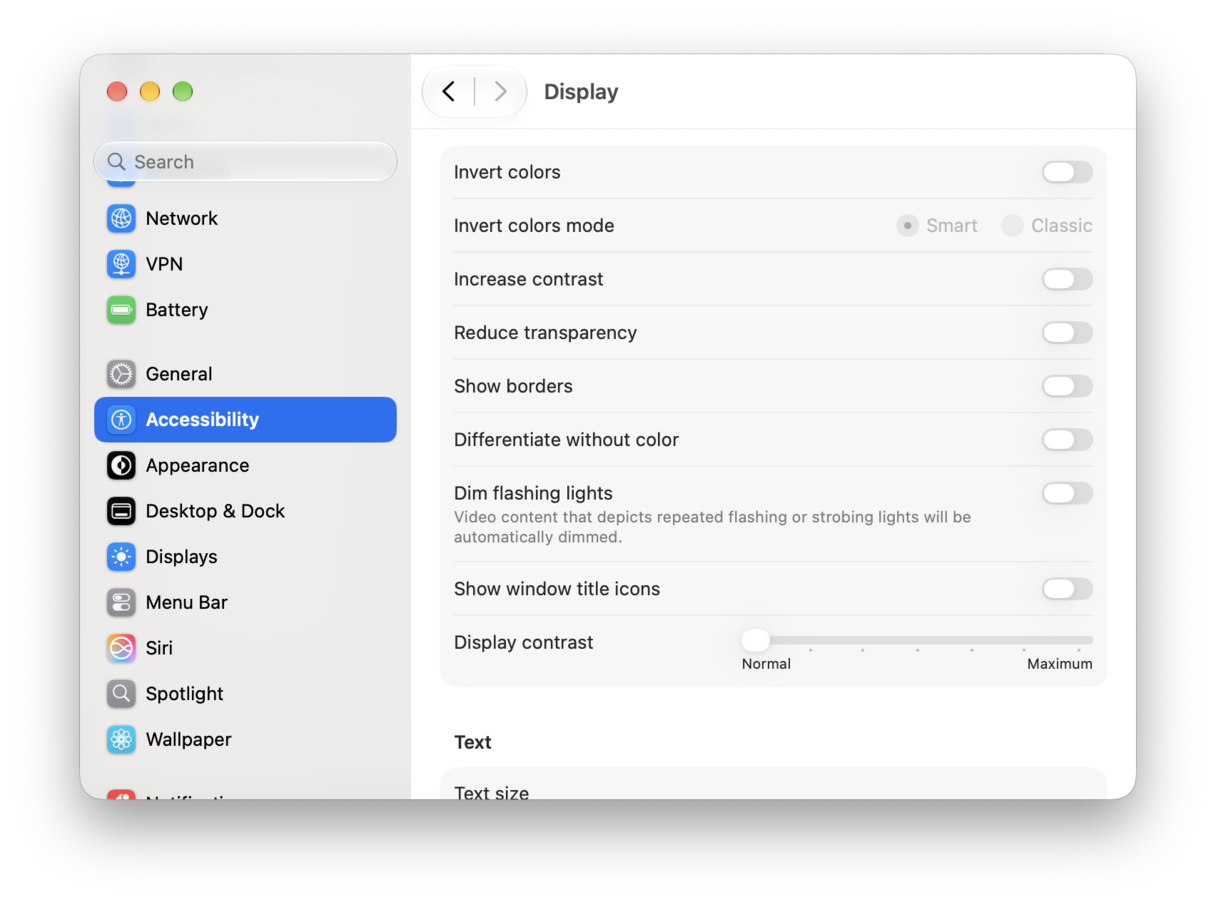
Great on the eye, not necessarily on your battery life. When you reduce the display effects, yes, you might sacrifice some of the visual polish, but it’s sometimes worth it if it means you get more working hours out of your battery.
Just go to your System Settings > Accessibility > Display > enable Reduce Transparency and then Accessibility > Motion > Reduce Motion.
6. Keep macOS Golden Gate updated
This might sound weird to some, but it’s not at all. Apple regularly patches battery-related bugs, so I’d definitely enable auto-updates or check System Settings > General > Software Update regularly.
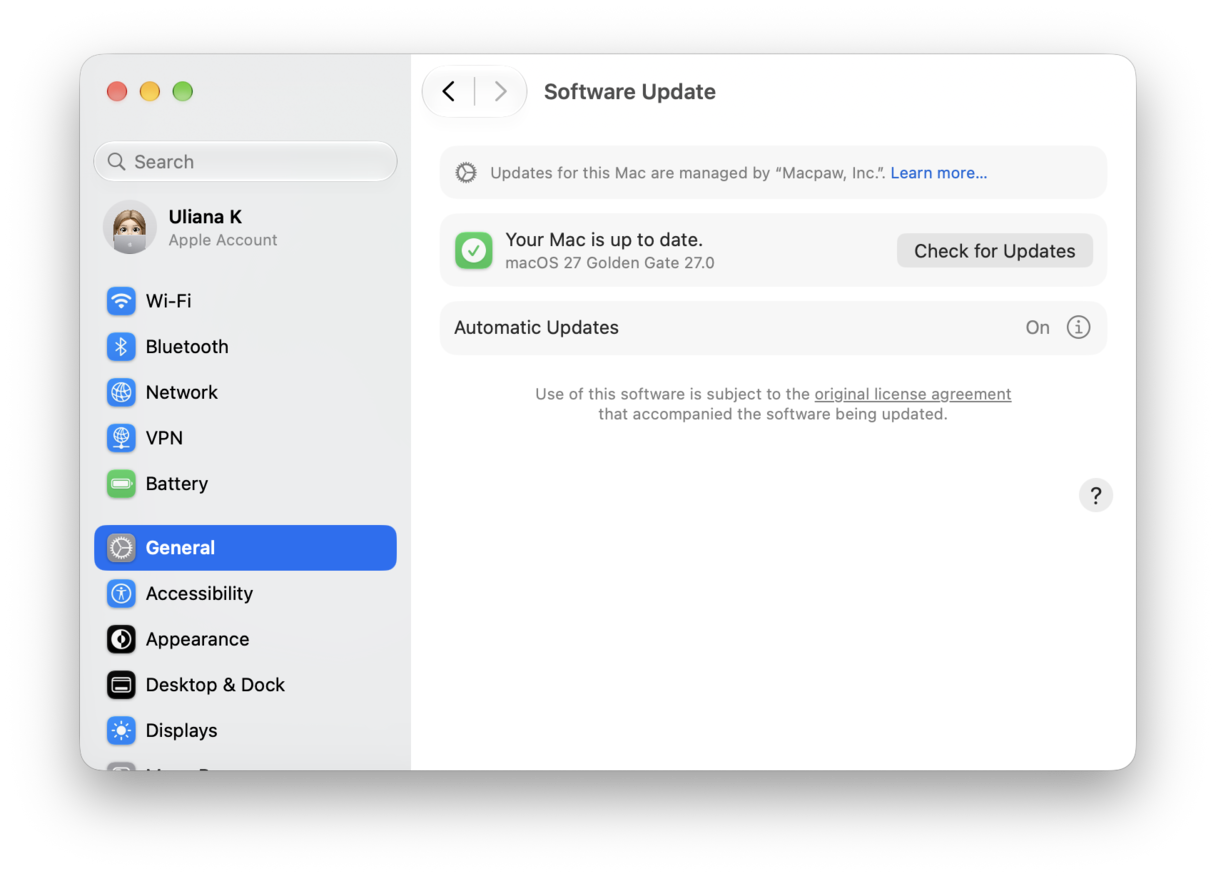
The same happened with Tahoe when that was first released; by 27.1. things had really been improved and fixed.
If you’ve got even more battery concerns, or none of these seem to really help, even after a week of Golden Gate running on your Mac, there’s also an article I found here, with even more useful tips. It’s worth a look.
macOS Golden Gate battery drain during sleep
The Golden Gate sleep drain complaint is a real thing too, and it’s actually known after any major macOS upgrade. There are a couple of quick fixes here. First, make sure all your browsers are properly shut down before you close the lid. Second, enable Low Power Mode in System Settings > Battery, and third, unplug any of your connected external drives and USB hubs.
I also saw this command you can try in Terminal for a kind of deep sleep for your Mac, with improved overnight drain. Just Open Terminal when you’re ready to turn off for the day, and enter this command: sudo pmset -a hibernatemode 25
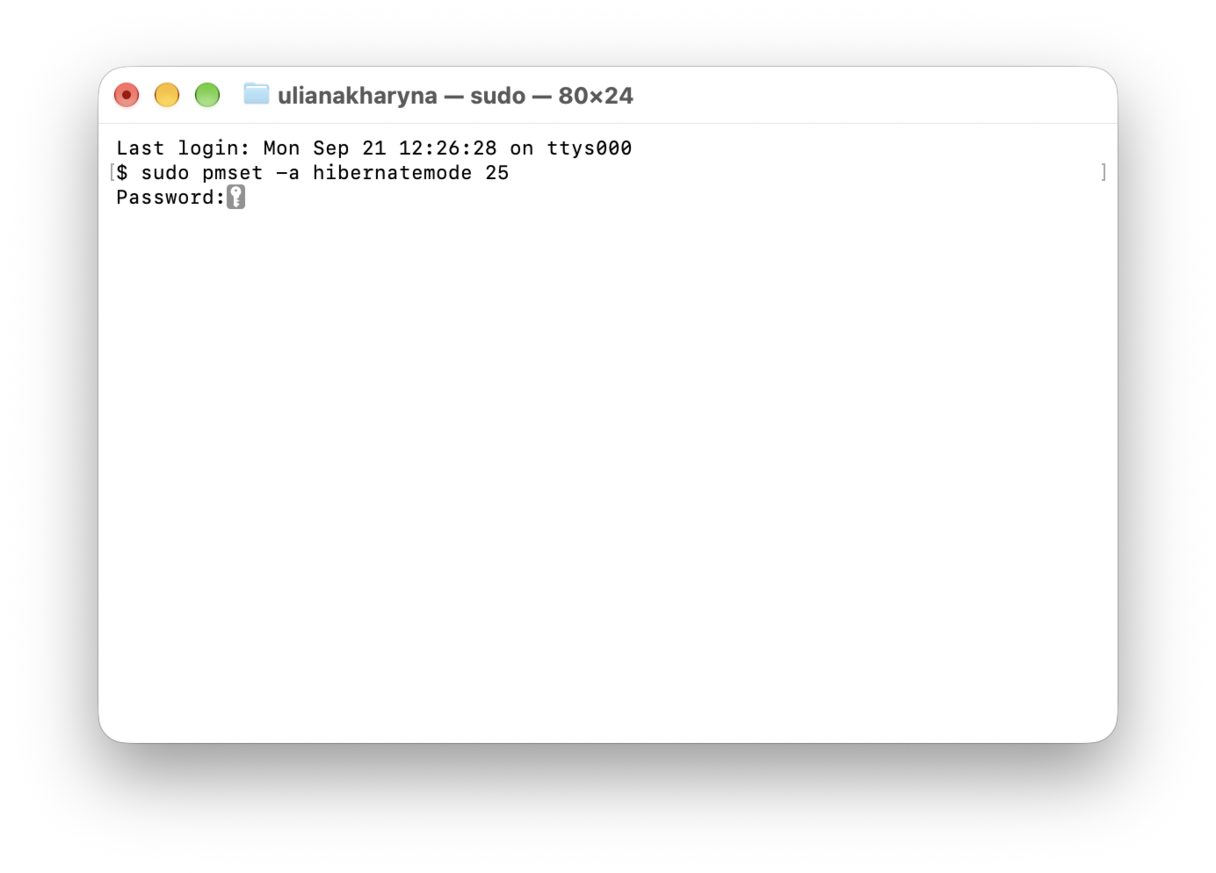
You will need to enter your admin password to run it.
Most Golden Gate battery drain is temporary or fixable. The first few days post-upgrade are always the worst; try out all the fixes in this article, and you should be back up to speed and normal battery usage in no time.